Why is apex so laggy after update? Apex lagging every few seconds, Apex legends lagging with good internet, Apex laggy on PS5 and Xbox. If you encounter these problems, you can find solutions in this blog to quickly address high ping, packet loss, connection instability, and FPS drops. Read on to find step-by-step ways to identify and fix the problems.
Why Is Apex So Laggy? 12 Major Causes
Apex lag can come from many different sources, including your internet, game server, PC hardware, or Windows settings. Before trying any fix, you should first find out what is actually causing the lag.
1. High Ping or Unstable Connection
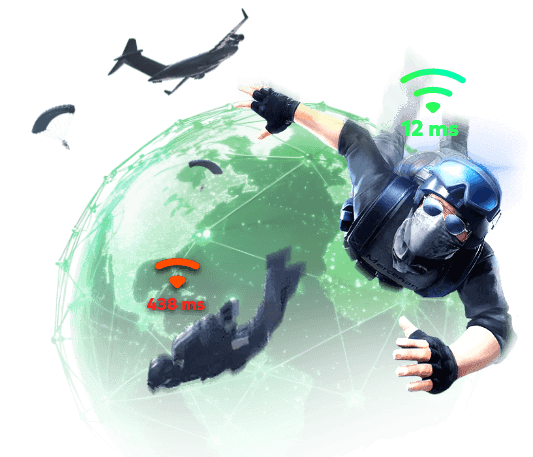
High ping means your game takes longer to communicate with the server. This can cause delayed actions, slow responses, and rubber-banding.
2. Packet Loss
Packet loss happens when game data fails to reach the server properly. You may see players suddenly teleport, freeze, or move backward.
3. Apex Server Problems
Not every lag problem comes from your side. Server outages, maintenance, or heavy traffic can make Apex lag for many players.
4. Weak or Unstable Wi-Fi
A weak Wi-Fi signal can cause high ping and packet loss. Distance from the router and other devices using the network can make it worse.

5. Too Many Background Apps
Browsers, downloads, cloud services, and other apps can use your CPU, RAM, or bandwidth. This can leave fewer resources for Apex.
6. Outdated Network or Graphics Drivers
Outdated drivers may cause compatibility and performance problems. Updating your network and graphics drivers can help keep Apex running properly.
7. Low or Unstable FPS
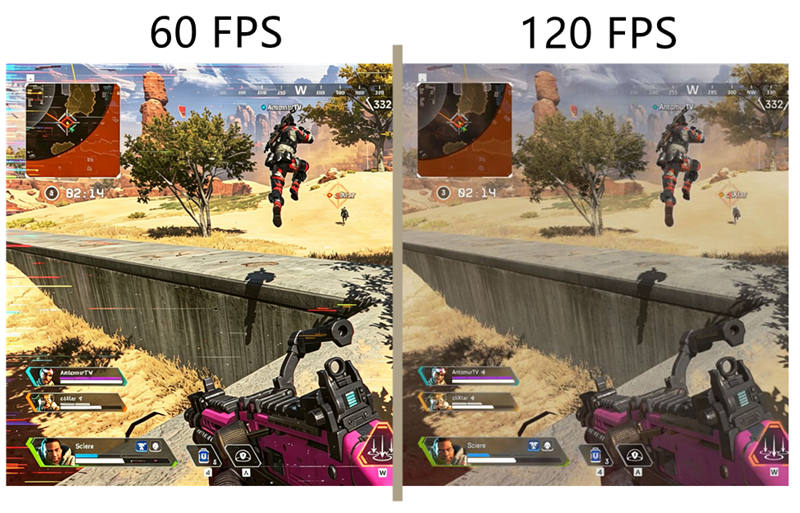
Low FPS makes Apex look choppy, while sudden FPS drops can cause noticeable stuttering. A stable frame rate is important for smooth gameplay.
8. High Graphics Settings
If your graphics settings are too high, your GPU may struggle to keep up. Lowering demanding settings can help improve FPS.
9. CPU, GPU, or RAM Bottlenecks
A component running at or near its limit can become a performance bottleneck. This may result in FPS drops, freezes, or stuttering.
10. Overheating or Thermal Throttling
When your CPU or GPU gets too hot, it may automatically slow down. This can cause performance to drop during longer gaming sessions.
11. Game or Windows Performance Issues
Corrupted game files, Windows problems, or unnecessary system processes can affect Apex performance. These issues may lead to stuttering, freezing, or crashes.
12. VPN or Network Routing Problems
A VPN may send your game traffic through a longer route to the server. As a result, you may experience higher ping or an unstable connection.
12 Ways to Fix Apex Laggy Gameplay
Once you know what is causing the lag, you can try the following fixes. Start with the simple network and system changes first, then move on to graphics and hardware optimization.
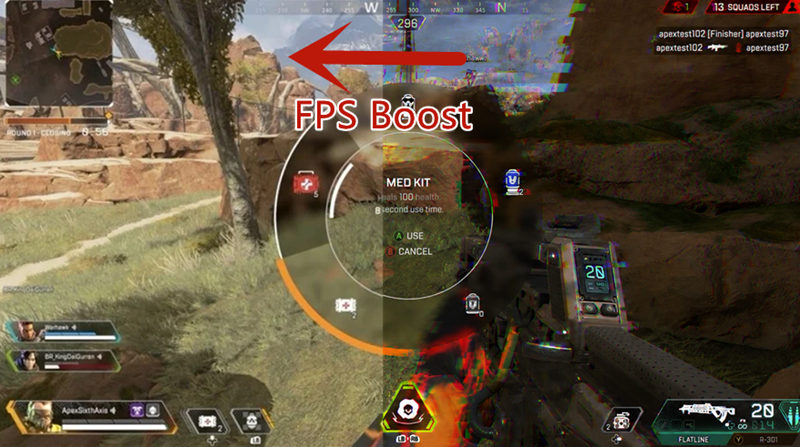
1. Check Apex Server Status
Sometimes Apex is laggy because of a server problem, not your PC. Check the server status first, especially if you suddenly experience high ping or packet loss.
2. Choose the Closest Data Center
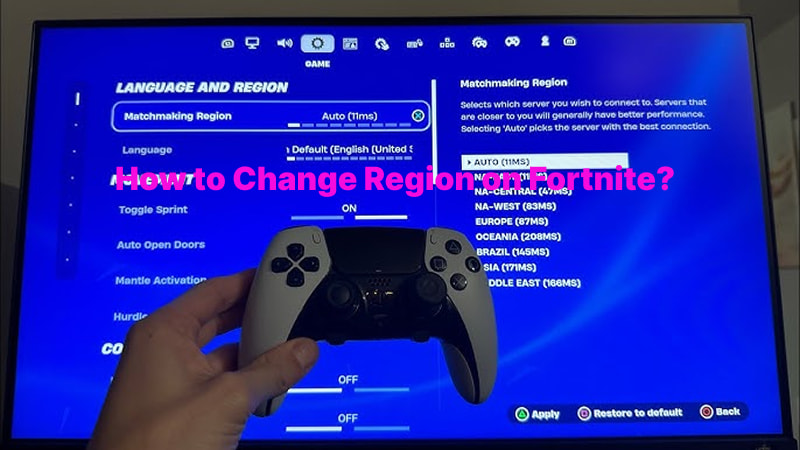
Open Apex and check Data Center before entering a match. Choose the location with the lowest ping and packet loss to get a more stable connection.
3. Switch From Wi-Fi to Ethernet
Ethernet usually provides a more stable connection than Wi-Fi. If you must use Wi-Fi, move closer to your router, try a 5 GHz connection, and avoid heavy downloads while gaming.
4. Close Background Apps
Apps like browsers, Steam downloads, OneDrive, Discord, and other launchers can use system resources and bandwidth. Close unnecessary programs before launching Apex to give the game more resources.
5. Update Your Drivers
Outdated graphics or network drivers can cause FPS drops, stuttering, and other performance problems. Check for the latest drivers and keep your important hardware up to date.
6. Lower Apex Graphics Settings
If your PC struggles to maintain stable FPS, lower demanding settings such as Texture Streaming Budget, Ambient Occlusion, shadows, Volumetric Lighting, and Effects Detail. Lower settings can reduce GPU load and improve gameplay smoothness.
7. Cap Your FPS
Higher FPS does not always mean smoother gameplay if your frame rate constantly jumps up and down. Setting a suitable FPS limit can help keep frame times more consistent.
8. Reduce CPU, GPU, and RAM Usage
Too many background processes can put extra pressure on your CPU, GPU, and RAM. Close unnecessary apps, especially browsers, recording software, and streaming programs.
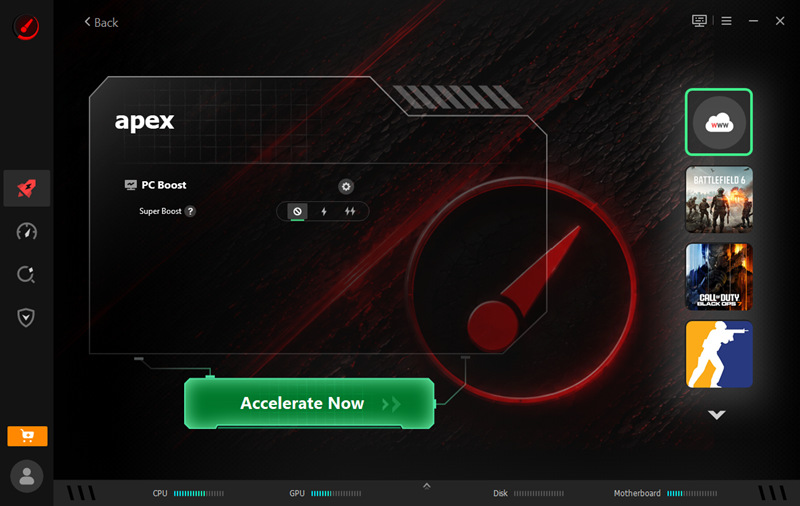
9. Optimize Your PC With Smart Game Booster
If you don't want to manually optimize everything before gaming, Smart Game Booster can help prepare your Windows PC for Apex. It can reduce unnecessary background activity and optimize your gaming environment for better performance.
10. Check for Overheating
High CPU or GPU temperatures can cause thermal throttling and reduce performance. Check your temperatures, clean dust from your PC, and make sure your fans and airflow are working properly.
11. Test Apex Without a VPN
A VPN can sometimes send your game traffic through a longer route, increasing ping. If Apex becomes laggy after enabling a VPN, turn it off and compare your connection.
12. Restart Your PC, Router, and Apex
Temporary system or network problems can sometimes cause unexpected lag. Restart Apex, your PC, and router, then check whether the problem is resolved.
Bonus Tip: Apex So Laggy on Consoles? PS5, Xbox Fix
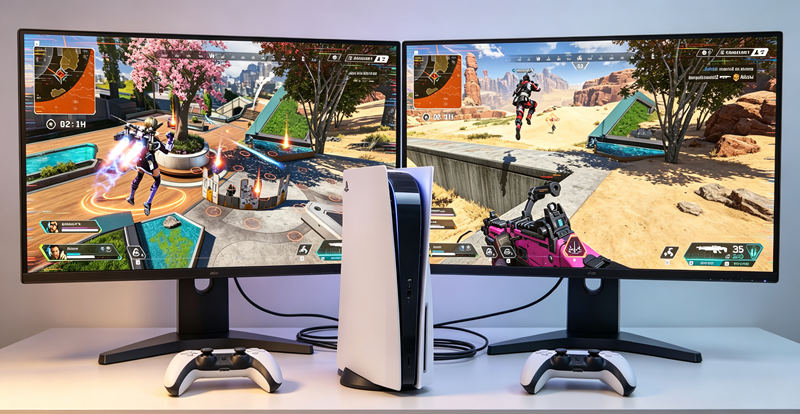
Apex can feel laggy on PS5 or Xbox because of high ping, packet loss, unstable Wi-Fi, or server problems. Before changing your console settings, check the in-game Performance Display to see whether your ping or packet loss is too high.
1. Check Apex Servers
If many players are experiencing lag at the same time, the problem may be on Apex's side. Check the server status before changing your console or network settings.
2. Choose the Best Data Center
Open Data Center from the Apex launch screen and choose a location with low ping and packet loss. Connecting to a distant data center can increase latency and make the game feel less responsive.
3. Use Ethernet
Wi-Fi can become unstable because of distance, walls, or other devices using the network. Connect your PS5 or Xbox directly to your router with an Ethernet cable for a more stable connection.
4. Restart Your Router and Console
Temporary connection problems can sometimes cause sudden lag. Restart your router and console, then launch Apex again to see if the connection improves.
5. Enable Performance Mode
If you're experiencing FPS-related lag, try Performance Mode on PS5 or Xbox Series X|S when available. With a compatible 120 Hz display, Apex can support up to 120 FPS for smoother gameplay.
If Apex is still laggy, first find out whether the problem is network lag or low FPS. Once you identify the cause, it becomes much easier to choose the right fix.
Conclusion
Why is Apex so laggy? High ping, packet loss, unstable Wi-Fi, server problems, and FPS issues can all make gameplay feel sluggish. Start by checking your connection, choosing the best data center, using Ethernet, and enabling Performance Mode when available.
Playing Apex on PC? Take your optimization a step further with Smart Game Booster. It helps reduce unnecessary background activity and optimize your Windows gaming environment for smoother gameplay.
Ready to reduce PC gaming lag? Try Smart Game Booster and get your PC ready for a smoother Apex experience.
Key Features of Smart Game Booster
- Enjoy lag-free & low-ping gaming
- 100+ games supported
- Severs from all over the world
- Boost in-game FPS