Ever found yourself stuck in the wrong matchmaking pool, fighting against players halfway across the world and your shots register a full second late? How to change region on Fortnite? You're not the only one to want the answer. Many Fortnite players want to change their Epic Games region for different reasons—sometimes it's about finding faster lobbies, other times it's about accessing another country's store or redeeming region-locked V-Bucks (though that's gotten a lot stricter lately). This guide gets you covered.
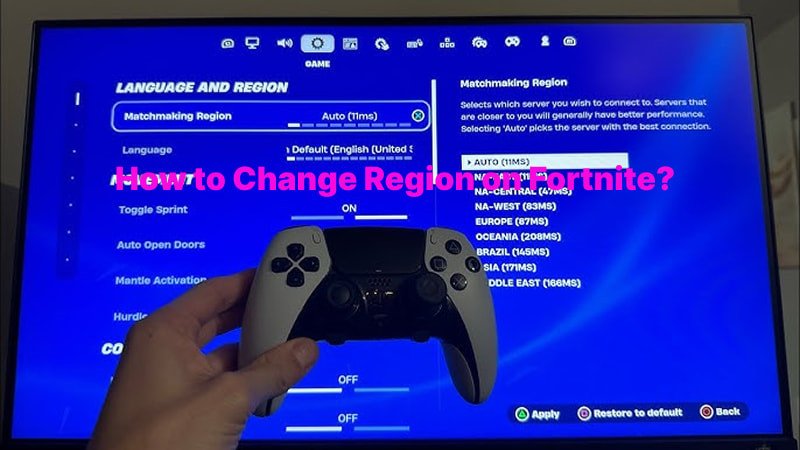
Five Free Methods to Change Fortnite Region
Here are five ways collected from game forums that help with Fortnite region issues. But before we start, let’s talk about the core question: how to change region on Fortnite? The answer depends on what you’re trying to achieve.
1. Change Epic settings if the country field is not locked (recommended)
If you haven't made any purchases on your Epic Games account yet, you can actually change your country/region directly through the Epic Games website.
Here is the short tutorial: Head to your account settings > find the Country/Region dropdown under Personal Details > select your new region.
But once you've made a purchase (even claiming a free game counts), that field gets locked permanently.
2. Seek support from the Fortnite official (takes time)
If your country field is locked and you genuinely need to change it (say, you've moved to a new country), you'll need to contact Epic Games support directly. They'll ask for proof of residency—things like utility bills or official government documents. This process can take days or even weeks.
3. Server change for a smoother game experience (in-game settings/game booster)
This is the method most players actually need. Changing your matchmaking region inside Fortnite's settings lets you connect to different servers around the world. And if you're looking for the best way to reduce ping in Fortnite, pairing this with a tool like Smart Game Booster can make a massive difference—we'll cover that in Part 3.
4. VPN (not needed, in-game settings are enough)
Some players think they need a VPN to change regions in Fortnite. But that’s actually extra work. The Fortnite in-game settings let you pick any server you want. A VPN might help with store region changes, but for gameplay? Totally unnecessary.
5. Change launcher settings or configuration files (hardcore, not recommended)
There are old forum posts about editing config files to force region changes. Don't do this. It's risky, could get your account flagged, and honestly, the in-game settings do the exact same thing without the headache. Save yourself the trouble.
How to Change Region on Fortnite for Matchmaking?
This is the most common question. Epic Games makes this pretty straightforward—your account country and your matchmaking region are two completely different things. Changing your matchmaking region won't affect your store region or payment methods. It just changes which servers you connect to.
How to change region on Fortnite for matchmaking?
Step 1: Launch Fortnite and head to the lobby.
Step 2: Click your player icon in the upper right corner to open the social panel.
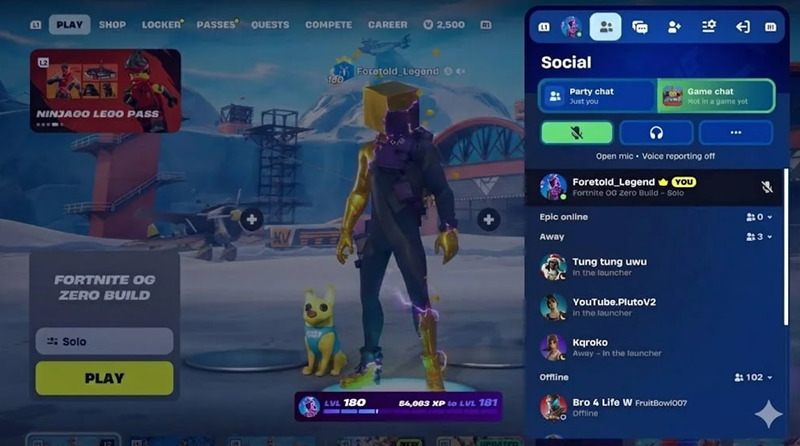
Step 3: Select the Settings (gear icon), then click the Game tab.
Step 4: Scroll down to the Language and Region section. Find Matchmaking Region, then click the arrow to select your preferred region. You'll see ping numbers next to each option—lower is better. Auto will pick the region with the best ping for you automatically.
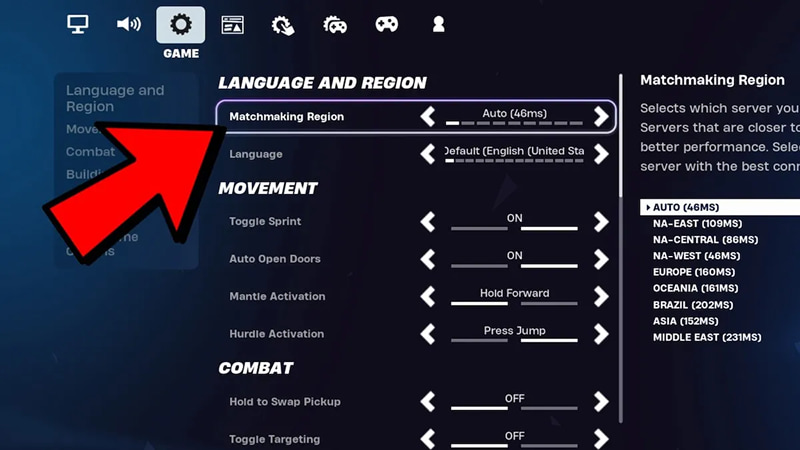
Click Apply and you're done. That's literally all it takes to change your matchmaking server.
How to Change Region on Fortnite Servers to Lower Ping?
So you've changed your matchmaking region manually, but you're still dealing with lag? Here's the thing—just picking a different server doesn't guarantee a smooth connection. Your internet routing, background apps, and system performance all play a huge role. If you're serious about lowering ping, the best way to reduce ping in Fortnite is to combine the right server selection with a proper game booster. That's where iTop Smart Game Booster comes in. It's designed to optimize your entire system for gaming—killing unnecessary background processes, freeing up RAM, and accelerating your network connection.
Here's how to change region on Fortnite using iTop Smart Game Booster:
Step 1: Download and install Smart Game Booster from the official website.
Step 2: Launch the software, and it will automatically display your installed games.
Step 3: Select Fortnite from the game list, then toggle on Network Acceleration—pick your preferred region and network node before starting.
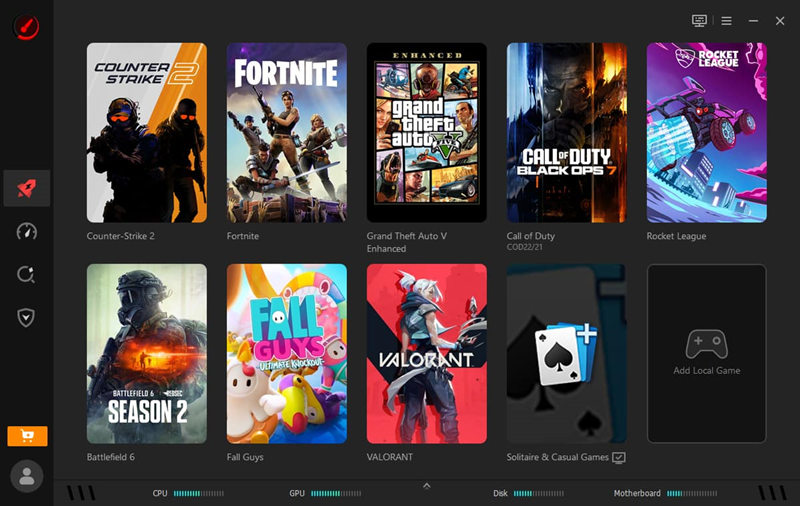
Step 4: Toggle on PC Boost (Super Boost available for VIP/SVIP users) to free up system resources, then launch Fortnite and enjoy lower ping.
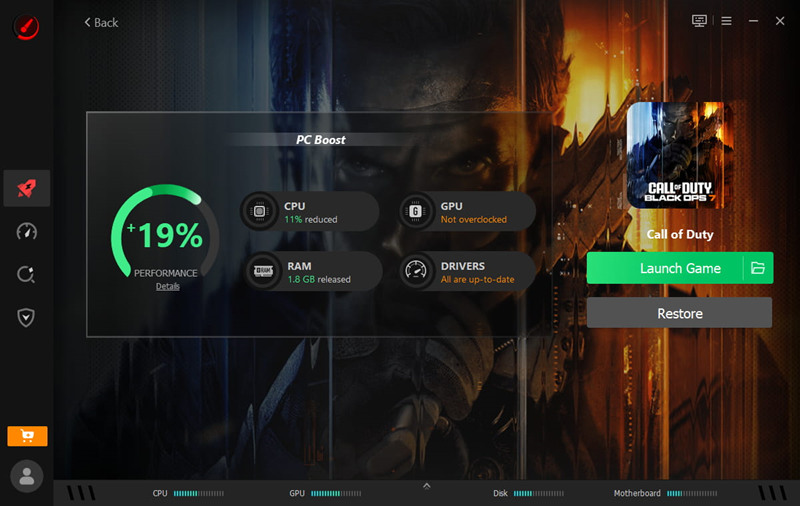
Smart Game Booster Features for Fortnite:
One-Click Game Boost: Smart Game Booster instantly ends unnecessary background processes, releases system resources, cleans up RAM to boost games.
FPS Optimization: The tool unlocks the full potential of your CPU and GPU, delivering higher frame rates, an average 30% increase is commonly observed.
Network Acceleration: This is the feature that directly tackles ping issues. Smart Game Booster routes your game traffic through optimized servers, reducing latency and packet loss for a more stable online experience.
Automatic Gaming Mode: The software detects when you're launching a game and automatically applies optimizations.
Real-Time Hardware Monitoring: Keep an eye on your CPU and graphics card temperature, right on your screen. This monitor alerts you before things get too hot.
And if you play other titles too, this same tool works as a PUBG lag fix and for countless other online games. It's a game-changer.
How to Change Region on Fortnite Mobile?
Wondering how to change region on Fortnite mobile? Good news—the process is almost identical to the PC version. Here's how to do it on iOS or Android:
Step 1: Open Fortnite on your mobile device and go to the lobby.
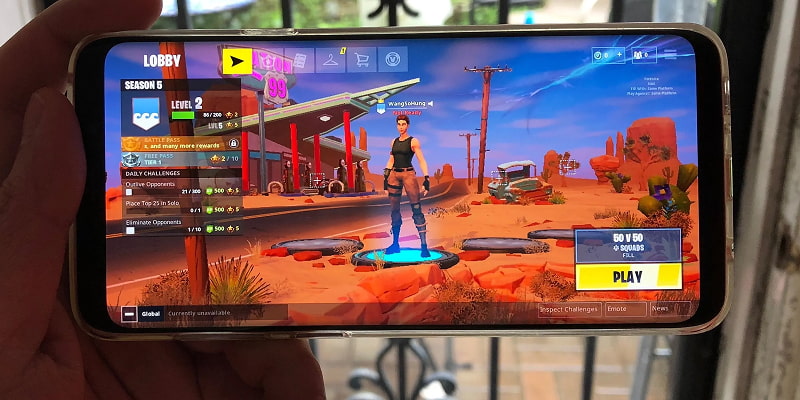
Step 2: Tap your profile icon in the top right corner, then tap the Settings (gear icon).
Step 3: Select the Game tab and scroll to Language and Region.
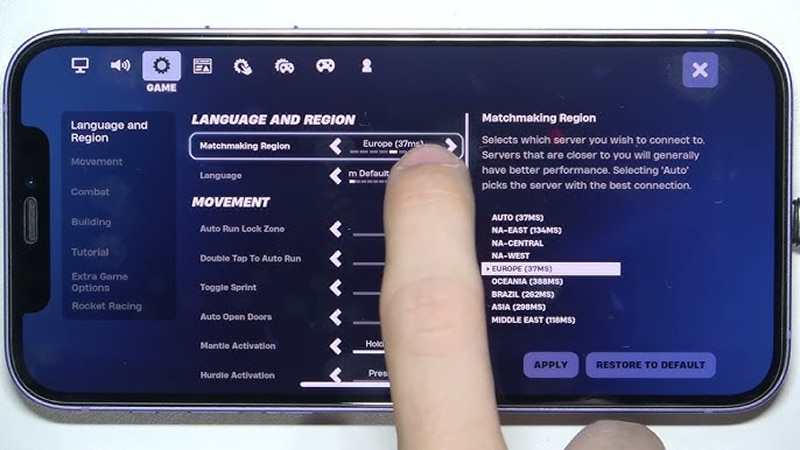
Step 4: Tap Matchmaking Region and choose your preferred server from the list. Tap Apply to save.
Now you know how to change region on Fortnite on mobile. That's it. Your game will now match you with players in your selected region.
How to Change Region on Fortnite PS5?
For console players asking how to change region on Fortnite PS5, the steps are exactly the same as other platforms—Epic keeps the menu consistent across devices.
Step 1: Launch Fortnite on your PS5 and wait for the lobby to load.
Step 2: Press the Options button on your controller to open the menu, then select Settings (gear icon).
Step 3: Navigate to the Game tab and scroll down to the Language and Region section.
Step 4: Find Matchmaking Region, select it, and choose your desired region from the dropdown. Confirm and apply the changes.
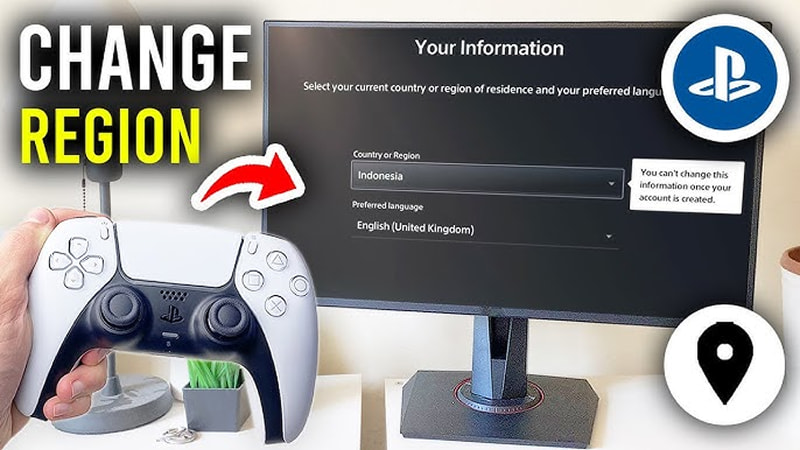
The PS5 version doesn't have any special restrictions—the matchmaking region setting works just like it does on PC and mobile.
How to Chnage Fortnite Region? Quick FAQs
Want to know how to change region on Fortnite? Check these FAQs for quick answers.
1. How to change Epic Games region after purchase?
After your first purchase (even free games), the country field locks. You must contact Epic Support with valid proof of new residency (e.g., utility bill). No self-service option.
2. How to change Epic Games region to Turkey?
Same process – contact support with Turkish residency proof. Epic now strictly enforces this; expect a 6‑month cooldown and payment method changes.
3. Fortnite login issues due to region settings: how to fix?
Set Matchmaking Region to Auto in settings, restart game and router, or check Epic’s server status. Most issues resolve by reverting to Auto.
4. What should I notice when I want to change my account from the USA to Turkey?
This is a big one. Changing your Epic Games country from the USA to Turkey (or any other region) comes with serious implications:
Currency and pricing changes – your store will switch to Turkish Lira with regional pricing
Payment method restrictions – you'll need a payment method valid in Turkey
6-month cooldown – you can't change it back for half a year
Support verification – Epic may ask for proof of Turkish residency
V-Bucks and codes – region-locked items may become unusable
Think carefully before making this switch—it's not reversible on a whim.
Conclusion
How to change region on Fortnite for better matchmaking? I’m sure you already have the correct answers from this blog. Changing your Fortnite region isn't complicated once you understand the difference between your account country and your matchmaking region. For gameplay purposes, the in-game settings let you switch servers in seconds. But if you're looking to truly optimize your connection and get the lowest possible ping, pairing that server change with iTop Smart Game Booster is the way to go.
Key Features of Smart Game Booster
- Enjoy lag-free & low-ping gaming
- 100+ games supported
- Severs from all over the world
- Boost in-game FPS