Gamers love Roblox because of never-ending options. However, many gamers struggle with low FPS, long loading times, and stuttering. This usually happens when gamers are using older PCs or systems and have multiple background programs or apps open. This is why many of them wonder how to reduce lag on Roblox. With this article, we are sharing 9 easy and quick ways to improve your Roblox’s performance, along with a game booster for Roblox.
How to Reduce Lag on Roblox with Smart Game Booster (Recommended)
If you want the easiest and most effective solution for how to reduce lag on roblox, Smart Game Booster is a great choice. This free software is designed to optimize your PC, free up system resources, and improve gaming performance with just one click. It can help FPS boost, reduce lag spikes, and create a smoother Roblox experience.
Key Features of Smart Game Booster
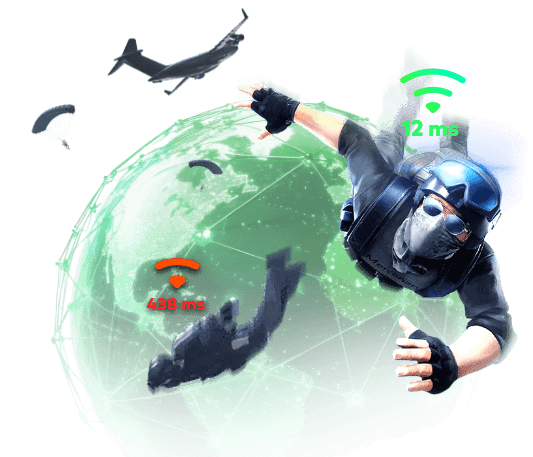
- Enjoy lag-free & low-ping gaming
- 100+ games supported
- Severs from all over the world
- Boost in-game FPS
Step 1. Free Download & Install Smart Game Booster
Step 2. Full Scan of the PC
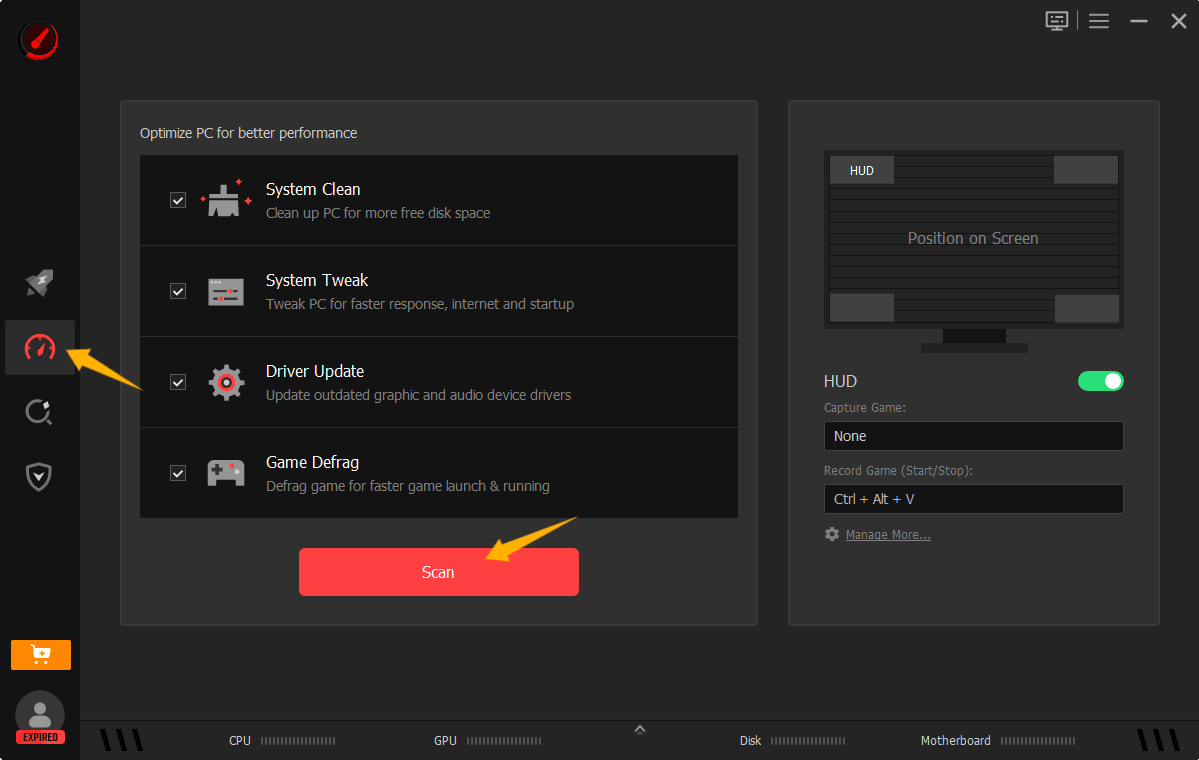
Wait while the software checks for junk files, system issues, outdated drivers, and unnecessary startup items.
The scan helps identify problems that may affect Roblox performance and overall PC speed.
Step 3. Fix All to Reduce Roblox Lag for Free
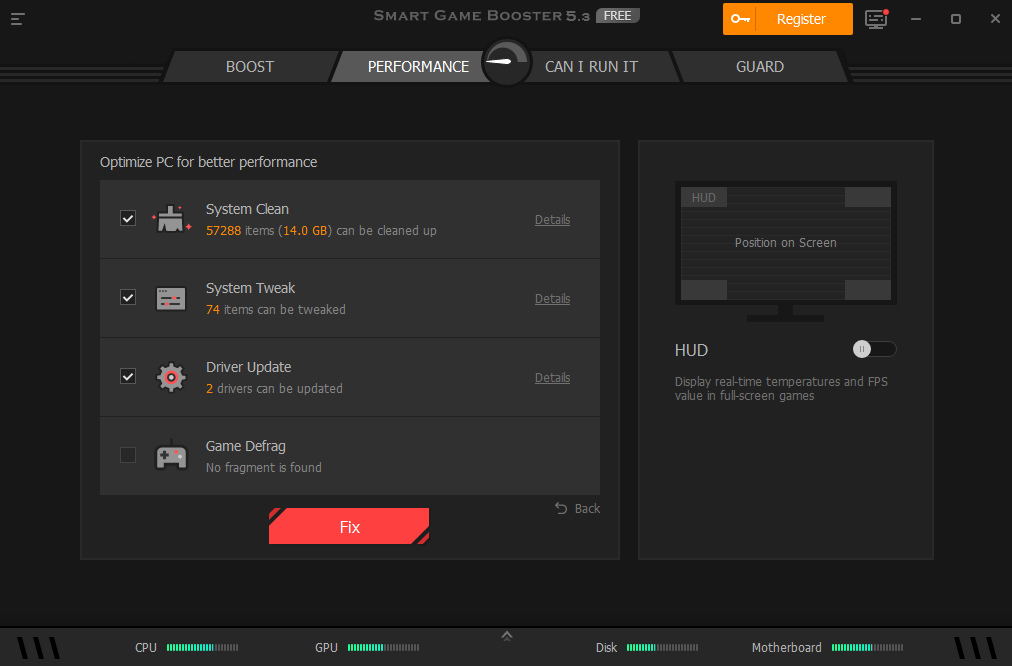
Let the program clean, optimize, and repair detected issues automatically.
Once completed, restart your PC and launch Roblox to enjoy smoother gameplay.
Why Choose Smart Game Booster?
Smart Game Booster offers powerful optimization tools to speed up and optimize your PC , including:
System Clean
Registry Repair
System Tweak
Driver Update
Game Defrag
Startup Optimization
These features help users looking for how to reduce lag on Roblox PC by improving overall system performance.
The software offers a delicate super game booster and ping reducer for popular PC games. It intelligently shuts down unnecessary background processes and unlocks more CPU and GPU resources.
This results in higher FPS and better responsiveness during gameplay.
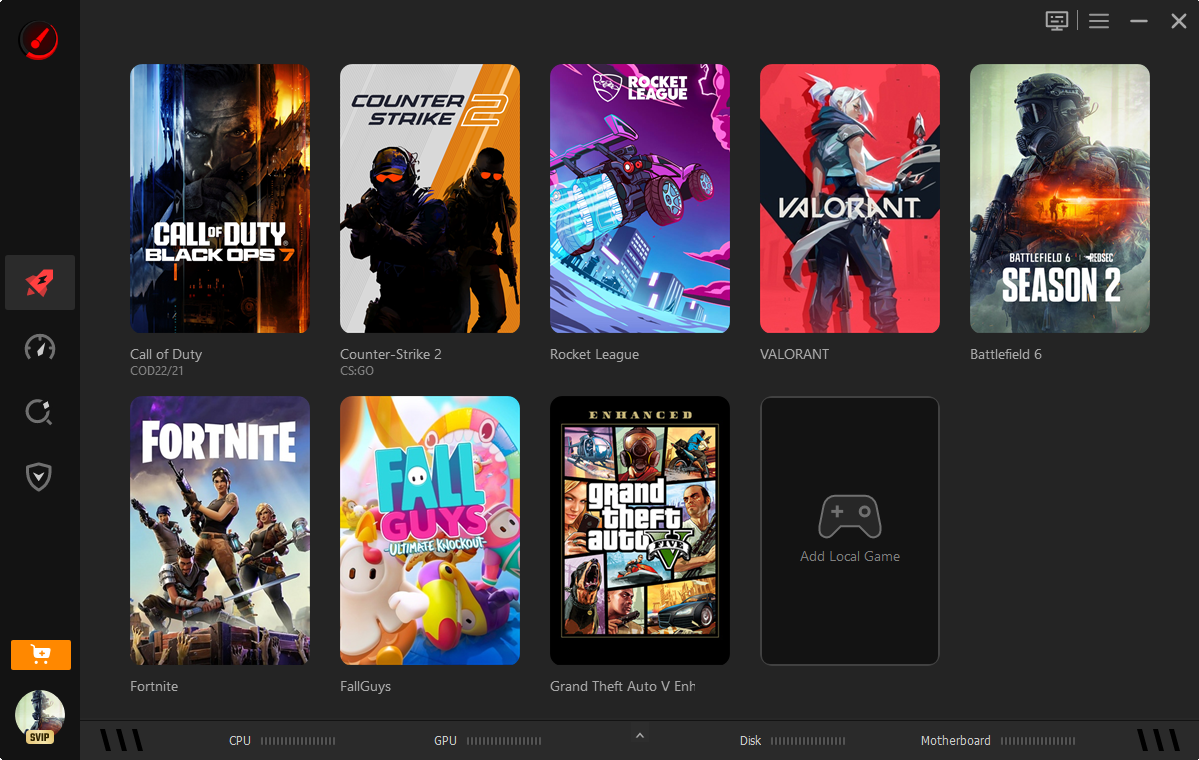
Smart Game Booster includes a real-time monitoring tool for Roblox and any other PC games that displays:
FPS
CPU usage
GPU usage
Hardware temperature
This helps you track performance in real time while playing Roblox, ensuring a perfect gaming experience.
Not sure if your PC can handle Roblox or other popular PC games? The built-in Can I Run It feature checks your system specifications against game requirements. Check if your PC meet the minimum requirements now!
Moreover, Smart Game Booster also includes all-round protection features such as:
Antivirus support
Firewall assistance
Spyware detection
Security monitoring
These tools prevent you from virus and spyware attacks, and help keep your Roblox account and PC safer.
You May like: Is Rocket League Servers Down? Current Status & How to Fix & Speed up Your Servers >>
8 Common Fixes to Reduce Lag on Roblox on PC
Besides using a Roblox game booster, there are several additional methods you can try. These fixes are simple and can significantly improve gameplay performance.
1. Adjust Roblox's In-Game Settings
How to reduce lag on Roblox manually? Lowering graphics settings can reduce system load and improve FPS, which makes you run faster on Roblox.
Step 1. Launch Roblox and join a game.
Step 2. Press Esc and open Settings.
Step 3. Set Graphics Mode to Manual and lower Graphics Quality.
2. Close Unnecessary Programs
Background apps can consume valuable CPU and RAM resources.
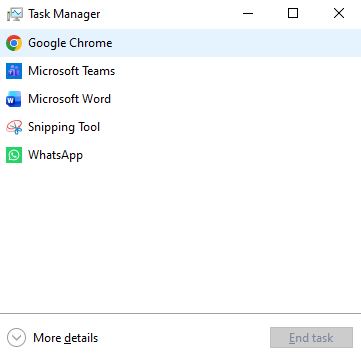
Step 1. Press Ctrl + Shift + Esc to open the Task Manager.
Step 2. Review running applications.
Step 3. End unnecessary tasks before launching Roblox.
3. Clean Up Roblox Cache & Optimize PC
Corrupted cache files can slow Roblox down. We recommend Advanced SystemCare as the best free PC cleaner and optimizer, which can easily clean up junk files and enhance the system to the next level.
Step 1. Download and install Advanced SystemCare.
Step 2. Run a full system scan by clicking on the Scan button.
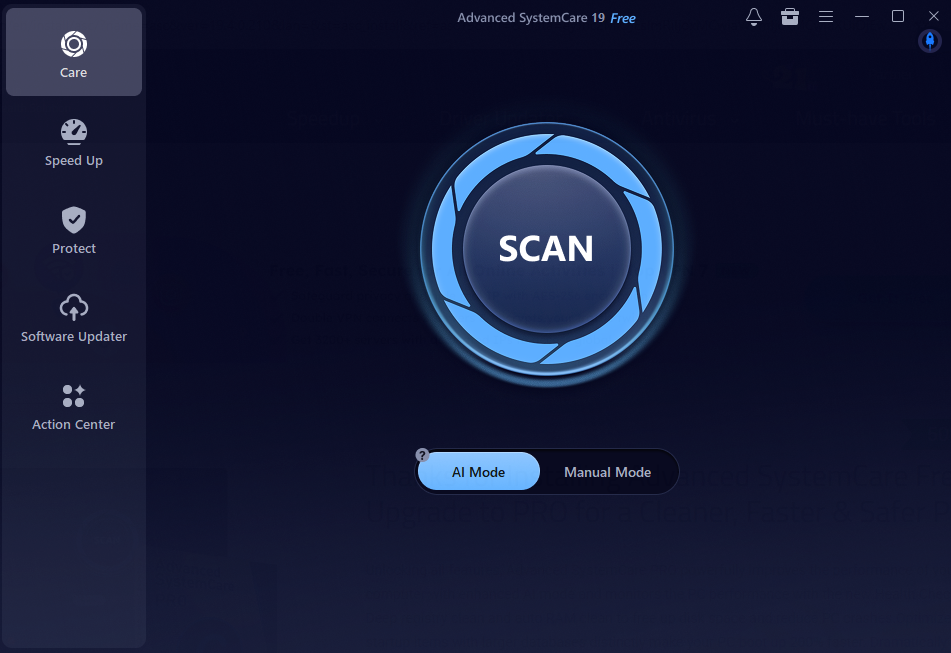
Step 3. Remove junk files and optimize your PC by clicking on the Fix button.
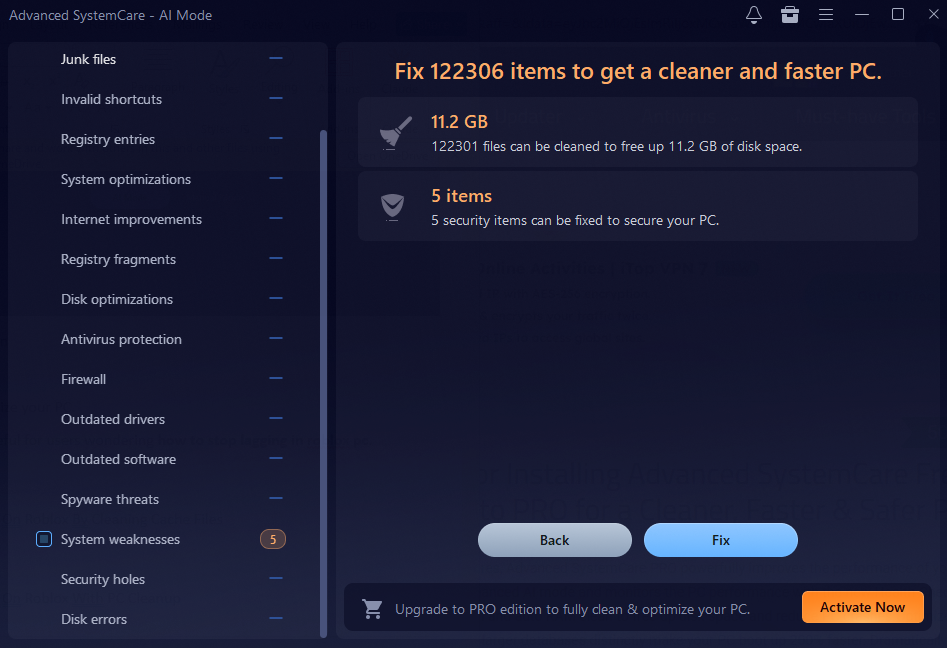
This method is especially useful for users wondering how to stop lagging in roblox pc.
4. Change the DNS Settings
Faster DNS servers can improve network response times.
Step 1. Open Network Settings. Select your connection and right click on it to open Properties.
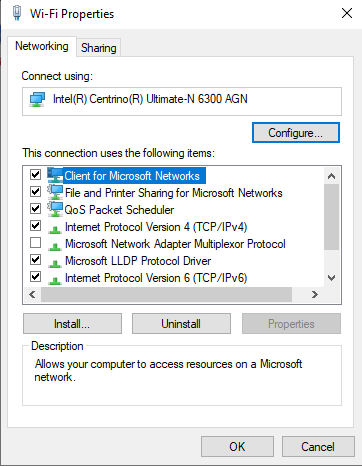
Step 2. Click on Internet Protocol Version 4 and open its Properties.
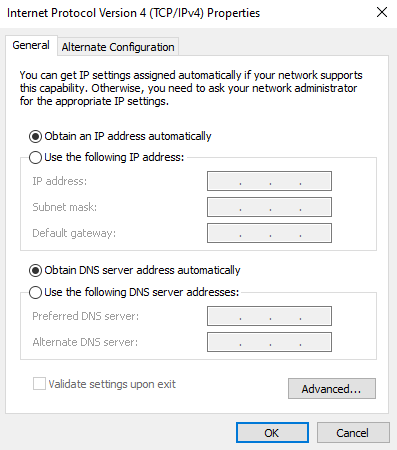
Step 3. Use Google DNS:
8.8.8.8
8.8.4.4
This can help users looking for how to reduce lag on Roblox Windows 11.
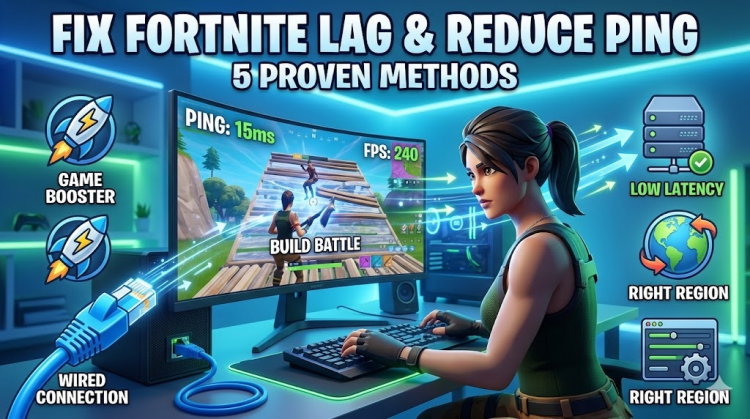
5. Use a Wired Connection
Wi-Fi interference can increase latency, so it is recommended that you shift to the wired internet connection to reduce Roblox lag.
Step 1. Connect your PC directly to your router using an Ethernet cable.
Step 2. Disable Wi-Fi temporarily.
Step 3. Restart Roblox and test the connection.
6. Update Network & Graphics Drivers
Outdated drivers often cause lag and performance problems. IObit Driver Booster is one of the easiest tools for updating drivers automatically. Effortlessly fix crashing and slow running on Roblox.
Step 1. Install Driver Booster on your computer.
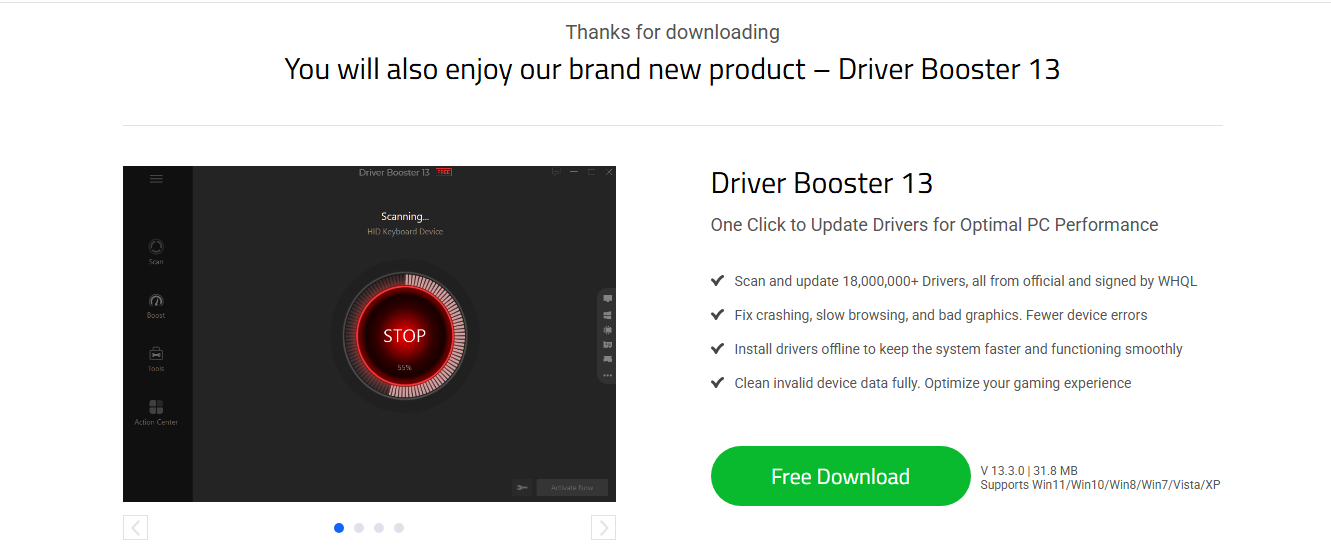
Step 2. Run a driver scan by clicking on the Scan button.
Step 3. It will show you the outdated drivers. Update all outdated network and graphics drivers by clicking on the Update button.
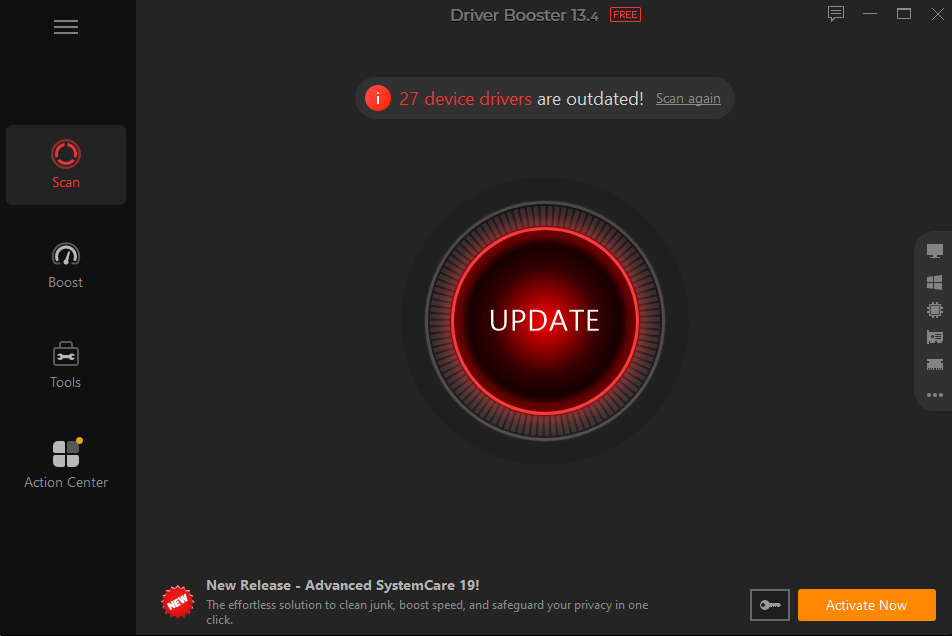
This fix can greatly improve how to reduce lag on Roblox PC performance.
7. Play Roblox in Full Screen Mode
How do I reduce lag on Roblox on PC? Playing Roblox in full-screen mode can reduce system overhead and boost your gaming. Here’s how:
Step 1. Launch Roblox on your PC.
Step 2. Open any game that you normally play.
Step 3. Press F11 or enable Full Screen in settings.
8. Restart the App & Computer
Sometimes a simple restart can fix temporary issues. Restart Roblox and reboot your computer to refresh the system:
Step 1. Close Roblox completely by clicking on the X button from the top right corner.
Step 2. Restart your PC.
Step 3. Launch Roblox again and check performance.
Why Is My Roblox So Laggy?
If Roblox continues to lag, there can be different reasons behind it.
Your PC does not meet the recommended system requirements.
Too many background programs are open and consuming CPU, RAM, or disk resources.
Outdated graphics or network drivers are slowing down the performance.
Slow internet connections, high ping, or unstable Wi-Fi networks are causing delays.
FAQs on How to Reduce Lag on Roblox
1. How Do I Make My Roblox Game Lag Less?
Lower graphics settings, close background applications, update drivers, clean your PC, and use a reliable game booster for Roblox, such as Smart Game Booster.
2. Why Is Roblox So Laggy Even With Good Internet?
Even with fast internet, Roblox may lag because of low system resources, outdated drivers, overheating hardware, or high graphics settings.
3. Can a VPN Fix Roblox Lag?
Sometimes. A VPN may improve routing and reduce ping if your ISP connection is inefficient. However, results vary depending on the server location and network conditions.
4. How to Reduce Lag on Roblox Mobile?
Try lowering graphics settings, closing background apps, freeing storage space, restarting your device, and using a stable Wi-Fi connection.
Conclusion
Now you know how to reduce lag on Roblox using 9 effective methods, from adjusting game settings to updating drivers and optimizing your PC. Even though all the solutions will work, Smart Game Booster stands out as the best free Roblox game booster because it boosts performance, increases FPS, cleans system junk, and optimizes gaming resources with just one click. We recommend that you download Smart Game Booster and smoothen the Roblox gameplay with less lag and better performance.
Key Features of Smart Game Booster
- Enjoy lag-free & low-ping gaming
- 100+ games supported
- Severs from all over the world
- Boost in-game FPS