You are eager to jump into a new game, but Steam download speeds are crawling. Honestly, it’s pretty annoying when all you want is to play. This is a common issue that many gamers have to face today, which is usually caused by overloaded Steam servers, network limits, or your system struggling to keep up. So, how to make Steam download faster? In this guide, we will introduce practical fixes that truly work. Just read on and follow the step-by-step guide that can help you enjoy faster downloads and smoother gaming!
Why is My Steam Download So Slow?
Before diving into how to make Steam games download faster, let’s have a look at the factors that might be causing the slowdown.
Server Location is Too Far or Overloaded
Steam uses regional servers to deliver content. If your selected server is far away or overloaded with users, your download speed will drop significantly.
Steam is Limiting Speed or Disk Write is Bottlenecked
Sometimes, Steam itself limits download speeds due to settings. Or maybe your hard drive may not write data fast enough, which creates a bottleneck.
Bandwidth Limits or Local Network Congestion
If other devices on your network are streaming or downloading, your bandwidth will get divided. This can slow down your downloads, even if your internet plan is fast.
How to Make Steam Download Faster: 3 Ways
Now that you know the reasons behind the issue, it’s time to see how to make Steam download games faster. Generally, there are 3 methods that can help you speed up. Let’s dive in now!
1.Change Download Region
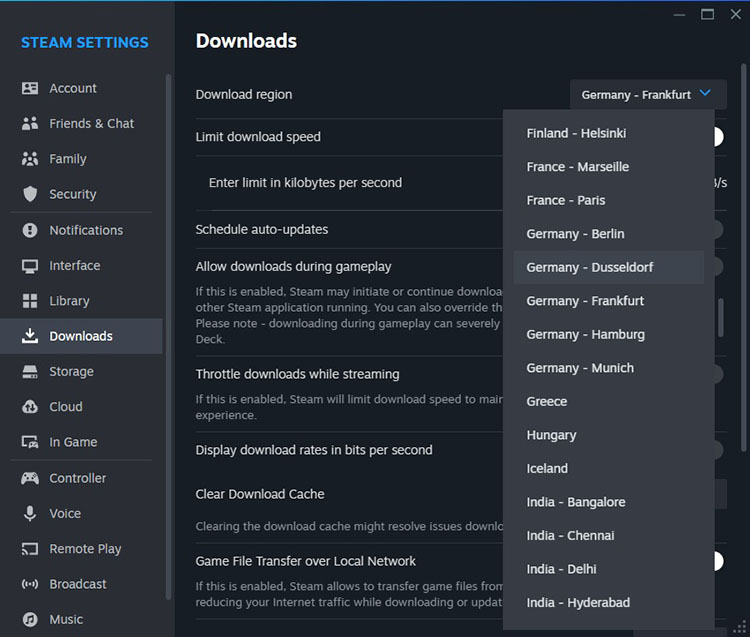
Steam has tons of servers around the world, which aim to deliver game downloads as fast as possible. However, the closest server is not always the fastest. If too many users are downloading at the same time, speeds can drop noticeably. A quick fix is to switch to a less crowded server in another region.
You can try switching to a server in a different region, for instance, a city where most people are currently at work or asleep, a nearby country, or even the next state or province if you are in the US or Canada. These options often have less traffic, which can result in faster and more stable download speeds.
Now, let’s see how to make Steam games download faster by switching regions.
Step 1. Open Steam on your computer.
Step 2. Go to Settings > Downloads.
Step 3. Change the download region to a different city.
2.Make Sure Limit Download Speed is Toggled Off
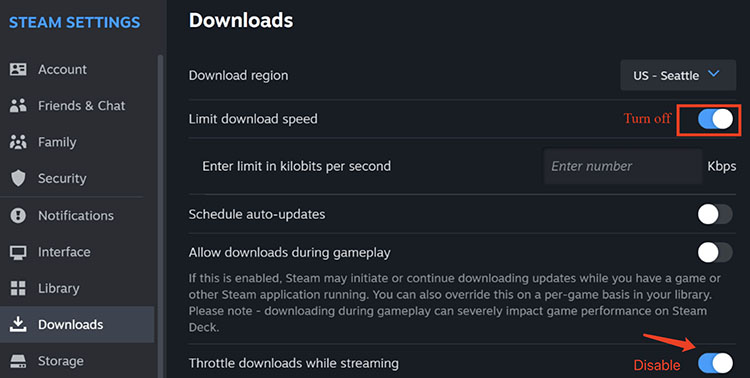
Steam also offers options for download control. However, some of them can unintentionally slow things down. One of the most common culprits is the “Limit download speed” option, which sets a fixed cap on your download speed. If this is enabled, your download speed may be much lower than your actual internet capability. Therefore, you can turn off these options to remove the restriction, so Steam can use your full available bandwidth.
Meanwhile, it’s worth reviewing other related options. For example, “Throttle downloads when streaming” is only useful if you frequently use Remote Play, so it should usually be disabled. The “Allow downloads during gameplay” option can be enabled if you play single-player games. “Game File Transfer over Local Network” can be useful(when enabled) if you have another PC with the same game installed.
Here’s how to make Steam download games faster by adjusting download options.
Step 1. In the Steam Settings menu, go to the Downloads tab. Look for the Limit download speed option.
Step 2. If the option has been turned on, click it to toggle it off.
Step 3. Also, disable the “Throttle downloads while streaming” and click OK to apply changes.
3.Check If Hard Drive is the Bottleneck
Sometimes, the issue is not about the internet, but your storage device. Steam downloads data in compressed packages and unpacks them in real-time, which means your drive has to write data as fast as your internet downloads it.
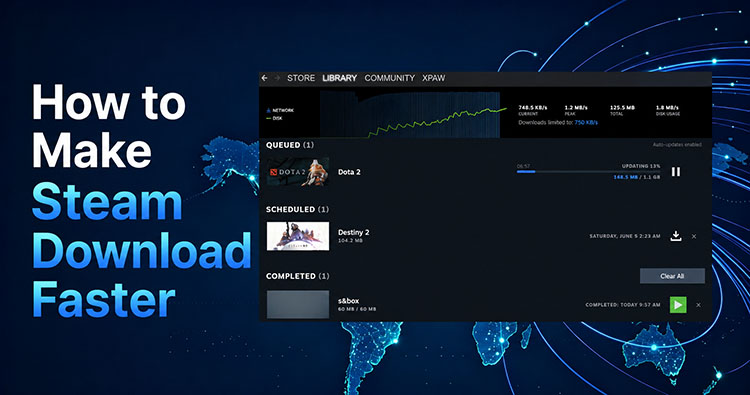
To figure this out, open Steam and check the active download graph. Pay close attention to the lines; if the green Disk line is hitting 100% utilization while the blue Network line suddenly drops to zero, your hard drive is the bottleneck. This usually happens on older mechanical HDDs or failing drives that can not handle high-speed write operations.
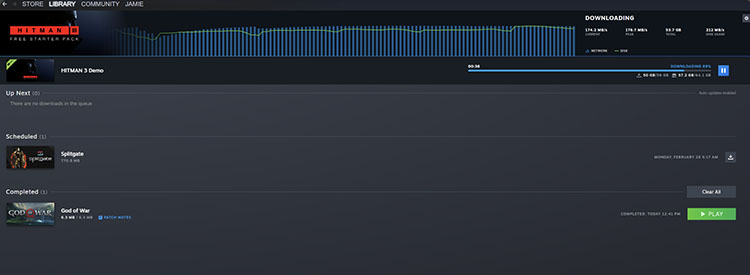
How to Make Steam Download Faster Disk Bottleneck
This also means Steam has to pause downloading while it writes data to the disk, which significantly slows things down. How to make Steam download fast in this case? It’s recommended to upgrade to an SSD or free up disk resources for better overall performance.
If everything looks fine with your disk, yet the download speeds are still slow, the problem may be related to bandwidth limits. When your available bandwidth is limited, it not only slows down Steam downloads but can also affect your overall gaming experience. But fret not, there’s an effective solution that can help you unlock higher bandwidth for gaming and achieve faster downloads with ease. Just keep reading!
One-Stop Solution: Use Smart Game Booster to Get Higher Bandwidth
If you have read this far, now you know how to make games download faster on Steam with effective methods. As mentioned earlier, limited bandwidth can seriously slow down your gaming and downloads. Even small updates can become rather frustrating. This is the time you need Smart Game Booster, a free and all-in-one optimization tool that can unlock your PC’s full potential for gaming. The software can automatically stop unnecessary background processes and allocate more RAM and CPU power to your gaming activities for a smoother experience.
How to use Smart Game Booster
Step 1. Download and install Smart Game Booster on your Windows PC(compatible with Windows 11, 10, 8, 7, and earlier versions).
Step 2. Open the program and scan for installed games. Select a Steam title, for instance CS2, and enter the optimization interface.
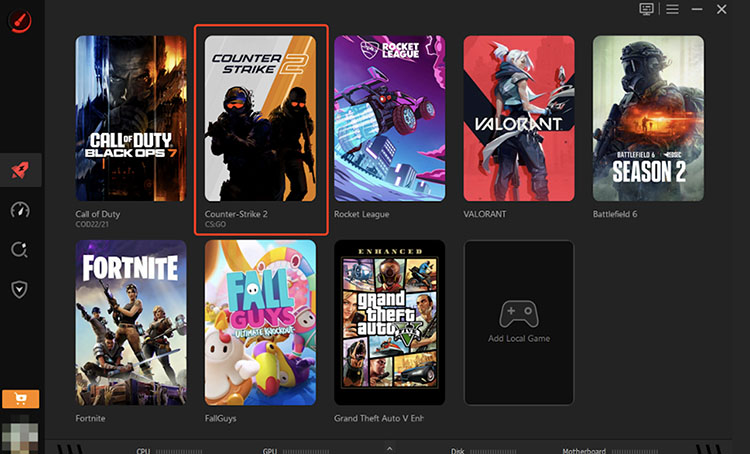
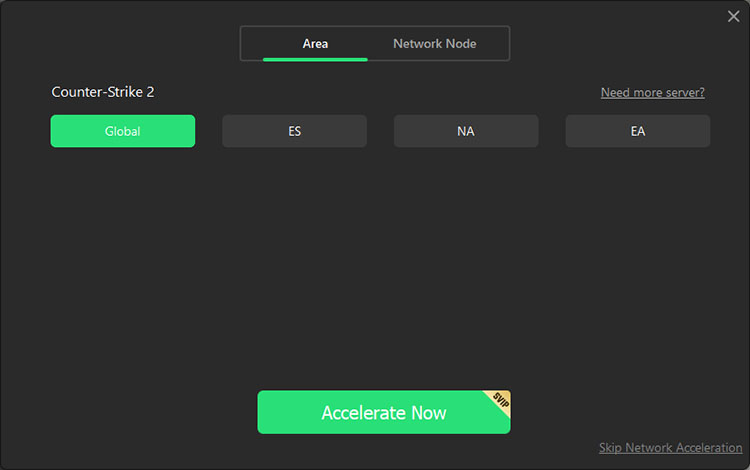
Step 3. Choose the network acceleration option for Smart Selection. You can also switch between different PC Boost modes based on your needs.
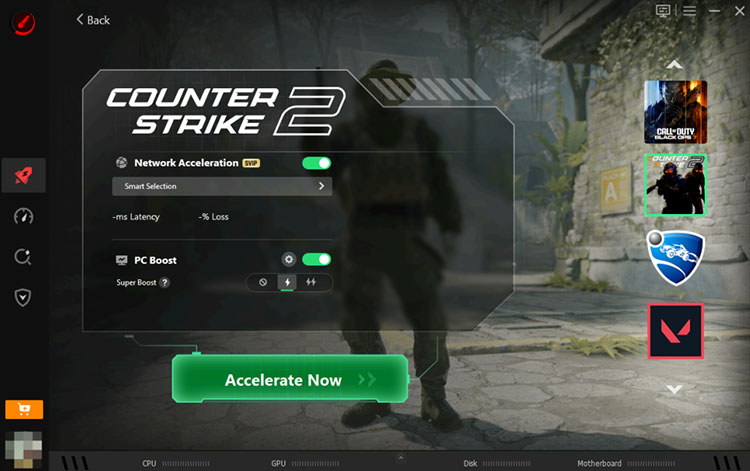
Step 4. Select your preferred server region and click “Accelerate Now” to enjoy a faster and smoother gaming experience.
Main features of Smart Game Booster
Huge FPS Boost
With the Super Boost feature, Smart Game Booster can safely optimize and overclock your GPU and VRAM to unlock extra performance. This can deliver over 30% FPS improvement for smoother animations, reduced screen tearing, and lower system latency.
Special Network Nodes for Games
Smart Game Booster routes your traffic through dedicated, gaming-optimized network nodes. This helps bypass ISP throttling, reduces high ping and packet loss, giving you a competitive edge in the fast-paced games. Say godbye to problems like could not connect to Steam.
Play Games without Regional Limits
Smart Game Booster lets you connect to global gaming servers with ease. You can bypass regional restrictions and access international player pools with a smooth and stable connection.
Key Features of Smart Game Booster
- Enjoy lag-free & low-ping gaming
- 100+ games supported
- Severs from all over the world
- Boost in-game FPS
Final Words
How to make Steam download faster? You can make it with a few simple tweaks for the download region, speed limits, and disk upgrades. However, when bandwidth becomes the real limitation, your gaming experience can also be affected. That’s where Smart Game Booster comes into play. It automatically optimizes your system and network, helping you unlock your PC’s full potential and enjoy smoother gameplay without complicated setup. Just wait no more. Try Smart Game Booster and experience faster gaming and downloads now!