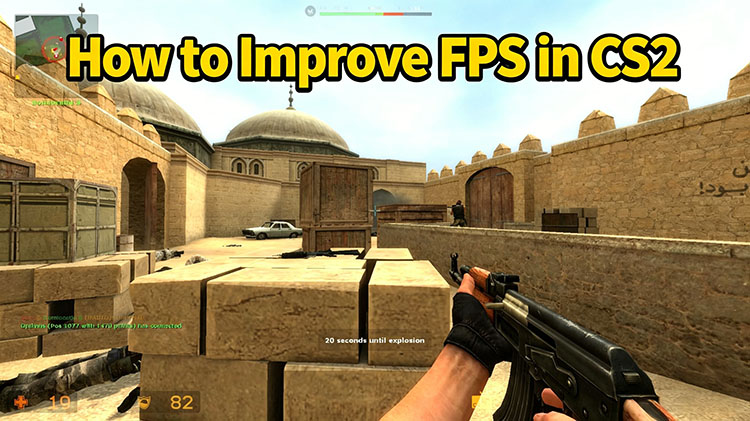
CS2 offers an unparalleled immersive competitive experience, with refined mechanics and updated visuals that make it incredibly appealing to esports enthusiasts. However, it can be frustrating when low FPS starts to interfere, which causes lag, stuttering, and delayed responses. But fret not. This guide will introduce several effective methods to help you out. You can learn how to improve FPS in CS2 with boost commands, optimized in-game settings, driver updates, and powerful game booster tools. Just make sure to continue reading.
What Causes Low FPS in CS2?
There are a few reasons behind the low FPS in CS2. Before diving into the solutions, let’s have a look at these major culprits.
Outdated GPU drivers: When your graphics drivers are not up to date, it will prevent your graphics card from running efficiently, leading to lower FPS and reduced stability.
High graphics settings: High settings can put excessive strain on your hardware, especially if your system is not powerful enough to handle those visual demands.
CPU bottlenecks: Even with a strong GPU, your performance can suffer if your CPU struggles to keep up, so the game can not process data and render frames efficiently.
Background programs: Applications running in the background quietly consume system resources(CPU, RAM, and disk usage), which leaves fewer resources available for CS2.
Windows power settings: If your system is set to Balanced or Power-Saving mode, it may limit performance to conserve energy and negatively impact your FPS.
Shader cache problems: Corrupted/outdated shader cache files can also cause stuttering and inconsistent frame rates during gameplay.
Overheating: When your CPU or GPU temperatures are too high, your system will automatically reduce performance to prevent damage, and you will see noticeable FPS drops.
How to Check Your FPS in CS2?
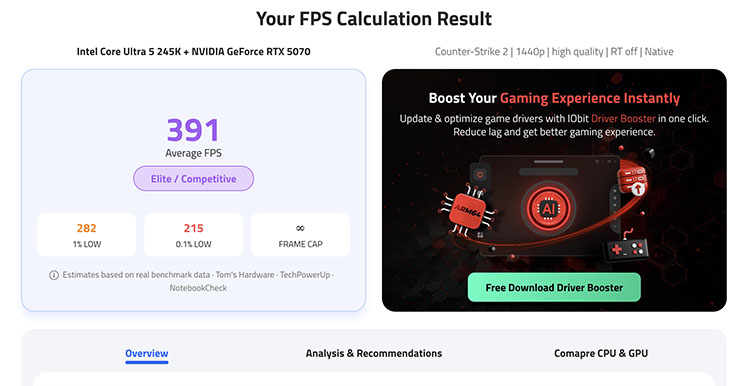
You don’t need software to check in-game FPS because it’s a simple task that can be done by an online tool, for instance, IObit FPS Calculator. It will estimate expected in-game frame rates based on your CPU, GPU, RAM, resolution, and game settings. You can understand what FPS your hardware can deliver in CS2 under ideal conditions. If the FPS is higher than the in-game FPS, then something must be wrong.
Here’s how to check your FPS in CS2 with it easily.
Step 1. Go to IObit FPS Calculator.
Step 2. Select your CPU & GPU, resolution, and RAM. Choose the game(CS2) and advanced settings.
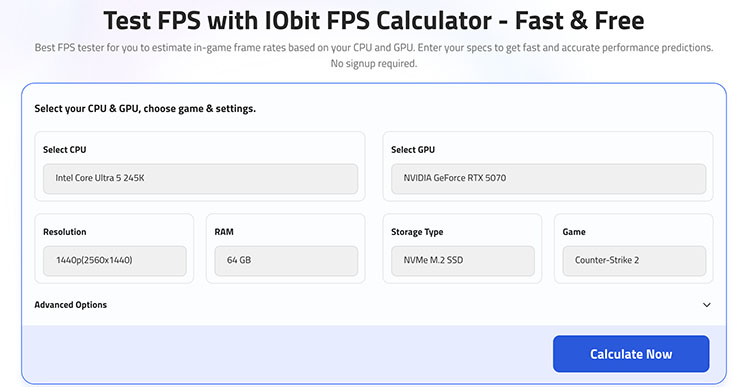
Step 3. Click “Calculate Now” to generate your estimated FPS range.
Tips: Wondering whether your PC can run your favorite games? Run a Can I Run It test for free to check your PC requirements for hot titles now!
How to Improve FPS in CS2? Use A Game Booster
If you want to improve FPS in CS2, the simplest solution is Smart Game Booster, an all-in-one optimization tool that can effectively maximize PC gaming performance and stabilize frame rates during gameplay. With just one click, the FPS booster manages system resources and offers hardware overclocking, providing a smoother and safer gaming experience.
The core features of Smart Game Booster
FPS Boost & Game Optimization
How to improve FPS in CS2 easily? Smart Game Booster can unlock the full potential of your CPU and GPU in one click, which delivers smoother animations with less screen tearing and lower system latency. It’s the most powerful CS2 FPS boost Windows 11/10 to enable higher FPS for a much more responsive gaming experience.
GPU Overclocking
With its one-click Super Boost feature, you can safely overclock your GPU and VRAM to gain additional performance. You can choose between Basic Mode (free) and Max Mode to push your hardware further and significantly improve FPS in demanding games like CS2.
CPU/GPU Temperature Monitoring
Smart Game Booster provides real-time tracking of your CPU and GPU temperatures during gameplay. It helps you identify overheating issues early and avoid thermal throttling, so your system maintains stable and higher FPS throughout intense CS2 matches.
Game Launcher & System Optimization
The built-in “Boost and Launch” function prepares your system before starting the game, which helps you enjoy the best gaming experience. Meanwhile, the software closes unnecessary background processes, cleans RAM, and optimizes system performance for smoother gameplay.
How to improve FPS in CS2 with Smart Game Booster?
Step 1. Free download and install the Smart Game Booster on your Windows PC. It’s widely compatible with Windows 11/10/8.1/8/7/Vista/XP.
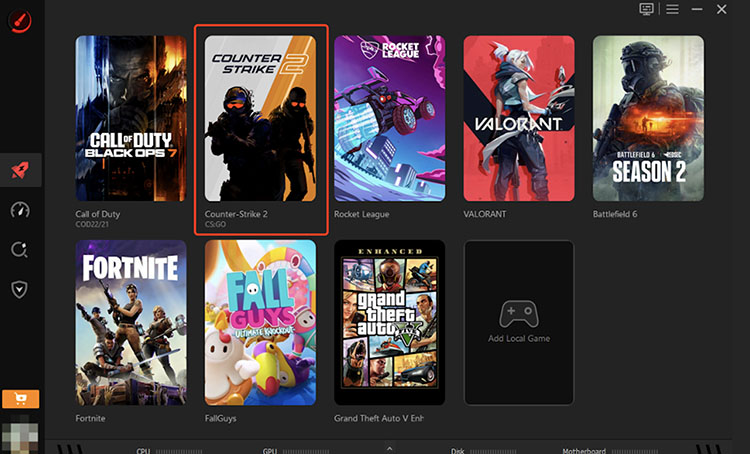
Step 2. Launch the software and choose CS2 to enter the interface for the gameplay.
Step 3. Choose Smart Selection for Network Acceleration. You can select the PC boost for different modes. Click Accelerate Now to proceed.
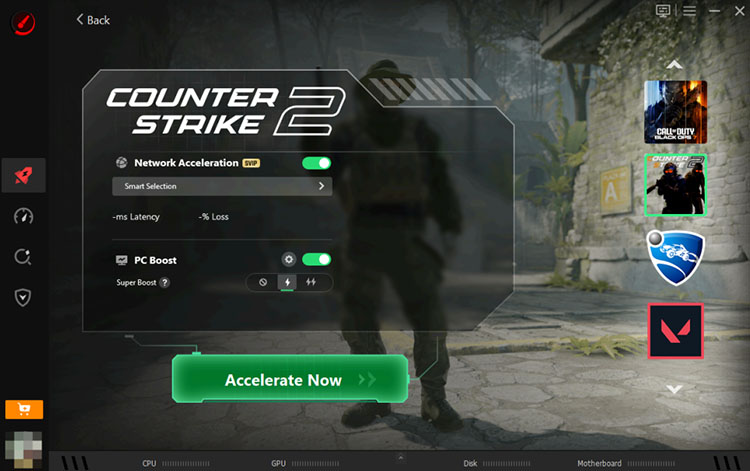
Step 4. Choose your area and click on the Accelerate Now to improve FPS in CS2 easily.
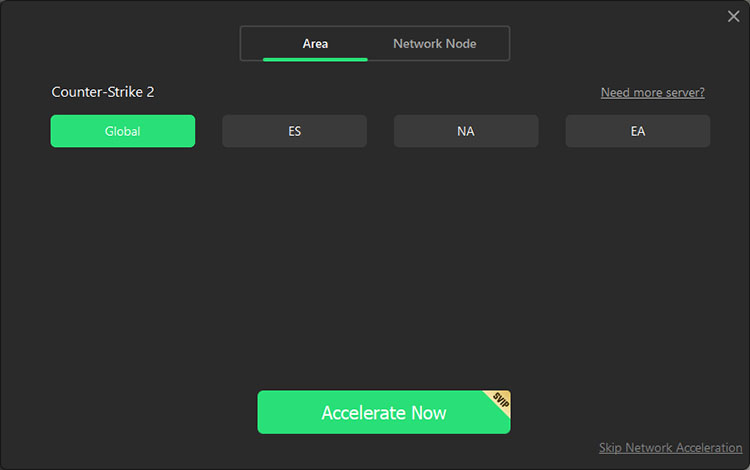
As a powerful ping reducer, Smart Game Booster helps you enjoy a better gaming experience with less latency.
How to Improve FPS in CS2 Via Driver Updates?
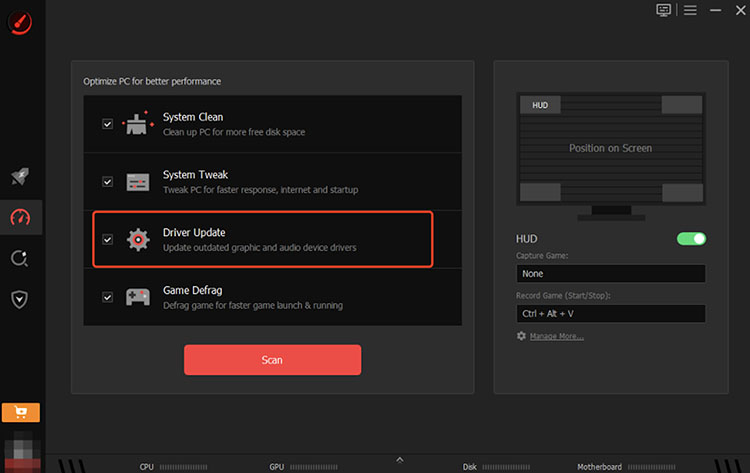
Now you know how to improve FPS in CS2 with Smart Game Booster. But that’s not the only optimization you can do. It is worth noting that when your graphics drivers are not up to date, your system can not fully utilize the capabilities of your GPU, too. This will inevitably lead to stuttering and poor overall performance. But worry not. Smart Game Booster has got you covered. With its built-in Driver Updater, you can easily update your drivers with a simple click. This feature automatically scans your system for outdated drivers, then safely updates them to improve CS2 FPS.
How to boost FPS in CS2 low end PC/high end PC
Step 1. Go to the Performance tab, which is the icon below the Booster icon(Rocket icon).
Step 2. Select the driver update and scan your system. It will list all the drivers that need to be updated. You can tick other options(system clean, system defrag, game defrag)based on your needs.
Step 3. Then the software will update your drivers and improve system performance.
How to Improve FPS in CS2 Via Boost Commands?
Another effective method to improve FPS is to use the CS2 FPS boost commands. It is worth noting that this method does not directly increase your hardware performance; it helps optimize the game displays and manages frame rates, which leads to a smoother and more controlled gameplay experience.
Here’s how to use CS2 FPS boost commands step by step
Step 1. Launch CS2 and go to Settings > Game > Enable Developer Console, then set it to Yes. This activates the CS2 FPS boost settings for commands.
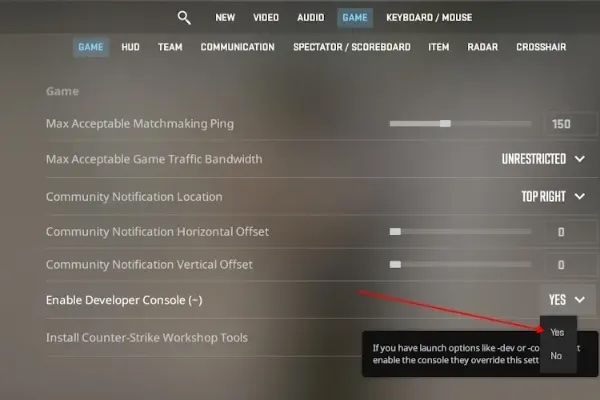
Step 2. Press the tilde key (~) to open the gray command input panel on your screen.
Step 3. Type cl_showFPS 1 and press Enter. This command displays your current FPS in real time. Type cl_showFPS 0 to turn it off.
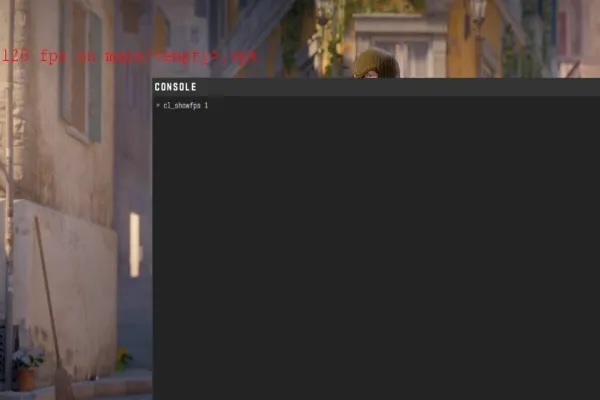
Step 4. Type FPS_max 0 into the console and press Enter. This CS2 max FPS command will uncap your frame rate, allowing your GPU to push the maximum frames possible.
Note: Your hardware’s overall condition plays a critical role in FPS performance. To maintain smooth gameplay, it’s essential to keep your CPU and GPU properly cooled. When temperatures go too high, your system may trigger thermal throttling, which automatically reduces performance to prevent damage. This often leads to noticeable FPS drops, even if your in-game settings are fully optimized.
How to Improve FPS in CS2 Via Temperature Optimization
The previous sections have introduced how to improve FPS with third-party software and in-game tweaks. Last but not least, temperature management can not be overlooked. It’s crucial to monitor your CPU and GPU temperatures since overheating can quickly reduce performance.
This is also the time Smart Game Booster comes into play. The software offers a real-time monitoring feature that displays both FPS and system temperatures during gameplay, so you can stay aware of your PC’s condition any time.
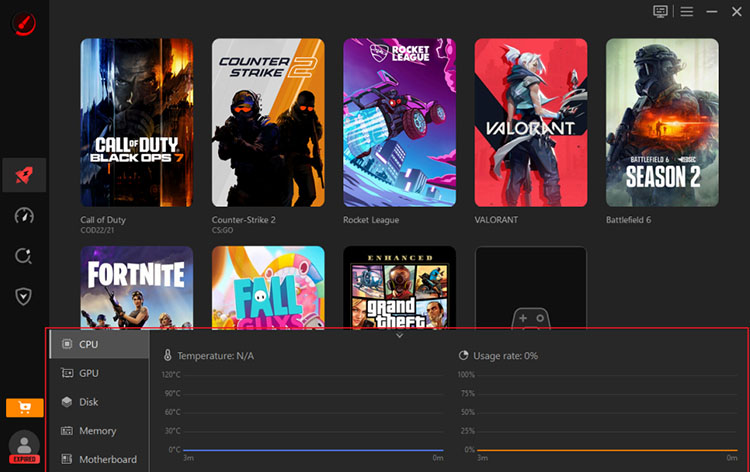
If your system is running too hot, consider improving cooling with better airflow, additional fans, or a dedicated CPU/GPU cooler. With a well-cooled system, you should be able to improve FPS stability for smoother gameplay in CS2.
Conclusion
How to improve FPS in CS2? This guide has introduced 5 useful methods. But when it comes to the fastest and most effective results, Smart Game Booster is your best bet. The software offers one-click optimization, GPU overclocking, driver updates, and real-time monitoring, which can help you unlock your system’s full gaming potential easily. Just download Smart Game Booster and experience smoother CS2 gameplay with minimal effort from now on!
Key Features of Smart Game Booster
- Enjoy lag-free & low-ping gaming
- 100+ games supported
- Severs from all over the world
- Boost in-game FPS