You are in the middle of an intense Marvel Rivals battle, but all of a sudden, the screen stutters. Your character freezes for a split second, and before you can react, the game is already over. This kind of lag and choppy performance is incredibly frustrating, which can ruin even the most exciting matches. In most cases, the issue is caused by low frame rates (FPS).
Higher FPS means smoother visuals and faster response times, which are crucial in fast-paced combat. But don’t worry. This guide will introduce the best Marvel Rivals FPS boost tips and methods. Just keep reading to learn how to achieve a stable and smooth gaming experience with ease!
Why FPS Matters in Marvel Rivals
In a competitive action game like Marvel Rivals, FPS is everything. When your FPS drops, the game struggles to render frames smoothly, which leads to visible stuttering and choppy animations. Meanwhile, low FPS can cause input lag. Specifically, it means there’s a delay between pressing a key and your character actually responding on screen. In fast-paced fights, even a fraction of a second can determine whether you land a hit or get eliminated.
Check Your System Requirements First for Marvel Rivals
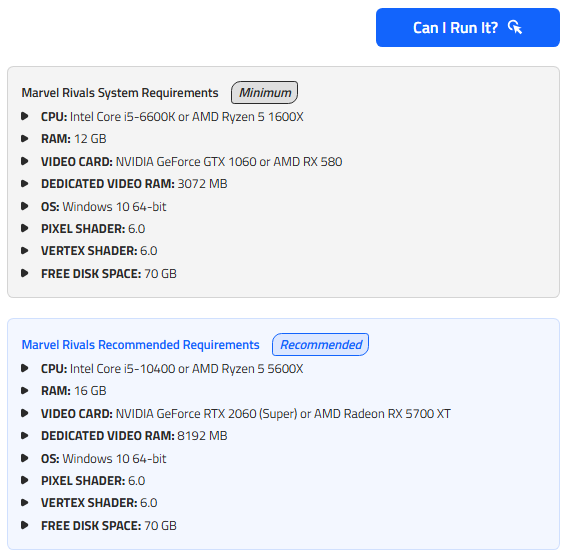
How to increase your FPS on Marvel Rivals? Before applying any Marvel Rivals FPS boost, it’s important to confirm your PC meets the game’s requirements. If your hardware is below the recommended specs, performance improvements will be limited.
If your hardware is close to minimum, you may use software optimizations to improve performance. However, a RAM/GPU upgrade can make a huge difference, which allows the Marvel Rivals FPS boost tips to work much more effectively.
Use the Can I Run It tool to check the minimum and recommended system requirements for Marvel Rivals and see if your PC meets the specifications.
In-Game Settings That Actually Matter for a Marvel Rivals FPS Boost
Your in-game settings have the biggest impact on your overall frame rate. Here’s how to increase your FPS on Marvel Rivals with a few tweaks.
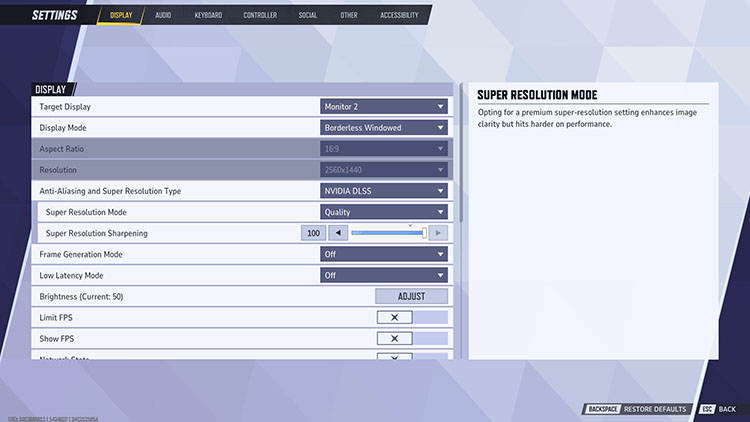
Display Settings:
Limit FPS: Off for maximum performance. Only enable and cap it slightly below your refresh rate if you experience instability or are streaming.
V-Sync: Off. Disable it to reduce input lag. Only turn on if you notice screen tearing.
Display Mode: Borderless Windowed or Fullscreen. Fullscreen may offer slightly better performance.
Resolution & Aspect Ratio: Match Display to ensure the best clarity and performance balance.
Anti-Aliasing and Super Resolution Type: DLSS (NVIDIA) or FSR (AMD). These settings provide a significant Marvel Rivals FPS boost with minimal visual loss.
Super Resolution Mode: Quality or Ultra Quality. Great balance between performance and image quality.
Frame Generation: Off. Avoid this in competitive play as it can increase latency.
Low Latency Mode: NVIDIA Reflex Low Latency (or equivalent). Reduce input lag for more responsive gameplay.
Graphics Settings:
Global Illumination: SSGI (Low) offers better performance than Lumen.
Reflection Quality: Screen Space Reflections. Maintain decent visuals with good performance.
Model Quality: Medium (Low for weaker PCs) to balance character and environment detail.
Post-Processing: Low. Deliver a noticeable FPS increase with little visual sacrifice.
Shadow Quality: Low. Shadows are very demanding; lower them to improve stability.
Texture Quality: High (Ultra if you have sufficient VRAM). Textures have less impact on FPS than other settings.
Effects Detail: Low. Reduce visual clutter during intense team fights.
Foliage Quality: Low. Minimize environmental detail for extra performance gains.
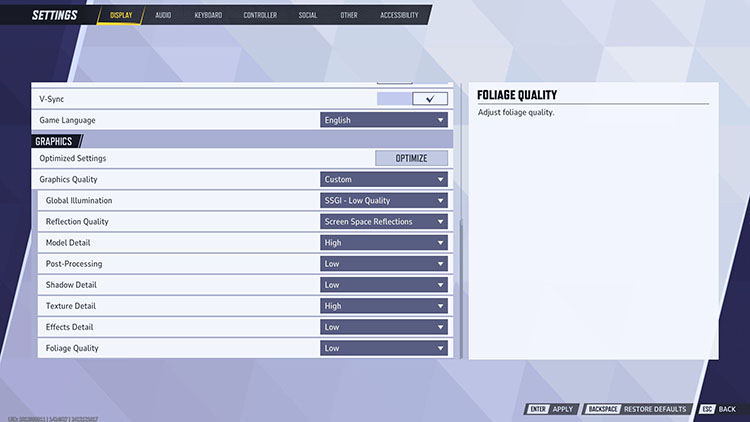
With these optimized settings, you can achieve a noticeable Marvel Rival FPS boost. It might even improve FPS by 30-50%, depending on your hardware. However, it’s best to adjust them gradually to find the best balance for your system.
How to Boost Marvel Rivals FPS with Advanced Marvel Rivals FPS Booster
One of the most effective ways to improve your gaming FPS is to use a dedicated tool. Here, the Smart Game Booster is a handy choice, which unlocks better CPU and GPU performance for higher frame rates and smoother gameplay. It’s the most powerful Marvel Rivals FPS booster that can disable background programs, free up system resources, and update drivers to push your computer for optimal gaming performance.
How to get more FPS in Marvel Rivals on PC:
Step 1. Free download and install the game booster on your computer.
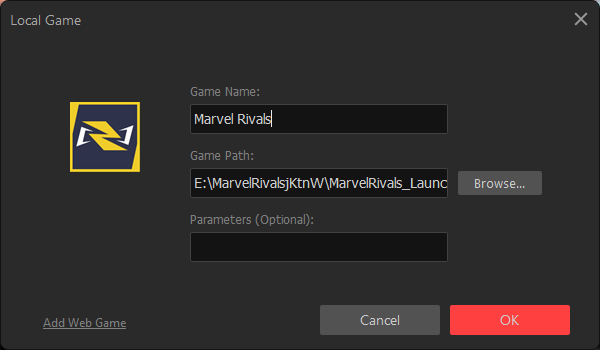
Step 2. Click Add Local Game to add Marvel Rivals.
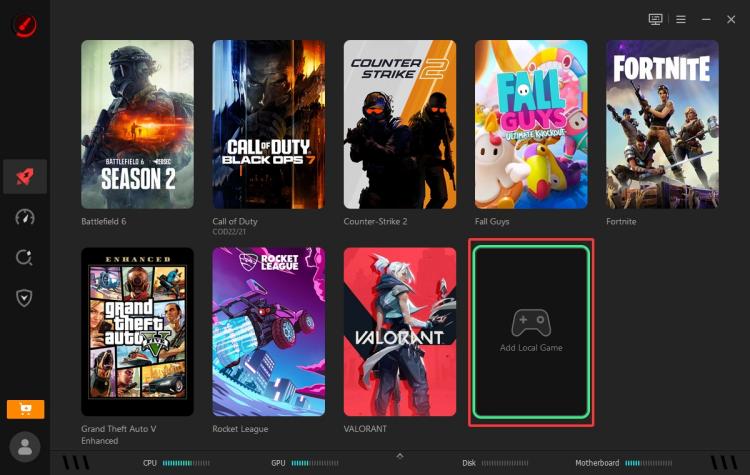
Step 3. Add Marvel Rivals game to the interface.
Step 4. Set the Network Acceleration for Smart Selection. Adjust the PC boost settings to your preferred mode.
Step 5. Configure the PC Boost mode, and then click Accelerate Now to get more FPS on Marvel Rivals game.
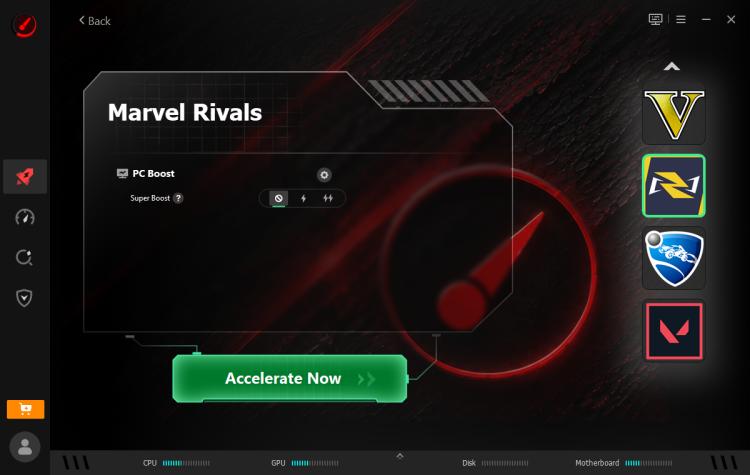
Then you can start enjoy improved FPS, low ping, low latency game experience.
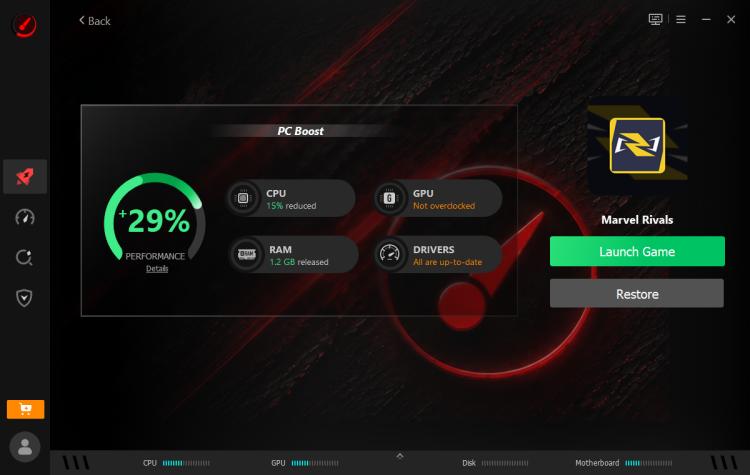
Why is it a good FPS booster for Marvel Rivals?
Cross-Region Low-Latency Acceleration
This Marvel Rivals FPS booster provides servers globally and intelligently routes your connection through optimal servers, which can significantly reduce latency and packet loss.
One-Click GPU/VRAM Overclock (+30% Performance)
Smart Game Booster safely pushes your graphics card and VRAM beyond stock speeds with a single click. This can deliver up to 30% more performance, directly translating to Marvel Rivals FPS boost during intense team fights.
One-Click Cleanup for More CPU & RAM
The software will also close resource-hogging background apps, clear junk files, and free up valuable CPU and RAM. This ensures Marvel Rivals gets priority access to system resources, which contributes to stable FPS and fewer drops.
Auto-Optimize Windows & Free Up Disk Space
Smart Game Booster automatically tweaks settings for gaming, defrags drives, and frees up disk space. With an optimized system, your PC can maintain consistent high FPS throughout the full gaming session.
Real-Time Hardware Monitoring (Temp & Usage)
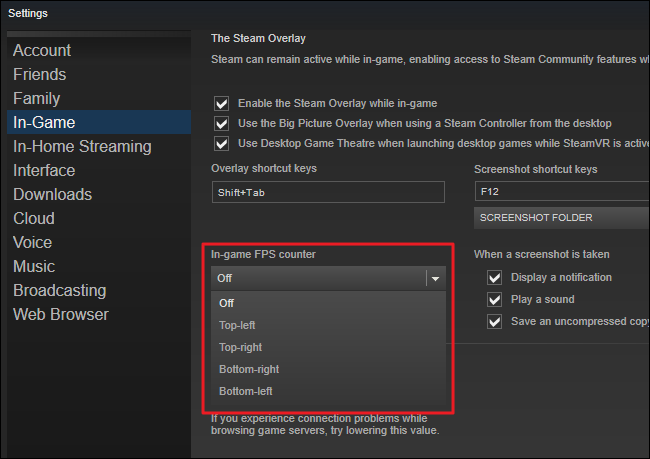
It also comes with a built-in monitor that displays in-game FPS and hardware temperature. You can adjust settings to avoid thermal throttling and ensure your hardware stays safe all the time!
Key Features of Smart Game Booster
- Enjoy lag-free & low-ping gaming
- 100+ games supported
- Severs from all over the world
- Boost in-game FPS
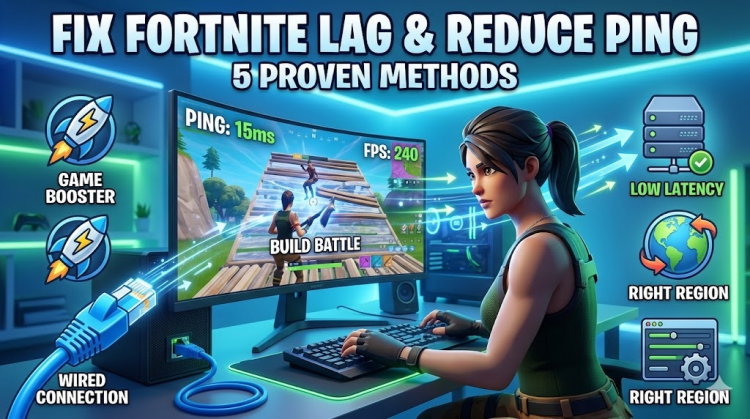
Also Read: Best Way to Reduce Ping in Fortnite and Fix Lag Quickly | 5 Proven Methods >>
Marvel Rivals FPS Boost Mod - Update Graphics Drivers
Outdated GPU drivers can reduce your FPS and overall game performance. Marvel Rivals largely rely on the latest driver optimizations to run smoothly. If your drivers are outdated, your GPU may not fully support new rendering technologies, which leads to lower frame rates, stuttering, and even crashes.
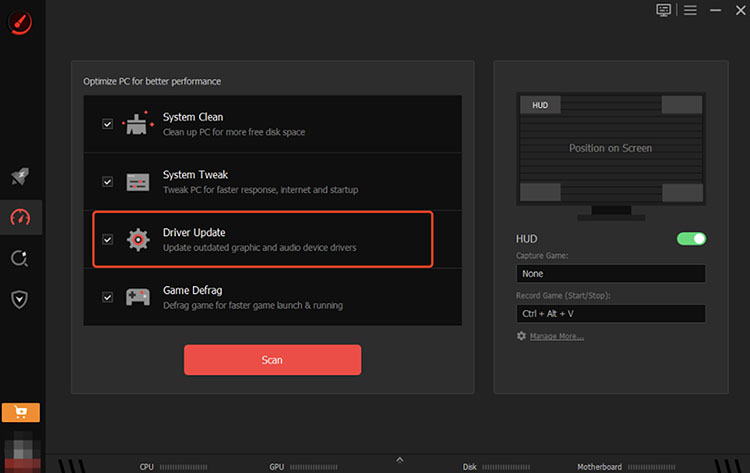
Don’t worry. Smart Game Booster provides a built-in driver update feature that can help you out. It can automatically detect outdated drivers and install the latest versions. Here’s how to update graphic drivers step by step.
Step 1. Navigate to the Performance section on the left. It’s below the Booster (rocket) icon.
Step 2. Click on the driver update option and run a full system scan.
Step 3. After the scan, select the graphic driver and others you want to update and start the process.
Optimize Windows for Gaming Performance
While the previous FPS boost mod Marvel Rivals tips help, it’s also essential to optimize your PC performance for a more stable gaming experience. Here are the tips to help your PC run more smoothly,
Enable Windows Game Mode: Turn on Game Mode in Windows Settings to prioritize CPU and GPU resources for gaming.
Disable unnecessary background apps: Close startup and background applications that consume CPU and memory resources. So your system can dedicate more resources to Marvel Rivals for smoother performance. This works just as well to reduce lag on Roblox, Fortnite, and Valorant, etc.
Clear temporary files regularly: Remove temporary files, cache, and system junk to free up storage space, which helps your PC maintain consistent speed and efficiency.
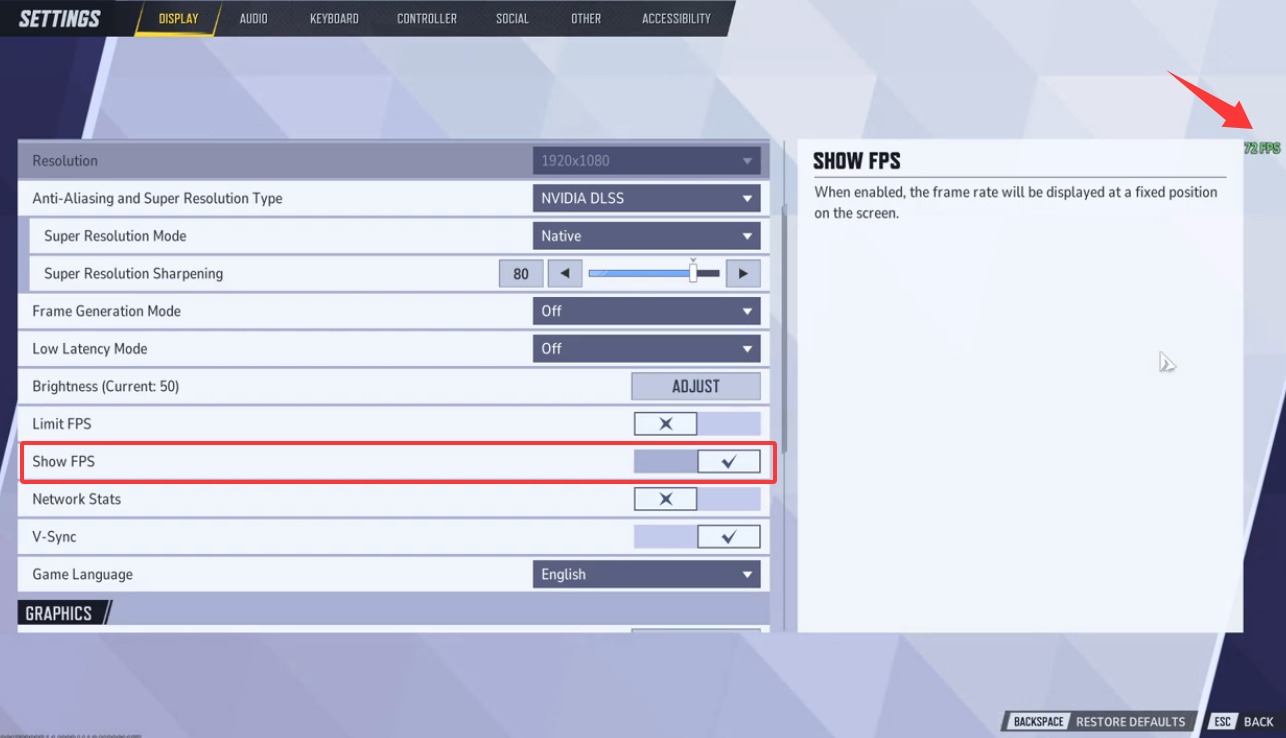
How to Check the FPS of Marvel Rivals
After applying optimization methods, you can check your FPS directly in the game. Simply turn on the “Show FPS” option in the Display settings to monitor the FPS in real time.
Conclusion
This guide has covered the most effective ways to boost FPS in Marvel Rivals. You can adjust in-game settings, use third-party software, and update your graphics drivers to improve overall gameplay performance. If you are looking for the simplest Marvel Rivals FPS boost solution, Smart Game Booster is your best choice. With multiple optimization features, it can help unlock your PC’s full gaming potential with just a few clicks. Try Smart Game Booster and enjoy a smoother Marvel Rivals experience now!