“Are Rocket League servers down?” Rocket League is a trending vehicular soccer video game developed and published by Psyonix. Many players are asking this question when they’re stuck in ranked progress or screen freezes. Not logged in to your Rocket League servers? Is Rocket League servers down for everyone, or just a bug for you?
This ultimate guide will walk you through how to check the live Rocket League server status, common reasons, how to fix server issues, and the best game server booster!
Is Rocket League Servers Down Right Now?
No, Rocket League servers are currently up and operational. Actually, there are two situations when we’re talking about “Rocket League server is down”:
Sometimes there are official Rocket League outages in global due to scheduled maintenance or large unexpected incidents.
There is no outage, and Rocket League appears online normally, but you still can’t log into the game with the server. ;
A stable server connection is the key to ranking up in matches. No matter which one you’re encountering, it’s urgent to fix the issue for smooth gameplay instantly.;
How to Check Rocket League Server Status
So, how do you know if your Rocket League server being down is a widespread outage or an error isolated to you? Here are 4 reliable methods to check the Rocket League server status.
1. Official Rocket League Server Status Page
Since Psyonix is part of Epic Games, Rocket League server operations are tracked on the main Epic Games status site. This is the most reliable way to check live server status.
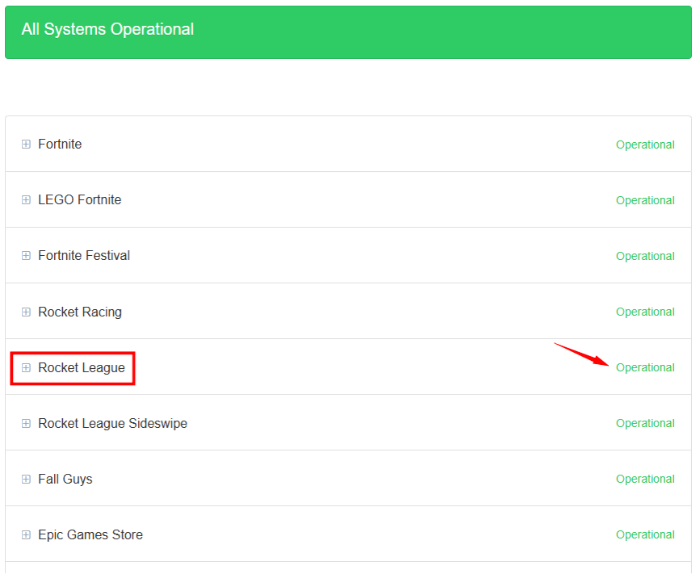
Step 1. Visit the website: status.epicgames.com.
Step 2. Scroll down to find the Rocket League section. Check if it is Operational or Down.
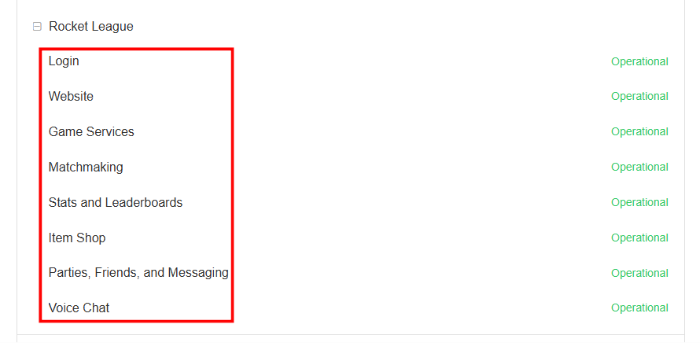
Step 3. Click on it to check more detailed services, including Matchmaking, Login, Game Services, Item Shop and so on.
2. Rocket League Status on X (Twitter)
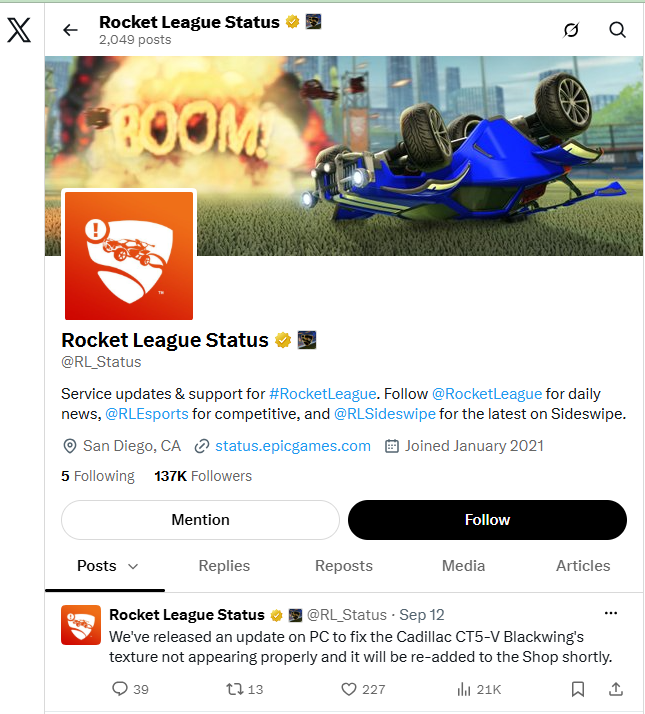
X (Twitter) is a primary platform for developers to post live updates and alerts regarding maintenance or unexpected Rocket League server issues.
Step 1. Go to X (Twitter) and search for the @RL_Status account.
Step 2. Look at pinned tweets or recent posts announcing active server investigations about Rocket League.
3. Rocket League Server Down Detector
If the official status page hasn't updated yet during an unexpected spike in issues, these third-party Rocket League Server Down Detector sites can confirm if other players are also disconnecting.
Downdetector: Search for Rocket League on Downdetector to see real-time player report spikes.
StatusGator: It works efficiently to track public reports alongside official Epic Online Services incidents.
4. Check Platform Internet Statuses
Sometimes the issue isn't Rocket League itself, but your gaming platform's network service. Check your platform's status below:
Steam: steamstat.us
PlayStation Network: status.playstation.com
Xbox Network: support.xbox.com/xbox-live-status
Nintendo Switch Online: nintendo.com/consumer/network/en_na/network_status.jsp
Common Reasons for Rocket League Servers Down or Not Working
Why can't connect to Rocket League servers? Here are some common reasons why Rocket League servers are unavailable or not connecting:
Scheduled Maintenance: Psyonix and Epic Games routinely take servers offline to deploy game updates, patch bugs, or perform routine maintenance.
Epic Online Services Outages: An issue with general Epic Games services or account authentication can cause servers down in Rocket League.
Platform Network Outages: PlayStation Network, Xbox Network, Nintendo Switch Online, or Steam down can prevent players on from server connecting.
High Server Traffic: The launch of a new season or major update drops can cause a surge of returning players, overwhelming login services and matchmaking queues.
Local Network or ISP Routing Issues: Unstable Wi-Fi, DNS conflicts, local ISP routing problems, or choosing an incorrect matchmaking region can trigger server connection errors.
Not only for Rocket League, these can also be the main causes of servers down in CSGO Ranks or other online video games.
Key Features of Smart Game Booster
- Enjoy lag-free & low-ping gaming
- 100+ games supported
- Severs from all over the world
- Boost in-game FPS
How to Fix Rocket League Servers Down (5 Proven Ways)
Now that you have figured out “Is Rocket League servers down right now” and the major causes, how can you fix the frustrating server issue properly? Check the following 5 practical fixes.
Way 1. Restart Game, Launcher, and Network Equipment
A restart always works for most system issues. Clearing temporary connection memory resolves the majority of local server connection drops.
Step 1. Fully exit Rocket League and close your launcher (Epic Games Launcher or Steam).
Step 2. Unplug your router and modem from power.
Step 3. Wait 30 seconds, plug them back in, and allow the connection lights to turn solid.
Step 4. Relaunch the game and try joining a match.
Way 2. Use a Wired Ethernet Connection
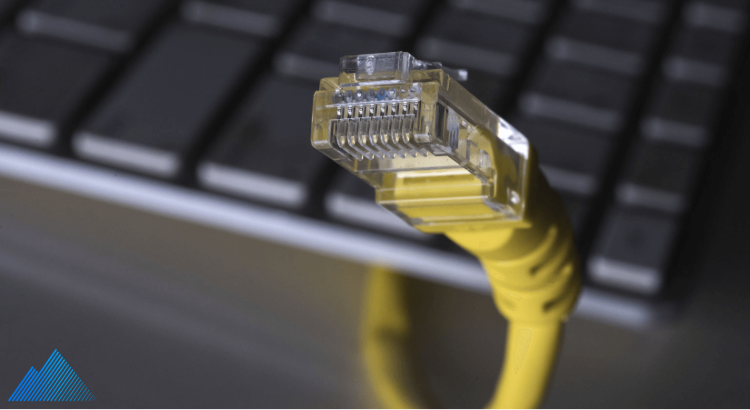
Your Wi-Fi network connection is not always stable. To avoid servers down in gaming, you’d better connect an Ethernet cable directly from your PC or console to your router. If using Wi-Fi is mandatory, move closer to the router and disable bandwidth-heavy downloads on other devices on your home network.
Way 3. Verify Game File Integrity
Corrupted installation files can break your connection to Epic Online Services. Check if your Rocket League files are integrate as follows:
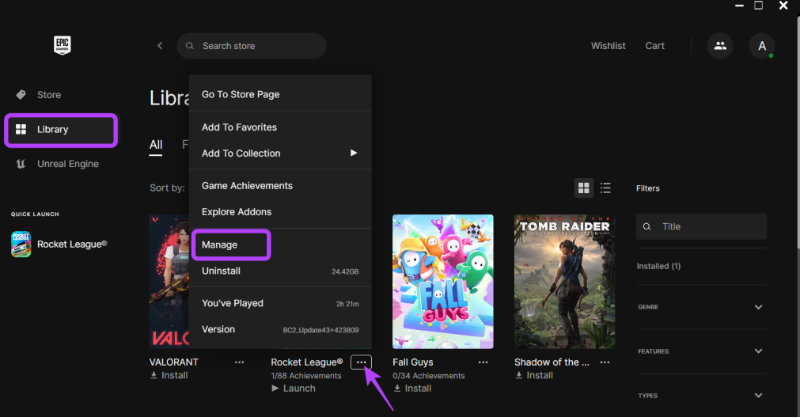
On Epic Games Launcher:
Step 1. Go to Library, click the three dots on Rocket League.
Step 2. Select Manage > click Verify to check the integrity.
On Steam:
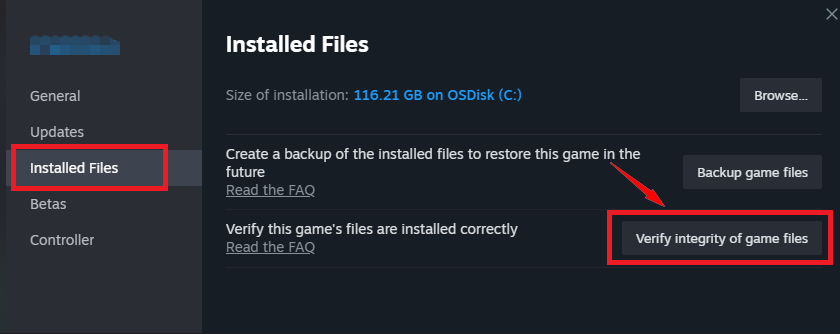
Step 1. Go to Library on Steam and right-click Rocket League.
Step 2. Select Properties > Installed Files, and click Verify integrity of game files.
Way 4. Temporarily Turn off Firewall or Antivirus
Your Rocket League’s server connection may be mistakenly blocked by Windows security software. Disable your Firewall or third-party antivirus temporarily to see if the issue exists.
Way 5. Flush DNS Cache (for PC Users)
Stored IP addresses can become outdated, leading to server connection timeouts. If you still can’t connect to the server, try to update the PC DNS Cache.
Step 1. Press Win + R, type cmd, and press Enter.
Step 2. Type ipconfig /flushdns and press Enter.
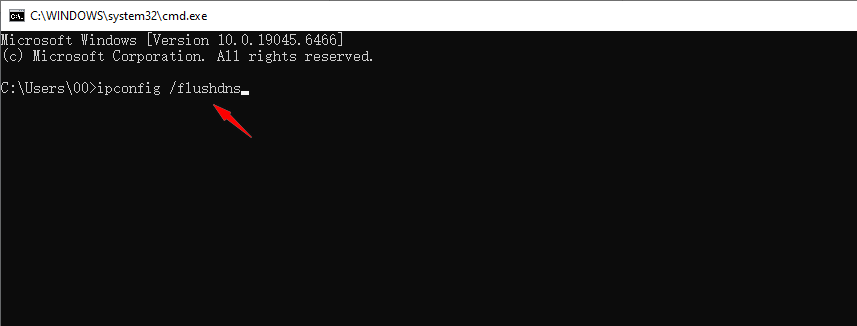
Step 3. Restart your computer and launch the Rocket League game.
Even though the Rocket League server is fixed, you may also get a poor network connection in gaming. Why is your Rocket League server so laggy? It contains lots of causes. Keep reading to learn more about how to fix and speed up your Rocket League servers!
How to Change & Boost Rocket League Servers for Better Gaming Experience
If you still can't connect to Rocket League servers after trying the above methods, an easier and more efficient solution is to change your Rocket League server to another matchmaking region. To make everything simple, Smart Game Booster is a trusted and powerful tool that instantly resolves Rocket League server not working and optimizes the gaming experience without FPS drops, like Rocket League servers laggy and PUGB lag fix.
Key Features of Smart Game Booster
- Enjoy lag-free & low-ping gaming
- 100+ games supported
- Severs from all over the world
- Boost in-game FPS
Here’s how to change your servers on Rocket League and boost your network.
Step 1. Free download & install the latest version of Smart Game Booster.
Step 2. Launch it and navigate “Rocket League” on the homepage.
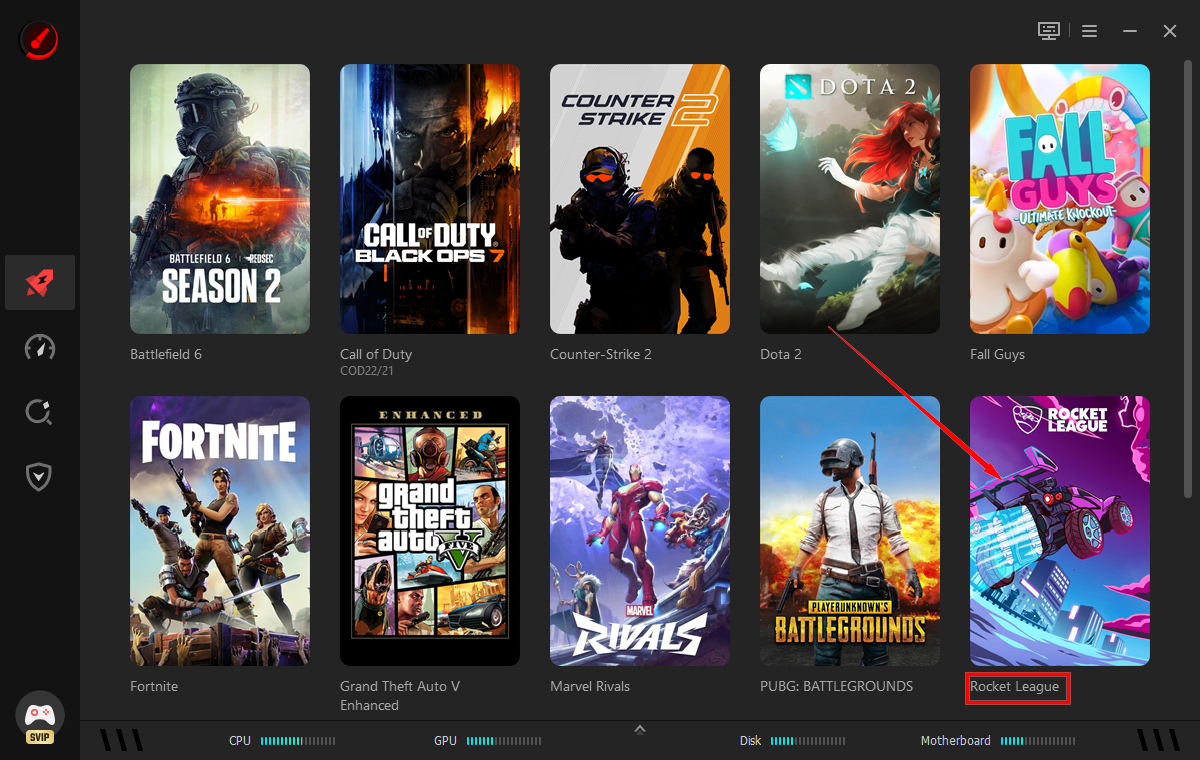
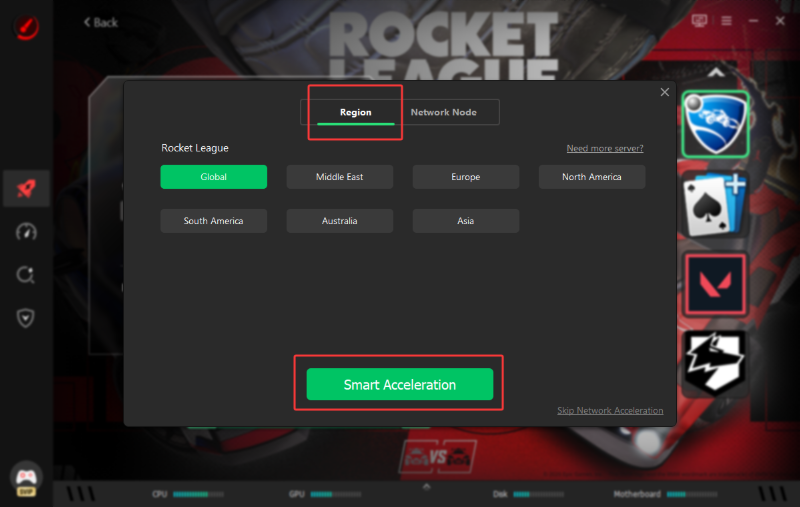
Step 3. Click on “Smart Selection” and choose an available matchmaking server for Rocket League, like US-East or Europe.
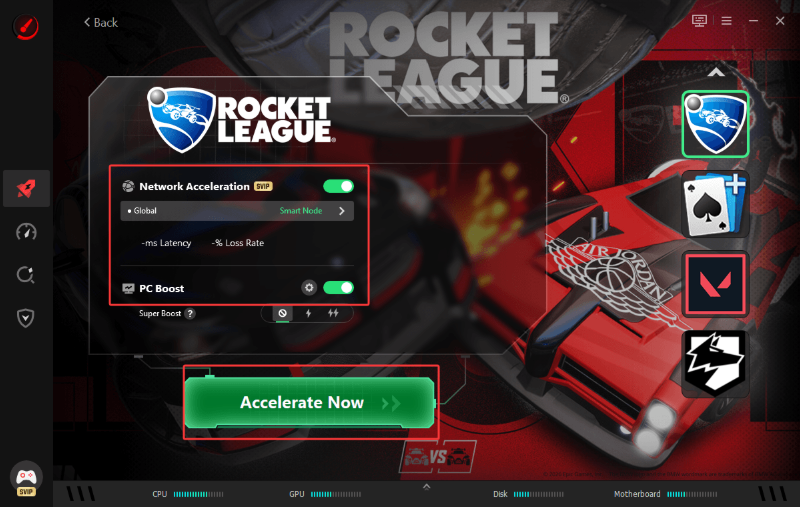
Step 4. Enable “Network Acceleration” and “PC Boost”, and click “Accelerate Now” to get an instant Rocket League server and system boost.
If you’re wondering how to reduce lag in Roblox, Smart Game Booster can also help you enjoy an optimal gaming experience.
How Smart Game Booster Improves Rocket League Performance?
Why are Rocket League servers so bad? No worries. Smart Game Booster allows you to change the down server instantly with one click for login, matchmaking, or shopping hassle-free.
Not just fixing Rocket League servers down, this amazing booster also provides a smart server booster and helps fix Rocket League servers lagging with a ping reducer.
The FPS Booster helps release the CPU and RAM significantly and overclock GPU safely to unlock full potential of CPU & GPU for higher FPS in Rocket League.
Smart Game Booster supports real-time monitoring and display of in-game FPS, GPU, CPU hardware temperature, and memory usage, which ensures the best gaming performance.
Can you run Rocket League on your PC? Can I Run It gives a detailed hardware detection & game compatibility analysis to quickly check if your PC meets the system requirements.
Moreover, the booster supports further system optimization options, including System Clean, System Tweak, Driver Update, & Game Defrag for ultimate PC Performance.
Final Thoughts
Are Rocket League servers down? Rocket League’s official servers are currently up but you have to check if your live server is down. Try these safe and practical solutions to fix Rocket League servers down and reduce Rocket League servers laggy with Smart Game Booster for a perfect gaming experience.
Key Features of Smart Game Booster
- Enjoy lag-free & low-ping gaming
- 100+ games supported
- Severs from all over the world
- Boost in-game FPS