Skate 3 remains one of the most popular Xbox 360 games, and many players enjoy it through the Xenia emulator. However, lag, frame drops, and stuttering can make the experience frustrating, especially on mid-range PCs. If you're searching for how to increase FPS on Xenia Skate 3, this guide covers the most effective optimization methods.
Whether you're looking for how to increase FPS in Xenia, searching for how to increase FPS on Xenia Skate 3 Reddit discussions, or wondering how to increase FPS on Xenia Skate 3 Xbox One, the following tips will help you achieve smoother gameplay.
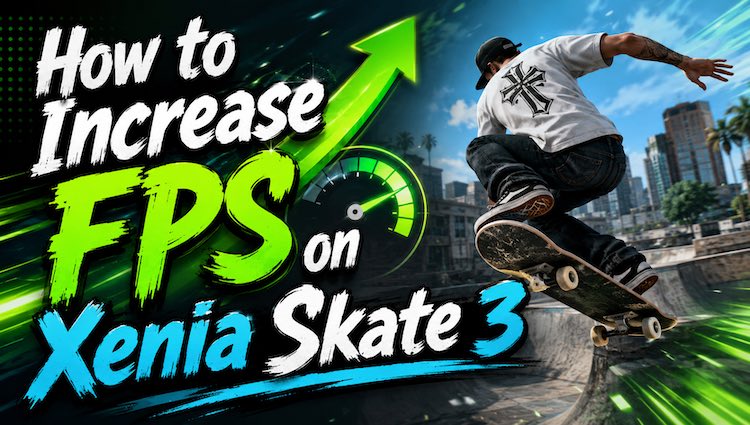
Why Is Xenia Skate 3 Running at Low FPS?
Before making any adjustments or optimizations, it's important to first understand the underlying reasons why performance drops occur, as identifying the root causes can help you apply the most effective solutions and achieve smoother gameplay. Some common reasons include:
Outdated graphics drivers
Incorrect Xenia graphics settings
Background applications consuming CPU and RAM
Windows power-saving mode
High internal resolution or graphics enhancements
CPU bottlenecks
Fortunately, most FPS problems can be solved with a few adjustments.
Method 1. Optimize Xenia Configuration Settings
The first step in learning how to increase FPS on Xenia Skate 3 is configuring Xenia correctly. Many users leave the default settings unchanged, but small adjustments can noticeably improve frame rates and reduce stuttering.
Before making any changes, remember to back up the configuration file.
Exit Xenia completely before changing any settings.
Open the folder where Xenia is installed or extracted.
Look for the configuration file, commonly named xenia.config.toml.
Copy the file and save it somewhere safe as a backup.
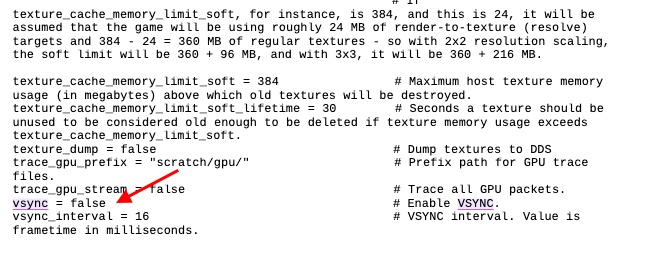
Step 1. Disable VSync.
Close Xenia completely.
Locate the xenia.config.toml or xenia-canary.config.toml file.
Open the file with a text editor such as Notepad or Notepad++.
Press Ctrl + F and search for vsync.
If your Xenia build provides this setting, change its value to false.
Step 2. Switch the Graphics Backend to D3D12.
Open the Xenia configuration file again.
Search for the GPU or graphics backend setting.
If it is currently set to Vulkan, change it to D3D12, provided your Xenia build supports this option.
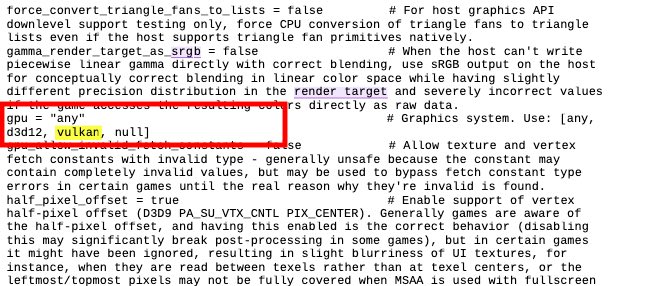
Tip: D3D12 may work better on some systems, but performance depends on your GPU, drivers, and Xenia version. If problems occur, restore the previous setting.
Step 3. Enable a 60 FPS Patch in Xenia Canary.
Download and use a current Xenia Canary build that supports game patches.
Add or install a compatible Skate 3 patch according to the Canary patch system.
Open the available patch configuration for Skate 3.
Find the 60 FPS patch and enable it.
Restart or relaunch the game so the patch takes effect.
Note: A 60 FPS patch removes or changes a game-side limitation; it does not guarantee that your PC can maintain 60 FPS.
Method 2. Update Your Graphics Driver
Even a perfectly configured emulator cannot perform well with outdated GPU drivers. Updated drivers often include game optimizations, Vulkan improvements, DirectX fixes, and stability enhancements that directly affect emulator performance. Now, follow these steps to update your graphics driver.
Step 1. Identify your graphics card model.
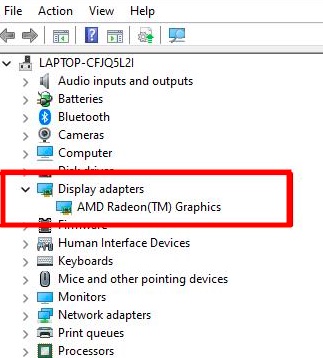
Press Windows + X and select Device Manager.
Expand Display adapters.
Note the name of your graphics card, such as NVIDIA GeForce, AMD Radeon, or Intel Arc/UHD Graphics.
Step 2. Visit your GPU manufacturer’s official driver page and select your exact graphics card model and Windows version
Step 3. Open the downloaded driver installer and follow the on-screen installation instructions.
Step 4. Restart your computer and launch Xenia again.
Method 3. Boost Performance with Smart Game Booster
If you want an easier way to optimize Windows, Smart Game Booster is an excellent solution. Instead of manually disabling dozens of services and background tasks, it automatically prepares your PC for gaming with one click. It is especially useful when running demanding emulators like Xenia because this FPS booster frees system resources before launching Skate 3.
Key Features of Smart Game Booster
- Enjoy lag-free & low-ping gaming
- 100+ games supported
- Severs from all over the world
- Boost in-game FPS
Key Features of Smart Game Booster
Game Mode Optimization - Automatically closes unnecessary background processes to release CPU and RAM resources.
System Resource Cleanup - Optimizes Windows settings for improved gaming performance.
Performance Monitoring - Displays real-time CPU, GPU, RAM, and FPS usage while gaming.
Driver Update Integration - Helps identify outdated gaming-related drivers.
One-Click Game Optimization - Simplifies Windows optimization without requiring advanced knowledge.
Ping reducer feature for 80% lower ping
Steps for Xenia FPS Boost Using Smart Game Booster
Step 1. Download and install Smart Game Booster on your computer.
Step 2. Open the main dashboard and choose Xenia Skate 3 to enter the game details. If you don’t see this game, just add it manually.
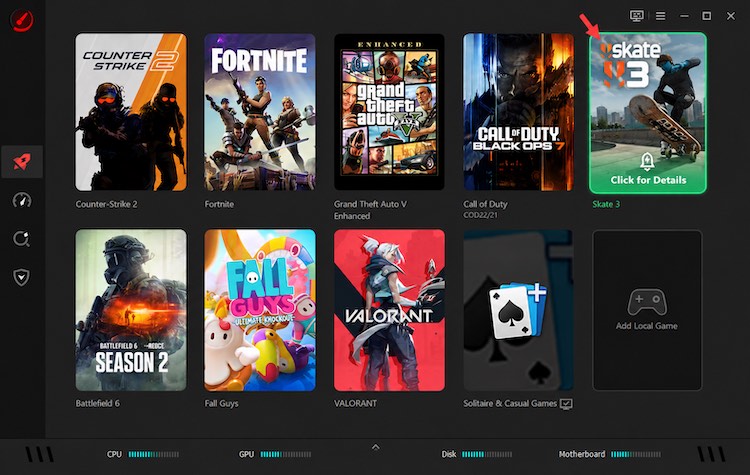
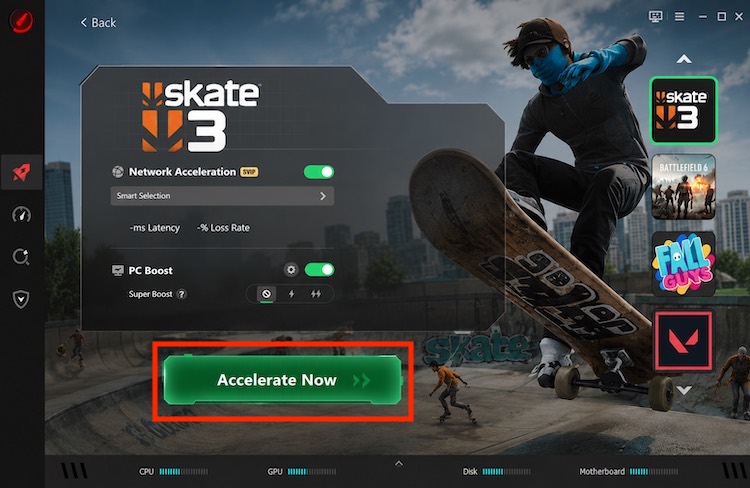
Step 3. In the game settings interface, enable Acceleration and PC Boost. Under PC Boost, choose a mode for getting more FPS in Skate 3. Then, click Accelerate Now to increase FPS on Xenia Skate 3.
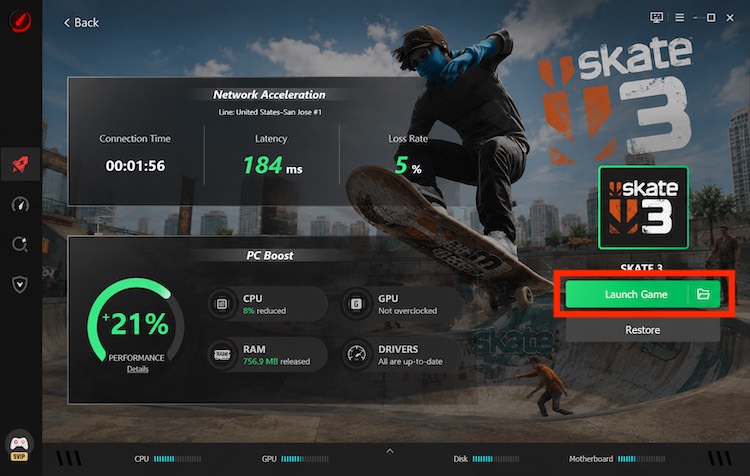
Step 4. Smart Game Booster shows the acceleration status. Click Launch Game to play Skate 3 smoothly.
Method 4. Close Background Applications
Many users overlook background software. Browsers, cloud sync programs, RGB software, recording tools, and update services constantly consume CPU cycles and memory, reducing the resources available for Xenia. So, closing unnecessary background apps can help increase FPS on Xenia Skate 3.
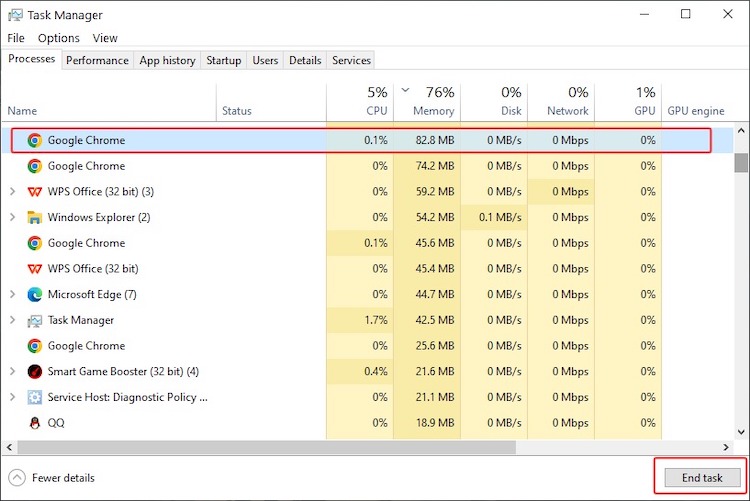
Step 1. Press Ctrl + Shift + Esc.
Step 2. Open Task Manager.
Step 3. Sort processes by CPU or Memory usage.
Step 4. Close unnecessary applications. Common examples include:
Web browsers with multiple tabs
Video or music streaming apps
Game launchers that are not required for Skate 3
Video editing and productivity software
Cloud-sync applications during active synchronization
Unnecessary screen-recording or overlay software
For applications you recognize and do not need, select the app in Task Manager and click End task.
Note: Do not end unfamiliar Windows processes or essential system services.
Method 5. Change Windows Power Settings
Windows Power Saver mode limits processor performance, which can significantly affect CPU-intensive emulators. Switching to a higher-performance power plan allows your processor to run at its maximum potential. Here’s how to do it.
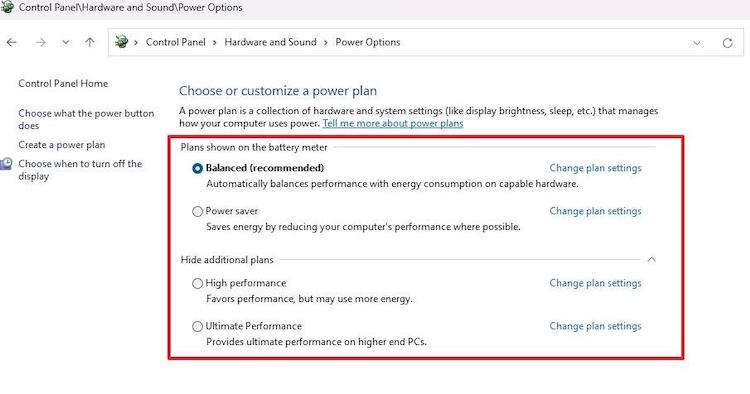
Step 1. Open Control Panel.
Step 2. Select Power Options.
Step 3. Choose High Performance or Ultimate Performance.
Step 4. Restart your PC and Test Skate 3 again.
Method 6. Upgrade Hardware If Necessary
If you've tried every optimization and still experience poor performance, your PC hardware may be limiting Xenia’s performance. Because Xbox 360 emulation can be CPU-intensive, upgrading the right component—not simply buying a faster GPU—can help achieve smoother Skate 3 gameplay.
Step 1. Identify the Hardware Bottleneck
Before buying new hardware, determine which component is limiting performance. Here are the steps.
Launch Xenia and start Skate 3.
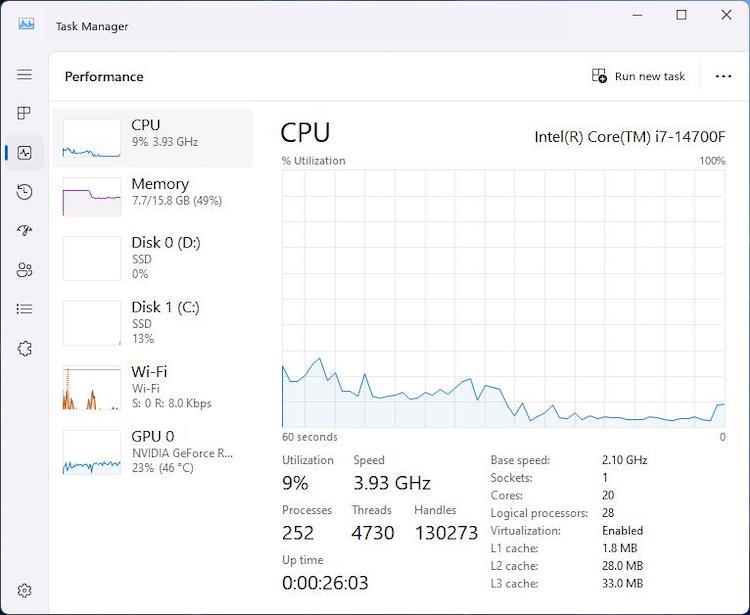
Press Ctrl + Shift + Esc to open Task Manager.
Select Performance.
Monitor CPU, Memory, GPU, and Disk usage while playing.
For more detailed CPU information, check individual logical processors rather than relying only on total CPU percentage.
Then, you can upgrade the CPU and GPU if they are the Bottleneck.
Step 2. Increase RAM If Memory Is Insufficient
Running Xenia alongside Windows and background applications requires sufficient system memory. If RAM usage is consistently very high, Windows may rely more heavily on virtual memory, potentially contributing to stuttering. So, increase RAM if memory is insufficient.
Open Task Manager > Performance > Memory.
Check memory usage while Xenia and Skate 3 are running.
Close unnecessary programs and test again.
If memory remains constrained, consider adding compatible RAM.
Step 3. Use an SSD to Reduce Storage Bottlenecks
Moving Xenia and game files from a slow mechanical hard drive to an SSD can improve loading and general responsiveness.
Check whether Xenia and Skate 3 are stored on an HDD or SSD.
If necessary, install a compatible SATA or NVMe SSD.
Move or reinstall Xenia and your game files on the SSD.
Launch Skate 3 and compare loading and stuttering behavior.
Can You Increase FPS on Xenia Skate 3 Xbox One?
Many users search for how to increase FPS in Xenia Skate 3 Xbox One, but it's important to clarify that Xenia is a Windows emulator and does not run on Xbox One consoles.
If you're playing the original Skate 3 on Xbox One through backward compatibility, performance is controlled by Microsoft's compatibility layer and the console hardware. You cannot apply Xenia-specific settings or optimization methods on Xbox One.
FAQs
1. Does updating drivers really improve Xenia FPS?
Yes. Graphics driver updates often include Vulkan and DirectX optimizations that improve emulator performance and stability.
2. Why does Skate 3 stutter even with high FPS?
Most stuttering comes from shader compilation, background applications, or unstable frame pacing rather than low average FPS.
3. Is Xenia Canary better than the regular version?
For many games, including Skate 3, Xenia Canary frequently delivers better compatibility and performance improvements.
Conclusion
Learning how to increase FPS on Xenia Skate 3 doesn't require advanced technical knowledge. Start by optimizing Xenia settings, updating your graphics drivers, enabling a high-performance power plan, and closing unnecessary background programs. For a faster solution, Smart Game Booster can automatically free system resources and improve gaming performance with just one click. By combining these methods, you can enjoy smoother gameplay, fewer stutters, and a more responsive Skate 3 experience.
Key Features of Smart Game Booster
- Enjoy lag-free & low-ping gaming
- 100+ games supported
- Severs from all over the world
- Boost in-game FPS