Today, many LoL players have encountered high ping and various issues caused by the servers. If you’ve ever felt held back by latency or wanted to team up with friends in other regions, it’s time to fix these server-related issues, and changing servers can be a great help.
So, how to change server in LoL for a better gaming experience? In this guide, we will introduce 3 efficient methods, along with a powerful game booster that provides flexible multi-server access for smoother and more stable performance. Just read on!
Why Players Change League of Legends Server?
Before introducing how to change server League of legends, let’s have a look at the benefits of the practice.
Diverse Player Base: Each region has its own unique playstyle and community. For example, NA players tend to be aggressive, and EUW players are often more strategic.
Better Latency (Lower Ping): A closer server can drastically reduce lag, improving reaction time and in-game precision.
Various Competitions: Different servers offer various ranked environments, which give players fresh challenges and experience.
Play with Friends Globally: You can join friends in other regions for much more fun without geo-restriction.
How to Change Server in LoL with a New Regional Account
One free method for changing the server is to use a new regional account. There is no transfer free and you can have a clean start in your preferred region straight away. Here’s how to change LoL server for free via a new account.
Step 1. Go to Riot Games and create a new account with your email address.
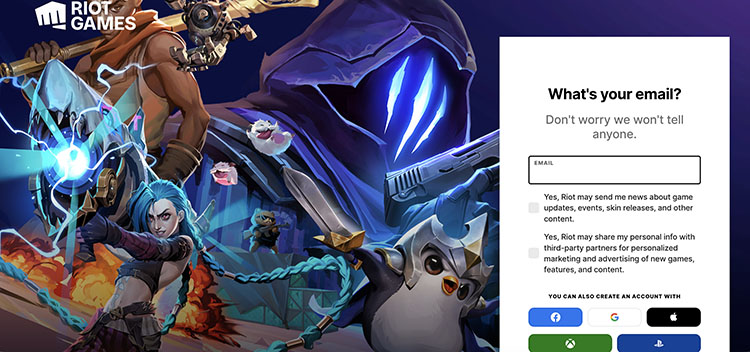
Step 2. Riot accounts are often auto-assigned to your physical location. You might need to use a VPN to visit the website for your desired region.
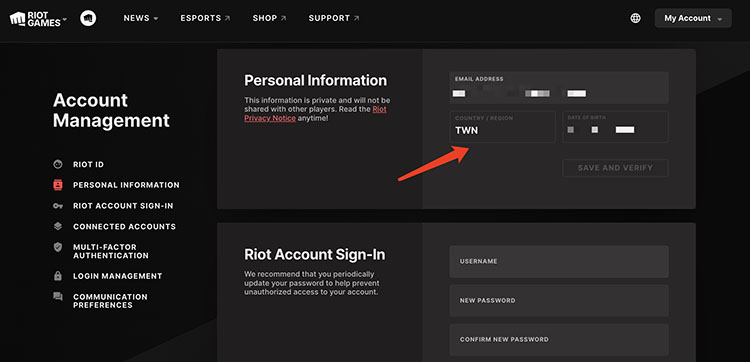
Step 3. Log in with your new account. Now you can enjoy your game on the new server!
How to Change Server in LoL via Changing Account Region
Alternatively, you can change your server in League of Legends via official account transfer. However, the practice is not free. It requires purchasing Riot Points (RP) in the in-game store. Here's how to change server in LoL PC:
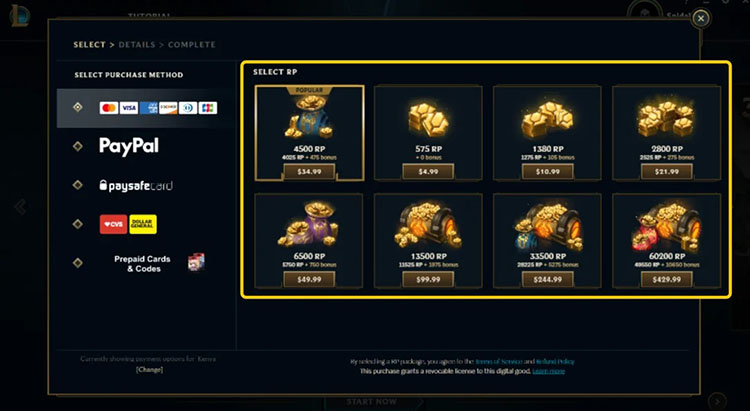
Step 1. Log in to the League of Legends client, go to the Store, and open the Purchase RP tab. Buy at least 2,600 RP (around $20 USD), which is the standard cost for a one-way transfer.
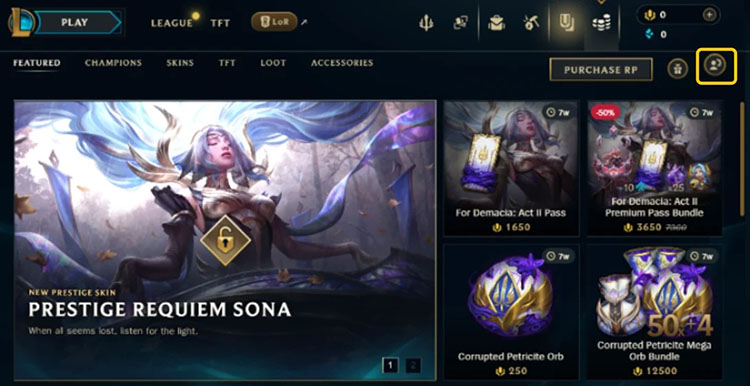
Step 2. In the Store, click the Account icon (gear icon) in the top-right corner to access transfer options.
Step 3. Select your target server/region, confirm the purchase, and complete the transfer. 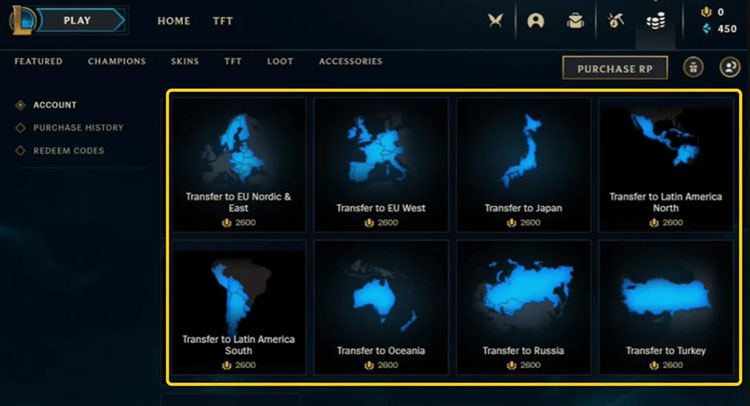
That’s how to change your server in LoL with the paid method. The process usually takes 5-10 minutes. Just verify the transfer later.
How to Change & Boost Server in LoL Easily on Smart Game Booster
LoL, how to boost servers? The previous sections have introduced 2 useful methods to change servers. But if you want to change servers easily with powerful network acceleration, Smart Game Booster is your best companion. You can just launch the game through the software and enjoy optimized routing and smoother gameplay in just a few clicks.
Key Features of Smart Game Booster
- Enjoy lag-free & low-ping gaming
- 100+ games supported
- Severs from all over the world
- Boost in-game FPS
How to Boost Server League of Legends with Smart Game Booster
Step 1. Free Download and Install Smart Game Booster on your Windows computer.
Step 2. LoL is not available in Smart Game Booster, but you can add it from the local game. Then click on the League of Legends to open the game details.
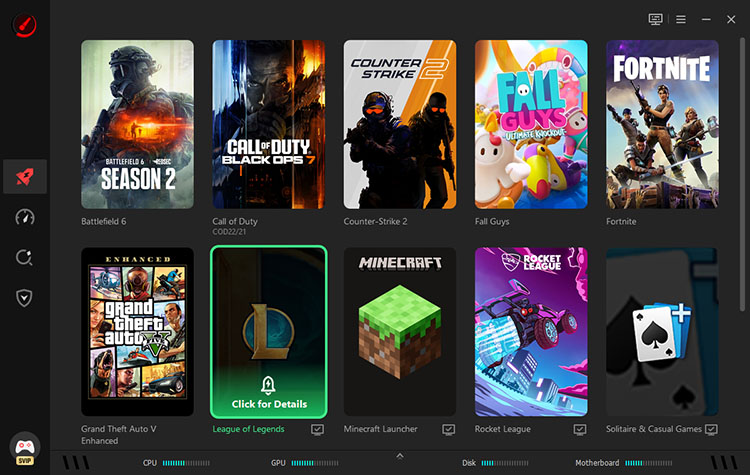
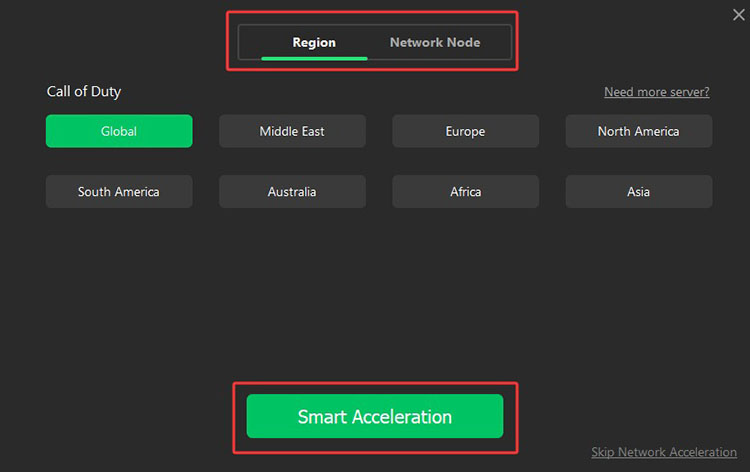
Step 3. Select your preferred region/server and network node. Click on the “Smart Acceleration” to proceed. Also, set the PC boost mode and click on the “Accelerate Now” for optimization.
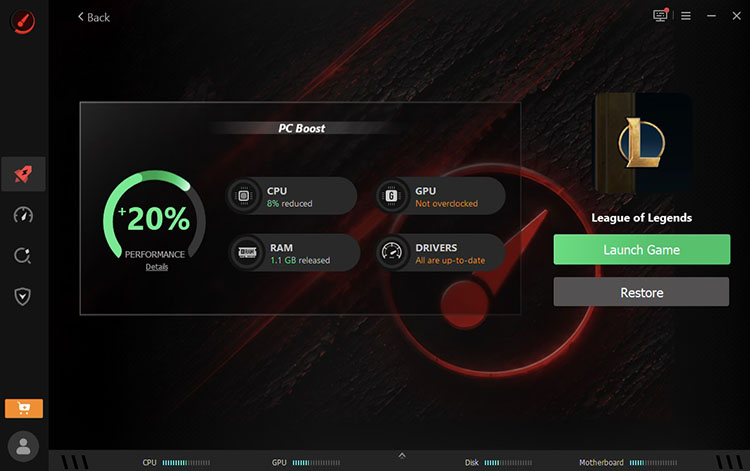
Step 4. Now you will see a review of the improved performance. Click on Launch Game to enjoy the game with server transfer.
Tips: Our game list is updating continuously. If you are playing Counter-Strike 2 or other hot titles that you can find directly in the Smart Game Booster, you can easily transfer a server region and accelerate your connection instantly for peak performance!
What Can You Benefit from Smart Game Booster?
There is no need to create an account or make a transfer. The software lets you choose servers and launch the game in one click. You can connect to optimized global routes across regions(Europe, North America, Asia) instantly. It is also a ping reducer that minimizes lag and delay in games.
It safely optimizes and overclocks your GPU and VRAM to unlock extra performance. You can enjoy up to 30% higher FPS, smoother animations, reduced screen tearing, and lower system latency.
How to see PC game FPS? The software tracks real-time in-game FPS and monitors hardware temperatures, for instance, CPU, GPU, disk, etc. You can stay informed of performance changes and prevent overheating for stable gameplay.
You can also quickly check if your PC meets League of Legends system requirements for free with Can I Run It. The software will analyze your hardware and help you optimize settings before launching the game.
Smart Game Booster blocks malware, unsafe websites, and hidden threats. It also monitors passwords and login data 24/7, alerting you to risks so you can diagnose PC issues for safer gaming.
You May Need: Best Way to Reduce Ping in Fortnite and Fix Lag Quickly | 5 Proven Methods >>
How to Check Your Current Server in LoL
Now you know how to change server on LoL easily with the best FPS booster software. So what about the current server status? You can just follow the steps below to check it out.
Step 1. Log in to the League of Legends client and click your profile icon. Go to Settings to find your current server.
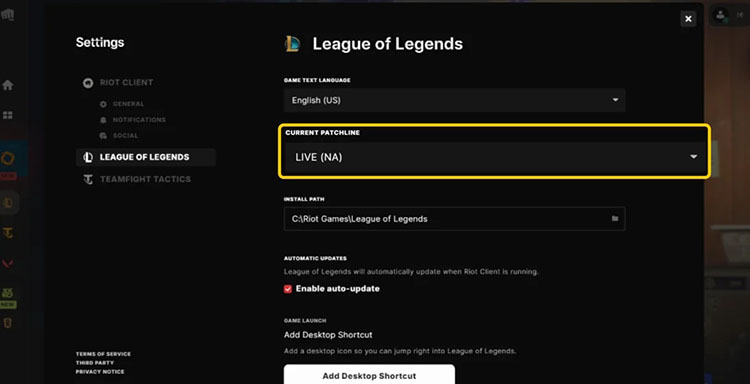
Step 2. Alternatively, you can open the Riot Account Management website in your browser and view your assigned region.
What Will Transfer If You Change Server in LoL?
After you know how to change server on LoL, it’s important to know what might happen if you make an account transfer. In this part, we have concluded the specifics.
Things That Will Transfer |
Things That Won’t Transfer |
Summoner Level |
Clash Banners |
Champions Owned |
Some Event Rewards |
Skins & RP Balance (most cases) |
Ranked Borders/Season Rewards |
Champion Mastery |
Certain Cosmetic Items |
Match History |
Region-specific Content |
While most core account progress is transferred, some region-specific features and cosmetic content may not carry over. Make sure to review the transfer details carefully to avoid unexpected data loss.
Which League of Legends Servers Can You Transfer to?
Once you know how to change your server in LoL, it’s helpful to understand various regions in competitiveness and playstyle. Here are some of the most common servers:
NA (North America): Large player base with a balanced skill range and active competitive scene. Ideal for English-speaking players.
EUW (Europe West): Highly competitive with a dense population of skilled players and fast matchmaking.
EUNE (Europe Nordic & East): Slightly less competitive than EUW but still active, with a diverse player base.
KR (Korea): Widely considered the most competitive server, known for high skill levels and intense gameplay.
Asia Servers (e.g., JP, SG): Great for lower ping if you are located nearby. Player populations may vary.
What Network Challenges of Changing LoL Servers?
Regardless of the server you choose, you may encounter several network-related challenges that affect gameplay performance. Here are the common issues you might experience:
High Ping: Distant servers will increase latency, leading to delayed inputs and less responsive gameplay.
Region Restrictions: Certain in-game content, events, or store items may be limited, depending on the region you transfer to.
Routing Errors/Issues: Your ISP may not provide optimal routing to the new server. This might cause unstable connections, packet loss, or sudden lag spikes.
Connection Stability: Frequent disconnects can occur if your network is not optimized for the new region.
Tips: How to reduce lag on Roblox and other hot titles? Smart Game Booster remains the best choice. It can optimize network routing and lower latency, which makes it the go-to choice for smoother gameplay across different regions!
FAQs About How to Change Server in LoL
1. Why Can’t I Change Server in LoL?
This might happen for various reasons. For instance, cooldown periods, insufficient RP, account restrictions, or ongoing transfers. Riot might also temporarily disable transfers for certain regions during maintenance.
2. Is It Free to Change League of Legends server?
For the official server transfers, it requires RP (typically around 2,600 RP). However, you can make it for free by creating a new account in a different region. Just mind that the new account does not carry over your progress.
3. What Risks of Changing Your Server in LoL?
Some content may not transfer when you change your server. This includes seasonal rewards, certain cosmetics, or region-specific items. You may also experience higher ping for a distant server after the transfer.
4. Is League of Legends Server-Locked?
Not entirely. Your account, store, and friends list are tied to that region. Meanwhile, you can not log into other servers. But there are ways to get around. You can either purchase a transfer or create a new account.
Final Thoughts
How to change server in LoL? You can create a new regional account for free, use Riot’s official paid transfer, or change servers with Smart Game Booster. But if you want to enjoy lower latency and smoother gameplay, Smart Game Booster is the best solution. It lets you connect through optimized servers and network nodes to achieve improved stability. Download Smart Game Booster and enjoy more responsive LoL matches from now on!
Key Features of Smart Game Booster
- Enjoy lag-free & low-ping gaming
- 100+ games supported
- Severs from all over the world
- Boost in-game FPS