Have you ever wondered how to change region in Rocket League if you're dealing with high ping, lag, or slow matchmaking? You're not alone. Many players find that the game's default server selection doesn't always give them the best connection. Switching to a different region can help you enjoy more stable matches, lower latency, and faster queue times in some situations.

Whether you play Casual, Competitive, or Tournament matches, knowing how to change server in Rocket League is useful. This guide will show you the easiest ways to switch regions and improve your overall Rocket League experience.
Why Change Your Rocket League Region?
By default, Rocket League uses the Recommended matchmaking region, which automatically selects the most suitable server based on factors such as latency and server availability. In most cases, this gives you a good connection, but it isn't always the best option. That's why many players search for how to change region on Rocket League to get a better gaming experience.
Here are some common reasons to change your region:
Lower high ping and reduce lag.
Find matches faster by switching to a more populated region during off-peak hours.
Play with friends in another region.
Join tournaments hosted on different servers.
Get a more stable connection for competitive matches.
Now that you know why changing regions can help, let's look at the server regions available in Rocket League.
Regions You Can Change to in Rocket League
If you don't want to use the default automatic server selection, Rocket League lets you manually choose from several regions. You can switch to any of the following:
US-East
US-Central
US-West
Europe
Asia-SE Mainland
Asia-SE Maritime
Asia-East (JPN)
Middle East
Oceania
South Africa
South America
India
The next sections will show you exactly how to change your region on Rocket League for each game mode.
Method 1 - Changing Region for Casual & Competitive Modes
If you're wondering how to change server in Rocket League for regular online matches, this is the easiest method. It works for both Casual and Competitive playlists and only takes a few seconds. Rocket League lets you choose your preferred matchmaking region rather than relying on the default 'Recommended' option.
Steps to change your Casual & Competitive region:
Step 1. Launch Rocket League and select Play from the main menu.
Step 2. Choose either Casual or Competitive.
Step 3. Click the Regions button in the top-right corner.
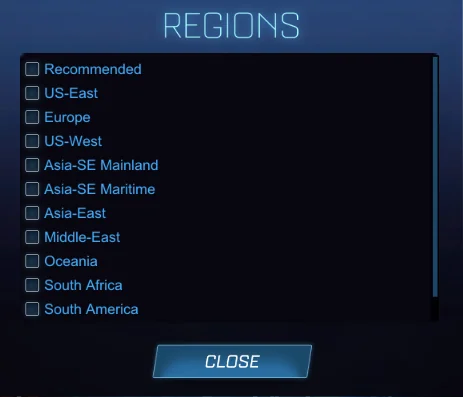
Step 4. Select your preferred server region or keep Recommended for automatic selection.
Step 5. Start matchmaking, and Rocket League will search for games in your selected region.
Method 2 - Changing Tournament Region
Tournament servers use a separate setting, so changing your Casual or Competitive region won't affect tournament matchmaking. If you're asking how do you change your region in Rocket League for scheduled tournaments, you'll need to update the Tournament Schedule Region in the game's settings.
Tips: Keep in mind that this setting can only be changed once every 24 hours and cannot be changed within 24 hours of a selected tournament ending.
Steps to change your Tournament region:
Step 1. Open Settings from the main menu.
Step 2. Go to the Gameplay tab.
Step 3. Scroll down to the Tournament Schedule Region.
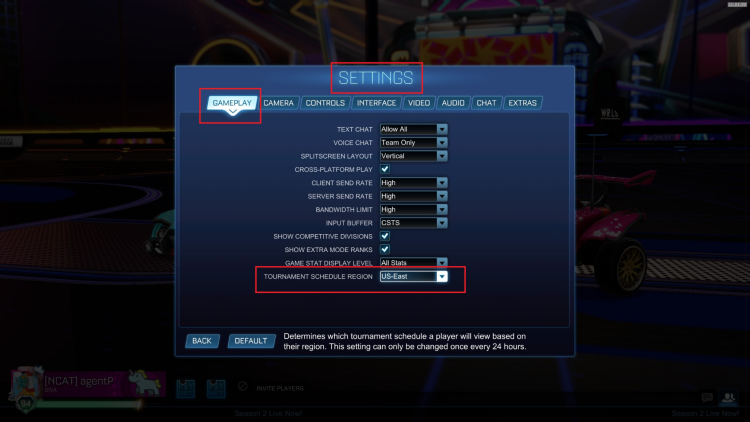
Step 4. Open the drop-down menu and choose your preferred region.
Step 5. Save your changes and join tournaments in the selected region.
Method 3 - Changing Region for Private Matches
Private Matches have their own region setting because they're designed for custom games with friends. By default, Rocket League uses the Recommended region, which may not be ideal if players are connecting from different parts of the world. Manually selecting a server helps everyone get a more stable connection during private games.
Steps to change your Private Match region:
Step 1. Select Play from the main menu.
Step 2. Click Custom Games.
Step 3. Choose Private Match.
Step 4. Select Create Private Match.
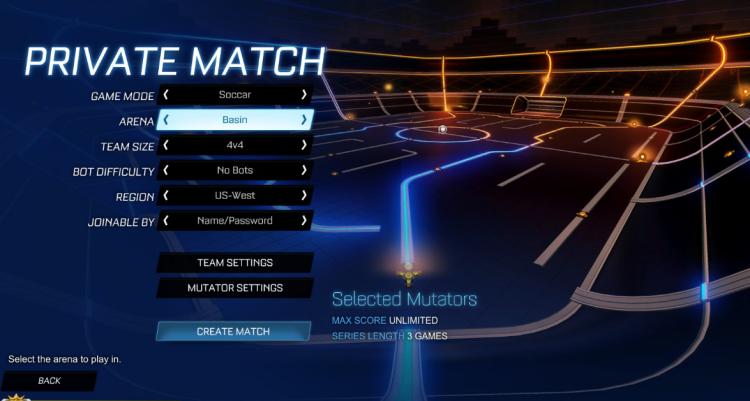
Step 5. Change the Server Region from Recommended to your preferred region, then create the match.
Method 4 - Change Rocket League Region & Boost Performance with Smart Game Booster
If the in-game server settings don't give you the best connection, Smart Game Booster offers a more complete solution. Designed specifically for gamers, it helps optimize your PC, connect to the best game region, reduce network latency, and improve overall gaming performance.
Beyond only changing the matchmaking region, Smart Game Booster also enhances your system and network for a smoother Rocket League experience. Whether you're playing ranked matches or casual games, it can help lower ping, reduce lag, and keep your gameplay stable with just a few clicks.
How to Change Region in Rocket League with Smart Game Booster
Step 1. Download and install Smart Game Booster.
Download the latest version, and complete the installation on your Windows PC.
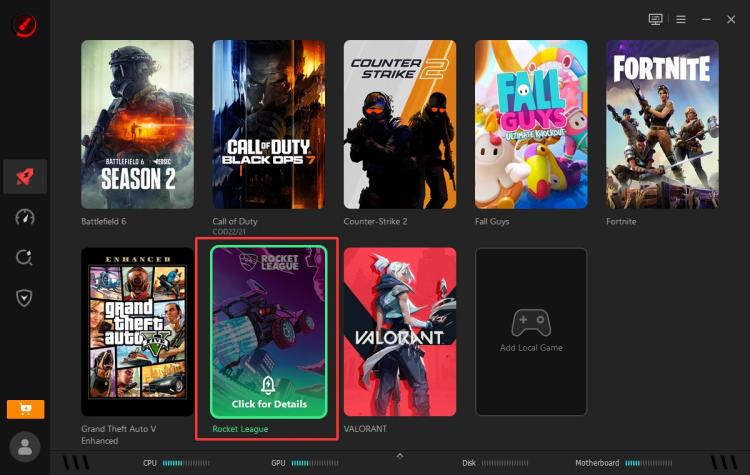
Step 2. Select Rocket League and choose the best server region.
Click Rocket League in the game list. You can manually add other games to your PC.
Step 3. Change region and choose a better network connection.
Click Smart Node to change the server region and the best network connection for your location. Smart Game Booster will recommend the internet connection that suits you most.
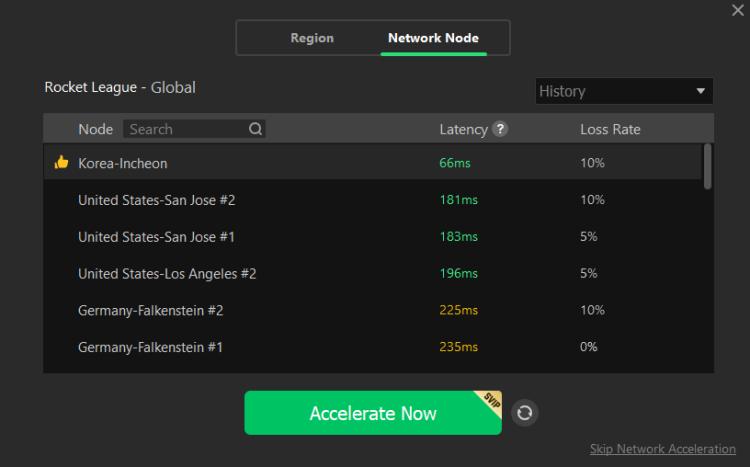
Step 4. Start game boost and launch Rocket League.
Click Accelerate Now to optimize your connection. Smart Game Booster will help optimize your connection to help reduce latency. Your gaming and PC performance will see a significant boost.
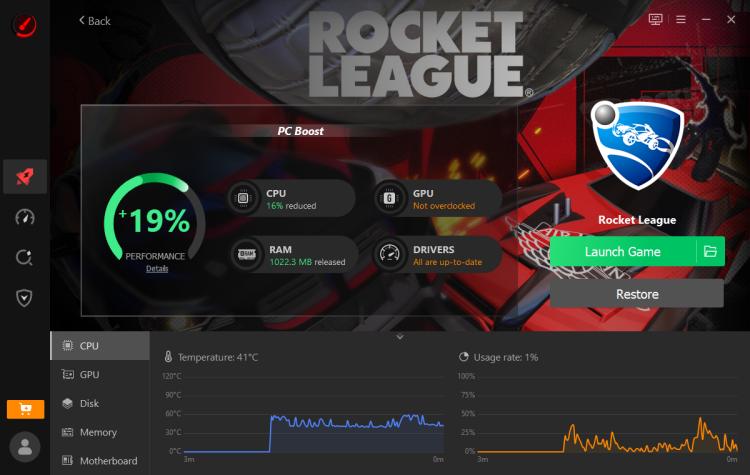
In addition, you can monitor your CPU, GPU, and other computer metrics in real time.
Key Features of Smart Game Booster
Switch to the Best Game Region Globally
Smart Game Booster helps you connect to the most suitable game server by offering multiple global routing options. This makes it easier to play with friends in other regions or choose a server with lower latency.
Reduce Ping & Minimize Lag
It optimizes your network route to reduce ping in Fortnite (CS2, COD, Volarant, etc.), packet loss, and lag. This results in smoother gameplay, faster response times, and a more stable online experience in Rocket League.
Boost Game Performance by Up to 30%
Smart Game Booster closes unnecessary background processes and frees up CPU and RAM resources. This allows Rocket League to use more system resources, resulting in better FPS and overall performance. This is also good for Marvel Rivals FPS boost.
Real Time CPU/GPU Monitoring
Monitor your CPU, GPU, RAM, and temperature in real time while gaming. Live performance data helps you identify hardware bottlenecks and maintain a stable gaming experience without leaving the game.
FAQs About Changing Region in Rocket League
Will changing region affect my rank or progression?
No. Changing your server region does not reset your rank, XP, inventory, or account progress. Your matchmaking rank stays the same, regardless of which region you choose.
I changed the region, but still have high ping. Why?
High ping can still happen if the selected server is far from your location, your internet connection is unstable, or the server is busy. Using Smart Game Booster can help optimize your network route and reduce latency.
What if matchmaking takes longer after changing regions?
Some regions have fewer active players, especially during off-peak hours. If matchmaking takes too long, try switching to a more populated region or using the Recommended option.
Final Words
Now you know how to change region in Rocket League for Casual, Competitive, Tournament, and Private Match modes. Choosing the right server can help reduce lag, improve connection quality, and even shorten matchmaking times. If you want an even smoother gaming experience, try Smart Game Booster.
Besides helping you connect to the best game region, it also optimizes your PC, reduces ping and reduce lag on Roblox and other popular gameplays, and boosts overall game performance. Download Smart Game Booster today and enjoy faster, more stable Rocket League matches.