Geometry Dash is famous for its fast-paced rhythm gameplay where every jump requires precise timing. Even a tiny lag spike can ruin an entire level. If you've been asking why is Geometry Dash lagging, you're not alone. Many players experience FPS drops, input delay, stuttering, or freezing after updates, on high-refresh-rate monitors, or even on powerful gaming PCs.
The good news is that most lag problems have practical solutions. Whether you're wondering why is my Geometry Dash lagging, why is my Geometry Dash lagging mobile, why is Geometry Dash lagging PC, or why is Geometry Dash lagging on Mac, this guide covers the most effective fixes. We'll also introduce Smart Game Booster, an easy optimization tool that helps maximize game performance with just a few clicks.

Why Is Geometry Dash Lagging?
Before trying any fixes, it's important to understand what may be causing the problem. Unlike many graphics-intensive games, Geometry Dash relies heavily on stable frame timing and responsive input. Even a small FPS drop or momentary stutter can disrupt your rhythm and lead to failed attempts.
The most common reasons why Geometry Dash is lagging include:
Background applications consuming excessive CPU or RAM resources
Outdated or incompatible graphics drivers
Incorrect graphics or display settings
High refresh rate synchronization or V-Sync issues
Power-saving mode reducing system performance
Device overheating, especially on mobile phones
Too many apps running in the background on Android or iPhone
Corrupted game files or an outdated version of Geometry Dash
Since the cause of lag varies by platform and hardware, identifying the source of the issue is the first step toward smoother gameplay. The following fixes cover the most effective solutions for PC, Mac, and mobile devices.
Fix 1. Optimize Your PC Automatically with Smart Game Booster
Instead of manually adjusting Windows settings one by one, Smart Game Booster provides an easier solution for players asking why is Geometry Dash lagging PC. It automatically optimizes your system, frees resources, and prioritizes your game so Geometry Dash runs more smoothly. Its one-click optimization is especially useful if you're experiencing random stuttering, FPS drops, or inconsistent frame pacing.
Key Features of Smart Game Booster
- Enjoy lag-free & low-ping gaming
- 100+ games supported
- Severs from all over the world
- Boost in-game FPS
Key Features of Smart Game Booster
● One-Click Game Optimization: Instantly frees CPU and RAM resources that commonly cause Geometry Dash lag during gameplay. And it works well as a ping reducer with network acceleration.
● Deep Background Process Cleanup: Stops unnecessary services and startup programs so Geometry Dash receives more available system resources.
● Intelligent Game Mode: Automatically prioritizes Geometry Dash over non-essential Windows processes to reduce stuttering and input delay.
● Hardware Performance Monitoring: Monitors CPU, GPU, RAM, and temperature in real time, helping identify performance bottlenecks causing lag.
● FPS Boost Tools: The FPS booster applies gaming-focused optimizations that help stabilize frame rates for smoother jumps and more responsive controls.
● Driver Update Integration: Keeps graphics drivers updated to eliminate compatibility issues that may cause Geometry Dash or CS GO ranks lag after Windows updates.
Steps to optimize your computer with one-click optimization
Step 1. Download and install Smart Game Booster on your Windows PC. Once the installation is complete, launch the program.
Step 2. Go to the game library on the main interface and locate Geometry Dash. If the game does not appear automatically, use the option to add it manually.
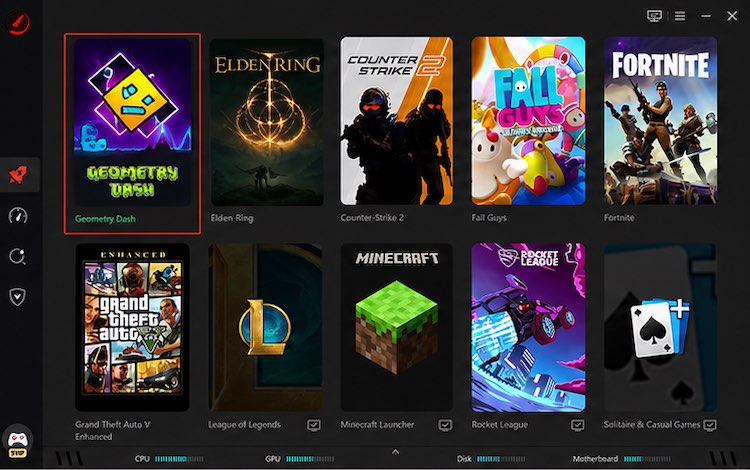
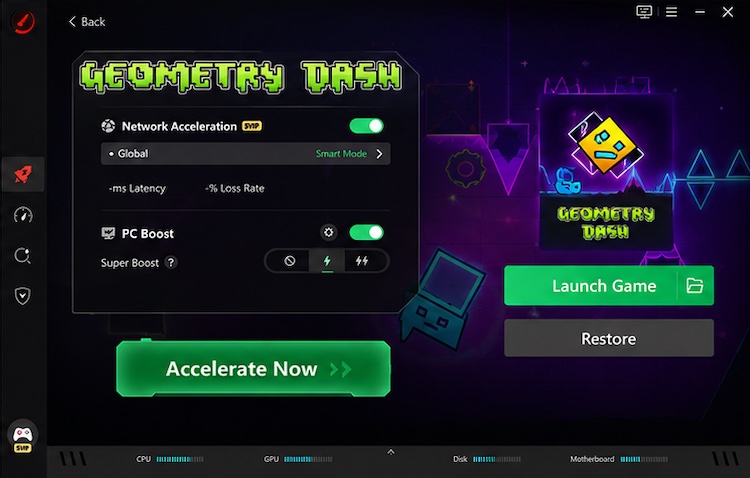
Step 3. Enable Network Acceleration, then select the suitable PC Boost mode that suits your needs. Click Accelerate Now to start the optimization process.
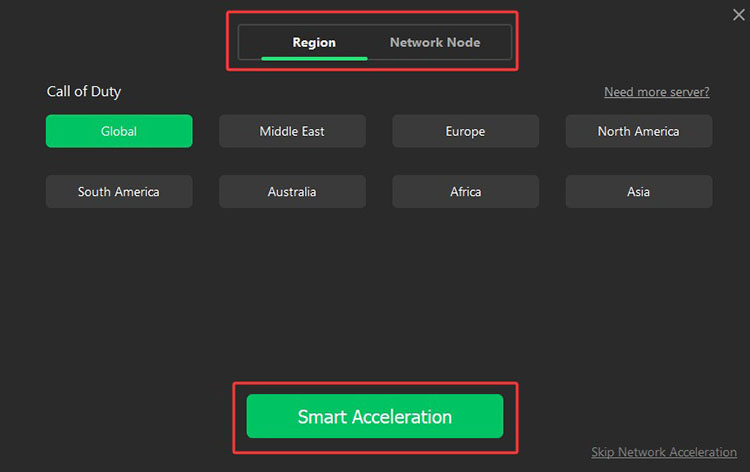
Step 4. Under Network Acceleration, choose your preferred server region and select a suitable network node if needed. Then activate Smart Acceleration to optimize the game connection.
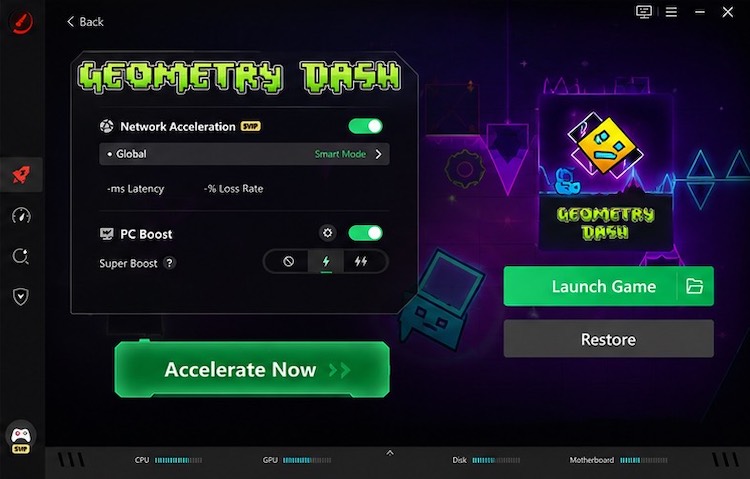
Step 5. Allow Smart Game Booster a few moments to complete the system and network optimization. Review the performance results when finished, then click Launch Game to play Geometry Dash with the optimized settings.
Tips: Unsure whether your computer can run Geometry Dash safely? No worries. Smart Game Booster offers a free "Can I Run It" tool to check your game's compatibility in seconds.
Fix 2. Update Your Graphics Driver
An outdated GPU driver is another common reason players ask why is my Geometry Dash lagging. Even though Geometry Dash isn’t graphically demanding, outdated or incompatible drivers can cause rendering delays, unstable frame pacing, stuttering, and other performance issues.
You can update your graphics driver manually or use Driver Booster to automatically scan for outdated drivers and install compatible updates more easily. Keeping your GPU driver up to date can help improve game stability, reduce lag, and deliver smoother Geometry Dash gameplay.
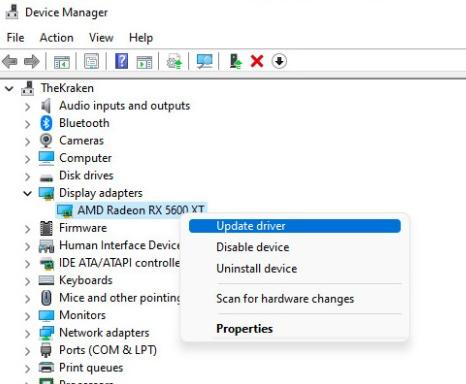
Step 1. Press Win + X and select Device Manager.
Step 2. Expand Display adapters.
Step 3. Right-click your graphics card.
Step 4. Select Update driver.
Step 5. Restart your PC after installation.
If Windows doesn't find a newer version, download the latest driver directly from NVIDIA, AMD, or Intel.
Fix 3. Lower Graphics Settings and Close Background Programs
If you're wondering why is Geometry Dash lagging PC, your computer may simply be running too many applications simultaneously. Browsers, streaming software, Discord overlays, RGB software, and recording tools can consume valuable CPU and memory resources. Reducing system load helps Geometry Dash maintain consistent frame rates.
Step 1. Close Chrome, Edge, and other unused programs.
Step 2. Press Ctrl + Shift + Esc to open Task Manager.
Step 3. End unnecessary background tasks.
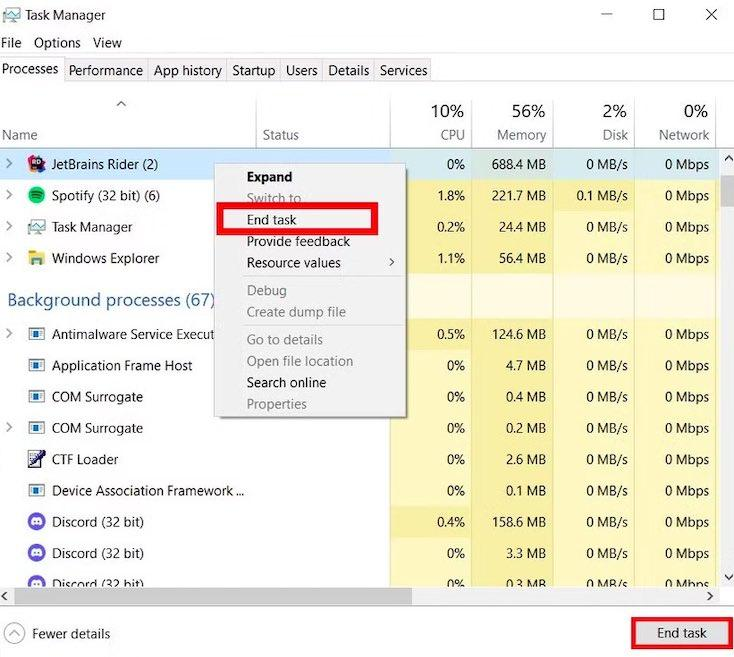
Step 4. Disable overlays such as Discord or Xbox Game Bar.
Step 5. Relaunch Geometry Dash.
If you use laptops, plugging into AC power also prevents Windows from limiting CPU performance.
Fix 4. Adjust Display Settings for Better Frame Stability
Display settings can greatly affect Geometry Dash performance. High refresh rate monitors, V-Sync conflicts, or incorrect fullscreen settings sometimes lead players to ask why is Geometry Dash lagging even when FPS appears high. Optimizing display settings often reduces micro-stuttering.
Step 1. Open Windows Display Settings
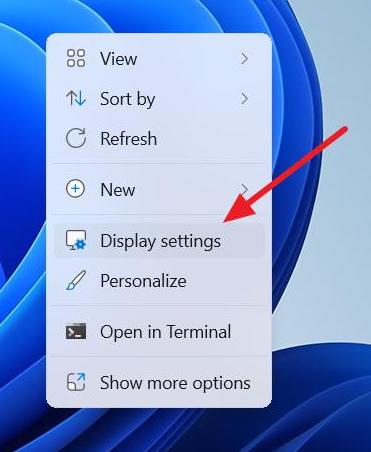
Right-click an empty area of the desktop and select Display settings. You can also press Windows + I and go to System > Display.
Step 2. Use the Recommended Display Resolution
Under Scale & layout, find Display resolution and select the option marked Recommended. Using your monitor’s native resolution generally provides the most stable display output.
Step 3. Set the Correct Refresh Rate
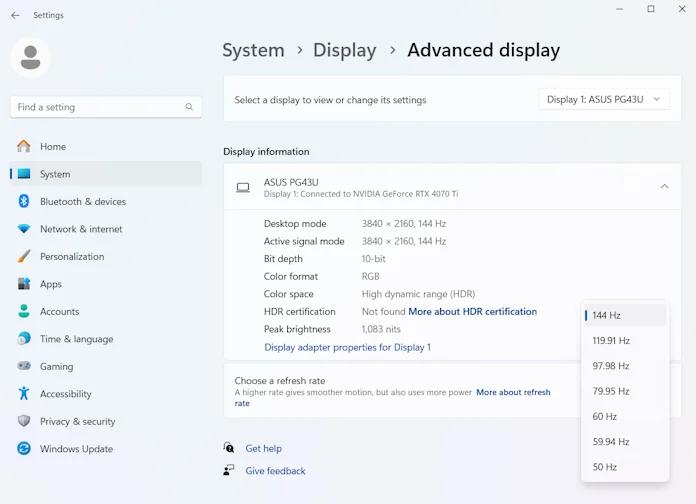
Scroll down and select Advanced display. Under Choose a refresh rate, select the highest refresh rate that your monitor officially supports, such as 60 Hz, 120 Hz, 144 Hz, or 165 Hz.
Step 4. Check Windows Scaling
Return to System > Display and locate Scale. Start with the Recommended scaling value, commonly 100% or 125%.
If Geometry Dash has unusual fullscreen behavior, blurry graphics, or inconsistent rendering, testing 100% scaling can help determine whether Windows DPI scaling is involved.
Step 5. Test Fullscreen Mode in Geometry Dash
Launch Geometry Dash, open its graphics settings, and test Fullscreen mode. Fullscreen can provide more consistent presentation on some systems, although results vary depending on Windows, the GPU driver, and the monitor.
Step 6. Test VSync for Smoother Frame Pacing
In Geometry Dash’s graphics settings, test VSync. Enabling it can synchronize frame presentation with the monitor and reduce screen tearing. If it introduces noticeable input latency or stuttering, disable it and compare performance.
Also Read: What is Image Sharpening and How Does It Works for Games? >>
Fix 5. Reduce Lag on Mobile and Mac
If you're searching why is my Geometry Dash lagging mobile, or why is Geometry Dash lagging on Mac, the causes are often different from Windows PCs. Mobile devices are more sensitive to overheating, limited RAM, and battery-saving features, while Macs may struggle with background applications or outdated macOS versions.
Fortunately, several simple adjustments can noticeably improve performance.
For Android and iPhone
Step 1. Close all background apps.
Step 2. Restart your phone.
Step 3. Disable Battery Saver or Low Power Mode.
Step 4. Lower screen brightness if the device is overheating.
Step 5. Update Geometry Dash to the latest version.
Step 6. Ensure sufficient storage space remains available.
For Mac
Step 1. Close unnecessary applications.
Step 2. Restart your Mac before playing.
Step 3. Update macOS.
Step 4. Disable unnecessary login items.
Step 5. Lower display resolution if performance remains poor.
Step 6. Keep Geometry Dash updated through Steam or the App Store.
These adjustments often solve the majority of reports involving why is Geometry Dash lagging on Mac and mobile devices.
Additional Tips to Reduce Geometry Dash Lag
Besides the five fixes above, these quick optimizations may further improve gameplay:
Enable High Performance power mode in Windows.
Keep at least 15% free storage.
Disable unnecessary startup applications.
Verify Geometry Dash game files if using Steam.
Restart your PC before long gaming sessions.
Avoid recording gameplay on low-end systems.
Combining these tips with Smart Game Booster usually delivers the most consistent results.
How to reduce lag in Roblox? This amazing software also helps a lot!
FAQs About Why is Geometry Dash Lagging
1. Why is Geometry Dash lagging even on a good PC
Background applications, outdated graphics drivers, V-Sync conflicts, or Windows power-saving settings can all cause lag despite powerful hardware.
2. Why is my Geometry Dash lagging mobile after an update?
Updates may increase resource usage or introduce temporary bugs. Restart your phone, close background apps, update the game again if available, and avoid overheating.
3. Why is Geometry Dash lagging on Mac?
Common causes include limited available RAM, outdated macOS, background processes, or incompatible display settings.
4. Can Smart Game Booster improve Geometry Dash performance?
Yes. Smart Game Booster optimizes system resources, closes unnecessary background tasks, prioritizes the game process, and helps maintain smoother FPS with minimal manual configuration.
Conclusion
If you've been wondering why is Geometry Dash lagging, the problem is usually related to system resources, graphics drivers, display settings, or background applications—not the game itself. By applying the five fixes above, especially using Smart Game Booster to optimize your PC automatically, you can enjoy smoother gameplay and more consistent frame rates on PC, Mac, and mobile devices.
Key Features of Smart Game Booster
- Enjoy lag-free & low-ping gaming
- 100+ games supported
- Severs from all over the world
- Boost in-game FPS