Imagine you are deep in a tense battle royale match. Your team is one kill away from victory, and all of a sudden, your character freezes. What’s more, shots don't register, movements are delayed, and the screen shows that dreaded red packet loss icon. Frustrating, right?
This scenario is too common for all gamers. Packet loss can cause lag, stuttering, and ruined online experiences in games and online activities of all sorts. So, how to fix packet loss? This guide will explain the causes behind and provide effective solutions to help you restore smooth and responsive gameplay. Keep reading to find the fix that works best for you.
What is Packet Loss? What Causes Packet Loss?
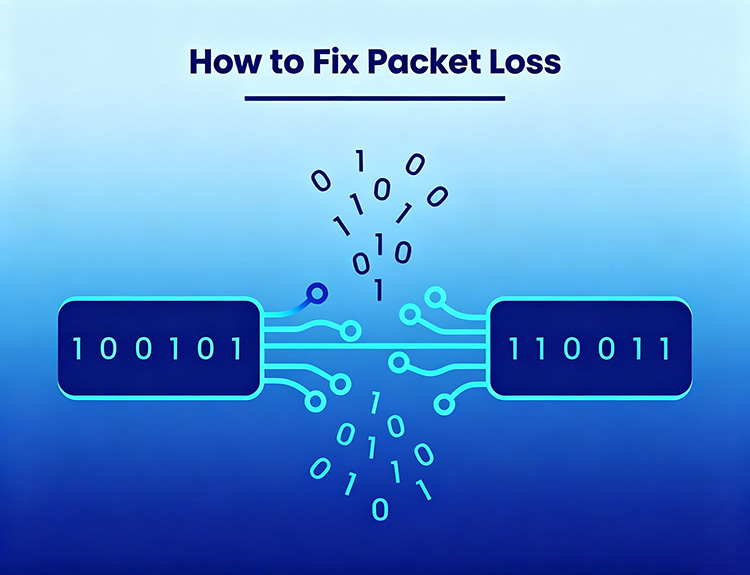
Before diving into how to fix packet loss, it’s important to understand what packet loss is. In simple terms, packet loss happens when small chunks of data traveling across a network fail to reach their destination. This results in missing or delayed information, which then leads to lag or interruptions. Here, we have concluded several factors that might cause packet loss:
Network Congestion: Too many devices/users are competing for bandwidth, which overloads the connection and causes packets to drop.
Unstable Wi-Fi Connections: Signal interference, distance from the router, or weak coverage might also lead to inconsistent data transmission.
Faulty or Outdated Hardware: Damaged Ethernet cables, old routers, or failing network cards can disrupt reliable packet delivery.
Outdated Network Drivers: Corrupted drivers will prevent your PC from communicating efficiently with the network.
Incorrect Network Settings: Misconfigured DNS, power-saving modes, or background apps can hog your bandwidth and exacerbate problems.
ISP Issues: Packet loss is also tied to ISP issues, which can be triggered by damaged underground cables, routing misconfigurations, or bandwidth throttling.
Therefore, it’s essential to identify the root cause first. The most effective solution depends entirely on where the issue originates.
Is 2% Packet Loss Bad? How to Test Packet Loss with CMD
Now you understand the basics and causes behind. So, is 2% packet loss bad? Yes, 2% packet loss is often bad for competitive gaming. This is because even small percentages can create noticeable delays and unfair disadvantages in fast-paced titles. For games like Valorant, Fortnite, or other online shooters, it can disrupt precision, timing, and overall enjoyment. But when it comes to casual browsing, 2% packet loss can be tolerable.
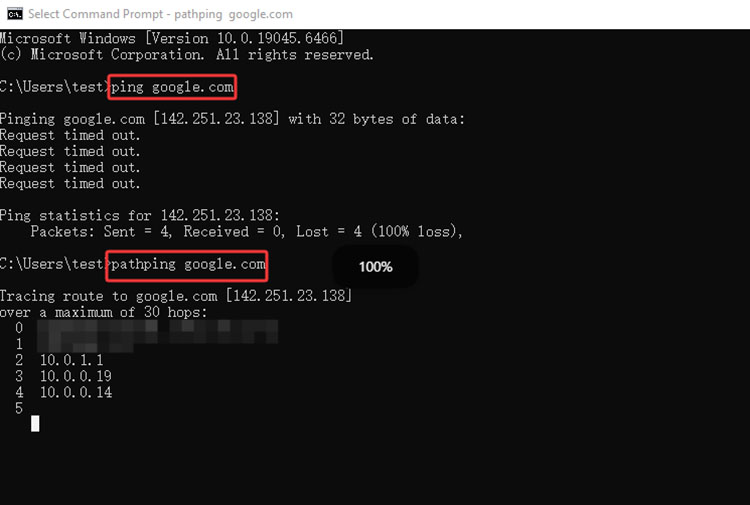
How to check packet loss on your PC? You can use the built-in Command Prompt on Windows. Here are the steps.
Step 1: Press Windows key + R, type cmd, and press Enter to open Command Prompt.
Step 2: Type ping google.com -n 50 and press Enter. This sends 50 packets to Google and displays latency along with any packet loss percentage.
Step 3: For deeper diagnostics, run pathping google.com. This command traces the full network route and shows where packet loss occurs.
How to Fix Packet Loss: Quick Troubleshooting
So, packet loss, how to fix it? Some simple fixes can provide immediate improvements. Let’s check them out.
1. Restart Your Modem and Router
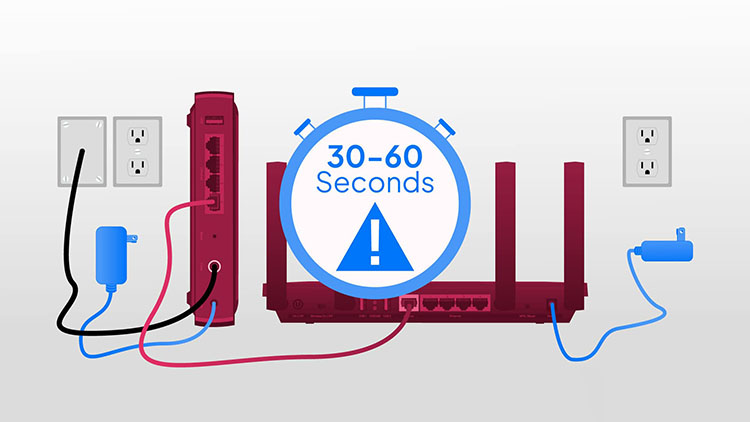
How to fix 100 packet loss? One of the fastest ways to fix the issue is power cycling. Just unplug both your modem and router for 30-60 seconds, then plug them back in. This clears temporary congestion, refreshes your IP connection, and resets unstable sessions. Wait around 2 minutes for everything to fully reboot.
2. Switch from Wi-Fi to Ethernet
Wi-Fi is convenient, but it’s also prone to interference from walls and distance. You can switch to a wired Ethernet connection for a much more stable signal, which can instantly reduce packet loss during gaming or streaming.
3. Test for Faulty Ethernet Cables and Ports
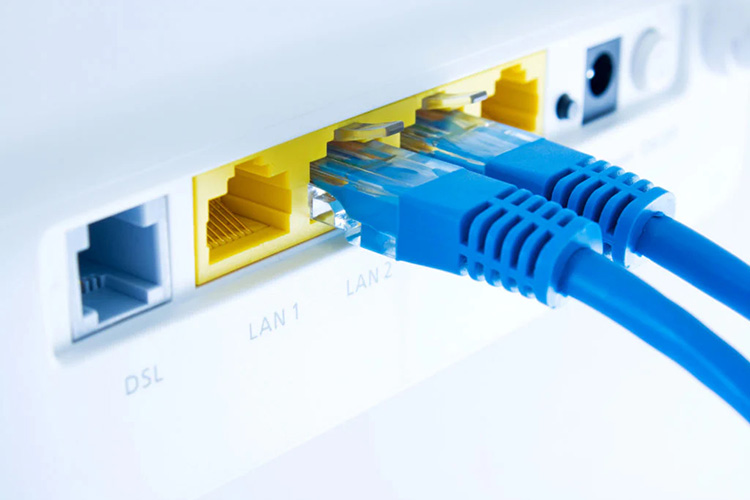
Sometimes the issue is about the hardware itself. Even minor cable damage or worn-out ports can lead to intermittent packet loss and unstable connections. You may swap your Ethernet cable or plug it into a different router port. So you can quickly know whether the problem is caused by faulty physical connections or not.
4. Reduce Local Network Congestion
If too many devices are using your network at the same time, bandwidth gets stretched. To improve stability, disconnect unused devices, pause large downloads, or stop streaming activities while gaming. This ensures your connection is prioritized for gaming traffic and reduces interruptions during gameplay.
Also Read: [Solved] 9 Fixes on How to Reduce Lag on Roblox on PC >>
How to Fix Packet Loss: Advanced Manual Settings
While previous troubleshooting steps help, they might not be enough for persistent packet loss issues. But fret not. We have concluded some advanced packet loss fixes that can help optimize your network performance and reduce latency more effectively. Here’s how to fix packet loss with 4 useful methods.
1. Update Your Network Adapter Driver
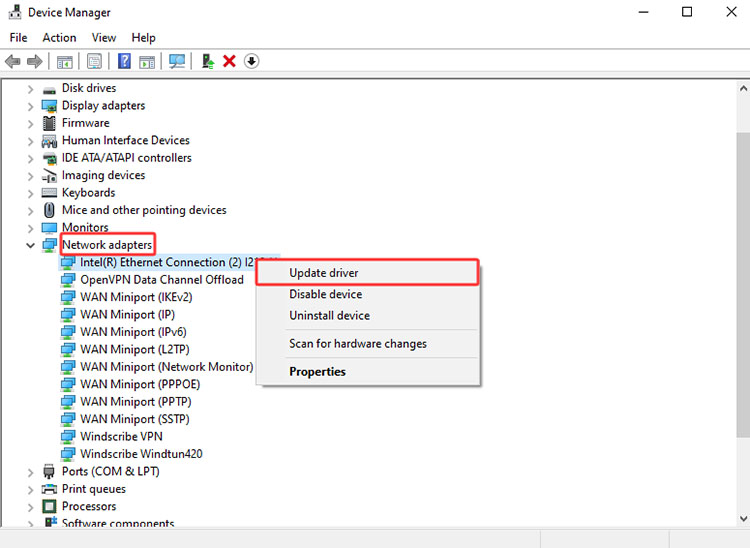
Step 1. Press Start, search for Device Manager, and open it.
Step 2. Expand Network adapters and find your active network device.
Step 3. Right-click it and select Update driver > Search automatically for drivers. Restart your PC after the update.
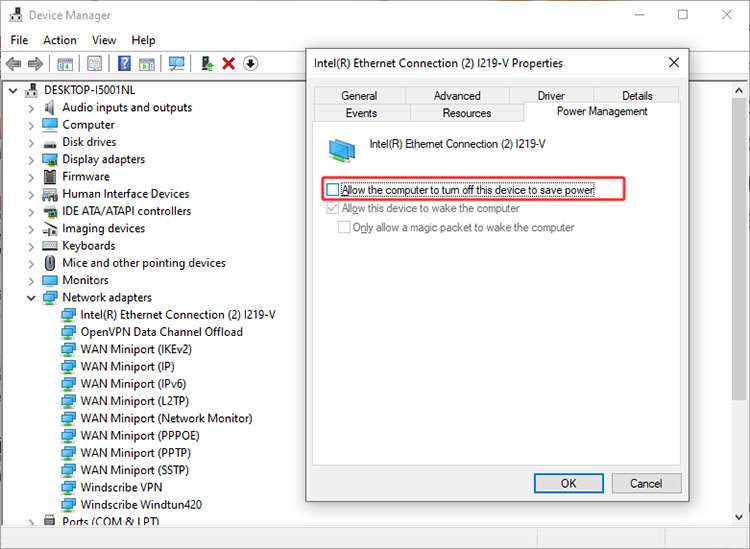
2. Disable Power Saving Mode
Step 1. Open Device Manager from the Start menu.
Step 2. Right-click your network adapter and select Properties.
Step 3. Go to the Power Management tab and uncheck “Allow the computer to turn off this device to save power. ”
3. Change Your DNS Server
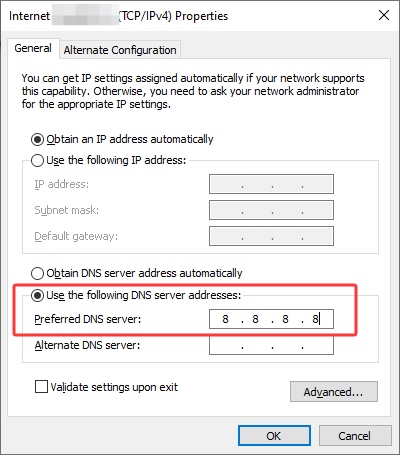
Step 1. Open Settings and go to Network & Internet.
Step 2. Click your active connection. Choose Related Settings > Change Adapter Options.
Step 3. Right-click on the Ethernet and open Properties. Then go to Internet Protocol Version 4 (TCP/IPv4) > Properties.
Step 4. In the Preferred DNS Server, enter: Google DNS: 8.8.8.8 and 8.8.4.4, or Cloudflare DNS: 1.1.1.1
4. Disable Background Bandwidth Usage
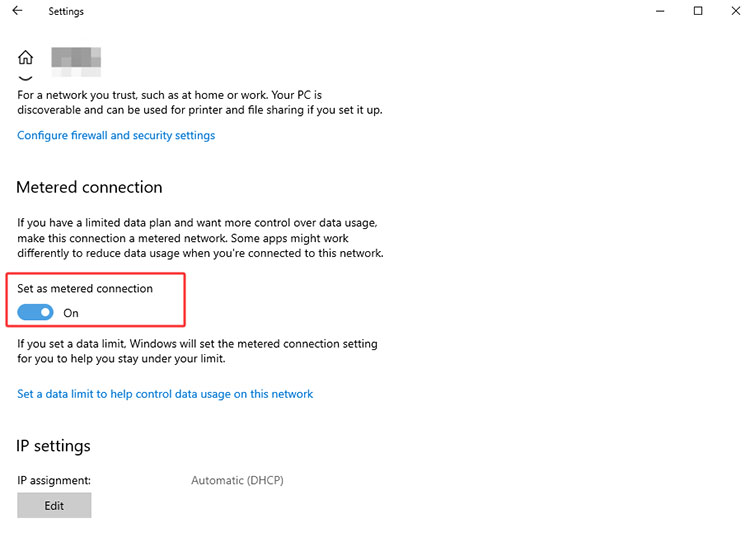
Step 1. Go to Start > Settings > Network & Internet.
Step 2. Select Wi-Fi or Ethernet, then click your current connected network.
Step 3. Turn on “Set as metered connection” to limit background data usage and prioritize gaming traffic.
Also Read: Counter Strike Ranks Guide | Competitive Ranks, Premier Rating & How to Rank Up
Easiest: Fix Packet Loss Automatically with Game Booster
The previous sessions have concluded how to fix packet loss with 8 effective ways. While these manual methods help reduce packet loss, the process can be time-consuming and often requires technical knowledge to identify and configure the right options. If you are looking for a simpler solution, Smart Game Booster is your best bet. This dedicated tool can automatically optimize network settings, update outdated network drivers, and prioritize gaming traffic with a single click.
Key Features of Smart Game Booster
- Enjoy lag-free & low-ping gaming
- 100+ games supported
- Severs from all over the world
- Boost in-game FPS
Key features of Smart Game Booster:
How to fix packet loss in Valorant easily? Smart Game Booster will intelligently analyze and adjust your connection settings to minimize data drops. You can enjoy a more stable gameplay with just one click!
The optimization tool can install the latest compatible drivers for your network adapter. This helps eliminate compatibility issues that frequently trigger packet loss problems.
It gives your game packets higher priority over background downloads and apps, which helps ensure a low latency and responsive gaming experience.
Smart Game Booster intelligently closes non-essential applications to reclaim valuable bandwidth. So more resources will be allocated to your online gaming sessions.
The software can also track overall system performance, for instance, CPU usage, RAM released, GPU temperature, etc. This allows you to verify improvements instantly after applying optimizations.
How to fix packet loss with Smart Game Booster
Step 1: Download and install Smart Game Booster on your Windows PC, then launch the program.
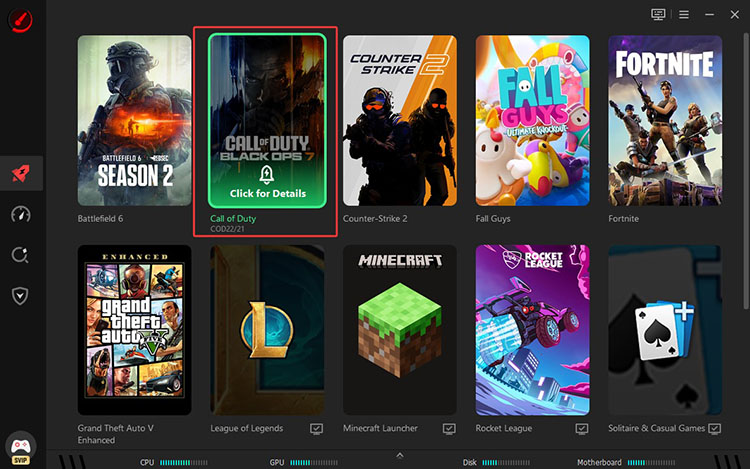
Step 2: On the main dashboard, open the game library and choose a game. Here, we use Call of Duty as an example. Select it to continue.
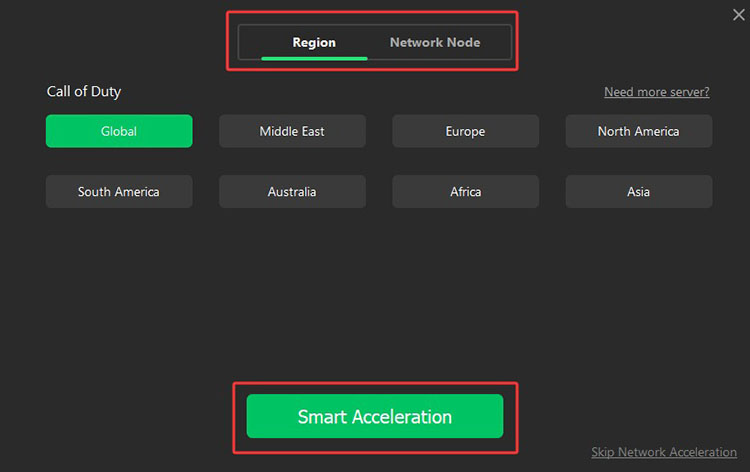
Step 3: Go to the Network Acceleration section and pick your preferred server region or network node. After that, activate Smart Acceleration and go back to the game setting panel.
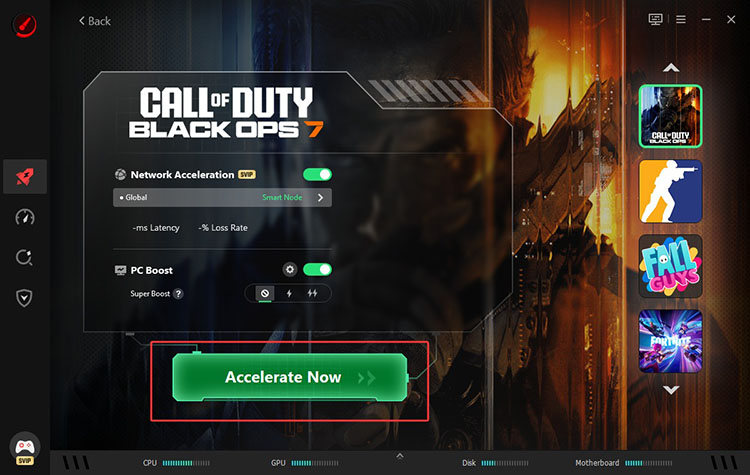
Step 4: Select and enable your preferred PC boost mode. Click “Accelerate Now” to start the optimization process.
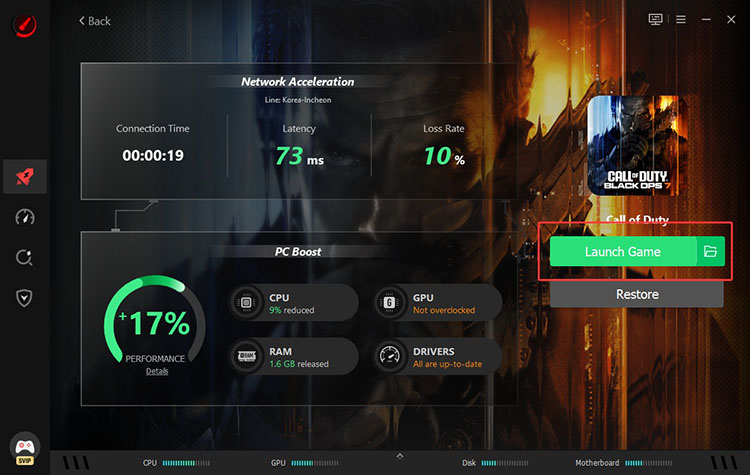
Step 5: Wait for the performance and network tweaks. Once done, review the summary screen and click “Launch Now” to start the game with optimized settings.
Note: If you are using a wired Ethernet connection and still experiencing packet loss after optimizing with Smart Game Booster, the issue is likely related to your Internet Service Provider’s (ISP) network. In this case, it is recommended to contact your ISP’s customer support for further assistance.
Conclusion
Packet loss can significantly affect gaming performance and overall online experience. But if you’ve read this far, you are now equipped with multiple practical methods to fix it effectively. So, how to fix packet loss quickly and easily? As you can see, Smart Game Booster is the go-to choice. It lets you optimize your network settings, reduce latency, and improve stability in one click. Try Smart Game Booster for lag-free gaming experiences from now on!