In fast-paced Call of Duty matches, every millisecond matters. Sudden lag spikes, FPS drops, and input delay can instantly break your momentum and cost you the match. Many players have to constantly deal with unstable performance, inconsistent frame pacing, or delayed hit registration.
So, how to stop Call of Duty from lagging? This guide will introduce why Call of Duty performance drops happen and the best effective Call of Duty booster solution. Just read on to find how to stabilize FPS, reduce lag, and keep gameplay smooth even in the most intense firefights!
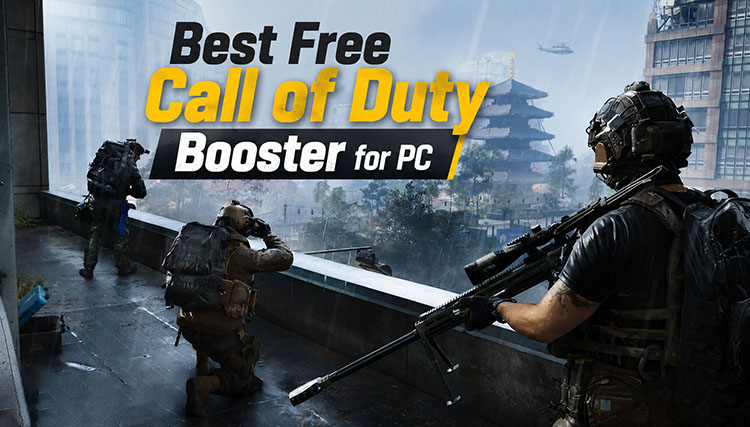
Why You May Need a Call of Duty Booster for Better Game Performance
Before choosing the best Call of Duty booster, it’s crucial to understand why performance issues happen in the first place.
High CPU and RAM usage: The game consumes a significant amount of processing power and memory, particularly in large maps with tons of players. This might result in bottlenecks and FPS drops.
Background applications consuming resources: Browsers, antivirus programs, and streaming software run silently in the background, which can steal CPU, RAM, and network bandwidth from your game.
Overheating or hardware bottlenecks: Dust buildup, thermal throttling, or older GPUs/CPUs might cause the system to slow down to prevent damage during gameplay.
Poor system optimization: Junk files, outdated drivers, and poor Windows settings might also result in stuttering and inconsistent performance.
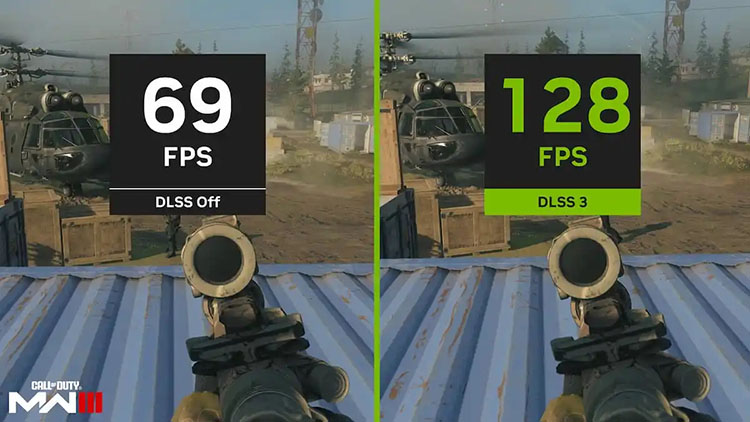
These are the core issues most players face, which is why many eagerly look for the best Call of Duty booster to achieve more responsive gameplay. Just read on to find the most effective fix out there!
Don't Miss: Check if your PC build can support running CoD smoothly or not first with this Can I Run It game compatibility tester.
Best Call of Duty Booster Tool You Can Use
A Call of Duty booster is specialized software that optimizes system resources, eliminates unnecessary background processes, and stabilizes network performance. It targets hardware and connection bottlenecks simultaneously, which are critical during fast-paced matches.
Smart Game Booster is one good option here. The software can intelligently reallocate system resources and enhance network routing, which helps deliver smoother gameplay, reduced lag, and more stable frame rates even during intense firefights.
Key Features of Smart Game Booster
- Enjoy lag-free & low-ping gaming
- 100+ games supported
- Severs from all over the world
- Boost in-game FPS
Key Features
One-Click Game Boost: Within one click, it can shut down unnecessary background processes and prioritize resources for Call of Duty. You can optimize your system instantly and see immediate performance gains.
FPS Boost & Performance Improvement: As the best FPS booster for Call of Duty, it can unlock the full potential of the CPU and GPU. When the Super Boost mode is on, you can see at least a 30% performance increase by overclocking your GPU and VRAM.
Background Process Management: The software automatically detects and pauses non-essential applications to free up CPU and RAM. Your game can run more smoothly without interruptions.
Ping Reduction and Network Optimization: This Call of Duty boosting service also routes network traffic through optimized nodes. This ping reducer helps reduce ping and minimize packet loss for a more responsive gaming experience.
Driver Update Support: It comes with powerful driver support, which allows you to keep your drivers up to date easily. This also helps prevent crashes and maintain stable performance in Call of Duty.
Real-Time System and FPS Monitoring: The software displays in-game FPS, system temperatures, and performance metrics. You can easily monitor and adjust settings for improved gameplay.
Step-by-Step Guide to Use Call of Duty Booster
As you can see, Smart Game Booster is an outstanding choice to improve gameplay stability. It’s also the best way to reduce ping in Fortnite and many intense games. So, how to stop Call of Duty from lagging with it? Here are the steps.
Step 1. Install Smart Game Booster on your Windows computer. Open the application after successful installation.
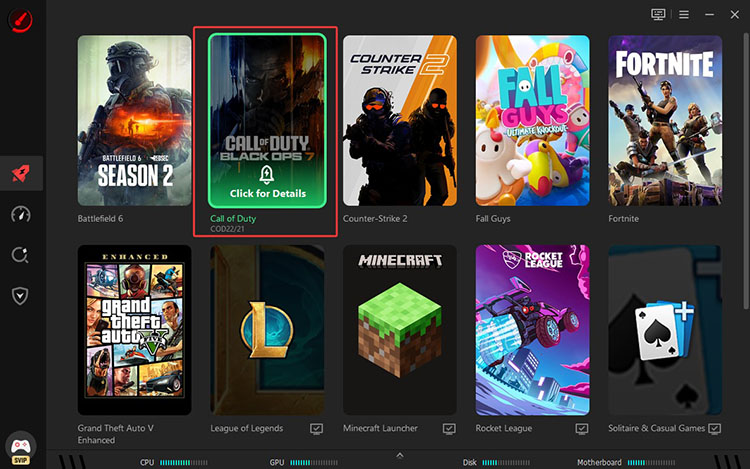
Step 2. From the home screen, you can find the game library. Select Call of Duty from the list.
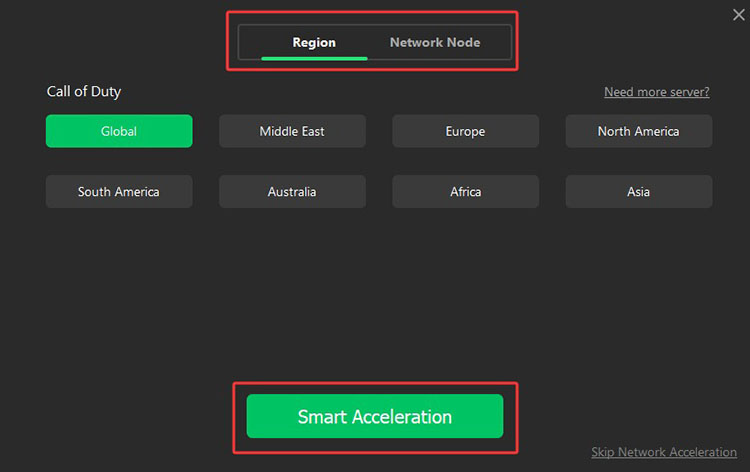
Step 3. Set your preferred server region under Network Acceleration. You can also choose a network node here as you see fit. Click on the Smart Acceleration to proceed.
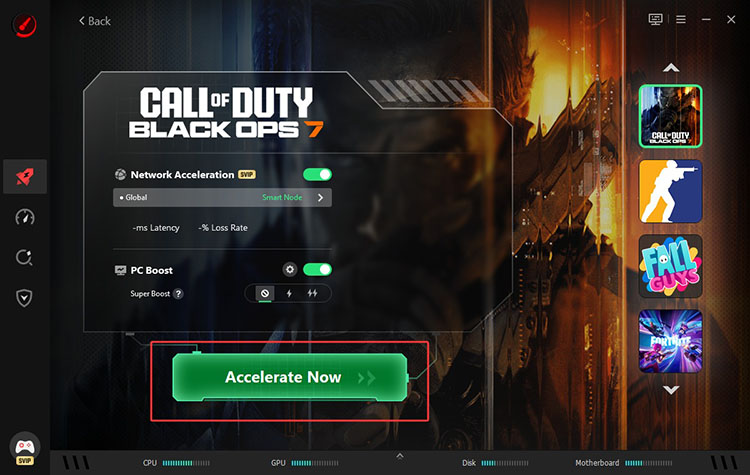
Step 4. Don’t forget to turn on and choose a PC boost mode as well. Then click “Accelerate Now” to begin optimization.
Step 5. Wait a few moments for the tool to apply system and network improvements. Once finished, review the performance summary and click “Launch Now” to start the game with optimized settings.
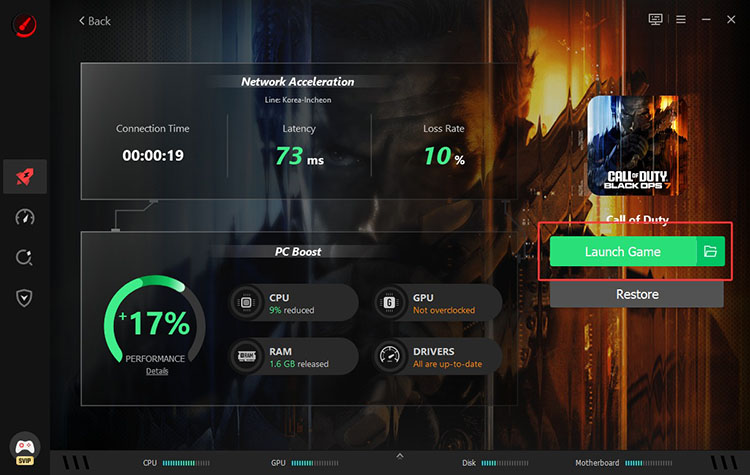
That’s it! Smart Game Booster is suitable for all games; for instance, you can also improve performance and make Marvel Rivals FPS boost easily with similar steps.
How to Reduce Lag in Call of Duty Using Additional Optimization Methods
Now you know how to fix lag on Call of Duty with the best game booster. In addition, you can further enhance performance with a few manual optimization methods. These tweaks can also help you achieve smoother gameplay.
Step 1 – Adjust In-Game Graphics Settings to Reduce GPU Load
High graphics settings are one of the main causes of FPS drops and lag in Call of Duty, which places heavy demand on the GPU. You can try to lower the visual settings to balance performance and stability.
1. Launch Call of Duty, click the Settings (gear) icon in the top right corner, and navigate to the Graphics tab.
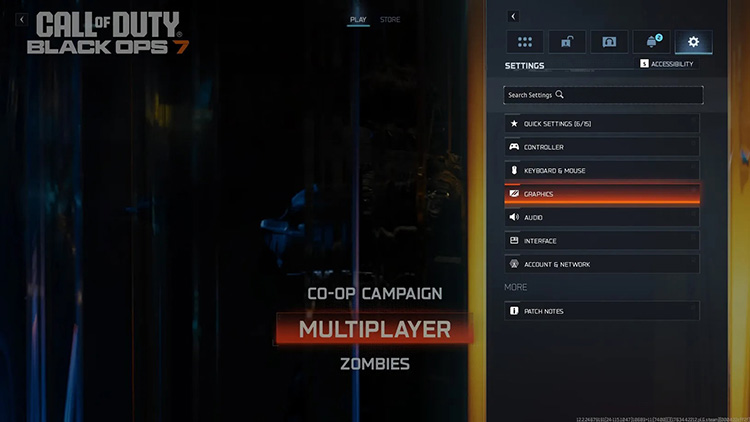
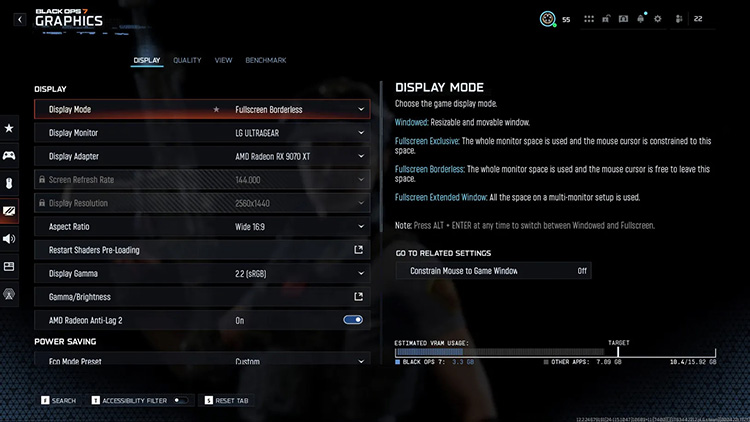
2. In the Display tab, choose Borderless Fullscreen for better performance. Match the aspect ratio to your PC display to ensure the best clarity.
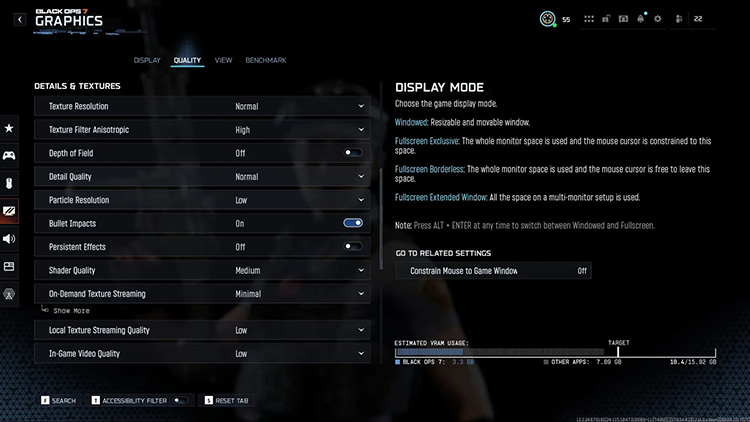
3. Switch to the Quality section and adjust the settings, for instance, Texture Resolution, Depth of Field, Shader Quality, Particle Resolution, etc., based on your hardware condition.
4. You can also disable Ray Tracing for smoother performance or turn on NVIDIA DLSS/AMD FSR to boost the framerate.
Step 2 – Close Background Applications to Free System Resources
As introduced earlier, background applications consume RAM and CPU power, which can directly impact game performance and cause stuttering/delays during gameplay. But worry not. Here’s how to fix lag on Call of Duty by closing these programs.
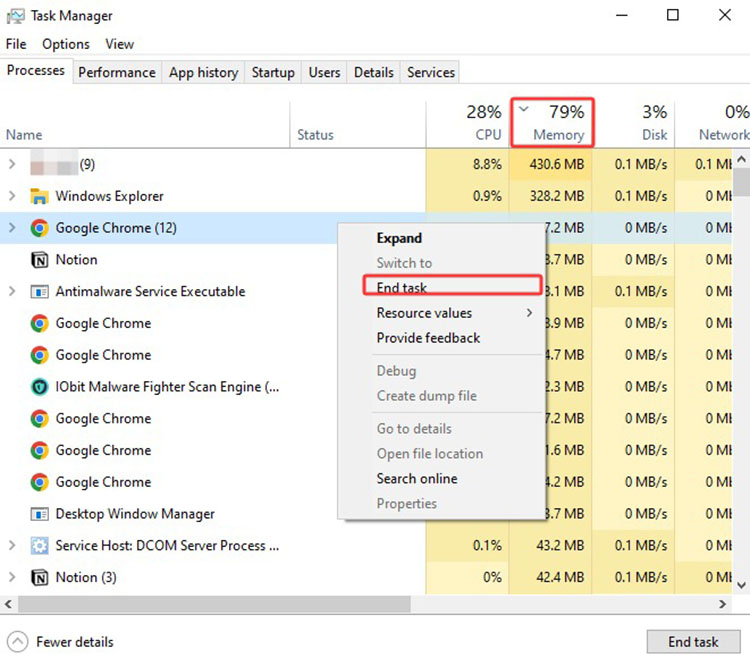
1. On Windows, search for Task Manager and open it.
2. Identify unnecessary programs running in the background.
3. End non-important tasks to free up system resources before launching the Call of Duty.
Step 3 – Update Drivers and Windows System
Outdated graphics drivers are frequent culprits behind severe FPS drops, unexpected crashes, and hardware compatibility issues in Call of Duty. That’s why you need to keep your system updated to ensure the game can communicate optimally with your hardware. If you are looking for a hassle-free solution, Driver Booster is your best bet. The software can automatically detect outdated drivers, and you can update them in batches with one click! Here’s how.
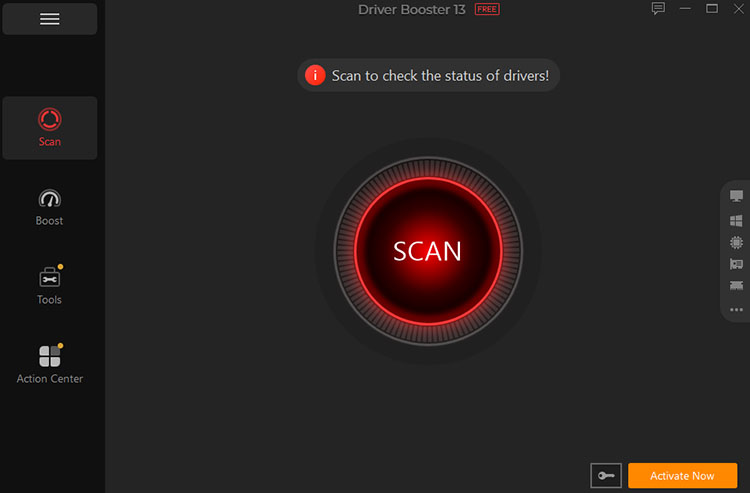
1. Download, install, and launch Driver Booster on your Windows PC.
2. Click the large SCAN button in the center of the dashboard. The software will analyze your system to find outdated drivers.
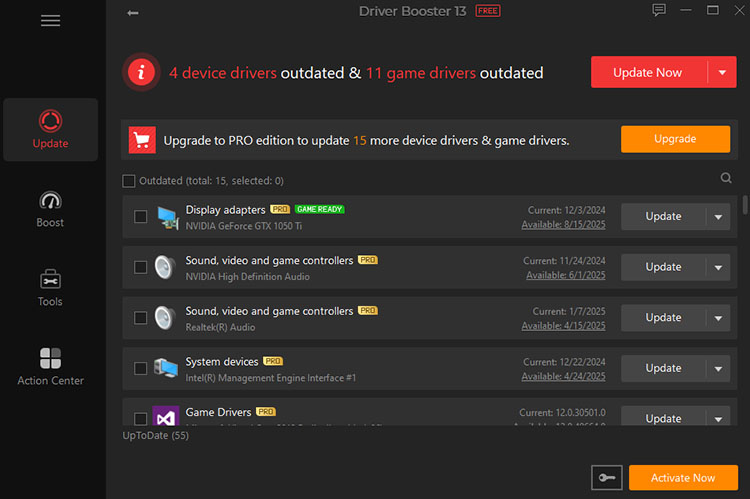
3. After scanning, click the Update Now button to automatically download and install the latest versions of drivers.
Common Questions About Call of Duty Performance
1. Why is Call of Duty lagging even with good internet?
A stable internet connection only prevents network-related lag.
Performance issues can still occur due to hardware limitations. For instance, an overworked GPU, an overheating CPU, or insufficient RAM, etc. In addition, outdated drivers may lead to stuttering and delays, even when your bandwidth is high.
2. How to increase FPS in Call of Duty without upgrading the PC?
You can boost FPS via in-game graphics settings. For instance, lower hardware-intensive settings, disable demanding features like ray tracing, and enable DLSS or FSR. You can also turn on Windows Game Mode and close unnecessary background applications to free up system resources.
3. Why does Call of Duty keep stuttering during gameplay?
Stuttering usually occurs when your system can not maintain consistent frame delivery. This may be caused by background shader compilation, limited VRAM or RAM, CPU overload from other applications, or thermal throttling due to overheating hardware.
4. How to make Call of Duty run smoother on a low-end PC?
For a low-end PC, it’s best to set all graphics settings to low, reduce render resolution, and enable performance-focused upscaling(DLSS/FSR). You should also lock your FPS to match your monitor’s refresh rate and optimize Windows settings for gaming. Meanwhile, it’s crucial to keep your graphics drivers up to date for the best performance.
Final Words
Call of Duty lag and FPS drops are common issues for many players, but they can be effectively resolved with the right optimization methods. You can use a Call of Duty booster, adjust in-game graphics settings, close background applications, and update drivers to improve overall performance. However, if you want a more stable gaming experience with minimal effort, Smart Game Booster is the ideal solution. It’s definitely the most efficient way to boost FPS, reduce lag, and optimize system performance instantly. Give it a try and take your gameplay to the next level now!