Elden Ring is an amazing open-world game, but many players deal with low FPS, stuttering, and performance drops. Whether you're using a powerful PC or an older one, poor optimization can make the game feel slow and less enjoyable.
The good news is that Elden Ring FPS boost is easy. By checking your system, adjusting settings, updating drivers, and using simple tools, you can boost your FPS. In this guide, you'll learn how to increase FPS in Elden Ring with six easy methods.
Why Is Elden Ring FPS So Low?
Before trying any solutions, it's important to identify the root cause of the problem. While Elden Ring runs smoothly on many setups, various issues can still lead to inconsistent frame rates. Typical causes include:
Your PC doesn't meet the recommended Elden Ring specs.
Outdated or incompatible graphics drivers.
Background applications consuming CPU and RAM resources.
Windows graphics settings are not optimized for gaming.
High in-game graphics settings that exceed your GPU's capabilities.
Shader compilation stuttering after updates.
CPU bottlenecks and thermal throttling.
Method 1. Check Your PC Performance Before Boosting FPS
Not every FPS issue is caused by Elden Ring itself. Sometimes another program is consuming your CPU, GPU, or memory, limiting the resources available for the game. Before changing graphics settings or installing optimization software, it's worth checking whether your hardware is the real bottleneck.
Monitoring your system usage helps you determine if your processor is overloaded, your graphics card is running at full capacity, or your memory is nearly exhausted. This information makes it much easier to decide how to boost Elden Ring FPS effectively instead of relying on trial and error.
Steps to Check PC Performance
Step 1. Press Ctrl + Shift + Esc to open Task Manager.
Step 2. Select the Performance tab.
Step 3. Launch Elden Ring and play for several minutes.
Step 4. Monitor the following components:
CPU usage
GPU utilization
Memory usage
Disk activity
Step 5. If CPU or memory usage remains above 90% while gaming, close unnecessary background programs before launching Elden Ring again.
Pro Tip: If your GPU utilization stays below 70% while the CPU is constantly maxed out, your processor is likely the bottleneck. On the other hand, if GPU usage remains near 100%, lowering graphics settings or updating your graphics driver will usually provide a better Elden Ring FPS boost.
Method 2. Update Your Graphics Driver for Better Performance
An outdated graphics driver is one of the most common reasons for low FPS, screen stuttering, and game crashes. GPU manufacturers regularly release Game Ready drivers that improve compatibility and optimize performance for the latest game updates. If you haven't updated your graphics driver recently, this simple step can provide an immediate Elden Ring FPS boost and improve overall stability.
Steps to Update Your Graphics Driver
Option 1. Use Device Manager
Step 1. Right-click the Start button and choose Device Manager.
Step 2. Expand Display adapters.
Step 3. Right-click your graphics card and select Update driver.
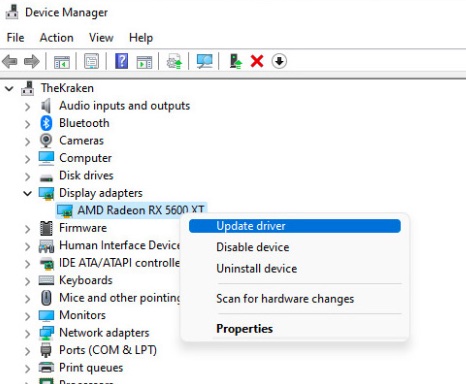
Step 4. Open the Driver tab and click Update Driver.
Step 5. Select Search automatically for updated driver software.
Step 6. Restart your PC after the installation finishes.
Option 2. Download the Latest Driver
You can also install the newest Game Ready driver directly from NVIDIA, AMD, or Intel's official website for the latest performance optimizations.
Step 1. Press Win + X > Device Manager > Display adapters and note whether you use NVIDIA, AMD, or Intel.
Step 2. Visit the official driver page. Open the official NVIDIA Drivers, AMD Drivers and Support, or Intel Drivers and Software.
Step 3. Select your GPU model. Choose the correct graphics card series, model, and Windows version.
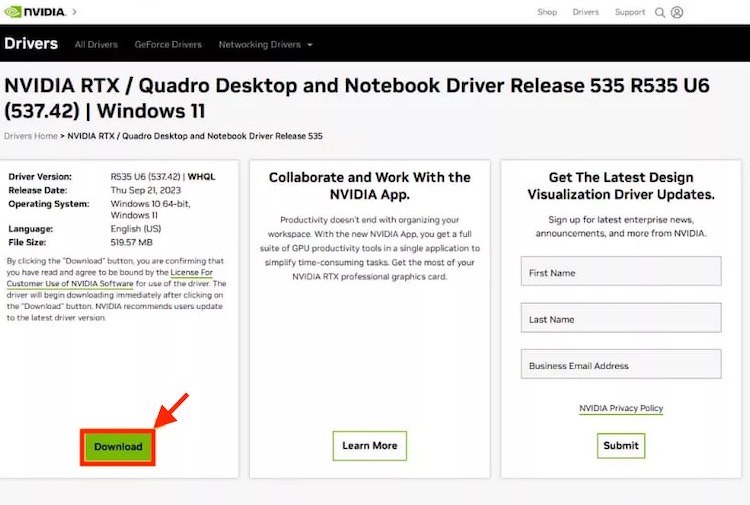
Step 4. Download the latest driver. Prefer the newest stable gaming-oriented driver recommended for your GPU.
Step 5. Run the installer. Open the downloaded setup file and follow the installation prompts.
Step 6. Restart your PC and launch Elden Ring.
Tip: Avoid downloading GPU drivers from unofficial third-party driver websites. For an Elden Ring FPS boost, keeping the graphics driver current can provide game-specific optimizations, compatibility fixes, and performance improvements.
Method 3. Optimize Windows Gaming Settings
Besides graphics drivers, Windows itself includes several gaming features that can noticeably improve performance. Enabling GPU acceleration, turning on Game Mode, and using High Performance power settings help your PC dedicate more resources to Elden Ring instead of background tasks. These optimizations are especially helpful if you're searching for how to boost FPS Elden Ring without changing any hardware.
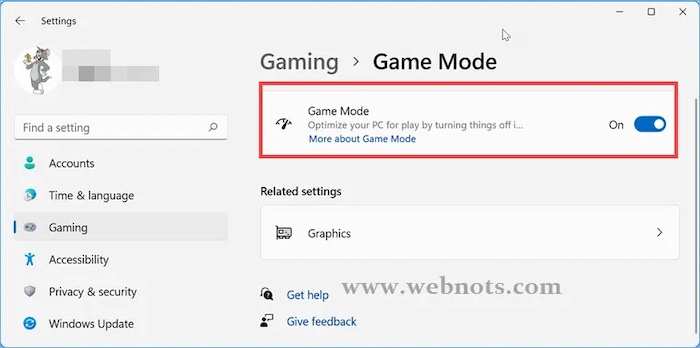
Enable Game Mode
Step 1. Press Win + I to open Settings.
Step 2. Navigate to Gaming > Game Mode.
Step 3. Turn Game Mode On.
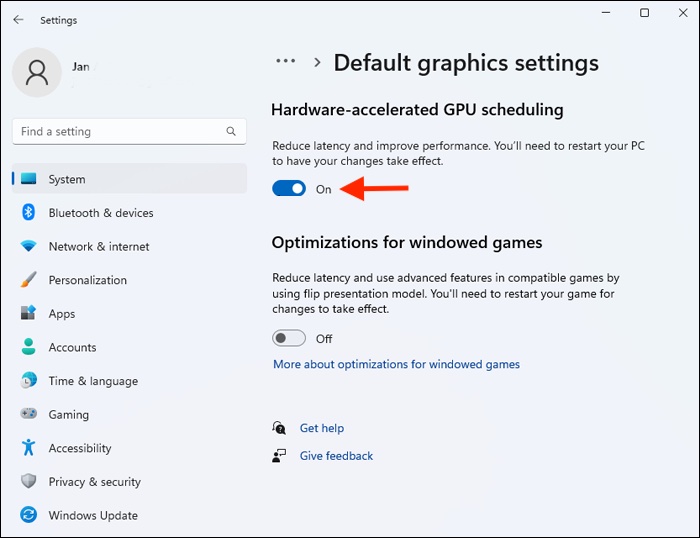
Enable Hardware-Accelerated GPU Scheduling
Step 1. Open Settings.
Step 2. Go to System > Display > Graphics.
Step 3. Select Default graphics settings.
Step 4. Enable Hardware-Accelerated GPU Scheduling.
Step 5. Restart your computer.
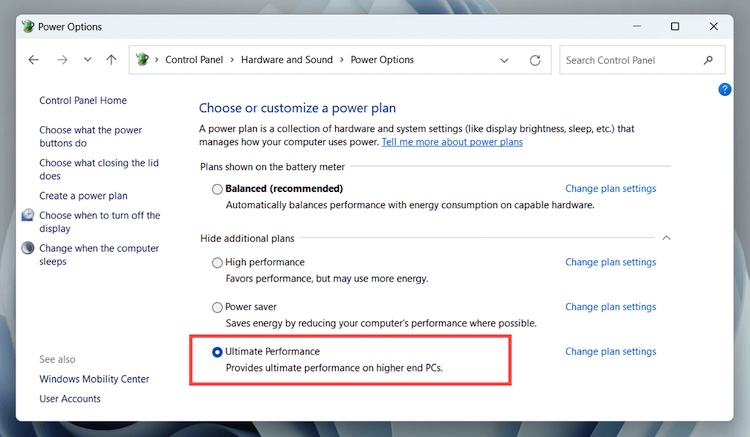
Change Windows Power Plan
Step 1. Open Control Panel.
Step 2. Select Power Options.
Step 3. Choose High Performance or Ultimate Performance if available.
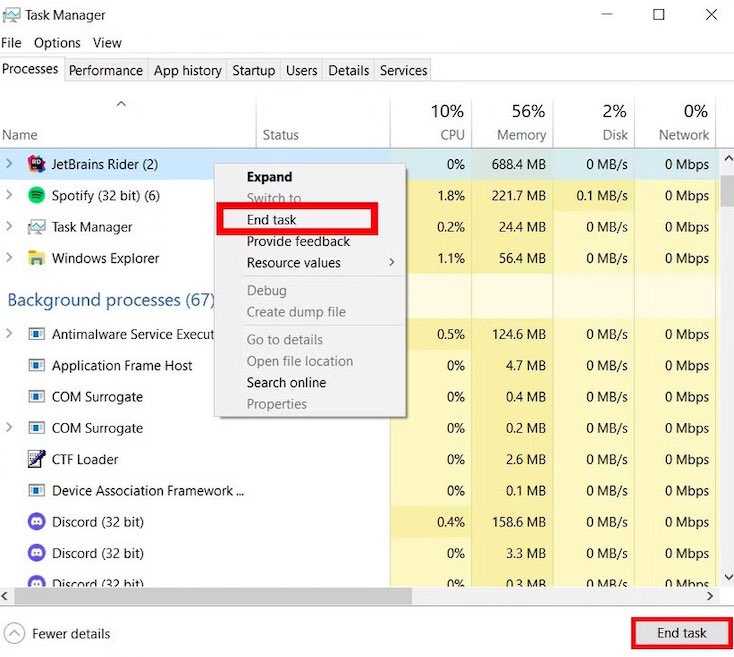
Disable Background Apps
Step 1. Press Ctrl + Shift + Esc to open Task Manager.
Step 2. Under the Processes section, select the unnecessary application.
Step 3. Right-click the application and select End Task.
Method 4. Get an Instant Elden Ring FPS Boost with Smart Game Booster
If you're looking for an all-in-one Elden Ring FPS booster, Smart Game Booster is one of the easiest solutions. Instead of manually adjusting Windows settings, updating drivers, and closing background programs one by one, it automates the entire optimization process with just a few clicks.
Whether you're searching for how to boost Elden Ring FPS on a gaming PC or need an Elden Ring FPS boost for a low-end PC, Smart Game Booster helps free up system resources, optimize Windows, and maximize GPU performance. It's especially useful for players experiencing random stuttering or looking for an Elden Ring FPS drop fix PC without spending hours tweaking settings.
Key Features for Elden Ring FPS Boost
Instantly closes unnecessary background processes, services, and startup programs to free more CPU and RAM resources for Elden Ring, helping improve FPS and reduce gameplay lag.
Automatically applies gaming-focused Windows optimizations that improve overall system responsiveness, making it easier to achieve a smoother Elden Ring FPS boost.
Detects outdated graphics drivers and installs the latest gaming-ready versions, helping improve compatibility, stability, and frame rates after new Elden Ring updates.
Displays live CPU, GPU, temperature, RAM, and FPS information so you can quickly identify performance bottlenecks while playing Elden Ring.
Creates a dedicated gaming environment that launches Elden Ring with optimized system resources, reducing background interference and improving gameplay consistency.
How to Boost Elden Ring FPS Using Smart Game Booster
Step 1. Download and install Smart Game Booster on your Windows PC that is running Windows 11/10/8.1/8/7/Vista/XP.
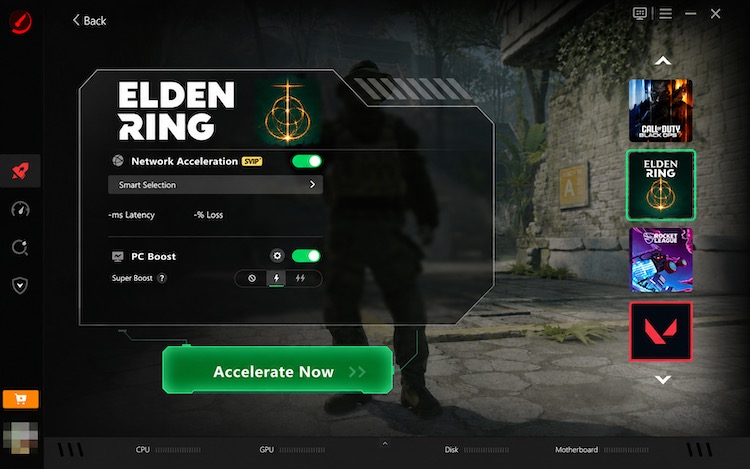
Step 2. Launch the software and choose Elden Ring to enter the details for the gameplay.
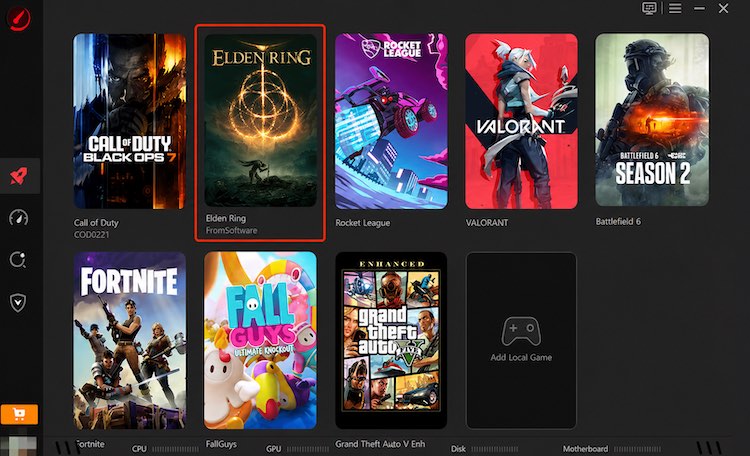
Step 3. Select Smart Selection under the Network Acceleration tab, then choose your preferred PC Boost mode based on your needs. Once the settings are ready, click Accelerate Now to start optimizing your gaming performance.
Method 5. Lower the Right Graphics Settings in Elden Ring
Not every graphics option affects performance equally. Instead of lowering every setting to Low, adjust the options that have the biggest impact on FPS while keeping visual quality high. This approach delivers a noticeable performance improvement without making the game look significantly worse, making it one of the best ways to boost FPS Elden Ring on both mid-range and low-end PCs.
Recommended Graphics Settings
Texture Quality: High
Anti-Aliasing: Medium
Shadow Quality: Medium
Lighting Quality: Medium
Effects Quality: Medium
Volumetric Quality: Medium
Reflection Quality: Low
Water Surface Quality: Medium
Shader Quality: Medium
Global Illumination: Medium
Grass Quality: Medium
Method 6. Fix Elden Ring FPS Drops and Stuttering on PC
If your average FPS is acceptable but the game still freezes or stutters, the problem is likely caused by shader compilation, overlays, corrupted game files, or thermal throttling instead of insufficient hardware. The following fixes can eliminate sudden frame drops and provide a smoother experience. They're especially effective if you're looking for an Elden Ring FPS drop fix PC after a game update.
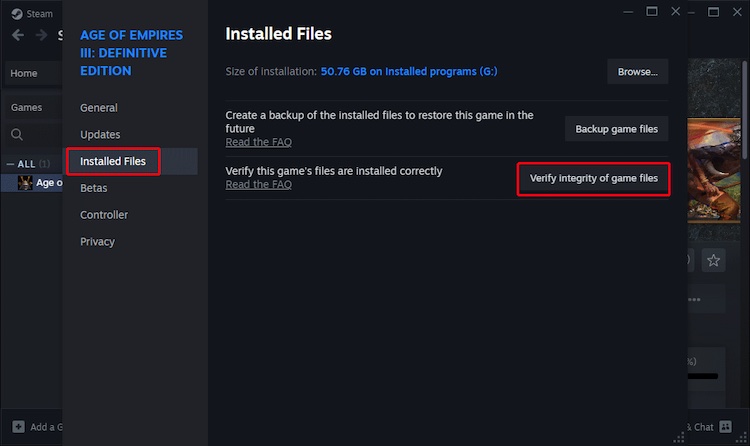
Fix 1. Verify Game Files
Step 1. Open Steam.
Step 2. Right-click Elden Ring and choose Properties.
Step 3. Select Installed Files.
Step 4. Click Verify integrity of game files.
Fix 2. Disable Unnecessary Overlays
Disable overlays from applications such as:
These overlays may consume GPU resources and occasionally cause FPS drops or micro-stuttering.
Fix 3. Install the Latest Windows Updates
Microsoft frequently releases updates that improve gaming performance and compatibility.
Step 1. Open Settings.
Step 2. Go to Windows Update.
Step 3. Click Check for updates.
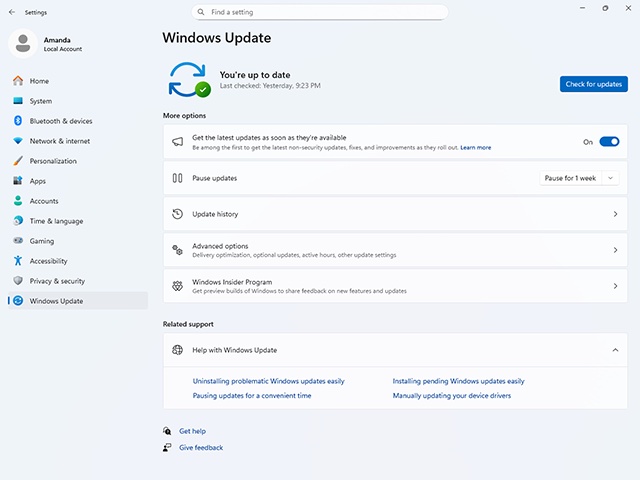
Step 4. Install available updates and restart your PC.
Conclusion
Getting an effective Elden Ring FPS boost doesn't require expensive hardware upgrades. By checking your PC against the Elden Ring specs, updating graphics drivers, optimizing Windows, adjusting graphics settings, and using Smart Game Booster, you can reduce stuttering and enjoy a much smoother adventure through the Lands Between.
Key Features of Smart Game Booster
- Enjoy lag-free & low-ping gaming
- 100+ games supported
- Severs from all over the world
- Boost in-game FPS