Gaming laptops offer portable performance, but games may gradually become slower due to outdated drivers, background programs, heat, or inefficient Windows settings. If you are wondering how to boost game performance on laptop, you do not always need expensive hardware upgrades. Several practical optimizations can improve FPS and reduce stuttering. This guide explains seven effective methods for Windows 10 and Windows 11 laptops.
Why Is My Laptop Gaming Performance So Low?
Before learning how to improve game performance on a laptop, it helps to identify what is limiting your system. Even a relatively powerful gaming laptop can lose performance when hardware resources are not being used efficiently. Common causes include:
Outdated or incompatible graphics drivers
Too many background applications consuming CPU and RAM
High laptop temperatures and thermal throttling
Power-saving settings limiting CPU or GPU performance
Games running on integrated instead of dedicated graphics
Graphics settings that are too demanding for the hardware
Insufficient RAM or slow storage
Unnecessary Windows gaming and visual features
Once you identify the likely bottleneck, you can apply the following methods to improve gaming performance more effectively.
Method 1. Optimize Your Laptop with Smart Game Booster
Manually checking CPU usage, unnecessary services, gaming settings, and drivers can take considerable time. For players searching for how to boost your laptop gaming performance more conveniently, Smart Game Booster provides an all-in-one approach. It focuses available PC resources on games while helping maintain a more suitable system environment for smoother gameplay.
Key Features of Smart Game Booster
- Enjoy lag-free & low-ping gaming
- 100+ games supported
- Severs from all over the world
- Boost in-game FPS
Smart Game Booster is designed specifically for Windows gaming optimization. Instead of requiring you to manually close unnecessary processes and adjust multiple settings before every gaming session, it provides tools for improving the laptop's gaming environment from one place.
Why Use Smart Game Booster for Laptop Gaming?
Free Up RAM for Games: Stops unnecessary background processes so more memory can be allocated to your game, helping create a smoother experience when gaming.
Reduce CPU Competition: Helps limit unnecessary services and applications that compete with games for processor resources, which can also help reduce lag in Roblox.
Improve In-Game FPS: Optimizes system resources to help games run more consistently, particularly on laptops with limited hardware, while functioning as an FPS booster for supported games.
Update Gaming Drivers: Helps identify outdated graphics and gaming-related drivers that may cause FPS drops, crashes, or compatibility problems.
Optimize Gaming Settings: Provides optimization options that can help balance image quality and performance based on your hardware.
Monitor Laptop Temperature: Displays CPU, GPU, and motherboard temperatures to help detect overheating that could cause thermal throttling.
How to Boost Laptop Gaming Performance with Smart Game Booster
Step 1. Download and install Smart Game Booster on your Windows laptop.
Step 2. Launch Smart Game Booster and add or select the game you want to optimize.
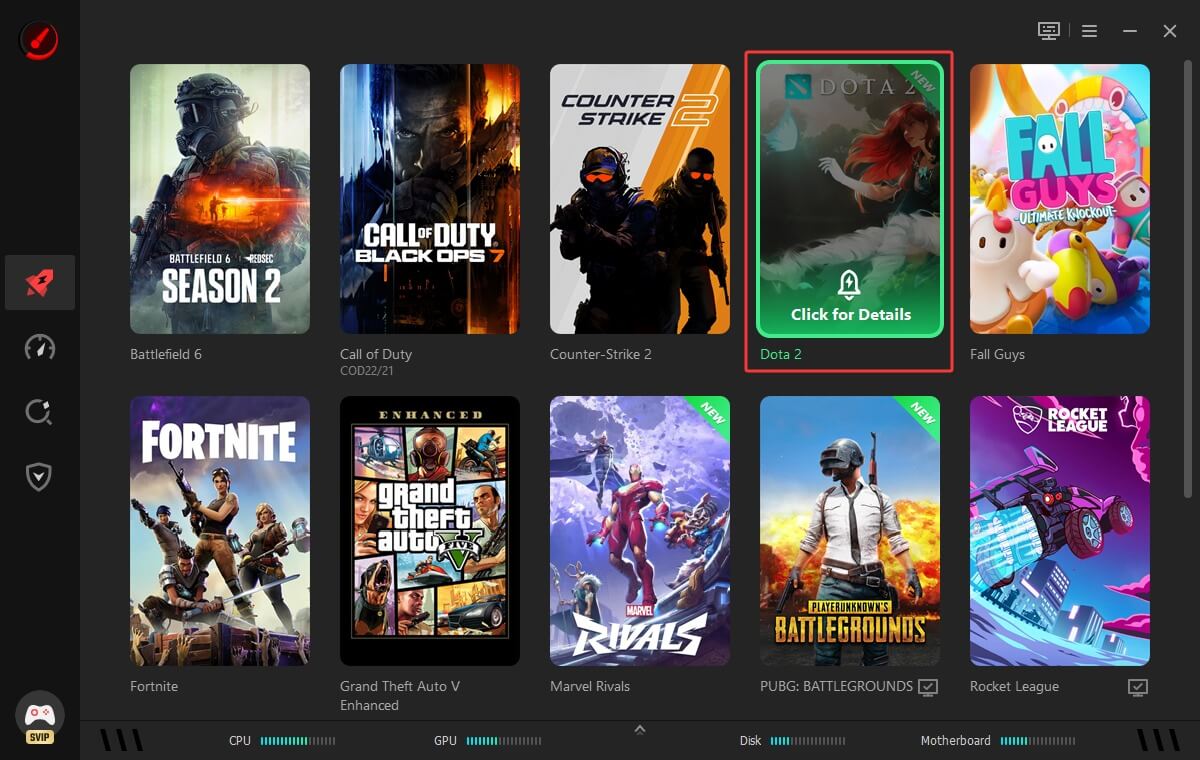
Step 3. Under the Network Acceleration tab, select Smart Selection, then choose the PC Boost mode that best suits your needs. Once everything is configured, click Accelerate Now to optimize your gaming performance.
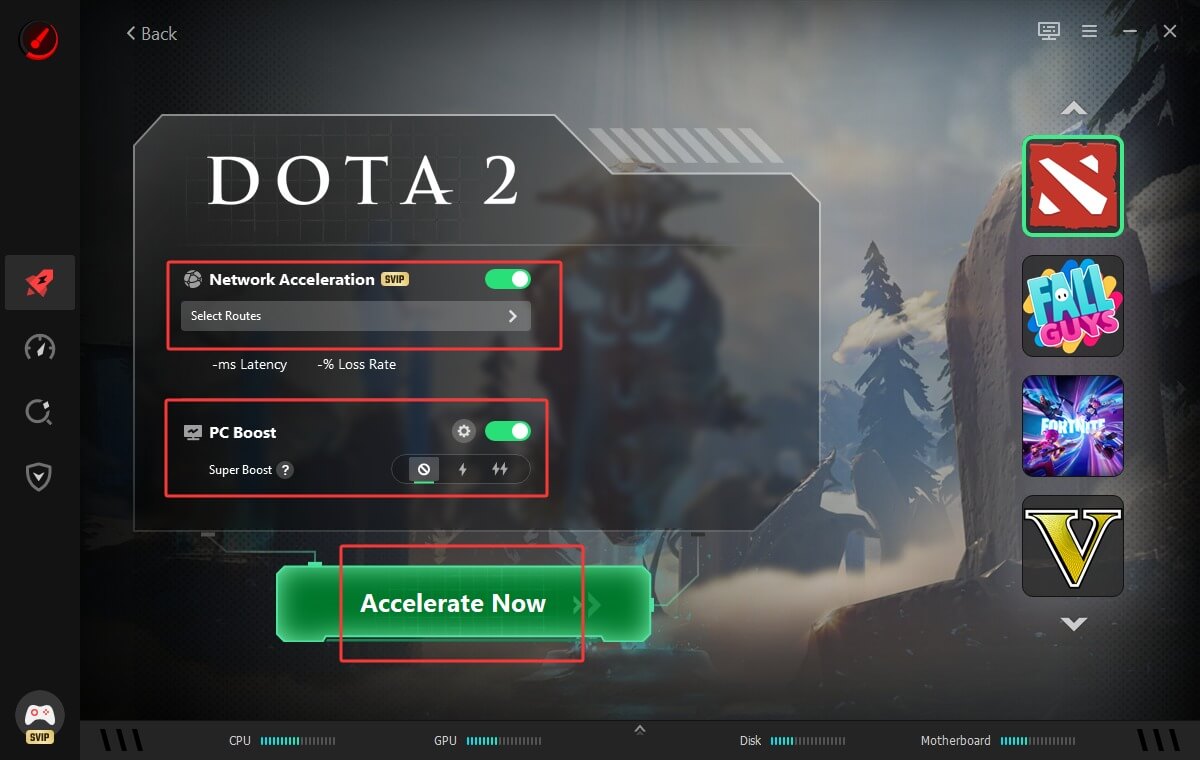
For users who want a straightforward answer to how to boost game performance on laptop Windows 11 or Windows 10 without repeatedly adjusting settings manually, this approach can combine several useful optimizations in one workflow.
Also Read: Best PC Game Launchers Explained: Steam, Epic Games & More >>
Method 2. Update Your Graphics Driver
If optimization alone does not solve low FPS, the next step is to focus on your graphics drivers, which act as the connection between your GPU and games. These drivers are regularly updated with performance improvements, bug fixes, and game-specific optimizations, so outdated versions can lead to stuttering, crashes, or poor FPS in newer titles.
To update your graphics drivers, follow these steps:
Step 1. Press Windows + X and select Device Manager.
Step 2. Expand Display adapters.
Step 3. Right-click your graphics card, such as NVIDIA, AMD, or Intel.
Step 4. Select Update driver.
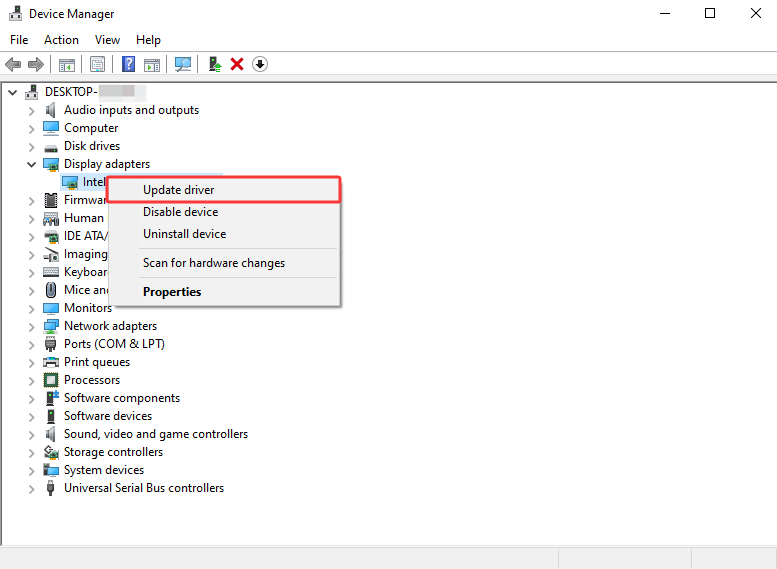
Step 5. Choose Search automatically for drivers.
Step 6. If Windows finds a newer driver, follow the instructions to install it. Restart your PC when the installation is complete.
Method 3. Switch Windows to Best Performance Mode
Gaming laptops often balance performance against battery life. While this makes sense for everyday portable use, power-saving behavior can restrict processor performance during games. If you want to know how to boost performance on a gaming laptop, checking Windows power settings is one of the simplest changes before considering more complicated system tweaks.
Step 1. Press Windows + I to open Settings.
Step 2. Select System > Power & battery.
Step 3. Expand the Power mode section.
Step 4. Choose Best performance from the drop-down menu.
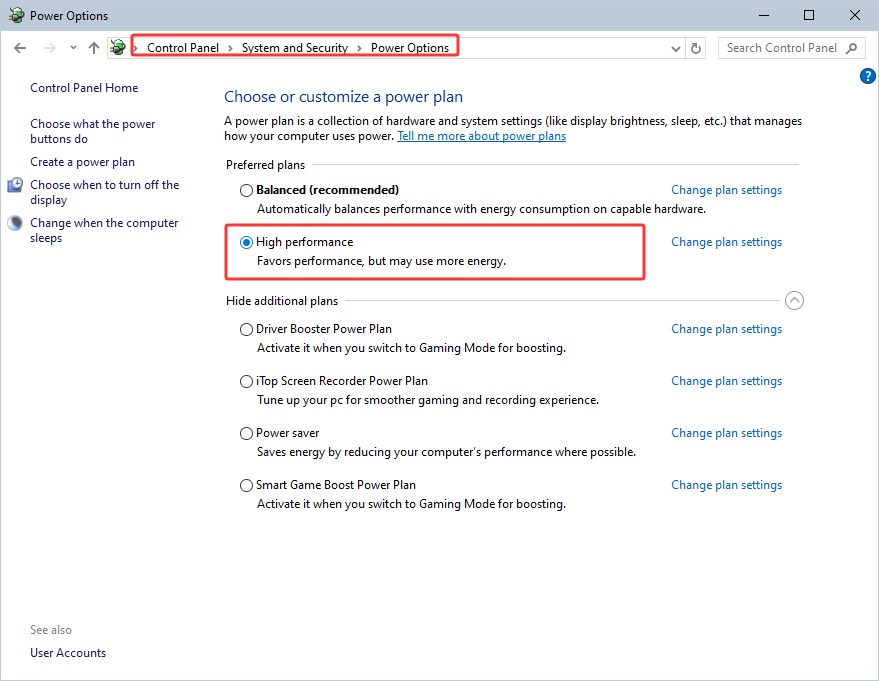
Step 5. Close and relaunch your game so Windows can apply the updated power settings.
*For gaming, connect your laptop to its charger whenever possible. Many gaming laptops intentionally reduce CPU and GPU power while operating on battery, meaning you may experience noticeably lower FPS even after optimizing Windows.
Method 4. Enable Windows Game Mode
Windows includes Game Mode to prioritize the gaming experience and reduce interruptions from certain background activities. It will not transform underpowered hardware into a high-end gaming machine, but enabling it is a simple optimization when researching how to boost game performance on laptop Windows 10 or Windows 11, especially if background Windows activity affects gameplay.
To enable it:
Step 1. Press Windows + I to open Settings.
Step 2. Select Gaming from the left-hand menu.
Step 3. Open Game Mode.
Step 4. Switch Game Mode to On.
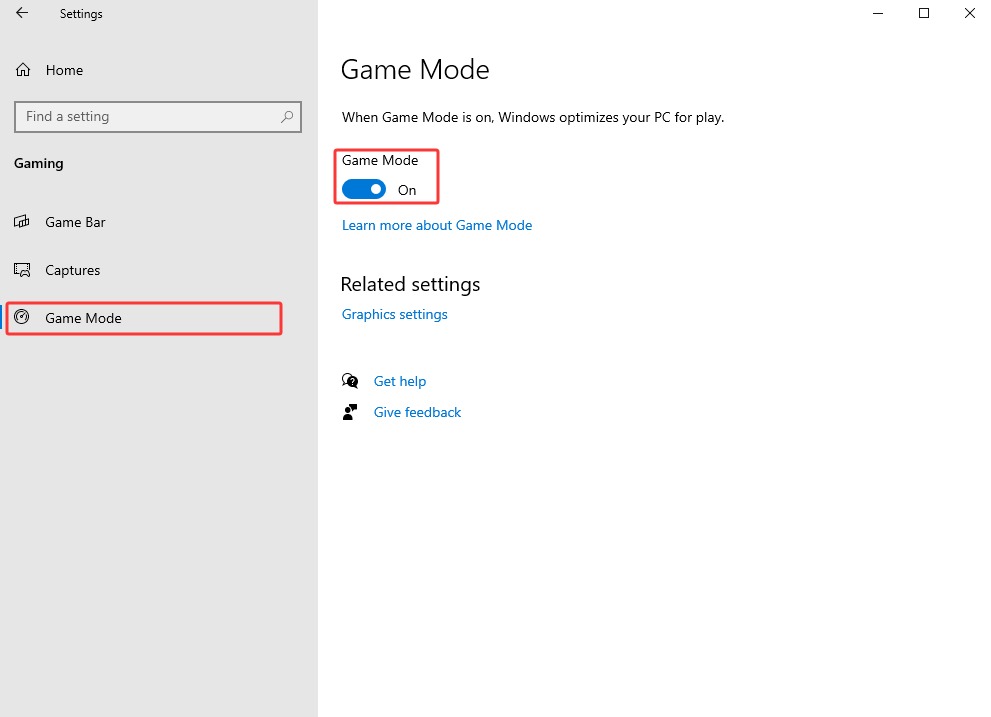
Windows can then prioritize your gaming experience and limit some background activity while you play. Keep Game Mode enabled unless you notice compatibility problems with a particular application or game.
Method 5. Close Background Apps Before Gaming
A game needs more than GPU power. Browsers, launchers, cloud synchronization tools, communication applications, RGB utilities, and other programs can consume RAM, CPU cycles, disk resources, and network bandwidth. Closing applications you do not need before launching a demanding title can therefore leave more system resources available for maintaining stable game performance.
Step 1. Press Ctrl + Shift + Esc to open Task Manager.
Step 2. Head to the Processes tab.
Step 3. Check CPU, Memory, Disk, and GPU usage to identify resource-heavy applications.
Step 4. Select an application you recognize and don't need and click End task.
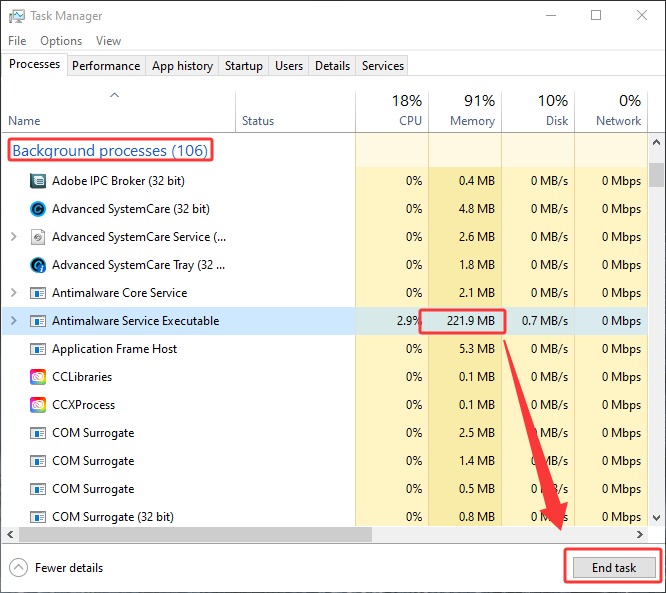
Important: Don't end Windows system processes or unfamiliar processes, as doing so could cause system instability.
Method 6. Make Sure Games Use the Dedicated GPU
Many gaming laptops contain both integrated graphics and a more powerful discrete NVIDIA or AMD GPU. Windows normally chooses between them automatically, but some games may use the less powerful integrated graphics unexpectedly. When figuring out how to improve game performance on a laptop, verifying GPU selection can prevent a major and easily overlooked performance bottleneck.
Step 1. Open Settings on Windows 11.
Step 2. Go to System > Display > Graphics.
Step 3. Under Custom options for apps, click Browse if your game isn't already listed.
Step 4. Select or add your game from the list.
Step 5. Click Options > High performance, then click Save.
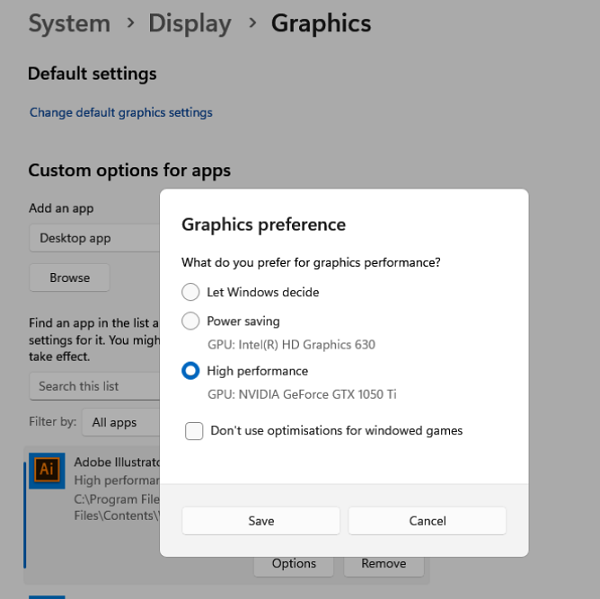
You can also verify GPU usage through Task Manager while the game is running. If a demanding game is using integrated graphics instead of the dedicated GPU, correcting this setting can produce a substantial performance improvement.
Method 7. Lower In-Game Graphics Settings and Resolution
If your laptop is already using the correct GPU and performance mode, the game itself may simply be demanding more than the hardware can consistently provide. Reducing selected graphics options lowers the workload placed on the GPU, helping improve frame rates and reduce sudden FPS drops without requiring any hardware changes.
Start by lowering performance-heavy settings such as:
Ray tracing
Shadow quality
Volumetric effects
Reflections
Ambient occlusion
Anti-aliasing
View distance
Render resolution
If supported, try technologies such as NVIDIA DLSS, AMD FSR, or Intel XeSS. These upscaling technologies can render games internally at a lower resolution and reconstruct the image, often providing higher FPS with a smaller visual-quality sacrifice than simply lowering the display resolution.
Extra Tips to Keep Your Gaming Laptop Running Faster
Knowing how to boost game performance on laptop is not only about changing Windows settings once. Gaming laptops operate within strict power and thermal limits, so regular maintenance can help preserve stable performance over longer gaming sessions.
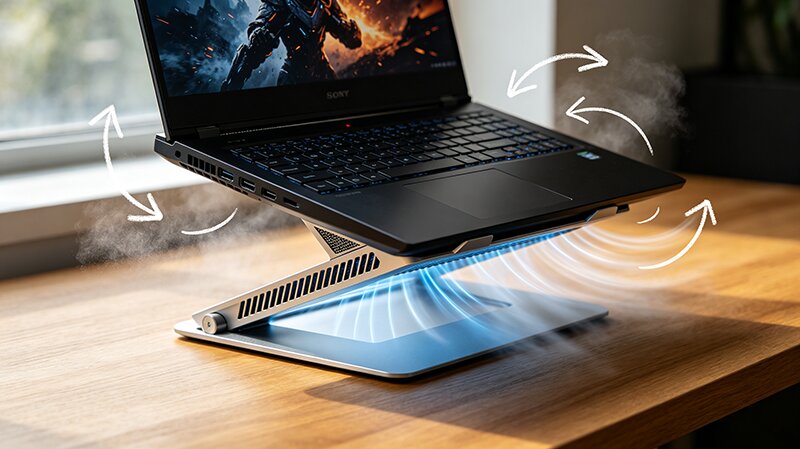
Keep the laptop’s air vents unobstructed and remove accumulated dust when appropriate.
Play on a hard, flat surface instead of a bed or blanket that can restrict airflow.
Monitor CPU and GPU temperatures if FPS gradually decreases during long sessions, since excessive heat may trigger thermal throttling.
For laptops that support upgrades, consider adding more RAM if memory usage is consistently near its limit.
Move games from a mechanical hard drive to an SSD to dramatically improve loading times and asset streaming, although an SSD usually has less effect on average FPS.
FAQs About Boosting Game Performance on Laptop
How can I boost my laptop gaming performance without upgrading hardware?
Start by updating your GPU driver, enabling Windows Game Mode, selecting a high-performance power mode, closing background applications, using the dedicated GPU, and lowering demanding graphics settings. Smart Game Booster can also help manage several gaming-related optimizations from one interface.
What are the best ways to improve gaming performance on a Windows 11 laptop?
Enable Game Mode, select Best performance under Windows power settings, assign demanding games to the high-performance GPU, update graphics drivers, and reduce unnecessary background activity. You should also keep the laptop plugged in during demanding games when possible.
How can you increase FPS on a Windows 10 gaming laptop?
Windows 10 users can enable Game Mode, select a performance-focused power plan, update GPU drivers, disable unnecessary startup programs, and reduce demanding in-game graphics settings. Maintaining good laptop cooling is also important for avoiding performance loss during long sessions.
Does adding more RAM increase gaming FPS?
It can, particularly if your laptop does not have enough memory or is running in an inefficient memory configuration. However, the improvement varies by game and hardware. If GPU performance is the primary bottleneck, adding RAM alone may produce little change in average FPS.
Final Words
Learning how to boost game performance on laptop starts with identifying what is limiting your FPS. Update drivers, optimize Windows settings, reduce background resource usage, verify dedicated GPU selection, and adjust game graphics appropriately. For a more convenient approach, Smart Game Booster can help optimize gaming-related system resources and settings from one place, making it easier to prepare your laptop for smoother gameplay.
Key Features of Smart Game Booster
- Enjoy lag-free & low-ping gaming
- 100+ games supported
- Severs from all over the world
- Boost in-game FPS