You're deep into building your dream base when the game suddenly freezes, and your character teleports across the map. If you've ever wondered, “Why is Minecraft so laggy?”, you're not alone. This guide breaks down the real causes and walks you through 8 practical fixes, from quick tweaks to an all-in-one booster tool.
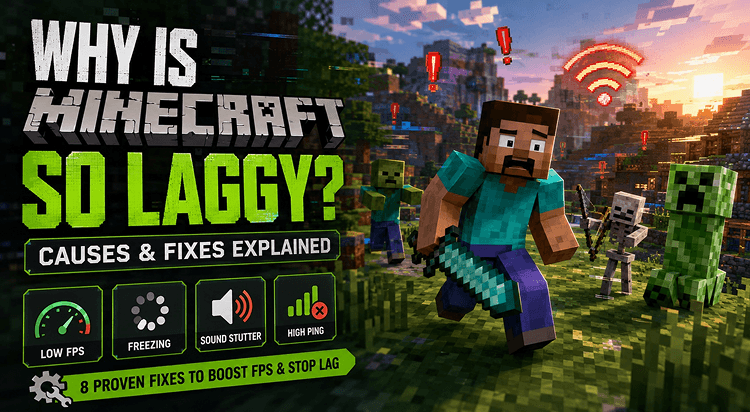
Symptoms & Reasons: Why is Minecraft So Laggy
Before jumping to solutions, it helps to know what "laggy" looks like in Minecraft and why Minecraft lagging happens in the first place.
Common symptoms include:
Low FPS: choppy, stuttering visuals that make building and aiming feel sluggish.
Freezing: the game locks up, especially when loading new chunks.
Sound stutter: audio cuts in and out, out of sync with the screen.
High ping/rubber-banding: your character teleports backward, or actions register late.
What's actually causing it:
Low FPS usually means insufficient RAM, too many background apps, or a CPU/GPU bottleneck that can't keep up.
Freezing often comes from an overloaded resource pack, corrupted world files, or a drive too slow to load chunks.
High ping is typically server-side: an overloaded or distant server, though your own network plays a role too. In fact, "Minecraft lagging but Internet is fine" is a common complaint that usually traces back to the server.
Either way, sudden Minecraft lag spikes or a constantly Minecraft laggy experience trace back to the same culprits above.
All-in-One Boost Solution: How to Fix Minecraft Lag Efficiently
If you want a hassle-free way to resolve these issues, using a dedicated PC optimizer is the smartest route. For players wondering how to fix Minecraft lag without doing complex manual tweaking, Smart Game Booster offers a comprehensive, all-in-one solution. It stands out in the market for its competitiveness in comprehensively fixing lag issues and fully optimizing your PC for peak performance.
Key Features of Smart Game Booster
- Enjoy lag-free & low-ping gaming
- 100+ games supported
- Severs from all over the world
- Boost in-game FPS
Here's what makes it stand out:
1-Click Game Boost to Fix Minecraft Lag for Free: This software features intelligent game network acceleration and a powerful overclocking feature. It is easy, incredibly efficient, requires no manual work, and speeds up your game for free by prioritizing resources.
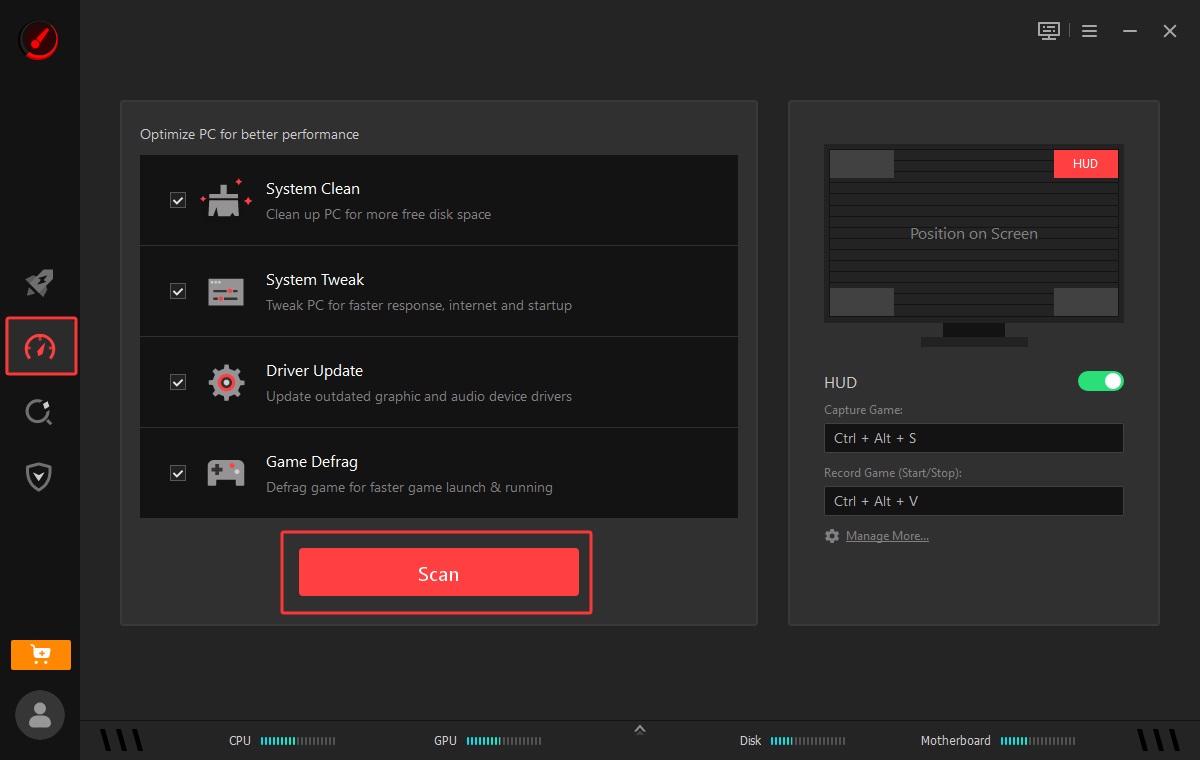
Optimize PC Performance to Address Lag Issues: A cluttered system slows everything down. This feature helps you deeply clean your system, update outdated drivers quickly, and defrag game files, ensuring you reduce Minecraft lag effectively.
Monitor PC Status & Temperature in Real-Time: Overheating causes severe thermal throttling. This tool lets you monitor CPU, GPU, Disk, Memory, and Motherboard usage rates and temperatures. It helps maintain safe levels and even allows you to accurately check PC game FPS for a better gaming experience.
More Features for Easier & Better Gaming: Beyond simple tweaks, it offers a game compatibility test to see if your PC can run new titles, a PC rater to evaluate hardware, and a system/account guard to keep your PC secure.
How to Reduce Minecraft Lag Efficiently?
Step 1: Download Smart Game Booster and install it on your computer.
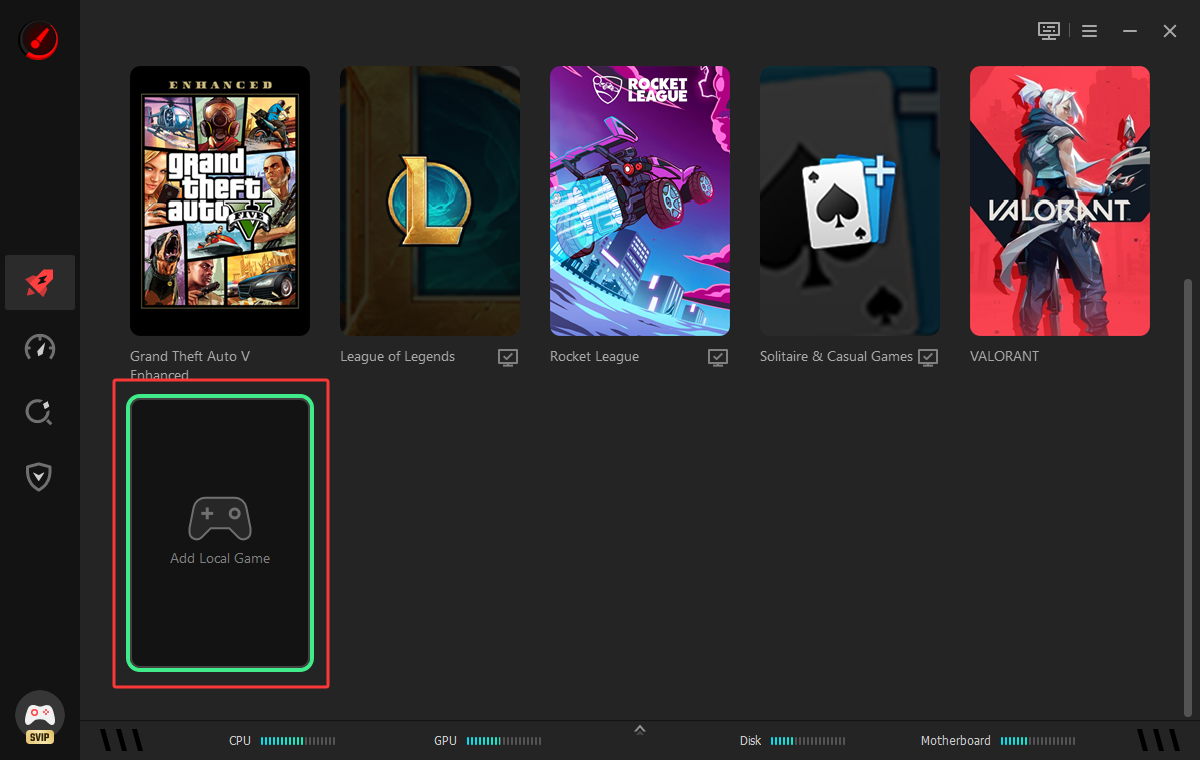
Step 2: Click Add Local Game > click Browse and select the game file from your device to add Minecraft to this game booster.
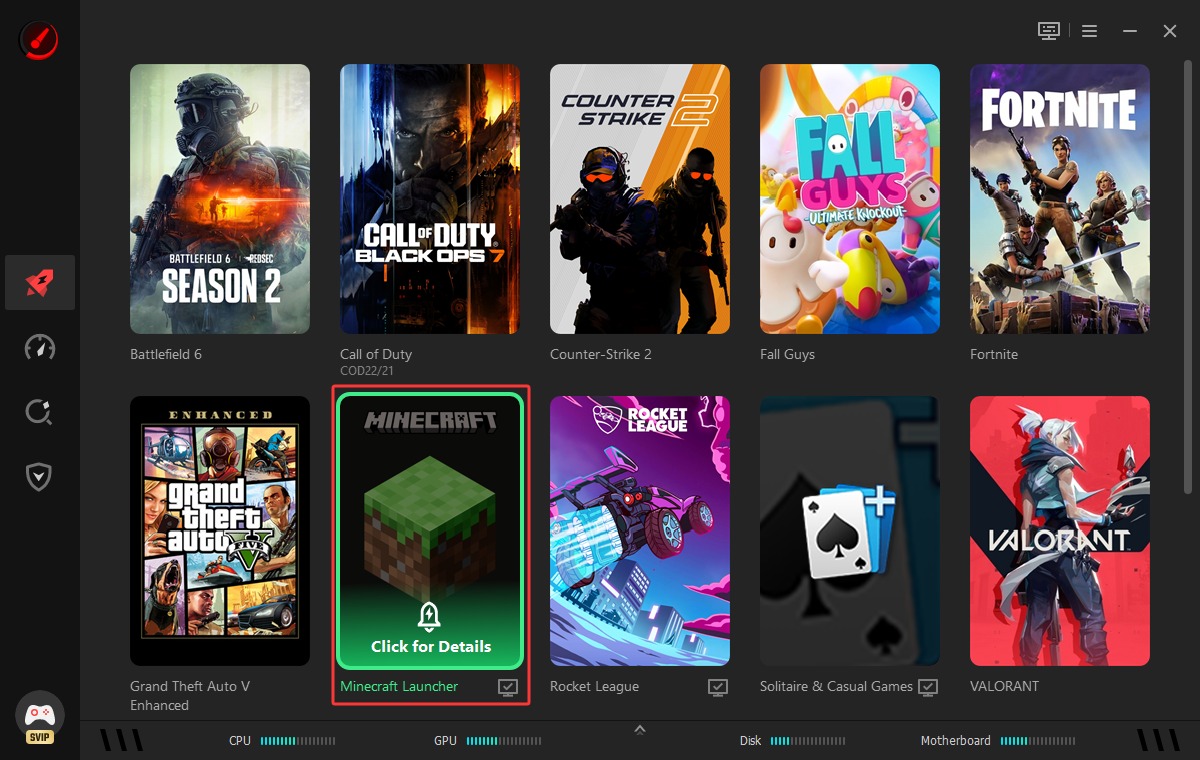
Step 3: Click Minecraft for Details to boost.
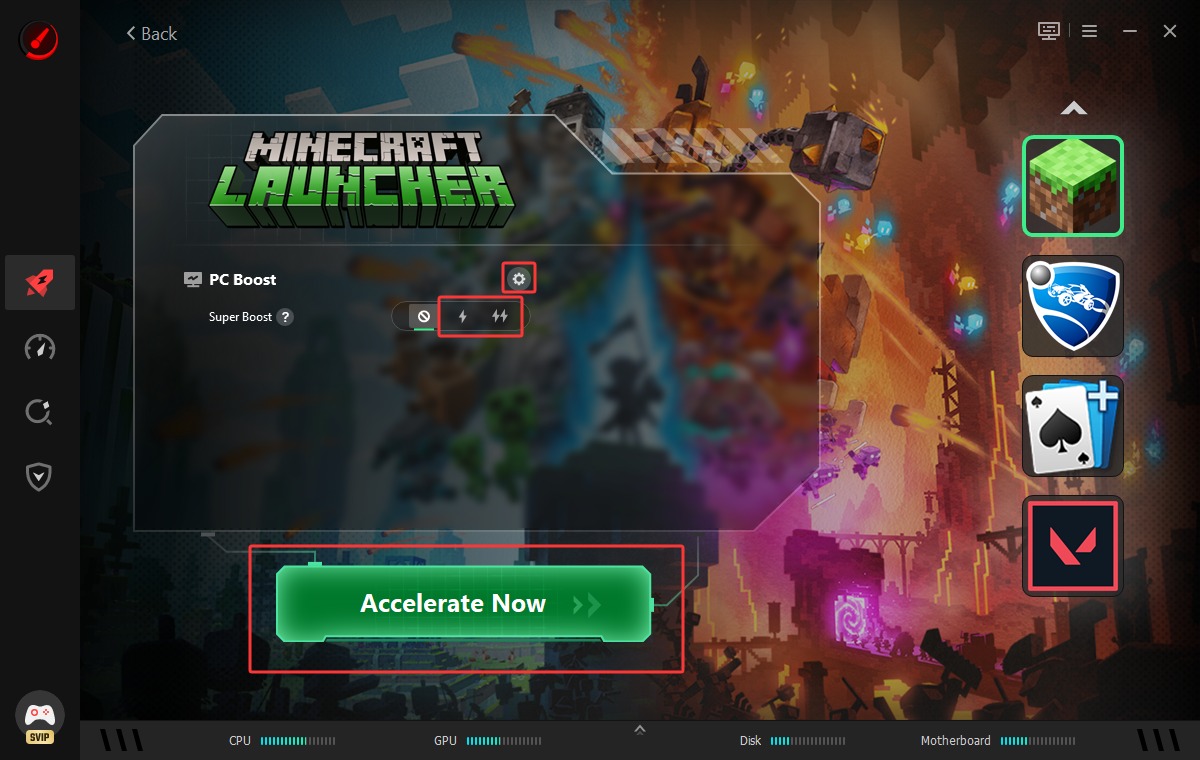
Step 4. Click the PC Boost gear icon to enable Super Boost (Basic Mode & Max Mode), which safely overclocks your CPU and GPU for more FPS, no manual tuning required. Click Accelerate Now.
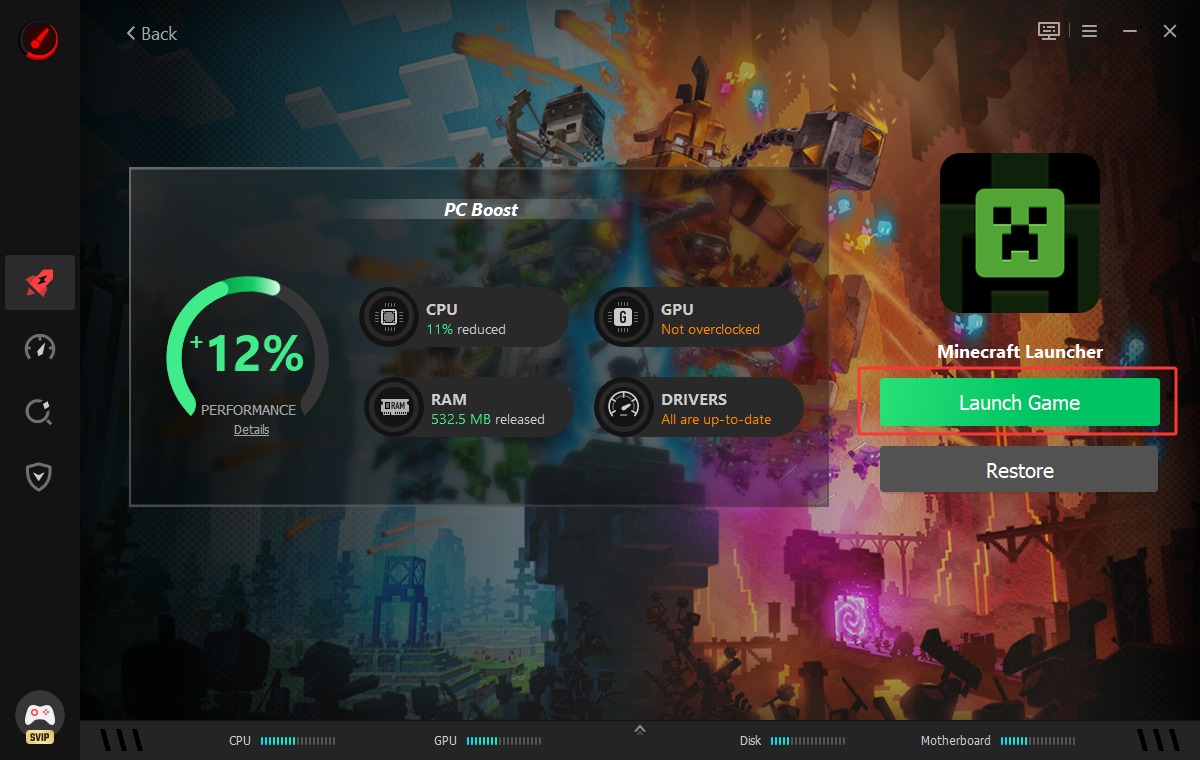
Run Minecraft; you’ll no longer feel the network lag. It’s fixed.
Now that you’ve gone this far, let’s make these settings more effective. Try the PC Performance Optimization feature of Smart Game Booster to keep playing Minecraft without dealing with sluggish performance or that laggy feel.
Here’s how to enable Performance Optimization:
- Click on the Performance feature from the left side.
- Select the items you want to scan.
- Click on the Scan button.
How to Fix Minecraft Lag with Manual Troubleshooting
While automated software provides the fastest route, some players prefer a hands-on approach to system maintenance. These seven fixes tackle the most common causes, from account glitches to overheating hardware. Work through them in order or jump to whichever matches your symptoms; all of these are quick fixes if you’re wondering why Minecraft lagging.
#1 Re-sign in to Your Minecraft Account
Sometimes the lag isn't your PC's fault; it's a hiccup between your account and the authentication servers. A stale session token can disrupt syncing of inventory, chat, and multiplayer data, showing up as stuttering or delayed actions.
Step 1. Fully close Minecraft and the Minecraft Launcher.
Step 2. Reopen the launcher and click Sign Out.
Step 3. Sign back in with your account credentials, then relaunch the game.
#2 Restart Your PC & Network Connection
Your connection directly affects how smoothly Minecraft runs, especially in multiplayer or on Realms. A weak or congested network is often behind high ping and rubber-banding. These bottlenecks aren't unique to Minecraft; players trying to reduce lag on Roblox or other multiplayer titles see the exact same warning signs.
Reconnect to your Wi-Fi network or restart your router/modem entirely
Use a wired Ethernet connection instead of Wi-Fi for a more stable, lower-latency signal
Switch to a server region closer to your physical location
Restart your PC to clear memory leaks and refresh background network processes
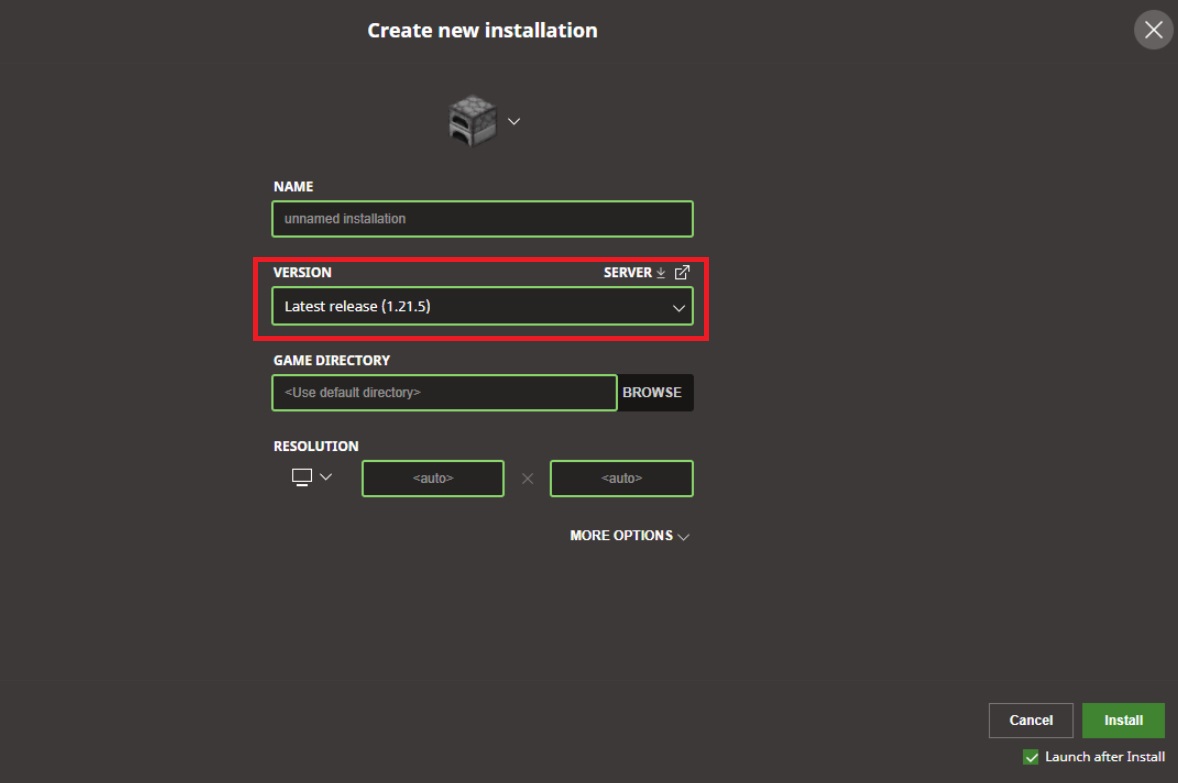
#3 Update Minecraft to Fix Minecraft Lag
Running an outdated version means missing bug fixes, security patches, and performance improvements Mojang regularly ships, some aimed directly at reducing lag.
Step 1. Open the Minecraft Launcher.
Step 2. Navigate to the "Installations" tab at the top of the window.
Step 3. Ensure the "Latest Release" profile is selected, then click "Play" to automatically download and apply the newest files.
#4 Optimize Minecraft In-Game Settings
Minecraft's video settings aren't just cosmetic, render distance, particles, lighting, and effects all compete for CPU and GPU attention. Pushing them too high on modest hardware is a common cause of a Minecraft laggy experience.
Lower the GPU settings: Turn your Render Distance down to 8 or 12 chunks to reduce the amount of world the game has to load simultaneously.
Turn off lighting: Switch "Smooth Lighting" to Minimum or completely Off, and change "Graphics" from Fancy to Fast.
Disable mods/add-ons: Temporarily remove heavy texture packs, shaders, or mods to see if vanilla performance improves.
Set Framerate: Set "Max Framerate" to unlimited.
#5 Update Graphics Card Drivers
An outdated GPU driver can quietly sabotage your frame rate, since new drivers often include game-specific optimizations older versions lack. Windows' built-in Device Manager can update drivers, but it typically pulls generic, outdated packages rather than the latest version from NVIDIA or AMD.
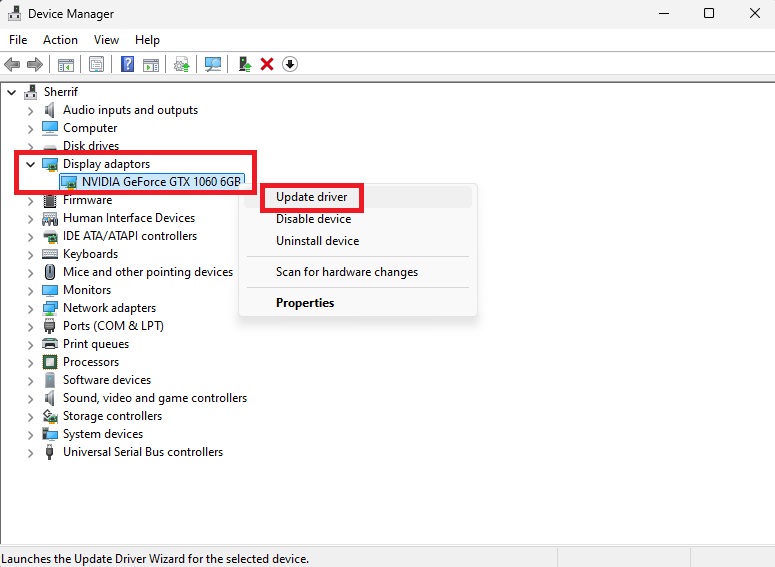
How to Fix Minecraft Lag via Updating Drivers?
Step 1. Open Device Manager from the Windows search bar and expand Display Adapters.
Step 2. Right-click your GPU and select Update Driver.
For a faster option, use Driver Booster, the free Driver Updater, to scan your system and grab the latest GPU and audio drivers straight from the manufacturer in a couple of clicks.
#6 Close System Resources-Draining Apps
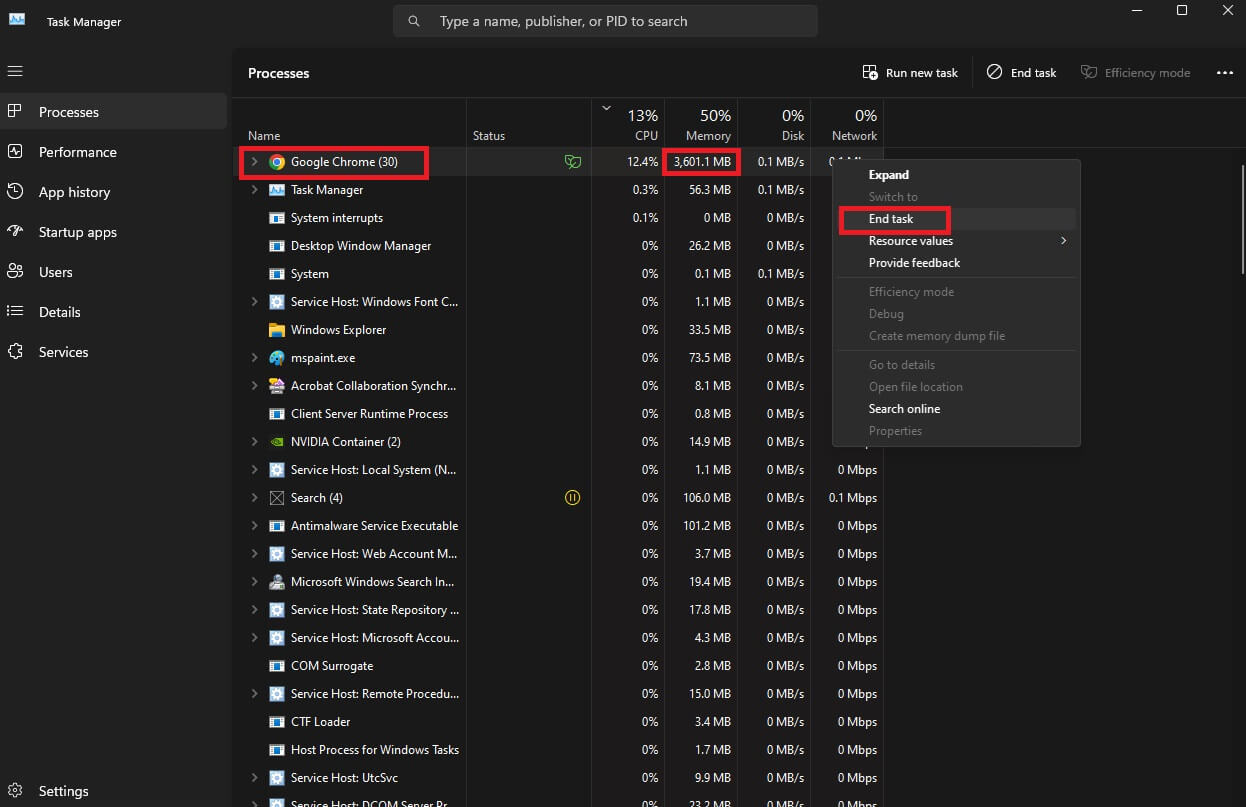
Browsers with a dozen tabs open, chat apps, and background updaters quietly eat into the CPU, GPU, and memory Minecraft needs. The built-in Task Manager shows exactly what's responsible.
Step 1. Press Ctrl + Shift + Esc to open Task Manager.
Step 2. Open the Performance tab and check CPU, GPU, and Memory usage.
Step 3. Switch to Processes, sort by resource usage, and end tasks you don't need running.
#7 Improve Cooling to Fix Minecraft Lag
When your CPU or GPU runs too hot, it automatically slows down to avoid damage, a process called thermal throttling, which directly causes dropped frames and stutter, even on capable hardware.
Clean dust from fans and vents every few months to keep airflow unobstructed.
Use a cooling pad if you're on a laptop.
Improve case airflow by adding or repositioning fans.
Keep your PC out of direct sunlight or enclosed cabinets.
Final Thoughts
Minecraft lag rarely comes down to one cause; it's usually software, hardware, and network factors combined. Now that you know "Why is Minecraft so laggy", start with Smart Game Booster for an instant one-click boost, then fine-tune with the manual steps above. Download it free today and get back to a smooth, uninterrupted Minecraft world building.