Nothing is more frustrating than launching Battlefield, waiting for a match, and getting stuck with connection errors or matchmaking failures. The first thing many players do is check the Battlefield servers down issue. However, even when the servers are online, some players may still be unable to log in, join matches, or connect to multiplayer.
The server status page only shows whether Battlefield's main services are available. Problems with authentication, matchmaking, regional servers, platform services like Steam or Xbox, or your own network connection can still prevent you from entering a game. Sometimes the issue affects a large number of players, while other times it only happens to a few users.
In this guide, we'll explain why you may be unable to join Battlefield even when servers are working, cover the common causes behind connection issues, and show you how to quickly find the right solution.
Where Can I Find Battlefield Servers Down Info?
3 places offer the newest info. You can quickly verify if your PC has trouble or EA shuts down servers.
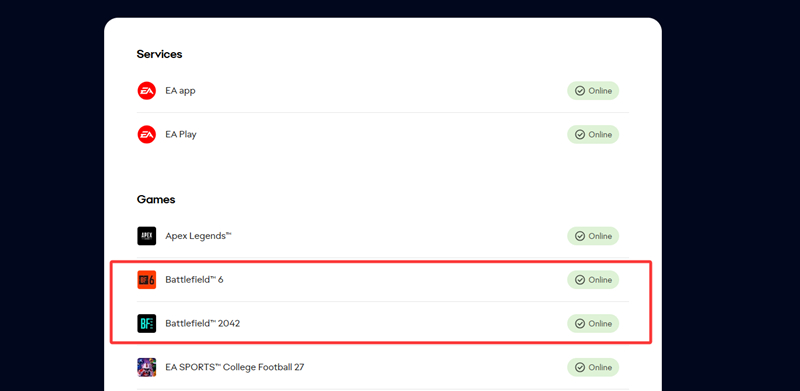
1. Official EA Server Status (Best for official status)
The official EA server status page (https://help.ea.com/en/server-status/) lets you check whether Battlefield services are experiencing issues.
Check server availability
View platform-specific problems (PC, PlayStation, Xbox)
See whether EA is investigating an outage
2. EA Help on X (Twitter)
EA (https://help.ea.com/en/) Help posts about:
Scheduled maintenance
Emergency server outages
Login issues
Matchmaking disruptions
This is usually the fastest official source during major outages.
3. Battlefield Communications
BattlefieldCom announces:
If it’s truly a complete EA server outage, then you can do nothing but wait until it comes back up. But most of the time, you are not facing a server down; it could be a matchmaking service failure (you can enter the client, but cannot get into a match), an authentication issue, or a regional server issue. Read on, and this blog lets you know how to discern these scenarios and how to overcome server problems and get back into the fight.
BattleField Servers Not Down, Yet I Cannot Access?
This issue is very common among BF players. And according to different scenarios, we have different solutions to solve them.
| Possible Problem |
How Does It Look? |
| Complete EA server outage |
Almost all players are unable to access the game |
| Authentication service issues |
Some or all players are unable to log in |
| Matchmaking service failure |
Players can log in but cannot join matches |
| Regional server issues |
Only players in specific regions are affected |
| Platform-specific issues (Steam/Xbox/PlayStation) |
Only players on the affected platform are impacted |
| Local network, DNS, or ISP issues |
Only individual players are unable to connect |
| EA App or Steam client problems |
Players cannot launch the game or connect to EA services |
| Game version mismatch |
Players cannot join game servers |
BattleField Servers Down Due to Matchmaking Service Issues - Change a Server Without VPN
Sometimes Battlefield players can launch the game and connect to EA services normally, but still fail to start a match because of matchmaking problems. In this situation, the Battlefield servers may not be completely down. Check if you are in cross-play mode or not. Cuz if you don’t, your server does not contain enough players for matchmaking.
Signs that you are not in an active server:
Friends also cannot join games
Server browser/online features fail
Restarting the game does nothing
Changing to another server can help you bypass unstable matchmaking services and find available matches faster. By selecting a different server with better availability and lower latency, you may be able to reconnect to Battlefield multiplayer without waiting for the issue to be fixed.
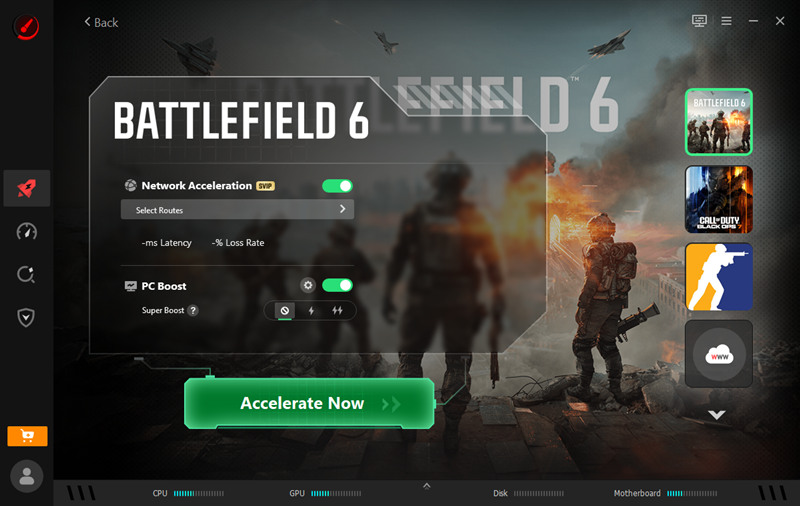
How to Change to Other Servers Without VPN?
Step 1. Download iTop Smart Game Booster.
Step 2. From the Game Gallery, select Battlefield 6.
Step 3. Find the button for server changes, and choose your preferred server.
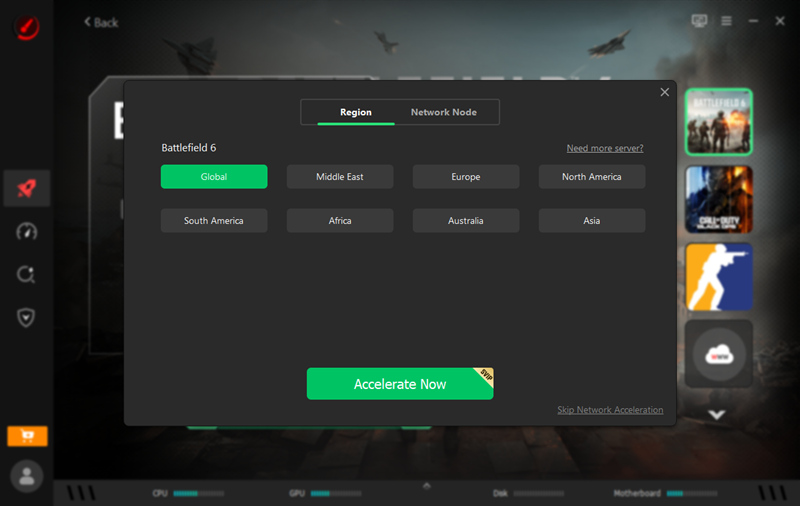
Step 4. Switch the servers now.
Smart Game Booster Offers Smooth BF6 Gameplay
Game Performance Optimization: Reduce unnecessary background processes and free up memory to improve FPS and gameplay smoothness.
Driver Update for Gaming Devices: Keeps GPU, audio, network, and other gaming-related drivers updated to improve compatibility.
FPS Monitor: Tracks FPS, CPU/GPU usage, temperature, and other hardware stats to help gamers identify performance bottlenecks.
Account Protection: Helps protect gaming accounts from security threats by detecting suspicious activity and providing additional protection against potential account risks.
BattleField Servers Down Due to Regional Server Issue - Change to Another Region
Sometimes Battlefield servers are not fully down, but players in certain regions may still run into connection issues, high ping, matchmaking failures, or problems finding a match. This can happen when a regional server is under maintenance, overloaded, experiencing routing issues, or temporarily unavailable.
In this situation, switching to another server region can help you avoid the affected server and reconnect to Battlefield matches. However, a server that is too far away may cause higher ping and more latency, so it is recommended to choose the closest available region with a stable connection.
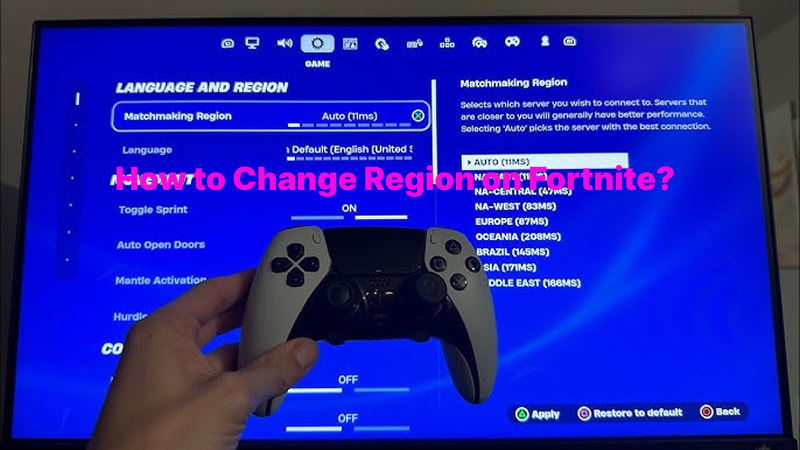
How to Change Battlefield Server Region?
Step 1. Open Battlefield Settings.
Launch the game, go to Settings, and find the Gameplay, General, or Network section.
Step 2. Select Another Region.
Look for options such as Server Region, Matchmaking Region, or Preferred Region, then switch to another available region.
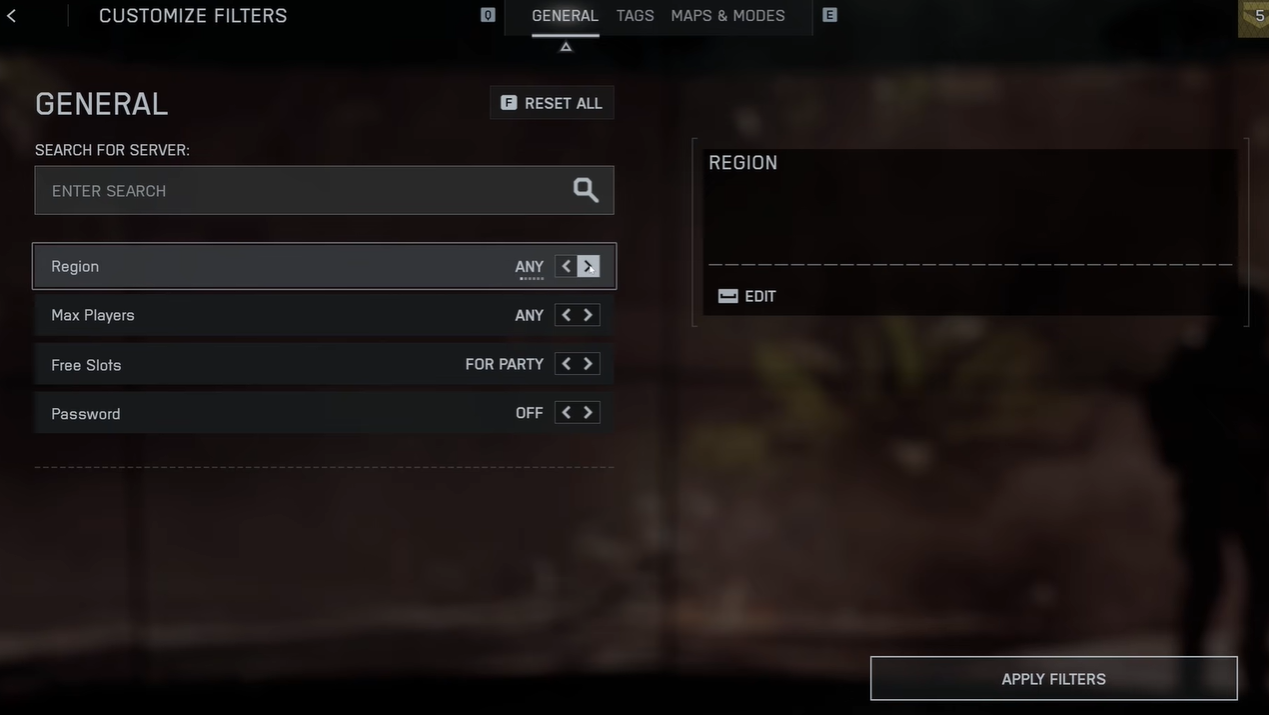
Step 3. Restart Matchmaking.
Save your settings and try searching for a match again. Choose a region with lower ping for a smoother experience.
Note: Some Battlefield titles automatically select servers based on your location and do not allow manual region changes. In this case, you may need to use the server browser (if available) or troubleshoot your network connection.
BattleField Servers Down Due to EA Issues
Sometimes Battlefield connection problems are not caused by your PC, internet, or game files. If EA services are having issues, players may be unable to log in, connect to multiplayer servers, or start a match even when their own network works fine. Common symptoms include "Unable to connect to EA servers," login failures, or matchmaking errors.
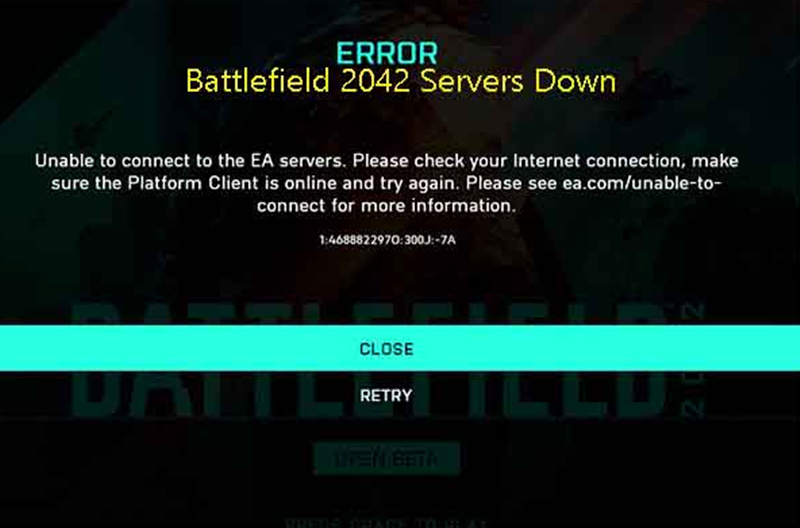
Before trying other fixes, check EA server status and community reports to see if other players are experiencing the same problem. If the issue is on EA's side, there is usually nothing you can do except wait for the service to recover. If EA servers are working normally, you can then check other possible causes, such as regional server problems, platform issues, or your local network connection.
Conclusion
Battlefield server down can happen for many reasons, and a complete server outage is only one possibility. Problems with EA services, matchmaking, regional servers, outdated drivers, network issues, or system performance can all affect your ability to join a match. Before trying random fixes, identifying the real cause can help you solve the problem faster.
If Battlefield servers are working normally but you still experience lag, connection drops, or poor game performance, optimizing your PC can make a difference. Smart Game Booster helps improve gaming performance by optimizing system resources, updating outdated gaming drivers, and monitoring hardware performance to provide a smoother gameplay experience.
Keep your system optimized, your drivers up to date, and your gaming environment ready—so you can spend less time troubleshooting and more time enjoying Battlefield matches.
Key Features of Smart Game Booster
- Enjoy lag-free & low-ping gaming
- 100+ games supported
- Severs from all over the world
- Boost in-game FPS