Battlefield 6 lagging online ruins an intense match. You’re lining up the perfect sniper shot or maneuvering a tank through a hot zone, only for the game to freeze, rubberband, or register your shots seconds too late. In a fast-paced multiplayer shooter where split-second reaction times make all the difference, persistent latency and frame drops can completely destroy the experience.
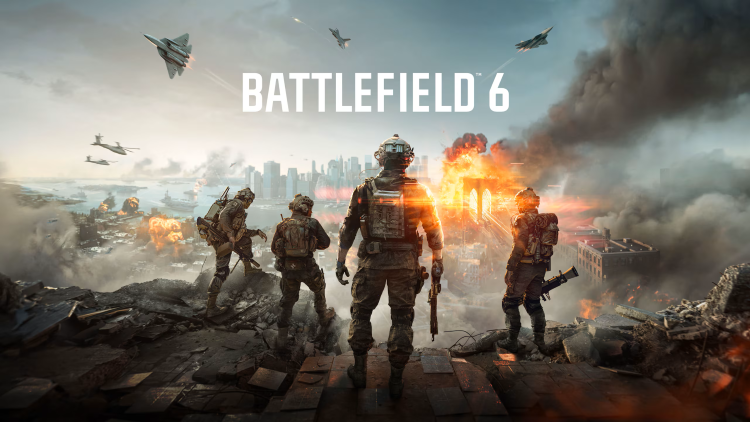
Whether you're dealing with high ping, sudden frame rate drops, or stuttering during massive 128-player firefights, Battlefield 6 network lag usually boils down to a few common culprits. Below, we'll break down why these performance drops happen and share the most effective, hassle-free solutions to get your game running smoothly and responsive.
What Causes Battlefield 6 Lagging Online?
Before diving into how to fix Battlefield 6 lag, it helps to understand what is actually happening when your game stutters or lags:
High Ping (Network Latency): The time (measured in milliseconds) it takes for data to travel from your PC to the game server and back. High ping causes rubberbanding, delayed hit registration, and teleports.
Background Process Overload: Unnecessary background apps (like cloud syncing, heavy browser tabs, or auto-updates) swallow up RAM and CPU cycles, leaving less performance budget for the game engine.
Outdated Graphics Drivers: GPU drivers optimized for older titles often struggle with newer DirectX 12 rendering pipelines used in high-fidelity modern games.
Thermal Throttling & Power Constraints: When your GPU or CPU gets too hot, Windows throttles hardware speeds to prevent overheating, causing sudden FPS dips mid-fight.
5 Quick Fixes for Battlefield Lagging Online
While system optimization tools handle local resource allocation, combining them with network hygiene best practices ensures the lowest possible ping during online matches.
1. Switch from Wi-Fi to an Ethernet Connection
Wi-Fi signals are vulnerable to interference from walls, household electronics, and other connected devices. Even if your Wi-Fi speed test looks fast, signal jitter causes packet loss—leading to noticeable hit-reg lag in Battlefield 6. Plugging directly into your router via a Cat6 or Cat7 Ethernet cable stabilizes your ping immediately.
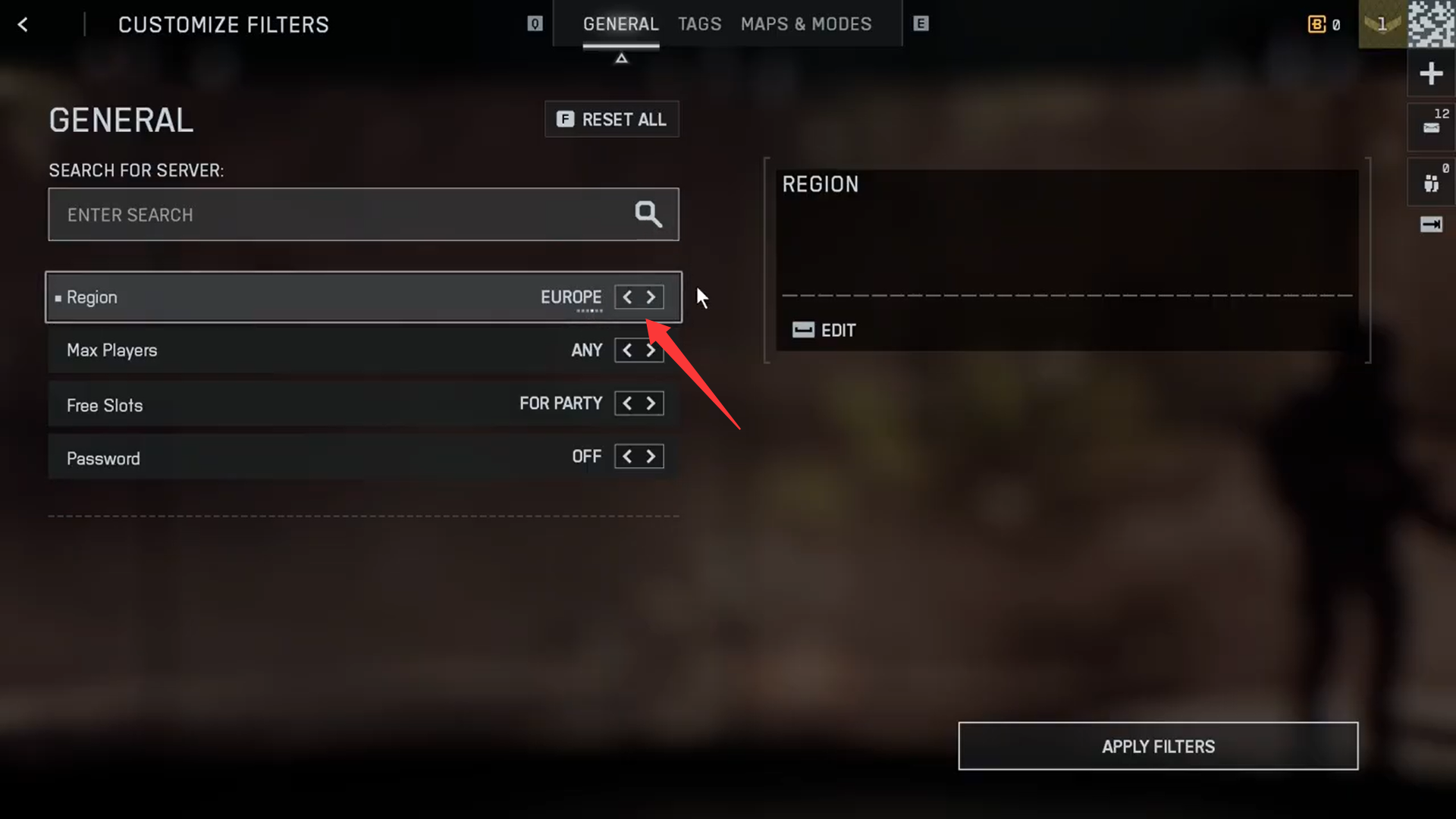
2. Select the Right Matchmaking Region
Always check in-game server settings or matchmaking preferences to ensure you are connected to servers closest to your geographical location (e.g., US-East, Europe West, Asia). Connecting to cross-region servers adds 100ms+ of physical travel time for network packets.
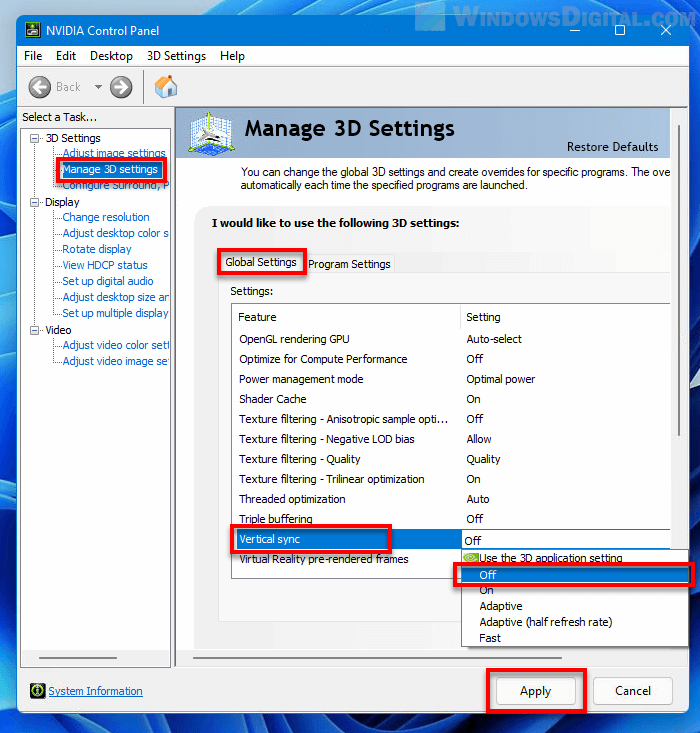
3. Lower V-Sync and In-Game Graphics Settings
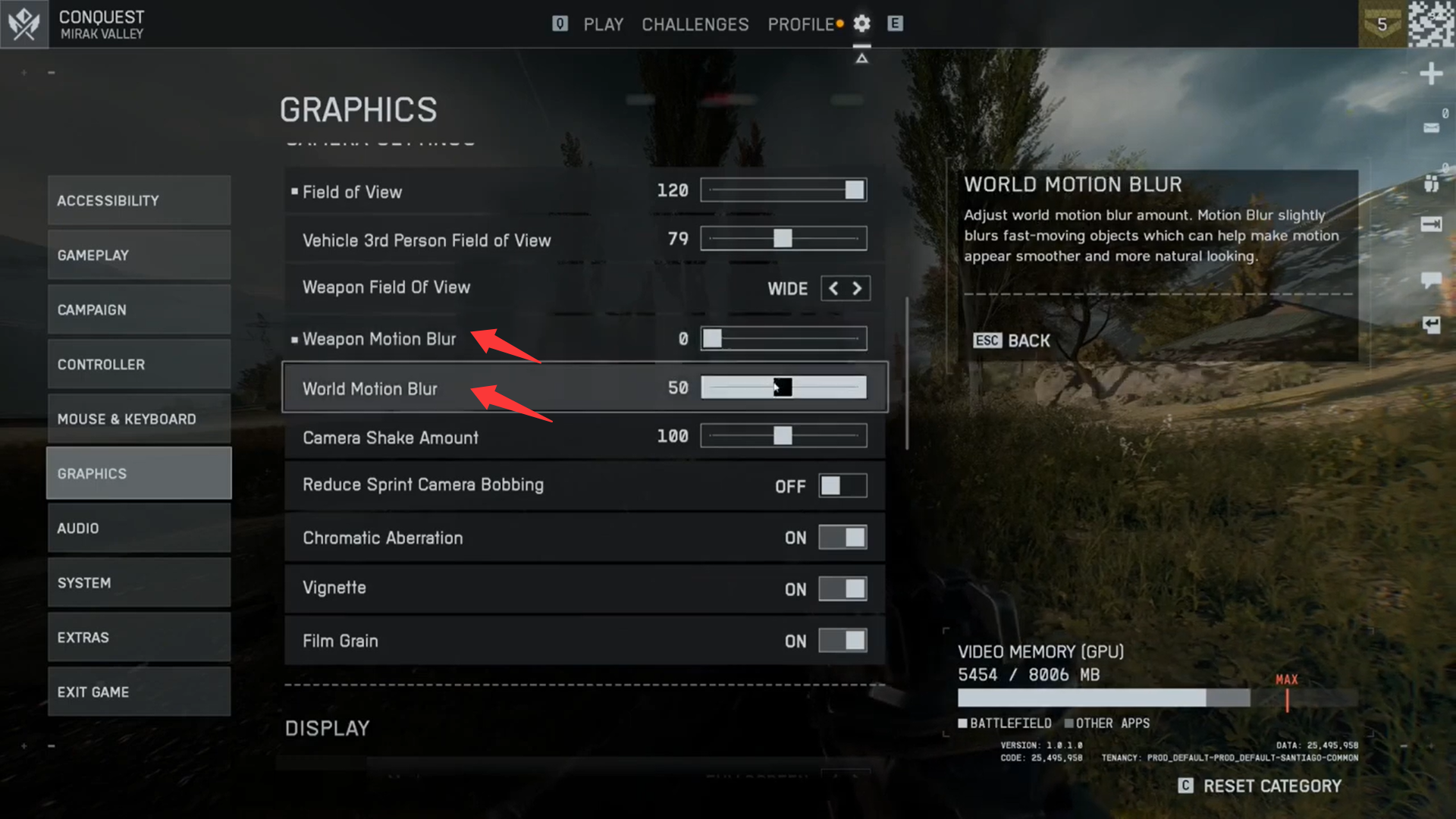
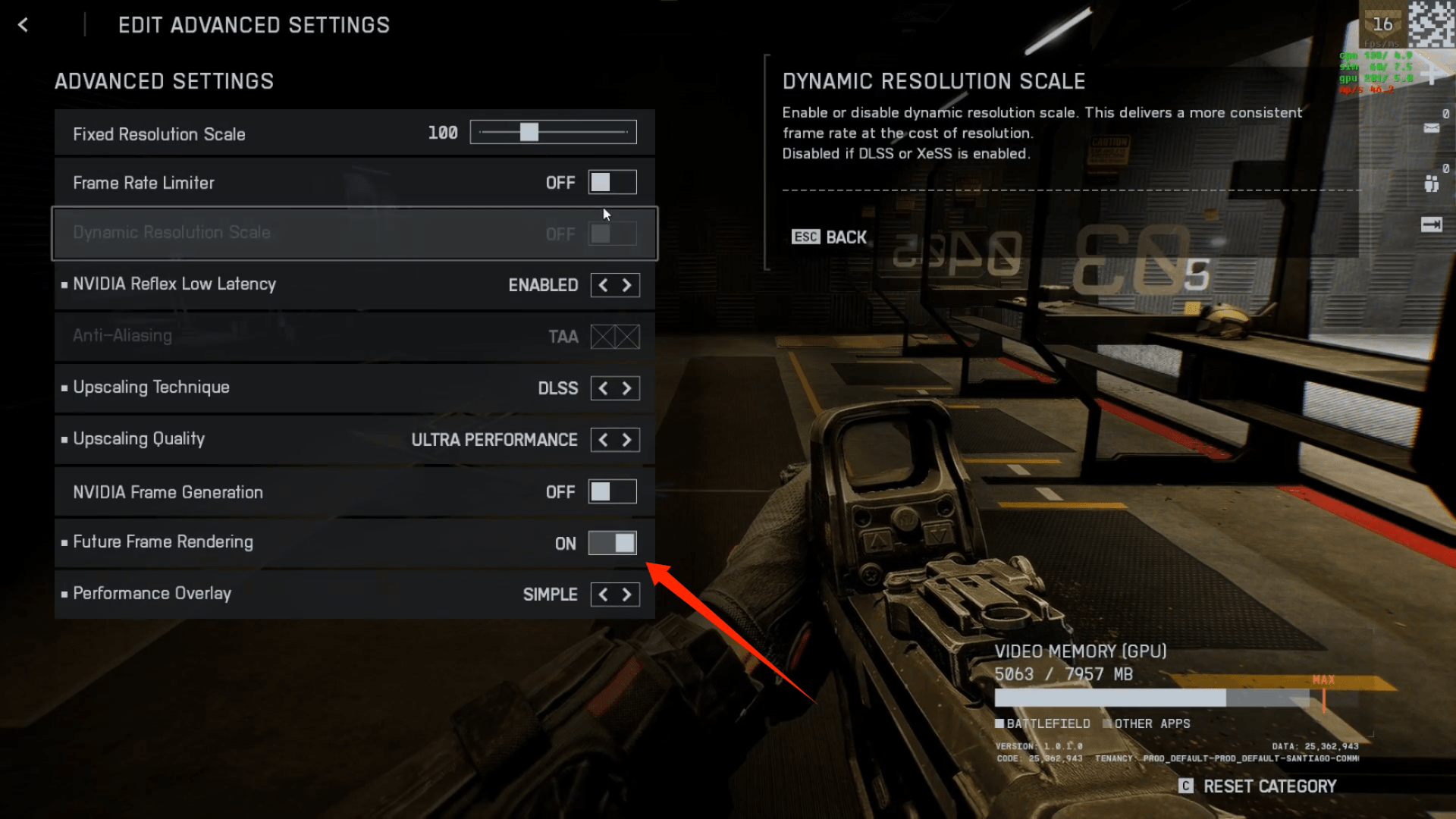
High graphical settings can overload your hardware, causing input lag that feels identical to network lag:
4. Pause Background Downloads & Cloud Syncing
Background applications like Steam auto-updates, OneDrive, Dropbox, or torrent clients silently consume your upload bandwidth. Upload congestion causes immediate ping spikes. Ensure all downloads are paused before launching your game.
Also Read: How to Read Battlefield 6 FPS Counter? A Detailed Guide>>
The One-Click Solution: Smart Game Booster
If you don't want to spend hours manually tweaking registry settings, tweaking graphics config files, or closing task manager processes one by one, using an automated optimization tool is the fastest route to fix Battlefield 6 lagging online.
Smart Game Booster is designed specifically to tackle both hardware bottlenecks and system clutter with minimal effort. It optimizes PC performance in real time by temporarily ending unnecessary background tasks, overclocking GPU capabilities safely, and updating outdated drivers.
Key Features of Smart Game Booster
- Enjoy lag-free & low-ping gaming
- 100+ games supported
- Severs from all over the world
- Boost in-game FPS
How to Use Smart Game Booster to Fix Battlefield 6 Network Lag
Follow the 3 steps bolow to fix Battlefield 6 lagging online now!
1.Download and Install Smart Game Booster
Run the installer and launch the program once complete.
2. Boost Battlefield 6 Easily
Smart Game Booster detects installed games automatically. Battlefield 6 is listed on the main dashboard, just click the game to boost.
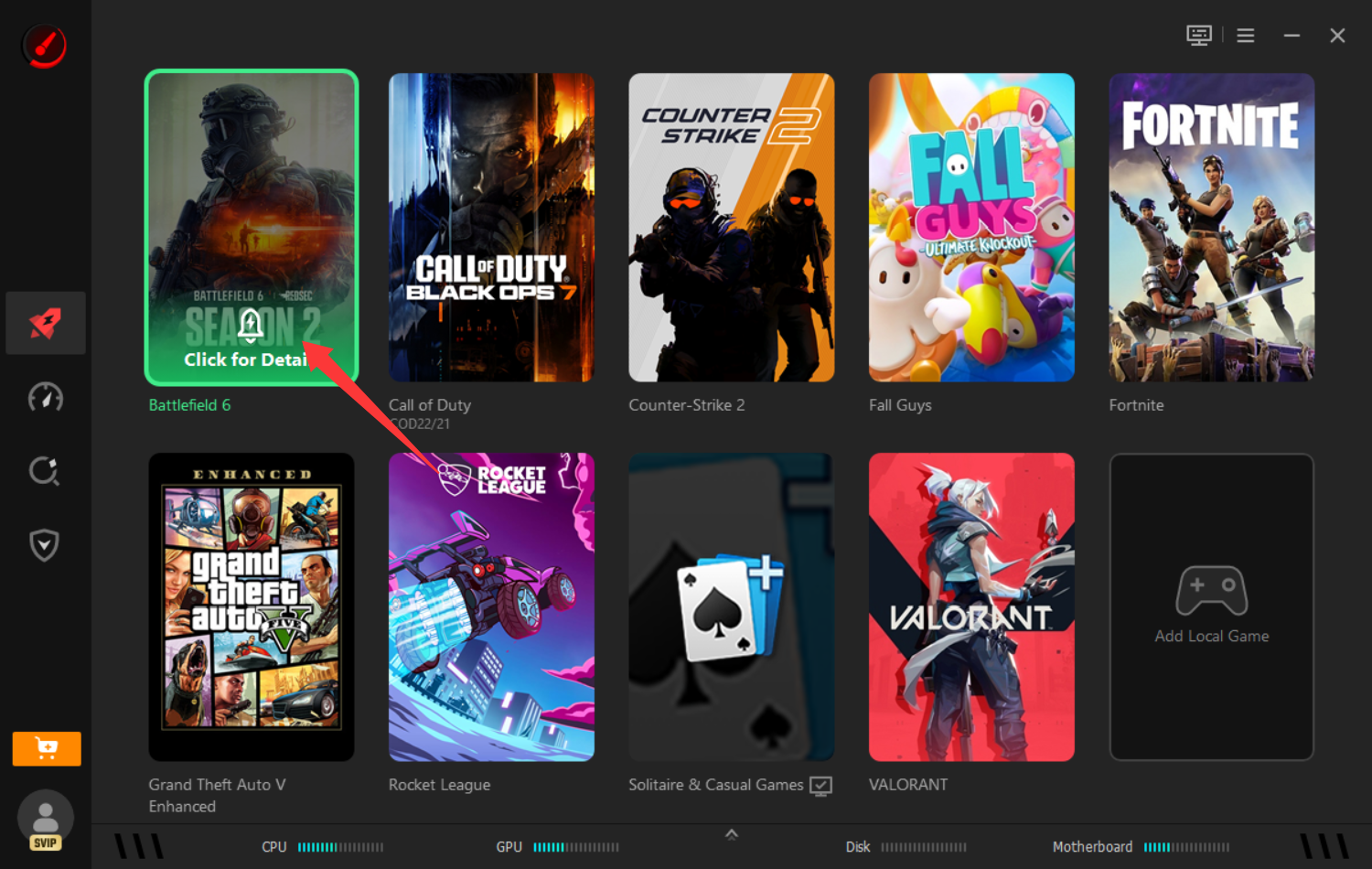
3.Enable One-Click Boost
Click the large Accelerate Now button on the home screen. The tool automatically connects you to the best server and frees up system memory (RAM), closes non-essential background processes, and optimizes CPU power allocation for maximum gaming priority.
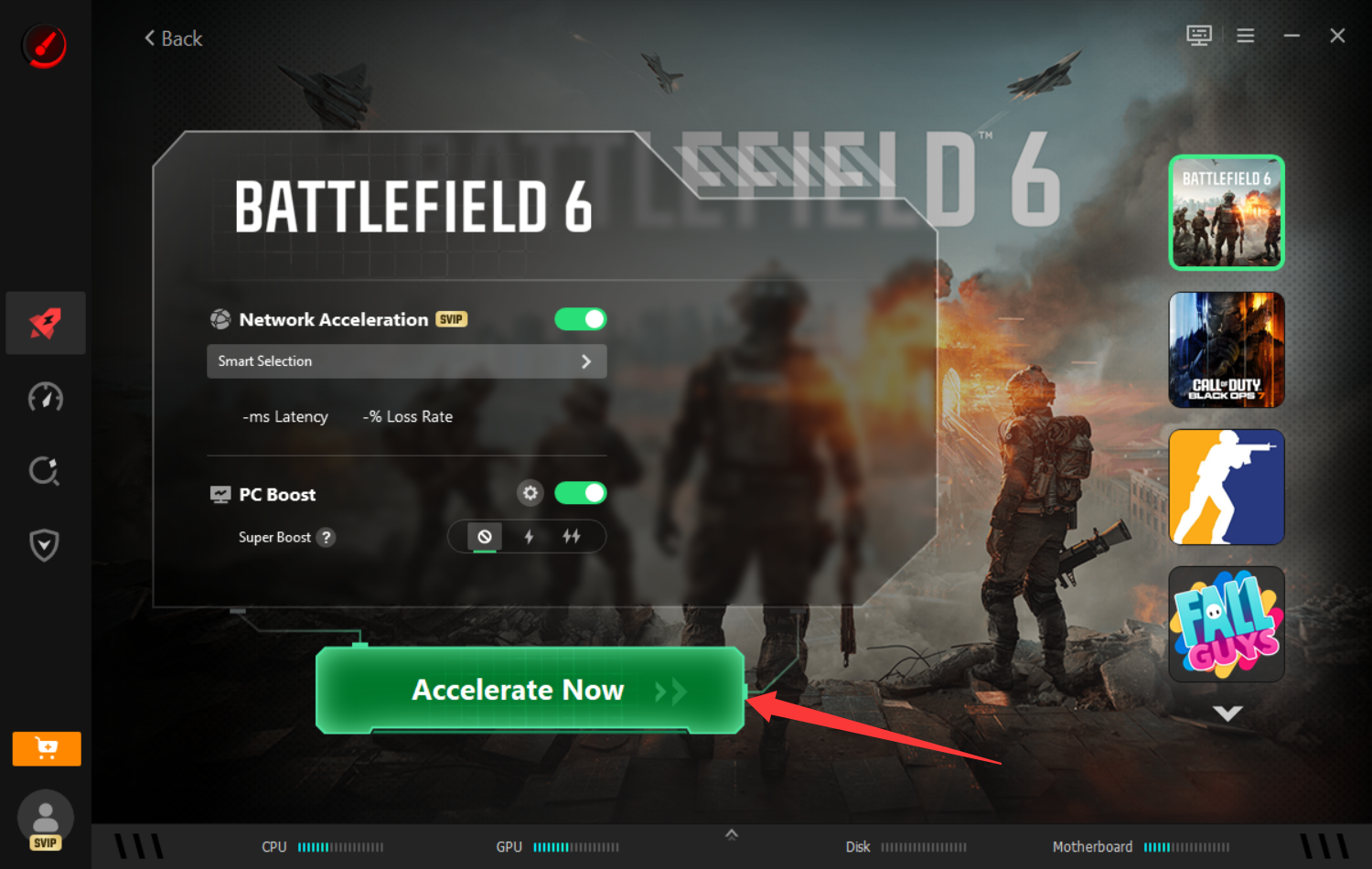
You can also customize the PC Boost settings. Choose basic or Max mode for safe GPU overclocking to boost clock speeds without risking hardware stability or overheating. Moreover, switch to the Performance tab and hit Scan. This game launcher PC will check your graphics card (NVIDIA or AMD) and audio drivers against the latest game-ready releases and update them in one click.
Summary Checklist for Smooth Gameplay
Here’s a comparison between regular methods and adapting Smart Game Booster to fix Battlefield 6 network lag.
| Action |
Impact |
Difficulty |
| Run Smart Game Booster |
Boosts FPS & clears RAM overhead |
Easy (1-click) |
| Use Ethernet Cable |
Prevents packet loss & ping spikes |
Easy |
| Update GPU Drivers |
Fixes rendering bugs & crashes |
Easy |
| Turn off V-Sync |
Reduces mouse/input lag |
Easy |
| Pause Background Downloads |
Keeps network bandwidth free |
Easy |
By pairing automated optimization tools like Smart Game Booster with stable wired connectivity, you eliminate hardware bottlenecks and network jitter—allowing you to focus on the objective rather than fighting your framerate.
The Bottom Line
Battlefield 6 lagging online doesn't have to ruin your gaming experience. Whether latency issues stem from background clutter, outdated graphics drivers, or misconfigured network settings, taking a few minutes to optimize your setup makes a world of difference. By pairing smart network habits—like using a wired Ethernet connection—with automated optimization tools like Smart Game Booster, you can effortlessly eliminate hardware bottlenecks, stabilize your framerate, and drop your ping. Gear up, boost your system with a single click, and jump back onto the battlefield with the silky-smooth performance you need to dominate.
Key Features of Smart Game Booster
- Enjoy lag-free & low-ping gaming
- 100+ games supported
- Severs from all over the world
- Boost in-game FPS