So, you’ve just jumped into Battlefield 6. The explosions are massive, the chaos is real, and you’re loving every second—but something feels… off. Maybe the game’s stuttering, maybe it’s not as smooth as you’d expect, or maybe you’re just that PC gamer who needs to see the numbers in the corner of your screen (no judgment here, we’ve all been there). The truth is, knowing your frames per second is the single most important thing you can do to understand how your rig is handling Battlefield 6. Without that little number, you’re basically flying blind. But here’s the kicker—how to read BF6 FPS counter isn’t as straightforward as it used to be in older titles. Don’t worry, though. In this guide, we're going to show you every single way you can monitor your FPS in BF6.
How to Read Battlefield 6 FPS Counter: 3 Ways
Alright, let’s cut to the chase. There are three primary ways you can monitor your frames in Battlefield 6, and I’ll show you exactly how to read BF6 FPS counter with each of them. Each method has its pros and cons, so I’ll break them down step by step.
1. Use the Built-in FPS Counter
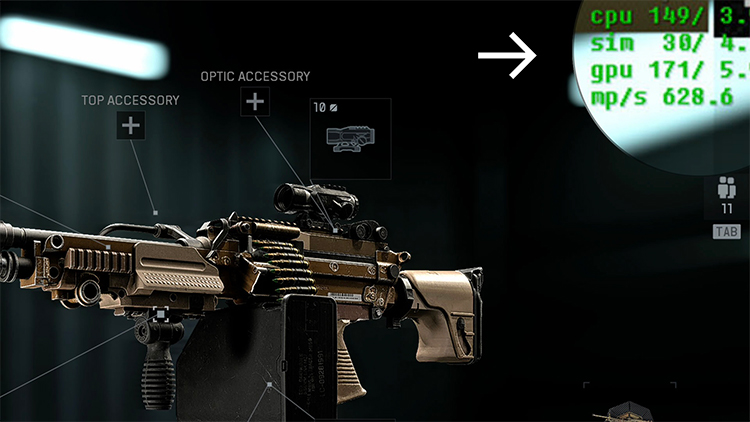
Honestly, the easiest place to start is the game itself—it already comes with a built-in BF6 FPS counter. The problem? DICE doesn’t call it an “FPS counter” anymore. In Battlefield 6, it’s buried under something called “Performance Overlay.” Once you know that, it’s actually pretty easy to find. Before we start, let’s figure out why we should use this method.
It’s native. No extra software, no downloads, nothing.
It gives you more than just FPS. You can choose between Simple mode (just the frame number) or Extra/Advanced mode, which shows CPU usage, GPU load, and more.
It works in both matches and menus.
And once you've found that Performance Overlay option, here’s exactly how to read BF6 FPS counter using this built-in tool—no third-party apps required, just a few clicks in the settings. Here’s how to turn it on:
Step 1: Open the Settings menu by clicking the cog icon in the top horizontal bar.
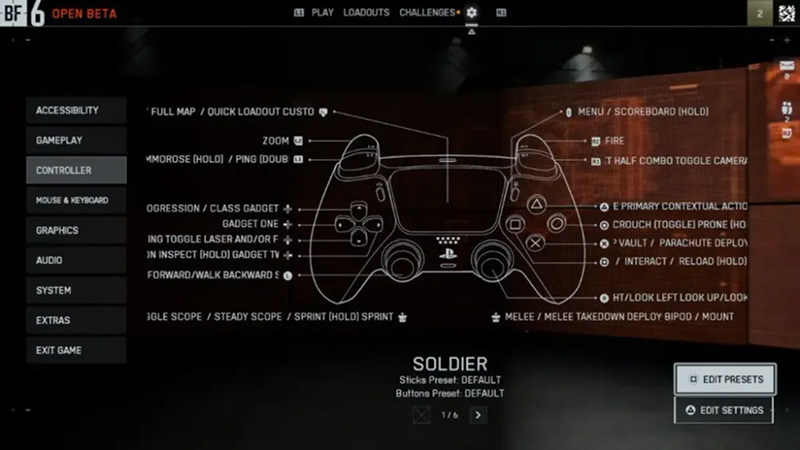
Step 2: Navigate to the Graphics tab, then look for the Advanced option under the Graphics section. Click Modify to open it.
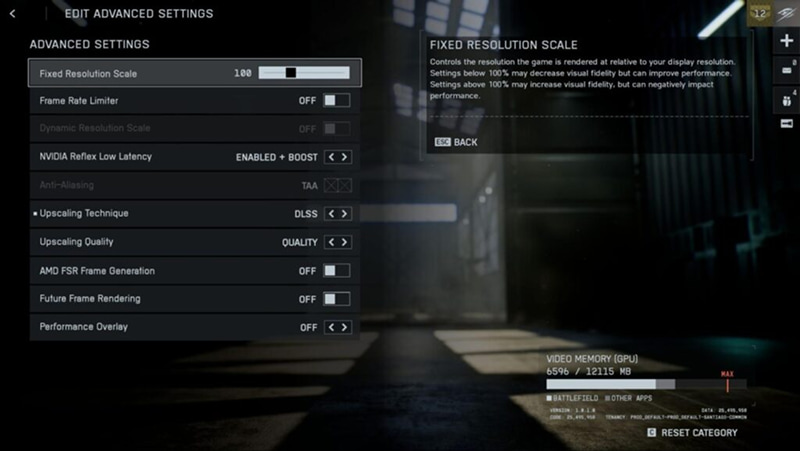
Step 3: Scroll down until you find Performance Overlay. Set it to “Simple” if you just want the FPS number in the corner of your screen. If you want more detailed system info, go with “Extra” or “Advanced.”
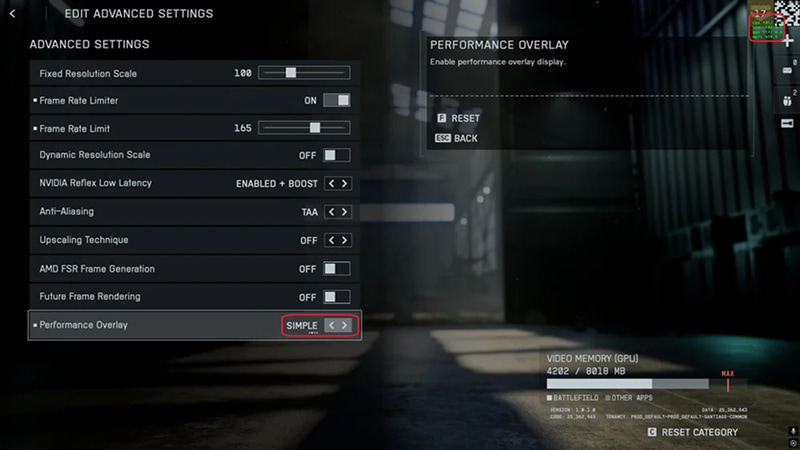
And that’s it! You’ll now see your BF6 FPS counter right on your screen while you play.
Pro tip: If you’re on PC and prefer using console commands, you can also hit the tilde key (~) to open the command console and type PerfOverlay.DrawFps 1 to enable the counter. To turn it off, type PerfOverlay.DrawFps 0.
2. Use the Steam FPS Counter
Wondering how to turn on FPS counter BF6 in Steam? Here’s another method can help you solve this question which is incredibly simple to set up. But first why? Why use Steam’s counter?
It’s super easy to enable. Takes about 30 seconds.
You can choose which corner of the screen it appears in.
It works across all Steam games, not just BF6.
So once you know why it's worth using, the next thing you'll want to know is how to read BF6 FPS counter with this method—and honestly, it's about as straightforward as it gets. Here’s how to enable it:
Step 1: Open Steam and click Steam in the top-left corner, then select Settings from the dropdown menu.
Step 2: In the Settings window, navigate to the In-Game tab on the left sidebar.
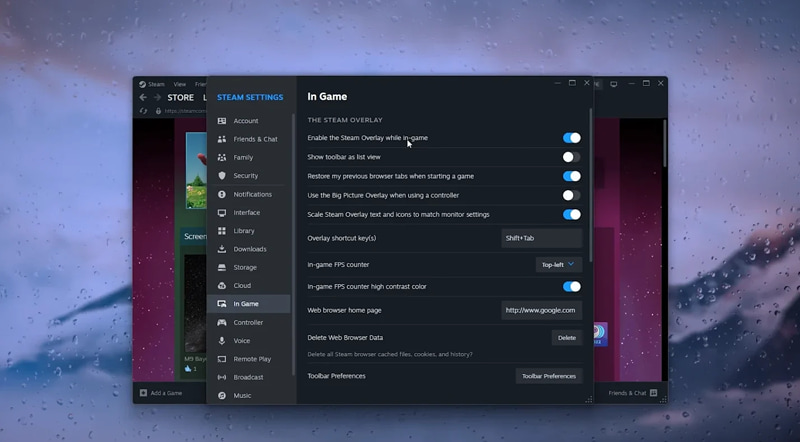
Step 3: Find the In-game FPS counter dropdown menu. Select which corner of your screen you want the counter to appear in (top-left, top-right, bottom-left, or bottom-right).
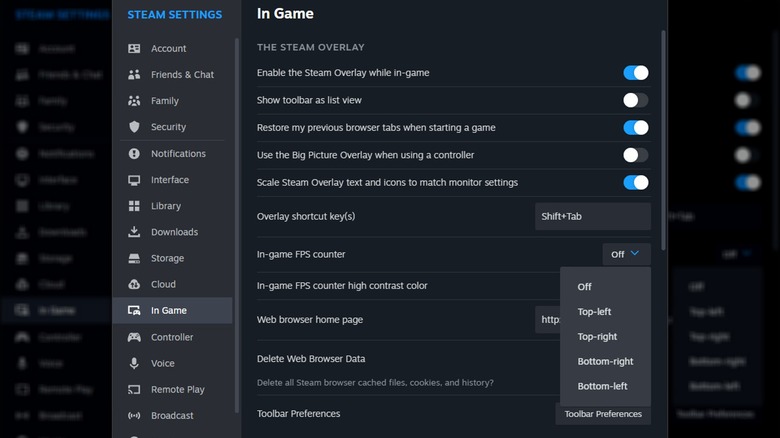
You can also toggle on “High contrast color” if you want the FPS number to be more visible against bright backgrounds.
3. Use the Xbox Game Bar
If you’re on Windows 10 or 11, you already have another powerful tool at your fingertips—the Xbox Game Bar—which makes it super easy to figure out how to turn on FPS counter BF6. And here’s why the Xbox Game Bar is worth considering:
It’s already on your PC. No downloads needed.
It shows more than just FPS. You can also monitor CPU, GPU, VRAM, and RAM usage.
You can pin the overlay so it stays visible while you play.
But beyond just turning it on, let’s talk about how to read BF6 FPS counter through this widget—because once it’s up on your screen, you’ll want to know what those numbers actually mean and how to make sense of them at a glance. Here’s how to set it up:
Step 1: Launch Battlefield 6, then press Windows + G on your keyboard to open the Xbox Game Bar overlay.
Step 2: Click the Performance button (it looks like a PC monitor with a line graph).
Step 3: You’ll see the FPS counter in a small window. You can drag it to any position on your screen and click the Pin button to keep it visible when you return to the game.
If you only want to see the FPS and not the other stats, click the Performance options button and uncheck CPU, GPU, VRAM, and RAM.
The Best BF6 FPS Counter & FPS Booster
Now, here’s where things get really interesting. What if I told you there’s a tool that not only gives you a beautiful, customizable BF6 FPS counter but also boosts your performance at the same time?
Meet Smart Game Booster—a game optimization utility that does exactly that. It’s designed to improve your gaming experience by boosting your PC’s performance, tweaking your system, and monitoring in-game FPS and temperatures—all with a single click. And if you've ever wondered how to read BF6 FPS counter, this tool makes it incredibly easy—no fiddling with settings or console commands.
Why settle for just seeing your FPS when you can also improve it?
How to Use Smart Game Booster to See Battlefield 6 FPS
Using Smart Game Booster as your BF6 FPS counter is incredibly straightforward. Here’s how:
Step 1: Download and install Smart Game Booster from the official website.
Step 2: Launch the software, find the Performance tab on the left, and click it.
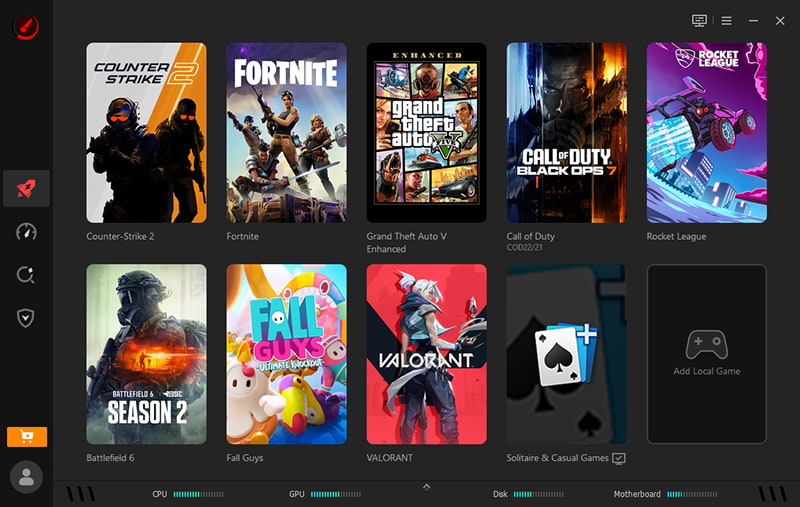
Step 3: Turn on the HUD (Heads-Up Display) feature.
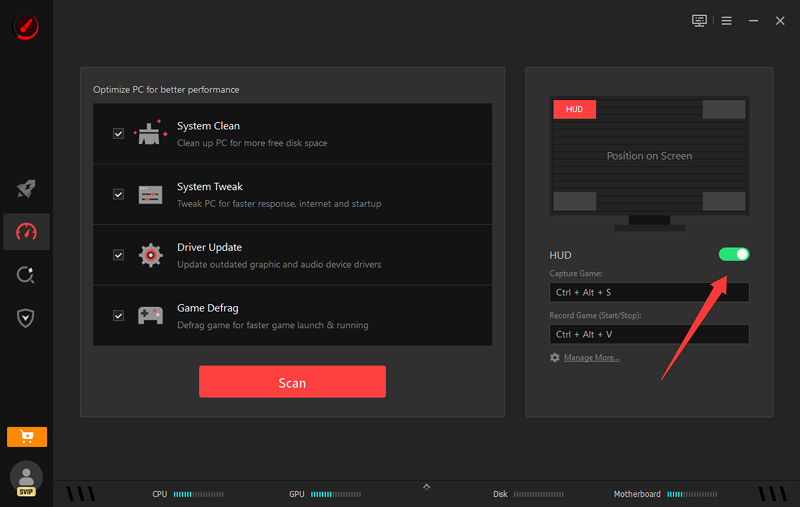
Once it’s enabled, you’ll see a clean, real-time FPS counter BF6 overlay right on your screen while you play. It’s that simple.
How to Use Smart Game Booster to Boost Battlefield 6 FPS
But here’s the real game-changer—Smart Game Booster isn’t just a monitoring tool. It’s also a powerful FPS booster that can actually increase your frame rate.
Here’s how to use it:
Step 1: Launch Smart Game Booster and navigate to the Battlefield 6.
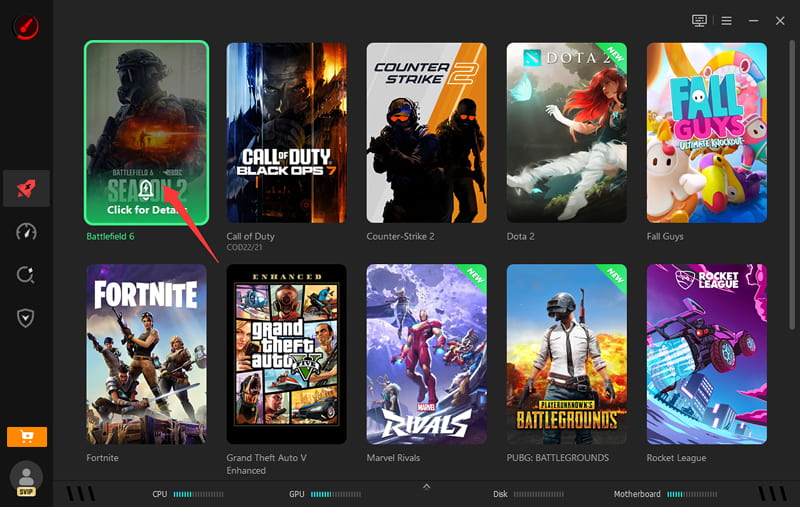
Step 2: Turn on PC boost and click Accelerate Now.
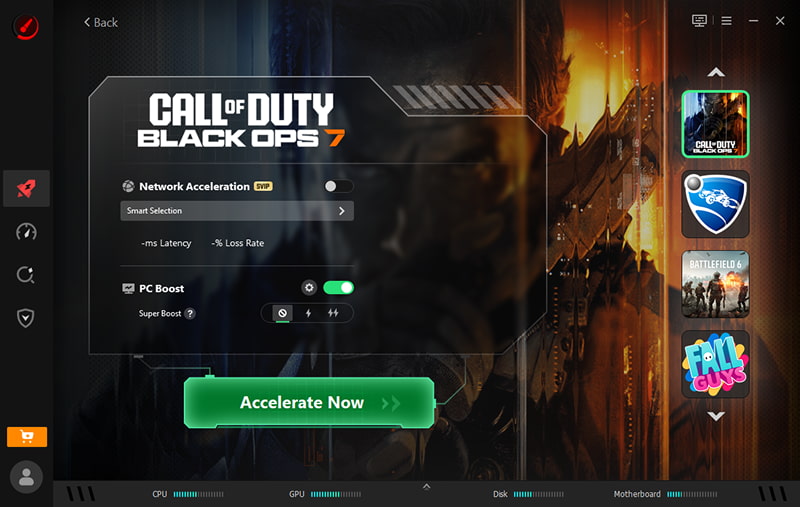
What happens next? Smart Game Booster temporarily shuts down unnecessary background processes, clears your RAM, and optimizes system settings to free up resources for your game. The result? Smoother gameplay, fewer stutters, and—you guessed it—higher FPS.
Some users have reported FPS increases of up to 50% using this tool. And the best part? When you’re done gaming, you can click the Restore button to revert all changes, so your system goes back to normal.
On top of that, Smart Game Booster also offers features like driver updates and system tweaks to further enhance your visual experience. It’s essentially an all-in-one game launcher PC that also shows you exactly how to read BF6 FPS counter—no digging through menus, no confusing console commands, just a clean overlay that tells you everything you need to know.
Key Features of Smart Game Booster
- Enjoy lag-free & low-ping gaming
- 100+ games supported
- Severs from all over the world
- Boost in-game FPS
Compare 4 Battlefield FPS Counter Methods
To help you decide which method works best for you, here’s a quick comparison table:
| Method |
Built-in FPS |
FPS Boost |
Ping Reduce |
Extra Features |
| Battlefield 6 Built-in Overlay |
✅ |
❌ |
❌ |
CPU/GPU stats (Extra/Advanced mode) |
| Steam FPS Counter |
✅ |
❌ |
❌ |
Works across all Steam games |
| Xbox Game Bar |
✅ |
❌ |
❌ |
CPU/GPU/RAM/VRAM monitoring |
| Smart Game Boost |
✅ |
✅ |
✅ |
RAM cleaner, driver updater, temp monitor |
As you can see, while all four methods can show you your FPS, only Smart Game Booster goes the extra mile by actually boosting your performance. And yes, it even works as a ping reducer, helping to lower latency for a smoother online experience.
Final Words
So there you have it—everything you need to know about how to read BF6 FPS counter. Whether you prefer the game’s built-in Performance Overlay, Steam’s simple counter, the Xbox Game Bar, or a dedicated tool like Smart Game Booster, you’ve got plenty of options. But if you ask me, why settle for just monitoring your FPS when you can also improve it? Smart Game Booster gives you the best of both worlds—a clean, customizable BF6 FPS counter and a powerful FPS booster that can actually make your game run smoother. It’s a no-brainer for anyone serious about their Battlefield 6 experience. Download Smart Game Booster today, turn on that FPS counter, and start dominating the battlefield with buttery-smooth frames.