Marvel Rivals can crash for several reasons. Outdated graphics drivers, corrupted game files, shader compilation issues, and conflicting graphics settings, all of which can result in Marvel Rivals crashing. Since different crashes can have different causes, it’s essential to find the right fix that actually works. In this guide, we will introduce 4 useful methods to help you troubleshoot the issue. Don’t miss out!
Reasons Behind Marvel Rivals Crashing on Launching/Shaders/After Game Ends
When you experience Marvel Rivals crashing, the cause is not always obvious. However, several common issues might be the culprit, and it’s best to identify the underlying problem before applying any fix randomly.
Outdated or incompatible graphics drivers: Outdated or incompatible drivers may cause launch failures, freezes, or unexpected crashes during gameplay. This is also one of the most common causes of Battlefield 6 keeps crashing PC.
Corrupted game files: If you find Marvel Rivals crashing on launch, missing or corrupted game files may be to blame. Interrupted downloads, failed updates, or damaged installation files can prevent the game from starting or running properly.
DirectX and graphics configuration issues: Marvel Rivals relies on compatible graphics hardware and software, for instance, solid DirectX 12 support. Incompatible graphics settings or configurations may cause crashes during startup.
Software and anti-cheat conflicts: Overlays, background apps, or security software may interfere with the game. The game’s anti-cheat will flag them as suspicious and block them, causing the Marvel Rivals crashing issue.
Insufficient system resources: High RAM or VRAM usage, excessive background workloads, and overheating can contribute to instability. It might lead to Marvel Rivals crashing while loading.
How to Fix Marvel Rivals Crashing on Launch?
Damaged game files can prevent the game from loading or initializing correctly. You will need to verify the integrity of game files is an official troubleshooting recommendation. Regardless of whether you use Steam or Epic Games, follow the steps below to check your installation.
How to Verify Marvel Rivals game files on Steam?
Step 1. Open Steam and go to your Library.
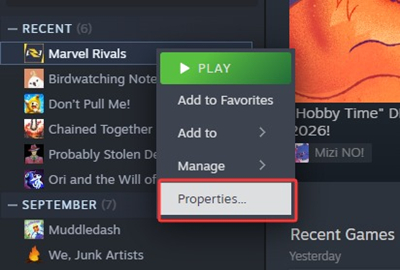
Step 2. Right-click Marvel Rivals and select Properties.
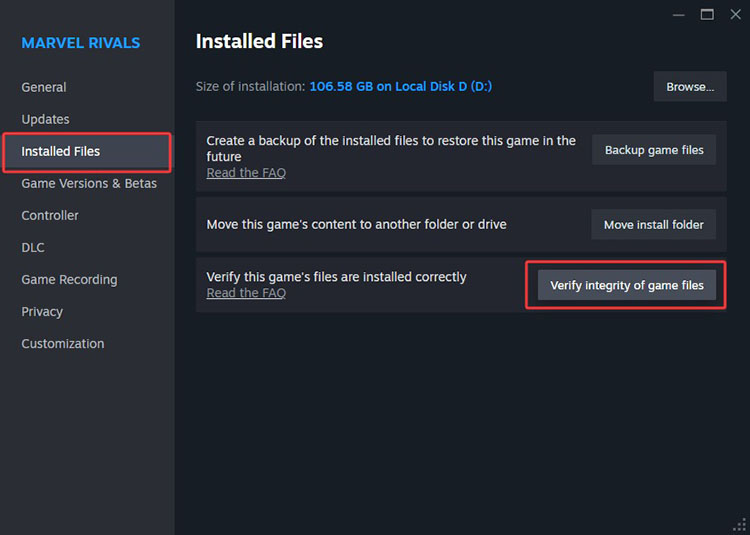
Step 3. Open the Installed Files tab. Click Verify Integrity of Game Files and wait for the process to finish.
How to Verify Marvel Rivals game files on Epic Games
Step 1. Open the Epic Games Launcher and go to your Library.
Step 2. Click the three-dot menu next to Marvel Rivals. Choose Manage.
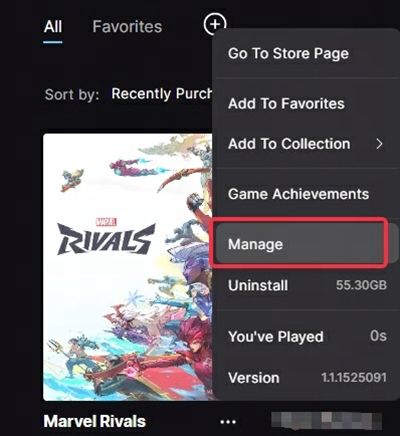
Step 3. Click Verify and wait for the process to complete.
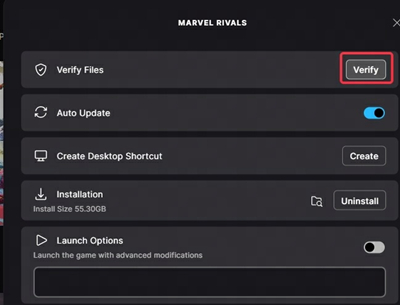
These two verification steps should be able to resolve most Marvel Rivals crashing on startup 2026 issues. After verification, make sure to restart your launcher and open the game again.
How to Fix Marvel Rivals Crashing While Loading Shaders?
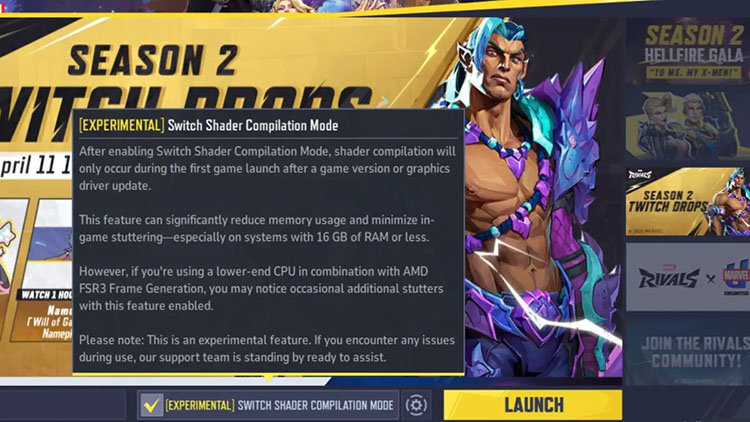
If you find Marvel Rivals crashing while loading, high memory usage or a shader compilation issue may be the culprit. But worry not, you may enable Switch Shader Compilation Mode in the Marvel Rivals launcher to resolve the issue. The feature is worth trying if your system has 16 GB of RAM or less and you have experienced frequent crashes or severe FPS drops.
SSCM can be especially helpful when shader-related stutters interrupt an intense team fight. It reduces shader compilation-related performance problems on supported systems, so you can stay focused on positioning and strategy. However, you might need to test the setting yourself because the results might vary based on PC configuration.
How to Enable Switch Shader Compilation Mode?
Step 1. Launch Marvel Rivals to see the dedicated launcher(please do not click Launch yet).
Step 2. Look near the bottom of the launcher window for the Switch Shader Compilation Mode toggle.
Step 3. Enable the checkbox. Click Launch and let the initial shader process complete.
Tip: If you are also experiencing launcher problems in other games, check out our guide on Rockstar Games Launcher not working.
How to Fix Marvel Rivals Crashing After Game Ends?
Do you also find your Marvel Rivals crashing during the MVP animation, XP screen, or match summary? It’s highly related to Graphics driver issues, rendering problems, and NVIDIA DLSS Frame Generation. The best troubleshooting step is to disable Frame Generation, which takes only a few clicks.
How to Turn Off Frame Generation in Marvel Rivals Settings?
Step 1. Launch Marvel Rivals and open the main menu. Go to Settings.
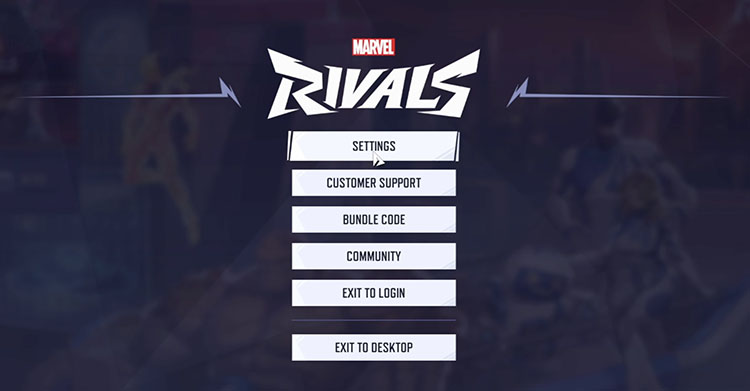
Step 2. Open the Display options. Look for the frame generation setting available for your configuration.
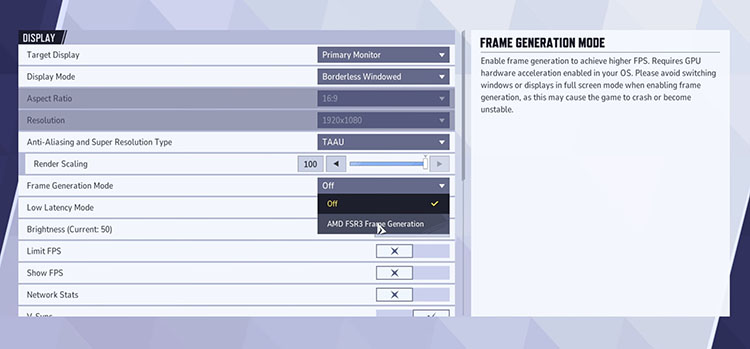
Step 3. Set the option to Off, apply the changes, and return to the game.
How to Fix Marvel Rivals Crashing Caused by Driver Conflicts?
As introduced earlier, graphics driver problems can cause games to crash. If Marvel Rivals crashing started after a driver update, you can install a newer compatible version or roll back to a previously stable version. While manual update methods are viable via official support and Windows features, they can be quite time-consuming.
In this case, Smart Game Booster is the best alternative, which can help you identify outdated drivers and simplify the update process. Combining driver management, game optimization, and system monitoring features, Smart Game Booster is an all-in-one tool solution for maintaining your gaming PC. It can help you review driver updates, reduce unnecessary background activity, and improve game stability.
How to Fix Marvel Rivals Crashes Caused by Driver Conflicts? (Smart Game Booster)
Step 1. Free download and install Smart Game Booster on your PC.
Step 2. Head to the Performance tab on the left(the second one), and select the Driver Update option. You can also select other tools for system optimization.
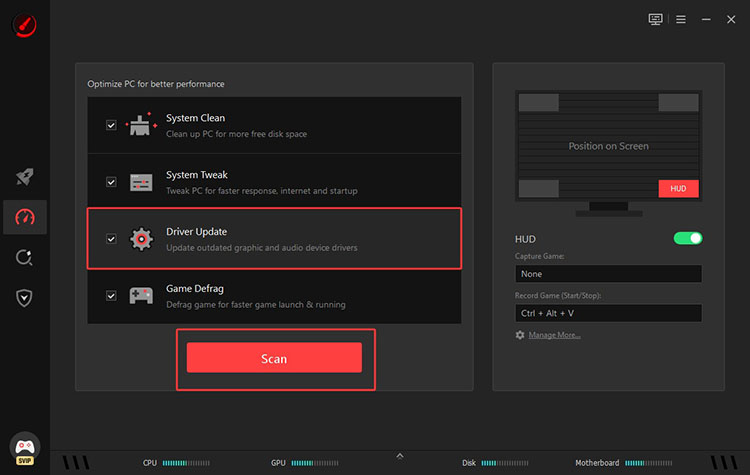
Step 3. Smart Game Booster will identify the drivers that need to be fixed and offer available system tweaks and cleaning. Click the Fix button to proceed.
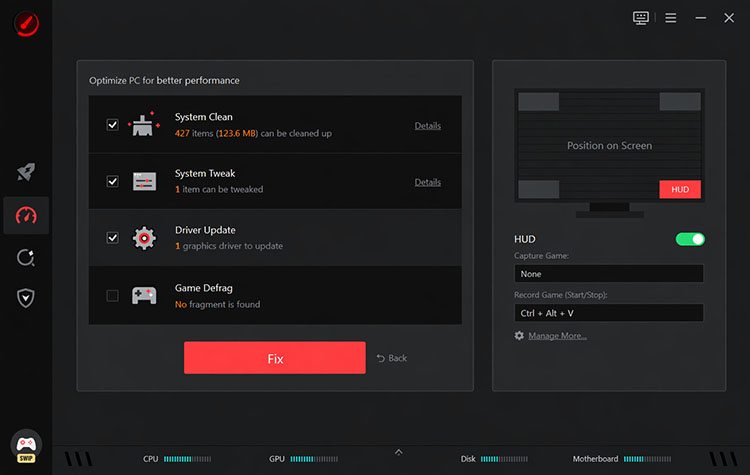
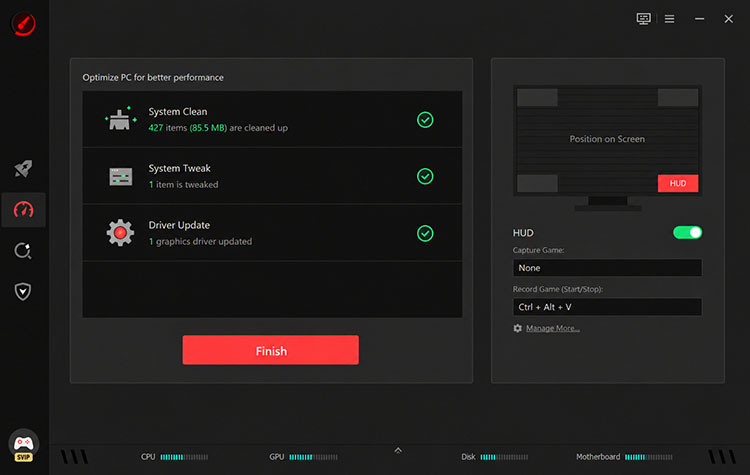
Step 4. After a few while, the driver conflicts will be resolved and you can enjoy smoother gaming sessions later.
Tip: Having issues with Fortnite, too? Check out our guide on how to fix Fortnite crashes with 7 methods? >>>
The Core Features of Smart Game Booster
Driver Fix: Automatically detects and updates outdated graphics and system drivers for better game compatibility.
Game Boost: Shuts down unnecessary background applications and processes to free up RAM and CPU load; One click to boost internet speed for gaming.
CPU & GPU Monitoring: Tracks live temperatures of your PC hardware, real-time in-game FPS, and usage of CPU, GPU, RAM, etc.
System Optimization: Cleans temporary files and tweaks Windows settings for smoother gaming sessions.
Conclusion
With the 4 methods above, you should be able to resolve the Marvel Rivals crashing on startup 2026 issues. If Marvel Rivals continues to crash after these steps, check the game's official announcements and support resources for known issues related to your hardware or the latest update. You can also try Smart Game Booster, which identifies outdated drivers that might cause the Marvel Rivals crashing issue. It offers game optimization features to help you maintain a smoother gaming experience too. Try it for free and get back into Marvel Rivals with fewer interruptions!
Key Features of Smart Game Booster
- Enjoy lag-free & low-ping gaming
- 100+ games supported
- Severs from all over the world
- Boost in-game FPS