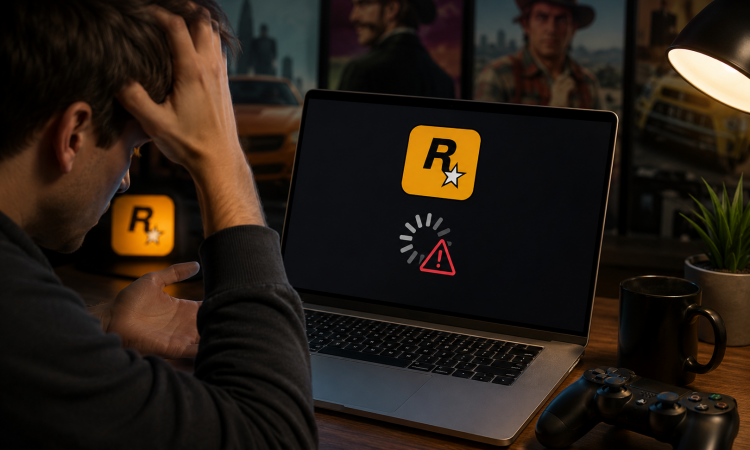
You click the Rockstar Games Launcher, but nothing happens. Sometimes the app freezes, stays on the loading screen, or keeps trying to connect without opening your game. The Rockstar Games Launcher not working problem can come from multiple points of failure.
The good news is that you can fix many of these problems without reinstalling your games. This guide covers 8 practical solutions for Rockstar Games Launcher not connecting, starting with quick checks and moving toward deeper system and network troubleshooting. Follow each fix in order and test the launcher after every step.
Why is Rockstar Games Launcher Not Working?
The Rockstar Games Launcher depends on Windows services, local files, network access, account authentication, and background processes. Likewise, Rockstar Games Launcher not loading can result from corrupted files or a failed update.
Common causes include:
Rockstar Games server maintenance or an outage
Corrupted launcher cache files
Outdated graphics or network drivers
Firewall or antivirus restrictions
DNS or router problems
Damaged Rockstar Games Launcher or Social Club files
Conflicting startup applications
Windows permission or service problems
Now that you know what can cause the problem, let's move from the easiest checks to the deeper fixes.
How to Fix Rockstar Games Launcher Not Working With 8 Proven Ways
Try these solutions one at a time. After completing each fix, restart the launcher and check whether it works.
Fix 1. Check Rockstar Games Server Status
If the Rockstar Games Launcher stuck on connecting to Rockstar games services message appears, the problem may come from Rockstar rather than your computer. Rockstar provides a Service Status page that shows the current condition of the launcher, authentication services, GTA Online, Red Dead Online, and other services.
Steps to Check Rockstar Service Status:
Open the Rockstar Games Service Status page.
Find Rockstar Games Launcher in the list.
Check the status of Authentication and other required services.
If Rockstar reports an outage, wait until the service returns.
Try launching the application again.
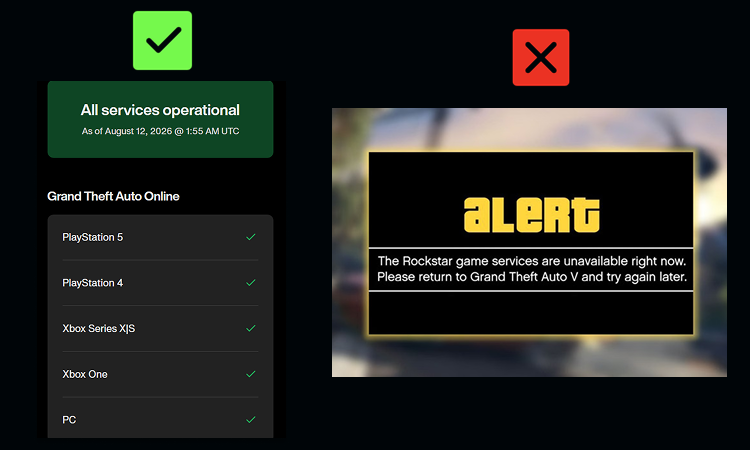
If everything shows as operational, continue with the next fixes.
Fix 2. Restart the Launcher and Run It as Administrator
Windows can also restrict access to folders or services that the launcher needs. Running the launcher as administrator gives it the required permissions to fix Rockstar Games Launcher won’t open.
Steps to Run Rockstar Games Launcher as Administrator
Press Ctrl + Shift + Esc to open Task Manager.
Find Rockstar Games Launcher and related Rockstar processes. Right-click each relevant process and select End task.
Back to Rockstar Games Launcher on Windows desktop.
Right-click the app. Select Run as administrator. Click Yes when Windows asks for permission.
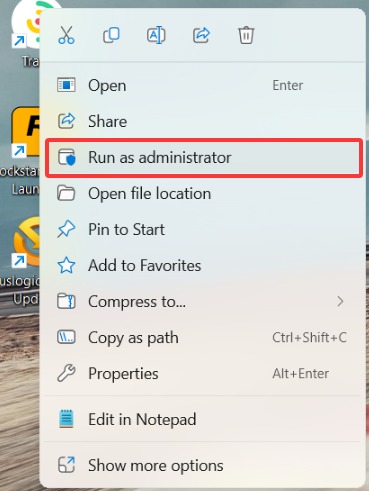
Please be sure to end the game launcher before launching the game accelerator as an administrator; otherwise, relevant files might become locked. Then check whether the Rockstar Games Launcher not working problem has disappeared.
Fix 3. Clear the Rockstar Games Launcher Cache
A damaged cache can make Rockstar Games Launcher not loading appear after an update, crash, or unexpected shutdown. The launcher stores temporary files to speed up certain tasks, but damaged files can prevent the application from starting correctly.
Steps to Clear the Cache:
Close Rockstar Games Launcher.
Open Task Manager and end remaining Rockstar processes.
Open File Explorer.
Go to your Documents folder.
Open Rockstar Games > Social Club > Cache.
Remove the cache files that Rockstar's current instructions identify.
Restart Windows.
Open Rockstar Games Launcher again.
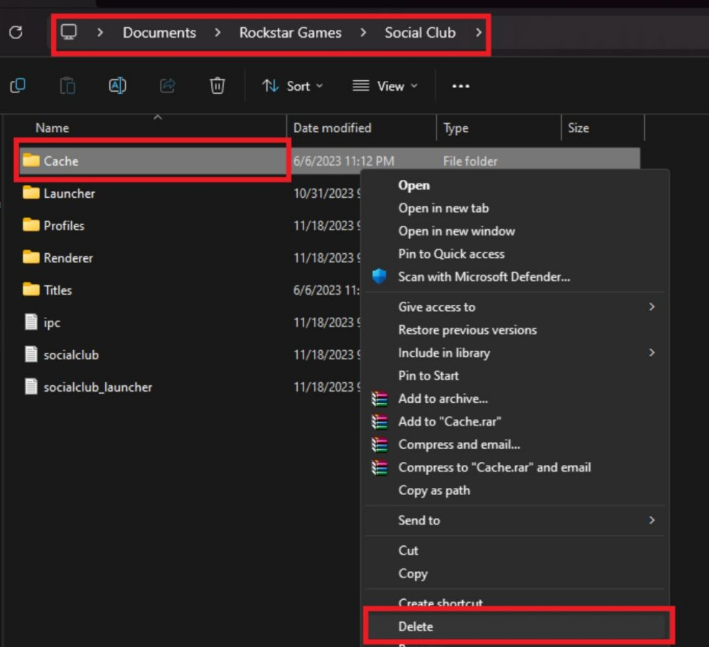
The launcher can rebuild required temporary data after you start it again.
Fix 4. Update Your Graphics Driver
An outdated or damaged graphics driver can cause game startup failures, crashes, display problems, and compatibility issues. If why is my Rockstar Games Launcher not responding happens around the same time that GTA V or another Rockstar game fails to start, check your graphics driver before making major system changes. Updating the driver can also improve compatibility with newer game updates and fix known driver bugs. Instead of searching for drivers manually, you can use Smart Game Booster, which includes a driver updater that scans for outdated graphics and audio drivers.
Key Features of Smart Game Booster
- Enjoy lag-free & low-ping gaming
- 100+ games supported
- Severs from all over the world
- Boost in-game FPS
How to Update Rockstar Games-Related Drivers:
Step 1. Download and install Smart Game Booster on your Windows PC. Then open it.
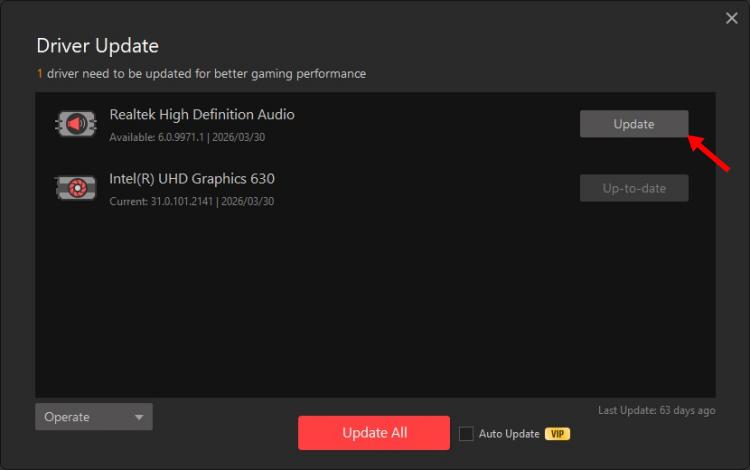
Step 2. Run the Driver Update scan. Review the outdated graphics and other drivers that may cause Rockstar Games Launcher not working issue.
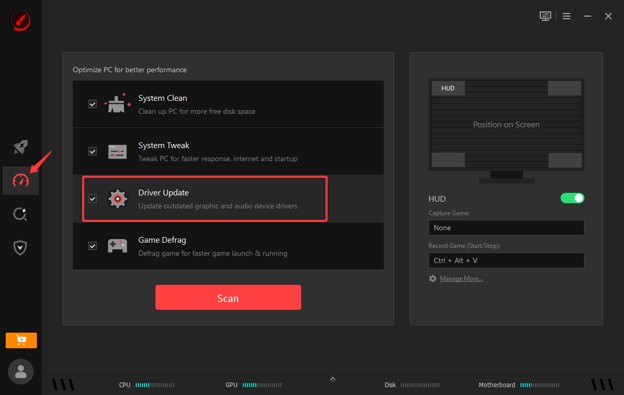
Step 3. Click the Update to get the new drivers installed. Restart Windows after the installation.
If the launcher opens but online gameplay still suffers from delay, you can also check the ping reducer guide for additional network tips.
Fix 5. Flush Your DNS Cache
When Rockstar Games Launcher not connecting continues while other websites work normally, Windows may have a DNS or network configuration problem. A bad local DNS entry can interfere with connections to Rockstar servers.
Steps to Flush DNS:
Type Command Prompt into Windows Search.
Right-click Command Prompt.
Select Run as administrator.
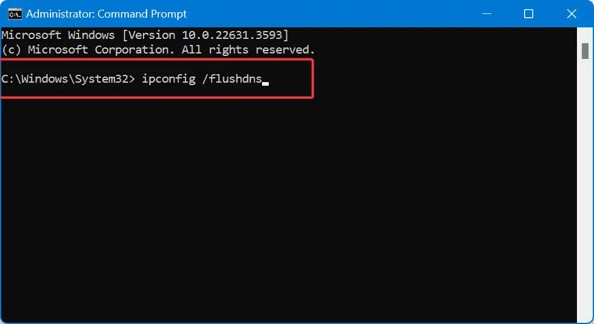
Enter ipconfig /flushdns. Press Enter.
Wait for the confirmation message.
Restart Rockstar Games Launcher.
Also Read: How to Fix PUBG Lag/Delay [PUBG PC Lag Fix] >>
Fix 6. Reinstall Rockstar Games Launcher and Social Club
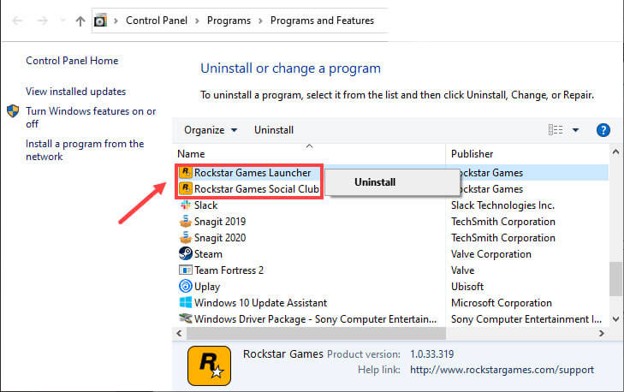
If Rockstar Games launcher not working remains, damaged installation files may cause the problem. An interrupted update can leave missing or incomplete files behind. Rockstar recommends a clean game launcher PC reinstall for several installation and startup errors.
After completely uninstalling and then re-downloading and reinstalling the program, the Rockstar Games Launcher error can be fixed.
Fix 7. Allow Rockstar Games Launcher Through Firewall and Antivirus
Windows Firewall or third-party security software can block Rockstar Games Launcher, Social Club, or related background services. When that happens, the application may open but fail to sign in, download updates, or connect to Rockstar servers. When security software causes connection or service problems, adding the launcher as an exception.
Steps to Allow the Launcher Through Firewall:
Open Windows Security.
Select Firewall & network protection.
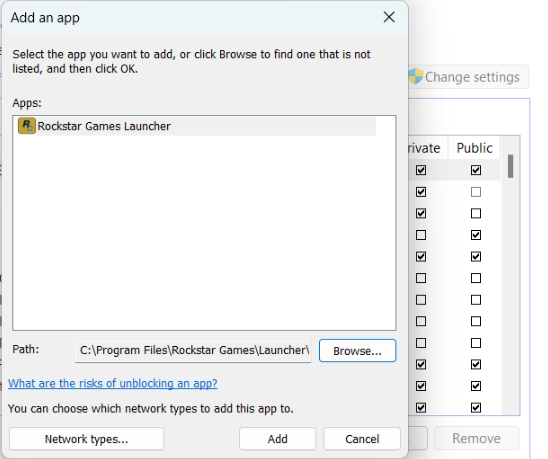
Open Allow an app through firewall.
Find Rockstar Games Launcher.
Allow it on the networks you use.
Check your antivirus settings for blocked Rockstar files.
Add the official launcher folder as an exception if needed.
Do not keep your antivirus disabled. Use an exception for trusted Rockstar files instead.
Fix 8. Perform a Clean Boot to Find Software Conflicts
If Rockstar Games Launcher not loading still occurs, another Windows application may interfere with Rockstar services. A clean boot starts Windows with essential Microsoft services, which helps you identify third-party conflicts.
Steps to Perform a Clean Boot:
1. Press Windows + R. Type msconfig and press Enter.
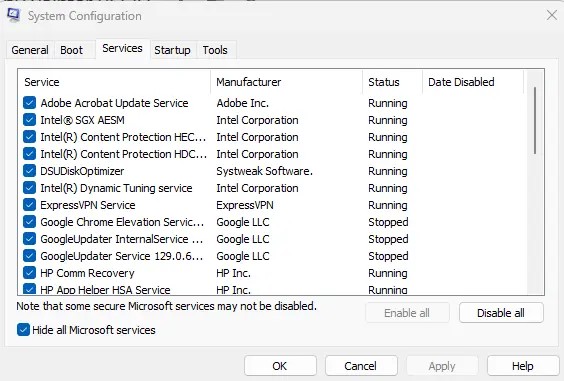
2. Open the Services tab. check Hide all Microsoft services, then click Disable all.
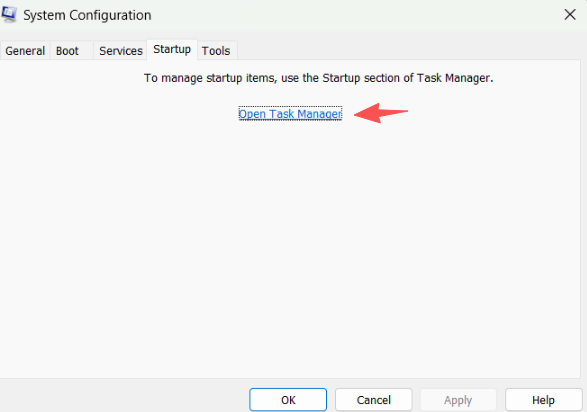
3. Go to the Startup tab and click Open Task Manager.
4. In the Task Manager, go to the Startup apps tab, and for each startup item with the Enabled status, click it and select Disable.
5. Restart your PC and check if the launcher works.
If it works after the clean boot, enable services and startup programs in small groups until you find the conflicting application.
Take Your Rockstar Gaming Experience Further with Smart Game Booster
Once the Rockstar Games Launcher not working issue is fixed, you can focus on game performance. A launcher that opens correctly does not always mean your game will run smoothly. Old drivers, background applications, high temperatures, unstable network connections, and FPS drops can still affect GTA Online and Red Dead Online.
Smart Game Booster includes game boosting, driver updates, FPS monitoring, temperature monitoring, and network-related tools.
How to Optimize Rockstar Games:
Step 1. Install Smart Game Booster on your Windows PC from its official website.
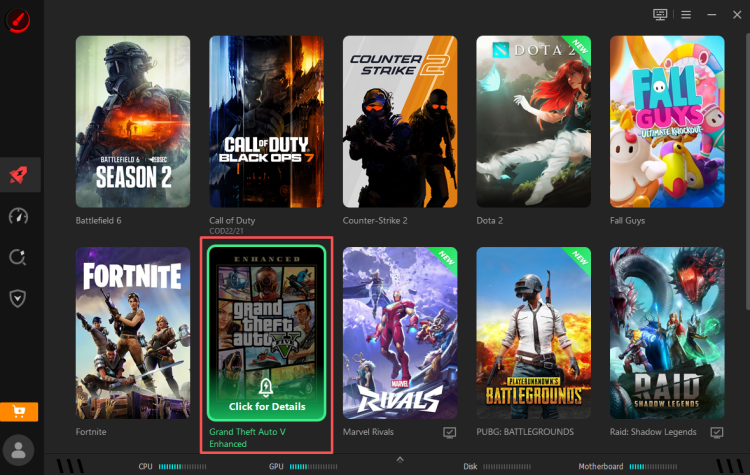
Step 2. You can see the main interface lists many games. You can choose your game to enhance the game performance.
Step 3. Use the recommended optimization options, or change the servers and boost mode based on your needs.
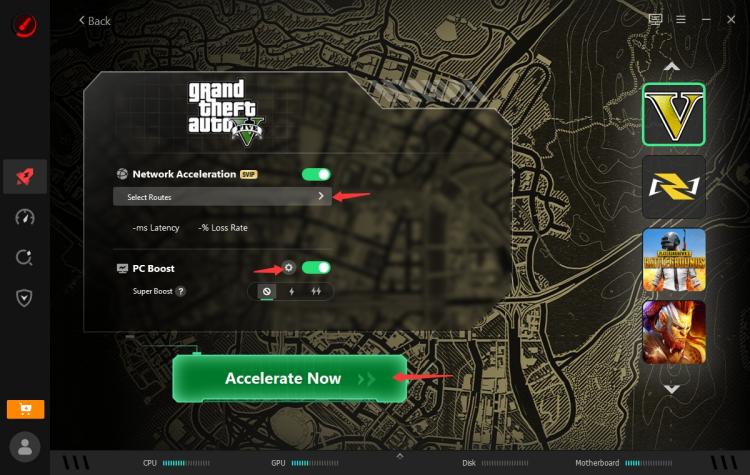
Step 4. Click Accelerate Now to have a better game performance. Launch your Rockstar game and check your FPS, temperature, and network performance.
Why Smart Game Booster is Helpful for Rockstar Games Players
Improve Rockstar Launcher Connection Speed
Optimize network settings, reduce ping in Fortnite and fix connection issues to help Rockstar Launcher connect faster and load more smoothly.
Reduce Ping in GTA Online and Red Dead Online
Optimize network performance to reduce latency and lag spikes, helping deliver a more stable online gaming experience.
Improve FPS and Reduce Stuttering
Optimize system resources and background processes to improve FPS, reduce stuttering, and make gameplay smoother.
Update Graphics and Network Drivers
Automatically scan for outdated game-related drivers and update graphics and network drivers with one click for better compatibility.
Monitor Your PC While You Play
Monitor FPS, CPU, GPU, RAM, and other performance metrics in real time to identify bottlenecks while gaming.
The Bottom Line
If your Rockstar Games Launcher not working, the fixes above can help you get back into your games quickly. Once everything is running again, Smart Game Booster can further optimize your gaming experience with driver updates, network acceleration, FPS optimization, and real-time performance monitoring.