Bloxstrap is a popular custom Roblox launcher that lets you have more control over engine settings than the official client. Fast Flags are a key part of that control, which offers options originally used by Roblox engineers to test features and performance behavior.
For years, many players used Fast Flags to reduce graphics effects, lower GPU load, and potentially increase frame rates. However, changes to the Roblox client have significantly limited what these flags can do. If you are still looking for a Bloxstrap fast flags FPS boost, there are safer and more practical ways to improve Roblox performance. Just read on to learn more!
What Are Fast Flags in Bloxstrap?
Fast Flags are experimental configuration switches used by Roblox engineers. They can be used to test new features, rendering systems, and performance behavior before they are widely released. With Bloxstrap, players can also access some of these settings and customize graphics and engine functions, for instance, to reduce the visual workload and improve in-game performance.
Here are the common adjustments in Fast Flags:
Disabling textures: A great Bloxstrap fast flags FPS boost low end PC feature. It can reduce texture-related rendering work and lower GPU usage.
Adjusting lighting: Simplify lighting effects to reduce the graphics workload. This Bloxstrap fast flags FPS boost helps deliver more consistent frame rates.
Removing shadows: Eliminate dynamic shadow rendering to reduce GPU demand, which can help improve frame rates on lower-end hardware.
How to use Bloxstrap Fast Flags
Step 1. Get the Bloxstrap Fast Flags FPS boost download link from its official GitHub releases page.
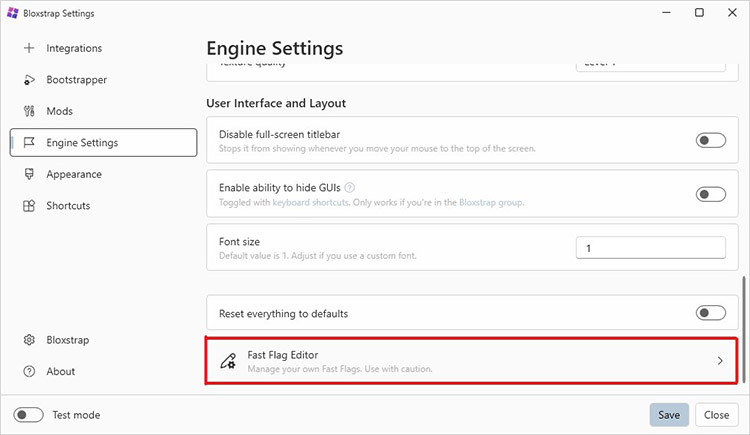
Step 2. Launch the application. Open Engine Settings from the left-side menu and look for the Fast Flag Editor.
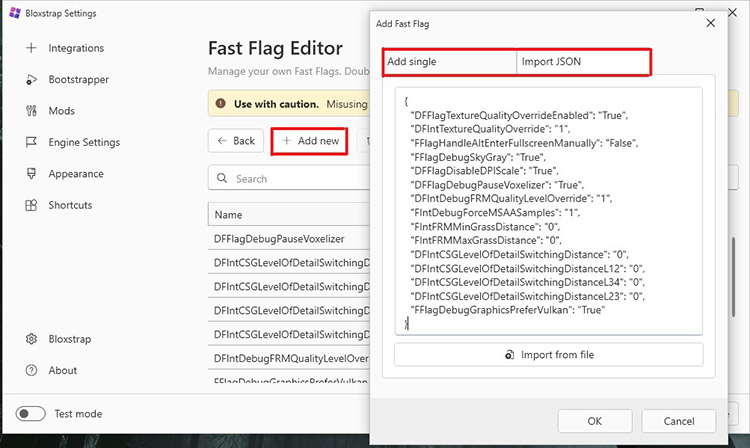
Step 3. Click Add New or Import JSON, then enter the Fast Flag configuration you want to use. You can find one from a Bloxstrap fast flags FPS boost pastebin. Click OK to apply the change.
Do Bloxstrap Fast Flags FPS Boost Still Work?
Unfortunately, the Bloxstrap fast flags FPS boost no longer works. As of September, 2025, Roblox introduced a strict allowlist that limits the local overrides. That means many older configurations that can change rendering behavior or modify performance-related settings are not effective anymore.
Community reports and official developer forum posts confirm the change. Common FPS-related flags that used to increase the task-scheduler target or disable shadows are now basically stripped of functionality; for instance, old lighting, shadow disablers, and task-scheduler targets, etc. Bloxstrap fast flags FPS boost and low ping are also not available. The developers behind Bloxstrap officially removed the Fast Flag Editor starting with the release of Bloxstrap v2.10.0.
It is best not to force unsupported Fast Flags outside the official allowlist, as doing so may involve modifying the Roblox client in unsupported ways. Roblox’s Terms of Use also give the platform enforcement rights for violations, which may include account restrictions.
If you are looking for an alternative to the Bloxstrap Fast Flags FPS boost and low ping, consider using a third-party FPS unlocker instead. These tools are often excellent at system-level performance improvements, which can help you successfully optimize system and game settings and achieve higher FPS.
Bloxstrap Fast Flags FPS Boost: Free Alternative
When the Bloxstrap fast flags FPS boost has been restricted, don’t worry; there’s an excellent alternative—Smart Game Booster, which can do a much better job. This software can help you optimize system resources, reduce background interference, and apply effective FPS boosts for Roblox and other video games.
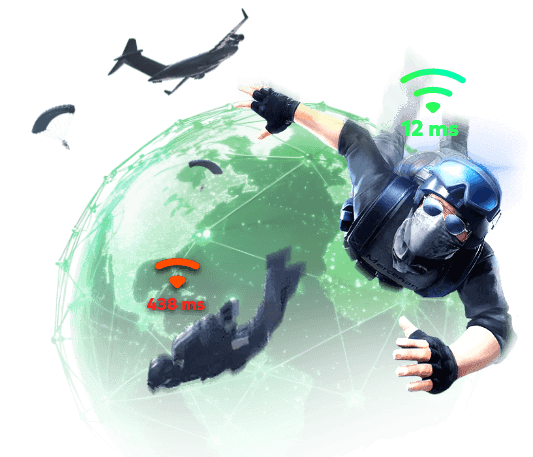
If you want to know how to reduce lag on Roblox, Smart Game Booster can help improve network performance as well. It routes game traffic through hundreds of dedicated gaming routes worldwide, which helps reduce latency and provide a more stable connection for smoother gameplay.
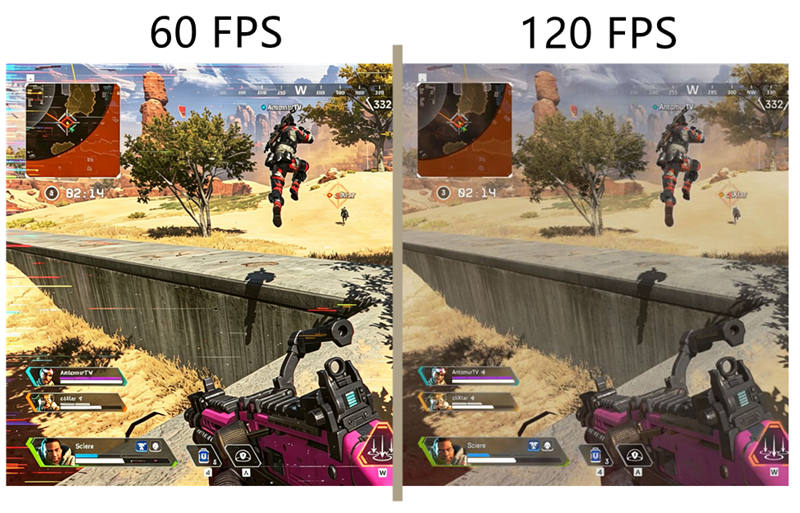
First off, let’s check out its powerful FPS boost in reality.
Step 1. Free download Smart Game Booster and install it on your Windows PC.
Step 2. On the main interface, add Roblox to Smart Game Booster. Click the game details to enter more settings.
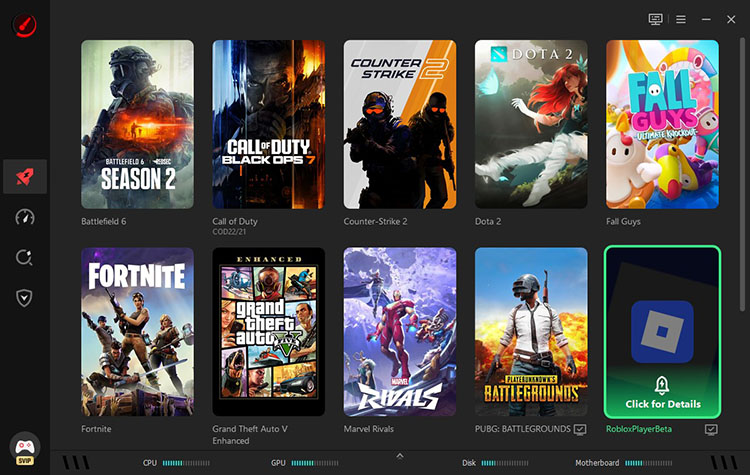
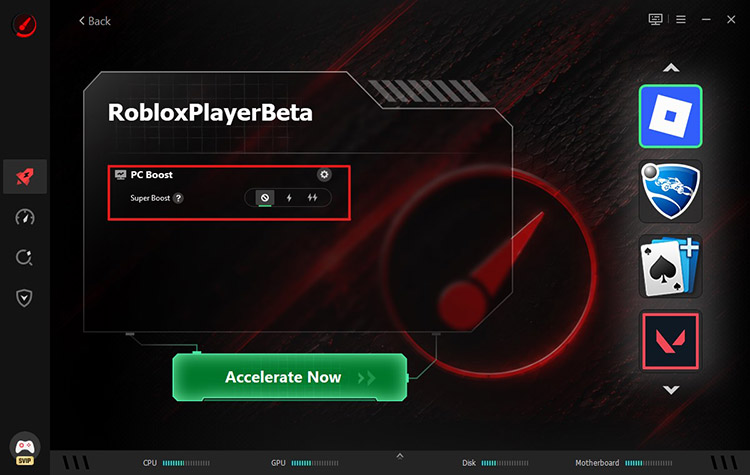
Step 3. Select the mode for PC Boost and click Accelerate Now to proceed.
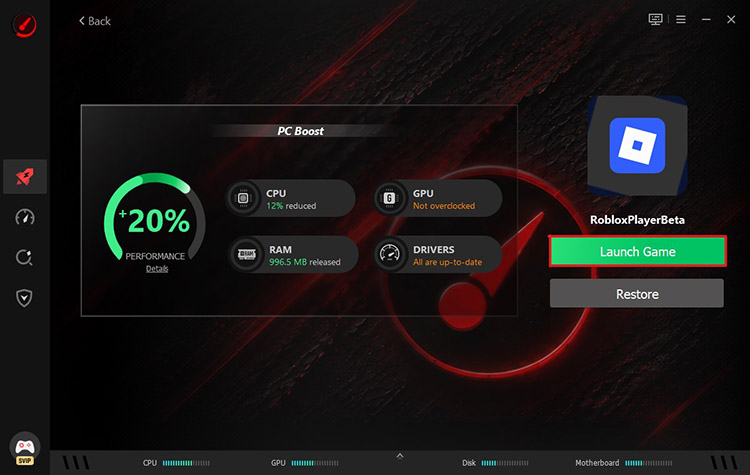
Step 4. Smart Game Booster will optimize your system and game settings for performance gains. Click Launch Game to enjoy boosted FPS for Roblox.
Tip: Want to capture your best Roblox moments? Check out how to record game clips on PC to learn more.
Core Features of Smart Game Booster
Game Performance Optimization
How to boost game performance on laptop/PC? Smart Game Booster automatically closes unnecessary background processes and frees CPU and RAM resources. This allows Roblox and other games to use more system power during gameplay.
FPS & Lag Reduction
The software safely overclocks your GPU and video memory (VRAM) for FPS boost and performance gain. Moreover, it routes game traffic through optimized servers for smoother gaming.
Driver Updates
Smart Game Booster lets you check for outdated graphics and audio drivers for available updates, which helps improve hardware compatibility and overall gaming performance.
Game Launch Optimization
You can launch Roblox with boosted system settings, with CPU, GPU, and RAM resources optimized for smoother gameplay. It also monitors performance during gaming. Check out how to see FPS in games to learn more.
Bonus Tips: Bloxstrap Engine Settings That Still Work
Even though some Bloxstrap Fast Flags FPS boost settings are no longer available, there are several practical ways you can try to improve Roblox performance. These methods are more like general tips, and they are also easier to apply.
True Fullscreen Mode (Alt+Enter)
You can switch Roblox to true fullscreen mode with Alt+Enter. In some setups, this can reduce overhead from window management and desktop composition, providing FPS improvement or more consistent frame delivery.
In-game Roblox settings
Tweak your in-game settings; for instance, lower the graphics quality, reduce rendering effects, and disable unnecessary visual features to decrease GPU workload and potentially increase FPS.
PC-level tweaks
For the PC side, update your GPU drivers, close unnecessary background programs, and adjust Windows performance settings to free up system resources for Roblox.
Use other launchers like Voidstrap
Voidstrap is one of the Bloxstrap fast-flags FPS boost rivals. By managing how the official Roblox client launches and updates, the Roblox launcher gives users the same advanced customization and optimization controls without modifying game files.
Conclusion
Bloxstrap fast flags FPS boost is a great solution to improve your gaming FPS for Roblox. However, many commands have largely been discontinued since 2025. If you are looking for an alternative way to improve Roblox FPS without the Bloxstrap Fast Flags, Smart Game Booster is worth trying. It can optimize system resources, reduce unnecessary background processes, and improve network performance for a smoother gaming experience. Get it and give your Roblox performance a boost easily now!
Key Features of Smart Game Booster
- Enjoy lag-free & low-ping gaming
- 100+ games supported
- Severs from all over the world
- Boost in-game FPS