Nothing is more frustrating than experiencing lag, high ping, or unstable connections during an online match. Whether you're playing competitive shooters, racing games, or MMORPGs, network performance can directly affect your gaming experience.
If you're wondering how to boost Internet speed for gaming, you've come to the right place. This guide explains 6 practical solutions to improve your connection, answers common questions like “can Internet speed be boosted” and “can Internet boost FPS”, and recommends the best game Internet speed booster for Windows users.
Why Does Internet Speed Matter for Gaming?
Before applying any fixes, it's important to understand what affects online gaming performance. While download speed helps install and update games faster, online gameplay depends more on:
Even a 50 Mbps connection can perform poorly if your network suffers from high latency or unstable WiFi. Fortunately, many of these issues can be improved without upgrading your Internet plan.
Method 1. Use Smart Game Booster - Best Game Internet Speed Booster
Improving your network isn't always about purchasing faster broadband. Sometimes your PC is the biggest bottleneck, with background downloads, unnecessary services, and poorly optimized network settings consuming valuable bandwidth. A professional optimization tool can automatically resolve these problems in just a few clicks, making it the easiest way to improve online gaming performance.
Smart Game Booster is an all-in-one gaming optimizer designed to improve both system performance and network stability. Besides boosting FPS, it includes Network Acceleration, which intelligently optimizes internet traffic for smoother online gaming.
Key Features of Smart Game Booster
- Enjoy lag-free & low-ping gaming
- 100+ games supported
- Severs from all over the world
- Boost in-game FPS
Why Choose Smart Game Booster to Boost Internet Speed for Gaming?
-
Intelligent Network Acceleration for Gaming
Finds the best connection path to game servers automatically. This helps reduce lag, lower ping, and keep your connection more stable, making it useful for players searching for how to reduce lag in Roblox and other online gaming connection issues.
-
Automatic Bandwidth Management & Background Control
Stops or limits apps running in the background that use Internet data, so you can enjoy a more stable and faster gaming experience.
-
Advanced Game Mode Optimization
Turns off unnecessary Windows features and background tasks to make your PC run more smoothly. This can complement an FPS booster by reducing resource usage and helping maintain more consistent gaming performance.
-
One-Click System & Network Performance Boost
Improves your PC and Internet with one click by freeing memory, reducing CPU load, and prioritizing your game for better performance.
-
Smart Server & Route Selection
Helps you connect to the best, fastest game server based on your location for smoother, more stable gameplay.
Boost Internet Speed for Gaming with Smart Game Booster
Step 1. Download and install Smart Game Booster on your Windows PC.
Step 2. Open the program and add your game if it isn't detected automatically. Then, enter the optimization interface.
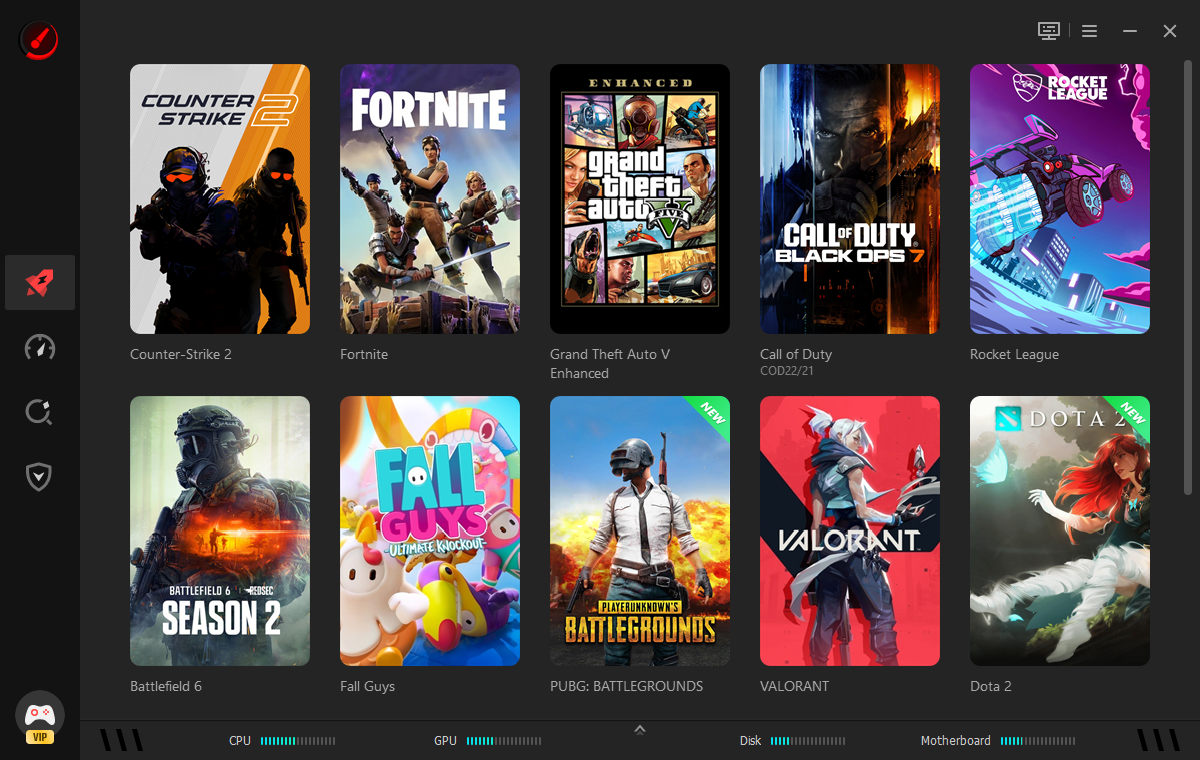
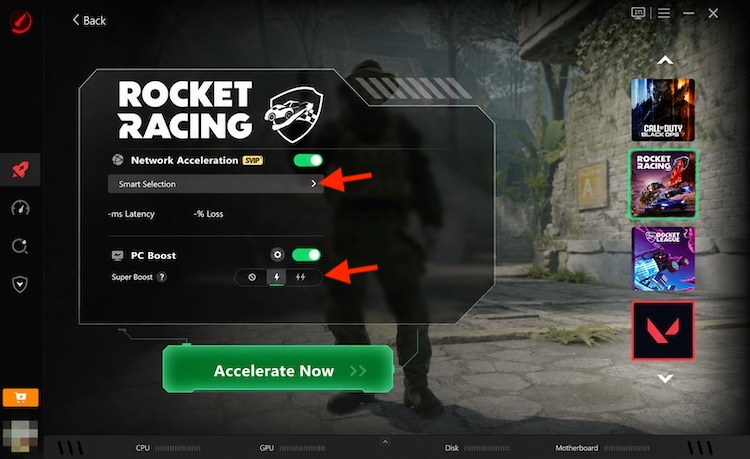
Step 3. Turn on Network Acceleration and choose Smart Selection as the acceleration mode. You can also explore different optimization options under the PC Boost tab. After configuring your preferences, click Accelerate Now to apply the settings and enjoy a smoother gaming experience.
Method 2. Switch to a Wired Ethernet Connection
Even the fastest WiFi connection is generally less stable than a wired Ethernet connection. Wireless signals are affected by walls, interference, and other connected devices, all of which increase latency during gameplay. If your setup allows it, using an Ethernet cable is one of the simplest ways to improve connection quality immediately.
Method 3. Optimize Your WiFi Settings
If Ethernet isn't an option, optimizing your wireless network can significantly improve your online gaming experience. Many gamers continue using default router settings without realizing that changing the WiFi band, channel, or router placement can noticeably reduce latency. These adjustments require only a few minutes and can make your connection much more consistent.
Tips include:
Try 5 GHz WiFi. It's better for gaming because it is faster, has less lag, and is less crowded than 2.4 GHz.
Place Your Router Properly. Put your router in an open space. Keep it away from walls, metal objects, microwaves, and Bluetooth devices to avoid weak signals and lag.
Restart Your Router. Restart your router every few weeks. This helps fix small issues, refresh the connection, and reduce random disconnects.
Update Router Firmware. Update your router regularly. Updates improve performance, fix bugs, and make your connection more stable and secure.
Method 4. Update Your Network Adapter Driver
Outdated network drivers may cause connection instability, slower transfer speeds, compatibility issues, and increased latency. Keeping your network adapter driver up to date ensures Windows communicates efficiently with your hardware and router. This simple maintenance task often resolves unexplained lag spikes, packet loss, and connection drops during online gaming sessions. There are 2 common ways:
Option 1. Using Device Manager
Step 1. Press Win + X and select Device Manager.
Step 2. Expand Network adapters and find your Wi-Fi or Ethernet adapter.
Step 3. Right-click your adapter and select Update driver.
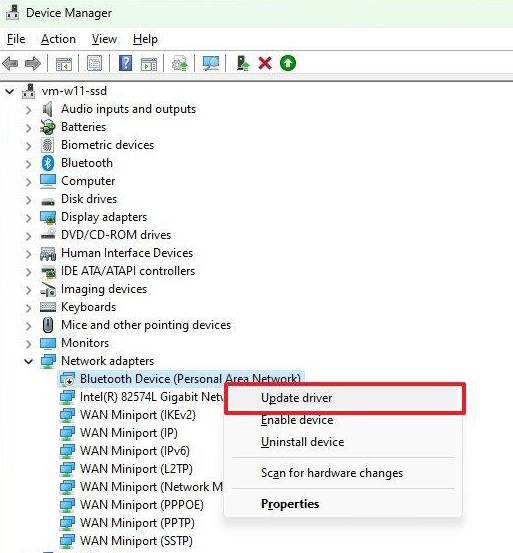
Step 4. Choose Search automatically for drivers.
Step 5. Let Windows search for an available compatible driver and follow the on-screen instructions if an update is found.
Step 6. After the driver update finishes, restart your computer.
Option 2. Using Driver Booster
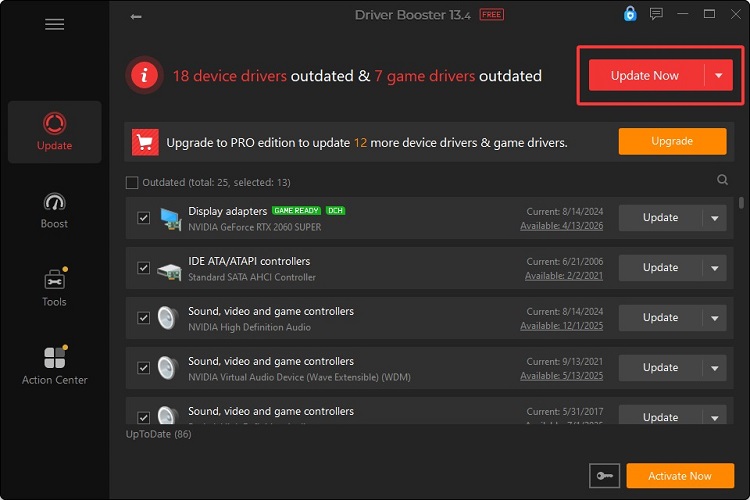
Driver Booster can automatically scan your PC for missing, outdated, or problematic network drivers, which is useful when you want to update multiple drivers without checking each device manually.
Step 1. Download and install Driver Booster on your computer.
Step 2. Launch Driver Booster and click SCAN to analyze your installed hardware and drivers.
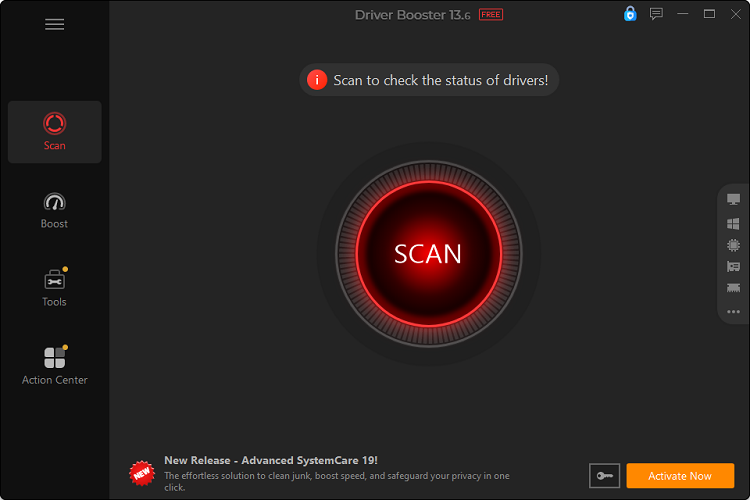
Step 3. Review the scan results and look for the network adapters category. Click Update next to the network adapter driver. Alternatively, use the available bulk-update option to update multiple drivers.
Method 5. Limit Background Network Usage
Even a high-speed Internet connection can become congested when multiple applications compete for bandwidth. Cloud storage, Windows Update, browsers, streaming services, and download managers often run silently in the background. Reducing unnecessary network activity ensures your games receive higher priority and maintain lower latency throughout your gaming session.
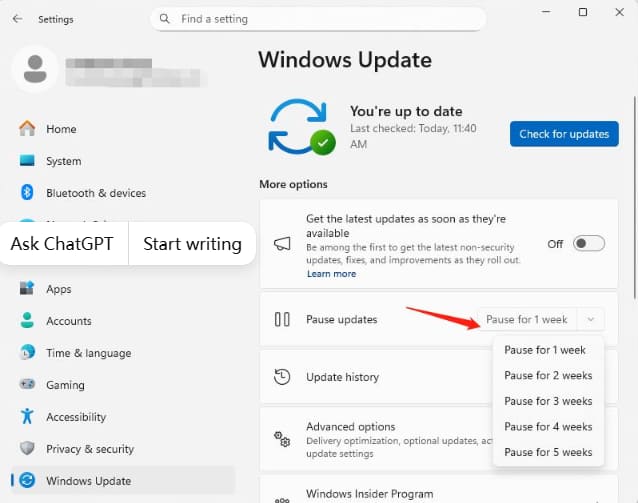
Pause Windows Update downloads:
Step 1. Press Windows + I to open Settings.
Step 2. Select Windows Update.
Step 3. If updates are downloading, click Pause updates.
Step 4. Click the Pause for 1 week button or open the dropdown to choose another available period.
Pause Steam downloads:
Step 1. Open Steam.
Step 2. Click Steam > Downloads (at the bottom of the window).
Step 3. Find the active download and click the Pause button next to it.
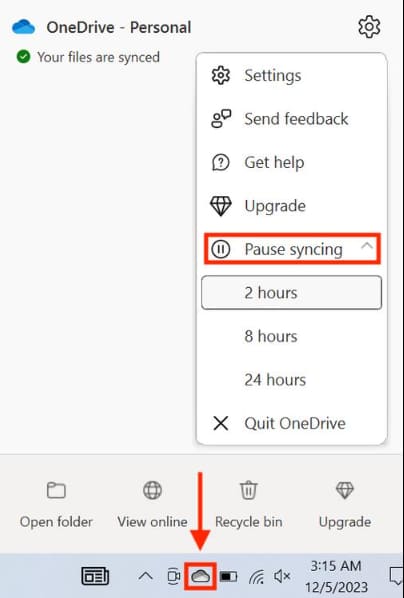
Pause Cloud synchronization:
Step 1. Check services like OneDrive, Google Drive, or Dropbox in the system tray.
Step 2. Right-click the icon and select Pause syncing (e.g., 2 hours or until restart) to stop background uploads/downloads.
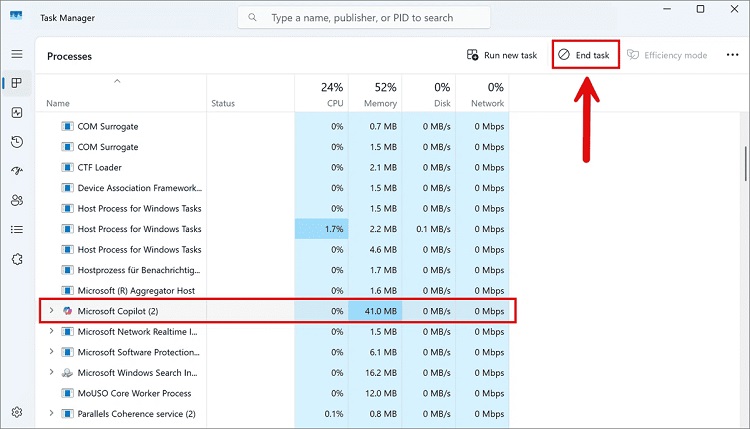
Close unnecessary applications before gaming:
Step 1. Press Ctrl + Shift + Esc to open Task Manager.
Step 2. Go to the Processes tab, and end tasks that are not needed.
Method 6. Improve WiFi for Gaming on PS5
Many console players search for how to improve WiFi for gaming PS5, especially when experiencing lag in multiplayer games. Fortunately, several simple changes can make your PlayStation connection more stable. Combining better WiFi settings with proper network management often delivers a noticeable improvement without upgrading your Internet package.
Try these tips:
-
Use 5 GHz WiFi
If your router supports dual-band Wi-Fi, connect your console to the 5 GHz network for faster speeds and lower interference. It is generally better suited for gaming than 2.4 GHz when the console is relatively close to the router.
-
Move the Console Closer
Distance and physical obstacles can weaken your Wi-Fi signal. Moving the console closer to the router can improve signal strength, reduce interference, and provide a more stable connection during gameplay.
-
Pause Other Downloads
Downloads and streaming on other devices can consume available bandwidth and increase gaming latency. Pause large downloads, updates, and video streams on other devices while gaming to free up network resources.
-
Restart Network Equipment (Router and Modem)
Restarting your router and modem can clear temporary connection problems and refresh the network connection. Power off both devices, wait briefly, then turn them back on and reconnect your console.
FAQs about Internet Speed Boost for Gaming
What Internet speed is good for gaming?
Most online games only require 10–25 Mbps download speed. Low ping and stable latency matter much more than high bandwidth.
Is Ethernet better than WiFi?
Yes. Ethernet provides lower latency, greater stability, and fewer interruptions than wireless connections.
Can upgrading my Internet plan reduce ping?
Not always. A faster internet plan mainly increases bandwidth, while ping depends on routing, network quality, server distance, and local congestion.
Can Internet Speed Be Boosted?
Yes—but not always by increasing your ISP speed. You can often improve real-world gaming performance by using methods introduced above. These optimizations reduce latency and improve connection stability, even if your internet plan remains the same.
Can Internet Boost FPS?
Internet doesn't directly boost FPS; frame rates depend on your GPU, CPU, RAM, graphics settings, and game optimization. However, better Internet could make gameplay feel smoother. For actual FPS gains, pair network tweaks with system optimizers like Smart Game Booster.
Conclusion
Learning how to boost Internet speed for gaming doesn't always require buying a faster internet package. By optimizing your network, updating drivers, reducing background traffic, and using Smart Game Booster, you can enjoy lower ping, fewer lag spikes, and a much smoother gaming experience. Start with these 6 methods, and you'll be well on your way to more stable and responsive online gaming.
Key Features of Smart Game Booster
- Enjoy lag-free & low-ping gaming
- 100+ games supported
- Severs from all over the world
- Boost in-game FPS