If you're wondering how to change servers in CS2, you're not alone. Many Counter-Strike 2 players want to connect to a different server region to reduce ping, play with friends, avoid high-latency matches, or simply enjoy a better competitive experience. Unlike many online games, CS2 doesn't provide a straightforward server selection menu, making the process confusing for many players.
Fortunately, there are still several effective ways to influence your matchmaking region and server location. In this guide, you'll learn how to change server region in CS2, discover the differences between server region and server settings, and find the best methods to improve your connection.
Can You Change Servers in CS2?
You can’t directly choose or switch servers in CS2. Valve automatically assigns matchmaking servers based on your location and ping. However, you can influence which region you connect to by customize particular settings or using third-party services.
Method 1. Adjust Steam Download Region
Although Steam's Download Region setting does not directly determine which matchmaking server CS2 connects you to, it can still affect how your data is routed across network. By selecting a region closer to your desired CS2 server location, you may improve connection paths and reduce latency, which can indirectly increase the chances of being matched with servers in that area.
Step 1. Open Steam.
Step 2. Click Steam > Settings and select Downloads.
Step 3. Find the Download Region. Click it and choose a server that is:
● Close to your location.
● Less congested than your current server (you can try a neighboring city or country if download speeds are poor).
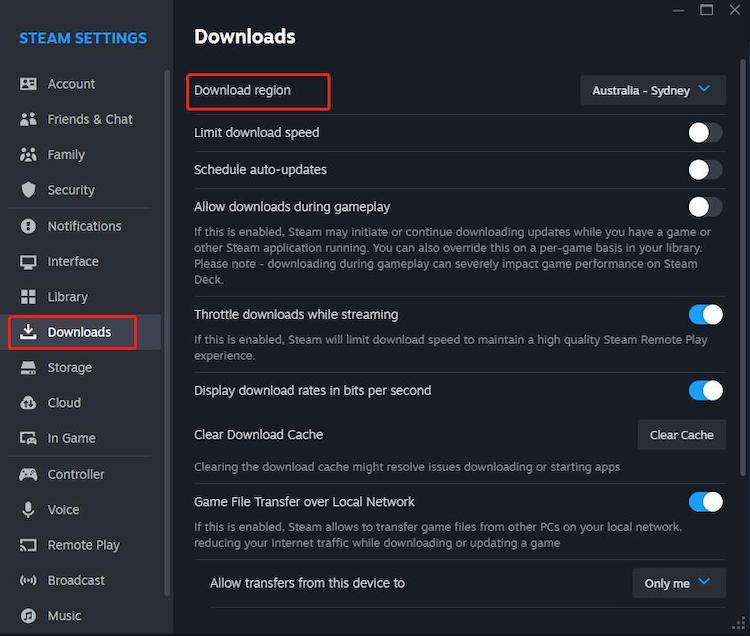
Step 4. After selecting a new region, close the Settings window.
Step 5. Restart Steam and launch CS2 again.
Method 2. Limit Matchmaking Ping
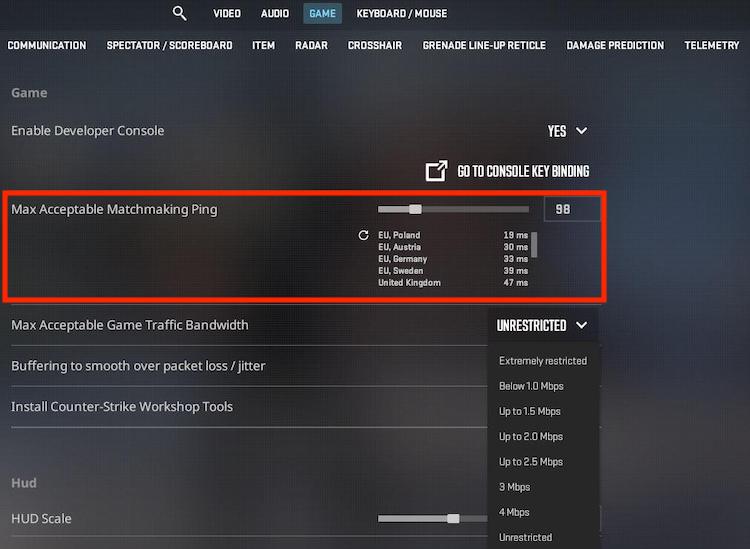
Another effective way to change servers on CS2 is by tweaking your maximum acceptable matchmaking ping. Valve's matchmaking system searches for closer servers according to the ping. You can limit your ping in game and force CS2 to change to a closer server.
Here’s how.
Step 1. Open CS2 and go to Settings, which is a gear icon in the upper-left corner.
Step 2. Select the Game tab and find Max Acceptable Game Matchmaking Ping.
Step 4. Find Max Acceptable Matchmaking Ping and set the value to 25.
As a general guideline:
● 25–50 ms: Prioritizes nearby servers and lower latency, but matchmaking may take longer.
● 50–80 ms: A good balance between connection quality and matchmaking time.
● 100+ ms: Finds matches more easily across a wider range of servers, but may result in noticeable latency.
Method 3. Join Friends in Another Region
If you're looking for how to change CS2 server location, one simple approach is to play with someone from a different region. When you join a party with a friend located elsewhere, CS2’s matchmaking system often adjusts server selection to accommodate both players. This can help you connect to a different region without changing any settings manually, making it a convenient option for testing server performance or playing internationally.
Method 4. Join Community Servers
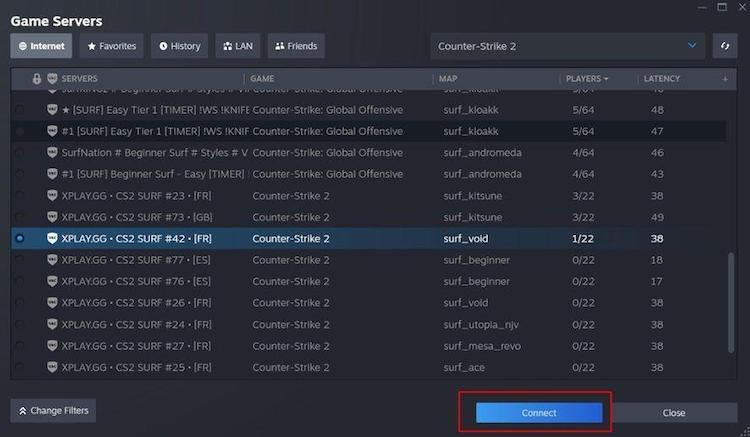
If your goal isn't official matchmaking, community servers offer complete freedom. You can browse servers worldwide, filter by ping, player count, or location, and instantly join matches that suit your preferences.
This is also useful if you're searching how to change CS2 server settings because community servers let you select custom maps, game modes, and regions, giving you full control over your gameplay experience.
Step 1. Open CS2.
Step 2. Click Play at the top of the interface.
Step 3. Select the globe icon or Community Server Browser option.
Step 4. Use the server list and filters to find a suitable server. You can consider factors such as:
● Latency/Ping: Lower is generally better.
● Players: Check whether the server has available slots.
● Map: Choose a server running a map you want to play.
● Game Mode: Look for modes such as Deathmatch, Retakes, Surf, KZ, or Zombie Escape.
Step 5. Select the server you want to join, then click Connect, or simply double-click the server.
Method 5. Change CS2 Server Region with Smart Game Booster [Recommended]
Instead of manual settings, Smart Game Booster, delivers an easy and straightforward way to change servers in multiple games.
It has 500+ global servers, letting you seamlessly change the server region from your country to another location just in one click. Thanks to dedicated, high-speed lines, it breaks network bottlenecks to lower ping, fix lags and eliminate packet loss. You can flexibly choose a server with lowest latency or fair matchmaking and enjoy a competitive experience in CS2.
Smart Game Booster also acts as a PC optimizer for gaming. It not only overclocks GPU/VRAM to boost FPS in a single click, but efficiently manage system resources - for example close background apps and clean up junk files - for better gaming performance.
How to Change Servers on CS2 with Smart Game Booster
Step 1. Download and install Smart Game Booster on your Windows PC and launch the program.
Key Features of Smart Game Booster
- Enjoy lag-free & low-ping gaming
- 100+ games supported
- Severs from all over the world
- Boost in-game FPS
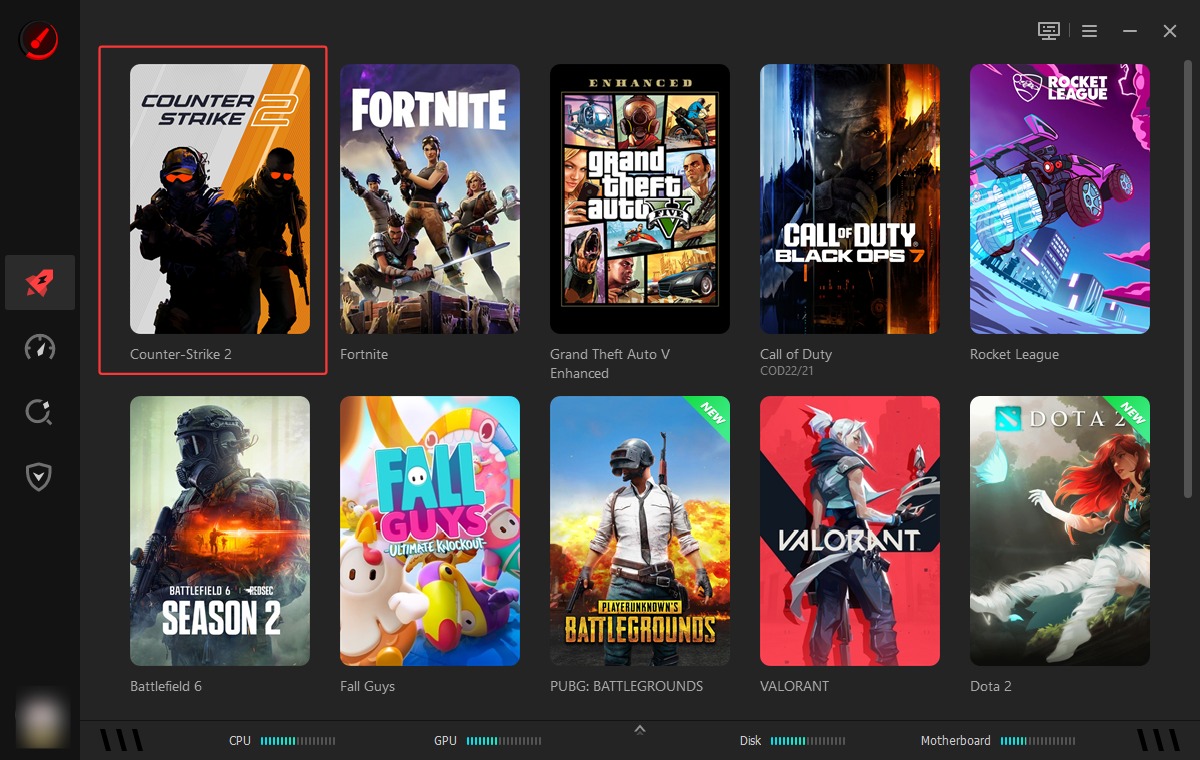
Step 2. Find CS2 in the Smart Game Booster library.
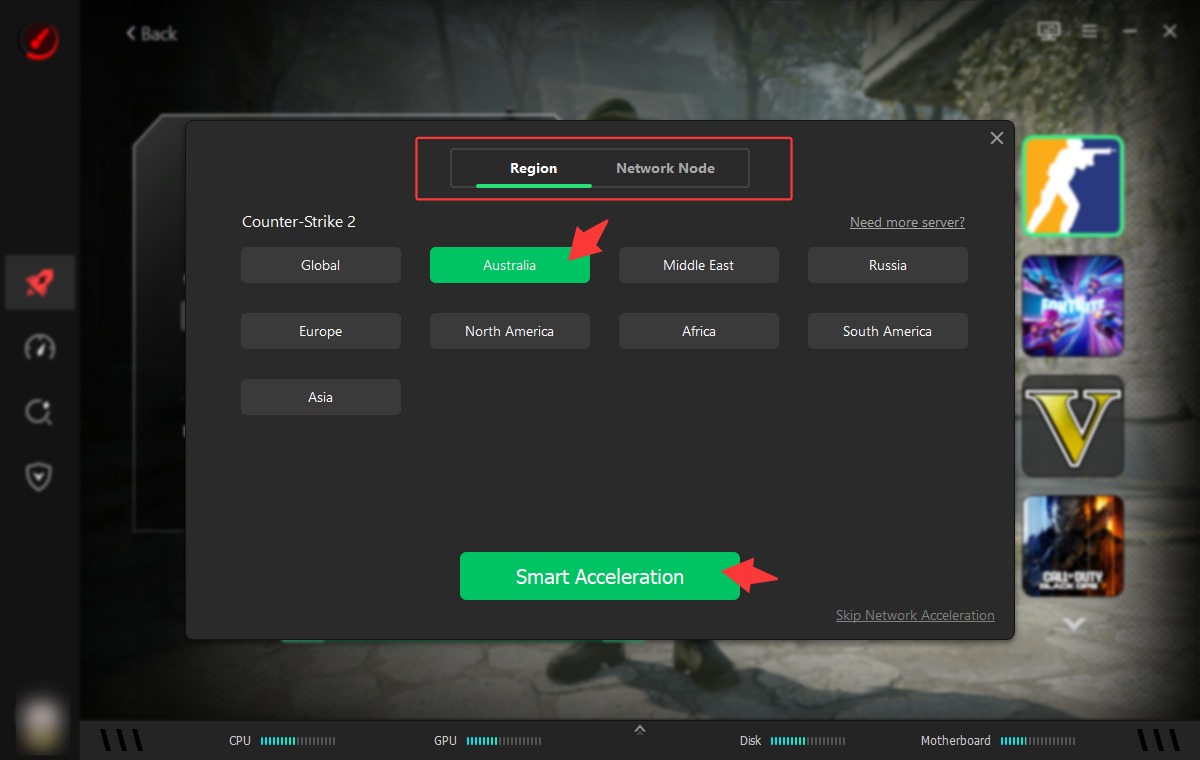
Step 3. Select your preferred region/server and network node. Click on "Smart Acceleration" to proceed. Also, set the PC boost mode and click on "Accelerate Now" for optimization.
Step 4. Then, it will display the improved performance to you. Just click on Launch Game to enjoy the game with server transfer.
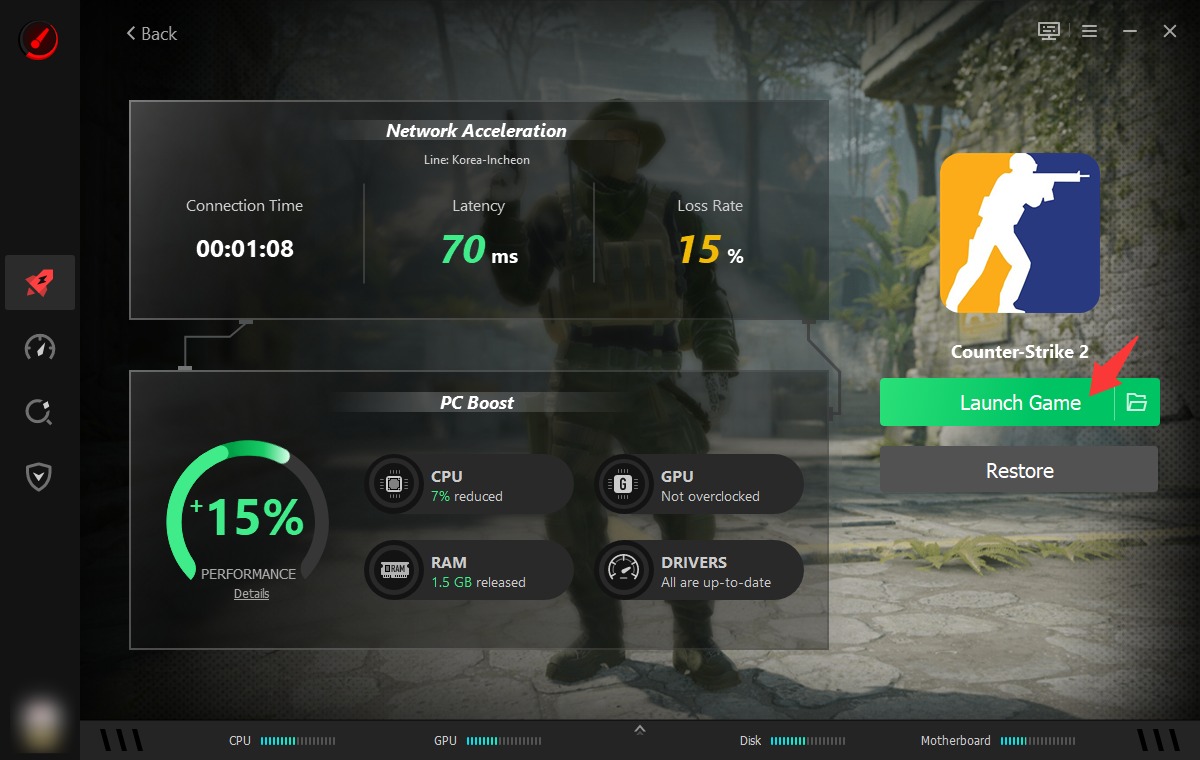
This is how this ping reducer helps change server and gain a smooth, low-ping CS2 gaming experience.
Method 6. Use a VPN Carefully
If other methods don’t work, a VPN can help influence CS2 server selection. By routing your connection through another country, it may appear you’re playing from that region, potentially placing you on different servers. However, results aren’t guaranteed, as Valve still considers latency and server load. VPNs can also increase ping if the connection is slow. Use a reliable VPN provider - for example iTop VPN - and test different regions for the best performance.
Here are the steps:
Step 1. Download and install a VPN.
Step 2. Launch it and choose a server in your desired region (for example, Germany, the UK, or the US).
Step 3. Click Connect and wait until the VPN connection is established.
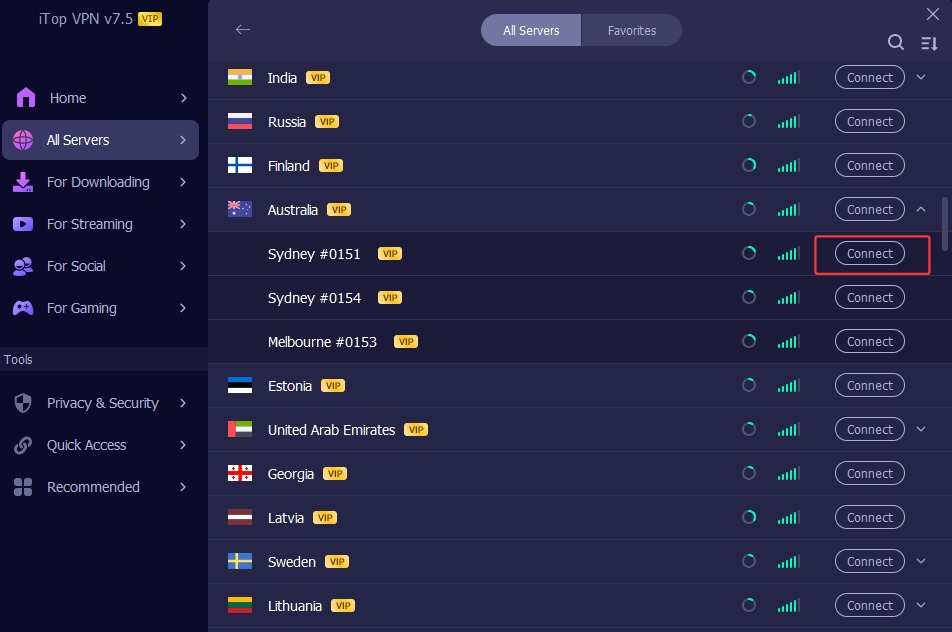
Step 4. Once connected, open Steam and launch Counter-Strike 2.
Step 7. Queue for matchmaking and check your in-game ping.
FAQs About CS2 Server Change
1. Is there a server selector in CS2?
No. Valve automatically assigns matchmaking servers based on ping, routing, and player availability.
2. Does changing Steam Download Region change CS2 servers?
Not directly, but it may influence routing and sometimes improve server selection.
3. Can a VPN change my CS2 server?
Sometimes. Valve may place you in another matchmaking region, but results aren't guaranteed.
4. Can I manually choose any official CS2 server?
No. Only community servers can be selected manually.
The Bottom Line
How to change servers in CS2? While Valve doesn't allow manual matchmaking server selection, you can force CS2 to connect you to a specific server through in-game settings, joining friends in different regions, or using community servers. On the other hand, Smart Game Booster simplifies the process for CS2 server change. It allows you to connect to any server and optimize your PC to peak performance instantly. Plus, you can use the Can I Run It tester of Smart Game Booster to test if your PC meets the minimum and recommended requirements of CS2, which can answer the reason why you may get low FPS or high ping in your game. Try the game booster to enjoy lower latency, smoother matches, and more reliable connections in Counter-Strike 2.
Key Features of Smart Game Booster
- Enjoy lag-free & low-ping gaming
- 100+ games supported
- Severs from all over the world
- Boost in-game FPS