Fortnite can crash in different situations, such as when launching the game, after a Windows update, during gameplay, or when using DirectX 12. You may also encounter crashes related to Easy Anti-Cheat, outdated drivers, corrupted game files, or hardware issues. The right fix depends on when and how Fortnite crashes on your PC.
Fortnite Crash Reporter Appears: What to Do?
If Fortnite crashes on PC, the Fortnite Crash Reporter may appear and ask you to send a crash report. Before closing it, note any error message or crash information shown. This can help identify whether the crash is related to the game, drivers, or another system component.
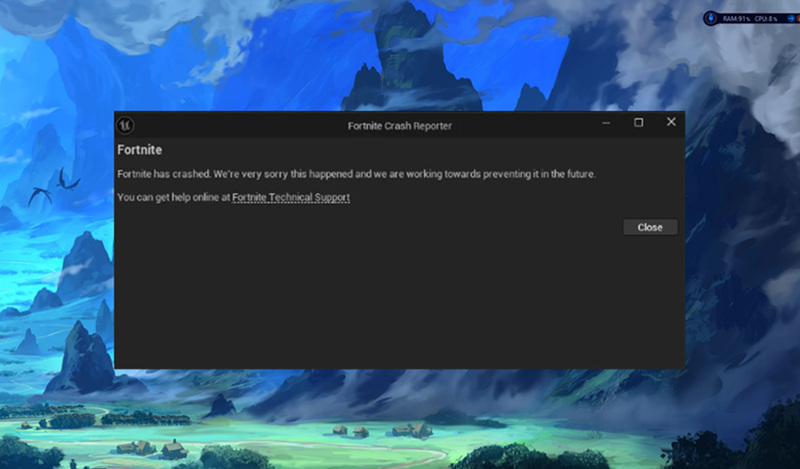
What to do if you see this popup?
Esc → Report → Submit a report → Bug → Choose what type of problem you meet → Submit
Note that this workflow only helps you to reflect your problems to Epic. To solve your problem, Epic Support needs your game logs.
How to Find the Fortnite Crash Game Log?
Step 1. Press Win+R to open the Run Command.
Step 2. Copy and paste the path into the Run Command.
%localappdata%\FortniteGame\Saved\Logs
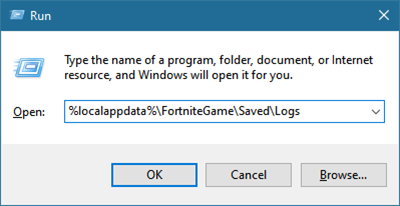
Step 3. Collect the logs and submit them to Support Ticket to let Epic Support analyze.
Note that you need to locate your Fortnite crash log right after it crashes.
How to Fix Fortnite Keeps Crashing PC on Launch? Clear Game Cache
Fortnite's local files can become corrupted or contain configuration data that prevents the game from launching correctly. Deleting the FortniteGame folder gives Fortnite a fresh set of local data, while Verify repairs missing or corrupted installation files. Epic Games lists this combination as a troubleshooting step for Fortnite launch problems.
How to Delete the Fortnite Local Game Folder to Clear Game Cache?
This method resets Fortnite’s local configuration and cached game data. It will not uninstall Fortnite, but it may reset some in-game settings, so take a screenshot of your settings first if you want to restore them later
Step 1: Close Fortnite and Epic Games Launcher
Make sure both Fortnite and the Epic Games Launcher are completely closed.
Step 2: Open the Local AppData folder
Press Windows + R on your keyboard.
Type:
%localappdata%
Press Enter.
Step 3: Delete the FortniteGame folder
Find the FortniteGame folder, right-click it, and select Delete.
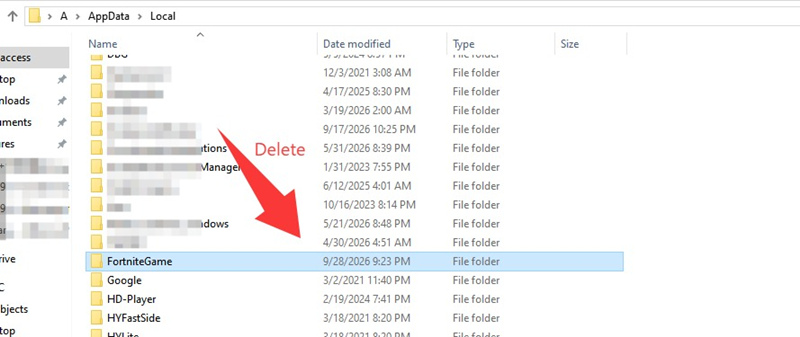
Step 4: Restart your PC
Restart Windows after deleting the folder.
Step 5: Run Epic Games Launcher as administrator
Right-click Epic Games Launcher and select Run as administrator.
Step 6: Verify Fortnite's game files
Go to Library → Fortnite → three dots → Manage → Verify.
Epic Games says that verification checks the Fortnite files for damage or corruption and repairs files that are different or corrupted.
Step 7: Launch Fortnite
Once verification is complete, click Launch and check whether Fortnite can start normally.
How to Fix Fortnite Crashes After a PC Update? Reset Game Settings
Fortnite may start crashing after a Windows or graphics driver update because the new software version can introduce compatibility issues with the game or change graphics and system settings. If Fortnite worked normally before the update, checking recently updated drivers and system changes is a useful first step.
How to Fix Fortnite Crashes After a PC Update
A recent Windows or PC update can sometimes cause Fortnite to crash because of changed or incompatible game settings. Before trying more complicated fixes, reset Fortnite's local configuration file.
Step 1. Close Fortnite
Exit Fortnite and the Epic Games Launcher completely.
Step 2. Open the Fortnite configuration folder
Press Windows + R.
Enter:
%localappdata%
Press Enter.
Open these folders in order:
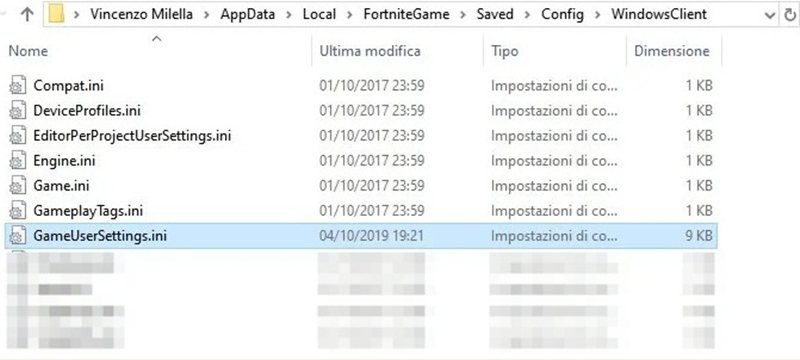
FortniteGame → Saved → Config → WindowsClient
Step 3. Delete GameUserSettings
Inside the WindowsClient folder, find:
GameUserSettings
Right-click it and select Delete. Epic Games specifically recommends this step for Fortnite crashes that begin after a PC update.
Step 4. Restart Fortnite
Launch Fortnite again. The game will create a new GameUserSettings file with fresh configuration settings.
How to Fix Fortnite Keeps Crashing PC Windows 11 During Gameplay? Driver Update
If Fortnite keeps crashing while you are playing on Windows 11, an outdated, faulty, or incompatible graphics driver may be responsible. This can happen particularly after Windows or Fortnite updates change compatibility with your current driver. Updating your graphics and other relevant drivers can help resolve crashes and improve game stability.
Step 1. Download and install Smart Game Booster
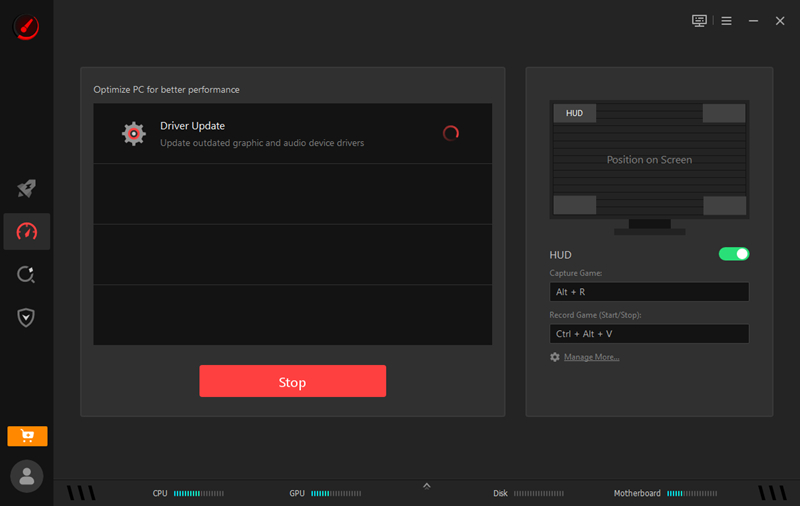
Step 2. Scan your PC for outdated drivers
Launch Smart Game Booster and run a driver scan. The tool checks your system and identifies available driver updates.
Step 3. Update your graphics driver
Find your graphics driver in the scan results and click Update. Depending on your hardware, this may be an NVIDIA, AMD, or Intel graphics driver.
You can also update other outdated drivers that may affect gaming stability, such as chipset or audio drivers.
Step 4. Restart your PC
Restart Windows 11 after the driver update is complete. This ensures that the new driver is loaded correctly.
Step 5. Launch Fortnite and test it
Open Fortnite and play for a while to check whether the crashes have stopped.
How to Fix Fortnite Crashes with DirectX12?
If Fortnite crashes, freezes, or shows a black screen while using DirectX 12, switching to Performance Mode can help. This changes the game's rendering mode and can reduce compatibility or performance issues related to DX12. Epic Games lists this as a troubleshooting step for Fortnite graphics problems.
How to Switch from DirectX 12 to Performance Mode?
Step 1. Open Epic Games Launcher
Launch the Epic Games Launcher and make sure Fortnite is closed.
Step 2. Open Fortnite Settings
Click your profile icon in the top-right corner.
Select Settings.
Scroll down and expand Fortnite.
Step 3. Enable Additional Command Line Arguments
Find Additional Command Line Arguments and check the box.
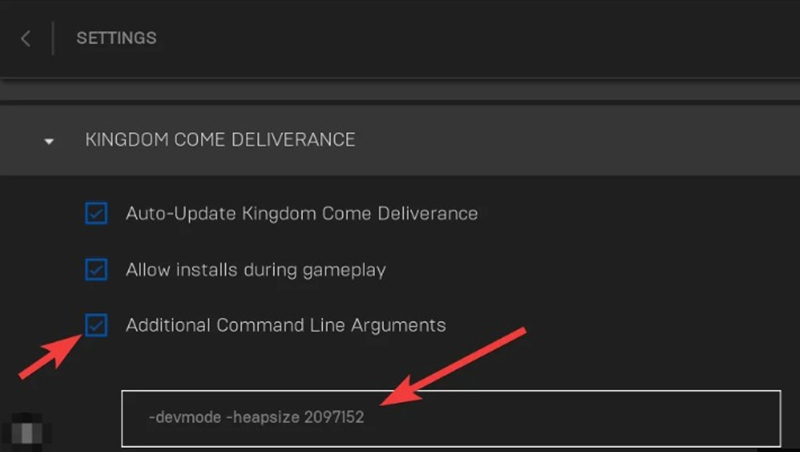
Step 4. Enter the Performance Mode command
Enter:
-d3d12 -es31
Epic currently documents this command for launching Fortnite in its Performance rendering mode when DX12 causes crashes, freezes, or black screens.
Step 5. Launch Fortnite
Close the Settings window and launch Fortnite. Play a few matches to check whether the crashes continue.
Fortnite Crashes with Easy Anti-Cheat Error
If Fortnite crashes with an Easy Anti-Cheat (EAC) error, the EAC service may be missing, corrupted, or unable to start correctly. Epic Games recommends repairing or reinstalling Easy Anti-Cheat before trying more complicated fixes.
How to Repair Easy Anti-Cheat?
Step 1. Open the Fortnite installation folder
Open Epic Games Launcher.
Go to Library.
Find Fortnite and click the three dots (⋯).
Select Manage.
Click Open Install Location.
Step 2. Find Easy Anti-Cheat
Navigate to:
FortniteGame → Binaries → Win64 → EasyAntiCheat
Find the EasyAntiCheat application in this folder.
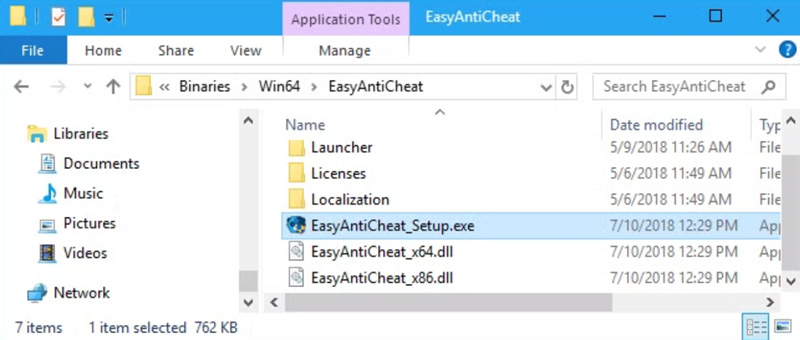
Step 3. Create a repair shortcut
#1. Right-click EasyAntiCheat.
#2. Select Create shortcut.
#3. Right-click the new shortcut and select Properties.
#4. In the Target field, add a space followed by:
repair
#5. Click Apply and then OK.
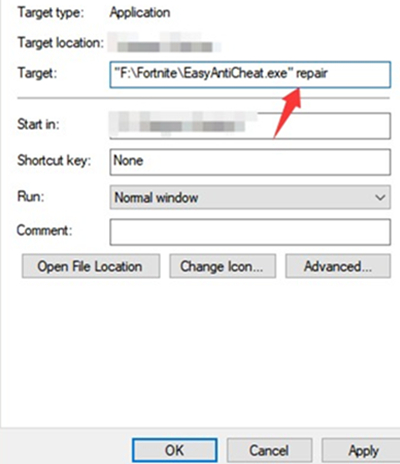
Step 4. Run the repair
Double-click the shortcut and allow Windows to make changes if prompted.
Once the repair is finished, launch Fortnite again through the Epic Games Launcher and check whether the EAC error and crashes have disappeared.
How to Fix Fortnite Crashes on a Laptop?
Fortnite may crash on a laptop because your laptop’s dedicated Nvidia or AMD GPU is not being used. You need to change your graphics settings to activate your powerful GPU and stop using the integrated GPU.
How to Set up Fortnite to Use the High-Performance GPU?
Step 1. Open Windows Graphics Settings
Press Windows + I to open Settings.
Go to System → Display → Graphics.
Find Fortnite in the list of apps.
If Fortnite isn't listed, click Browse and select the Fortnite executable from its installation folder.
Step 2. Open Fortnite's Graphics Options
Click Fortnite and select Options.
You should see the available GPU options, such as Power saving and High performance.
Step 3. Select High Performance
Choose High performance, then click Save.
This tells Windows to use the laptop's dedicated NVIDIA or AMD GPU rather than the integrated graphics when running Fortnite.
Step 4. Restart Fortnite
Close Fortnite completely and launch it again. Play a few matches to see whether the crashes continue.
Conclusion
Fortnite crashes can happen at different stages, from startup to active gameplay, and the cause is not always the same. If the game crashes immediately, start with game files, drivers, and Easy Anti-Cheat. For crashes during gameplay, check graphics settings, system resources, and temperatures. If the problem started after an update or when using DX12, focus on recent software and rendering changes.
Key Features of Smart Game Booster
- Enjoy lag-free & low-ping gaming
- 100+ games supported
- Severs from all over the world
- Boost in-game FPS