Battlefield 6 is a high-demanding multiplayer first-person shooter game. There are some frustrating problems players can encounter if the game repeatedly crashes on PC. A crash can happen when launching the game, during intense gameplay, or even after playing. Excessive CPU or GPU temperatures, unstable overclocking, insufficient system resources, conflicting background applications, can all contribute to crashes. This blog gives a comprehensive guide to fix Battlefield 6 keeps crashing.
Why Does Battlefield 6 Keep Crashing on PC?
When encountering Battlefield 6 crashes, it typically stems from GPU driver instabilities, overheating CPU or GPU, insufficient memory and more during intense rendering.
Outdated or corrupted graphics drivers
Corrupted or missing game files
Overheating CPU or GPU
Insufficient memory
EA AntiCheat conflicts
Hardware voltage & power spikes
Third-Party overlays & monitoring tools
Corrupted game data & shader caches
To solve Battlefield 6 keep crashing issues, try the following fixes.
Basic: Check If Your PC Meet Battlefield 6 System Requirements
Can your PC handle Battlefield 6? If you experience crashes, the first step is to check whether your system meets the game's minimum requirements. You can view the recommended and minimum system specifications on the official website and compare them with your computer's actual specs via the System Information.
Of course, there is an even easier method: use the free "Can I Run It" tool built into Smart Game Booster. And then enter the game's title to see the results. Meanwhile, Smart Game Booster offers several features to boost your PC gaming experience.
Step 1. Download Smart Game Booster and run it on Windows.
Step 2. Click the third tab on the left panel which shows “CAN I RUN IT”.
Step 3. Enter the game title in the search bar, and seconds later, you can see the result that shows if your PC meets the requirements of Battlefield 6.
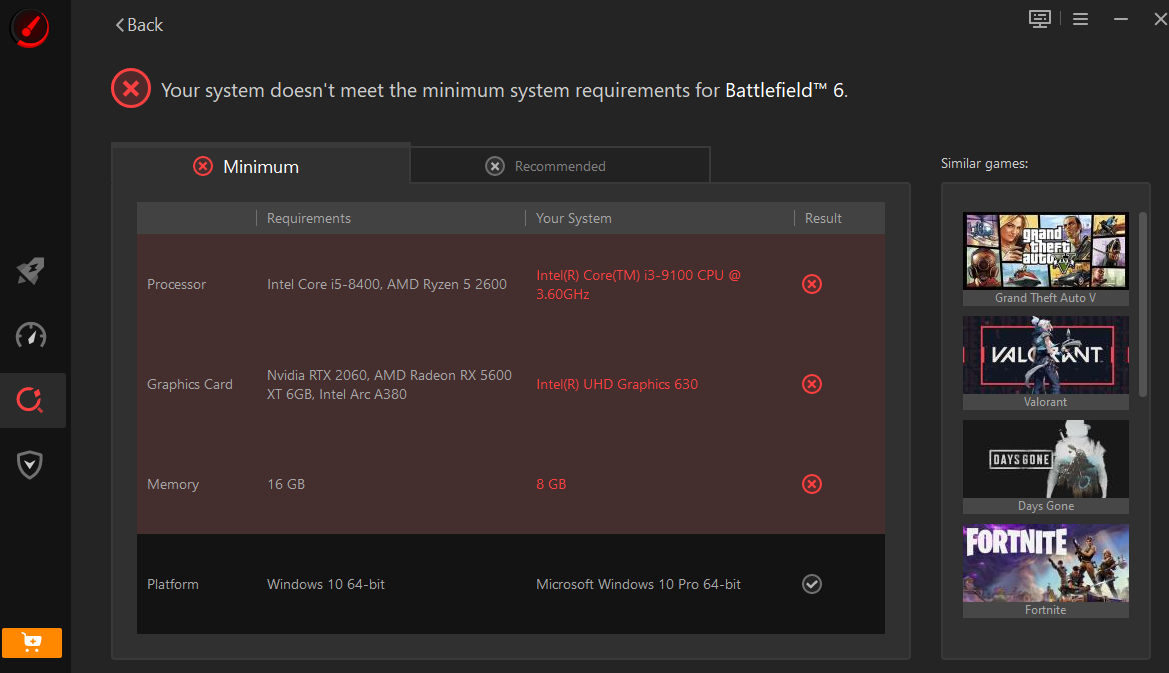
Tips: Under the same tab, you can click “What Games Can I Run” to see the game list that your PC can run smoothly.
Game Optimization Features of Smart Game Booster:
Key Features of Smart Game Booster
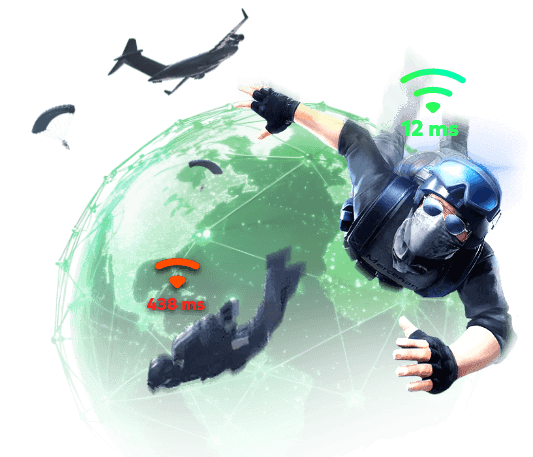
- Enjoy lag-free & low-ping gaming
- 100+ games supported
- Severs from all over the world
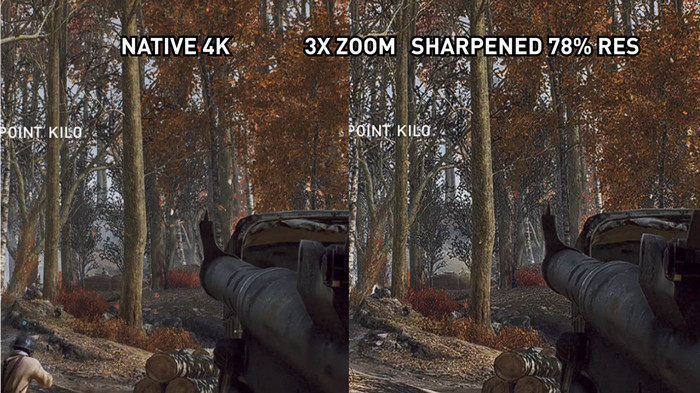
- Boost in-game FPS
GPU overclocking (Super Boost): Offer safe and automated clock frequency increases to the graphics card and VRAM to improve FPS.
Network acceleration: Enable your game to go through dedicated server nodes, in hence bypass ISP throttling, reduce packet loss, and lower in-game latency.
Hardware temperature & performance monitoring: It shows the real-time usage and temperature of your PC data, including GPU, CPU, RAM, disk, memory, motherboard.
More Ways to Fix Battlefield 6 Keeps Crashing PC
Update Your GPU Drivers
Graphics processing unit (GPU) drivers build a connection between your operating system, game engine, and graphics hardware. With outdated drivers, it fails to properly perform render instructions expected by modern games. When Windows forces a GPU driver reset, you can see a sudden crash on PC.
To update GPU drivers for games, follow the steps below.
Open Device Manager, click the arrow next to Display adapters.
-
Right-click the GPU driver and choose Update driver.
[For Intel, it is Intel(R) Arc(TM) [Model], Intel(R) Iris(R) Xe Graphics, or Intel(R) UHD Graphics; for AMD, it is AMD Radeon or AMD Radeon(TM) Graphics; for NVIDIA, it is NVIDIA GeForce or NVIDIA Quadro.]
Select Search automatically for drivers and follow on-screen instructions to complete the updating.
To get informed of a new driver version of GPU drivers automatically, you could use the built-in driver updater feature in Smart Game Booster.
Verify and Repair Missing Game Files
A missing required game file will cause a read error from the engine. Then you may find your game immediately closes to the desktop.
How to verify and repair game files on different platforms?
On Steam:
Open Steam and click Library.
Right-click Battlefield 6 and select Properties.
Click the Installed Files in the left menu.
Click Verify integrity of game files. If there is any file wrong, it will automatically redownload missing or altered files.
On EA App:
Open the EA App and click My Collection.
Hover over Battlefield 6 and click the Three Dots icon on the game card.
Select Repair and it will check games files and replace corrupted ones.
On Epic Games:
Open the Epic Games Launcher and select Library.
Locate Battlefield 6 and click the Three Dots.
Click Manage and click Verify.
Disable Overlays & Background Services
Disabling overlays and background utilities fixes crashes of Battlefield 6 because of DirectX & API hook conflicts, Kernel ani-cheat flagging, and resource competitions and hardware polling.
Which should be disabled?
Third-party overlays: Turn off code-injection features in launcher and chat clients.
In-game overlays: Disable in-game overlay on Discord, Steam, EA App, NVIDIA GeForce Experience, AMD Software.
Hardware monitor and RGB software: Close performance-tuning software and others.
Non-essential background servers: Stop them from launching on Windows startup.
Also Read: Why Can't I Connect to Battlefield Servers >>
Check CPU & GPU Temperature
When the CPU is over 95°C or GPU over 85°C, the silicon automatically drops clock speeds to prevent physical damage. So you may find some issues when playing games.
Download Open Hardware Monitor or Smart Game Booster to monitor the real-time temperature of both.
Check Windows Security Blocks
Security software causes crashes when game processes are identified as threats by actively blocking modified binaries or memory reads.
How to check and fix security blocks?
1. Check Windows Security protection history to verify if it is flagged or quarantined by Windows Defender
Open Settings > Privacy & Security > Windows Security > Virus & threat protection > Protection history.
If flagged, click the item and choose Actions > Allow on device or Restore.
2. Add game folders to exclusions
Go to Windows Security > Virus & threat protection > Manage settings.
Scroll down to Exclusions and click Add or remove exclusions > Add an exclusion. Click it > Folder (choose the installation folder).
Then click Add an exclusion > choose Process > Enter bf6.exe.
3. Allow Battlefield through Windows Firewall
Go to Windows Security > Firewall & network protection > Allow an app through the firewall.
Click Change settings, scroll down, and tick the checkbox for Battlefield 6 and the launcher (like EA App).
Reinstall Battlefield 6
Reinstalling Battlefield fixes persistent crashes because of core game files, shader caches, or anti-cheat registry entries.
How to reinstall Battlefield 6?
Uninstall the base game via platform client.
Manually wipe leftover configuration and share cache directories.
Perform a fresh installation and launch the game as an Administrator.
Conclusion
Battlefield 6 crashing on PC can be frustrating, but the problem is often caused by outdated drivers, corrupted game files, incompatible settings, or system performance issues. Most crashes can be fixed by updating drivers, verifying the game files, and others mentioned above. If the issue continues, contact the official support to get a professional guide.