From bloated background services to misconfigured graphics settings, hidden system bottlenecks actively drain your gaming performance every time you launch a game. Even with high-end hardware, a lack of software maintenance can cause stuttering, high latency, and severe frame drops. If you are struggling with low frame rates and wondering how to optimize PC for gaming, you are in the right place.
This guide covers an automatic option and practical manual steps to help you get a cleaner, more responsive gaming setup.
How to Optimize PC for Gaming Automatically?
If you would rather handle optimization with fewer manual steps, Smart Game Booster is the third-party option recommended for this guide. It is an all-in-one utility trusted by millions of gamers to instantly eliminate lag. If you persist in manual operation without a game booster, you can skip to the next part. However, utilizing this tool provides immediate, noticeable results without the hassle.
Key Features of Smart Game Booster
- Enjoy lag-free & low-ping gaming
- 100+ games supported
- Severs from all over the world
- Boost in-game FPS
Here is how Smart Game Booster improves your gaming experience:
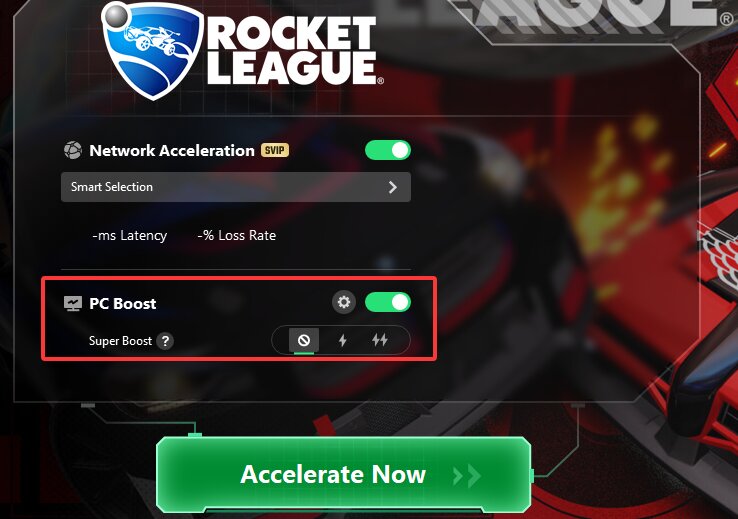
●PC Boost: Smart Game Booster enables a massive FPS boost by unlocking the full potential of your CPU and GPU. With its Super Boost feature turned on, it safely overclocks your GPU and VRAM, delivering at least a 30% performance increase. It functions as an exceptional FPS booster to achieve smoother animations with less tearing, lower system latency, and up to a 120% overall FPS boost.
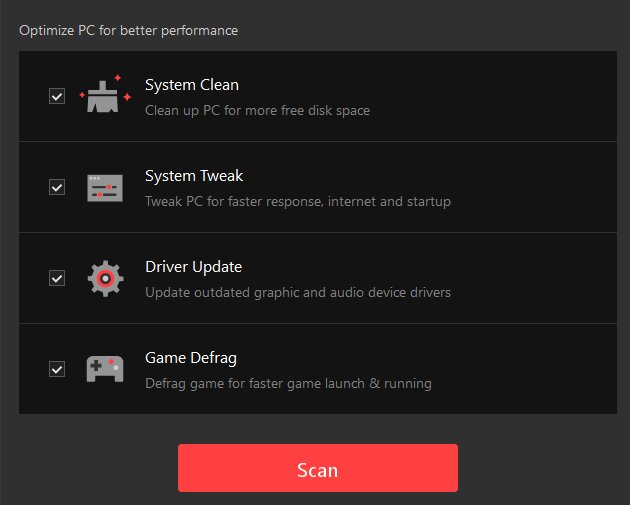
●Performance Optimization: This software automatically wipes out hidden junk files to free up disk space and force-stops heavy background apps, giving your game maximum memory power. With its System Clean feature, you can get some extra free space on your disk by removing junk files. Additionally, it features an integrated free driver updater to install the latest audio and graphics drivers, which stops crashes and cuts down annoying loading screens.
●Network Acceleration: High latency ruins online matches. Acting as a dedicated ping reducer, the software routes your traffic through over 500 dedicated global gaming servers. This bypasses ISP throttling and congested networks, effectively lowering your ping by up to 80% and ensuring 100% less packet loss.
How to Optimize PC for Gaming Manually?
Automatic optimization is convenient, but manual tuning gives you more control over individual Windows and hardware settings. Making these system adjustments is a critical step when fine-tuning your system for peak performance. Below is our step-by-step manual guide to maximizing your hardware's potential.
1. Enable Windows Game Mode
Windows comes with a built-in Game Mode that prioritizes your gaming experience. When enabled, it prevents Windows Update from performing driver installations and sending restart notifications in the background. It also allocates more system resources to your active game to stabilize frame rates.
To turn it on, here are the steps:
Press the Windows key, type "Game Mode settings.”
Toggle the switch to the "On" position.
This is an absolute must-do if you are looking into how to optimize PC for gaming Windows 11 and Windows 10.
2. Close Unnecessary Background Apps
Background applications eat up valuable CPU cycles and RAM. Browsers like Chrome and chat apps like Discord can secretly consume resources, leaving less memory for your game.
Before launching a game, open the Task Manager (Ctrl + Shift + Esc) and close non-essential programs. The result is a much smoother experience with fewer sudden lag spikes.
3. Disable Startup Programs
Preventing apps from launching when your computer turns on is an essential trick for how to optimize PC for gaming.
Navigate to the "Startup" tab in your Task Manager (or "Startup apps" in Windows 11 settings). Right-click and disable programs that you do not need running continuously.
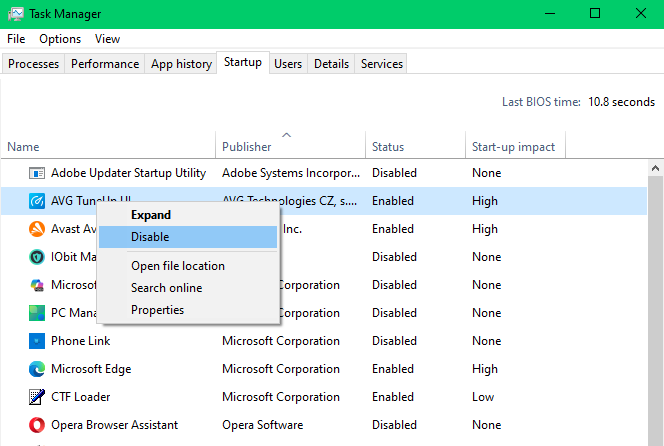
This frees up massive amounts of memory from the moment you boot up and decreases your PC's overall startup time.
4. Update Outdated GPU Drivers
Graphics drivers act as the bridge telling your operating system exactly how to communicate with your graphics card hardware. Manufacturers like AMD, Intel, and NVIDIA frequently release specific driver updates tailored for newly released game titles.
Downloading the latest drivers directly from your manufacturer’s official software (such as NVIDIA GeForce Experience or AMD Adrenalin Edition) ensures maximum software stability, fixes known visual bugs, and guarantees perfect rendering. Outdated drivers are one of the most common causes of random game crashes and poor frame pacing.
5. Adjust Power Settings
By default, Windows uses a "Balanced" power plan, which restricts CPU speeds to save energy and reduce heat. For gaming, you need maximum power.
Open the Control Panel, navigate to Power Options, and choose the "High Performance" or "Ultimate Performance" power plan. This simple tweak ensures your CPU runs at higher clock speeds and is vital for anyone asking how to optimize my PC for gaming.
6. Free up Space
A nearly full storage drive can severely slow down asset loading times, introducing stuttering and lag into your games.
Using the built-in Windows Disk Cleanup and Storage Sense tools helps remove temporary files, old Windows update caches, and useless log files. Clearing storage is another simple method for how to optimize PC for gaming that many gamers overlook, yet it drastically improves drive read/write speeds.
7. Maximize Network Performance
To reduce network latency manually, always prefer a direct Ethernet cable connection to your router over a wireless Wi-Fi signal. A wired connection guarantees lower packet loss, minimizes interference from other electronics, and provides a much more stable connection.
Additionally, remember to pause any active background downloads in clients like Steam, Battle.net, or Epic Games. You should also ensure that no other household devices are actively streaming heavy 4K video or downloading large files while you are playing in a competitive online match.
You can also explore the dedicated ping reducer feature if network latency is your primary concern.
8. Optimize Graphics Card Settings
You can manually adjust settings in the NVIDIA Control Panel or AMD Radeon Software for better performance rather than visual fidelity.
For NVIDIA users, go to "Manage 3D Settings" and change "Power management mode" to "Prefer maximum performance." Set "Texture filtering - Quality" to "High performance." These GPU configurations are perfect when determining how to optimize PC for gaming performance.
9. Change Monitor Display Settings
Having a high refresh rate monitor is useless if Windows is not properly configured to use it. Right-click your desktop, go to Display Settings, click on Advanced display settings, and ensure the refresh rate is set to the highest possible Hz (e.g., 144Hz or 240Hz). This guarantees you actually see the extra frames your GPU is rendering, resulting in buttery-smooth motion.
You can also check Smart Game Booster’s dedicated FPS booster page for the FPS-focused features.
How to Optimize In-Game Settings?
Even after modifying Windows, adjusting the actual video options inside your game is required to gain maximized gaming performance. Here are universally recommended in-game settings that allow users to follow along and achieve higher frame rates:
●Display Mode: Fullscreen (reduces input lag compared to Borderless Windowed).
●Resolution: Your monitor’s native resolution (usually 1920x1080 or 2560x1440).
●V-Sync: Off (turn this off to remove input delay, unless you experience unbearable screen tearing).
●Texture Quality: High (relies primarily on VRAM, so if you have a decent GPU, keep this high for visual clarity).
●Shadow Quality: Low or Medium (shadows are notorious FPS killers; lowering them yields huge performance gains).
●Anti-Aliasing: FXAA or low MSAA (smooths jagged edges without a heavy performance hit).
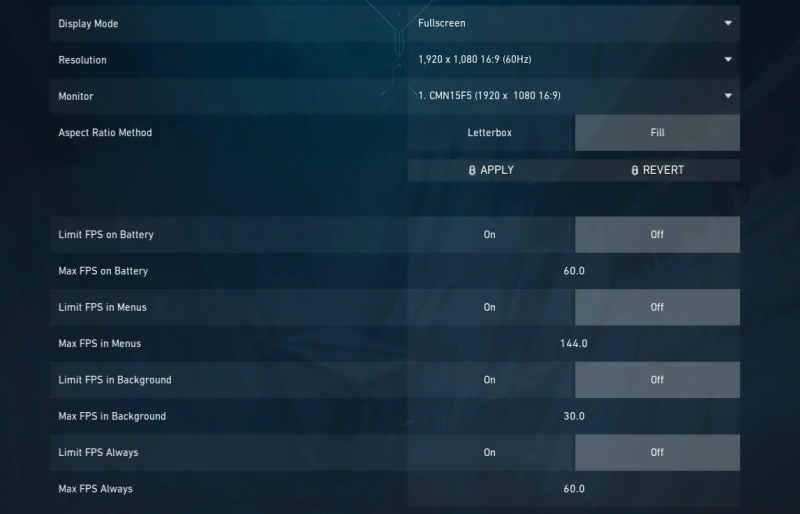
These are starting points rather than universal rules. Adjust the settings that have the largest performance cost on your specific game and GPU. This is also where understanding how to fully optimize your PC for gaming becomes useful: system-level tweaks create the foundation, but in-game settings determine how that hardware is actually being used.
FAQs about Optimize PC for Gaming
Does Windows Game Mode actually improve FPS?
Yes, for most users. While high-end systems might not see a massive jump in average FPS, Game Mode significantly stabilizes frame rates and prevents sudden stuttering. It accomplishes this by stopping background system processes and pausing Windows updates while you are gaming.
What is Hardware-Accelerated GPU Scheduling (HAGS), and should I enable or disable it?
Hardware-Accelerated GPU Scheduling allows your graphics card to manage its own memory rather than relying on the Windows operating system. This reduces latency and improves performance. You should generally enable it in your Windows graphics settings, especially if you have a modern NVIDIA or AMD card.
How do I know if my PC is thermal throttling?
Thermal throttling happens when your CPU or GPU gets too hot and artificially lowers its clock speeds to cool down. You can identify this if you start a game with high FPS, but the frame rate suddenly drops and stays low after 10 to 15 minutes. Using an in-game temperature monitor can confirm this issue.
Conclusion
Ultimately, understanding how to optimize PC for gaming transforms a sluggish, stuttering experience into a buttery-smooth competitive advantage. How to increase performance of PC for gaming comes down to combining hardware tweaks, Windows adjustments, and proper in-game settings. By mastering these optimization techniques, you unlock your system's true potential. To skip the hassle of manual configuration, we highly recommend you download Smart Game Booster to automatically optimize PC performance for higher FPS and lower ping in one click.