Dota 2 lagging or stuttering can turn a winning team fight into a loss in seconds. The cause could be poor PC performance, an unstable network connection, outdated graphics drivers, or a recent game update. Fortunately, you don’t need to upgrade your entire PC right away. This guide explains how to identify the cause and walks you through practical fixes for low FPS, high ping, and persistent stuttering.

Why Is Dota 2 Lagging or Stuttering?
Dota 2 lag generally falls into two categories: visual lag, which causes low FPS, frame drops, or stuttering, and network lag, which delays your actions because of connection or server communication issues. Identifying the type of lag you're experiencing is the first step toward fixing it.
Outdated or corrupted graphics drivers
Too many background programs consuming CPU, memory, or disk
In-game graphics settings that are too high for your hardware
Low FPS or sudden frame drops
Unstable Wi-Fi or network congestion
Packet loss or high ping between your PC and the game server
Downloads, cloud sync, or streaming using your bandwidth
CPU or GPU overheating
Recent game update or damaged game files
Dota 2 Lagging With Good Ping? How to Identify the Cause
First, clear up one thing: a low ping doesn't always mean Dota 2 will run smoothly. If your ping is normal but the game still stutters, the issue may be related to your PC's performance rather than your network. Here are a few ways to narrow down the cause.
Check your in-game FPS and ping. Turn on the display for network and FPS information. If ping stays low and steady but your FPS drops or the picture stutters, the problem is on your PC. If ping or packet loss spikes when the lag occurs, investigate your network connection.
Check system resource usage. Open Windows Task Manager to review CPU, memory, and GPU usage while Dota 2 is running. If a resource is consistently near full utilization, it may be limiting game performance.
Watch when the lag happens. Dota 2 lags during team fights, when many effects are on screen, may indicate a CPU or GPU bottleneck. Delay or rubber-banding in every situation, even when little is happening, usually points to network instability.
Compare with another game or website. If other games also stutter, suspect your drivers, system resources, or hardware temperatures. If only online matches feel bad while offline games run well, check your connection.
| Symptom |
Likely cause |
Go to |
| Low FPS, stutter, freezes, normal ping |
PC performance |
Fix Low FPS section |
| High ping, packet loss, rubber-banding |
Network |
Fix Network Lag section |
How to Fix Dota 2 Lagging and Low FPS?
If your PC is causing Dota 2 lag, work through these fixes one at a time.
Lower demanding graphics settings
Open Dota 2's video settings and reduce demanding options, such as shadows, effects, and other visual details. If your FPS remains low, try lowering the rendering resolution as well.
Tip: Change a few settings at a time and test whether performance improves.
Close unnecessary background programs
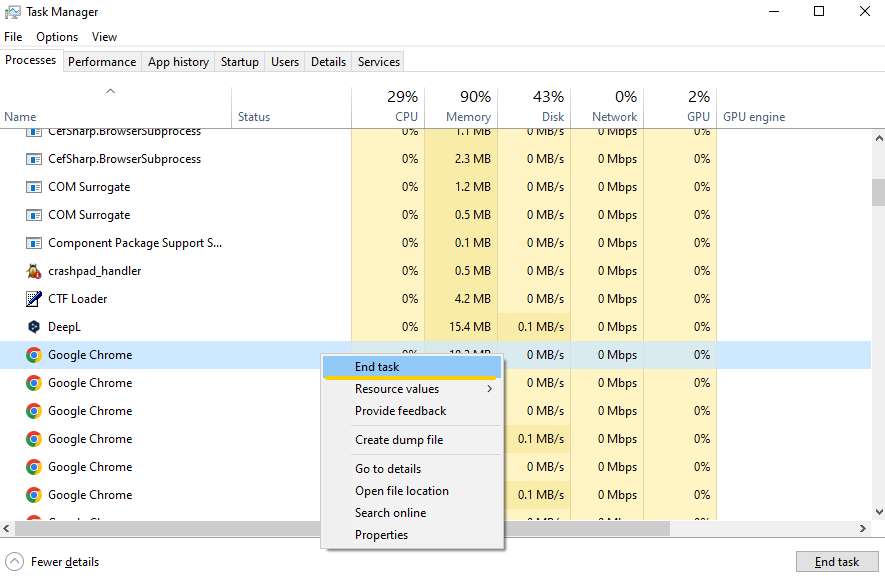
To do this, simply press Ctrl + Shift + Esc to open Task Manager and end tasks you do not need while playing, such as browsers or unnecessary launchers. Avoid ending unfamiliar processes or essential Windows services, as some are required for normal system operation.
Update or roll back your graphics drivers
Outdated or problematic GPU drivers can contribute to Dota 2 low FPS and stuttering. Download the latest driver from your GPU maker's website. If the lag started right after a driver update, consider rolling back to the previous version if the option is available.
Switch to a high-performance power plan
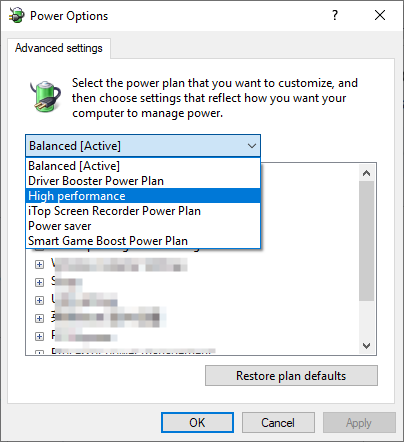
On a laptop or power-managed PC, a restrictive power mode may limit performance. Open Control Panel > Hardware and Sound > Power Options and choose High Performance. Keep in mind that higher-performance settings may also increase power consumption and heat.
Also Read: 6 Easy Ways to Boost Internet Speed for Gaming >>
After each change, play a short match or test the same type of in-game situation. This makes it easier to determine which fix actually helps.
How to Fix Dota 2 Network Lag and High Ping?
If FPS remains stable but Dota 2 feels delayed, focus on your network connection instead of lowering graphics settings. Try these fixes below:
Use a wired connection
Connect your PC to your router with an Ethernet cable if possible. A wired connection can provide greater stability than Wi-Fi. If you need to use Wi-Fi, move closer to the router and reduce interference from walls and other wireless devices.
Choose a better server region
In Dota 2's matchmaking settings, pick a server region with the lowest ping for you. A geographically closer server usually means lower latency.
Restart your router and flush DNS
Restarting network equipment can sometimes resolve temporary connection problems. Unplug it according to the manufacturer's instructions, wait briefly, and reconnect it. You can also open Command Prompt and run ipconfig /flushdns to clear the DNS cache.
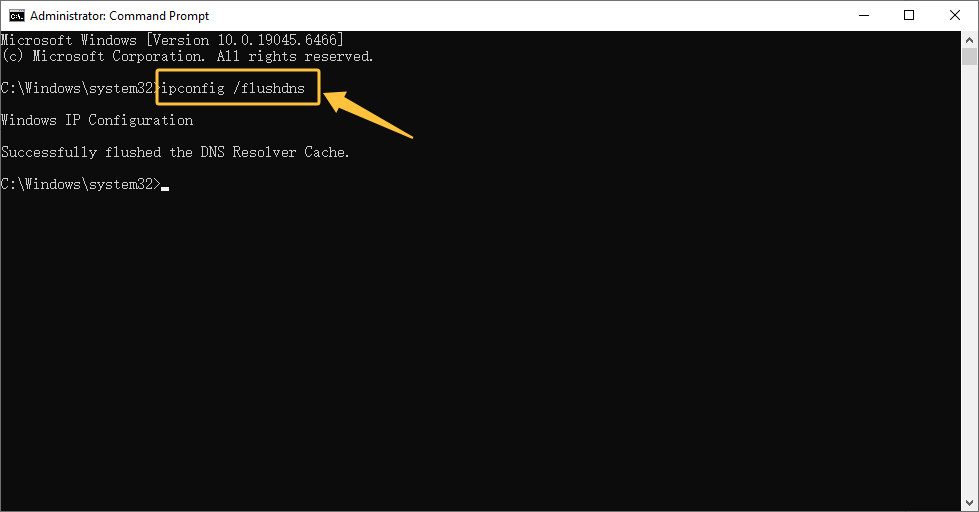 Note: This clears the local DNS resolver cache, but it generally won't fix high in-game ping or packet loss caused by network congestion or server distance.
Also Read: Best Ping Reducers 2026 for Better Gaming >>
Check your firewall and antivirus
Make sure Windows Firewall or your security software isn't blocking Dota 2 or Steam. But do not disable your firewall or antivirus entirely, as this can expose your PC to security risks.
Check for service or server problems
If Dota 2 suddenly becomes unresponsive for many players, investigate official Dota 2 or Steam community announcements and service-status information before making major changes to your PC. If the issue is server-side, you just need to wait for it to be resolved.
One-Click Boost Dota 2 Performance with Smart Game Booster
Low FPS and stuttering can disrupt your Dota 2 matches, while troubleshooting every possible cause manually takes time. A dedicated game optimization tool can simplify the process and help improve your gaming experience. Smart Game Booster is a convenient gaming companion that optimizes system resources, monitors FPS and hardware usage, and identifies potential performance bottlenecks. Instead of constantly checking Task Manager, you can spend more time enjoying Dota 2 and less time troubleshooting performance issues.
Key Features of Smart Game Booster
- Enjoy lag-free & low-ping gaming
- 100+ games supported
- Severs from all over the world
- Boost in-game FPS
-
Boost Dota 2 Performance in One Click
This free game booster automatically frees up system resources before you begin playing Dota 2, saving you from performing numerous manual tasks. By reducing competition for CPU and memory from other programs, it keeps your system in optimal condition for peak gaming performance.
-
Keep Drivers and System Game-Ready
Outdated drivers are a common cause of lag. Smart Game Booster allows you to keep drivers and system settings up to date, so you do not have to check them by hand. It also supports game defragmentation for faster game launch and running.
-
Monitor FPS and Track Performance
With FPS and system load monitoring, you can see how your PC performs during a match and confirm whether the changes help. Its Can I Run It feature can also help analyze your PC's ability to run supported games by comparing its hardware with game requirements.
Follow the guide to fix Dota 2 lagging in 4 Steps.
Step 1. Download and install Smart Game Booster.
Step 2. Locate Dota 2 on the game launcher and click on it.
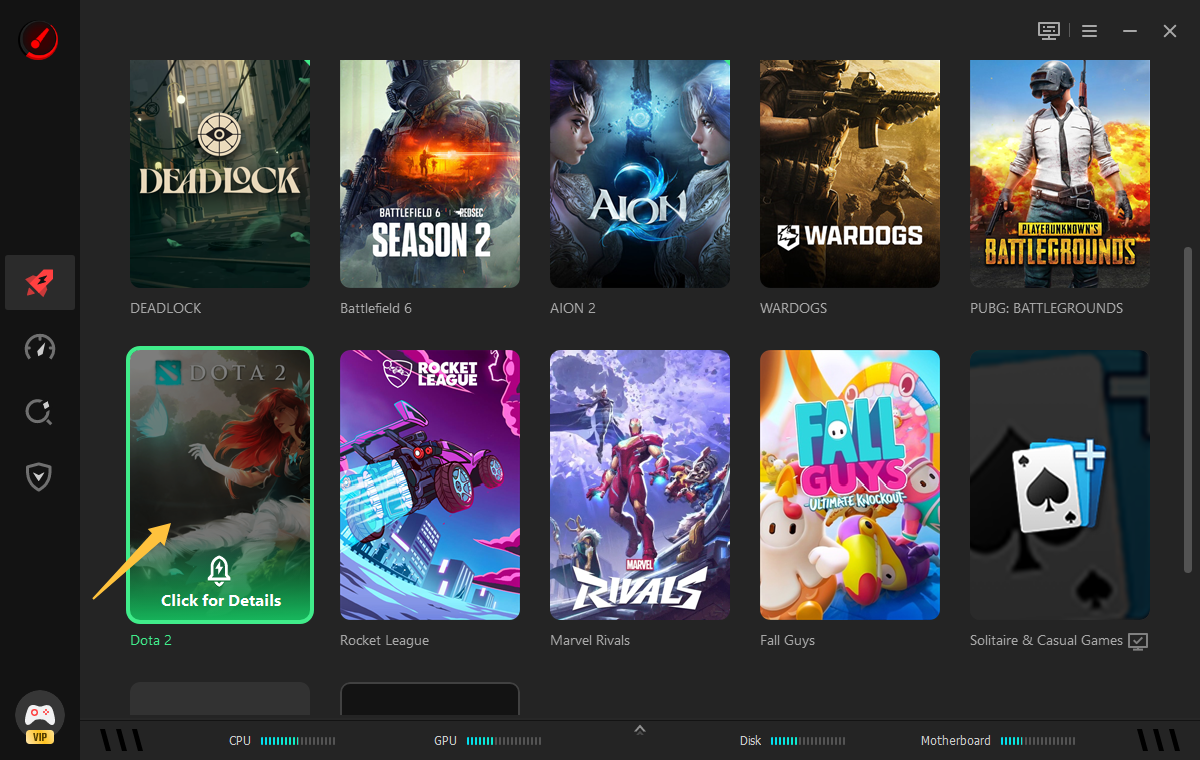
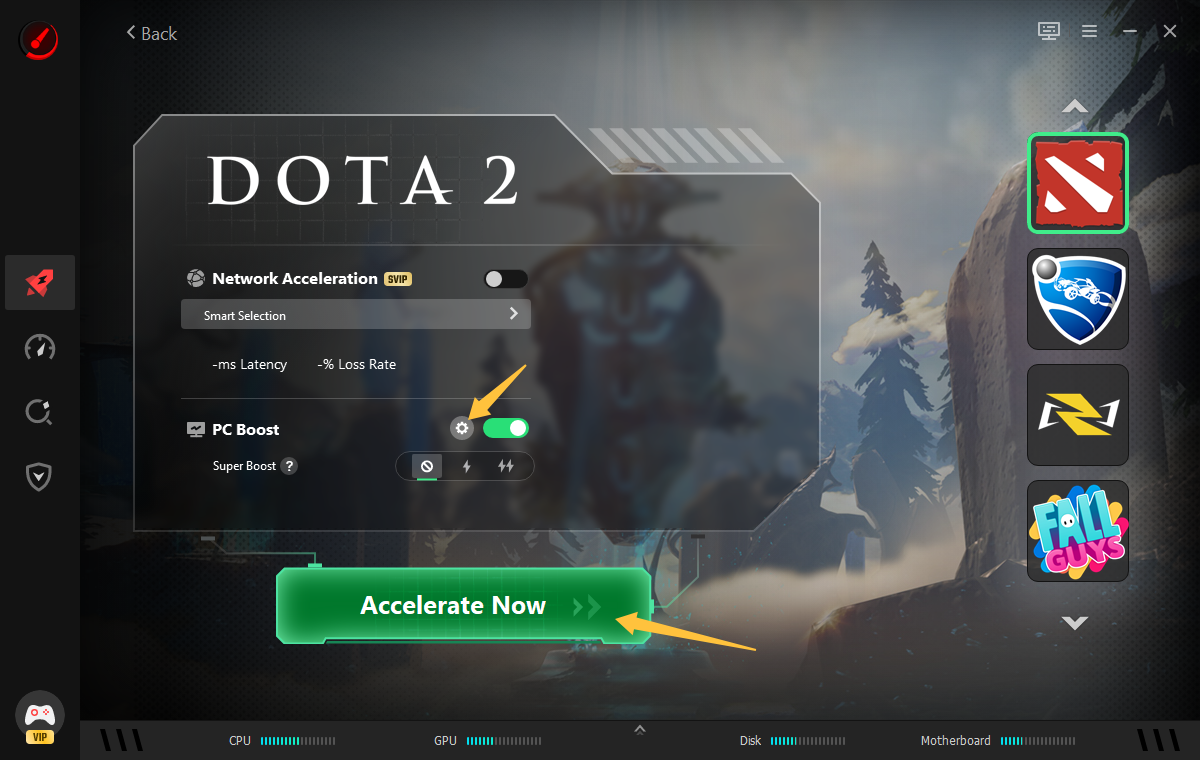
Step 3. Click Settings to review and customize the optimization options. Then click Accelerate Now to apply it immediately.
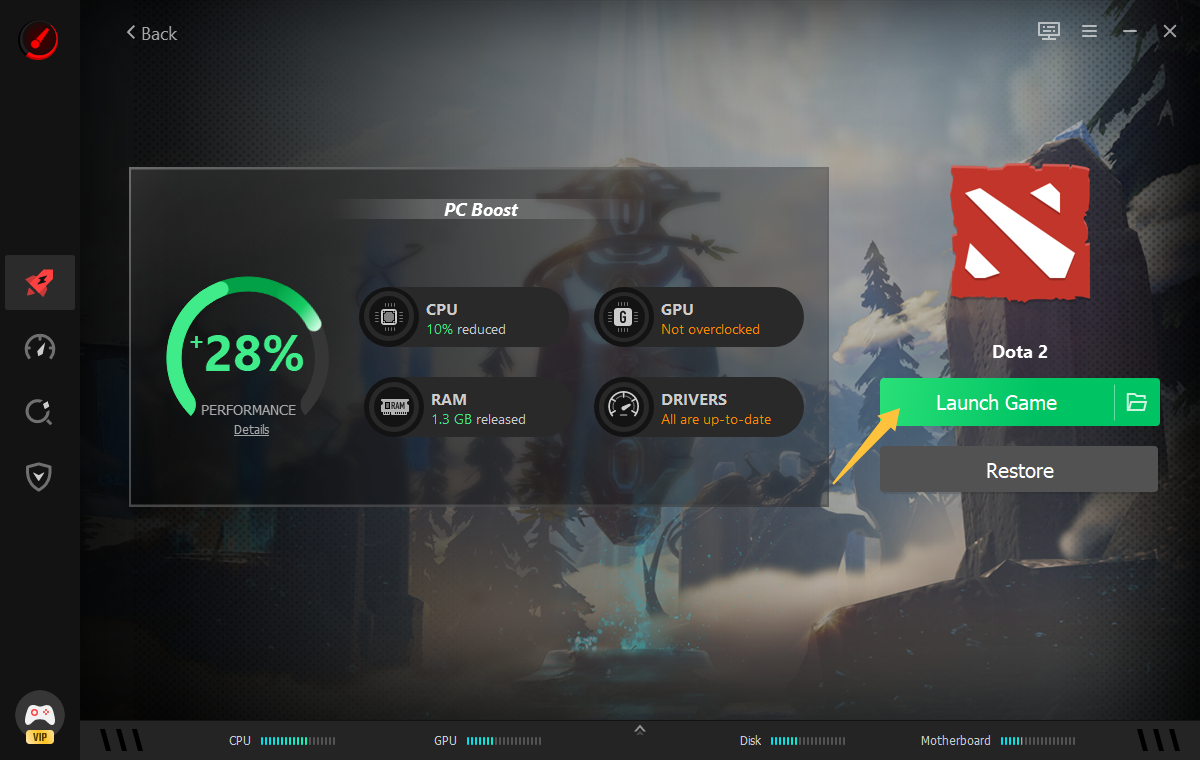
Step 4. Review the optimization report to check what changes were applied, then click Launch Game to start your smooth gaming process now.
Still Lagging on a High-End PC? Extra Fixes for Dota 2 Stutters
Even a powerful PC can stutter in Dota 2. If the basic fixes haven't helped, investigate these possibilities.
Verify Dota 2 game files
If stuttering started after an update or the game behaves unusually, check its installed files through Steam.
Open Steam and go to Library.
Right-click Dota 2 and select Properties.
Open Installed Files.
Select Verify integrity of game files and wait for the process to finish.
Steam will check the installation and replace damaged or missing files when necessary.
Monitor CPU and GPU temperatures
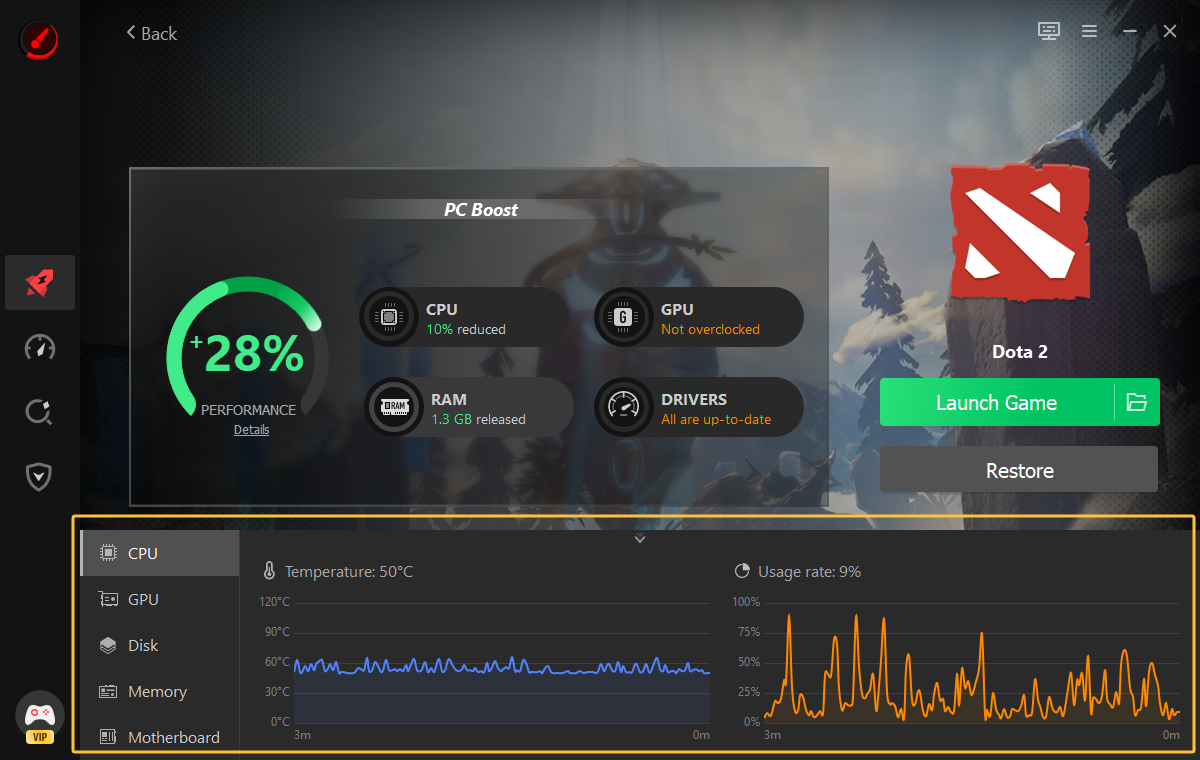
Use a trusted hardware-monitoring utility like Smart Game Booster to check temperatures during gameplay. If temperatures become excessive or performance drops as the system heats up, inspect airflow, fans, and dust buildup.
Update Windows and check for known issues
Check the latest Windows updates and review community discussions for known issues after a recent patch or Dota 2 patches. If the stuttering began immediately after an update, investigate whether other players are reporting the same issue.
If none of these approaches work, consider reinstalling Dota 2 as a last resort. Make sure important settings and files are backed up where appropriate before reinstalling.
Conclusion
To fix Dota 2 lagging, start by working out whether the problem is your PC or your network. Then follow the methods provided above: update your drivers, close background programs, tune your settings, and improve your connection as needed.
These manual steps work, but they take time and need to be performed repeatedly. That is where an automatic tool comes in handy. Smart Game Booster offers a convenient way to review performance and handle the optimization before your next match. Test each change and compare the results so you can find the fix that works for your PC.
Key Features of Smart Game Booster
- Enjoy lag-free & low-ping gaming
- 100+ games supported
- Severs from all over the world
- Boost in-game FPS