Deadlock is fast-paced, and every frame matters. However, many players experience deadlock FPS drops, random stutters, or inconsistent frame rates during matches, especially after game updates. Whether you're dealing with FPS drop deadlock issues on a high-end PC or sudden performance dips on a mid-range system, this guide covers the most effective solutions. Follow these six methods for Deadlock FPS fix to stabilize FPS, reduce stuttering, and enjoy a smoother gaming experience.
Why Are Deadlock FPS Drops Happening?
Several factors can trigger deadlock FPS drops, including outdated graphics drivers, background applications consuming system resources, incorrect graphics settings, Windows power limitations, shader recompilation after updates, and overheating hardware. If you've noticed deadlock FPS drops after update, the issue may also be caused by newly introduced game optimizations or driver compatibility changes.
Fortunately, most of these problems can be fixed without upgrading your hardware. Check Deadlock FPS boost guide below:
Method 1. Update Your Graphics Driver
Before adjusting advanced settings, make sure your graphics driver is fully updated. GPU manufacturers frequently release Game Ready drivers that improve performance and fix compatibility issues for newly updated games. Running an outdated driver is one of the most common reasons behind deadlock FPS drop and unstable frame pacing.
Update GPU Driver with Device Manager
Step 1. Press Windows + X and select Device Manager.
Step 2. Expand Display adapters.
Step 3. Right-click your NVIDIA, AMD, or Intel graphics card.
Step 4. Select Update driver.
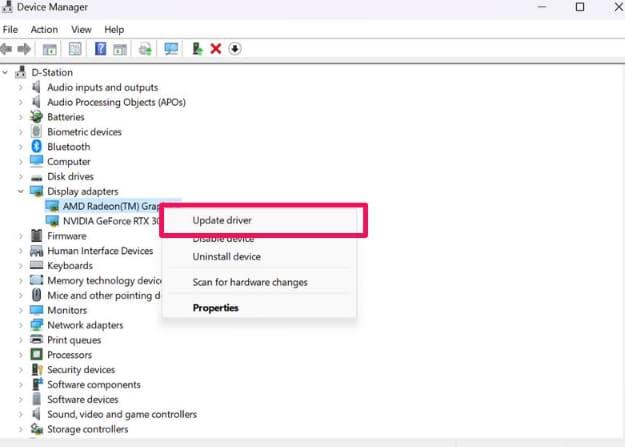
Step 5. Choose Search automatically for drivers.
Step 6. Follow the on-screen instructions to install an available update.
Tips: If you want to scan for outdated GPU drivers automatically, Driver Booster can simplify the process.
Method 2. Lower Graphics Settings That Impact FPS Most
Many players lower every graphics option equally, but not every setting has the same performance impact. Instead of sacrificing visual quality across the board, reduce only the options that consume the most GPU resources. This approach often delivers significantly smoother gameplay while maintaining an attractive image.
Step 1. Launch Deadlock and go to the main menu.
Step 2. Open Settings from the menu.
Step 3. Navigate to the Graphics or Video tab.
Step 4. Adjust key performance settings such as resolution, shadow quality, effects, texture quality, and more. Some recommended settings are shown below.
Shadow Quality — Medium or Low
Ambient Occlusion — Low
Effects Quality — Medium
Volumetric Lighting — Low
View Distance — Medium
Texture Quality — High (if VRAM allows)
Motion Blur — Off
V-Sync — Off
Upscaling (DLSS/FSR/XeSS) — Enable if available
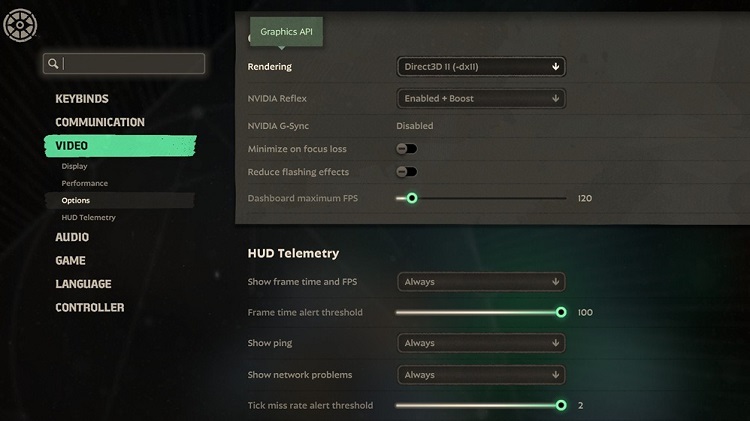
Step 5. Restart the game after applying these settings.
Method 3. Disable Background Programs and Overlays
Background software constantly competes with Deadlock for CPU time, RAM, and GPU resources. Overlays from game launchers, Discord, browsers, RGB software, and recording applications can introduce stuttering or unexpected frame drops. Closing these unnecessary programs is a quick way to improve overall gaming stability.
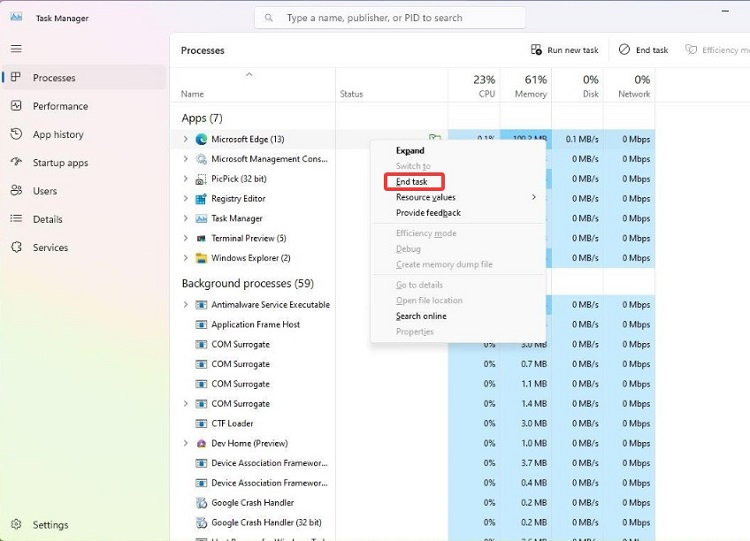
Steps to Disable Background Programs
Step 1. Press Ctrl + Shift + Esc to open Task Manager.
Step 2. Go to the Processes tab.
Step 3. Look for apps using high CPU, Memory, or Disk (e.g., Chrome, Discord, launchers).
Step 4. Right-click the unwanted program.
Step 5. Click End Task to close it.
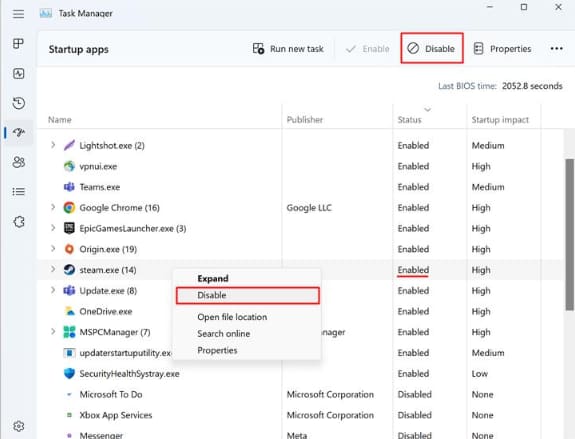
Step 6. Also in Task Manager, switch to the Startup apps.
Step 7. Find an application you don't need to launch when Windows starts.
Step 8. Right-click it and select Disable. Or you can select the unnecessary app and click Disable in the upper right corner to disable it.
Method 4. Optimize Deadlock with Smart Game Booster
Even with updated drivers, Windows may still waste valuable CPU and RAM resources on unnecessary background services. Smart Game Booster automatically prepares your system for gaming by optimizing Windows, freeing memory, and prioritizing game performance, making it an excellent solution for reducing deadlock FPS drops in game.
Why Smart Game Booster helps fix Deadlock FPS drops
Smart Game Booster is designed specifically for gamers who want smoother gameplay without manually changing dozens of Windows settings. It combines game optimization, hardware monitoring, and performance tuning in one application.
Key features related to Deadlock FPS drops
One-Click Game Optimization: Automatically closes unnecessary background processes and frees system resources before launching Deadlock. This can work alongside an FPS booster to create a smoother gaming environment with fewer resource conflicts.
Game Boost Mode: Allocates more CPU and memory resources to the game, helping reduce sudden FPS drops in Deadlock during intense combat. It can also benefit other demanding titles launched through a game launcher PC setup.
Driver Update Center: Detects outdated graphics drivers and installs the latest Game Ready versions for improved Deadlock compatibility.
Real-Time Hardware Monitoring: Displays CPU, GPU, RAM usage, temperatures, and FPS so you can identify hardware bottlenecks causing performance drops.
Performance Tweaks: Optimizes Windows services, startup items, and gaming-related system settings to improve frame consistency. These optimizations can also be useful when looking for a free lag reducer for Roblox and other online games.
How to optimize Deadlock
Step 1. Download and install Smart Game Booster on your computer.
Step 2. Open this program and add Deadlock to the Game Box. Then, select Deadlock from the game list.
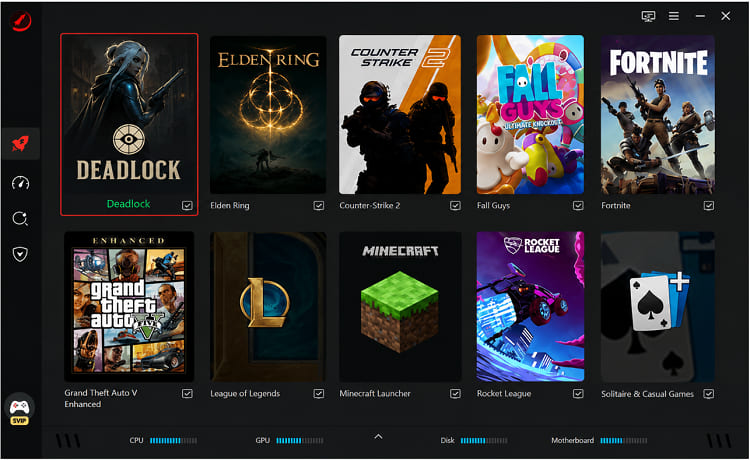
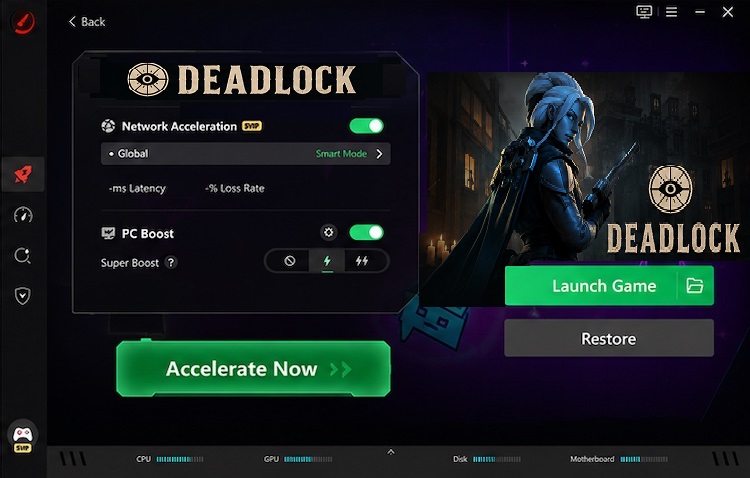
Step 3. Enable Network Acceleration and select a suitable PC Boost mode that meets your requirements. Then, click Accelerate Now to start the optimization process.
Method 5. Change Windows Power and Graphics Settings
Windows power-saving features may prevent your CPU and GPU from reaching their maximum performance. Switching to gaming-focused settings allows your hardware to maintain higher clock speeds, which helps eliminate sudden Deadlock FPS drops during demanding gameplay sessions.
Recommended Windows settings
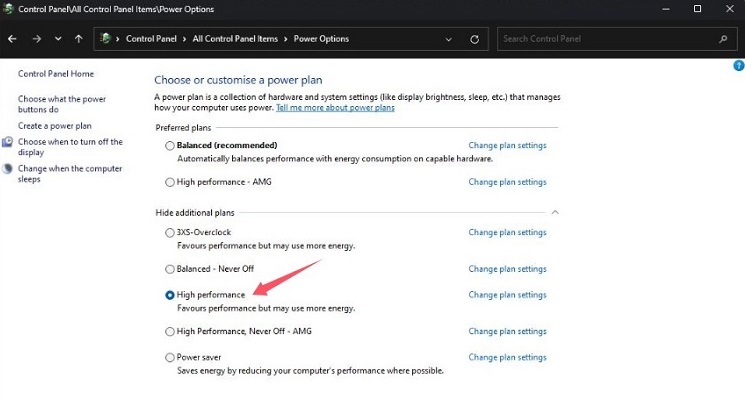
Enable High Performance Power Plan
Step 1. Press Windows + R to open the Run dialog.
Step 2. Type powercfg.cpl and press Enter.
Step 3. In the Power Options window, click Show additional plans if available.
Step 4. Select High performance. Then, close the window to save the setting.
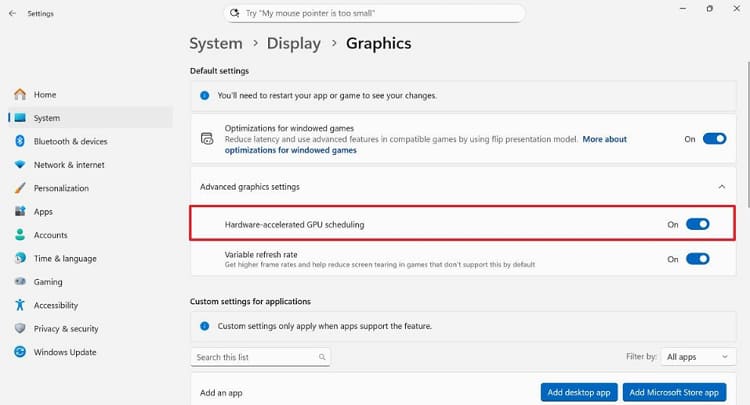
Enable Hardware-Accelerated GPU Scheduling
Step 1. Press Windows + I to open Settings.
Step 2. Go to System > Display > Graphics.
Step 3. Click Change default graphics settings.
Step 4. Find Hardware-accelerated GPU scheduling.
Step 5. Turn the switch on.
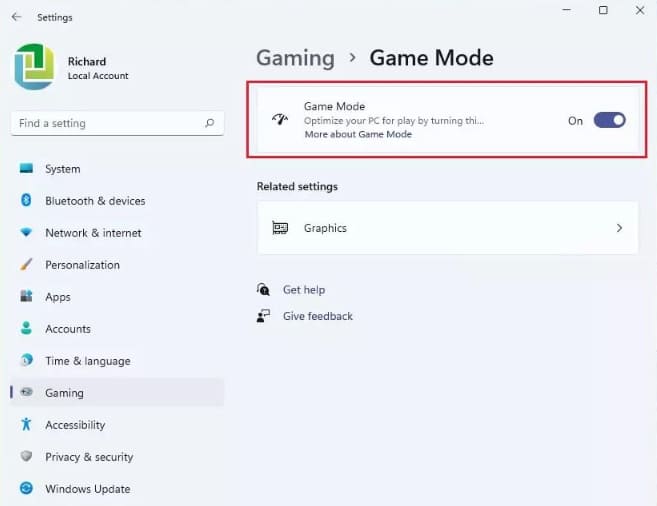
Enable Game Mode
Step 1. Press Windows + I to open Windows Settings.
Step 2. Navigate to Gaming and click Game Mode.
Step 3. Turn on Game Mode.
Method 6. Fix FPS Drops After Deadlock Updates
Many players report deadlock FPS drops after update because shader caches must be rebuilt or newly added graphics features increase GPU workload. Fortunately, these issues are often temporary and can be minimized with a few simple maintenance steps.
What to do after an update
Restart your PC after installing the update.
Verify game files through Steam.
Clear DirectX Shader Cache.
Update your graphics driver.
Delete old shader cache if necessary.
Wait for shader compilation to finish before entering competitive matches.
If performance suddenly worsens after a specific patch, monitor future game updates since developers often release optimization hotfixes shortly afterward.
Frequently Asked Questions
Why do I have Deadlock FPS drops on a high-end PC?
Even powerful systems can experience deadlock frame drops because of outdated drivers, shader compilation, background programs, or Windows settings that limit performance.
Why are Deadlock FPS drops worse after an update?
Updates may rebuild shaders, change rendering techniques, or introduce new graphical effects. This is why many players encounter deadlock low FPS after update until new patches or optimized GPU drivers are released.
Can Smart Game Booster improve Deadlock performance?
Yes. Smart Game Booster helps reduce background resource usage, optimizes Windows for gaming, updates graphics drivers, and provides real-time hardware monitoring, making it one of the easiest ways to reduce deadlock FPS drops in game.
Conclusion
Experiencing deadlock FPS drops doesn't necessarily mean your hardware is outdated. In most cases, updating your graphics driver, optimizing Windows, lowering demanding graphics settings, disabling background applications, and applying the latest system optimizations are enough to restore smooth gameplay. If you want an easier all-in-one solution, Smart Game Booster combines automatic optimization, driver updates, and performance monitoring to help eliminate FPS drop deadlock issues and keep your matches running at consistently high frame rates.
Key Features of Smart Game Booster
- Enjoy lag-free & low-ping gaming
- 100+ games supported
- Severs from all over the world
- Boost in-game FPS