Isn't it frustrating when you line up a perfect headshot in Valorant, only to have your screen stutter, your character teleport, or your bullets register a full second late? Valorant lagging is one of the most common complaints among players in 2026, and it doesn’t always mean your internet is the problem. Sometimes it’s your hardware, sometimes it’s your settings, and sometimes it’s a combination of both. In this guide, we are going to answer the question: how to fix Valorant lag. By the time you finish reading, you’ll have a silky-smooth experience that actually lets you focus on out-aiming your opponents instead of fighting your own PC.
Why is My Valorant Lagging So Bad?
Before we start the fixes, let’s quickly break down what’s actually causing your Valorant lagging in the first place. Understanding the root cause makes it way easier to pick the right solution.
Server Distance or Bad Network Routing – Even if you have gigabit internet, if you’re connecting to a server on the other side of the world, your data has to travel thousands of miles. That adds latency, plain and simple. Sometimes your ISP just routes your traffic through congested nodes, which can cause Valorant servers lagging even when your connection seems fine otherwise.
Hardware Bottlenecks and Low FPS – Valorant is actually pretty well-optimized, but that doesn’t mean your PC is off the hook. If your CPU or GPU can’t keep up with the game’s rendering demands, you’ll experience frame drops and stuttering. This is especially common if you’re running high graphics settings on older hardware.
Local Network Congestion – This one’s sneaky. Someone in your house streaming Netflix, a family member downloading a massive update, or even your phone backing up photos to the cloud—all of these can eat up your bandwidth and cause Valorant lag spikes right when you need stable performance most.
Now that you know what you’re up against, let’s get into the actual fixes.
How to Fix Valorant Lagging: 3 Ways
Here, we are going to talk about three distinct approaches to tackle Valorant lagging. You can try them one at a time, or stack them all for maximum effect. Let’s go.
Optimize In-Game Video Settings
This is the lowest-hanging fruit, and honestly, it’s where most players should start. Dropping those intensive visual configurations frees up massive GPU and CPU resources, which is crucial for learning how to fix Valorant lag. Here’s what you need to do:
Step 1: Launch Valorant, click the gear icon in the top-right corner, and navigate to the Video tab. From there, select Graphics Quality.
Step 2: Set these options to the following values for maximum performance:
Material Quality: Low
Texture Quality: Low or Medium
Detail Quality: Low or Medium
Vignette: Off
V-Sync: Off (this one’s non-negotiable—V-Sync adds input lag)
Anti-Aliasing: None or FXAA
Bloom, Distortion, Cast Shadows: All Off
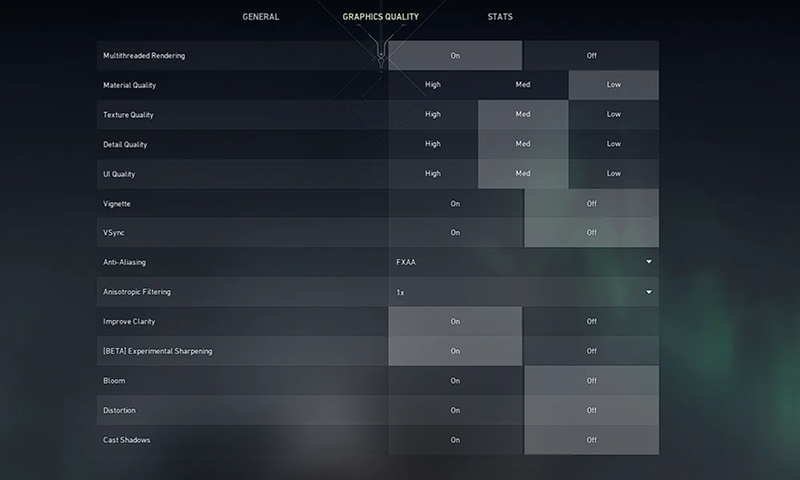
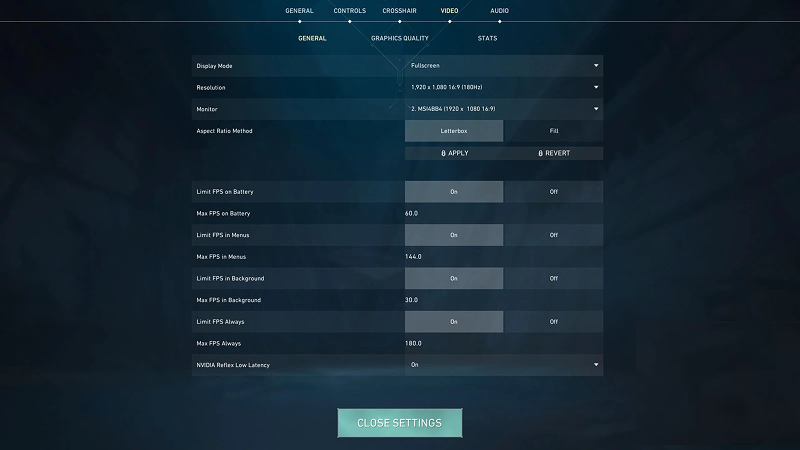
Step 3: If you have an NVIDIA GPU, set NVIDIA Reflex Low Latency to On + Boost—this can reduce system latency by 20–50%. AMD users should enable Radeon Anti-Lag in the AMD software. Also make sure Multithreaded Rendering is turned On—this is the single most important performance setting in the game.
Also Read: PC Game Launcher – Here’s a List of Launchers >>
Configure Network Buffer and Update Network Drivers
Sometimes Valorant lagging has nothing to do with your framerate and everything to do with how your system handles network data. However, if you're dealing with Valorant lagging but internet is fine, outdated drivers, incorrect network settings, or system-level issues may be the real cause. This section addresses network stutters directly by adjusting Valorant’s built-in network settings, a key step in how to fix Valorant network lag.
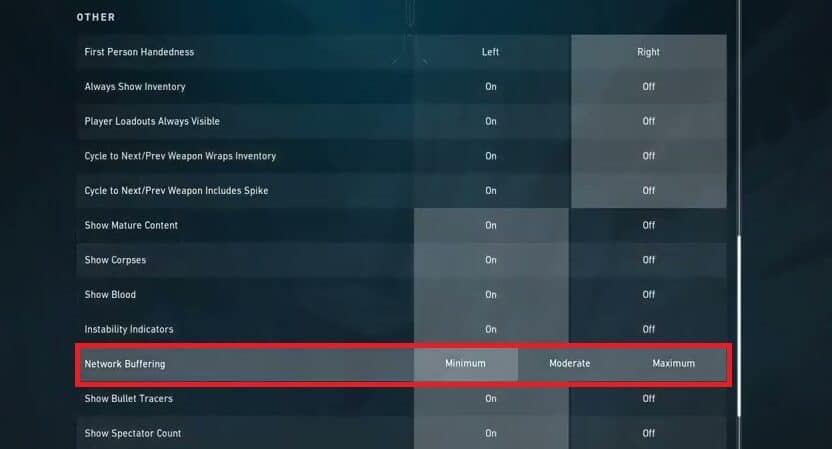
Step 1: Go to Settings > Game and scroll down to the Network section. Set Network Buffering to Minimum if you have a stable connection—this reduces input delay. If your connection is unstable, try Moderate instead. Also, turn on Network Statistics so you can monitor your ping and packet loss in real time.
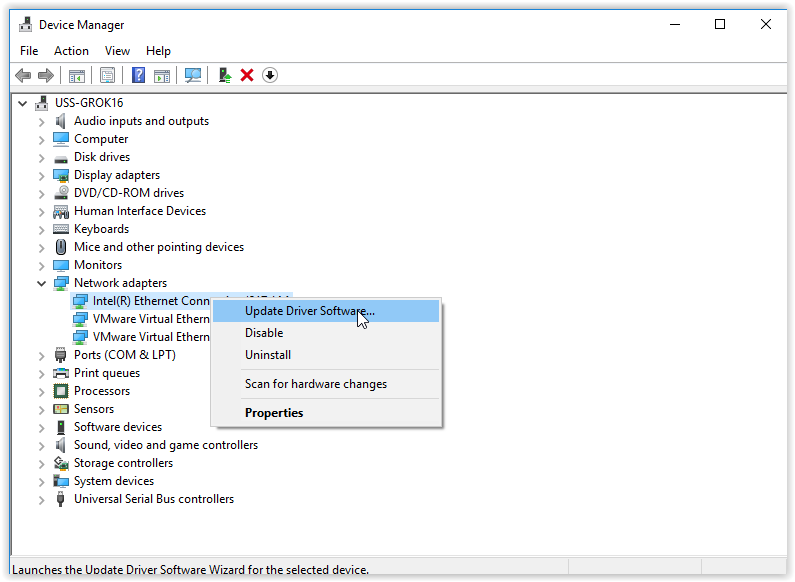
Step 2: Outdated or corrupted network drivers are a silent killer for online gaming. So, Go to Device Manager, right-click your network adapter, and hit Update driver. Choose Search automatically for drivers. If Windows doesn’t find anything, check your motherboard manufacturer’s website for the latest driver.
Step 3: Open Command Prompt as administrator and run:
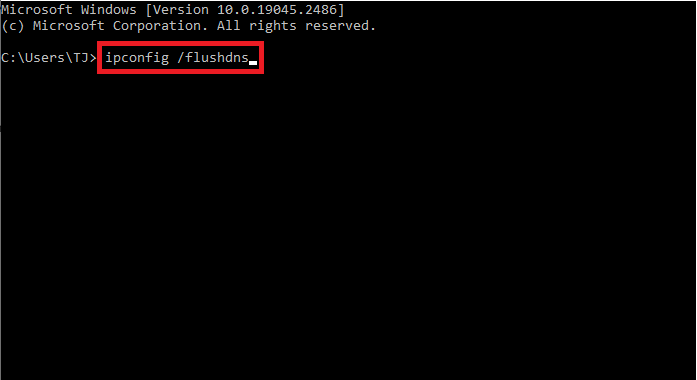
This clears outdated DNS entries that might be slowing down your connection. While you’re at it, consider switching to public DNS servers like Google (8.8.8.8) or Cloudflare (1.1.1.1) for potentially faster routing.
Check If Background Apps Are Eating System Bandwidth
This one’s way more common than you’d think. You might have Chrome running with many tabs open, or Steam quietly downloading a 50GB update in the background, or maybe Windows itself is busy installing updates. All of these are hidden culprits behind how to fix Valorant lag.
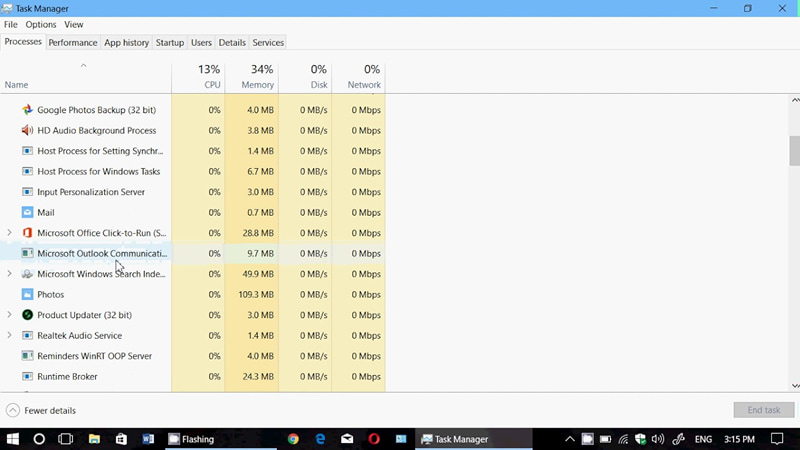
Open Task Manager (Ctrl + Shift + Esc) and look at the Network and CPU columns. Sort by each and see what’s consuming resources. Close anything that isn’t essential—browsers, launchers, streaming software, file sync tools like OneDrive or Google Drive. Even Discord can eat up bandwidth if you’re in a voice call with video enabled.
Now, here’s the thing—manually doing all of this every single time you want to play gets old really fast. You have to remember which settings to change, which background apps to close, and hope you didn’t miss anything. That’s why there’s a much smarter way to handle all of this. Keep reading.
Use Smart Game Booster to Fix Valorant Lagging
Let me introduce you to Smart Game Booster—a powerful, free tool that automates the entire system optimization process. Instead of manually closing tasks, tweaking registries, and hunting down drivers every time you play, this software optimizes your PC with a single click. Here’s how you can fix Valorant lagging with it easily.
Step 1: Head over to the official website, download the latest version and install it.
Step 2: Open the app and you’ll see a clean interface with popular games listed there. Just click on Valorant.
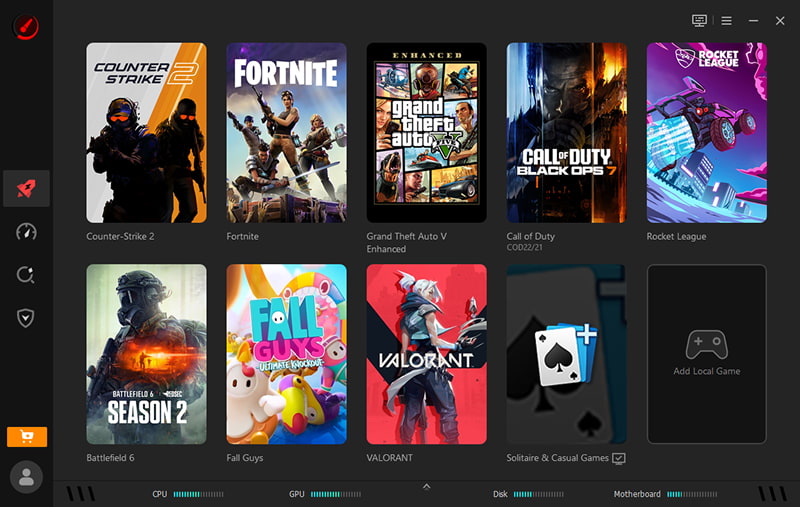
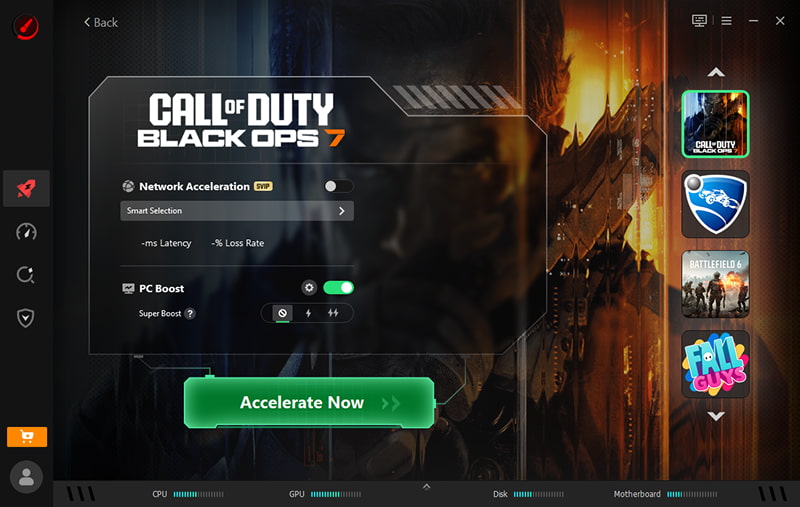
Step 3: Hit the Boost button and let Smart Game Booster do its thing. And that’s it. No digging through settings menus, no trial and error.
What else does it do?
Huge FPS boost – It unlocks your CPU and GPU’s full potential for higher frame rates. The Super Boost feature can even overclock your GPU and VRAM safely, boosting performance significantly.
Driver update & system tweaks – It scans for outdated drivers and updates them automatically, so you never have to worry about driver-related instability again.
System temperature monitoring – You can monitor your FPS and hardware temperatures in real time while playing, so you’ll know if overheating is becoming an issue.
Think of it as having a dedicated PC technician sitting next to you, optimizing your system right before every match. And if you’re wondering about image sharpening for games, Smart Game Booster can help you tweak those visual settings too—without sacrificing performance.
Key Features of Smart Game Booster
- Enjoy lag-free & low-ping gaming
- 100+ games supported
- Severs from all over the world
- Boost in-game FPS
Final Words
Let’s recap everything we covered. Valorant lagging can come from multiple sources—poor in-game video settings, network configuration issues, background apps eating your bandwidth, or a combination of all three. As you can see, there are several methods to solve this problem, but if you want the easiest, most effective way to fix Valorant lagging once and for all, Smart Game Booster is your answer. Whether you’re dealing with Valorant lagging but internet is fine or struggling with frame drops that make no sense, this tool covers both sides of the problem!