For a fast-paced video game like Valve's Deadlock, every fraction of a second counts. A high and stable frame rate makes your gameplay more fluid, reduces visible stutter, and makes fast-moving targets easier to track. However, sometimes, even players with powerful hardware find their FPS stuck or artificially capped, leading to a less responsive experience. Fret not. In this guide, you can learn how to unlock FPS Deadlock, identify what's limiting your frame rate, and apply practical optimizations to achieve smoother and more consistent performance.
Why FPS Matters for Deadlock?
In competitive shooters like Deadlock, frame rate is not just a simple performance number. A higher frame rate improves visual smoothness, input responsiveness, and your ability to react quickly under pressure.
Before diving into how to unlock FPS Deadlock, let’s have a look at why it matters.
●Smoother target tracking: More frames per second can fill in the gaps between enemy movements, which makes strafes, peeks, and ability animations easier to follow.
●Lower input latency: Each additional frame will shorten the delay between mouse or keyboard action and on-screen response, helping you land shots and abilities faster.
●Reduced visual distractions: Higher frame rates minimize ghosting, tearing, and stutter. So your focus can stay on the fight instead of fighting the image itself.
●Better competitive consistency: Stable high FPS improves 1% lows and frame-time consistency. This is rather important during chaotic team fights where sudden drops can cost you the round.
●Improved overall game feel: When the engine is delivering frames your hardware supports as fast as possible, the overall game will respond much more tightly.
Signs of Active FPS Limit on Deadlock
Now that you understand why FPS matters, the next step is to identify the possible issue. Here are some common signs that you might be experiencing Deadlock low FPS.
●The "Flat Line" Frame Rate
Your FPS counter stays locked at a round number (60, 120, 144, or 240) regardless of scene complexity. This is a classic indicator of an active cap.
●Low GPU Utilization Under Load
Your GPU usage stays well below 90-95 percent, and the FPS refuses to climb. This means the hardware has headroom that the game is not using.
●FPS Drops into Simple Fractions (V-Sync Lock)
Your frame rate consistently matches your monitor’s refresh rate or drops to a fraction of it, which can be a sign that V-Sync is limiting FPS.
●Frame Rate Drops When Window Focus is Lost
When you open another window, it causes an immediate low FPS on Deadlock. This usually means the engine is reacting to focus events with a limit.
●Resolution Changes While Frame Rate Remains Unchanged
When you switch to a lower resolution, it produces no FPS improvement. This can suggest a CPU bottleneck, frame-rate cap, or another performance limitation.
How to Unlock FPS on Deadlock?
Once you've identified a possible limit, it’s time to address the issue. Let’s see how to uncap FPS on Deadlock with 6 useful fixes.
1. Adjust In-Game Video Settings
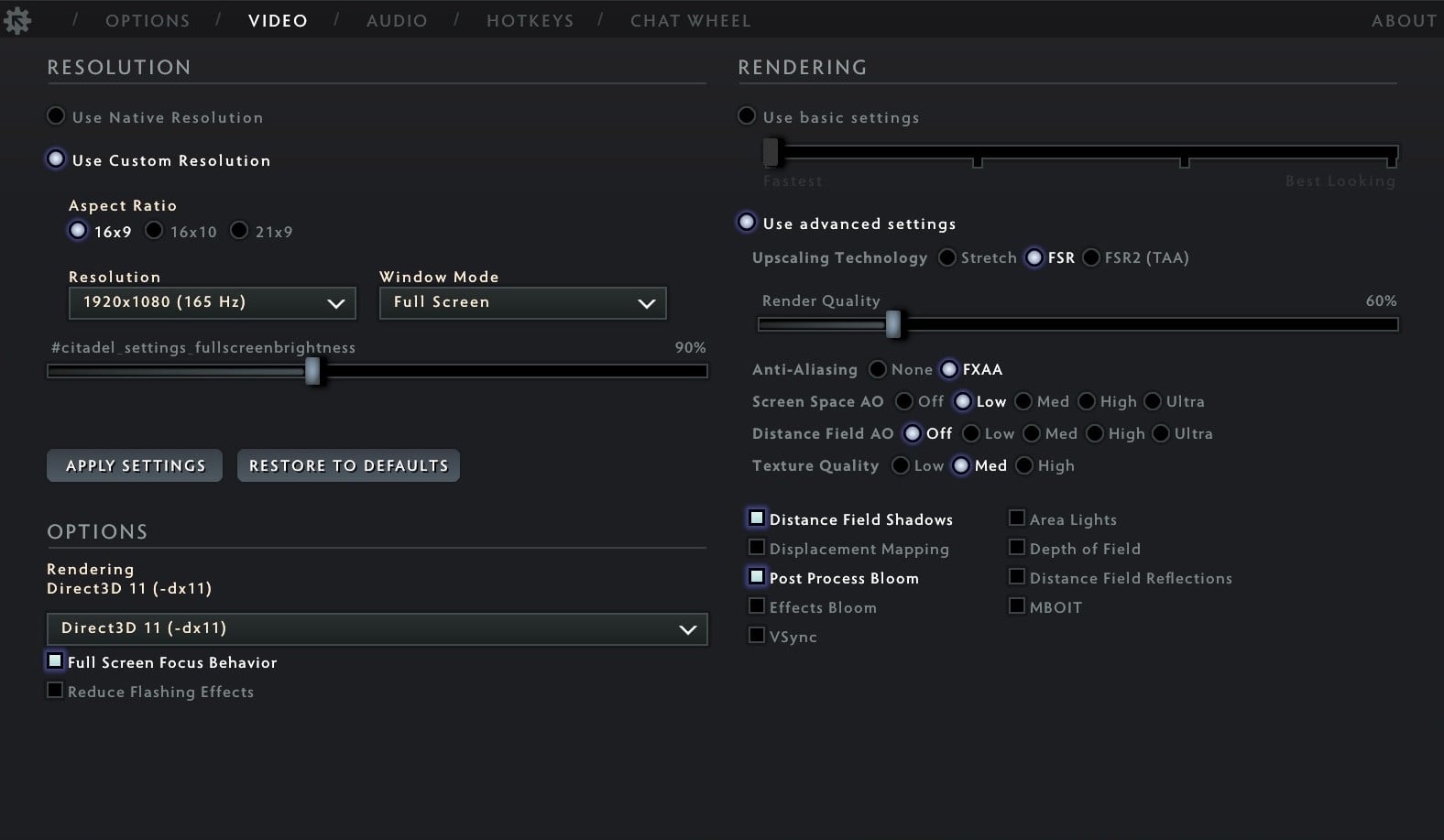
One of the simplest solutions to enjoy Deadlock uncap FPS is to adjust its in-game video settings. Here’s how to get more FPS on Deadlock via a few tweaks.
-Set Aspect Ratio to 16:9 and Resolution to the Highest Available.
-Set Window Mode to Full Screen and Rendering to Direct3D 11 (DX11).
-Set Upscaling Technology to FSR2 (TAA) and Scaling Mode to Native AA.
-Turn V-Sync, Screen Space AO, Distance Field AO, Motion Blur, Distance Field Shadows, Area Lights, Displacement Mapping, Depth of Field, Post Process Bloom, Effects Bloom, and MBOIT Off.
-Set Texture Quality to Low, Full Screen Focus Behavior, and Reduce Flashing Effects to Off.
2. Set Steam Launch Options
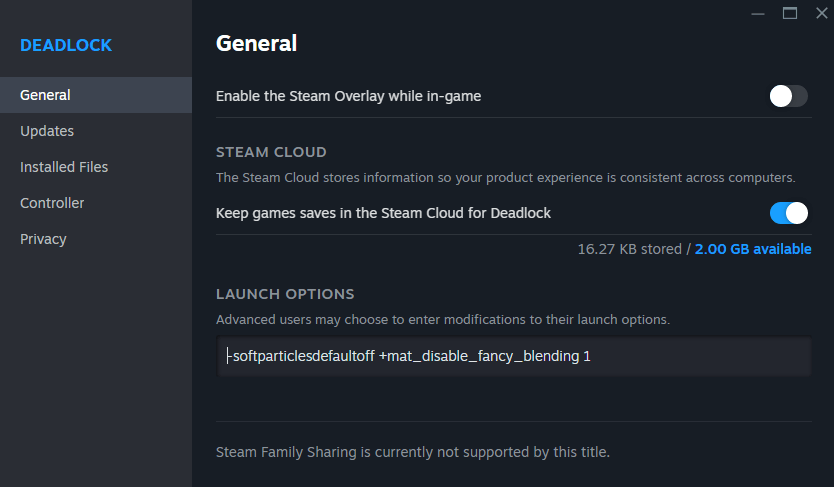
If you play Deadlock with Steam, you can adjust the launch options to boost FPS. The launch options will force Deadlock to bypass intro videos, allocate more CPU priority, or disable unused background services. Let’s see how to unlock FPS Deadlock using this method.
Step 1. Open your Steam Library. Right-click Deadlock and select Properties.
Step 2. Click the Launch Options field and input this command to unlock FPS for Deadlock.
-m_rawinput 1 +exec autoexec.cfg -console -noassert +@panorama_min_comp_layer_cache_cost_TURNED_OFF 256 -convars_visible_by_default -high -dev -preload -fullscreen
3. Fix Shader Cache Stuttering
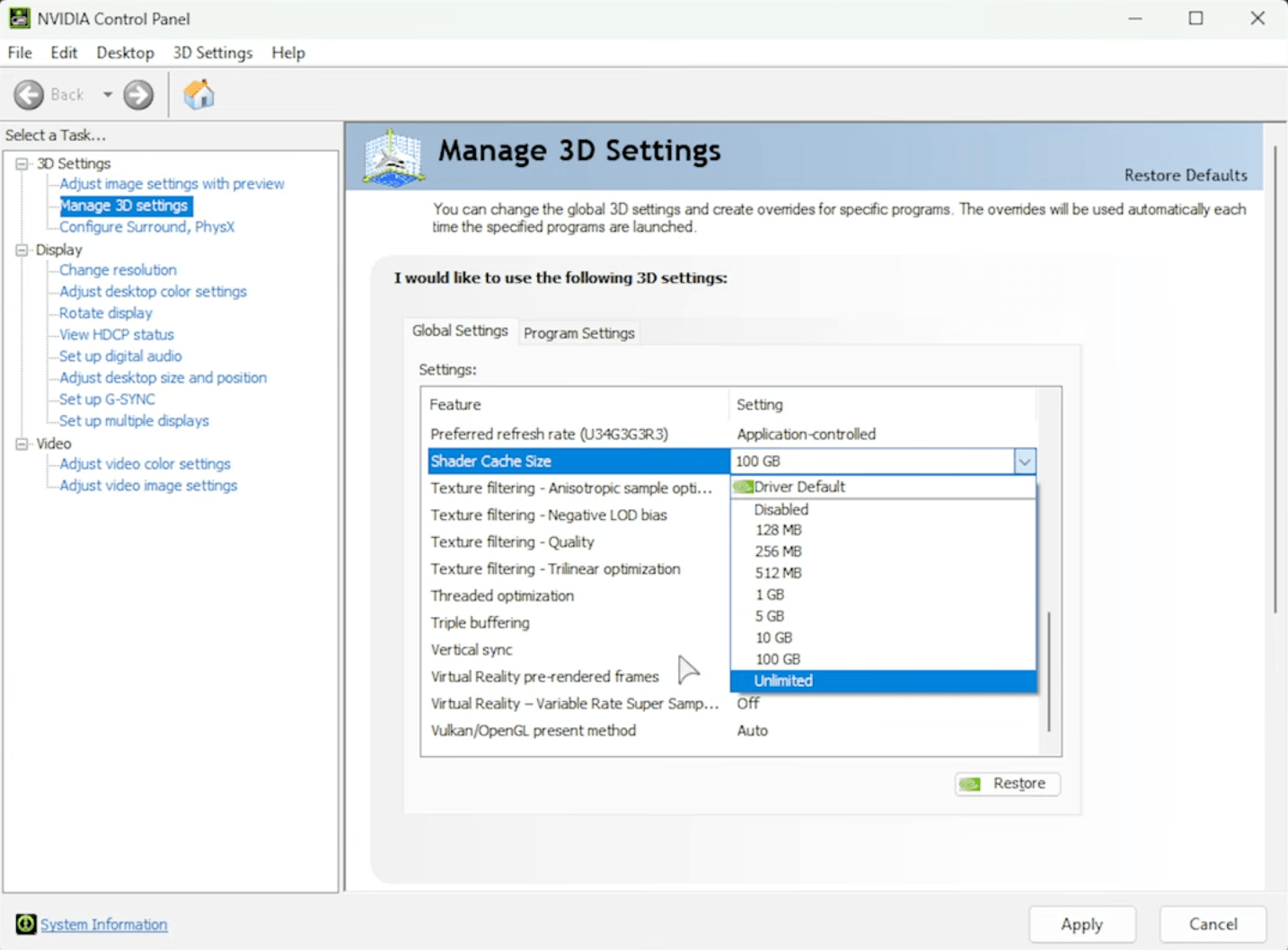
Shader cache stuttering can cause sudden freezes and frame drops when your graphics card has to process shader data during gameplay. You can increase cache size to make your graphics card reuse saved visual instructions and reduce the interruptions. If you are using NVIDIA Control Panel or AMD Software, make sure shader caching is enabled and configured properly.
Here’s how to fix shader cache stuttering with NVIDIA.
Step 1. Right-click your desktop and open the NVIDIA Control Panel.
Step 2. Go to Manage 3D Settings > Global Settings, then find Shader Cache Size.
Step 3. Set it to Unlimited, click Apply, and restart Deadlock.
4. Turn on Windows Game Mode
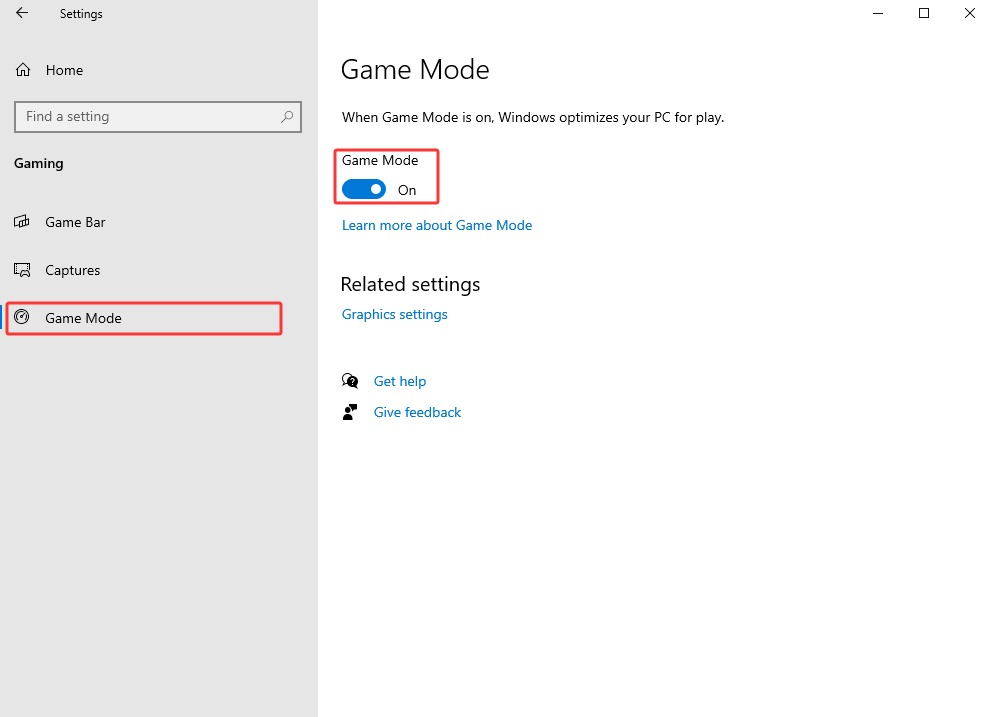
Windows Game Mode is a native feature that can help you effectively reduce interference from background processes. Here’s how to unlock FPS Deadlock by enabling Windows Game Mode.
Step 1. On your Windows PC, go to Windows Settings > Gaming.
Step 2. Choose Game Mode from the left. Turn on Game Mode.
5. Adjust Configuration Files
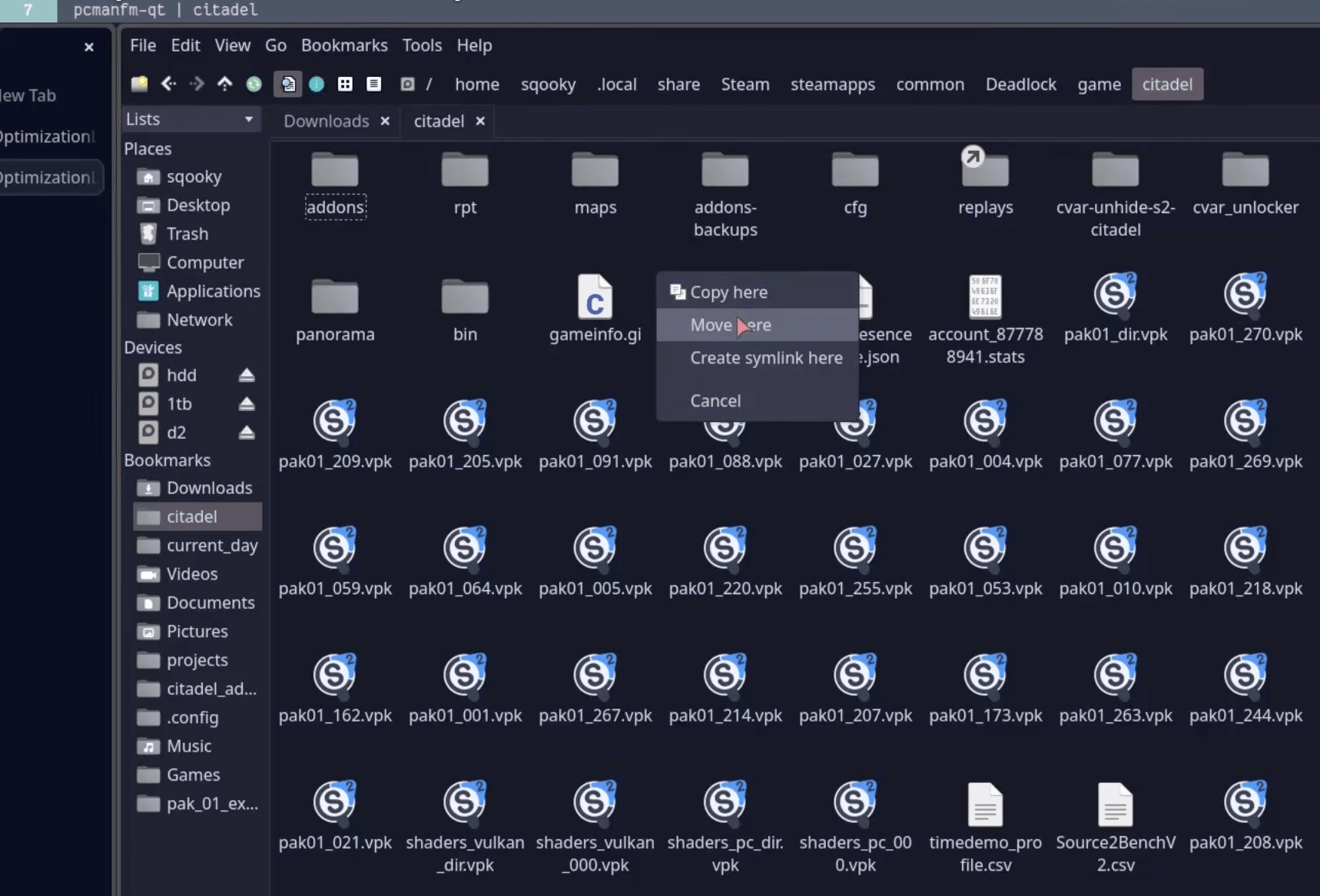
OptimizationLock is a PS configuration project on GitHub that provides a modified gameinfo.gi file to remove certain engine settings that may limit performance and improve frame-time consistency. Before replacing the file, it’s recommended to make a backup in case a future Deadlock update causes compatibility issues.
Let’s see how to unlock FPS Deadlock by adjusting the configuration files.
Step 1. Download the config from the trusted OptimizationLock GitHub repository.
Step 2. In Steam, right-click Deadlock > Manage > Browse local files. Open the game folder, then the citadel subfolder.
Step 3. Locate the existing gameinfo.gi file and copy it somewhere as a backup. Move the downloaded gameinfo.gi into the same citadel folder and overwrite the original.
6. Try Smart Game Booster to Increase FPS Automatically
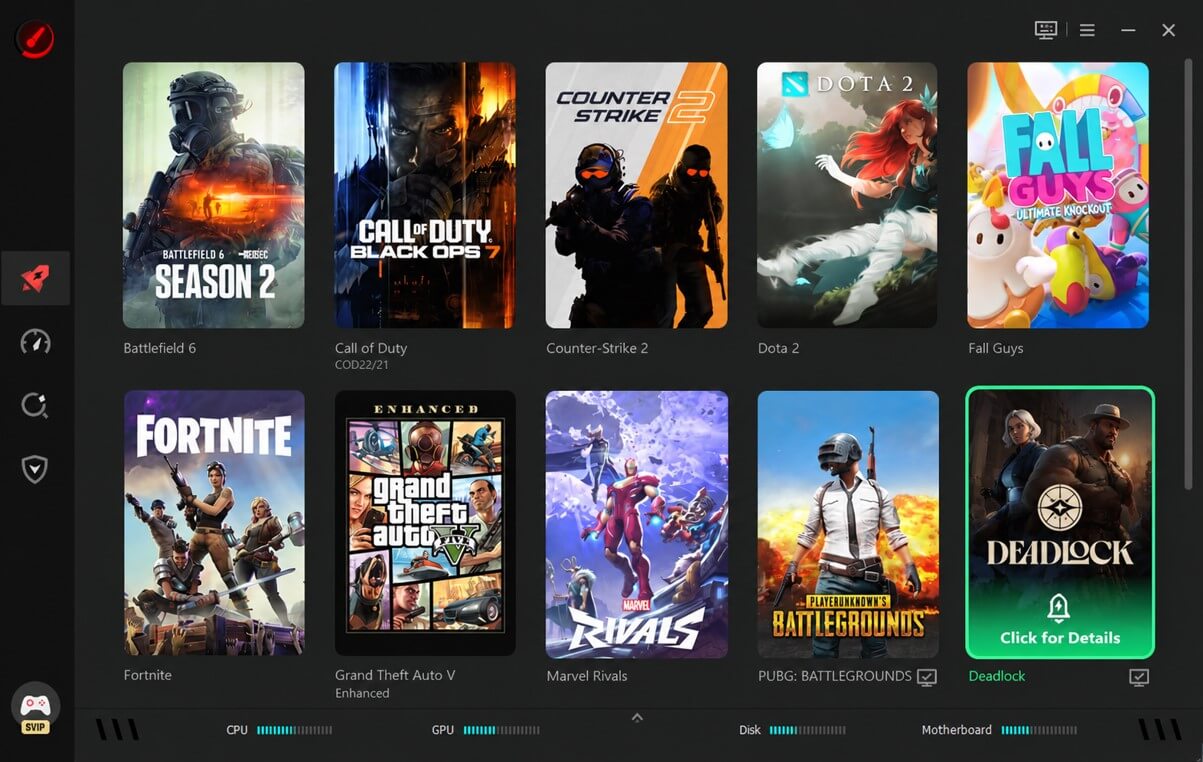
While the previous fixes do help, some of them might require complicated manual setup. Want to unlock FPS Deadlock hassle-free? Try Smart Game Booster, an automated solution that can help you optimize your gaming performance with ease.
Its GPU and VRAM overclocking features can safely increase clock speeds to improve graphics performance. Moreover, the one-click PC Boost feature closes unnecessary background processes, system services, and non-essential apps to free up CPU power and RAM for Deadlock.
Smart Game Booster is also a ping reducer that helps improve network performance. If you are experiencing Deadlock low FPS after update, it can also optimize your system and game settings for better performance.
FAQs about Unlocking Deadlock FPS
1.What is the maximum FPS in Deadlock?
The in-game FPS slider may have a fixed upper limit, but you can use the methods above or a powerful FPS booster to unlock the potential. However, your actual FPS will still depend on your CPU, GPU, settings, and display.
2.Does uncapping FPS reduce input lag on Deadlock?
Yes, it can. Higher frame rates shorten the time between rendered frames, which can make input feel more responsive. However, the benefit is most noticeable when your CPU and GPU can consistently render substantially more frames than your monitor's refresh rate.
3.Is unlimited FPS better for competitive Deadlock play?
Not always. Unlimited FPS can increase GPU usage, power consumption, and heat, and it may produce less consistent frame times when your system is heavily loaded. For competitive play, you can uncap FPS to test the highest stable performance, then use an FPS limiter if a fixed cap provides more consistent frame times.
4.Does higher FPS make Deadlock feel smoother?
Yes. More frames per second fill in motion, reduce ghosting, and make tracking moving targets easier. The difference between 60 and 144+ FPS is immediately noticeable in fights and ability-heavy moments.
Conclusion
How to unlock FPS Deadlock? The previous guide has introduced 6 useful methods. But if you are looking for the simplest solution, Smart Game Booster can do much of the work for you. It automatically optimizes your system and game settings, boosts FPS, and reduces unnecessary background processes to free up resources for better gameplay. Get it to enjoy a more responsive Deadlock experience with ease now!