It's frustrating to find the prompt rubber-banding or unregistered shots. The culprit, in most cases, is packet loss, a common issue in gaming that is caused by data traveling between your device and the game server that doesn't arrive as expected. Generally, even if you are not an expert, you can learn what causes Fortnite packet loss and how to fix packet loss in Fortnite, with common words in this blog.
How to Check If You Occur Packet Loss in Fortnite?
To see packet loss during Fortnite matches, follow the steps below.
Select the player icon in the upper right corner to open the social panel.
Click the Settings icon and select the Game UI tab.
Under the HUD section, turn on Net Debug Stat and start playing Fortnite. Then you can see the real-time packet loss data.
What Causes Packet Loss in Fortnite?
Network Issues
Compared to wired connections, Wi-Fi speeds are subject to more limitations. Factors such as signal interference and bandwidth contention among multiple devices can cause speed drops and momentary packet loss—a phenomenon technically referred to as "rubber-banding."
Server Selection
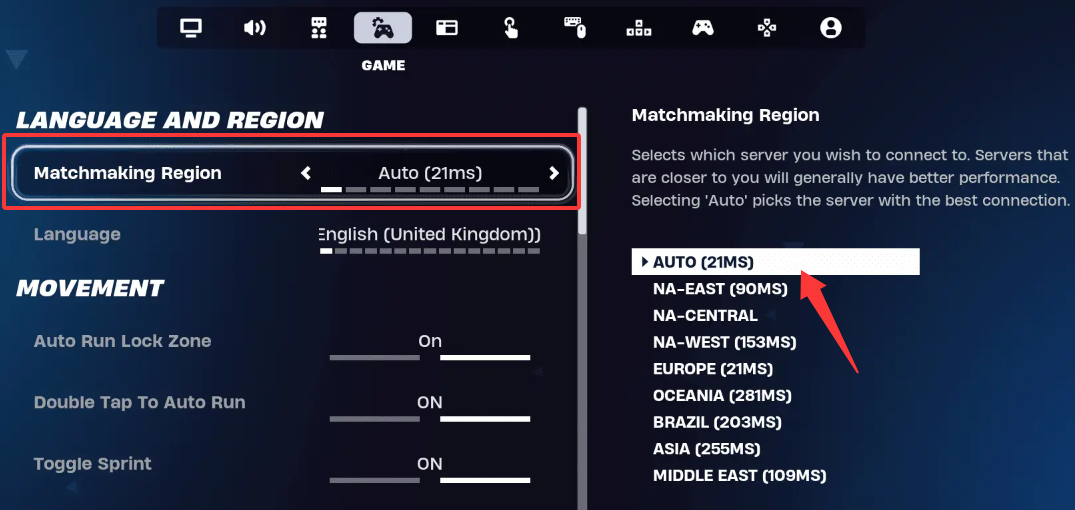
If Fortnite is set to "Auto" region selection, the game defaults to the server with the lowest ping. However, latency and packet loss measure entirely different metrics; the lowest latency does not necessarily guarantee the lowest packet loss.
ISP Routing to AWS Infrastructure
If the internet routing between your ISP and AWS (the cloud provider hosting *Fortnite* servers) is suboptimal, data packets may be lost due to inefficient or congested paths.
Peak Hour Congestion
If packet loss occurs only during specific times, it is likely caused by network congestion resulting from a high volume of players logging in during peak hours.
Epic Server Issues
During major events, the issue may stem from Epic's own servers rather than external factors. A massive influx of millions of players hitting the servers simultaneously can also lead to packet loss.
Background Applications
If non-game programs running in the background consume excessive resources, they can impact Fortnite's performance—particularly processes like bandwidth-heavy Windows updates or videos playing in the background.
Outdated Network Drivers
Network drivers are a bridge between your OS and network hardware. Outdated network drivers may contain unfixed bugs, handle hardware interrupts, which causes packet loss in Fortnite.
How to Fix Fortnite Packet Loss with Game Booster
Firstly, we recommend Smart Game Booster to fix high packet loss in Fortnite automatically, accelerating gaming speed from multiple aspects. You don’t have to manually tune up Windows settings or close background services one by one.
Key Features of Smart Game Booster
- Enjoy lag-free & low-ping gaming
- 100+ games supported
- Severs from all over the world
- Boost in-game FPS
How Smart Game Booster fix Fortnite packet loss?
Network acceleration
It offers 500+ optimized game servers with a better route between your device and the game server. So packets are lessly to be dropped along the way.
PC boost
One click to automatically stop unnecessary processes and services, maximize GPU and VRAM clocking, and tune up Windows settings (including Windows Game Mode, unlock FPS) to keep peak and stable performance.
Driver update
Scan and identify outdated graphic and audio device drivers on your Windows. Keep drivers up to date and maintain good PC performance.
GPU and CPU monitor
It displays real-time situations of GPU, CPU, disk, memory and motherboard, including their usage rate and temperature.
Built-in tool to show if your PC meets the requirement
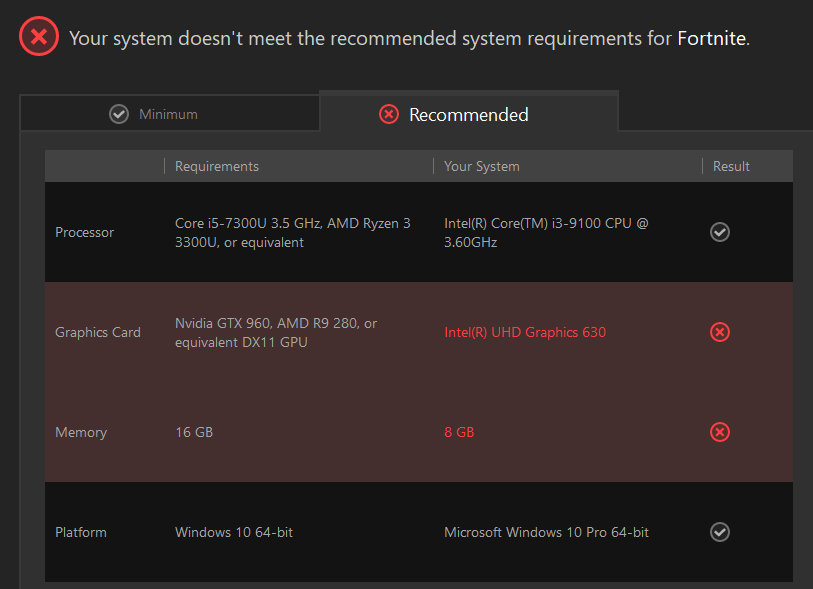
Built-in tool, can I run it, analyzes your PC to show if your PC meets the minimum and recommended requirements for any game you enter.
How to Fix Packet Loss in Fortnite with Smart Game Booster?
Step 1. Download and open Smart Game Booster on Windows.
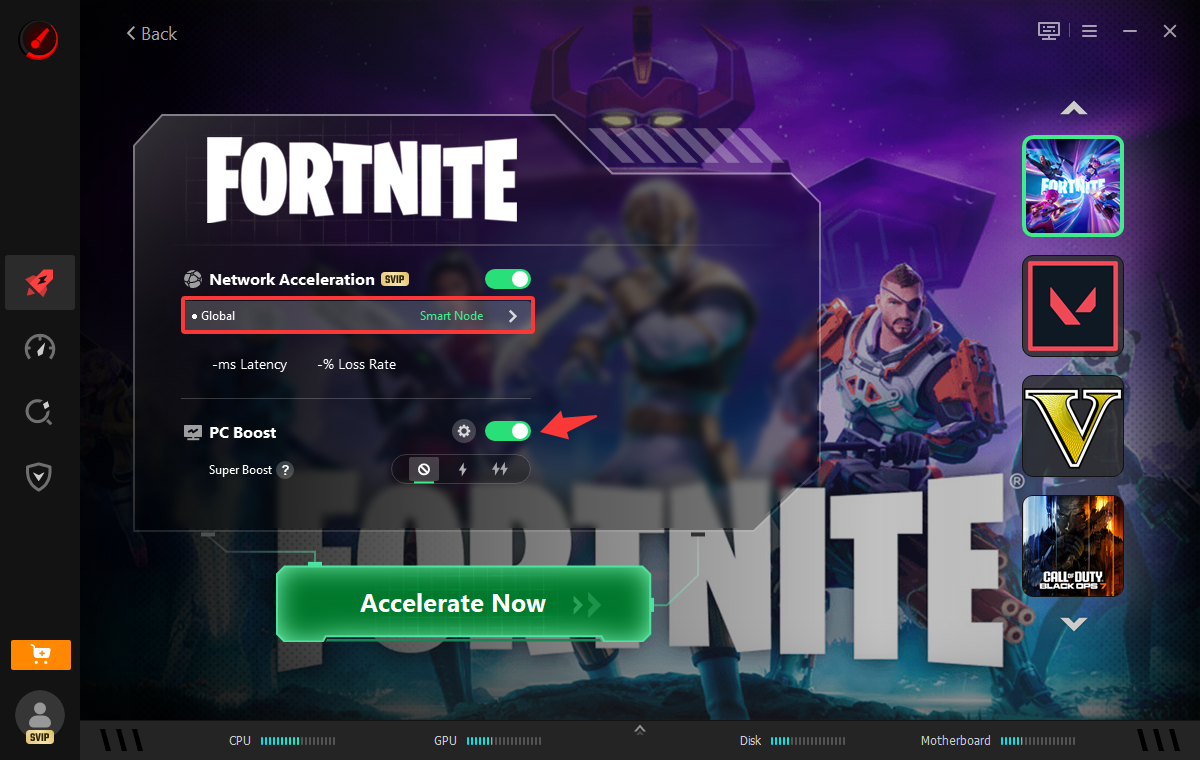
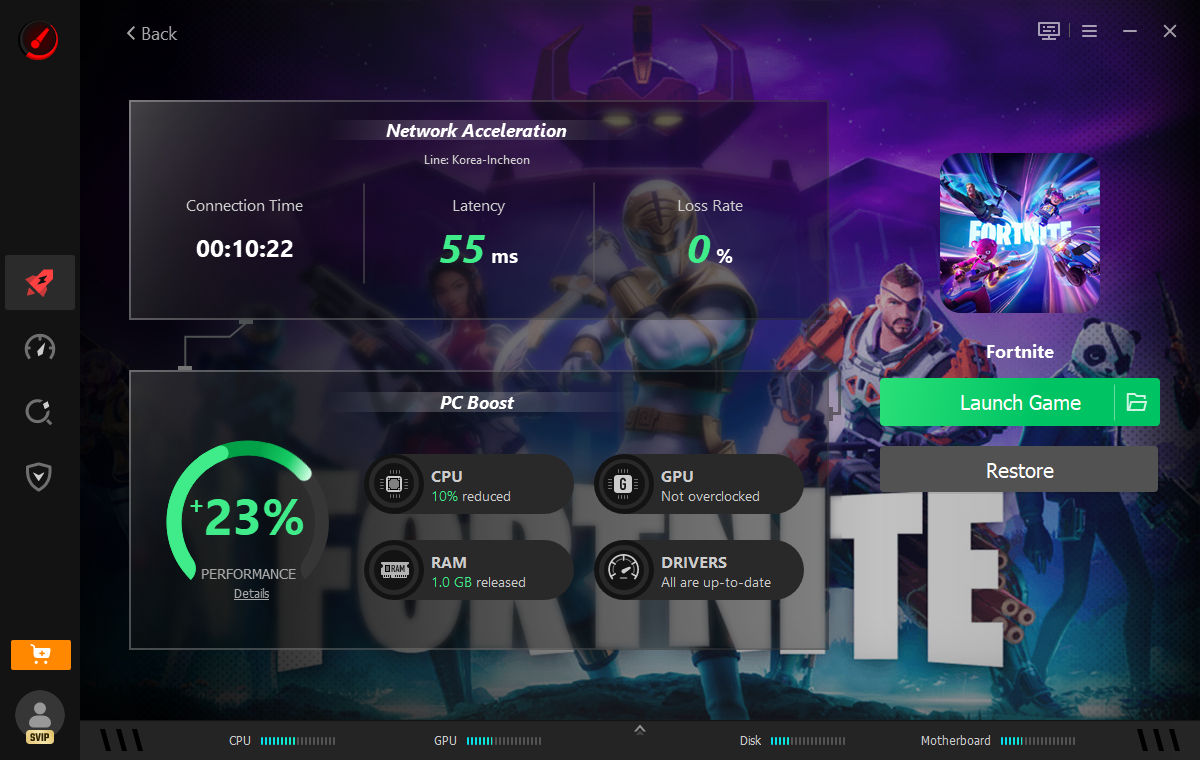
Step 2. Choose the game Fortnite, turn on PC boost, choose a region with low ping. Then click the Accelerate Now button to accelerate Fortnite instantly.
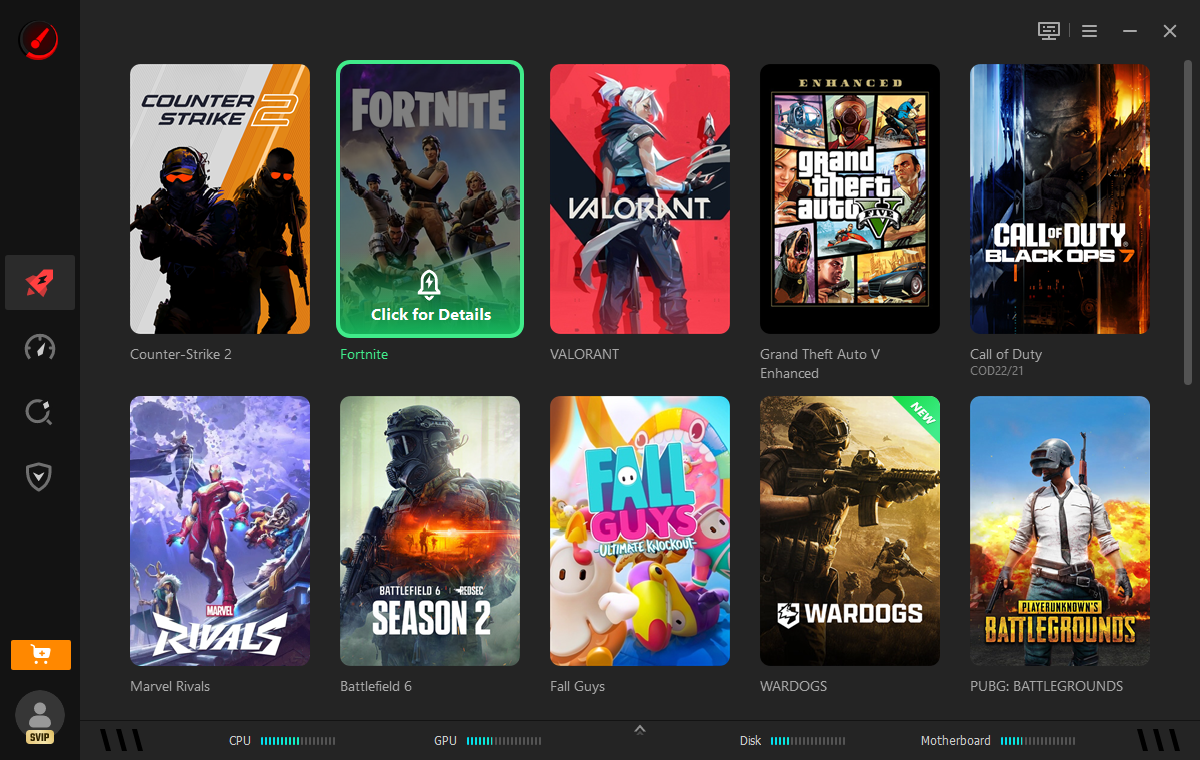
Step 3. Click the Performance tab, scan to clean up PC, tweak PC system, update drivers, and defrag game for faster Fortnite launching and running.
Besides, you can use its Can I Run It tool to check if your PC meets the recommended requirements for better Fortnite performance.
How to Fix Fortnite Packet Loss Manually
Still, you can fix Fortnite packet loss trying the following methods, without downloading third-party software.
Use a Wired Ethernet Connection
If you experience packet loss while using Wi-Fi, switch to a wired Ethernet connection to eliminate signal interference and ensure a stable network connection. After switching, use PacketProbe to test the connection; if the packet loss issue is resolved, the problem was likely due to network instability. If the issue persists, try the methods below.
You May Need: How to Change Region on Fortnite >>
Select Your Server Region Manually Instead of Automatic Option
Manually select the server closest to you in the settings. Enable "Net Debug Stats" to monitor latency and in-game packet loss rates. Sometimes, even if a specific region has slightly higher latency, a superior routing path can result in lower packet loss. So choosing a good region still matters.
Switch to Public DNS
When you connect to the internet, your device uses a protocol called DHCP (Dynamic Host Configuration Protocol) to automatically obtain DNS server addresses from your ISP; for various reasons, these may be slow or unstable for game server connections.
Therefore, it is recommended to switch to faster public DNS providers, such as Google DNS or Cloudflare DNS.
Google DNS: Primary: 8.8.8.8, Secondary: 8.8.4.4
Cloudflare DNS: Primary: 1.1.1.1, Secondary: 1.0.0.1
How to change the DNS address?
Go to Settings > Network & Internet > [your connection].
Select "DNS server assignment," then edit and enter the address manually.
Close Background Applications
Before launching Fortnite, close other background applications, especially those that consume significant bandwidth.
Include the list below:
Cloud synchronization services (OneDrive, Google Drive, Dropbox, etc.),
Browser tabs (especially streaming or downloading tab)
Steam or Battle.net Launcher that might be downloading or updating content
Any kind of image and video editor apps that occupy resources
You could open Task Manager to close them manually one by one, or download Smart Game Booster to close them automatically.
Update Your Network Drivers
The older network driver may contain bugs or compatibility problems with recent Windows updates, which could lead to drop packets, stall briefly or others. Scan your network driver and update it to the latest version with Device Manager or Smart Game Booster.
Conclusion
To fix packet loss in Fortnite, start with simple fixes, such as replacing Wi-Fi connection to a wired connection, reducing unnecessary background apps and services. Then try to more other ways if packet loss continues when you play games. For faster packet loss fixing, download Smart Game Booster to create an optimized environment for Fortnite running.