Are you experiencing low FPS, sudden frame drops, or annoying stuttering while playing Battlefield 6? Even powerful gaming PCs can struggle to maintain smooth performance during intense battles, explosions, and large multiplayer matches. Fortunately, you don’t always need expensive hardware upgrades to improve your gaming experience.
With the right Battlefield 6 FPS boost settings and PC optimizations, you can significantly improve performance. This guide explains why Battlefield 6 runs slowly, which settings to change, and how Smart Game Booster can help you optimize your PC with minimal effort.
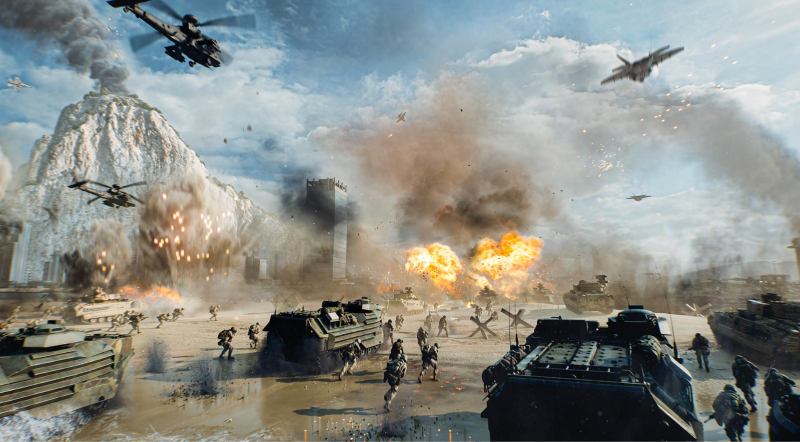
Before Battlefield 6 FPS Boost: Why Your FPS Is So Bad?
Before applying any fixes, understanding what causes poor performance is essential. Battlefield 6 features detailed environments, large maps, and demanding visual effects that can put considerable pressure on your hardware.
Common reasons for low FPS include:
High graphics settings: Ultra-quality shadows, lighting, and effects increase GPU workload.
Outdated GPU drivers: Older drivers may lack performance optimizations for Battlefield 6.
Background applications: Browsers, recording software, and unnecessary processes consume CPU and RAM resources.
Insufficient hardware: Limited VRAM, slow processors, or insufficient RAM can cause frame drops.
Overheating: High CPU or GPU temperatures can trigger thermal throttling and reduce performance.
Incorrect Windows settings: Power-saving modes and disabled memory profiles may limit gaming performance.
Identifying these issues helps you choose the most effective battlefield 6 fps boost solution rather than changing settings randomly.
Battlefield 6 FPS Boost: In-Game Settings
Optimizing the game’s graphics settings is usually the quickest way to improve FPS. The following Battlefield 6 FPS boost settings balance visual quality with smoother gameplay.
1. Use Fullscreen Mode
Running Battlefield 6 in fullscreen can help provide consistent performance and reduce distractions from other windows.
1. Launch Battlefield 6 and open Settings.
2. Now go to Graphics > Display.
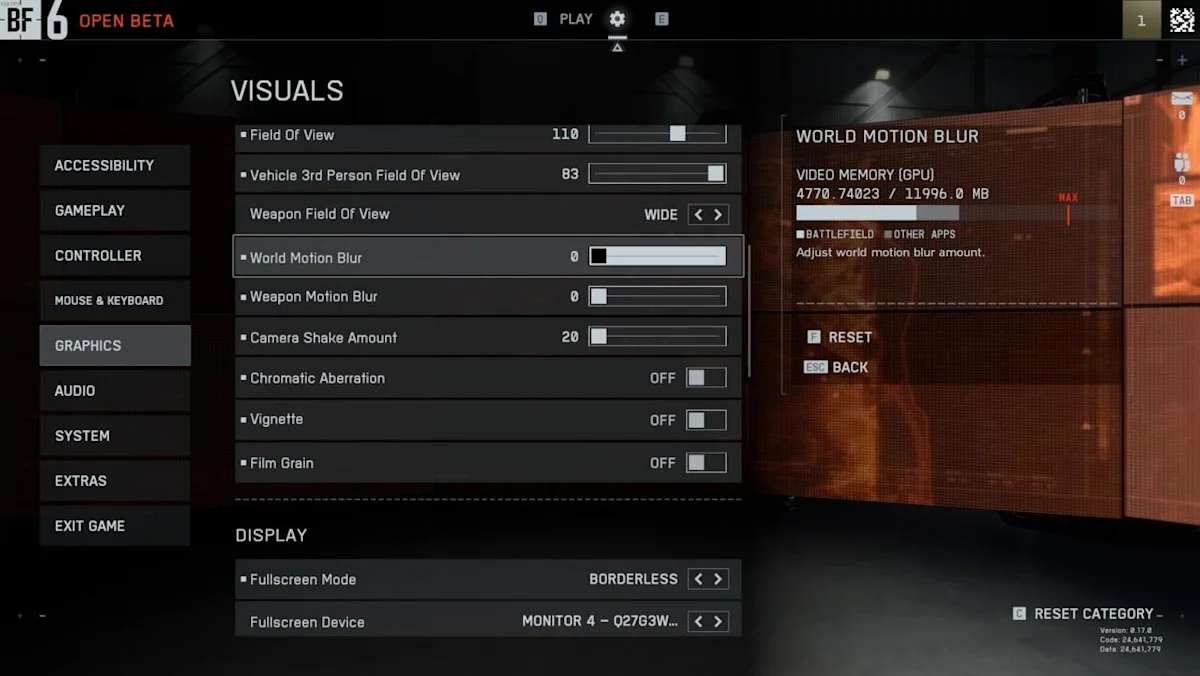
3. Select Fullscreen if the option is available.
4. Match the resolution and refresh rate to your monitor.
2. Turn On NVIDIA DLSS
DLSS renders the game at a lower internal resolution and upscales the image, potentially improving performance on compatible NVIDIA RTX GPUs.
1. Go to Settings > Graphics.
2. Locate the upscaling options and select NVIDIA DLSS.
3. Choose Balanced or Performance mode.
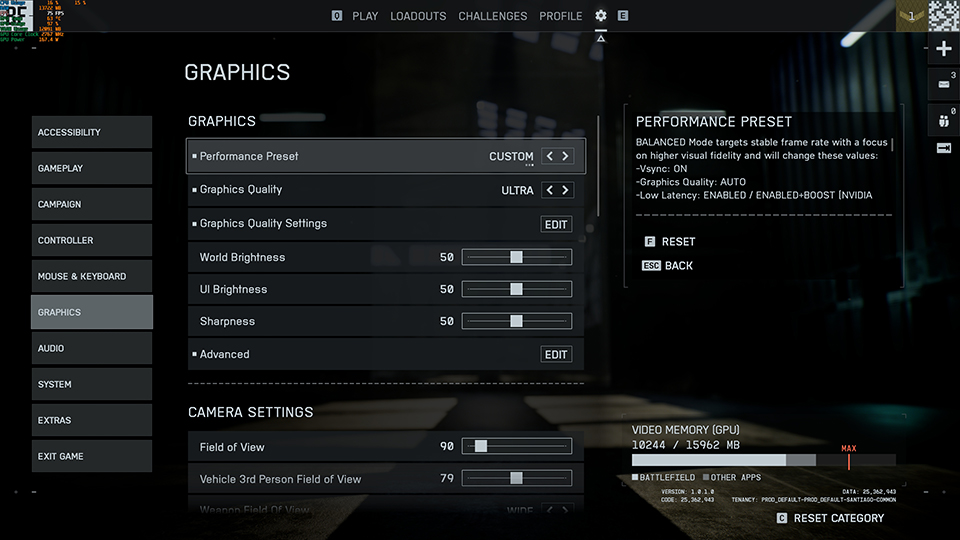
4. Test the game and adjust the mode according to visual quality and FPS.
AMD and Intel users can explore compatible FSR and XeSS options instead. Supported GPUs may also offer frame generation, although generated frames do not improve input responsiveness in the same way as higher native FPS.
3. Lower Shadow and Effects Quality
Shadows, explosions, and environmental effects can consume significant GPU resources.
Go to Settings > Graphics and change:
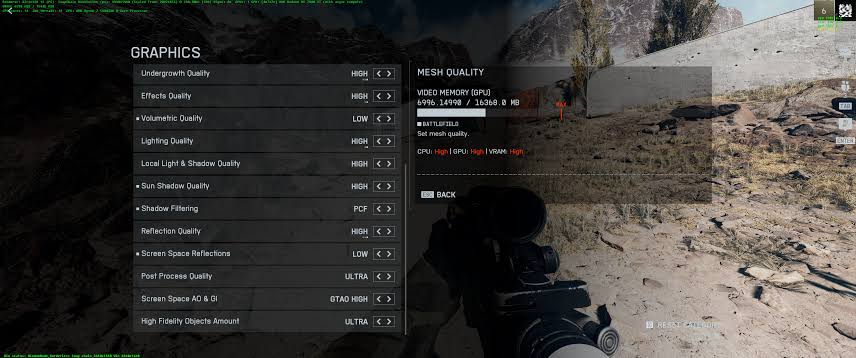
These adjustments can improve FPS without dramatically affecting overall visibility.
4. Disable V-Sync
V-Sync synchronizes frame output with your monitor but may introduce additional input latency.
Open Graphics > Display and turn Vertical Sync Off. If screen tearing becomes noticeable, consider using a compatible variable refresh rate feature.
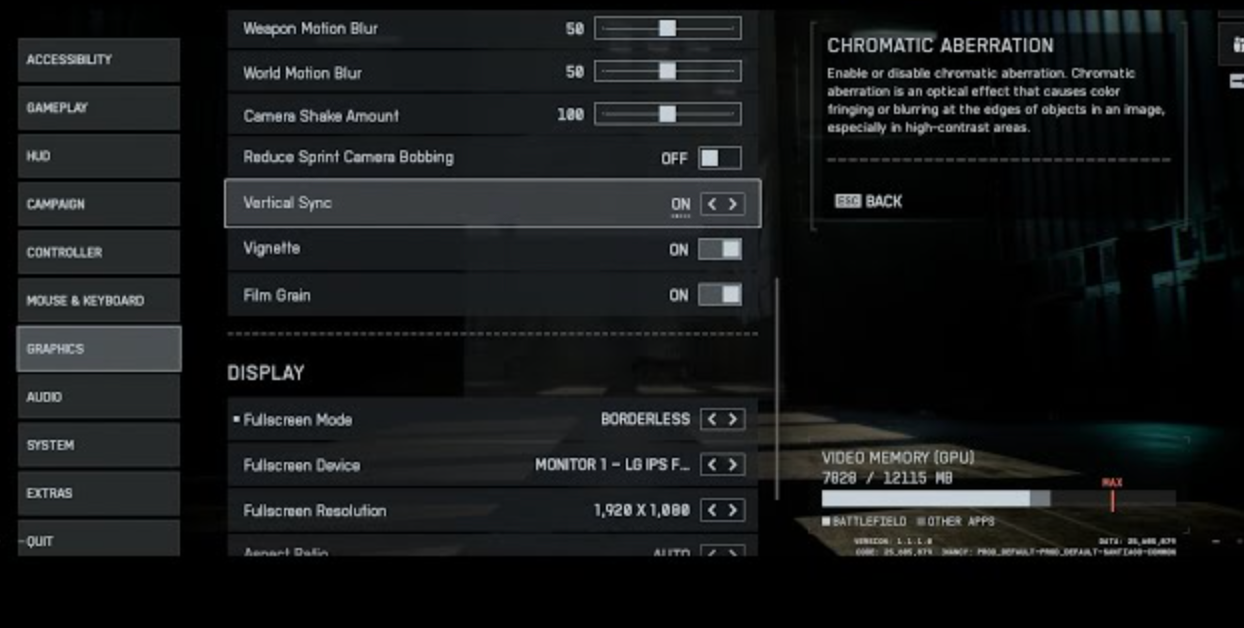
5. Adjust Resolution Scale and Image Sharpening
Reducing rendering resolution decreases GPU workload, particularly on lower-end systems.
Try a lower resolution scale or a performance-oriented upscaling preset. Then apply moderate image sharpening for games to restore perceived detail.
These adjustments provide a practical way to boost FPS Battlefield 6 performance without immediately replacing hardware.
Battlefield 6 FPS Boost: PC Optimizations
If changing graphics settings isn’t enough, the next step is optimizing Windows and your gaming hardware. These methods can help eliminate performance bottlenecks.
1. Turn On Windows Game Mode
Windows Game Mode prioritizes gaming activity and limits certain background operations.
1. Press Windows + I to open Settings.
2. Select Gaming > Game Mode.
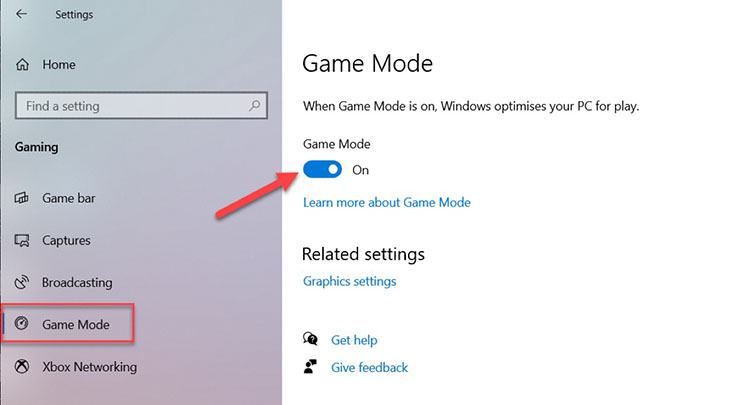
3. Turn Game Mode On.
4. Restart Battlefield 6 and test performance.
2. Enable XMP in BIOS
XMP allows compatible RAM to operate at its rated memory profile, potentially improving CPU-limited gaming performance.
1.Restart your computer and enter BIOS using Delete or F2, depending on your motherboard.
2.Locate the memory configuration or overclocking section.
3.Enable the supported XMP profile, or the equivalent EXPO profile for compatible AMD memory.
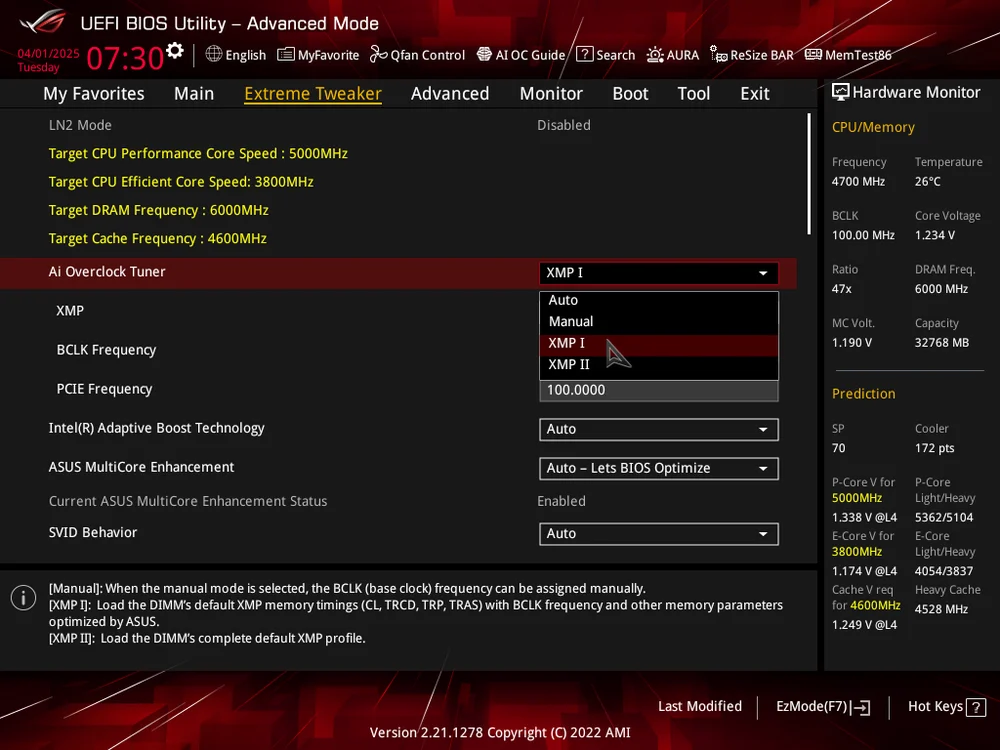
4. Save changes and restart.
Only enable profiles supported by your hardware. Memory overclocking may cause instability and is not guaranteed to improve FPS.
3. Update GPU Drivers
Updated graphics drivers can improve compatibility and fix performance-related bugs.
1. Open the official NVIDIA, AMD, or Intel driver website.
2. Download the latest compatible graphics driver.
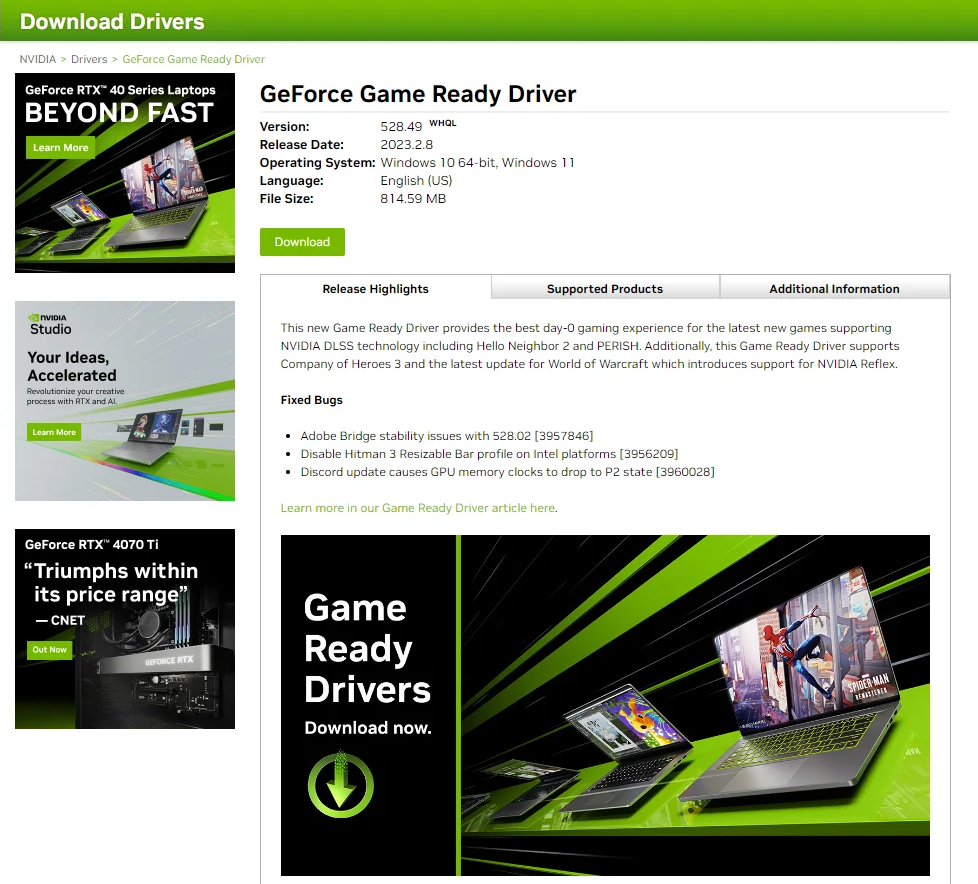
3. Install the driver and restart Windows.
4. Launch Battlefield 6 to check whether FPS improves.
4. Close Unnecessary Background Applications
Press Ctrl + Shift + Esc to open Task Manager. Under Processes, identify unnecessary applications consuming significant CPU or memory resources.
Close applications you don’t need while gaming, but avoid terminating essential Windows processes.
5. Switch to High-Performance Power Settings
Open Settings > System > Power & battery and choose Best performance when available.
On gaming laptops, connect the charger and use the manufacturer’s performance mode to avoid power-related limitations.
For additional improvements, an fps unlocker guide can help explain frame-rate caps and display limitations. However, removing an FPS cap cannot overcome hardware bottlenecks.
These methods can help deliver an effective FPS boost Battlefield 6 experience. However, manually adjusting BIOS settings, updating drivers, and managing background processes takes time. Some changes, particularly overclocking, also introduce stability risks.
For users who prefer a simpler approach, a dedicated game optimization tool offers another option.
Battlefield 6 FPS Boost: Use Smart Game Booster
If manually optimizing your PC feels complicated, Smart Game Booster offers a convenient alternative. This all-in-one gaming utility is designed to improve system performance by freeing up resources, optimizing gaming processes, and reducing unnecessary background activity.
Smart Game Booster 6 supports Battlefield 6 and combines several optimization features in one interface. It can close unnecessary applications, update outdated graphics drivers, monitor hardware temperatures, and provide optional GPU and VRAM overclocking through Super Boost.
Key Features of Smart Game Booster
- Enjoy lag-free & low-ping gaming
- 100+ games supported
- Severs from all over the world
- Boost in-game FPS
Unlike manual optimization, which requires navigating multiple Windows settings, this free game booster provides a simpler way to prepare your PC for gaming.
How to Boost Battlefield 6 FPS with Smart Game Booster
Step 1. Download and Install Smart Game Booster
Click Free Download. Run the installer, complete the setup, and launch the application.
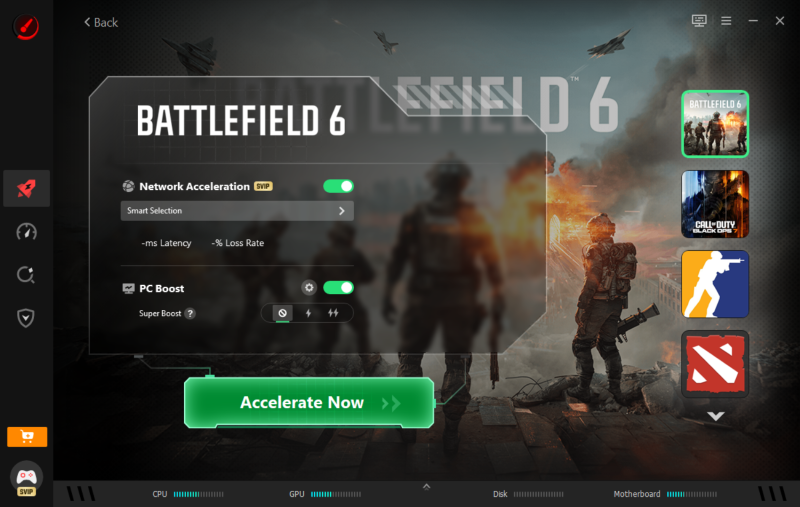
Step 2. Select Battlefield 6 and Boost
Smart Game Booster can detect installed games. Find Battlefield 6 in the game list, or add it manually if it isn’t detected.
Select Battlefield 6 and click Accelerate Now or the available boost control. The software will optimize background processes and available system resources. You can also review the optional Super Boost feature for GPU and VRAM overclocking.
Step 3. Launch Battlefield 6
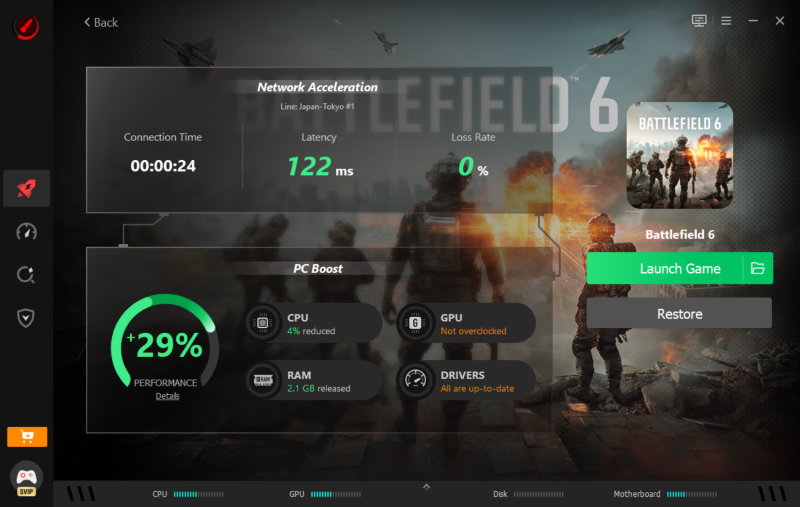
After optimization finishes, click Launch Game to start Battlefield 6. Use the built-in FPS monitor to compare performance before and after optimization.
Additional Smart Game Booster Features
Beyond one-click optimization, Smart Game Booster provides several useful tools:
GPU Driver Updates: Detects outdated graphics drivers and helps install compatible versions.
Game Defragmentation: Organizes files on supported hard disk drives to potentially improve loading performance. Avoid unnecessary defragmentation of SSDs.
System Cleaning: Removes unnecessary temporary files and frees storage space.
Temperature Monitoring: Tracks CPU and GPU temperatures to help identify overheating.
Network Optimization: Provides a ping reducer feature designed to improve routing and reduce latency when network conditions allow.
For users seeking an easier battlefield 6 pc fps boost, Smart Game Booster combines these tools without requiring extensive manual configuration. Its fps booster functionality can help reduce competing system workloads, although actual FPS improvements depend on your hardware.
Final Words
Achieving a successful Battlefield 6 FPS boost requires the right combination of graphics settings and system optimizations. Lowering demanding visual effects, enabling DLSS, updating graphics drivers, and managing background applications can all contribute to smoother gameplay.
If you want to boost FPS Battlefield 6 without repeatedly adjusting Windows settings, Smart Game Booster provides a convenient solution. Its one-click optimization, driver updates, and system maintenance tools can help improve gaming performance.
Download Smart Game Booster today and test your FPS before and after optimization to see how much improvement your PC can achieve.
Key Features of Smart Game Booster
- Enjoy lag-free & low-ping gaming
- 100+ games supported
- Severs from all over the world
- Boost in-game FPS