WARDOGS, as a newly released FPS game, is going viral among players with over 300k daily users. Attractive game mode, freedom to play your way, and many other innovations win the players’ favor. But after recent updates, multiple WARDOGS players have claimed that even with a broadband internet connection and in regions with servers, latency is high and the game is unplayable. Low FPS and high packet loss are also emerging with the recommended system requirements. So, how to fix WARDOGS lag?
No need to worry; this guide will introduce you to 7 solutions on fixing WARDOGS low FPS, high ping, and packet loss. All of them are useful, and there is no need to update your hardware. Check the contents below:
Why WARDOGS Lagging?
Lag can be caused by multiple factors. Poor internet, hardware bottleneck, no nearby servers, etc. Here are the 3 main types:
| Symptoms |
Possible reasons |
| Low FPS |
Hardware bottleneck or unsuitable video settings |
| High Ping |
Location too far away from servers |
| High Packet Loss |
Unstable network like WiFi |
High-Quality Video Settings
High video settings would significantly lower FPS, since they are demanding on your PC performance. 1440p, high texture, and post-processing should be avoided for better FPS.
Poor Network
A broadband Internet connection is recommended for a stable gaming environment. WiFi or a hotspot from a phone should be avoided.
No Nearby Server
WARDOGS are available in some countries like the US, Canada, and the UK. Locations far from these places may suffer from high pings.
WARDOGS System Requirements
Before learning how to fix WARDOGS lagging, check the system requirements of this game first.
|
Minimum |
Recommended |
| OS |
Windows 10 |
Windows 11 |
| Processor |
Intel Core i5 8600, AMD Ryzen 5 3500 |
Intel Core i7 12700k, AMD Ryzen 7 5700x |
| Graphics |
Nvidia GTX 1660, Radeon RX 590 |
Nvidia RTX 3070, AMD Radeon RX 6700 XT |
| Memory |
16 GB RAM |
16 GB RAM |
| Network |
Broadband Internet connection |
Broadband Internet connection |
| Storage |
50 GB available space |
50 GB available space |
The minimum requirements are supposed to enable users to play this game with 1080p Low and 60fps. The recommended one should be 1440p Medium and 70fps+ or 4k Medium and 60fps+. As you can see from the table above, it is a game that heavily depends on CPU and GPU performance. Therefore, this guide would focus on unlocking the power of those two.
How to Fix WARDOGS Lagging?
To answer how to fix WARDOGS game lag, 7 solutions are listed below for you. Best graphics settings, boosting CPU, GPU, RAM, etc., unlocking FPS, and lowering ping as well as packet loss. Everything you want to know about fixing WARDOGS lag is here. Keep reading on!
Lower Resolution
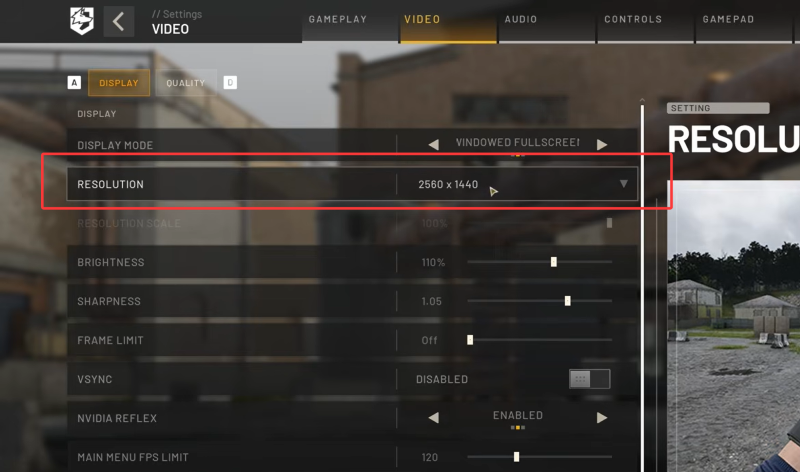
Resolution affects FPS significantly. 1080p with 120 FPS is definitely better than 1440p with 60 FPS. So choose 1920 x 1080 as your resolution; 1440p or higher would require a better CPU and GPU. Go to Settings > VIDEO > DISPLAY > RESOLUTION to change.
Turn on NVIDIA DLSS/AMD FSR
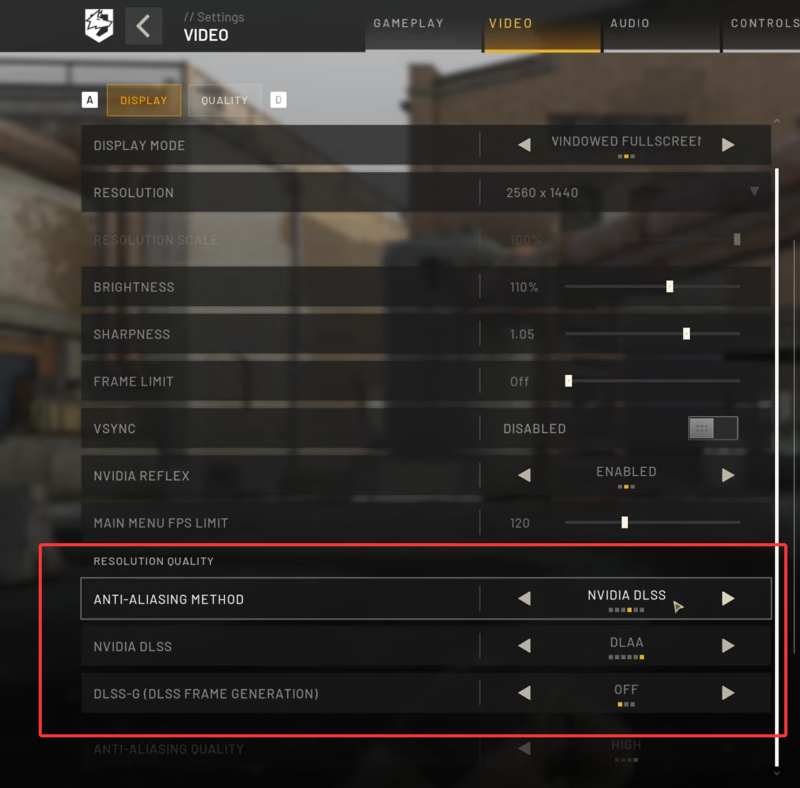
Turning on DLSS frame generation can improve your FPS to another level. Find it in Settings > VIDEO > DISPLAY > RESOLUTION QUALITY.
Lower Quality Settings
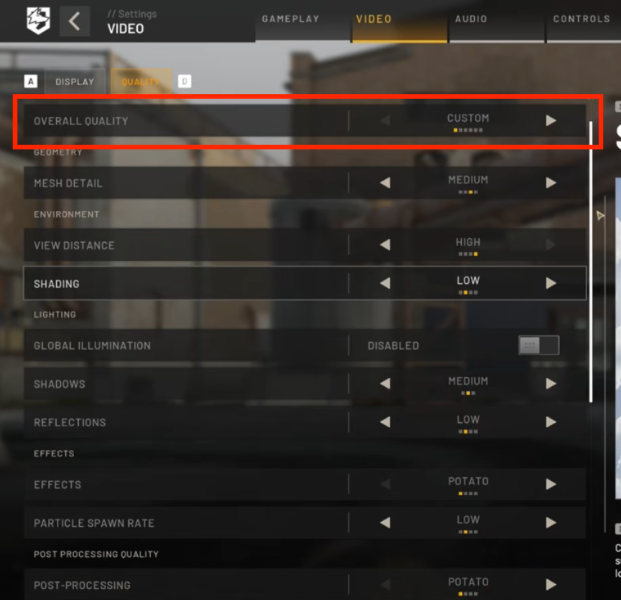
The overall quality is suggested to be Low or Medium. You can also customize some settings to find the balance between quality and FPS. Follow Settings > VIDEO > QUALITY > OVERALL QUALITY > Low.
Enable XMP in BIOS
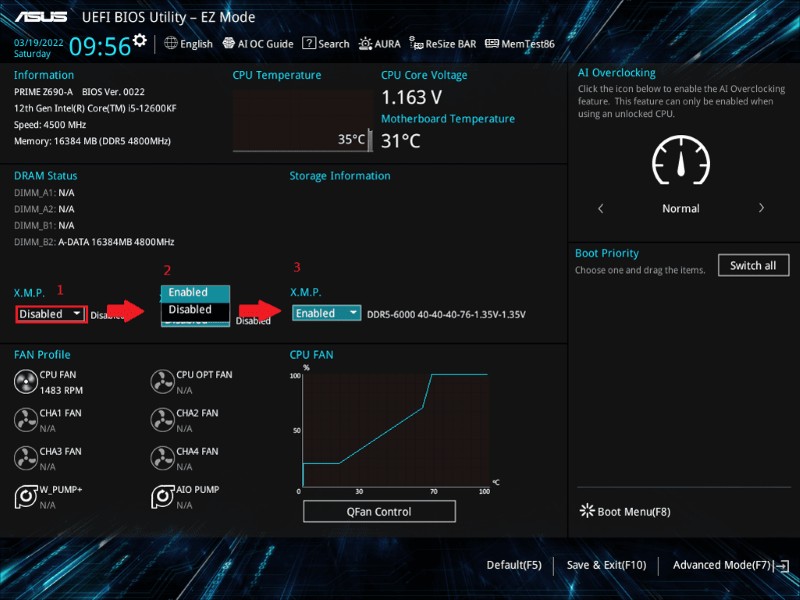
Overclocking RAM by enabling XMP is also an effective method to fix WARDOGS lag. This would offer better performance of your RAM and smoother gaming. The steps are listed below:
Step 1. Restart your PC to enter BIOS.
Step 2. Press Delete or F2 repeatedly when restarting.
Step 3. Find X.M.P and choose Enabled.
Overclock CPU & GPU
Overclocking the CPU and GPU is another useful method to improve processor performance without spending a penny. But the common ways of overclocking CPUs or GPUs, like changing the circuits and BIOS settings, is hard and even risky for users who are not familiar with PC management. There’s a better and one-click solution: Smart Game Booster for you. Here’s how:
Step 1. Download Smart Game Booster and install it.
Step 2. Open it and find WARDOGS.
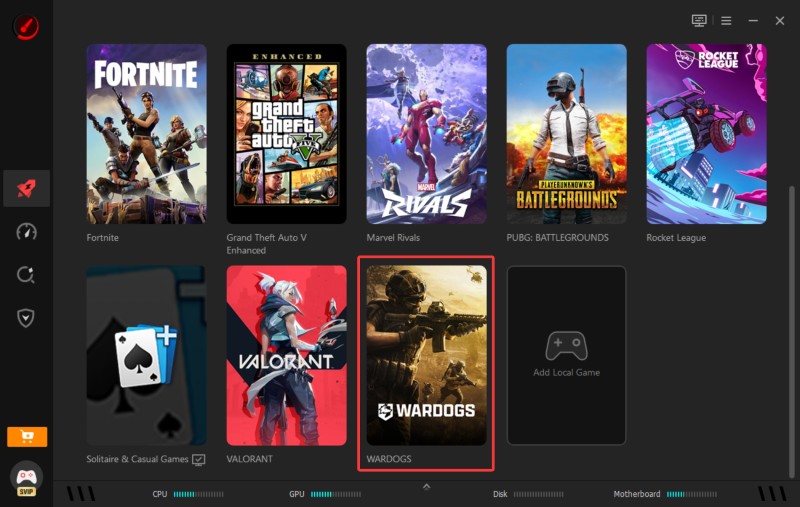
Step 3. Choose WARDOGS and find PC Boost to click MAX mode with⚡⚡icons.
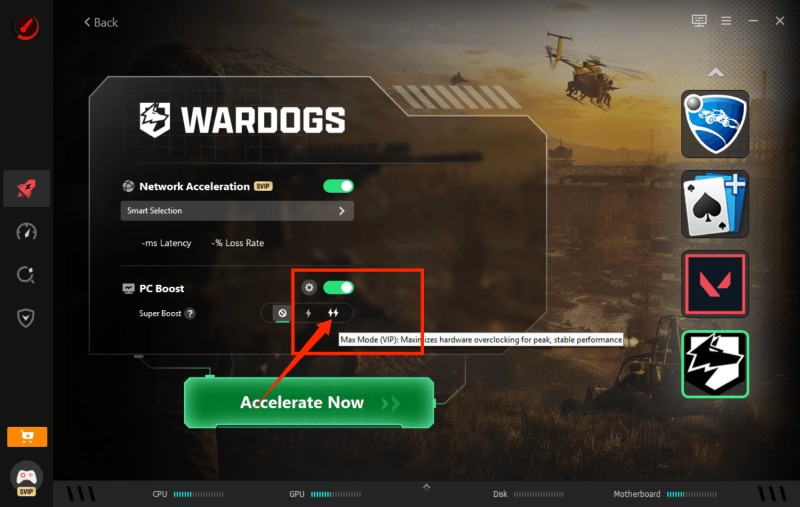
Step 5. Click Accelerate Now and launch WARDOGS with low latency and massive performance improved.
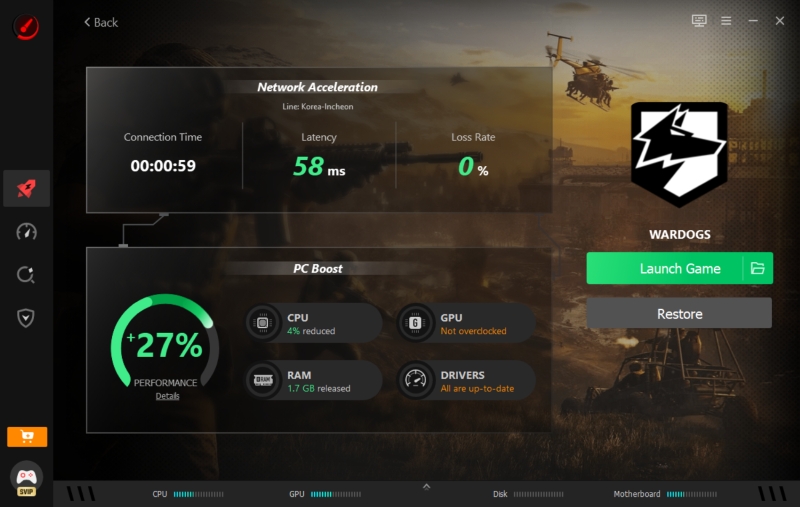
As you can see from the steps above, this FPS booster specifically optimizes for WARDOGS lag with a respective boosting plan.
Lower Ping & Packet Loss
For how to lower ping in WARDOGS, Smart Game Booster can also work as a ping reducer. On the same page, check the Network Acceleration part, click Smart Selection, then you choose your favorite WARDOGS region and node. Low latency and 0 packet loss are within your reach now.
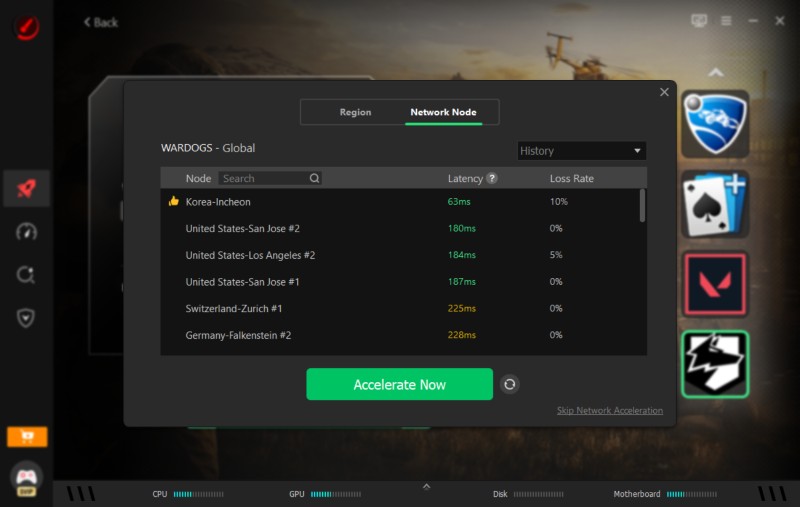
More useful features like Can I Run It, driver update, system clean, etc., are also available in Smart Game Booster. Try it for free right away!
Key Features of Smart Game Booster
- Enjoy lag-free & low-ping gaming
- 100+ games supported
- Severs from all over the world
- Boost in-game FPS
Restart Your PC before Gaming
When your PC is running for a long time with heavy background apps, clearing RAM by restarting is an ideal way to get your computer ready for WARDOGS.
FAQs of WARDOGS Lag
Why does WARDOGS have high ping even in regions with servers?
Unstable servers or poor internet might be the reasons. The suggestion is to check and restart your router, or use Smart Game Booster to switch to nearby servers.
How to fix WARDOGS packet loss?
Use a broadband internet connection. No WiFi or hotspot on your phone.
How to fix WARDOGS stuttering?
Lower quality settings, boost PC performance with Smart Game Booster, use a higher refresh rate of your monitor, etc.
The Bottom Line
All about how to fix WARDOGS lag has been presented to you above. 7 fast and easy methods are available for solving low FPS, high ping, and packet loss. Among all the methods, Smart Game Booster, as a free tool, can cover all your needs. Boosting FPS by 120%, lowering ping by 80% and 100% less packet loss, can all be done with just one click. Download and try this FPS unlocker right now!