Have you ever died in Escape from Tarkov because your game stuttered the exact moment an enemy peeked a corner? For this hardcore shooter game, FPS is not just a number; it’s a survival mechanic. So, why do you experience FPS drops during firefights, stutters when entering new areas, or consistently low FPS despite capable hardware? Your current Tarkov FPS settings might be the culprit.
When it comes to the solution, you don’t need a brand-new GPU to make a noticeable improvement. This guide will introduce the best Tarkov settings for FPS, Windows-level optimizations, and a faster automated option for users who prefer to skip the manual work. Just read on to learn more!
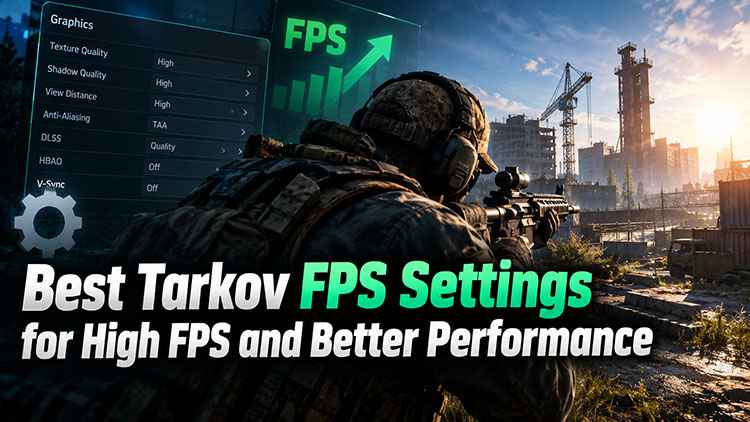
Why FPS Matters in Escape From Tarkov?
High frames per second (FPS) is particularly important in competitive shooter games. For instance, in Escape from Tarkov, it directly determines whether you survive or lose all your gear. High FPS for gaming ensures smooth movement, precise aiming, and instantaneous visual feedback, all of which are critical advantages during high-stakes firefights.
Low frame rate, on the other hand, can cause sudden drops and stuttering that severely hinders your ability to track moving targets or react quickly to unexpected enemies. Escape from Tarkov is a game with no second chances. That means a split-second lag can cost you an entire raid.
Best Tarkov FPS Settings for Maximum Performance
As you can see, it's crucial to optimize your Tarkov FPS settings to achieve the best gaming experience. The problem is that many users still don’t know how to tweak Tarkov best settings for FPS. In addition, you should also adjust based on your PC hardware and preferred balance between performance and visual quality.
Let’s check out the best settings for Escape from Tarkov if you want to get the maximum performance.
Screen Resolution: Use your monitor's native resolution, with 1080p or 1440p being common choices. While lower resolution can increase FPS, the loss in image clarity may make it harder to spot players and details.
Screen Mode: Fullscreen. Borderless or windowed modes might introduce additional latency or reduce performance on some systems.
VSync: Off. Only enable it if screen tearing is severe and you do not have access to adaptive-sync technology.
Lobby FPS Limit: 60. This can reduce unnecessary resource usage when you are outside a raid.
Game FPS Limit: Set it around your monitor's refresh rate, or slightly above it. Alternatively, use an unlimited setting if your system can maintain safe temperatures and stable performance.
Best Tarkov Graphics Settings for Higher FPS
After you configure the basic Tarkov FPS settings, you can further fine-tune individual graphics options since they have a greater impact on frame rates. One misunderstanding is to set everything to LOW. In fact, you can just reduce the settings that consume the most CPU or GPU resources and try to preserve enough visual clarity to identify players and loot.
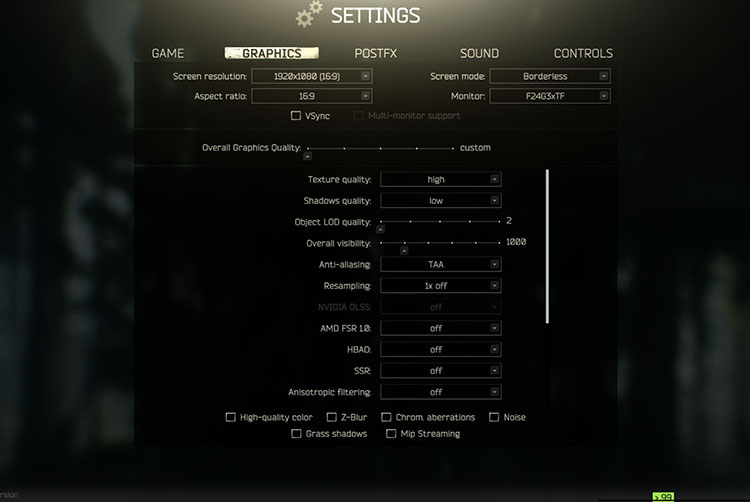
Here are the best Tarkov graphics settings:
Texture Quality: Textures generally have a relatively small impact on FPS. Set it to High, or Medium if you have 6 GB of VRAM or less.
Shadows Quality: Low. This can be one of the more demanding settings, so it’s better to reduce it for better FPS.
Object LOD Quality: 2.0-2.5. Higher values can increase CPU load, particularly on demanding maps.
Overall Visibility: 1000-1500. 2000+ is rarely worth the cost in most PvP scenarios.
Anti-Aliasing: TAA. It provides cleaner edges without the cost of higher options.
Resampling: 1x / Off. Extra rendering is pure FPS waste.
HBAO: Off.
SSR (Screen Space Reflections): Off.
Anisotropic Filtering: Per Texture or On. It improves surface clarity with relatively little performance impact.
Grass Shadows: Off.
NVIDIA Reflex Low Latency: On + Boost, if available.
Sharpness: Around 0.5-0.8 to restore some clarity when using TAA.
Post FX: Keep these settings minimal or off. Disable effects like Noise, Chromatic Aberration, and Z-Blur if you prioritize clarity and performance.
High-Quality Color: Off.
Noise: Off.
Also Read: Easy Ways to Boost Internet Speed for Gaming and Get Lower Ping >>
How to Optimize Windows Settings for Tarkov FPS Boost
With the previous Tarkov FPS settings, you can already improve performance and frame consistency. However, these in-game settings are not enough if Windows is consuming valuable CPU, RAM, or GPU resources in the background. In this part, we will introduce several Windows-level tweaks that can help reduce resource usage and potentially provide more stable FPS in Tarkov.
Enable Game Mode: Go to Settings > Gaming > Game Mode and turn it on. This will prioritize gaming-related tasks.
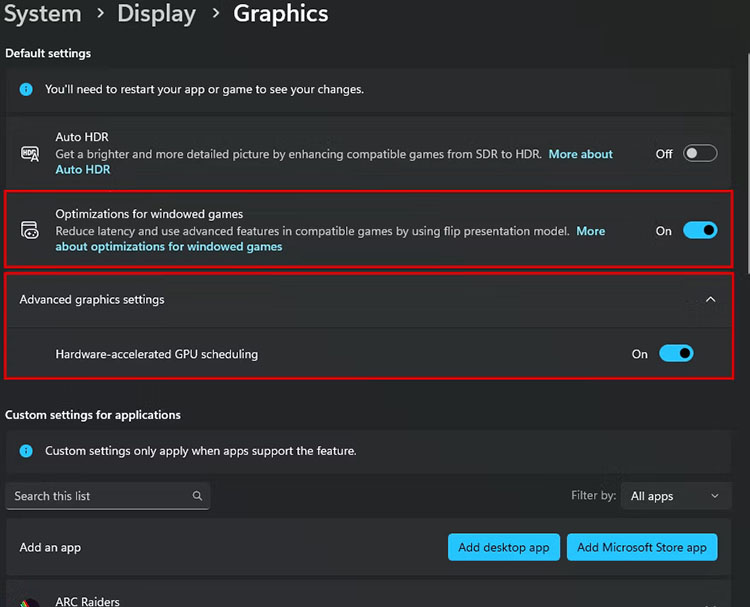
Set Tarkov to High Performance: Open Settings > System > Display > Graphics, add EscapeFromTarkov.exe, and select High Performance.
-
Disable Unnecessary Startup Apps: Open Task Manager > Startup apps. Disable those apps you do not need when Windows starts.
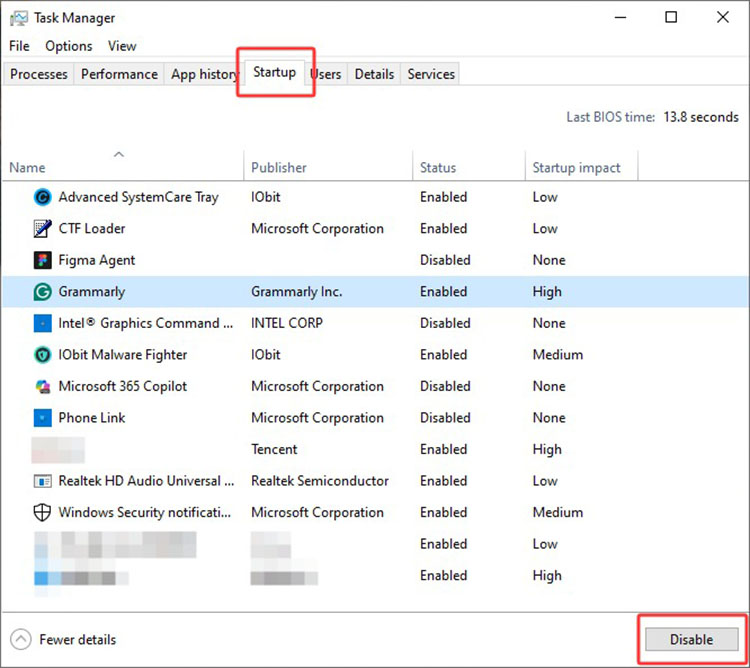
Close Background Apps and Overlays: Close unnecessary browsers, Discord overlays, and other resource-heavy applications before launching Tarkov.
Update Windows and GPU Drivers: Go to Settings > Windows Update > Check for updates, then download and install available updates.
-
Enable Hardware-Accelerated GPU Scheduling (HAGS): In Settings > System > Display > Graphics. Find Advanced Graphics Settings and enable Hardware-accelerated GPU Scheduling.
Adjust Windows Visual Effects: Press Win + R and input sysdm.cpl in the Run dialogue. Then go to System Properties > Advanced > Performance > Settings > Visual Effects > Adjust for best Performance.
Tips
Keep in mind that results might vary by PC hardware and configuration. Test your FPS and frame-time stability after applying these Tarkov best settings instead of applying every tweak blindly.
Boost Tarkov FPS Automatically with Game Booster
After you apply the best graphics settings for Tarkov and Windows-level tweaks, you should already have a more optimized gaming environment. However, these manual adjustments can be time-consuming, especially for beginners who are not familiar with PC optimization.
Smart Game Booster is a simpler alternative here. It can automatically optimize system resources, reduce unnecessary background processes, and apply performance-focused tweaks to improve FPS and game stability. This makes it easier to prepare your PC for Tarkov without working through various system settings yourself.
Key Features of Smart Game Booster
- Enjoy lag-free & low-ping gaming
- 100+ games supported
- Severs from all over the world
- Boost in-game FPS
Key features of Smart Game Booster
One-click Tarkov acceleration for faster FPS: There is no need to configure Tarkov FPS settings manually. With a single click, you can make this FPS booster apply adjustments to improve FPS and overall gameplay responsiveness.
Optimize background processes and system resources: It can reduce unnecessary background activity that consumes CPU, RAM, or other system resources. This helps free up available resources, so it has more headroom for smoother gameplay.
Keep GPU drivers up to date for smoother gaming: The software will check for available graphics driver updates and keep them up to the latest version, which helps improve game compatibility, address performance issues, and provide a more stable experience.
Monitor FPS and overall game performance: Smart Game Booster monitors and displays real-time in-game FPS, along with hardware temperatures and usage for your CPU, GPU, disk, memory, and motherboard. So you can identify performance bottlenecks and apply fixes.
How to use Smart Game Booster
Step 1. Download Smart Game Booster from the official website and install it on the PC.
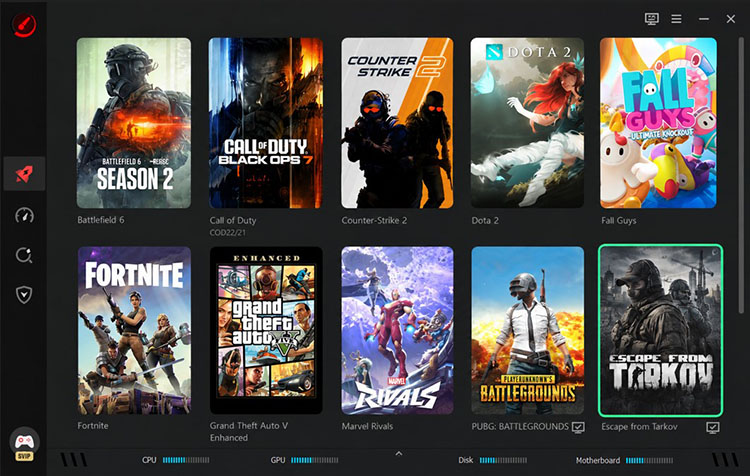
Step 2. Open the Boost tab and click the Browse button. Add Escape from Tarkov to the game list.
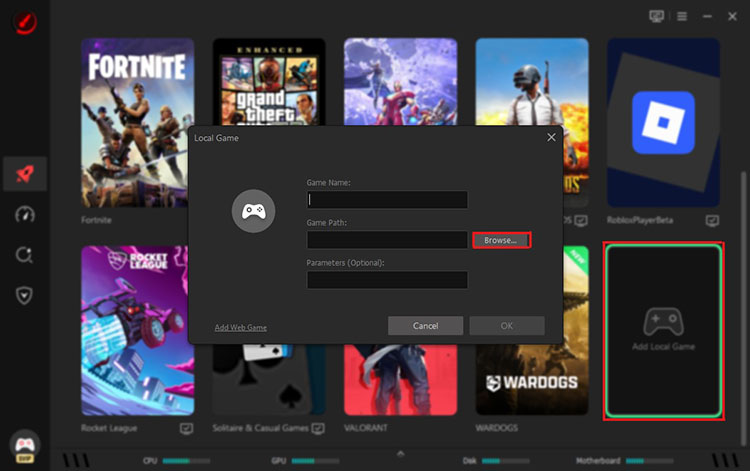
Step 3. Click Escape from Tarkov from the main interface. This lets you enter the game details for more settings.
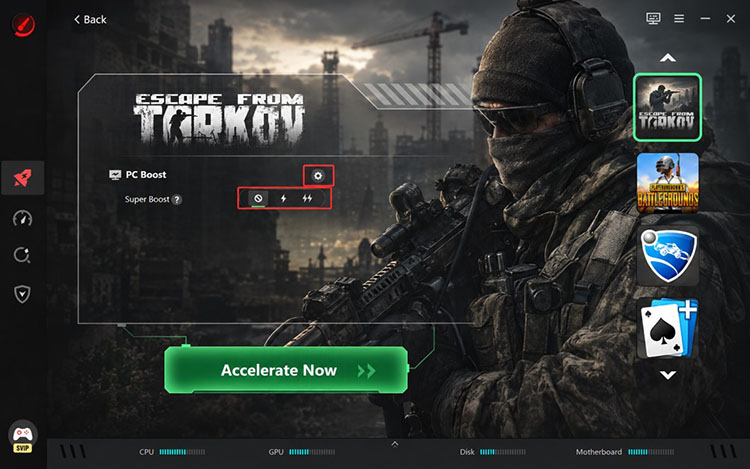
Step 4. Choose a PC Boost mode for the game. Click Accelerate Now to apply the boost mode.
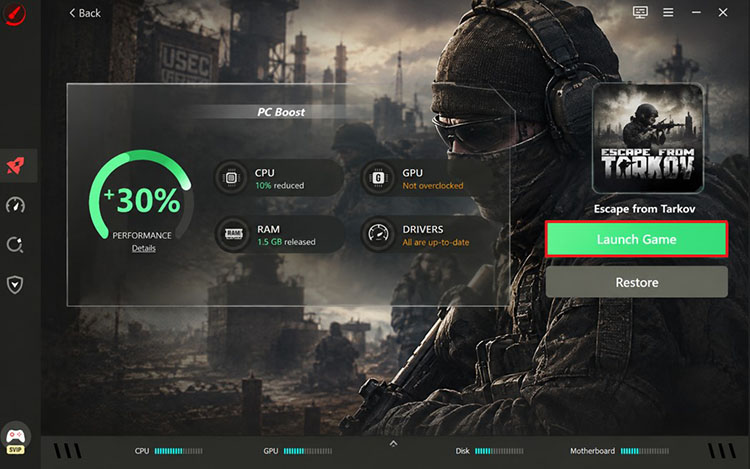
Step 4. Smart Game Booster will optimize your system settings later. Click Launch Game to enjoy improved FPS and performance.
FAQs about Tarkov Settings for FPS
Q1. Does GPU matter for Tarkov FPS?
Yes, but Tarkov can also be heavily limited by CPU performance and available RAM, depending on the map and settings. A powerful CPU and sufficient system memory are just as important as your graphics card.
Q2. What is the best visibility distance in Tarkov?
A range of 1000–1500 is a reasonable starting point for many systems. Higher values might increase the rendering workload and may provide diminishing returns.
Q3. Why does Tarkov stutter even with high FPS?
Average FPS does not tell the whole story. Stuttering can be caused by RAM pressure, shader compilation, background processes, asset streaming, or inconsistent frame times. It’s best to monitor 1% lows and frame-time behavior to have a full picture of actual smoothness.
Q4. Should I use DLSS or FSR in Tarkov?
If you need additional FPS, DLSS Quality on supported NVIDIA hardware or FSR Quality can provide a great performance increase. The trade-off is some potential loss of image sharpness. You can compare the results with native resolution on your system to make a decision.
Q5. What are the best Tarkov settings for different Maps?
The best Tarkov settings vary by map. Lower visibility(1000-1500) and demanding options on heavy maps, and increase visibility(2000-2500)for long-range environments. Some core settings for general maps are: Texture Quality(High); Shadows Quality(Low); Object LOD Quality(2-2.5); VSync (Off), and HBAO & SSR(Off).
Conclusion
If you have read this far, you should now have a solid understanding of Tarkov FPS settings. Also, the best results are not about relying on a single setting; it is about combining optimized in-game graphics, Windows-level tweaks, and a system configuration that suits your hardware. If you want to optimize your PC more easily with less manual effort, consider Smart Game Booster. It can help optimize system resources and reduce unnecessary background activity for a more consistent FPS and smoother gameplay. Try it and enjoy a more responsive experience during your next raid!
Key Features of Smart Game Booster
- Enjoy lag-free & low-ping gaming
- 100+ games supported
- Severs from all over the world
- Boost in-game FPS