In the high-stakes environment of Call of Duty: Warzone, precision is essential. Lag has become a persistent adversary for many players, who experience sudden frame-rate drops and the dreaded latency spikes. Understand why your Warzone is laggy and get ways to fix the Warzone lag. In this guide, we give detailed explanation and crucial fixes to stabilize your connection, boost frames and improve gaming experience.
Degraded Gaming Experience Due to Warzone Lag
Lag in Warzone is definitely a pressing issue that needs to be addressed, as it leads to a poor gaming experience and hinders players from performing at their best. Warzone lag typically manifests in the following ways.
Rubber-Banding (teleporting backward): Your character moves forward but suddenly snaps back to a previous position.
Hit registration failure: Your shot in the game was registered as a miss by the game server, even though your local client showed a hit.
Input delay: There is a delay between pressing a button on your keyboard and seeing that action take effect on your screen.
Micro-freezes (micro-shutters): It appears momentary hitches or frame rate drops.
Audio desync: The audio cues (like footstep or gunfire) cannot match the visual action.
Why is Warzone So Laggy? Potential Reasons
So, what causes lag in Warzone? We will analyze some potential influential factors in this part and provide specific solutions in the next section.
Slow Internet
Internet speed is crucial for gaming. Use an online internet speed tester to test your download speed. The speed is at least around 200Mbps and you can go on playing Warzone.
Congestion Servers
If you choose to play Warzone in a peak time on a server where thousands of users are playing, warzone lag cannot be avoided and that slows your performance.
Bandwidth Limitation
Sometimes, your ISP could throttle your bandwidth that restricts your connection speed in gaming. So you will find that your ping is higher and experience severe packet loss in Warzone.
High Latency/Ping
Latency is the time the signal takes to travel from your PC to the game server and back, measured in milliseconds (ms). High latency will cause multiple issues, including delayed hit registration, rubberbanding, and more.
What is the Ideal latency range?
1ms - 20ms: Optimal range with fast response time, no shuttering.
21ms - 50ms: Good range with smooth gameplay.
51ms - 100ms: Noticeable disadvantage in fast-paced funfights with desync.
100ms+: Poor gaming experience.
Where to see your latency/ping?
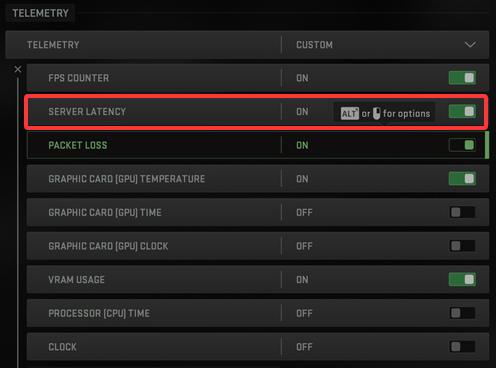
To see your ping or latency in Call of Duty: Warzone, you need to enable a setting.
Go to Settings > Interface > Telemetry.
Click the Show More option and toggle on Server Latency.
Then you can see your ping displayed on-screen during matches.
Out-of-Date Device Drivers
To get the best performance when playing games like Warzone, updating the graphics card to the latest version is essential. When the driver is outdated, it may lead to severe hardware bottlenecks because of missing “game ready” optimizations, broken shader compilation, poor VRAM management, and incompatibility with DirectX12.
Slow DNS Server
Your ISP will automatically assign you to use their proprietary DNS servers. But when the DNS server is slow, outdated or poorly maintained, you can experience long matchmaking times, packet loss errors, laggy voice chat.
High CPU and RAM Usage from Background Applications
When the game Call of Duty: Warzone is running, it expects exclusive and fast access to CPU and RAM. If there are too many apps running in the background while Warzone is running, CPU and RAM usage will reach very high or even 100%. In this case, you may hit a total system bottleneck.
Low Hardware Specifications for Warzone
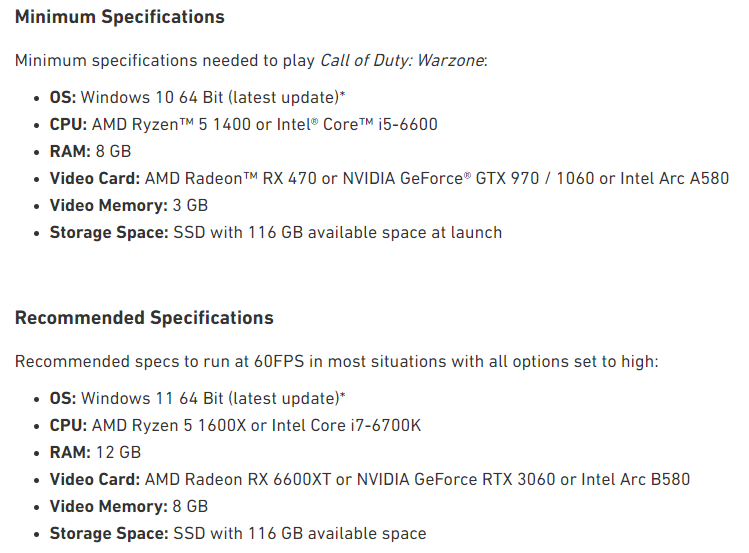
Even though your PC specification just meets the minimum requirements of Warzone, it does not guarantee a smooth or competitive experience.
Minimum requirements of Warzone:
OS: Windows 10 64-bit (latest update)
Processor: Intel Core i5-6600 or AMD Ryzen 5 1400
RAM: 8 GB
Graphics Card: NVIDIA GeForce GTX 970 / 1060 or AMD Radeon RX 470
Storage Space: 116 GB available on SSD
Network: Broadband internet connection
Sound Card: DirectX 12 compatibility
High Display Settings
Default display settings for Warzone sometimes are higher than your PC can actually render, such as on-demand texture streaming, texture resolution, v-sync, and so on.
Also Read: Free Call of Duty Booster for PC >>
How to Fix Warzone So Laggy? Try One by One
Use Wired Connection to Replace Wifi
An Ethernet connection is essential for playing games like Warzone. Unlike Ethernet, Wi-Fi speeds can be affected by various factors, such as walls and the usage of other devices connected to the network. Switching Wifi connection to wired Ethernet connection can fix Warzone lag brought by network lag.
Play in Fullscreen Exclusive Mode
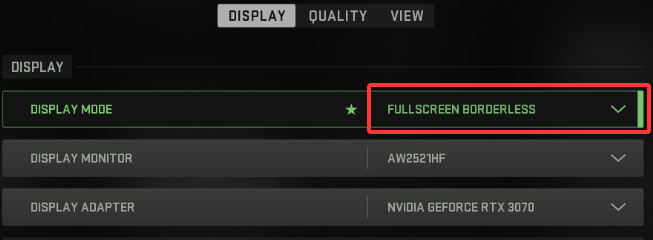
When you boot Warzone for the first time, the default display mode is Fullscreen Borderless to make the game match your native monitor resolution. But for higher FPS, smoother frame raters, and lowest mouse/controller input latency, Fullscreen Exclusive mode is better as it enables your GPU only to focus on rendering Warzone.
How to change the display mode?
Launch Warzone > Settings > Graphics > Display.
Click the dropdown menu of Display Mode, and change it from Fullscreen Borderless to Fullscreen Exclusive.
Adjust More Settings in Warzone
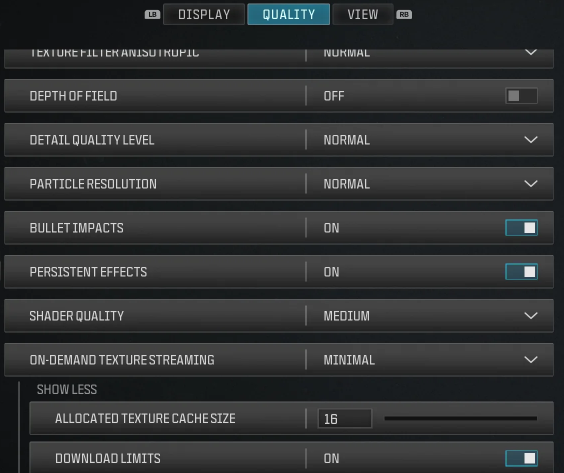
There are some Warzone settings to change to reach lower lag.
Dynamic Resolution: Off
V-Sync: Off
Custom Frame Rate Limit: Custom
NVIDIA Reflex Low Latency: On + Boost
Shader Quality/Volumetric Quality: Low
Screen Space Reflections (SSR): Off
On-Demand Texture Streaming: Off
Texture Resolution: Low or Normal
VRAM Scale Target: 80
Set Windows Power Plan to Ultimate or High Performance
Follow the easy steps to change Windows power plan.
Update GPU Drivers
Updating your driver with Device Manager gives your graphics card a brand-new set of instructions specifically optimized for Warzone than outdated drivers. It handles well on new maps, lighting effects or weapons. This smoother communication keeps your frame rate stable and stops the hardware stutters that feel like lag.
End Unnecessary Background Tasks
Open Task Manager to end unnecessary background processes when gaming to reduce CPU and memory usage and improve performance in Warzone.
Change DNS Servers
Change DNS servers to Google’s public DNS in the Control Panel.
Open Control Panel > Network and Internet > Network and Sharing Center > Change adapter settings.
Right-click the connection you want to change > Properties.
Click on TPC/IPv4 or TPC/IPv6 > Properties.
Select “Use the following DNS server address” and enter the following:
For IPv4 addresses:
Preferred DNS server: 8.8.8.8
Alternate DNS server: 8.8.4.4
For IPv6 addresses:
Primary: 2001:4860:4860::8888
Secondary: 2001:4860:4860::8844
What to Do When Warzone Lag after Update?
Follow the steps below to fix Warzone lag after update what may caused by reset graphics settings, overloaded shader cache, or performance degradation bug.
Adjust default setting of On-Demand Texture Streaming to Minimal;
Rebuild shader cache by making the download completely (Graphics Settings > Restart Shaders Optimization);
Restart the game every 3 or 4 matches to clear memory;
Repair the corrupted patch files running “Scan and Repair” tool via Battle.net or “Verify Integrity of Game Files” in Steam;
Reinstall the game to completely eliminate post-patch lag.
Use Affordable Game Booster for Auto Boost
Here we recommend a dedicated game booster, Smart Game Booster made by iTop, for Call of Duty series, Roblox and other games, specifically for Windows PC users. Its primary goal is to maximize your hardware's capabilities to realize higher Frame Rates Per Second (FPS), minimize in-game lag, and streamline your overall system performance with auto boost. It is highly popular among casual users who want an auto way to optimize their PC without performing advanced system settings or manually managing background tasks.
Key Features of Smart Game Booster
- Enjoy lag-free & low-ping gaming
- 100+ games supported
- Severs from all over the world
- Boost in-game FPS
How does it fix Warzone lag issue and boost your gaming experience?
Network route optimization
It offers 500+ regional gaming routes across Japan, Singapore, Korea, Hong Kong, Sydney, Saudi Arabia, and the UAE to ensure a fast and stable connection.
PC boost
When you click the PC boost button, basic boost is free to use. It will help you to automatically suspend or terminate non-essential Windows services and background applications to overclock GPU and VRAM. improve frame rates and enjoy smoother gameplay.
Auto boost
When you launch a game, it automatically closes those unnecessary background services to free up RAM and CPU resources.
Driver update
Update outdated graphics and audio drivers to prevent Warzone lagging or crashes and enjoy the latest performance and stability improvements.
Also Read: How to Make Epic Games Download Faster >>
Conclusion of Fixing Warzone Lag
How to fix Warzone lag? You need to improve your local system performance as well as your network stability. Warzone is a title that requires high PC performance. So even a minor bottleneck may lead to lag or shutter. Identify reasons that cause your Warzone so laggy and fix it accordingly. SMGB is a relatively comprehensive solution to resolve Warzone lag from changing servers to boost your PC.