Rocket League is a fast-paced game that blends soccer with rocket-powered cars, delivering thrilling aerial plays and intense competition. However, Rocket League lag is a common issue that can disrupt gameplay, causing stuttering, high ping, and FPS drops. These problems can quickly turn exciting moments into frustrating ones.
How to fix lag in Rocket League? This guide will introduce the main causes behind and the most effective solutions. Now, let’s find practical tips to achieve smoother, more responsive gameplay.
Why Is Rocket League Lagging on PC
Rocket League lagging often appears as stuttering, rubber-banding, or delayed input. You may also notice packet loss warnings or sluggish gameplay even with a decent internet connection. Here are the most common causes:
Network Issues - Unstable Wi-Fi connections or bandwidth congestion can lead to noticeable lag, input delay, and inconsistent performance during matches.
Server-Side Problem - Overloaded servers or distant regions can also increase latency and cause rubber-banding even if your local connection is stable.
Game Settings - High graphics settings, V-Sync enabled, or poorly configured FPS limits can strain your system, which results in reduced responsiveness.
Hardware Bottleneck - Outdated drivers, insufficient RAM, weak CPU/GPU performance, overheating hardware, and background processes, all of which can limit system resources and cause gaming instability.
Fortunately, there are several effective solutions for Rocket League lag fix. Meanwhile, with a professional game booster, you can also quickly reduce lag and boost FPS without manual configuration.
Key Features of Smart Game Booster
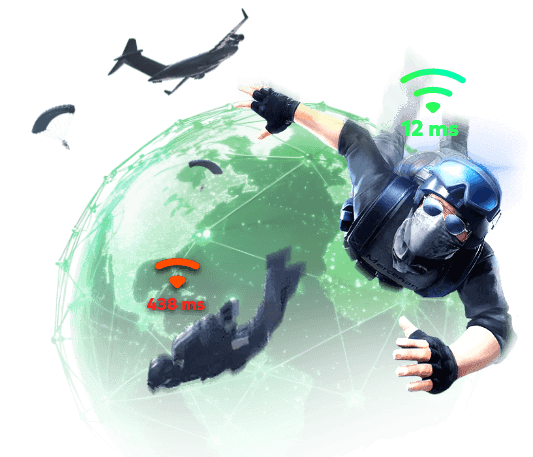
- Enjoy lag-free & low-ping gaming
- 100+ games supported
- Severs from all over the world
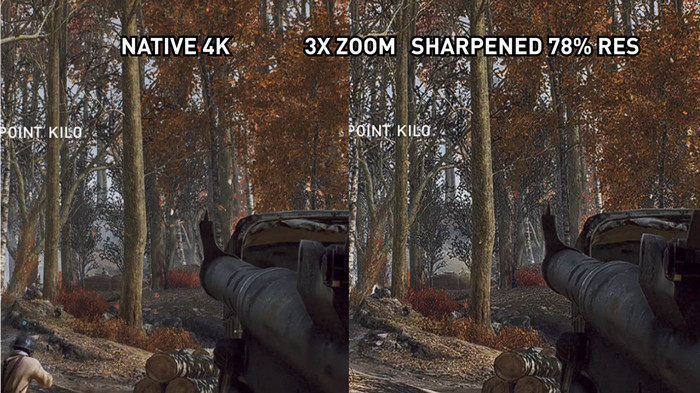
- Boost in-game FPS
How to Fix Rocket League Lag - 5 Basic Solutions
Generally, you can fix Rocket League lagging on PC with a few adjustments. In this part, we will introduce 5 useful tweaks. Just check them out.
Use a Stable Network Connection to Lower Ping in Rocket League
First and foremost, a stable internet connection is essential for stable gameplay. Here are several effective steps you can take to improve your connection and fix Rocket League lag:
Step 1. Switch from Wi-Fi to a wired Ethernet connection for better stability.
Step 2. Restart your router/modem. Unplug them for 30-60 seconds and plug them back in. This practice lets them fully reboot to clear out the network cache.
Step 3. Close those bandwidth-heavy applications (streaming or downloads) used on the same network.
Adjust In-Gaming Settings to Fix FPS Drops in Rocket League
While the game is generally well-optimized, certain settings can create unnecessary visual burden on your hardware, leading to Rocket League lag. In this part, we have concluded the recommended settings for smoother gameplay.
Recommended Gameplay Settings
Client Send Rate: High
Server Send Rate: High
Bandwidth Limit: High
Input Buffer: Default
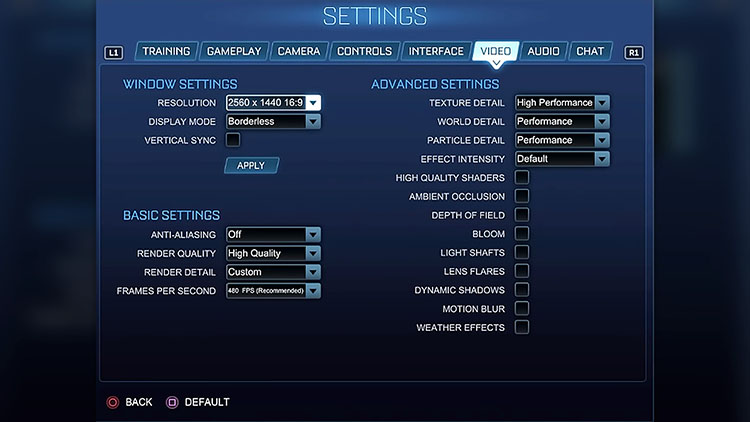
Recommended Graphic Settings
Resolution: Your native monitor resolution
Display Mode: Borderless
Render Quality: High Quality
Render Detail: Custom
Texture Detail: High Performance
World Detail: Performance
Particle Detail: Performance
Frames Per Second: Based on your monitor refresh rate
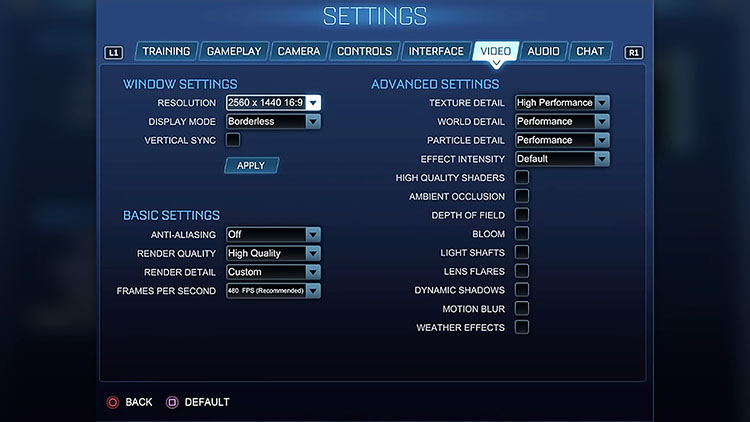
To further reduce lag and boost FPS, disable demanding visual effects like High Quality Shaders, Ambient Occlusion, Motion Blur, etc., to lower GPU load and improve overall stability and smoothness.
Update Drivers to Troubleshoot Rocket League Stuttering
Outdated graphics and network drivers may cause Rocket League lag, leading to to a poor gaming experience. You can fix the issue via driver updates, and here’s how.
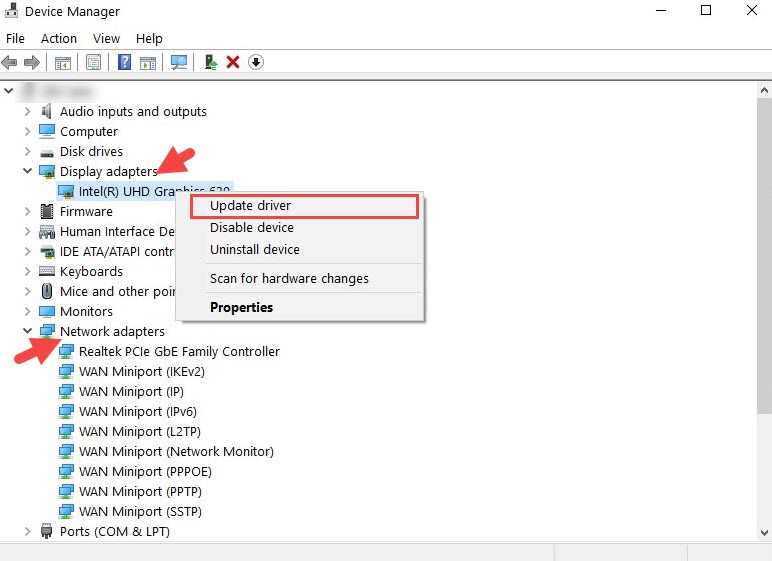
Step 1. On your Windows PC, search for Device Manager.
Step 2. Expand Display adapters to see your graphics device. Right-click it and select the Update driver.
Step 3. Expand the Network adapters to locate your current network device. Right-click on it > Update driver to search for the latest driver.
When you have multiple drivers to update, it can take time with the manual steps above. Driver Booster automates the workflow to update all drivers on your PC. Equipped with a large database, the software delivers manufacturer-certified drivers from 1,200+ major brands, including INTEL, AMD, and NVIDIA. You can easily keep the drivers up to date in just one click!
Close Background Apps to Release Resources for Running Rocket League Smoothly
If you have too many apps running in the background, they will greatly consume CPU, RAM, GPU, and bandwidth, which results in noticeable Rocket League lagging. This is the time you need to close those background apps to release computer resources and prioritize your system for Rocket League.
Here are apps/overlays you can disable during Rocket League.
Discord Overlay - Can cause micro-stutters and minor performance instability during gameplay.
NVIDIA GeForce Experience Overlay - May interfere with rendering and lead to FPS drops.
Third-Party Trackers - Real-time overlays may cause lag, pop-ups, and visual interruptions.
Steam Overlay - Can slightly reduce FPS and impact overall performance.
Epic Games Overlay - Known to introduce input lag and responsiveness issues.
How to close background apps on PC for reducing lag in Rocket Rocket? Follow the steps.
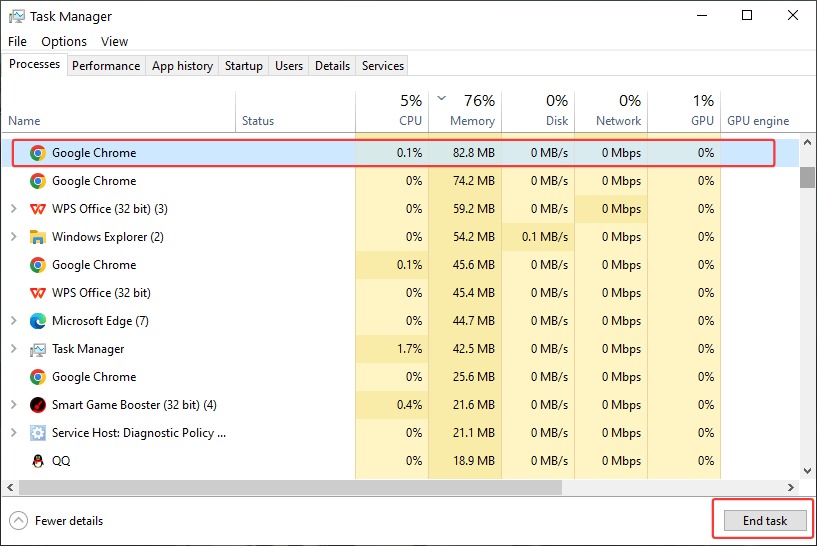
Step 1. On Windows, search for and open Task Manager.
Step 2. Review the list of running apps and find unnecessary background programs.
Step 3. Select non-essential tasks and click End Task to free up system resources before launching Rocket League.
Change Server in Rocket League to Fix Lags
If Rocket League lag is caused by server distance or high server load, you can switch to a server with lower population to improve performance. Let's see how to change servers in Rocket League easily.
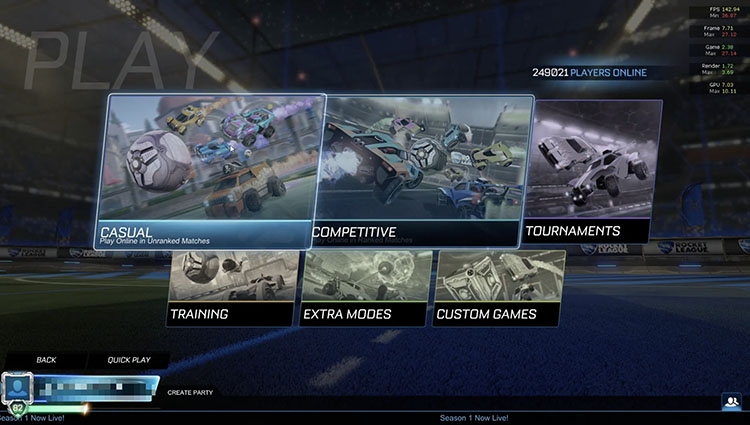
Step 1. From the main menu, select Play, then choose your desired playlist mode (e.g., Casual or Competitive).
Step 2. In the next screen, click the Regions button located in the top-right corner.
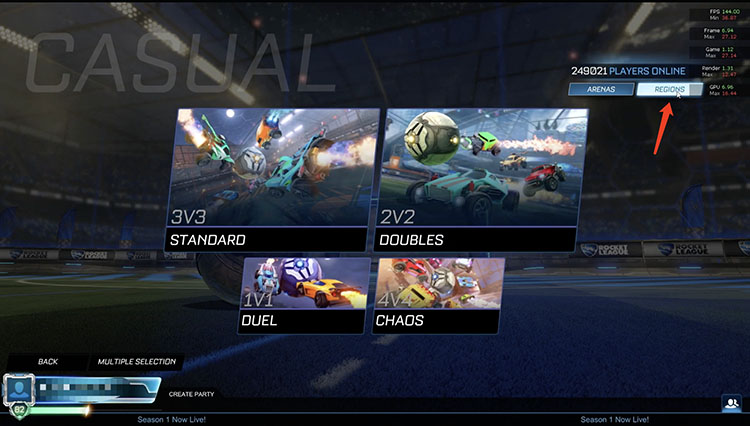
Step 3. Choose the server region closest to your location. Then you can play on the new server with improved ping.
One-Click Solution: Use Game Booster to Fix Rocket League Lag
While manual methods can help improve gameplay, they are often time-consuming. This is where Smart Game Booster comes into play. This dedicated game booster can quickly fix lag, boost FPS, and optimize your system for the best gaming experience. For gamers who want a simple and effective way to eliminate Rocket League lag without complex configurations, Smart Game Booster is an excellent choice.
Key Features of Smart Game Booster
- Enjoy lag-free & low-ping gaming
- 100+ games supported
- Severs from all over the world
- Boost in-game FPS
It includes a set of features which makes the tool ideal for boosting gaming performance.
Accelerate Rocket League with no Lag
Smart Game Booster intelligently cleans background processes, frees up RAM and CPU resources, and applies game-specific optimizations. This reduces stuttering, speeds up load times to ensure consistent and smooth gameplay.
Reduce Ping to Bypass Network Bottlenecks
The software can also optimize your network settings and prioritize game traffic, which helps lower ping and minimize packet loss. This can effectively troubleshoot rubber-banding and delayed inputs for a better online experience.
Change Server in Rocket League in 1-Click
Before you launch the game, it allows you to change region in Rocket League via its built-in server selection. So you can avoid distant servers and enjoy improved overall connection for Rocket League.
Boost FPS and Optimize PC for Gaming
It unlocks the full potential of your CPU and GPU to maximize gaming performance. With Super Boost mode enabled, you can achieve up to a 30% performance increase by intelligently overclocking your GPU and VRAM.
How to fix lag in Rocket League with Smart Game Booster
Step 1. Free download and install the software. Smart Game Booster is compatible with all Windows OS.
Step 2. Open the main dashboard, choose Rocket League to enter the game details.
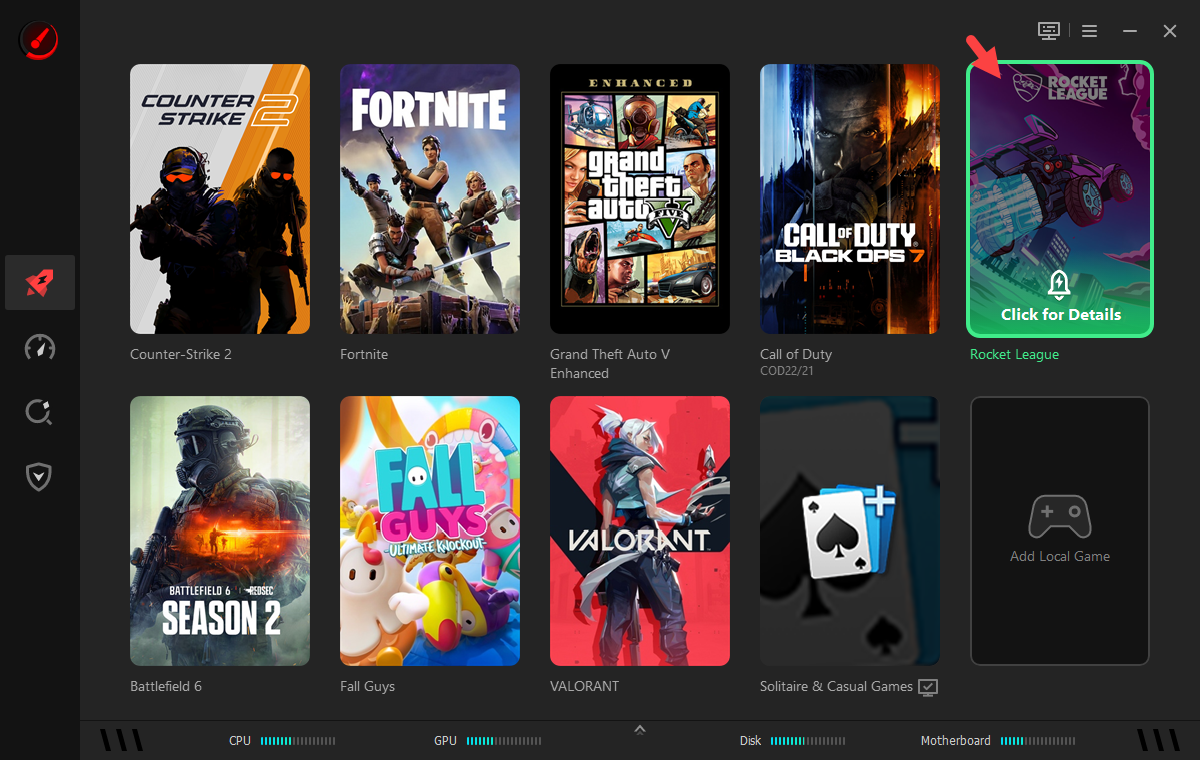
Step 3. In the game setting interface, the two crucial options for boosting the game - Network Acceleration and PC Boost - are enabled by default. Directly click Accelerate Now to reduce lags in Rocket League.
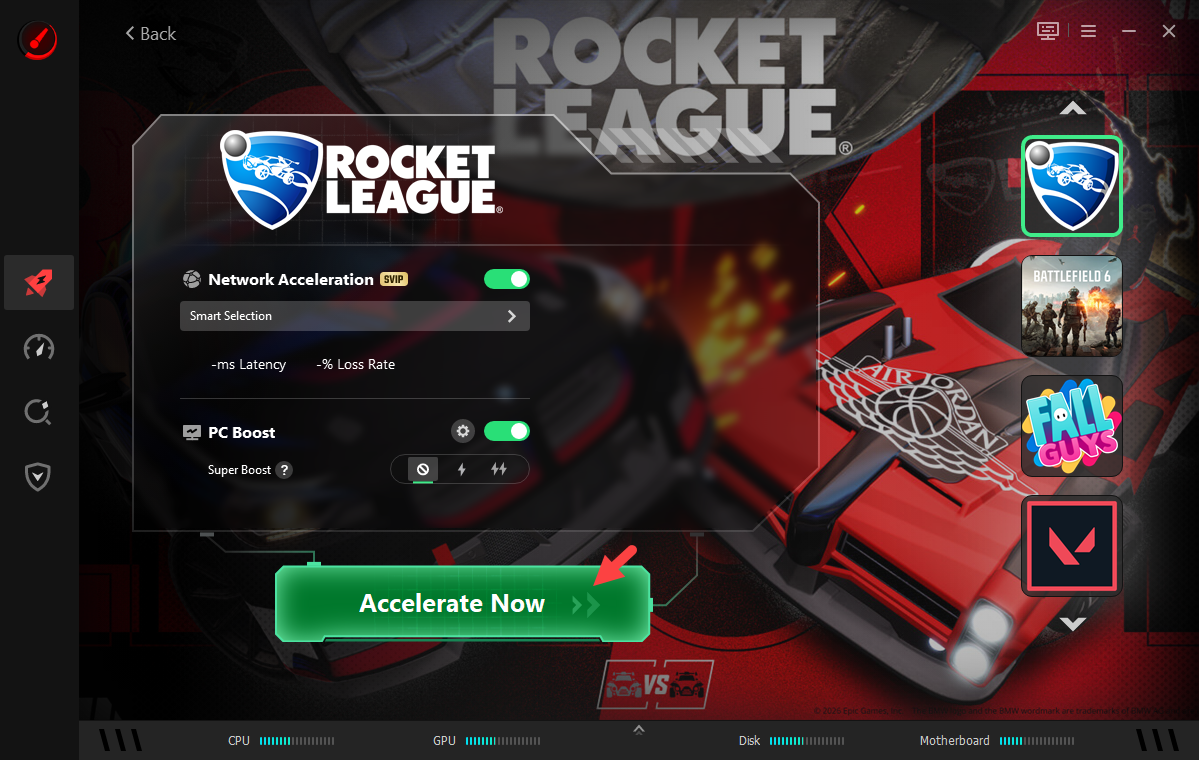
Step 4. You can also customize the options.
For Network Acceleration - click Smart Selection to select a region and click Smart Accelerate. Otherwise, choose a specific node with lower latency and loss rate. Next, click Accelerate Now.
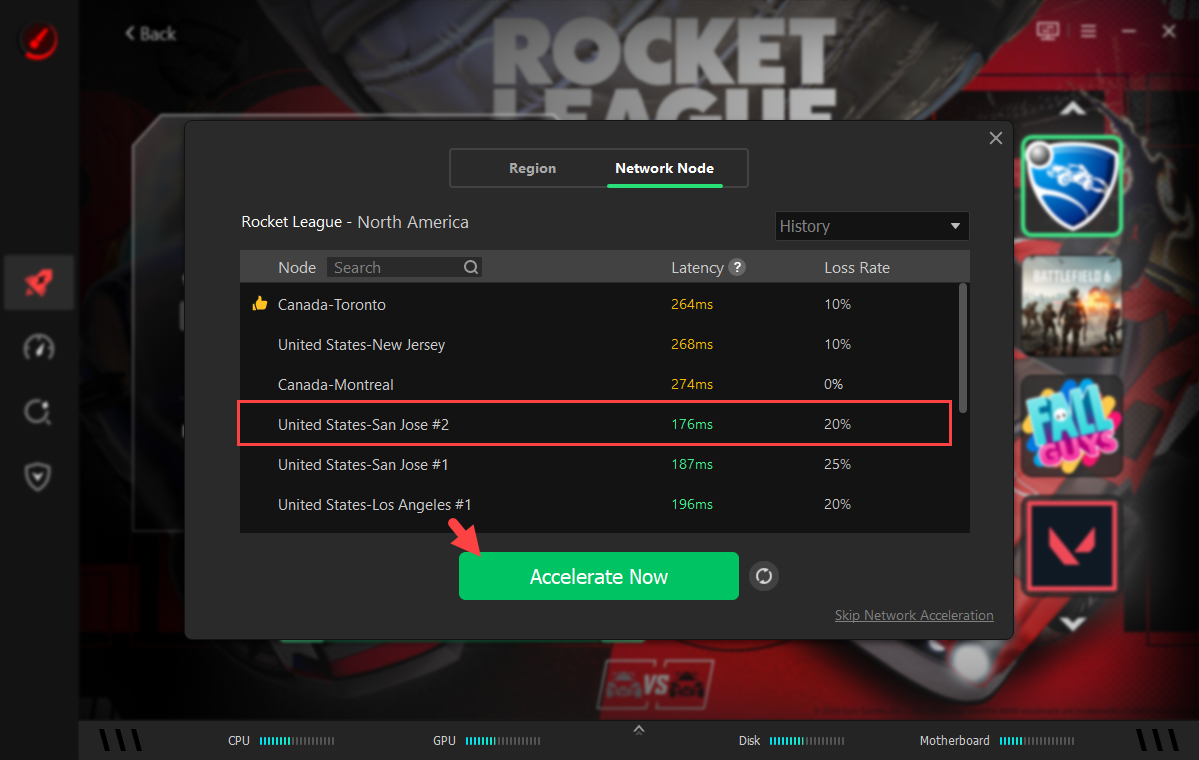
For PC Boost - Choose from Basic or Max mode for better gaming performance.
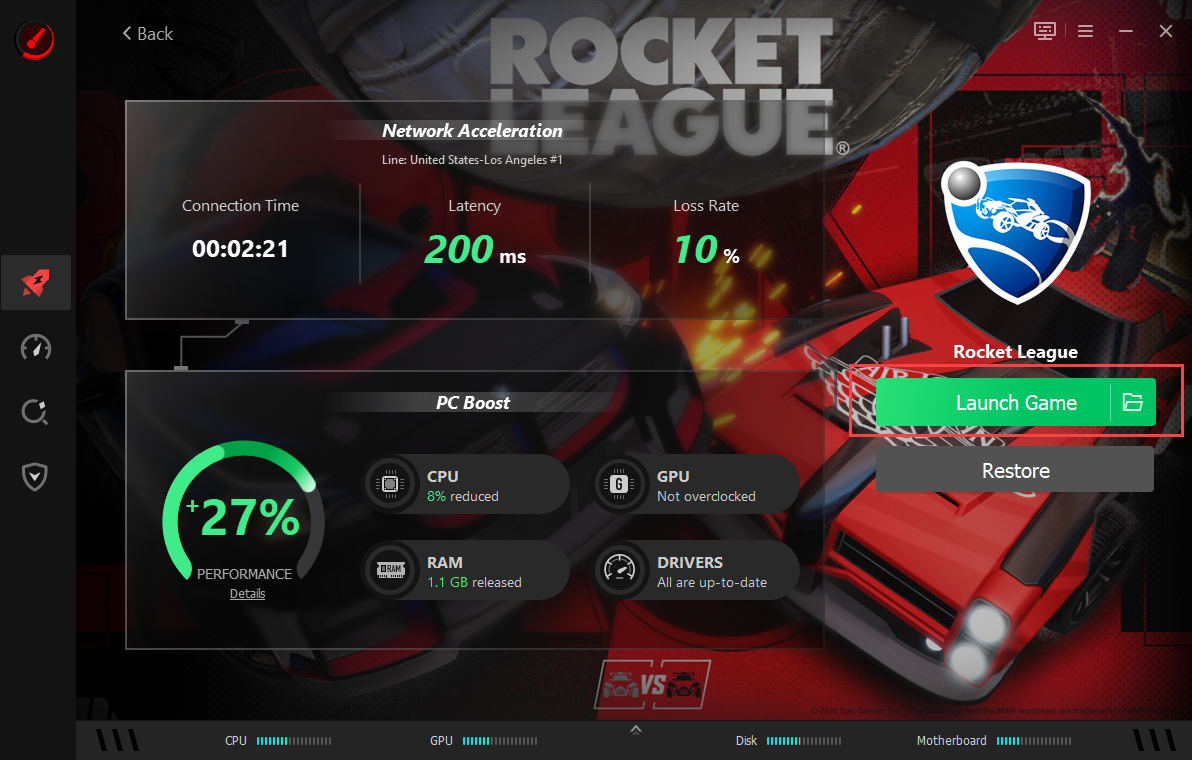
Step 5. Check the situations of both Network Acceleration and PC Boost in real-time. Click Launch Game to play Rocket League with no lag.
FAQs: What You Should Know for Playing Rocket League Without Lag
What are the system requirements for Rocket League?
Here are the minimum and recommended requirements for Rocket League.
Minimum Requirements:
OS: Windows 7 (64-bit) or newer
CPU: 2.5 GHz Dual Core
RAM: 4 GB
GPU: NVIDIA GeForce GTX 760 / AMD Radeon R9 270X or better
DirectX: Version 11
Storage: 20 GB available space
Recommended Requirements:
OS: Windows 7 (64-bit) or newer
CPU: 3.0+ GHz Quad Core
RAM: 8 GB
GPU: NVIDIA GeForce GTX 1060 / AMD Radeon RX 470 or better
DirectX: Version 11
Storage: 20 GB available space
Can I un Rocket League on my PC?
If you are not sure, you can use the "Can I RUN It" tool in Smart Game Booster to figure it out. The feature will detect and analyze your hardware automatically, providing a detailed report. Meanwhile, it can rate your PC, and you can also know what games you can run based on the hardware.
Should I upgrade the GPU for Rocket League?
Not necessarily. Rocket League runs smoothly on most mid-range GPUs at 1080p. But you can still upgrade it if you want higher resolutions or maximum graphics. Alternatively, you can use Smart Game Booster for software optimization, which can also improve performance and reduce lag effectively.
Conclusion
While Rocket League lag can be frustrating, it's still fixable if you apply the right method. With the 5 recommended approaches, you should be able to fix lag in Rocket League improve your gaming experience significantly. However, when it comes to the fastest and most effective solution, Smart Game Booster stands out. There are no hassles at all. It helps you get the best performance out of your system with one-click optimization. What are you waiting for? Try it, and your best matches are just one boost away!
Key Features of Smart Game Booster
- Enjoy lag-free & low-ping gaming
- 100+ games supported
- Severs from all over the world
- Boost in-game FPS