If you're wondering how to make Epic Games download faster, you're not alone. Slow downloads on the Epic Games Launcher can turn a 50 GB game into an all-day waiting experience. The problem may stem from network congestion, incorrect launcher settings, limited bandwidth, background applications, or even poor PC performance.
This guide explains why Epic Games download so slow and introduces five practical methods to improve download speed. Whether you're searching for how to speed up Epic Games download, how to get Epic Games to download faster, or how to make Epic Games download faster on PC, these fixes can help you maximize your available bandwidth and reduce download time.
Why Do Epic Games Download So Slow?
Before diving into specific fixes or adjusting any settings, it's important to take a moment to understand the underlying reasons behind the issue. Knowing why your downloads are slow can help you choose the most effective solution and avoid unnecessary troubleshooting steps. In particular, understanding why does Epic Games download so slow can point you in the right direction. Common causes include:
Epic Games server congestion
Slow or unstable internet connection
Download throttling enabled
Background apps consuming bandwidth
Corrupted launcher cache
Outdated network drivers
High disk usage or insufficient storage performance
Antivirus or firewall interference
Fortunately, most of these issues can be resolved without advanced technical knowledge.
How to Make Epic Games Download Faster: 5 Effective Solutions
The following methods are arranged from the easiest to the most comprehensive. Try them one by one until your download speed improves.
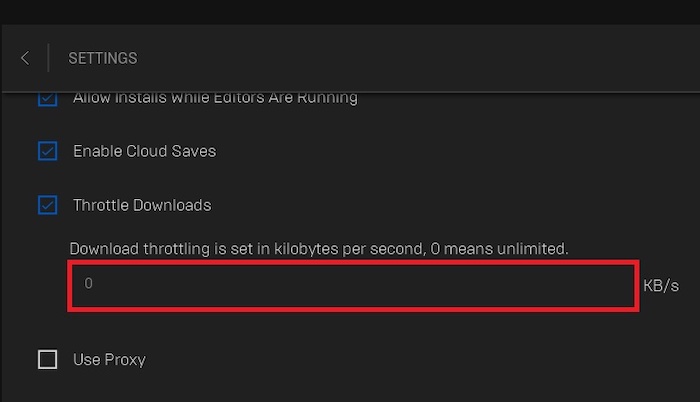
Method 1. Disable Download Throttling in Epic Games Launcher
One of the simplest answers to how to make Epic Games download games faster is to check the launcher's own bandwidth settings. Epic Games includes a download throttling option that can accidentally limit your speed if enabled. Disabling this restriction allows the launcher to use more of your available internet bandwidth. Here are the steps.
Step 1. Open the Epic Games Launcher.
Step 2. Click your profile icon in the upper-right corner of the Launcher.
Step 3. Select Settings.
Step 4. Scroll down to find Download Settings, then expand this section.
Step 5. Find Limit Download Speeds and uncheck the box.
Step 6. Restart the launcher, and start downloading again.
Note: Older Epic Games Launcher versions may show this option as Throttle Downloads instead. In that interface, uncheck Throttle Downloads or set the value to 0 (Unlimited) to remove the restriction.
Method 2. Close Bandwidth-Hungry Programs
Even with fast internet, other applications may occupy most of your available bandwidth. Cloud synchronization, streaming services, Windows Update, browsers, and game launchers can all slow Epic downloads. Freeing network resources is another quick way to fix slow download on Epic Games without changing hardware or internet plans. Here’s how to do it.
Note: Avoid ending unfamiliar Windows system processes because doing so may cause instability or interrupt important services.
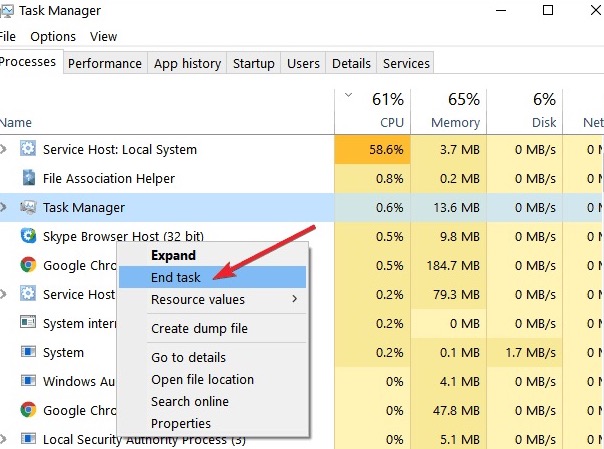
Step 1. Press Ctrl + Shift +Esc to open Task Manager.
Step 2. Select the Processes tab and look at the Network column.
Step 3. Click the Network heading to sort programs by network usage from highest to lowest.
Step 4. Right-click the bandwidth-heavy program and select End task. These programs usually include:
Step 5. Return to Epic Games Launcher and resume the download.
Tip: If certain apps automatically consume bandwidth every time Windows starts, open Task Manager > Startup apps and disable unnecessary startup programs. This can reduce background network activity and help make Epic Games download faster in future sessions.
You May Like: [Quick Fix] How to Make Steam Download Faster 2026 >>
Method 3. Use Smart Game Booster to Optimize Your PC
If you're looking for an easier solution than manually closing programs, Smart Game Booster can automatically optimize your computer for faster game downloads and better launcher performance. It reduces unnecessary resource usage, frees system memory, and helps eliminate background activities that compete with Epic Games for bandwidth and system resources. All of these features make it an excellent choice for users searching for how to get Epic Games to download faster, especially on older or heavily used PCs.
Key Features of Smart Game Booster
- Enjoy lag-free & low-ping gaming
- 100+ games supported
- Severs from all over the world
- Boost in-game FPS
Key Features of Smart Game Booster
Enhances Epic Games download speed by automatically closing unnecessary background processes, freeing up CPU, RAM, and network bandwidth for smoother and faster downloads.
Improves Epic Games launcher performance by optimizing Windows settings that may slow down downloads or cause lag during game installations.
Boosts Epic Games download speed by disabling unnecessary startup programs that consume bandwidth and system resources in the background.
Speeds up Epic Games downloads and installations by removing temporary files and cache that can slow disk performance.
Optimizes network settings to reduce lag and improve connection stability, helping fix slow Epic Games download issues.
Monitors CPU, RAM, disk, and network usage in real time to help identify and resolve factors causing slow Epic Games downloads.
Steps to make Epic Games download faster:
Step 1. Download and install Smart Game Booster on your computer.
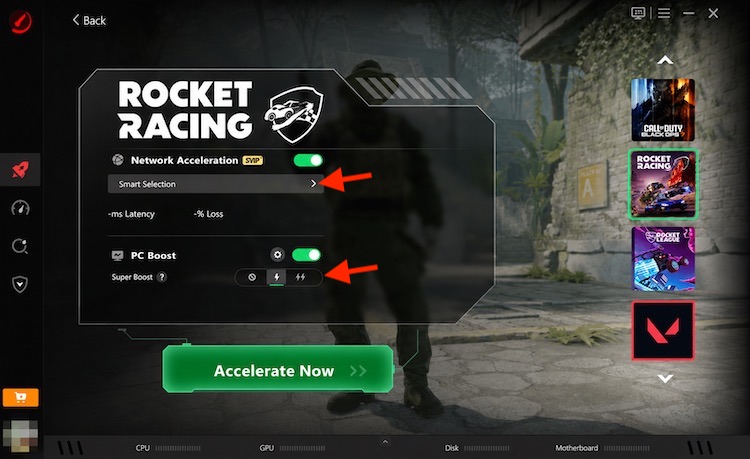
Step 2. Open the program and scan for installed games. Select an Epic title (eg, Rocket Racing) and enter the optimization interface.
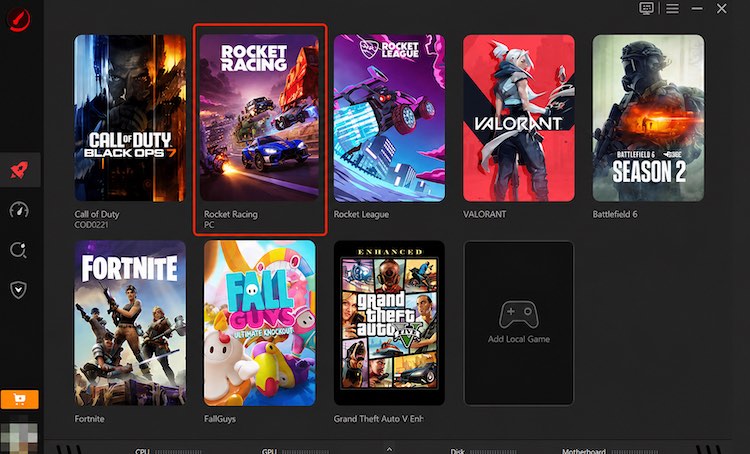
Step 3. Enable the Network Acceleration option, then select Smart Selection as the acceleration mode. Also, you can choose different boost modes under the PC Boost tab. Once done, click Accelerate Now to enjoy a faster gaming experience.
Method 4. Update Your Network Driver
An outdated or corrupted network driver may reduce connection stability or prevent your adapter from reaching its maximum performance.
Updating your driver is one of the most effective long-term solutions for anyone searching how to make Epic Games download faster 2026 because newer drivers often improve compatibility and network performance.
Instead of searching for the correct driver manually, Driver Booster can scan your PC, detect outdated network adapter drivers, and help install compatible updates with a simpler process.
But if you stick with the traditional driver update way, here are the steps.
Step 1. Press Win + X to open Device Manager.
Step 2. Expand Network adapters.
Step 3. Find the adapter you currently use to connect to the internet. Step 4. Right-click it and select Update driver.
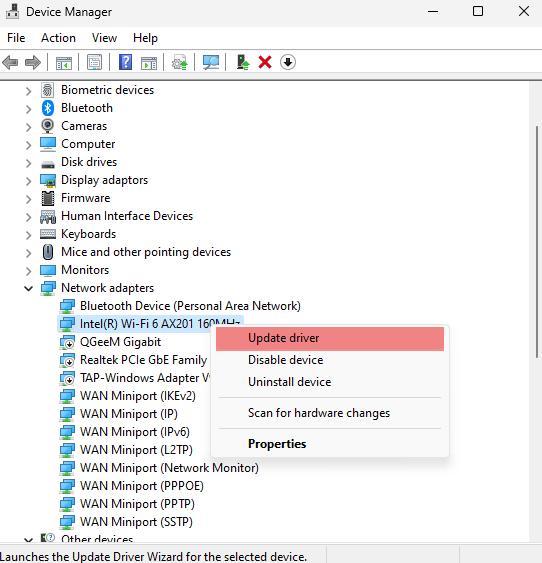
Step 5. Select Search automatically for drivers in the Update Drivers window.
Step 6. Follow any on-screen instructions to install the new driver and restart your PC.
Method 5. Change DNS and Restart Your Network
DNS doesn't directly increase internet bandwidth, but it can improve server communication and reduce connection delays. Combined with restarting your modem or router, this often helps users wondering how to speed up Epic Games download.
Step 1. Press Windows + I to open Settings, then select Network & internet.
Step 2. Choose your active connection:
For Wi-Fi, click Wi-Fi, then open your connected network/properties.
For a wired connection, click Ethernet.
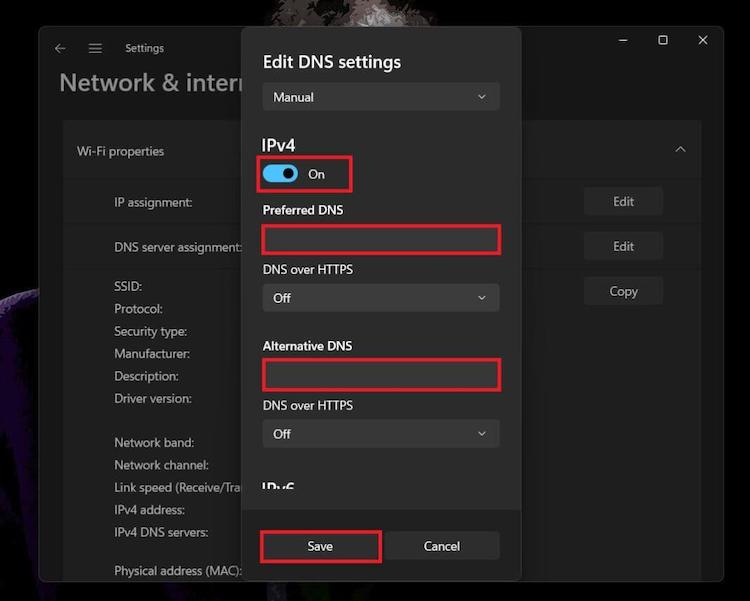
Step 3. Scroll through your network properties until you find DNS server assignment, then click Edit.
Step 4. In the Edit DNS settings window:
For example, you can use Google Public DNS:
Preferred DNS: 8.8.8.8
Alternate DNS: 8.8.4.4
Or Cloudflare DNS:
Preferred DNS: 1.1.1.1
Alternate DNS: 1.0.0.1
Step 5. Restart your router and PC and launch Epic Games again.
Extra Tips to Make Epic Games Download Faster
Besides the five methods above, these practices can further improve download performance by optimizing your network settings, reducing background activity, ensuring stable connectivity, and keeping your system updated for smoother and faster downloads.
Use a wired Ethernet connection.
Download games during off-peak hours.
Install games on an SSD.
Disable VPNs while downloading.
Ensure sufficient free disk space.
Restart the Epic Games Launcher regularly.
Keep Windows updated.
These small improvements can make a noticeable difference if you're searching how to make Epic Games download faster Reddit, where many users recommend combining several optimizations instead of relying on a single fix.
FAQs About Epic Game Download
Is there a download speed limit in Epic Games?
Yes. If download throttling is enabled in the launcher settings, your speed may be restricted. Setting the limit to 0 (Unlimited) removes this cap.
Why is Epic Games downloading at 0 MB/s?
This usually happens because of temporary server issues, background disk activity, antivirus scanning, corrupted launcher cache, or unstable internet connectivity.
Does Smart Game Booster increase Epic Games download speed?
Smart Game Booster doesn't increase your internet bandwidth. Instead, it frees CPU, RAM, storage, and network resources by reducing unnecessary background activity, helping Epic Games use your system more efficiently during downloads.
Conclusion
If you've been searching for how to make Epic Games download faster, the good news is that most download issues can be fixed with a few simple adjustments. From disabling throttling and closing background apps to optimizing Windows with Smart Game Booster and updating your network driver, these five methods can significantly reduce download time. By applying several of these solutions together, you'll enjoy faster, smoother game downloads and spend less time waiting to play.