You’re mid-fight, your crosshair is on the enemy, and then—stutter. The screen freezes for a split second, and suddenly you’re staring at the respawn screen. If that scenario feels painfully familiar, you’re not the only one. Rust is a beast of a game, and getting it to run smoothly can feel like a second job. In today’s article, we’ll explain why Rust struggles so much, review three of the best Rust optimizer tools available, and show you exactly how to increase FPS in Rust so you can stop fighting your PC and start fighting for loot.
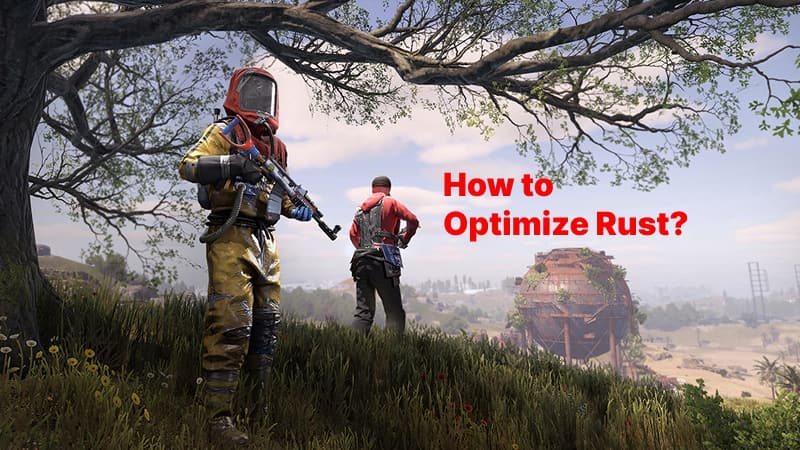
Why Is Rust So Poorly Optimized
Before we talk about how to optimize Rust, it helps to understand why Rust is so demanding. It’s not just bad luck; the game’s very design makes performance a constant battle. Here’s the short version of why your rig might be sweating:
Massive open world: Rust isn’t a small, instanced map. It’s a huge, persistent island with hundreds of player-built bases, each one packed with entities, lights, and deployables. The game has to keep track of all that at once, which hammers your CPU.
Heavy CPU demands: Unlike many modern shooters that lean heavily on the GPU, Rust is often CPU-bound. Unity’s engine, combined with the game’s physics, AI, and constant world simulation, puts a massive load on your processor.
Unity engine quirks: Rust runs on Unity, an engine not originally designed for a game of this scale. This leads to issues like memory leaks and inefficient garbage collection, which cause those infamous stutters and frame drops over time.
In short, Rust asks a lot of your hardware. The good news is that you can give your PC some help.
Best 3 Rust Optimizers for Better Rust Performance
Now, we'll look at a few tools that work as a Rust FPS booster to smooth out those frame drops. They may also help players dealing with performance or connection issues in other games.
1. Smart Game Booster - Rust Optimizer with Overclocking
If you want a Rust optimizer tool that handles the heavy lifting for you, Smart Game Booster is a strong contender. It’s designed to boost gaming performance, fix lag issues, and optimize your PC all from one clean interface.
Key Features of Smart Game Booster
- Enjoy lag-free & low-ping gaming
- 100+ games supported
- Severs from all over the world
- Boost in-game FPS
Here are the main features:
Free Rust Optimizer & Booster for More Games: Smart Game Booster is free to use and supports adding any game to its boosting list, not just Rust. For 10+ popular titles, it even offers exclusive network acceleration to reduce ping, helping stabilize your connection and cut down on lag spikes.
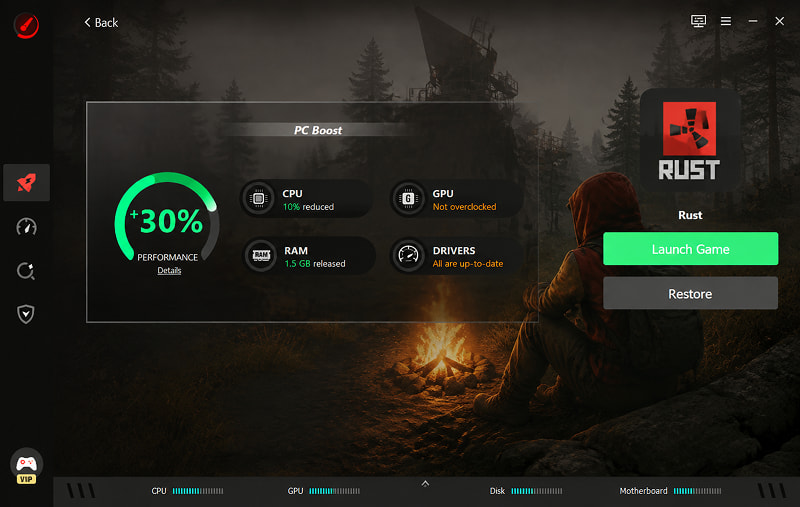
Overclock CPU & VRAM to Boost FPS: The PC Boost module includes a safe overclocking tool for your CPU and VRAM, increasing your PC gaming performance by 30%.
Optimize System Settings for Better Environment: With a single click, it can tweak Windows settings, activate Game Mode, adjust process priorities, and switch to high-performance power plans. Think of these as PC performance tweaks for gaming that you'd normally have to dig through Windows settings to find, except here, it's all done in one click.
PC Optimization capabilities & Game Tests: Beyond gaming, it cleans your system, updates outdated drivers, optimizes game files, and even includes a “Can I Run It” tool to check game compatibility and rate your PC’s performance.
Gaming Info and Device Monitor: It provides real-time monitoring of your CPU, GPU, disk, memory, and motherboard, showing usage rates and temperatures so you can keep an eye on your system’s health while gaming.
How to Optimize Rust for Smoother Rust Gaming
Are you ready to optimize Rust with Smart Game Booster? Here’s a step-by-step guide:
Step 1: Head to the official site and grab the installer.
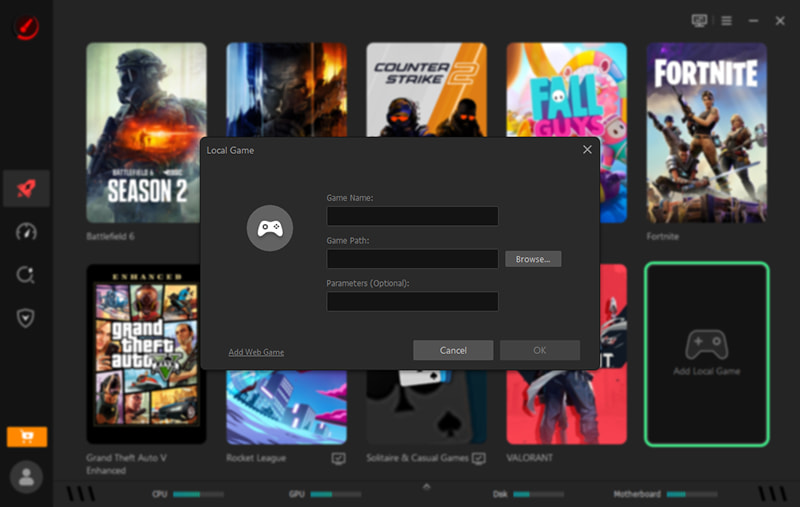
Step 2: Once installed, open Smart Game Booster. It should automatically detect your installed games. If Rust doesn’t show up, click “Add Local Game” and point it to your Rust installation folder.
Step 3: Select Rust from your game list. In the details panel, you’ll see the PC Boost toggle. If you have a VIP or SVIP account, you can enable Super Boost to overclock your CPU and GPU for even better performance.
Step 4: Toggle PC Boost on.
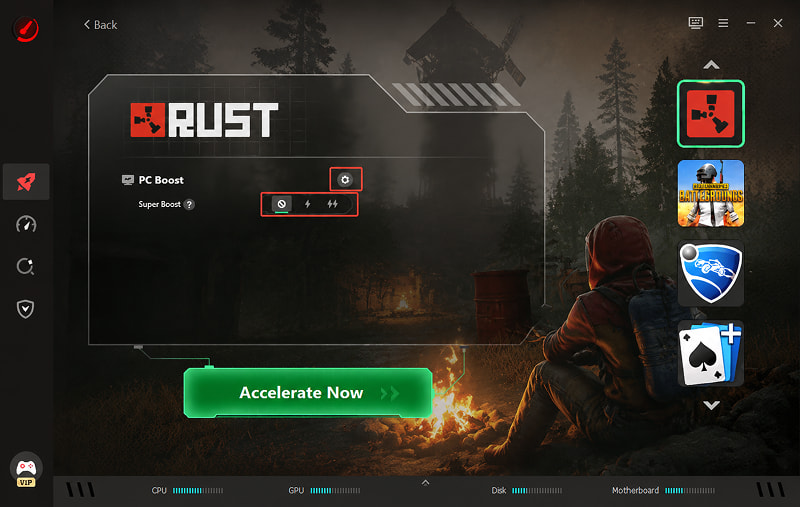
Step 5: Click “Acceleration Now,” and once the boost is applied, hit “Launch Game” to jump straight into Rust.
If Rust still stutters, go to PC Performance Optimization and keep all four items checked, and start a scan.
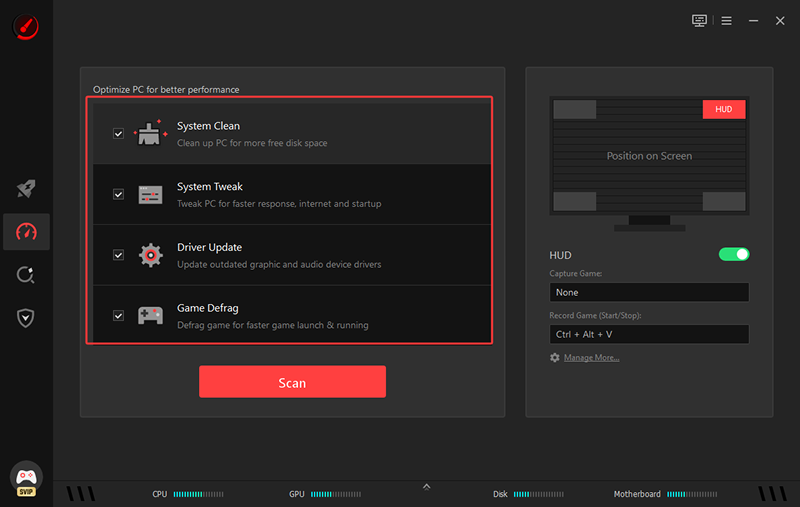
It can also let you check PC game FPS without the in-game F1 overlay. In this case, you can easily monitor your gaming status.
2. Rust Optimizer Nexus Mod - Optimize Rust Settings for FPS
If you prefer a more community-driven, open-source approach, the Rust optimizer mod on Nexus Mods is worth a look. It’s a lightweight tool built specifically for Rust, designed to fix common config issues and squeeze out more FPS without you having to manually edit files.

Features:
Simplify Rust Configuration: If you're unsure how to optimize Rust, the mod provides a hardware-based starting point, so you can adjust settings without changing every configuration manually.
Smart RAM Flushing: Rust is notorious for memory leaks during long sessions. This tool automatically clears Windows’ standby memory at intervals you set, preventing the stuttering that creeps in after a few hours of raiding. If you've been searching for how to increase FPS in Rust during marathon sessions, this feature alone can make a noticeable difference.
CPU Priority Override: It actively monitors for the RustClient.exe process and applies a High Priority flag, ensuring your CPU dedicates resources to the game rather than background Windows tasks.
Shortcomings:
It’s a third-party mod, so you need to download it from Nexus Mods, which some players are wary of.
The interface, while functional, is a bit more bare-bones than commercial optimizers.
3. Hone - Optimize Rust FPS and PC Performance
Hone is a sleek, modern optimizer that has gained a lot of traction in the gaming community, boasting over 2.5 million users. It’s known for its one-click approach to system-wide optimizations, but it also digs into game-specific configs. If you want to optimize Rust, it would be a good choice.
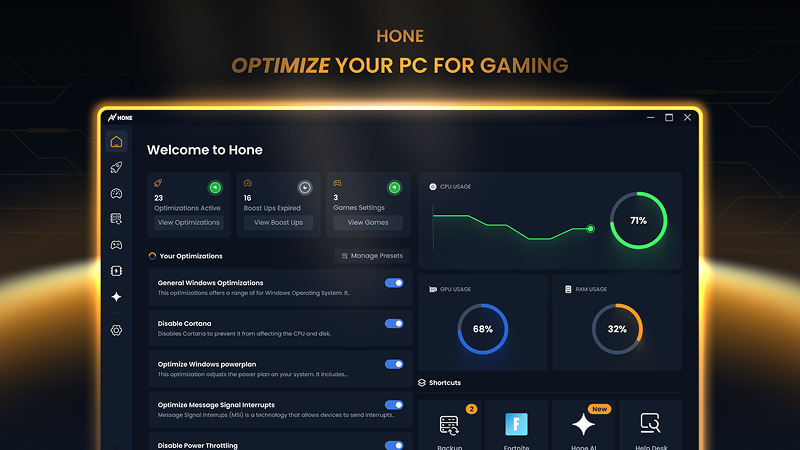
Features:
Maximize Your FPS: Hone applies system-wide tweaks to unlock higher frames and eliminate stutters. It also optimizes game configs with pro-tested settings for a balance of FPS and visual clarity.
Prioritize Your Game: It suspends background tasks and processes, dedicating full system power to the game you’re playing.
Monitor System Health: It provides real-time hardware tracking, helping you spot bottlenecks in your CPU or GPU that might be holding you back during intense fights.
Shortcomings:
The free version limits you to 10 one-click optimizations (though you can earn more through referrals).
While it supports over 100,000 titles, the depth of game-specific tweaking for Rust might not be as granular as the Nexus mod.
Also Read: [Solved] 9 Fixes on How to Reduce Lag on Roblox on PC (Step-by-Step Guide) >>
Best Rust Settings for FPS: How to Optimize Rust
Even with a great Rust optimizer, your in-game settings can be sabotaging your performance. Pushing your graphics too high can absolutely tank your FPS, especially in busy fights or near large bases. Here are the Rust settings for FPS that actually matter.
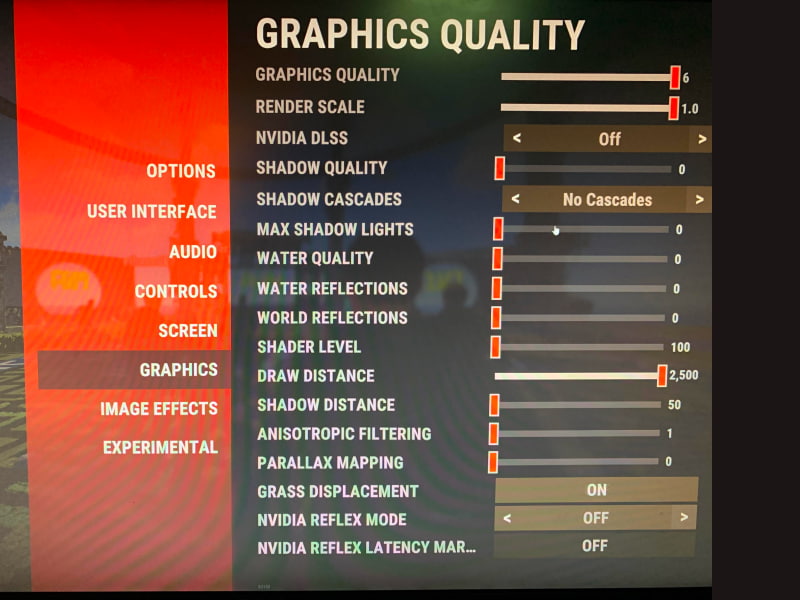
Graphics Settings
Texture Quality: Set to Half Resolution
Shadow Quality: Low or Off
Water Quality: 0
Water Reflections: Off
Render Scale: Keep it at 1.0
Volumetric Clouds: Off
Max Gibs: 0
Screen Settings
Screen Mode: Fullscreen.
VSync: Off.
Resolution: Native.
For other games, you can also check the optimized in-game settings for smoother gameplay. For instance, you may try a PUBG lag fix via system and in-game settings adjustments.
System Tweaks: How to Increase FPS in Rust
Beyond the game itself, your Windows environment and device health play a huge role. If your system is bogged down with background apps or overheating, no in-game setting will save you. And while most players focus on graphics options, there are also Rust commands to boost FPS and system-level tweaks that can squeeze out extra performance.
Windows Tweaks
Game Mode: Make sure this is turned on in Windows settings.
Background Apps: Close everything you don’t need.
Startup Apps: Audit your startup list. Disable programs you don’t need launching immediately when you turn on your PC.
Power Plans: Select High Performance or Ultimate Performance in your Windows power settings.
Update Drivers: Outdated graphics drivers can cause performance issues and crashes. Driver Booster can help you find and update outdated drivers, acquire brand-new features, fix possible bugs, and boost performance.
Device Adjustments
Upgrade PC Builds: If you’re still on an old CPU, that’s likely your bottleneck.
Cooling: Ensure your PC has adequate airflow. If your CPU or GPU overheats, it will thermal throttle, drastically reducing performance.
Final Thoughts
Rust isn’t going to become a lightweight game overnight, but you don’t have to settle for stutters and low FPS. Whether you choose a comprehensive Rust optimizer like Smart Game Booster, a Rust-specific mod, or a tuned-in system optimizer like Hone, there’s a tool to help. Combine that with smart in-game settings and some basic Windows maintenance, and you’ll be well on your way to smoother wipes and more successful raids. Download the free, efficient FPS Booster today and give your PC the boost it needs.
Key Features of Smart Game Booster
- Enjoy lag-free & low-ping gaming
- 100+ games supported
- Severs from all over the world
- Boost in-game FPS