You are in the middle of an Overwatch match. You line up the perfect shot, but the game freezes for a split second. All of a sudden, your hero teleports and the game shows that you were eliminated. This is the time you might be wondering: Is Overwatch lagging right now? Why is Overwatch 2 so laggy?
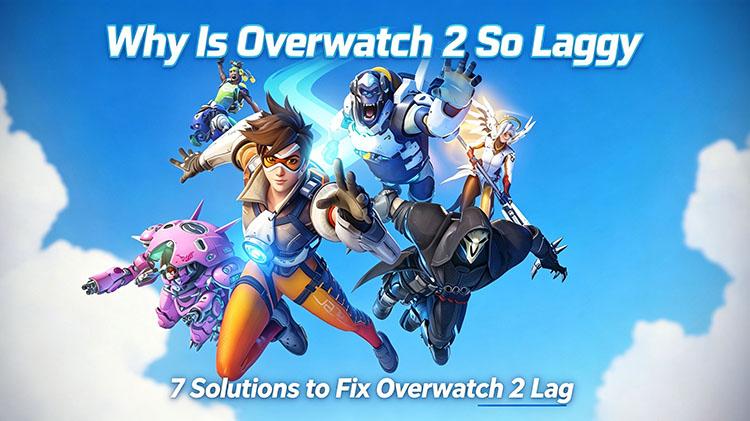
Today, thousands of players experience sudden stutters, high ping, or low FPS that can ruin competitive ranked games. But worry not. This guide will explore the real reasons behind Overwatch 2 lag. You can find 7 practical methods that can help you restore smooth, responsive gameplay and get back into the fight easily. Just read on!
Why Is Overwatch 2 So Laggy: Check Reasons
Before everything else, it’s crucial to understand the root causes behind the lag. So, why is my Overwatch 2 so laggy? Here are the major reasons in 3 categories.
Network Connection Issues
High ping: caused by physical distance to Blizzard servers or poor ISP routing.
Packet loss: Why is Overwatch 2 lagging all of a sudden? It can be caused by packet loss and jitter from Wi-Fi interference, congested networks, or multiple devices streaming.
Temporary Blizzard server overload or regional issues.
PC Performance Limits
CPU/GPU bottlenecks during ability spam and large player counts.
Insufficient RAM (especially under 8-16 GB) might lead to stuttering.
Hard drive bottlenecks if the game is installed on a slow HDD.
System/Software Issues
Outdated or corrupted graphics drivers.
In-game settings are not optimized.
Background processes, antivirus scans, or Windows updates are hogging your CPU and memory.
How to Fix Overwatch 2 Lag Issue All in 1 Go
Now that you know the reasons behind it, let’s see how to fix Overwatch 2 lag. Smart Game Booster is one great option designed for this scenario. This optimization tool can increase frame rates, reduce lag, monitor hardware temperatures, and clean system resources. You can not only fix Overwatch 2 lag but also boost Overwatch 2 PFS with it in a few clicks.
Key Features of Smart Game Booster
- Enjoy lag-free & low-ping gaming
- 100+ games supported
- Severs from all over the world
- Boost in-game FPS
Highlighted features of Smart Game Booster
• Fix Overwatch 2 Lag & Boost FPS in 1 Go
Its PC Boost feature closes resource-heavy background processes and applies system tweaks with one click. As the best FPS booster, its Super Boost can overclock the GPU and VRAM for up to 30%+ performance gains, with Basic, Max, and customizable overclocking modes.
• Scan & Optimize PC System to Boost Experience
You can enjoy a suite of PC optimization features. For instance, System Clean to remove junk files, System Tweak to optimize Windows settings, Driver Update to refresh outdated drivers, and Game Defrag to optimize game storage for smoother loading.
• Real-Time Overlay & Monitoring
The in-game HUD displays real-time FPS, CPU and GPU usage, device utilization, and temperatures. You can easily check PC game FPS and identify performance bottlenecks, overheating, etc., that could cause stuttering and affect your gaming experience.
• Network Acceleration for More Games
Smart Game Booster is the best ping reducer that provides exclusive acceleration routes for 11 supported games, which helps improve connection stability and reduce network-related lag. You can also add your own games for personalized network acceleration and a smoother online gaming experience.
How to Boost Overwatch 2 FPS in 1 Go?
Step 1: Download and install Smart Game Booster on your PC.
Step 2: It automatically detects installed games; if failed, you can add games to Smart Game Booster manually. Here, choose Overwatch 2 to enter the game details.
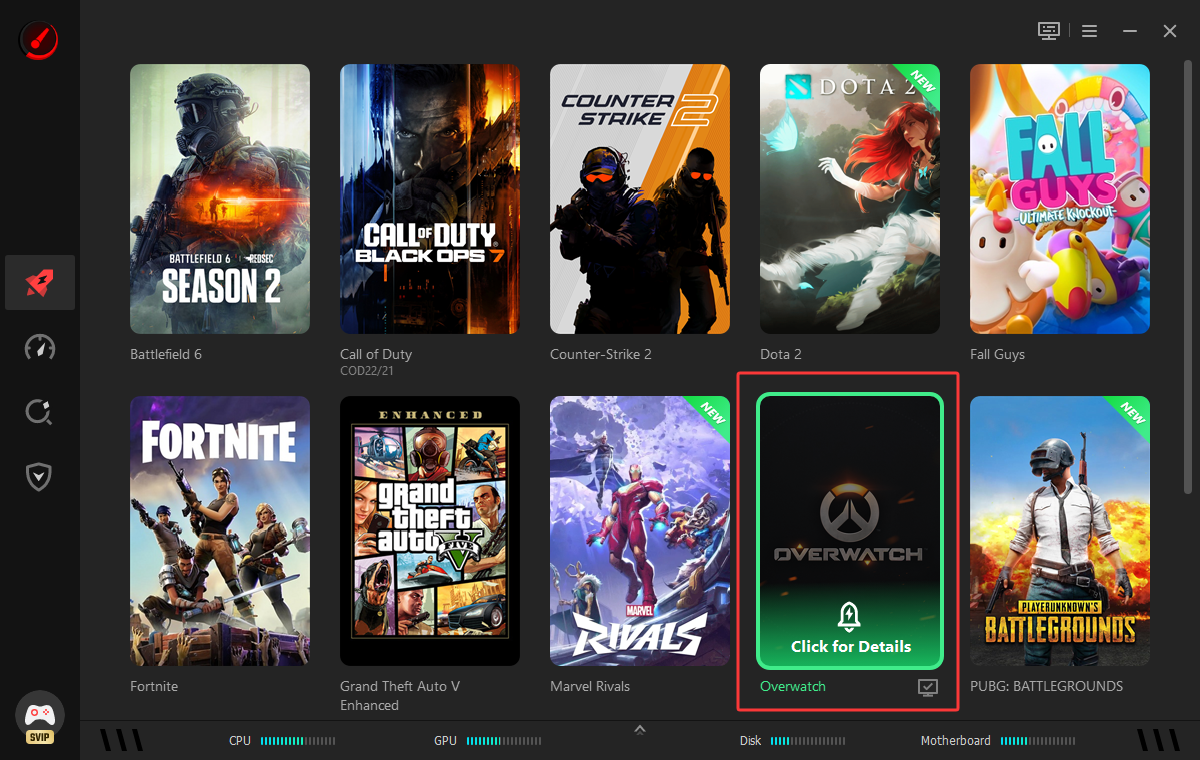
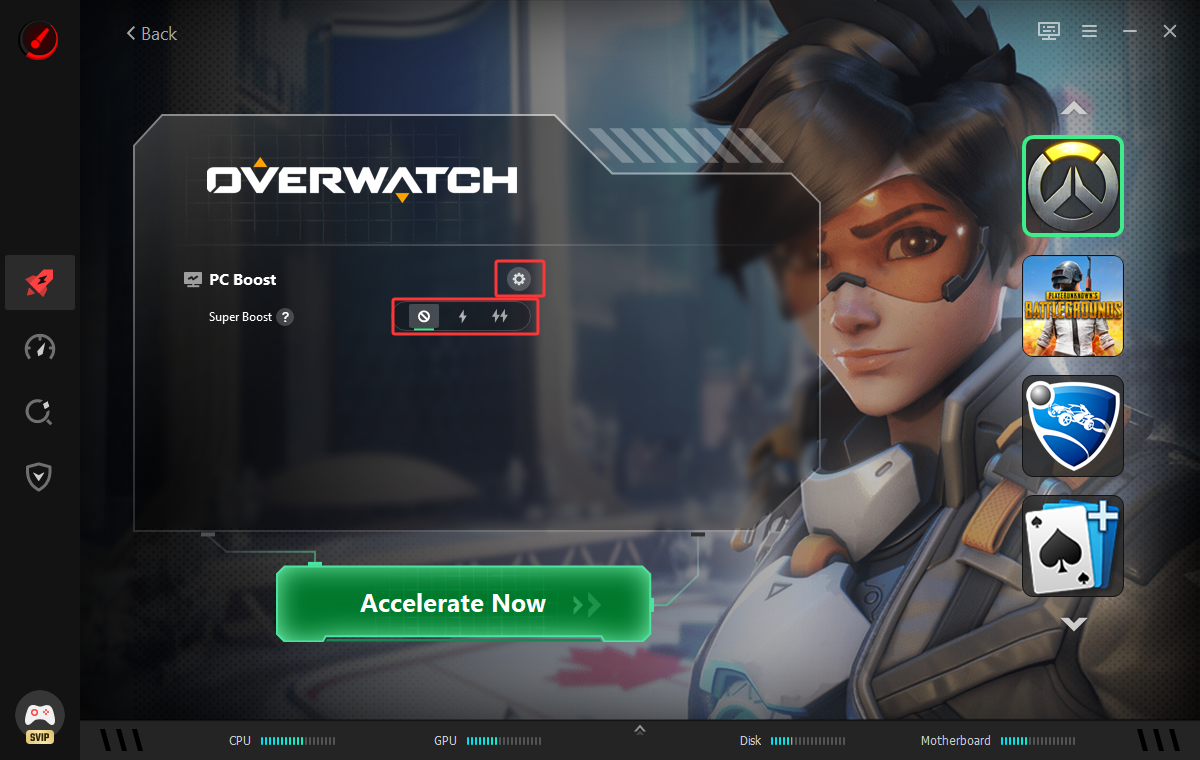
Step 3: Click the Gear icon next to PC Boost for configuration. Use Super Boost to overclock your GPU and maximize your PC performance. You can choose from Basic, Max, and Customize modes.
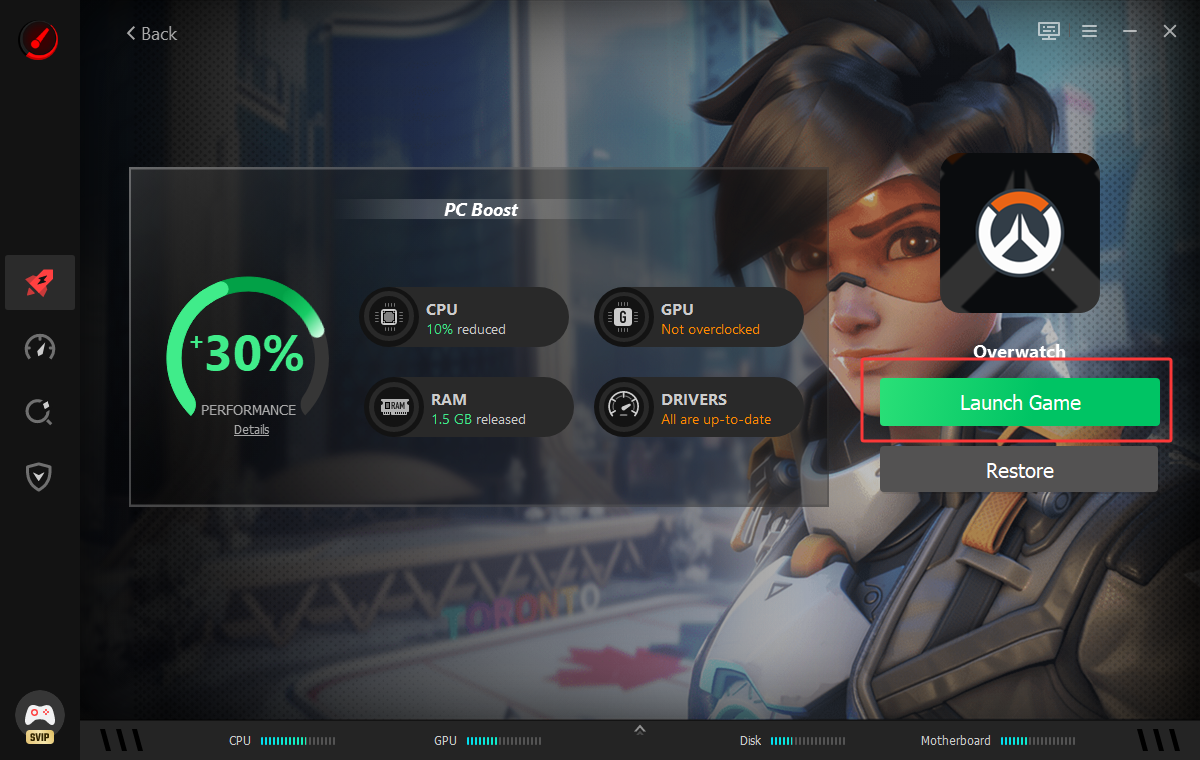
Step 3: Confirm and save the configuration for PC Boost. Click on Launch Now to launch Overwatch 2 with optimized settings.
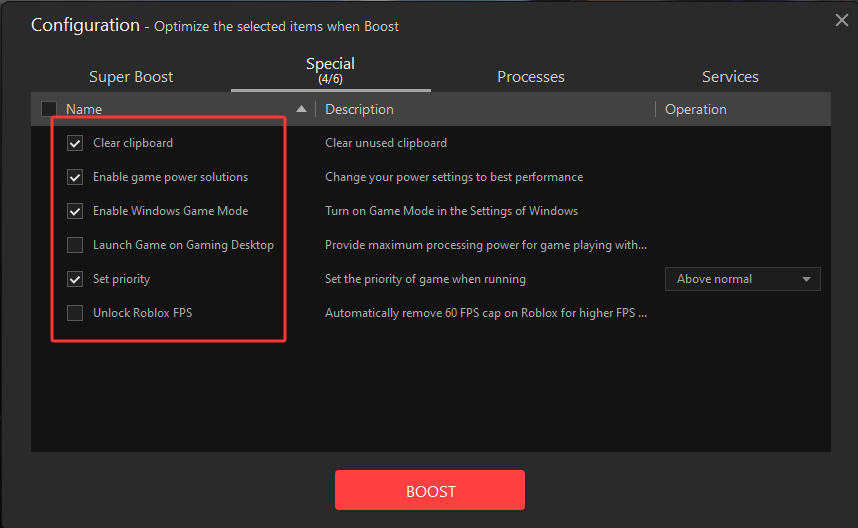
Step 4. For additional performance improvements, go to Performance > Select Items to Scan > Scan to identify areas that may be affecting your gaming experience. Here, you can clean up unnecessary junk files, optimize Windows settings, update outdated drivers, and optimize game storage for better gaming performance.
Tips: Smart Game Booster supports popular games. Just check out how to reduce lag on Roblox with it for smoother gaming!
How to Fix Overwatch 2 Lag via Settings Tweaks
While Smart Game Booster helps boost Overwatch 2 FPS and fix lag, you can combine it with Windows and in-game adjustments to multiply the results. Here are the 4 useful methods you can try.
1. Apply In-Game Settings Tweaks
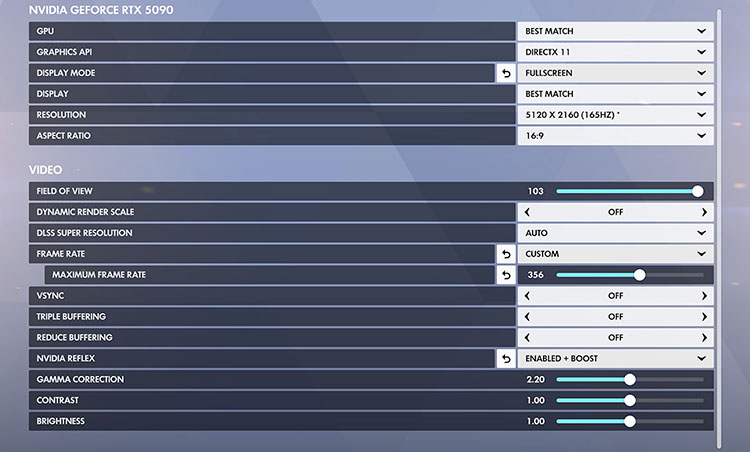
Why is Overwatch lagging so much? High graphical effects are a common reason. That means you can lower non-essential visual effects to free up GPU headroom and improve frame consistency. Check out the adjustments below.
Switch Display Mode to Fullscreen instead of Borderless Windowed.
Cap the Frame Rate at a stable number slightly below your monitor’s refresh rate.
Turn VSync off unless you experience noticeable screen tearing.
Lower/disable Shadows, Reflections, Ambient Occlusion, and Anti-Aliasing if needed.
For those looking for an effective PUBG lag fix, adjusting in-game settings is also an excellent solution.
2. Fix Overwatch 2 Lag via Network Tweaks
Sometimes, even a fast internet connection can still produce high ping or packet loss. If your FPS is stable but characters suddenly teleport, or actions are delayed, the network connection might be the real problem. Here are a few practices to optimize the connection.
Use a wired Ethernet connection over Wi-Fi if possible.
Restart your modem and router, then reconnect your PC.
Select the closest available server region.
These fixes can often resolve Overwatch lagging for no reason. Because the issue is network-related rather than a hardware performance problem.
3. Enable Game Mode & Power Supply
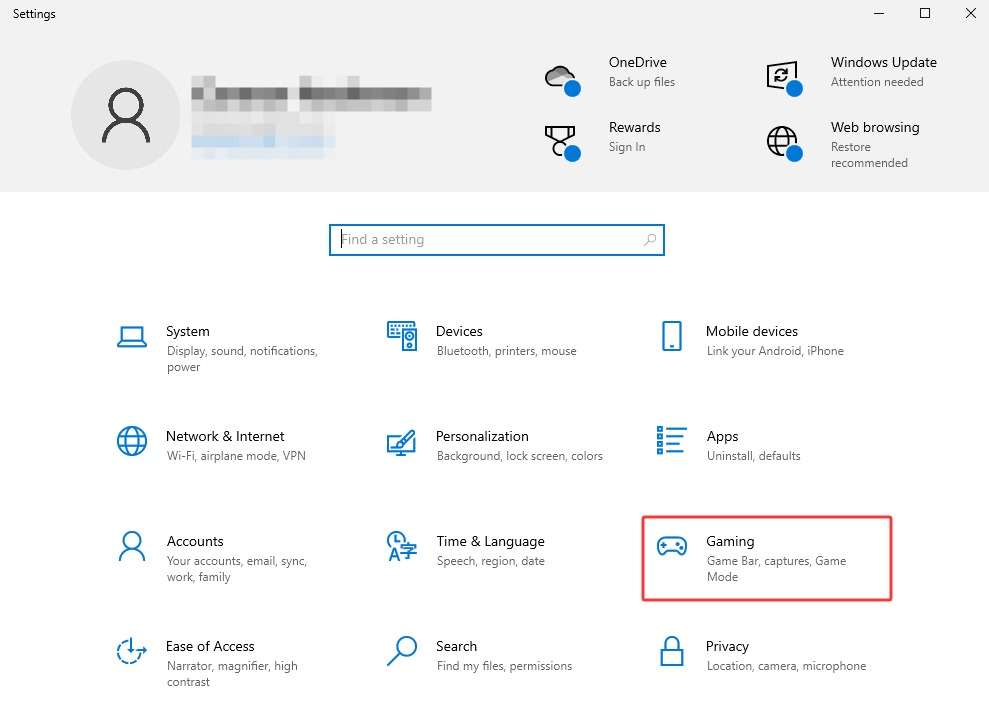
Windows Game Mode can prioritize gaming processes and reduce unnecessary background interference. Your Windows power plan can also affect performance, since some modes may limit system performance in certain situations.
Step 1. Open the Start Menu and click Settings (Gear icon). Then select Gaming.
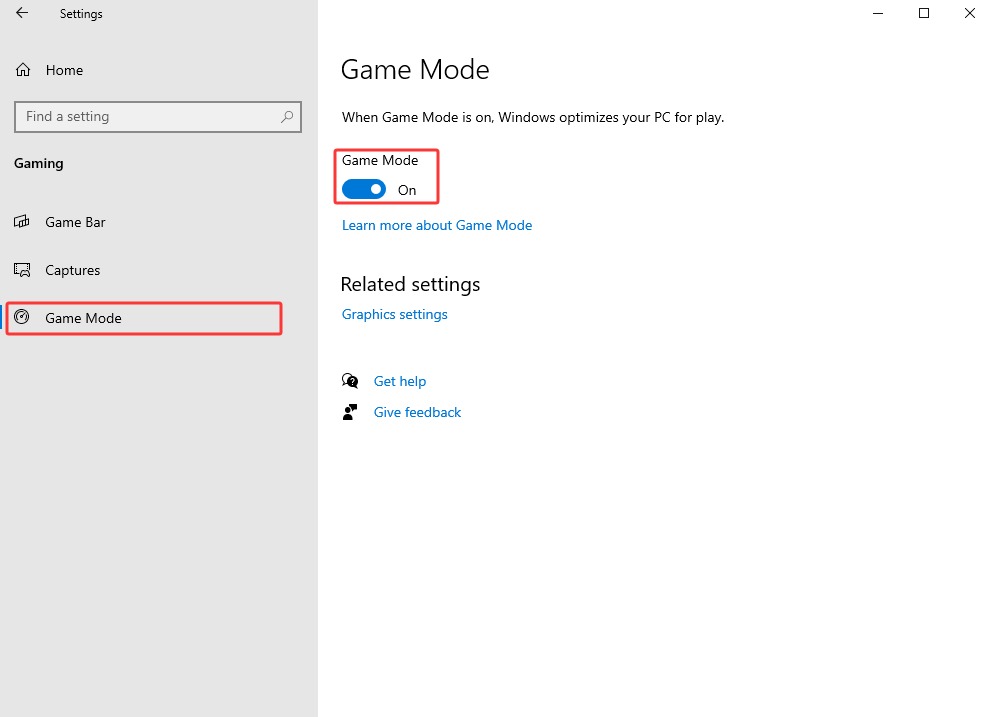
Step 2. Game Mode > turn Game Mode on so Windows prioritizes your gaming session and minimizes background interruptions.
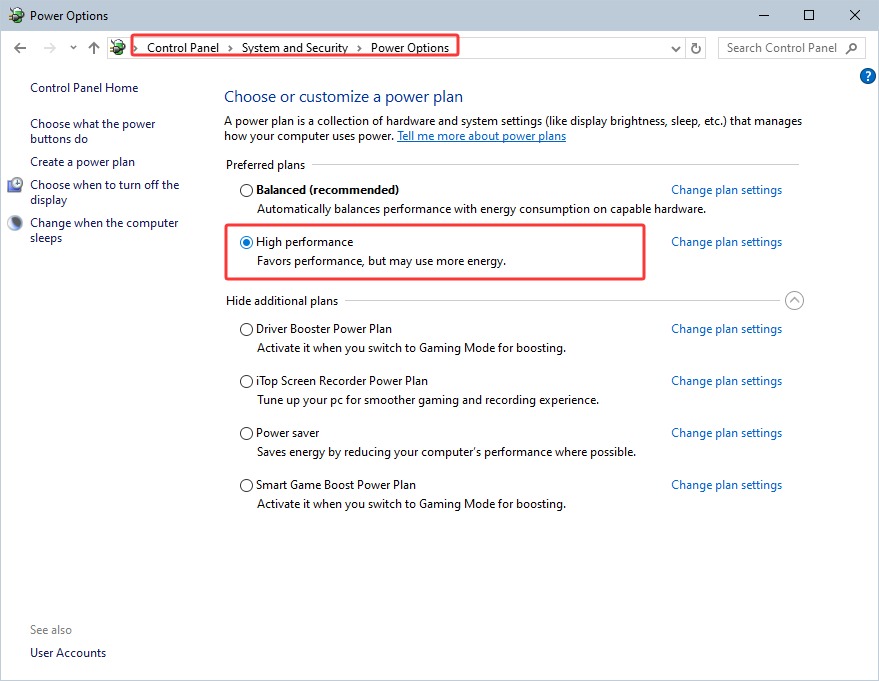
Step 3: Go to Control Panel > System and Security.
Step 4: Under Power Options, select High performance. This setting prioritizes system performance over power efficiency, which can help maintain more consistent performance while playing Overwatch 2.
4. Close Background-Running Apps
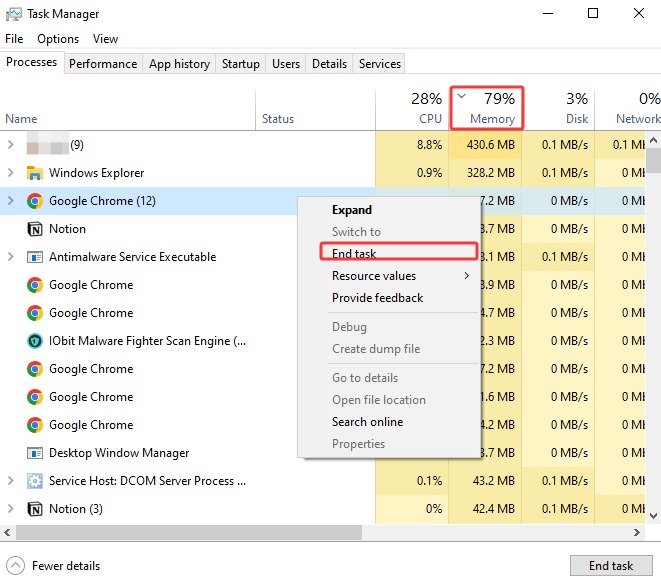
If Overwatch 2 is still sluggish after adjusting in-game settings, take a look at what else is running on your PC. Your background apps can also consume CPU, RAM, and disk resources, leaving fewer resources available for the game. You can close these unnecessary processes to reduce resource competition and prevent random stutters and FPS drops.
Step 1: Search for Task Manager and open it. In the Processes tab, sort applications by CPU, Memory, or Disk usage.
Step 2: Right-click unnecessary programs and select End task. Do not close essential Windows processes.
How to Boost Overwatch 2 FPS via Updates
Still wondering, “Why is my Overwatch 2 so laggy?” If network and in-game settings are not the problem, your PC's hardware limitations or outdated drivers could be holding back performance. Here are two ways to address these potential bottlenecks.
1. Update Graphics Card Drivers
Your GPU driver is a bridge between Windows, your graphics card, and Overwatch 2. Outdated drivers can cause FPS drops and other performance problems. Normally, you can update it via Windows Device Manager. However, the method may not find the latest drivers, and sometimes you might need to locate and install updates manually.
How to Fix Overwatch 2 Lag via Updating Drivers?
Step 1: Right-click the Start button and select Device Manager.
Step 2: Expand Display adapters, right-click your graphics card, and select Update driver > Search automatically for drivers.
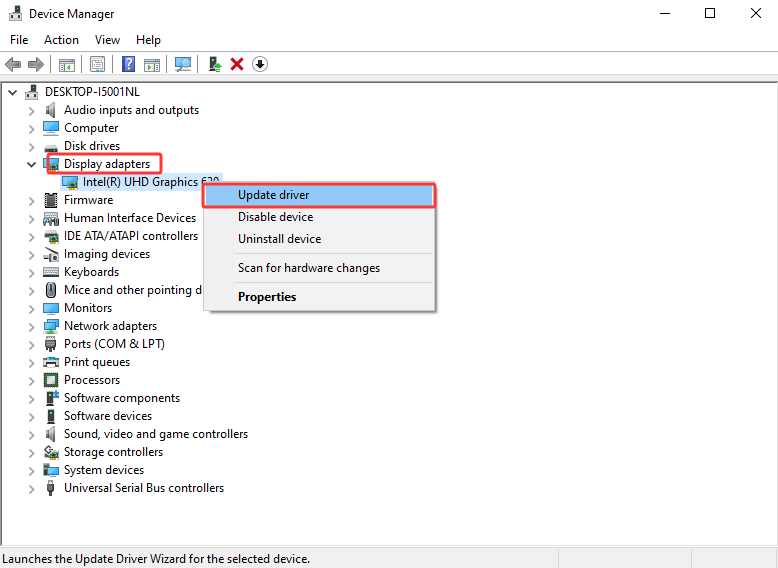
Step 3: Repeat the process under Network adapters if you suspect there is a connection issue. Make sure to restart your PC after updates.
If you want a faster way to update outdated drivers, try IObit Driver Booster. With a 120M+ driver database, it provides exclusive Game Ready drivers and game component updates that can improve gaming performance effectively. Download Driver Booster to update drivers hassle-free now!
2. Upgrade Your PC Specs
If your drivers are up to date but Overwatch 2 continues to stutter or deliver low FPS, the problem might be with your hardware, and you will need to upgrade it to unlock the limits. Before upgrading, compare your PC with the game's minimum and recommended requirements, so you know which component might be limiting your performance.
| Requirements |
Minimum |
Recommended |
| OS |
Windows 10 64-bit (latest Service Pack) |
Windows 10 64-bit (latest Service Pack) |
| CPU |
Intel Core i3 or AMD Phenom X3 8650 |
Intel Core i7 or AMD Ryzen 5 |
| GPU |
NVIDIA GeForce GTX 600 series or AMD Radeon HD 7000 series |
NVIDIA GeForce GTX 1060 / GTX 1650, AMD R9 380 / RX 6400, or Intel Arc A770 |
| Memory |
6 GB RAM |
8 GB RAM |
| Storage |
50 GB available space |
50 GB available space (SSD preferred) |
| Network |
Broadband Internet connection |
Broadband Internet connection |
Here are a few simple hardware upgrade tips:
Upgrade to 16 GB RAM for more memory headroom and smoother multitasking.
Install Overwatch 2 on an SSD to improve loading times and reduce stuttering.
Install a newer GPU to significantly boost FPS at higher resolutions.
Upgrade to a faster CPU to reduce bottlenecks when processor usage is consistently high.
Final Thoughts
Why is Overwatch 2 so laggy? It can be caused by demanding graphics settings, background processes, outdated drivers, or hardware limitations. You can follow the troubleshooting guide above to improve your FPS and overall gaming experience. If you want a simpler starting point, Smart Game Booster can close unnecessary background processes and apply performance tweaks for optimized gaming. Download Smart Game Booster and give your Overwatch 2 setup a quick performance boost now!
Key Features of Smart Game Booster
- Enjoy lag-free & low-ping gaming
- 100+ games supported
- Severs from all over the world
- Boost in-game FPS