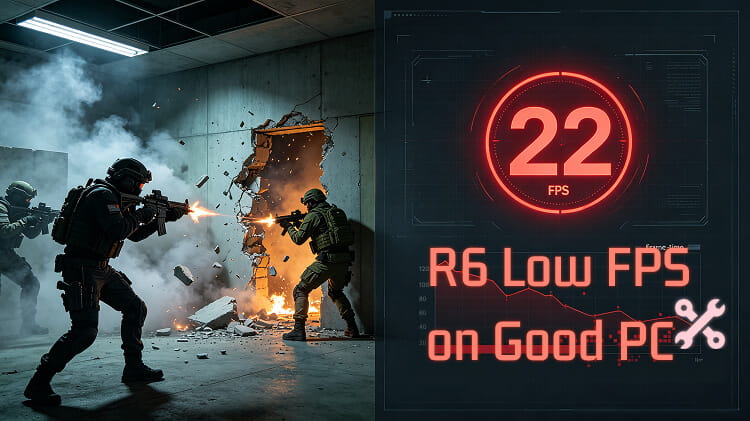
You built a good PC. Siege should run like butter—so why does your first firefight feel like a slideshow? If you're stuck with Rainbow Six Siege low FPS on good PC, those sudden R6 FPS drops can ruin every round and make you question your entire setup. The hardware usually isn't the problem. The real culprits are often hidden in your settings, drivers, background apps, or network. In this guide, we'll explain why it happens, how to fix it step by step, and how an R6 FPS booster like Smart Game Booster can help you get smooth, stable frames back.
Reasons: Rainbow Six Siege Low FPS on Good PC
So why does a game from 2015 run poorly on a machine that can handle just about anything else? The answer usually comes down to one of two categories: system/software issues or device limits.
System/Software Issues
Outdated or corrupted drivers: If your GPU driver is mismatched with the current Siege version, expect stutters.
Incorrect settings: V-Sync enabled, frame rate caps set too low, or high texture quality stuck on despite everything else being low can all drag performance down.
Background programs and overlays: Discord overlay, GeForce Experience, MSI Afterburner, Windows Game Bar, and even streaming apps can steal frame time.
Power settings: If Windows is set to Balanced or Power Saver, your CPU might downclock mid-fight.
Device Limits
Insufficient RAM: 16GB is generally the sweet spot for Siege. Running 8GB with a browser open in the background is asking for trouble. Don't forget to use Can I Run It to check your hardware first if you're unsure whether your PC meets Siege's system requirements
VRAM overload: Even a 6GB GPU can get slammed if enhanced texture packs are auto-downloaded.
Thermal throttling: If your CPU or GPU hits 90°C+, they'll throttle performance to protect themselves.
Storage bottlenecks: Siege on an older HDD can cause asset-loading stutters, especially during destruction-heavy moments.
How to Get More FPS in Siege Efficiently with R6 FPS Booster
Now that you know what's causing Rainbow Six Siege low FPS on good PC, let's talk about the fastest way to fix it. Manually tweaking every Windows setting, digging through driver menus, and hunting for background processes gets old fast. That's where a dedicated R6 FPS booster comes in.
Smart Game Booster is a PC optimization tool built specifically for gamers. It's not magic, but it's definitely not fluff either: reviewers have reported real improvements in both ping and frame rates during actual gameplay. Here are the features:
Key Features of Smart Game Booster
- Enjoy lag-free & low-ping gaming
- 100+ games supported
- Severs from all over the world
- Boost in-game FPS
Best Free R6 FPS Booster & Optimizer for More Games: You can use it for free and add any game to boost FPS, whether you want to boost FPS in Siege, improve FPS in CS2, or optimize another title.
Overclock GPU & Settings Tweaks for FPS Boost: PC Boost handles system settings tweaks alongside GPU and VRAM overclocking, using calibrated safe thresholds to increase clock speeds without overheating your hardware.
In-Game HUD & Device Status Monitoring: The customizable overlay can show PC game FPS, CPU/GPU temperatures, and usage rates while you play, so you can monitor your PC's health without alt-tabbing.
Optimize System for Better Environment: It cleans your system, updates drivers, defrags game files, and frees up RAM so your PC has more resources to dedicate to gaming.
Network Acceleration to Reduce Ping for More Games: With exclusive optimized acceleration routes for 10+ games (and 500+ servers worldwide), it also acts as a ping reducer, routing around congested nodes during peak hours.
How to Get More FPS in Siege
Step 1: Download and install Smart Game Booster via the button below.
Step 2: After launching the app, it will automatically detect installed games. If it doesn’t, add games manually.
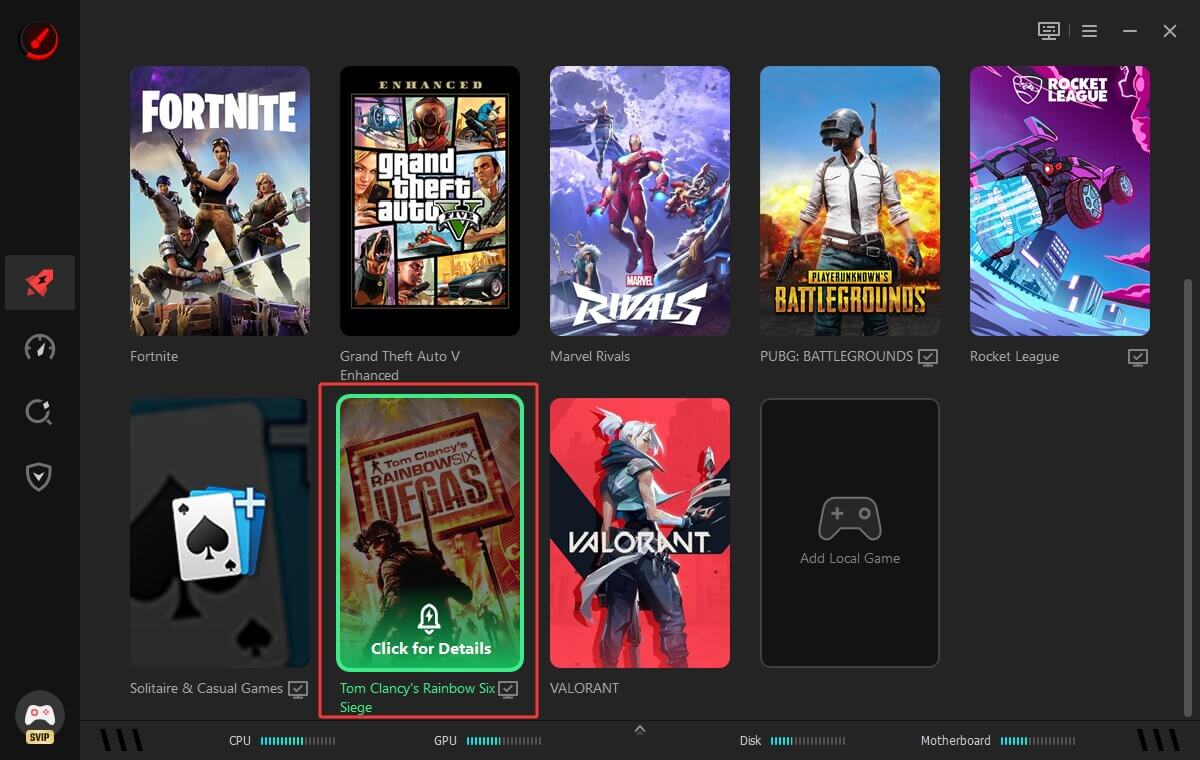
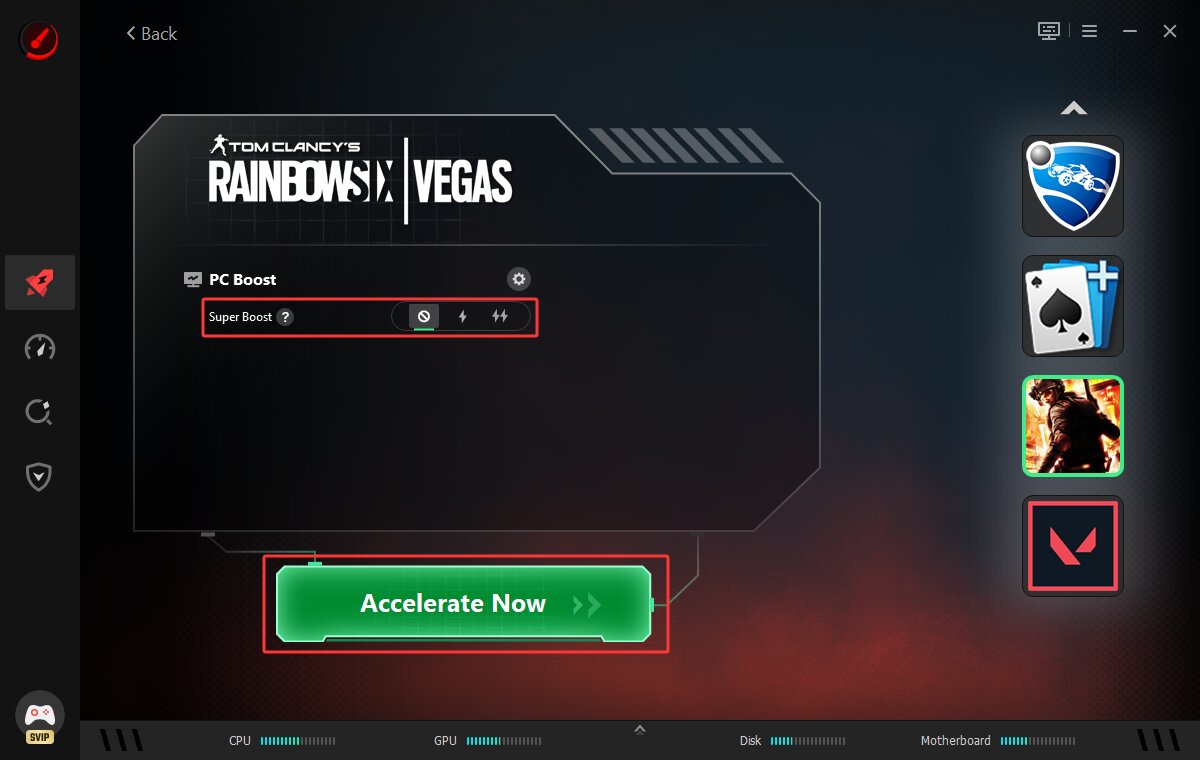
Step 3: Click "Accelerate Now" to start the optimization. Here you'll see the PC Boost option, which handles system-level tweaks and GPU overclocking. If you want maximum performance, enable Super Boost.
Step 4: Once optimization completes, hit "Launch Game" and you're in.
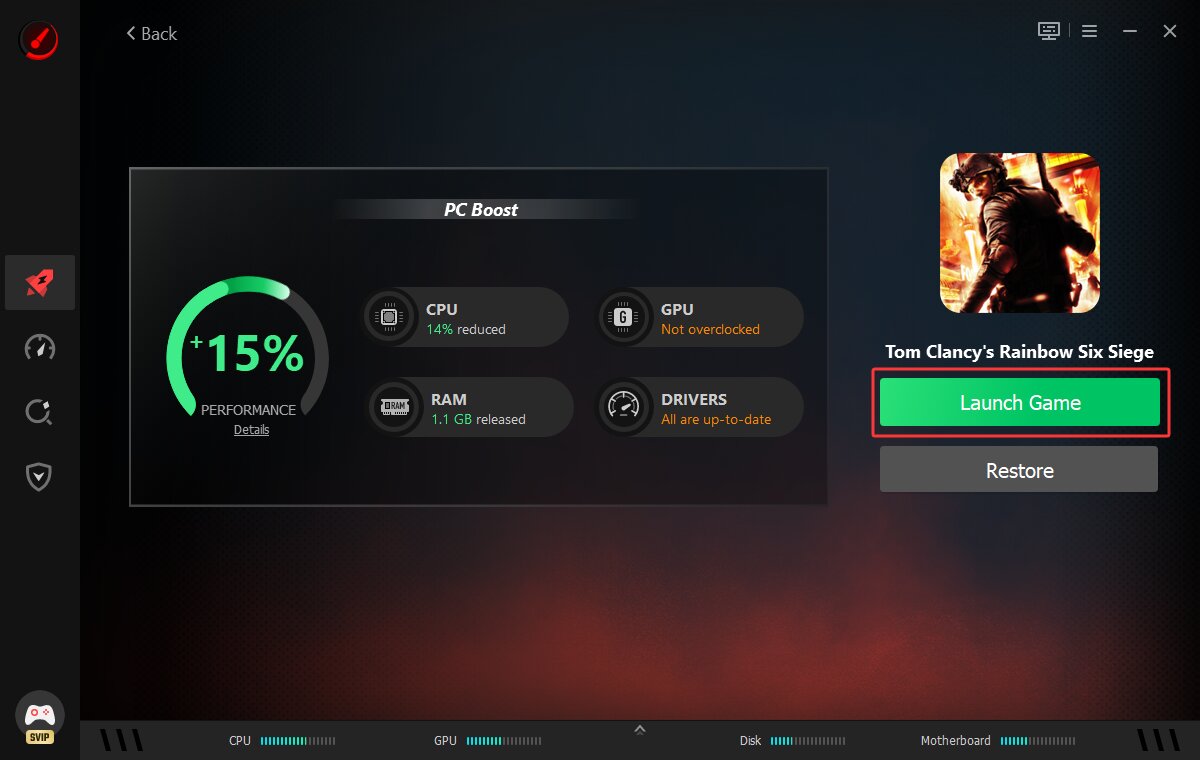 Apart from R6, this booster also helps improve FPS in CS2, Valorant, and more titles.
How to Fix R6 FPS Drops with In-Game Tweaks
Not ready to install extra software? No problem. If you're dealing with Rainbow Six Siege low FPS on good PC, the fix might already be sitting in your graphics settings. Using the best R6 settings can help improve performance without significantly affecting visual quality. The wrong display mode, an aggressive frame cap, or maxed-out shadow quality can absolutely tank your performance.
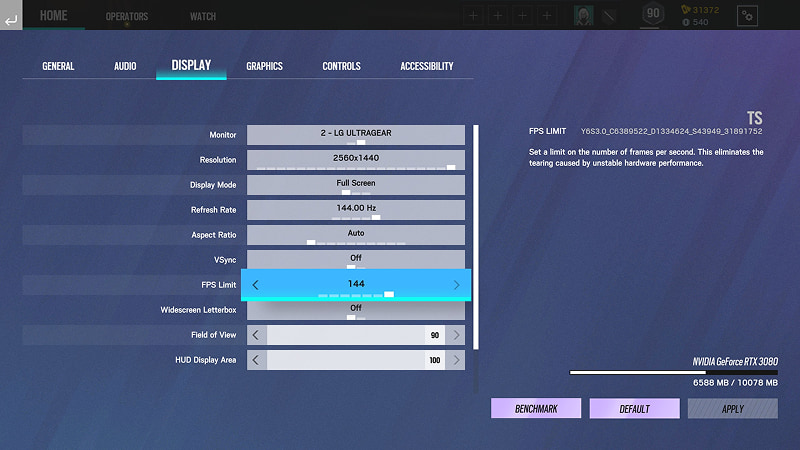
Display Settings:
Resolution: Stick to native. Render Scaling at 85-90% gives you a solid FPS boost without making the game look blurry — it's widely considered Siege's most effective single setting.
V-Sync: Turn it off. It adds input lag and caps your frames unnecessarily.
Display Mode: Use Fullscreen, not Borderless. Borderless windowed mode adds overhead.
FPS Limit: Set it to 3 below your monitor's refresh rate (117 for 120Hz, 141 for 144Hz, etc.) to prevent frame pacing issues.
Refresh Rate: Always set to maximum.
Graphics Settings:
Overall Quality: Start at Low or Medium. You can always bump specific settings later.
NVIDIA Reflex Low Latency: Turn it on + Boost if you have a compatible NVIDIA GPU.
Shading Quality: Low. It eliminates complex lighting calculations with zero tactical cost.
Shadow Quality: Medium at most. Low is even better for competitive play.
Anti-Aliasing: T-AA is the best balance. Disable Temporal Filtering if you're running low on VRAM.
How to Get More FPS in Siege via System Fixes
In-game tweaks only go so far. If your Windows setup is working against you, no amount of slider adjustments will fix the underlying problem. This section covers the system-level changes that often make the biggest difference when you're trying to figure out how to get more FPS in Rainbow Six Siege PC. Stick with us — some of these are quick wins, others need a bit more effort, but all of them are worth doing.
#1 Adjust System Settings to Fix R6 FPS Drops
Improper system settings can quietly choke your CPU and GPU, forcing them to split resources between Siege and whatever Windows decides to run in the background.
Turn off Game Bar: Go to Settings > Gaming > Xbox Game Bar and toggle it off. It records in the background and eats resources.
Disable Fullscreen Optimizations: Right-click RainbowSix.exe > Properties > Compatibility > check "Disable fullscreen optimizations." This forces true fullscreen mode and reduces input lag.
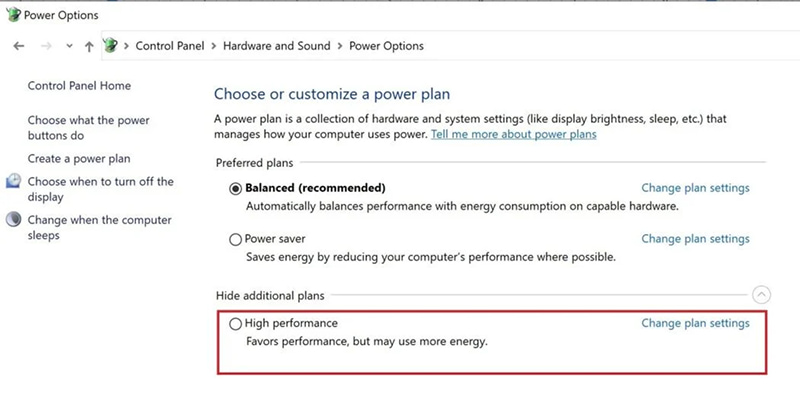
Switch to High Performance Power Plan: Open Power Options and select High Performance. Set minimum and maximum processor state to 100% if using a custom plan.
#2 Manage Background Apps & Resource-Draining Apps
Every Chrome tab, every open launcher, every RGB software running in the background is stealing CPU cycles and RAM from Siege. In a CPU-bound game like R6, this matters a lot. Here's how to check what's eating your resources:
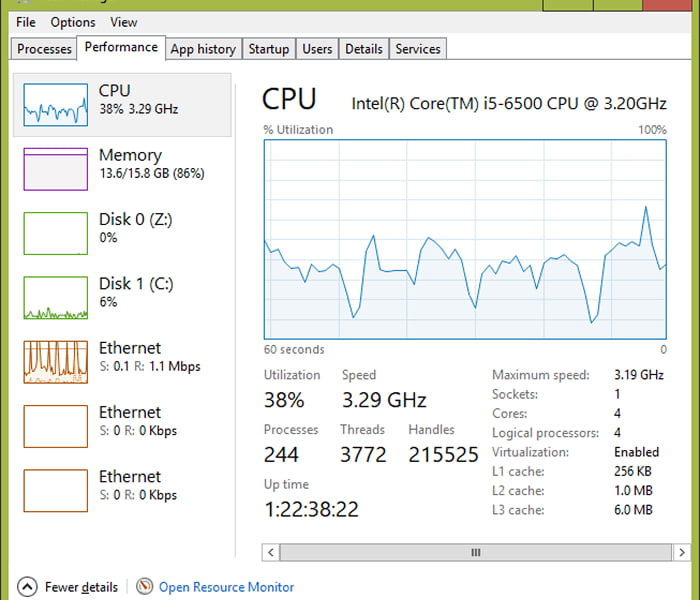
Step 1. Find Task Manager. Locate the performance tab and check Memory, GPU, and CPU usage.
Step 2. If any of these are at 85%+ before you even launch Siege, you've found your problem.
Step 3. Switch to the Processes tab, sort by CPU or Memory usage, and close anything unnecessary. Browsers, chat apps, and extra launchers are common culprits.
Step 4. For apps you can't close, consider setting Siege's priority to High in Task Manager (you'll need to do this each launch).
If manually closing apps every time sounds tedious, Advanced SystemCare's Turbo Boost feature offers a smarter approach. Its exclusive Game Mode automatically shuts down non-essential services and processes when you launch a game, freeing up system resources in one click. That same reduction in background load can also help reduce lag on Roblox when system resources are the bottleneck.
#3 Update Drivers for Better FPS
Outdated, corrupted, or missing drivers — especially graphics drivers — are one of the most common reasons for R6 FPS drops. A mismatched GPU driver can cause severe stutters, crashes, and performance regressions that no in-game setting can fix. Here's a simple way to update your graphics driver using Windows Device Manager:
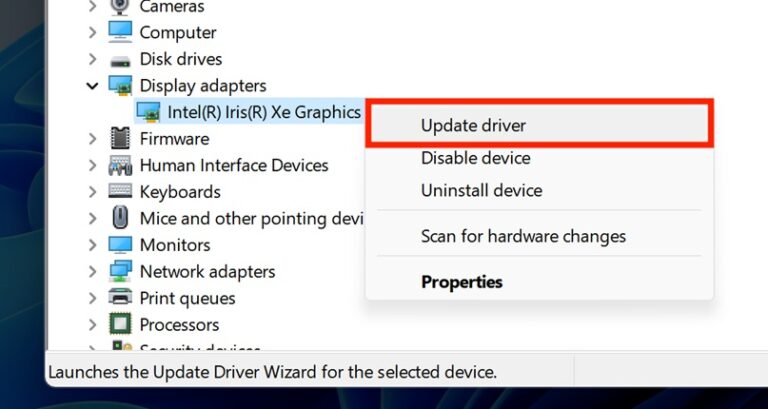
Alt: Best R6 Settings - Update Driver
Step 1. Right-click the Start button and select Device Manager.
Step 2. Expand the "Display adapters" section and double-click your GPU's name.
Step 3. Navigate to the Driver tab, click "Update Driver," and select "Search automatically for drivers".
Step 4. If Windows finds a newer driver, it will install it. Restart your PC afterward.
Step 5. For the best results, consider downloading the latest driver directly from NVIDIA, AMD, or Intel websites rather than relying on Windows Update, which often lags behind.
If you've updated your driver and still experience issues, try using DDU (Display Driver Uninstaller) to do a clean install. This removes all traces of the old driver before installing the new one, eliminating conflicts that can cause persistent stutters. If you're working on a PUBG lag fix, a clean GPU driver install is a good first checkpoint before you start blaming the servers.
FAQs About R6 FPS Drops & R6 FPS Boost
Still have questions? Here are answers to some of the most common ones players ask when they want to know why are my frames dropping in R6.
Q1: Why Does R6 FPS Drop After Update?
A1: Because game updates often change engine behavior, reset graphics settings, or introduce bugs that affect performance. If you notice R6 low FPS after an update, verify your game files and update your GPU driver first.
Q2: What to Do If R6 FPS Drops When Shooting?
A2: This usually points to a CPU bottleneck. When multiple players, destruction physics, and particle effects kick in simultaneously, your CPU gets hammered. Lower Shading Quality, Shadow Quality, and Ambient Occlusion.
Q3: Is R6 Lagging a Ubisoft Thing?
A3: Partially. Siege's engine (AnvilNext) is notoriously CPU-hungry, especially at high frame rates.
Q4: Why Does Rainbow Six Siege Take So Long to Load?
A4: Slow load times are usually storage-related. If Siege is installed on an HDD rather than an SSD, expect longer load screens.
Q5: Can I Use a Game Booster Without Getting Banned?
A5: Yes, legitimate game boosters like Smart Game Booster optimize system resources and network connections — they don't inject code into the game or modify game files. They won't trigger anti-cheat systems like BattleEye.
Final Thoughts
Dealing with Rainbow Six Siege low FPS on good PC is genuinely one of the most annoying things about PC gaming. If you want the fastest path to smoother frames, give Smart Game Booster a try. It handles the tedious stuff — system optimization, driver management, network acceleration, and GPU boosting — so you can focus on winning rounds instead of troubleshooting. Download it and get back to playing Siege the way it was meant to be played.
Key Features of Smart Game Booster
- Enjoy lag-free & low-ping gaming
- 100+ games supported
- Severs from all over the world
- Boost in-game FPS