If you are wondering how to lower ping in Valorant, start by checking your server and network rather than immediately changing graphics settings. High or unstable ping can cause delayed actions, inconsistent hit registration, and sudden lag spikes during competitive matches.
This guide explains what affects Valorant latency and shows you how to have low ping in Valorant through server selection, connection improvements, background-traffic control, game settings, and PC optimization.
Why Is Your Valorant Ping So High?
Ping measures how long it takes data to travel between your PC and the Valorant server and return. Lower, stable ping generally means the game responds more quickly to your actions.
Common reasons for high Valorant ping include:
Connecting to a distant game server
Weak or congested Wi-Fi
Background downloads or cloud synchronization
Other devices consuming network bandwidth
ISP congestion or inefficient routing
VPN or proxy connections
Temporary server problems
Network adapter or router issues
It is also important to separate “high ping from low FPS”. Ping is a network problem, while FPS describes how smoothly your PC renders the game. Low FPS can make Valorant feel laggy even when your network connection is perfectly stable.
8 Effective Ways to Lower Ping in Valorant
There is no single setting that guarantees low ping because latency can originate from your game server, home network, ISP route, or competing network activity. Instead of randomly changing Windows settings, work through the following methods individually and check your latency after each change to identify what actually improves your Valorant connection.
Fix 1. Choose the Lowest-Ping Valorant Server
The server you connect to has a major influence on latency because data must travel between your PC and that server continuously. Before changing your router or Windows configuration, compare the available Valorant servers. A suitable nearby server with a good network route will generally provide lower latency than a distant one.
Step 1. Open VALORANT, sign in, and click Play to enter the matchmaking screen.
Step 2. Open the server selection option near your player card.
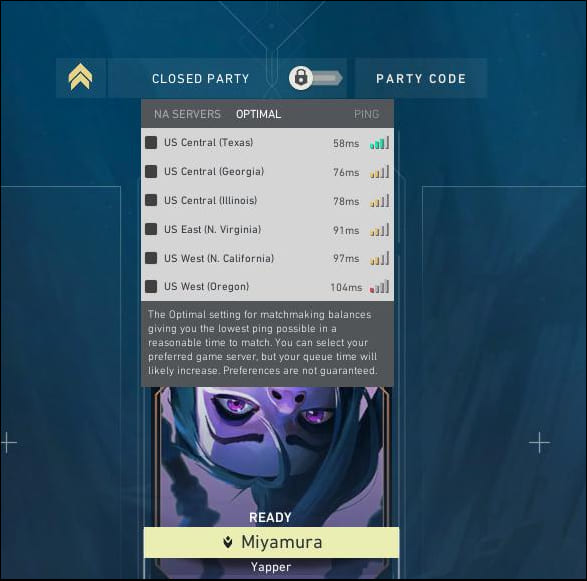
Step 3. Check the ping (ms) shown beside each available server. A lower number generally means less network delay between your PC and that server.
Step 4. Choose the server with the lowest stable ping, then start matchmaking.
Do not automatically choose a distant server just because friends use it. If reducing latency is the priority, favor a suitable server that consistently gives you a better connection.
Fix 2. Improve Your Internet Connection Stability
If changing servers does not help enough, check the connection between your gaming PC and router. Fast download speeds do not necessarily guarantee low gaming latency. Wi-Fi interference, weak signals, router problems, and competing devices can introduce instability, so improving your local connection is an important part of learning how to fix low ping in Valorant.
Use Ethernet: Connect your PC directly to the router for a more stable connection.
Improve Wi-Fi: Move closer to your router and use a suitable 5 GHz or 6 GHz connection when available.
Restart Your Router: Restart it to clear temporary connection problems.
Limit Other Devices: Reduce streaming, downloads, and updates on other devices to free up bandwidth for Valorant.
Test Valorant again after making these changes to see whether your average ping and sudden latency spikes improve.
Fix 3. Close Bandwidth-Heavy Background Programs
Even if nobody else is using your network, your own computer may be transferring data in the background. Game downloads, cloud synchronization, browsers, streaming applications, and Windows updates can compete for network capacity. This becomes particularly noticeable when your ping is normally good but suddenly increases after several programs start running. So, you can try to close bandwidth-heavy background programs to fix this issue.
Step 1. Press Ctrl + Shift + Esc to open Task Manager.
Step 2. Open the Processes tab and click the Network column to sort programs by their current network activity.
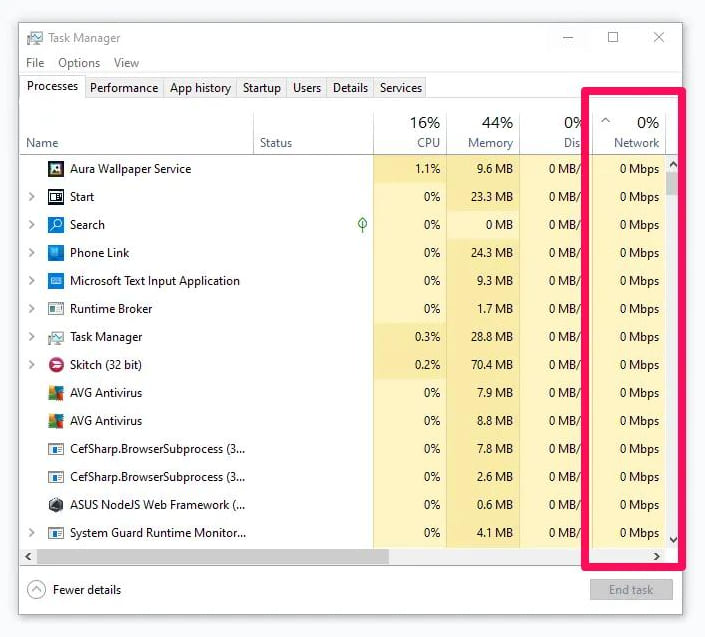
Step 3. Look for unnecessary apps consuming significant bandwidth, such as cloud-sync tools, browsers, game launchers, streaming software, or active download programs.
Step 4. Select an app you recognize and do not currently need, then click End task. Avoid ending unfamiliar Windows or system processes.
Note: Avoid randomly ending unfamiliar Windows processes. Focus on programs you can clearly identify as unnecessary while gaming.
Fix 4. Optimize Your Valorant Network Settings
Players searching for how to fix low ping in Valorant settings or how to lower ping in Valorant settings should focus on network-related options rather than graphics quality. Lowering textures or shadows can improve FPS, but it does not shorten the network route to the game server. Valorant's network statistics are more useful for identifying whether your problem is actually latency.
Go to Settings > Video > Stats and display relevant network statistics, such as network RTT.
While playing, monitor whether your ping stays consistently high or suddenly jumps. You should also:
Select the most suitable low-latency server.
Monitor network RTT during matches.
Avoid unnecessary VPN or proxy connections.
Stop downloads before starting Valorant.
Compare latency before and after network changes.
If RTT remains stable but Valorant still stutters, your problem may be related to FPS or PC performance rather than ping.
Fix 5. Reduce Valorant Lag Interference with Smart Game Booster
Sometimes the "lag" you experience is not caused entirely by the internet. Background programs can consume CPU, RAM, and other resources while you play, producing stuttering that feels similar to high latency. Smart Game Booster can optimize the PC side of your gaming environment, making it easier to separate actual ping problems from system-performance issues.
Key Features of Smart Game Booster
- Enjoy lag-free & low-ping gaming
- 100+ games supported
- Severs from all over the world
- Boost in-game FPS
Here’s how to reduce Valorant lag interference with Smart Game Booster
Step 1. Install and open Smart Game Booster on your computer.
Step 2. Add Valorant to its game library if it is not automatically detected. Then, enter the optimization page.
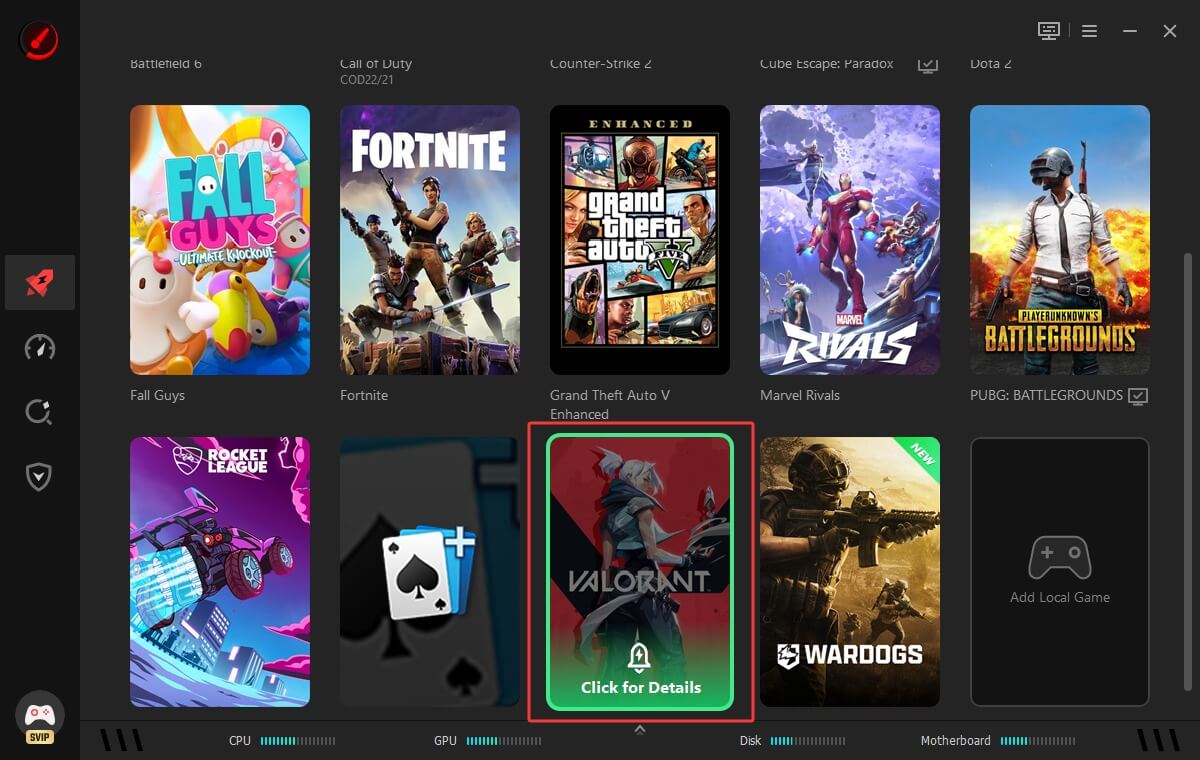
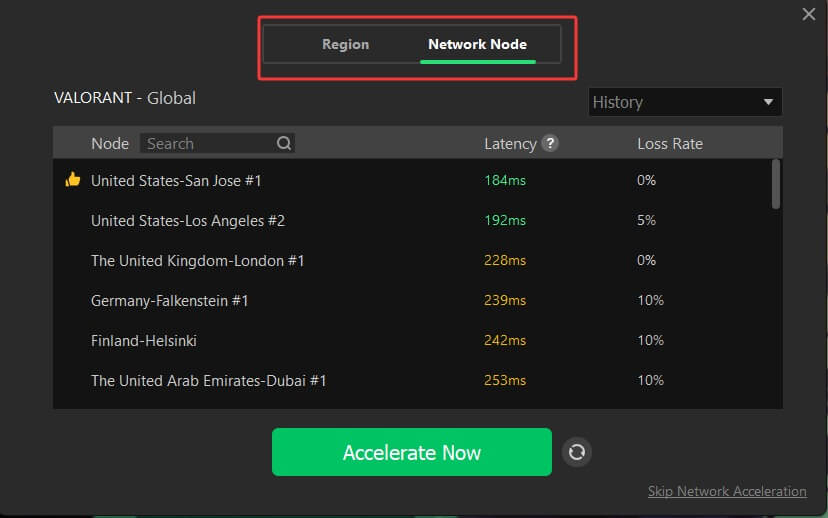
Step 3. Enable Network Accleration and the PC Boost.
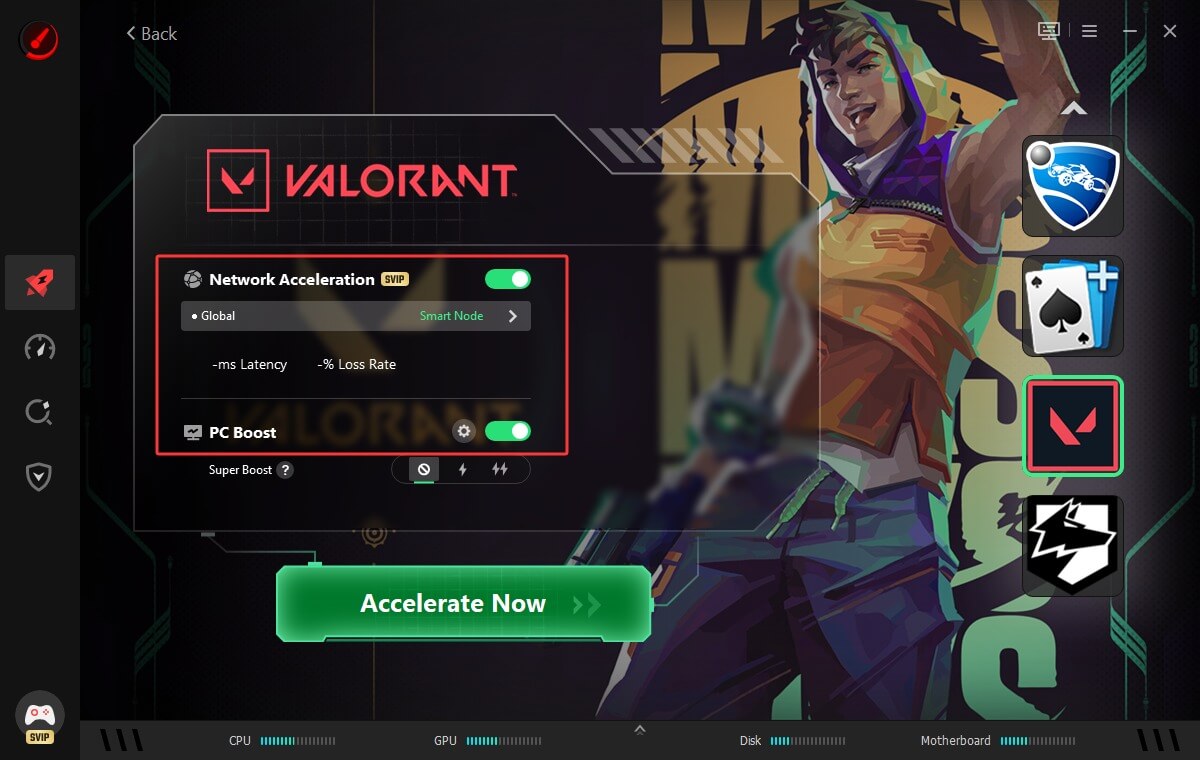
You may choose the preferred server or let the program pick a smart node for you. Set the PC Boost settings to choose the appropriate acceleration settings for VALORANT. Then, click Accelerate Now to apply the changes.
Step 4. Then, you can enjoy Valorant with low ping and improved overall PC performance.
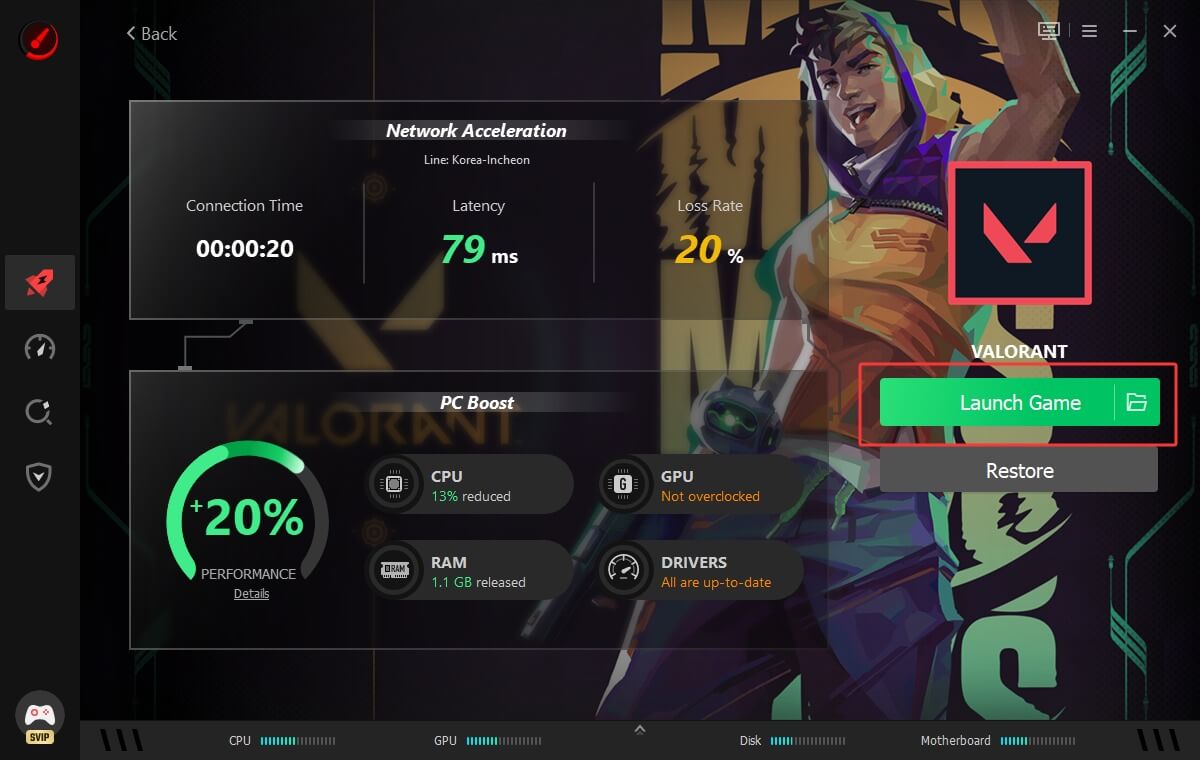
Smart Game Booster also provides several Valorant-related benefits:
• Reduce Background Processes Before Playing Valorant: Limits unnecessary activity that may compete with Valorant for PC or network resources.
• Free Up RAM for Smoother Valorant Matches: Releases memory occupied by unnecessary processes to reduce PC-side stuttering.
• Create a More Stable Valorant Gaming Environment: Works as a game launcher PC while optimizing available system resources before you enter a competitive VALORANT match.
• Launch and Optimize Valorant More Conveniently: Lets you manage and optimize Valorant through a gaming-focused interface.
• Identify Valorant Ping and Performance Problems: Helps distinguish system-performance problems from genuine network latency.
• Improve Valorant FPS and Reduce Perceived Lag: Functions as an FPS booster by reducing unnecessary resource usage and performance-related stuttering that players may sometimes mistake for high network ping.
Smart Game Booster cannot physically shorten the distance between you and a Valorant server. Its role is to reduce PC-side interference and optimize the gaming environment alongside your network fixes.
Fix 6. Update Your Network Adapter Driver
An outdated or faulty network driver can contribute to unstable connections, ping spikes, or network interruptions while playing Valorant. Keeping the network adapter driver updated can help maintain a stable connection and eliminate driver-related problems that may affect your gaming experience.
You can update the driver manually through Device Manager, but Driver Booster provides an easier option by automatically detecting outdated network drivers and finding suitable updates.
Step 1. Download, install, and open Driver Booster.
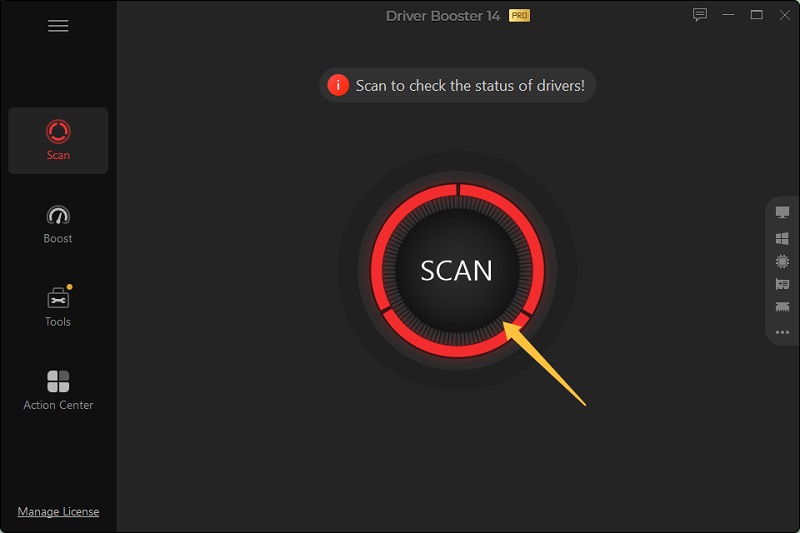
Step 2. Click Scan to check your PC for outdated or problematic drivers automatically.
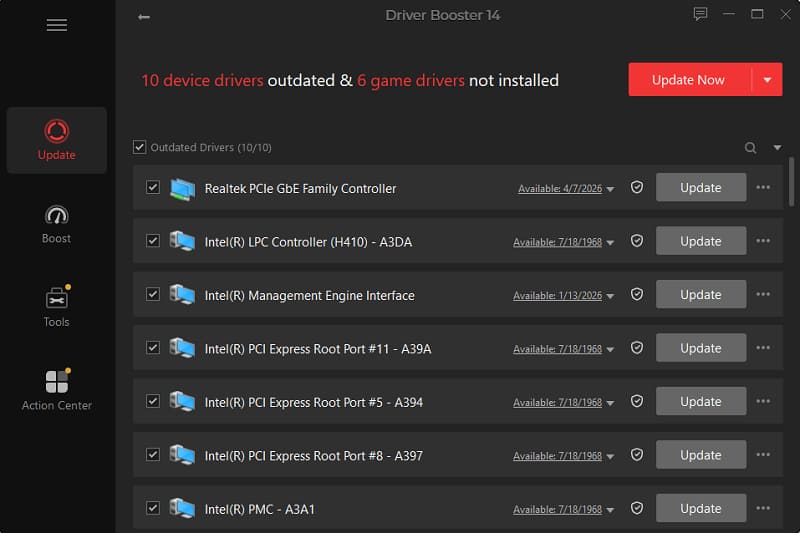
Step 3. Locate your network adapter driver in the scan results and click Update.
Step 4. Restart your PC after the update, launch Valorant, and check whether your connection is more stable.
Driver Booster can also update multiple outdated drivers at once, which saves time compared with checking individual devices manually. For Valorant, keeping the network adapter working properly can help reduce driver-related connection instability, although driver updates cannot directly shorten the physical network route to the game server.
Fix 7. Flush DNS and Reset Your Network
If your connection has developed unusual networking problems, refreshing Windows network components is another troubleshooting option. This method is more appropriate after basic fixes such as server selection, Ethernet, and stopping downloads have failed. Keep in mind that flushing DNS alone does not guarantee lower in-game ping or change the physical route to the server.
Open Command Prompt as administrator and run:
ipconfig /flushdns
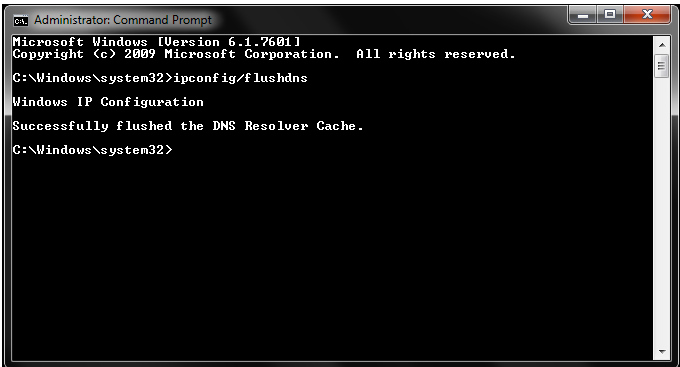
You can also reset Windows network settings when broader connectivity problems persist. In Windows 11, go to:
Settings > Network & internet > Advanced network settings > Network reset
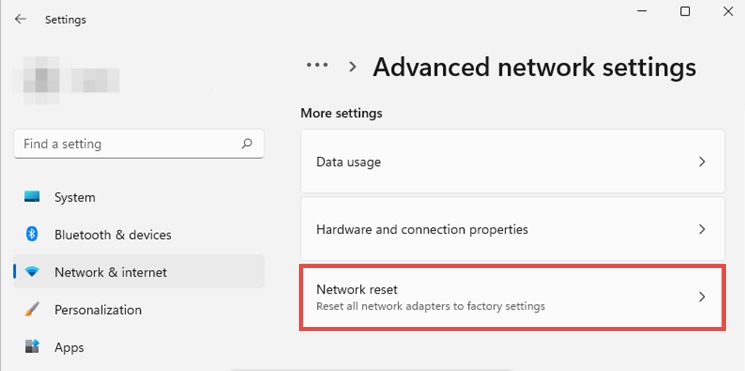
Because a network reset removes and reinstalls network adapters and resets their settings, use it as a troubleshooting measure rather than a routine Valorant optimization.
Fix 8. Test or Disable Your VPN Connection
A VPN changes the route your traffic takes to reach Valorant servers. This can occasionally improve an inefficient ISP route, but it can also increase latency by sending traffic through an additional server. Therefore, do not assume that enabling a gaming VPN will automatically give you lower Valorant ping.
If you currently use a VPN, disconnect it and record your Valorant ping.
Then compare:
Normal connection → Valorant server
with:
VPN connection → VPN server → Valorant server
Keep whichever connection provides lower and, importantly, more stable latency.
If your normal ISP route produces unusually high ping while a carefully selected VPN route performs significantly better, routing may be contributing to the problem. However, results can vary by location, ISP, VPN server, and Valorant server.
FAQs About Valorant Ping
Why Is My Valorant Ping Suddenly High?
Sudden ping increases may result from Wi-Fi interference, network congestion, downloads, another device using significant bandwidth, ISP routing changes, or temporary server issues. Check whether the problem affects one Valorant server or your entire internet connection.
Does Lowering Graphics Settings Reduce Valorant Ping?
No, not directly. Lower graphics settings primarily affect FPS and GPU workload. If reducing graphics makes Valorant smoother while network RTT remains unchanged, part of the perceived lag was probably related to PC performance rather than internet latency.
How to Lower Ping in Valorant Mobile?
For users searching how to lower ping in Valorant Mobile, the basic principles are similar: use a stable network, avoid background downloads, select an appropriate supported region or server when the game provides that option, and avoid congested connections. Available settings can differ depending on the mobile release and region.
Is Lower Ping Always Better?
Generally, yes, but stability also matters. A consistent 40 ms connection can provide a better experience than one repeatedly jumping between 20 ms and 100 ms. Watch for both your average latency and sudden ping spikes. If you didn’t find the right answer, just search for how to lower ping in Valorant Reddit to find solutions.
Conclusion
Lower Valorant ping starts with identifying the actual source of the delay. Choose an appropriate server first, improve your Wi-Fi or switch to Ethernet, stop competing downloads, monitor Valorant's network statistics, and eliminate unnecessary PC activity. Smart Game Booster can further reduce system-side interference and help separate network problems from FPS-related stuttering.
Following these fixes systematically is a more reliable approach to answer of the question "How to lower ping in Valorant" than applying random graphics, DNS, or Windows tweaks.
Key Features of Smart Game Booster
- Enjoy lag-free & low-ping gaming
- 100+ games supported
- Severs from all over the world
- Boost in-game FPS