Let's be real for a second—there's nothing more frustrating than jumping out of the Battle Bus, landing at a hot drop, and suddenly your screen turns into a slideshow. You're trying to build, you're trying to aim, and suddenly, you're dead. That's the reality of low FPS in Fortnite, and it's not just annoying; it's actively holding you back from winning fights. So, how to get more FPS in Fortnite? That's exactly what we're covering today. This guide will show you multiple practical solutions to boost performance. Whether you're on a high-end desktop or a struggling laptop, there's something here for everyone.
Method 1 – Optimize Windows Settings to Instantly Improve FPS
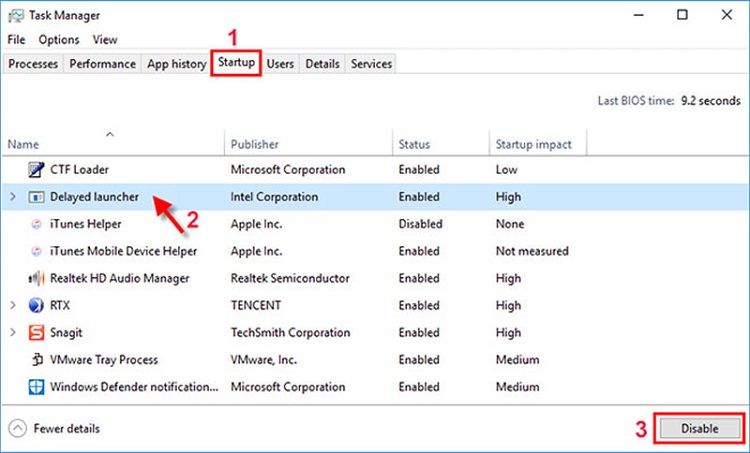
Here's the truth: your Windows system has already been busy with something you don't need, even if you have not launched Fortnite. So it’s hard to imagine that you will have a stable gaming experience. See? This is the foundation of how to get more FPS in Fortnite—you need to clear the clutter before you even start playing. Here's what to do:
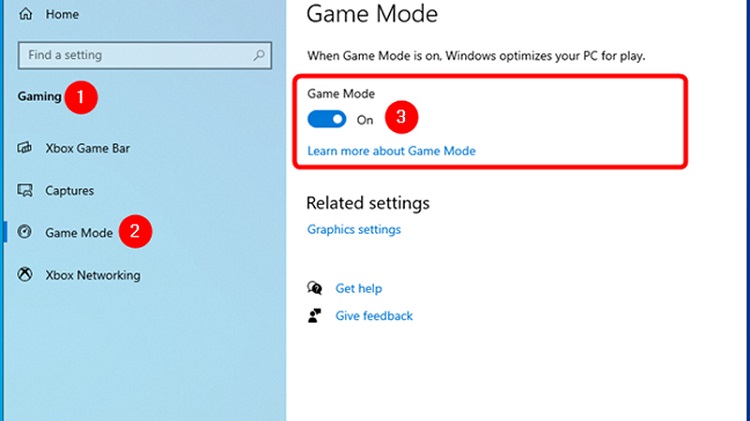
Adjust performance settings to “Best performance.” Search for "Adjust the appearance and performance of Windows" in the Start menu, select "Adjust for best performance," and apply.
Close unnecessary background apps before launching Fortnite. Seriously—close your browser, close Discord if you're not using it, and pause any downloads.
Method 2 – Adjust Fortnite In-Game Settings for Maximum FPS
Even if you have a beast of a PC, cranking every graphics setting to "Epic" will still choke your performance. Fortnite is a competitive game, not a screensaver—you don't need ray tracing or ultra shadows to win. This is one of the most important parts of how to increase FPS in Fortnite, and honestly, it's where most players see the biggest gains. Here's the competitive settings formula that pros swear by:
Set Display Mode to Fullscreen. Windowed or borderless modes introduce input lag and can hurt performance.
Lower resolution if needed. If you're struggling to hit consistent frames, dropping from 1440p to 1080p can give you a massive boost.
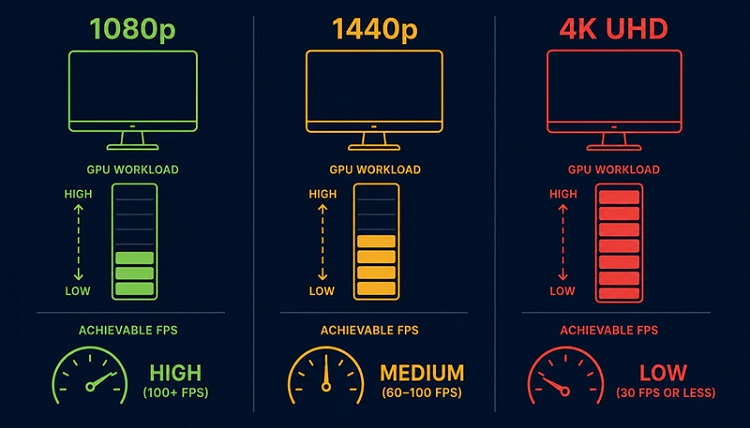
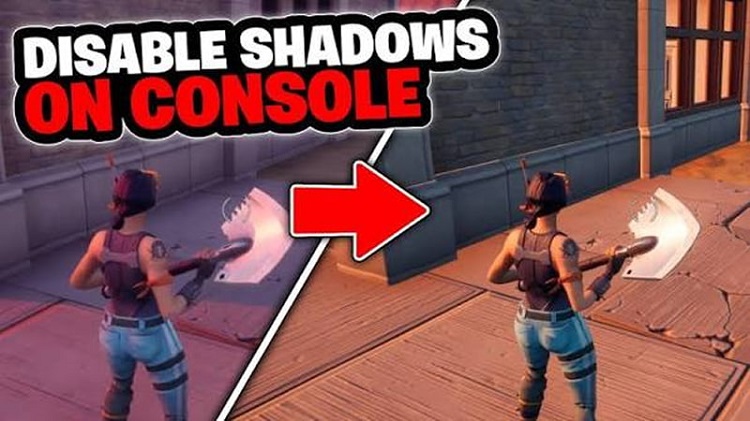
Set Effects, Post Processing, and Textures to Low. These are pure eye candy—they look nice but cost you frames.
Reduce View Distance to Medium or Low. This only affects terrain rendering, not enemy visibility. Players remain clear and visible even on the lowest setting.
Disable V-Sync. V-Sync adds input lag and can cap your FPS. Turn it off unless you're dealing with severe screen tearing.
Oh, and one more thing about how to get more FPS in Fortnite—switch your Rendering Mode to Performance Mode. It's built specifically to maximize FPS and minimize input lag. Most pros are using it, and for good reason.
Method 3 – Update Graphics Drivers and Optimize GPU Settings
Outdated GPU drivers are one of the most overlooked causes of FPS drops and performance instability. Epic Games pushes out Fortnite updates regularly, and NVIDIA and AMD release driver updates to match—if you're running old drivers, you're leaving performance on the table. Here's how to get more FPS in Fortnite quickly:
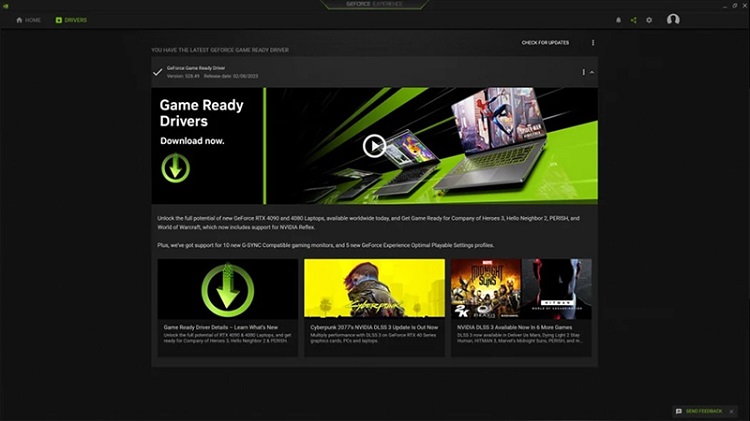
Restart PC after installation. This ensures all the new driver files are properly loaded.
Open GPU control panel. For NVIDIA users, right-click the desktop and open NVIDIA Control Panel. For AMD, open Radeon Software.
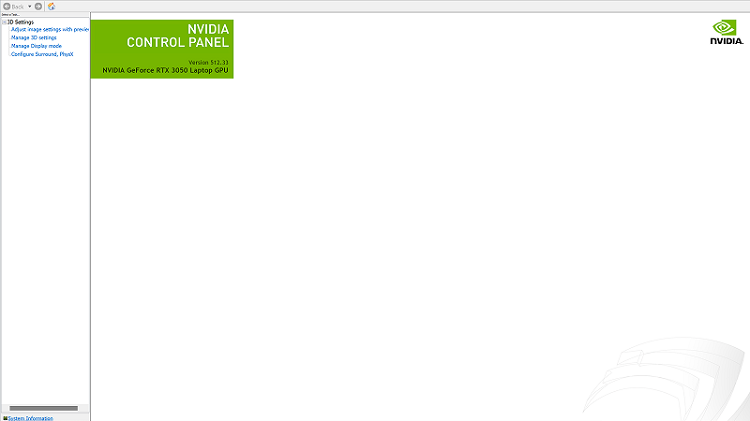
Pro tip: If you want to make driver updates even easier, consider using Driver Booster. It automatically scans for outdated drivers and updates them with one click—saving you the hassle of hunting down the right versions manually.
Method 4 – Use Smart Game Booster to Automatically Boost FPS
Speaking of how to boost FPS in Fortnite, Smart Game Booster has to be mentioned. Smart Game Booster is an automated optimization tool designed to free up system resources with a single click. It shuts down unnecessary background services, reallocates CPU and GPU power to your game, and even monitors your hardware temperatures to prevent overheating. Users have reported gaining 20+ FPS in Fortnite just by running the FPS booster.
Key Features of Smart Game Booster
- Enjoy lag-free & low-ping gaming
- 100+ games supported
- Severs from all over the world
- Boost in-game FPS
Here's how to get more FPS in Fortnite with Smart Game Booster:
Step 1. Download and install Smart Game Booster from the official website.
Step 2. Launch the application and let it scan your system for optimization opportunities.
Step 3. Click the “Boost” button—this automatically closes unnecessary background processes and services.
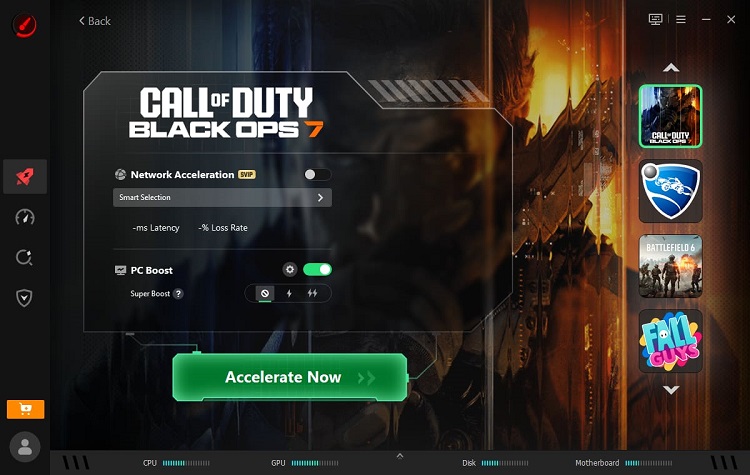
Step 4. Launch Fortnite and enjoy the performance improvement.
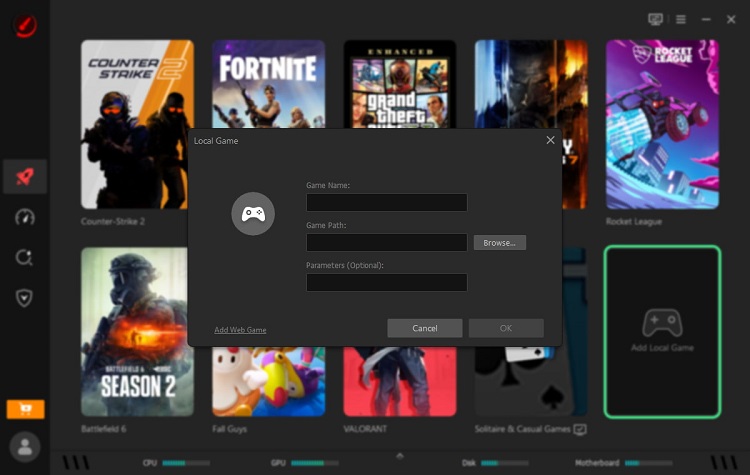
Step 5. After you're done gaming, click “Restore” to bring everything back to normal.
More Features You Can Explore in Smart Game Booster
Beyond the one-click boost, Smart Game Booster comes packed with a suite of tools designed to keep your system in peak gaming shape. If you're serious about how to boost FPS in Fortnite, these features will give you the edge you need.
FPS and Performance Enhancement Mode: This is the core engine of the booster. It intelligently allocates your CPU and GPU resources to prioritize your game, unlocking higher frame rates for smoother animations and lower system latency.
One-Click Game Optimization: Don't want to fiddle with settings? No problem. Smart Game Booster can automatically detect the games you're running and apply the best performance profile for each one.
Background Process Control: This feature automatically scans for and shuts down unnecessary background processes and services that are hogging your RAM and CPU.
Network Optimization for Lower Lag: High ping can wreck your game just as fast as a sudden FPS drop. Smart Game Booster's ping reducer includes network tweaks that optimize your connection settings, helping to reduce latency and provide a more stable online experience. This works great alongside the best way to reduce ping in Fortnite—like using a wired Ethernet connection.
Driver Management Support: This tool scans your system for outdated drivers—especially graphics drivers—and helps you update them quickly.
Real-Time Performance Monitoring: Smart Game Booster displays your FPS, CPU temperature, and GPU usage in real-time. This lets you see exactly how your system is performing under load, so you can tweak settings with confidence and avoid overheating which is essential all for how to get more FPS in Fortnite.
Method 5 – Optimize Laptop Settings for Better Fortnite FPS
Laptops face unique challenges when it comes to gaming, for example, thermal throttling, power limitations, and smaller cooling system. So here's another method of how to boost Fortnite FPS on laptop.
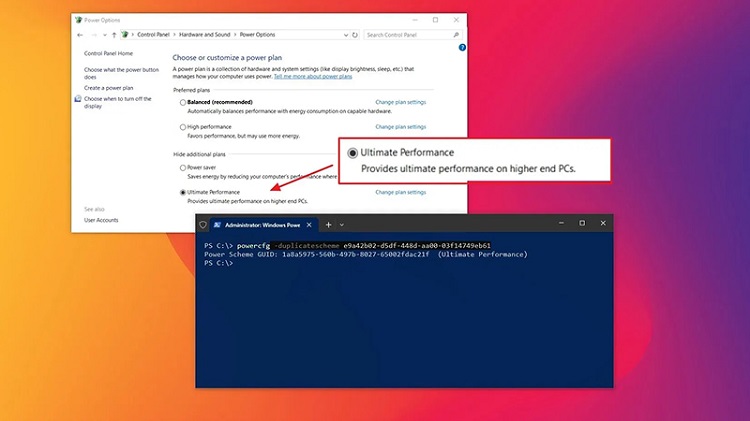
Plug in charger while gaming. This might sound obvious, but many laptop users forget that running on battery automatically limits performance.
Reduce screen resolution if needed. Laptop screens often run at high resolutions that strain integrated or mobile GPUs. Dropping to 1600x900 or even 1366x768 can give you a massive FPS bump.
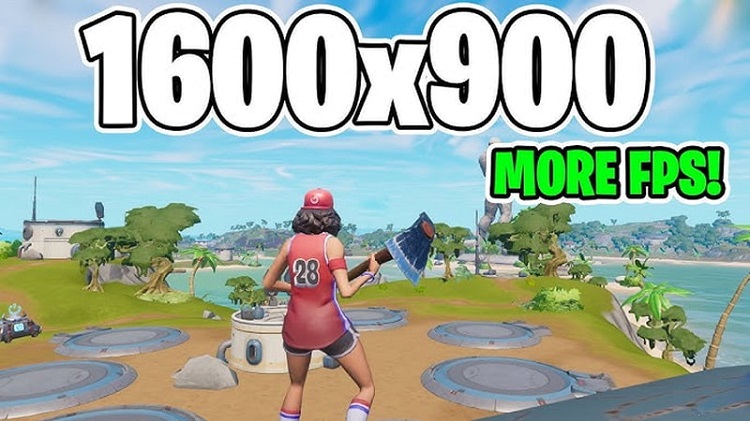
By applying these laptop-specific tweaks, you're taking a big step toward how to get more FPS in Fortnite—even on a portable machine.
Also Read: Marvel Rivals FPS Boost: How to Increase Your FPS and Play Smoothly (Full Guide) >>
Method 6 – Apply Advanced System Tweaks for FPS Stability
If you've already followed the basic steps and you're still hungry for more frames, these advanced tweaks can help reduce system overhead and improve frame consistency. Consider this the "next level" of how to improve FPS in Fortnite.
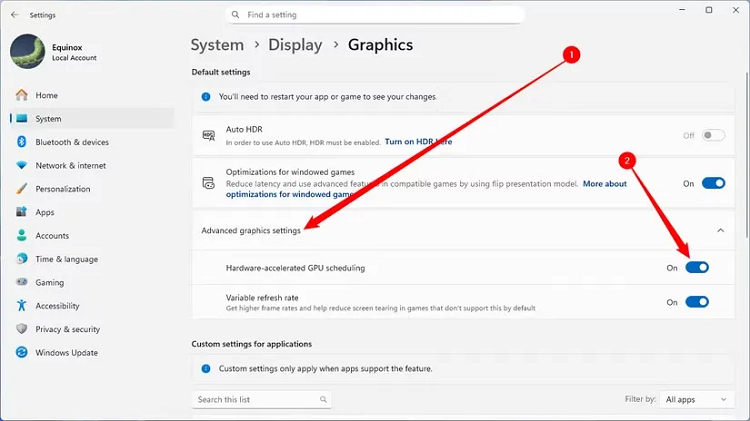
Disable Fullscreen Optimizations for Fortnite. Right-click the Fortnite executable, go to Properties > Compatibility, and check "Disable fullscreen optimizations."
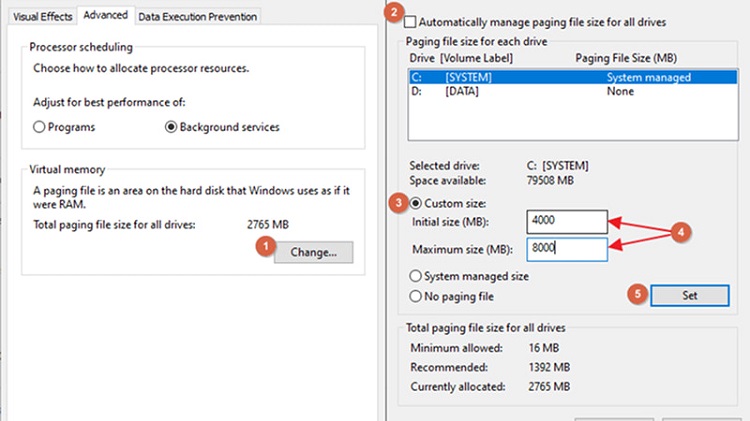
Increase Virtual Memory (Paging File). If you're running low on RAM, increasing your page file size can prevent stuttering during intense moments. Go to System Properties > Advanced > Performance Settings > Advanced > Virtual Memory, and set a custom size (1.5x to 2x your physical RAM).
Tips: Can you run Fortnite or other trending PC games on your new system? Run a free "Can I Run It" test to figure it out quickly!
FAQ – How to Get More FPS in Fortnite
Q: How to Increase FPS in Fortnite on Low-End PCs?
A: Use Performance Mode, lower resolution to 720p, set all graphics to Low/Off, and close background apps—Smart Game Booster can help automate that.
Q: FPS vs Ping – What Actually Causes Lag?
A: FPS lag = stutter from weak hardware; ping lag = delay/teleport from network issues. If your FPS is stable but you're rubber-banding, it's ping—use wired Ethernet and pick the closest server region.
Q: Why is my FPS so low in Fortnite even with a good PC?
A: Likely background apps, outdated drivers, or wrong in-game settings. Even powerful PCs choke when Windows is juggling too many tasks.
Q: How to boost Fortnite FPS on a laptop without a graphics card?
A: Enable Performance Mode, drop resolution, close other apps, keep your laptop plugged in, and ensure proper cooling.
Q: Why does Fortnite FPS drop during fights or endgame?
A: More players, builds, and explosions increase rendering load. Optimize your settings and cap FPS at a stable number to minimize drops.
Conclusion
So, how to get more FPS in Fortnite? It’s your turn now! Go ahead, try these methods, apply these changes, and enjoy the buttery-smooth gameplay you deserve. See you in the victory circle.