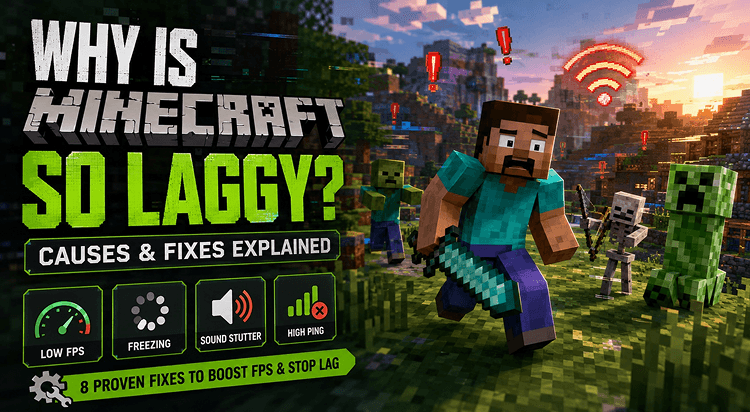
While Minecraft's single-player mode is perfect for solo exploration, servers are central hosts allowing multiple players to connect and interact in real time. However, Minecraft server lag seriously degrades the quality of gameplay for every connected player, causing delayed actions, unresponsive mobs and more. How to fix Minecraft server lag? This article focuses on practical, step-by-step methods to eliminate latency on a Minecraft server for an enjoyable multiplayer experience.
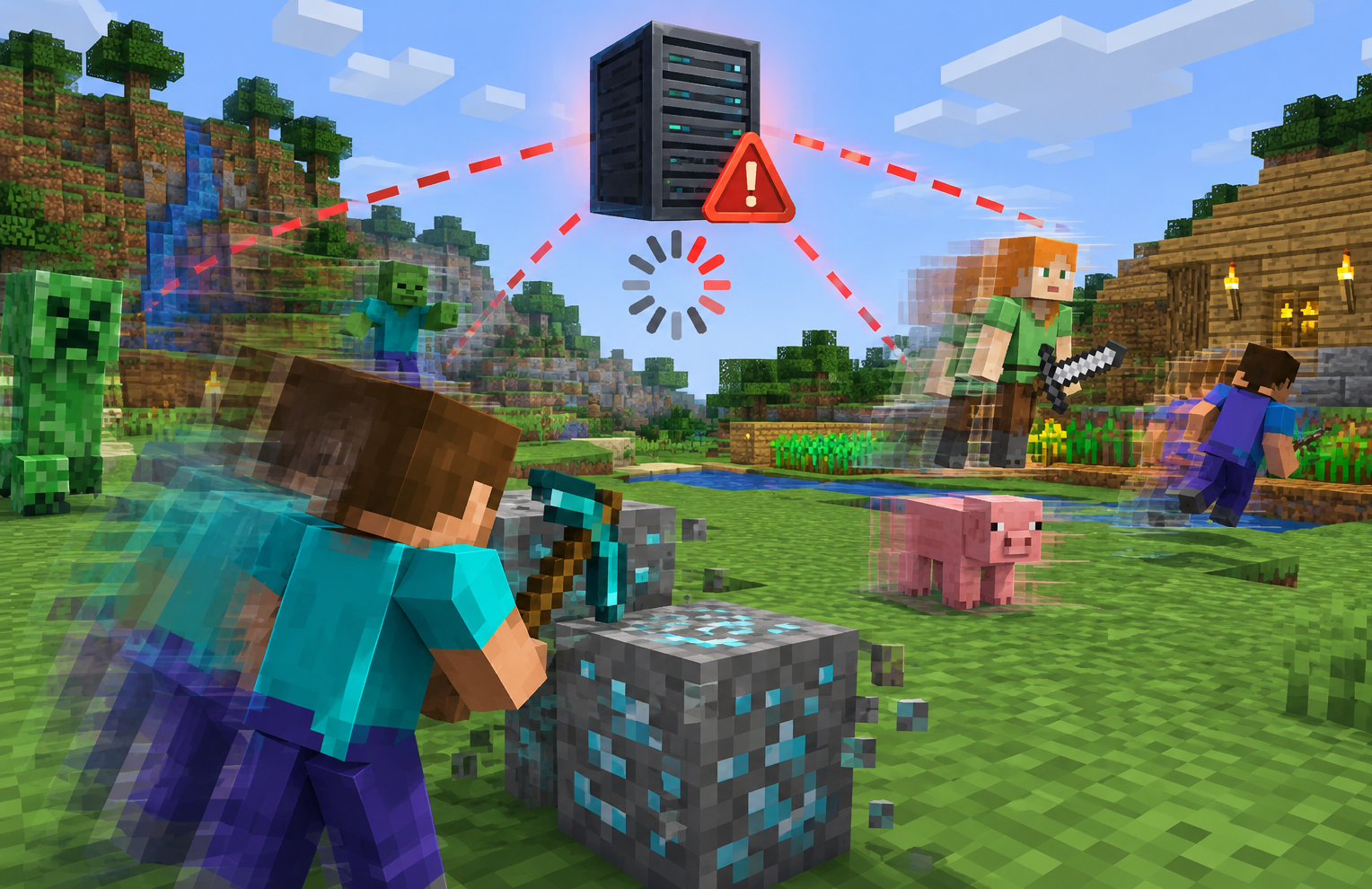
Minecraft Server Lag Explained
Generally, Minecraft server cannot respond to players quickly enough, delivering stuttering gameplay when lag happens. How does Minecraft server lag work? There are some crucial things you’d better know before fixing the issue.
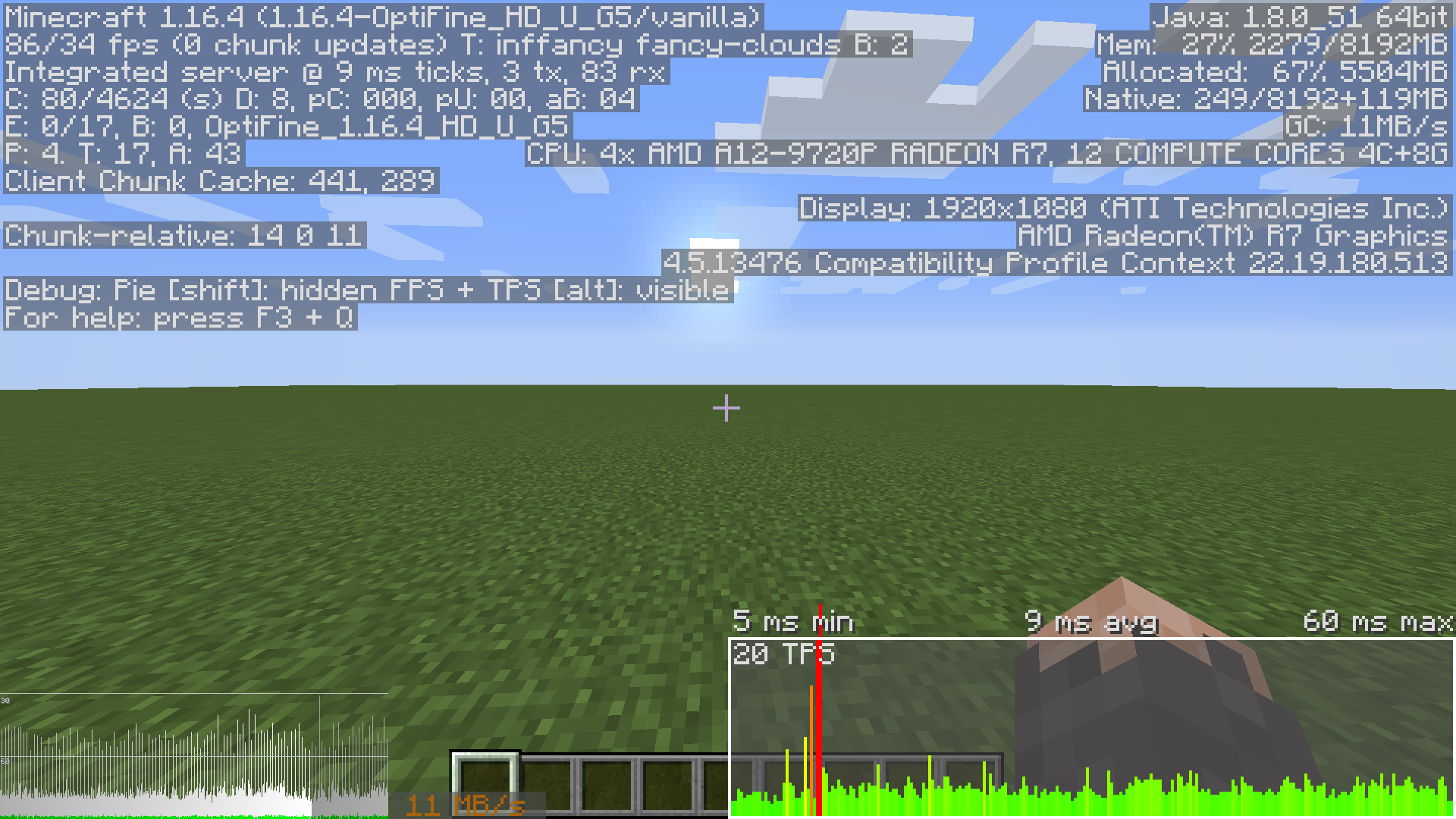
TPS
As an important indicator of server performance, TPS (Ticks Per Second) measures how fast a Minecraft server processes game ticks, including Mob AI, redstone signals, player movements, chunk updates and more. 20 TPS is ideal for ensuring a smooth multiplayer experience. Players can notice some lags when TPS drops below 20, while the game may become unplayable if below 10 TPS.
Lag Types
Sever Lag: The lag is caused by the server itself. Everything in the world slows down for everyone.
Network Lag: The network delays between your device and the Minecraft server. Actions may take a long time to register.
Client Lag: Your computer struggles to render the game. The screen stutters, freezes even if the server is working normally.
Why Is Minecraft Server Lagging
Minecraft severs stutter for several reasons and the causes vary from lag types.
Server-Side
Too many entities: Lots of mobs, animals, villager trading halls, or items lying on the ground strain the server's CPU.
Heavy world generation and chunks: Complex redstone contraptions or massive hopper systems constantly calculate updates, causing massive tick spikes. Also, players running around unexplored areas force the server to generate new terrain on the fly.
Network-Side
Poor connection: Unstable network or weak Wi-Fi signal often leads to packet loss and latency spikes.
Distance to host: The physical server location might be too far from you or your players.
Bandwidth Congestion: Background downloads, streaming can make the network overloaded.
Client-Side
How to Fix Minecraft Server Lag
There are many quick solutions for server lag. Identify the lag your experience and choose the best fix.
How to Reduce Minecraft Server Lag - Low TPS
1. Lower Server View Distance
This Minecraft server lag fix controls how far away from players ticks are processed (mobs moving, crops growing, furnaces smelting). It drastically reduces CPU load while keeping view distance high.
2. Pre-Generate Your World
Minecraft server generates new terrain when players explore new areas. The process consumes resources and cause temporary performance drops. Pre-generate a Minecraft world and create terrain, chunks before players explore them to reduce Minecraft server lag.
Install a world pre-generator plugin like Chunky.
Set a center and a border radius (e.g., 2,500 to 5,000 blocks) and run /chunky start to pre-generate all chunks ahead of time.
3. Switch to Optimized Server Software
The default Vanilla server is not performance optimized. If you are experiencing lag on Vanilla, choose a more powerful server.
For plugins, Paper is the industry standard for performance, which improves tick rates and multithreading without breaking Vanilla game mechanics. If you want more control, Purpur offers extra configration features.
For Modded servers, Fabric and optimization modes like Lithium, FerriteCore, Kryption can help fix lag while keeping the server strictly Vanilla-compliant.
4. Clean Up Entities and Farms
Large number of entities can increase server workload. Limit entity counts and ground items, letting them not drain ticks.
Set maxEntityCramming to 8 and remove excessive entities.
Locate bukkit.yml and reduce spawn-limits. For example, monsters: 35; animals: 5; water-animals: 3
Open spigot.yml, increase merge-radius.item to 4 and lower item-despawn-rate to 4000 for clearing dropped items faster to free up memory.
5. Manage RAM and Hardware
Give the server enough RAM. For a standard vanilla or light plugin server, 4GB to 6GB is usually ideal. Ensure minimum (-Xms) and maximum (-Xmx) Java heap values match to prevent stuttering. It is also suggested to Look for hosting providers that use high clock-speed CPUs.
How to Fix Minecraft Connection Lag - High Ping
If it shows a high ping in Minecraft, your network may be the primary cause of server lag. Follow the steps to reduce ping.
Use a wired Ethernet cable instead of Wi-Fi for faster and stable connection.
Choose a server host mode located physically closer to your player base.
Close background apps that eat up bandwidth, like downloads, automatic updates, cloud syncing and more.
How to Fix Minecraft Client Lag - FPS Drops
You can notice dropped frame rates when the client causes the lag. Try to adjust graphic settings and optimize your device for better performance.
1. Change Graphic Settings
Go to Options > Video settings in your Minecraft client.
Set Graphics and Clouds to Fast.
Lower Render Distance to 4-8 chunks.
Turn Off VSync, Mipmap Levels and Smooth Lighting.
Set Particles to Minimal.
Disable Entity Shadows and reduce entity distance to 50%.
2. Optimize PC for Gaming
Instead of various manual optimization, Smart Game Booster streamlines the process to improve PC gaming performance in a single click. It is a good helper to reduce lag and boost FPS in Minecraft and other popular games.
Smart Game Booster designs a specific Performance module to automate PC optimization for gaming. It allows you to clean up disk, close unnecessary background processes/services, enable Game Mode and high-performance power plan to prevent stutters during heavy gaming. It can also update graphics drivers to fix incompatibility and break performance bottlenecks in new game releases.
The free game booster features an easy-to-navigate interface. Even a beginner can quickly fix Minecraft server lag using it, no skills needed.
Step 1. Download and install Smart Game Booster on your PC.
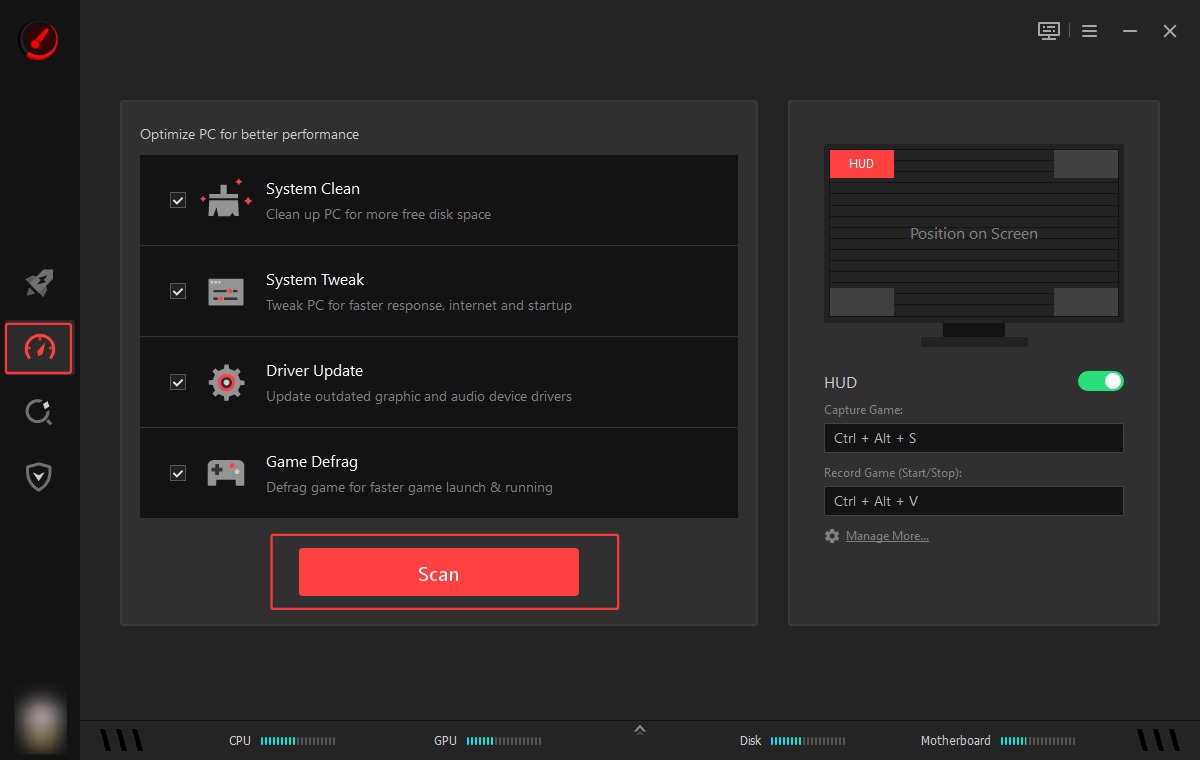
Step 2. Launch the program. Go to Performance and check the options you want to optimize, including System Clean, System Tweak, Driver Update and Game Defrag.
Step 3. Click Scan and let it detect items for optimizing.
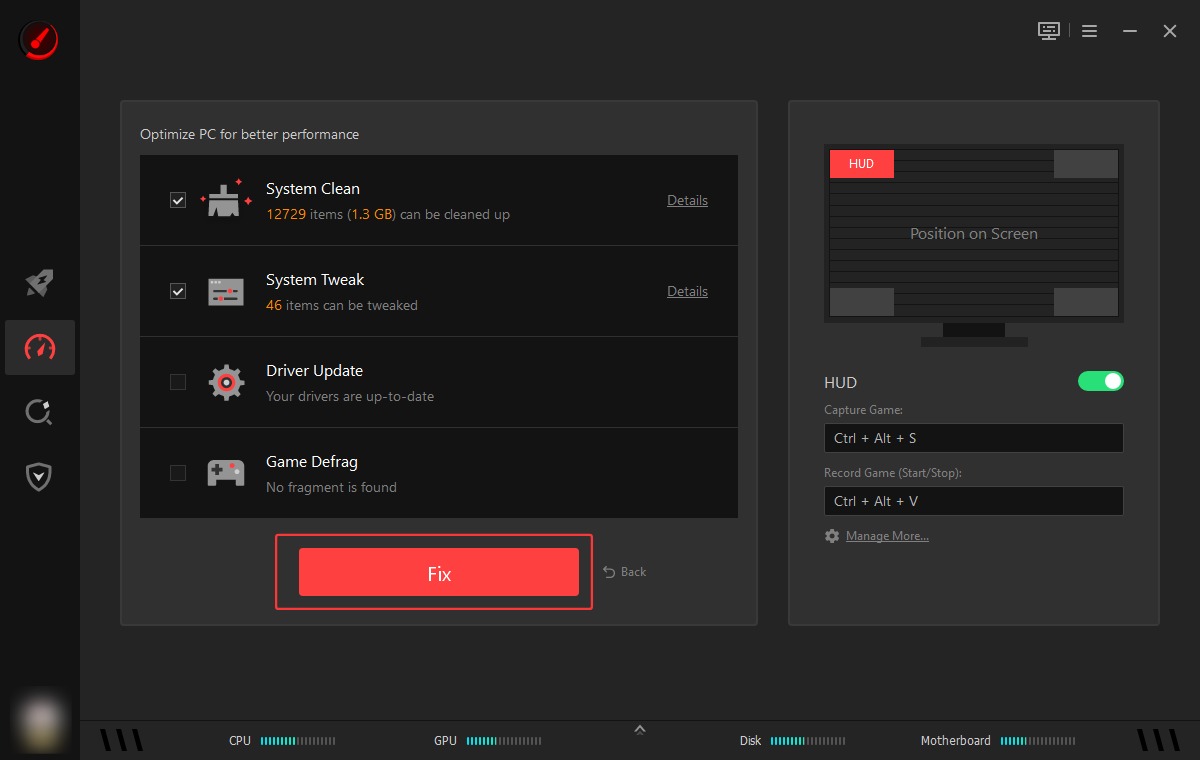
Step 4. Click Fix to optimize your PC and reduce Minecraft lag.
Additionally, Smart Game Booster offers multi-level FPS boost modes that safely overclock GPU and VARM on PC to instantly maximize frame rates to achieve smoother actions with lower latency. Network accelerator provides dedicated lines for faster connection, no ISP routing and bandwidth throttling. Smart nodes guide you to seamlessly connect to the best server with less lag. Go to Boost > Add Minecraft > enable PC boost and Network Acceleration for better gaming experience.
Key Features of Smart Game Booster
- Enjoy lag-free & low-ping gaming
- 100+ games supported
- Severs from all over the world
- Boost in-game FPS
Conclusion
Minecraft server lag reduces the overall enjoyment of multiplayer sessions. How to reduce Minecraft server lag? There are several solutions that can reduce delays and improve server performance. From server configurations to network and PC optimization, choose the right troubleshooting steps depending on the stuttering issue you encounter.