Call of Duty server lag is one of the most reported problems across the entire franchise. It can turn a session you were hyped for into pure frustration. But now, you don't have to deal with this anymore. This article will walk you through how to fix Call of Duty server lagging and other COD related issues.
What Are Call of Duty Servers
Before we start throwing fixes at the wall, it helps to understand what you're actually dealing with. Call of Duty servers are the backbone of every online match you play. They're the machines that connect all players in a lobby, process your inputs, and keep the game world in sync.
Why do servers matter so much for performance? Because your ping - the time it takes data to travel from your device to the server and back - is directly tied to how far away that server is from you. A 20ms ping feels crisp. A 120ms ping feels like you're playing through molasses. So the Call of Duty location of the server you're routed to can make or break your experience.
Take a quick look at the major server regions and what they cover:
Region |
Key Locations |
Popular Modes |
North America (East) |
Ashburn, New York, Chicago |
Warzone, Multiplayer |
North America (West) |
Los Angeles, Seattle |
Multiplayer, Ranked |
Europe |
Germany, UK, Netherlands |
All modes |
South America |
São Paulo, Brazil |
Warzone, Multiplayer |
Asia |
Singapore, Japan |
Multiplayer, Warzone |
Oceania |
Sydney, Australia |
Multiplayer |
Why Are Call of Duty Servers So Laggy
While Call of Duty servers are not always rock-solid, the lag arrives unexpectedly. Here are some common causes of high ping or stuttering in a specific COD server.
Matchmaking: SBMM can route you to a more distant server if that’s where players near your skill level are. The extra distance means higher ping.
Server Overload: Launch windows, double XP weekends, and new seasons flood the servers with traffic. When too many players pile in, latency climbs fast.
Server Maintenance: Updates and emergency patches can leave servers unstable even after they’re back online. During those windows, lag and disconnects are more common.
Distance from Servers: The farther you are from the Call of Duty location hosting your match, the longer your data takes to travel. That's physics, and no local tweak fully fixes it.
Network & ISP Causes: Sometimes, the Wi-Fi, router, or ISP can lead to packet loss, unstable latency, or bandwidth throttling. It feels like server lag even when the servers themselves are fine.
How to Fix Call of Duty Server Lag - Easy Fixes
If you are unfortunately encountering Call of Duty server lag, a few quick adjustments can smooth things out considerably.
Fix 1. Check Call of Duty Server Status
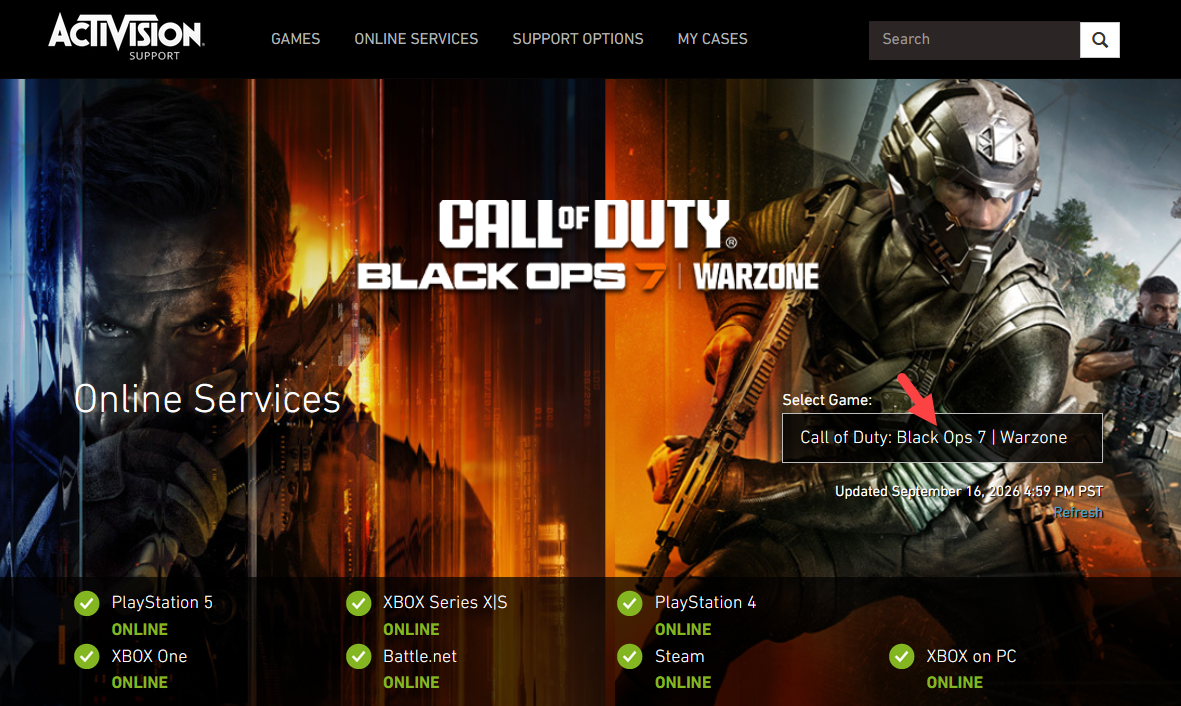
If the servers are down or under maintenance on Activision's end, no amount of local troubleshooting will help. You need to know whether the problem is on your side or theirs.
1. Go to Activision’s Online Services page. Select your game and platform.
2. If everything is green, the issue is likely local. If not, wait for the outage or maintenance to pass.
3. Check @CallofDuty on X for real-time updates.
Fix 2. Choose a Right Server
The Call of Duty location of the server you connect to has the single biggest impact on your base ping. Picking the closest one with the lowest load is a straightforward way to reduce Call of Duty server lag.
1. Use a ping-testing tool like Warzone Ping Test to check regional latency.
2. If you use a game accelerator or VPN, manually select the nearest region. Remember to avoid peak hours in your area when the servers are busiest.
3. Requeue after changing regions and compare your ping.
Tip: If all servers show high ping, your network may be the problem. Check the internet connection or consider using a ping reducer to fix.
Fix 3. Optimize Network Connection
Generally, a stable, wired connection fixes packet loss and jitter that Wi-Fi introduces. Even a good Wi-Fi connection has occasional hiccups that are invisible in normal browsing but very noticeable in a fast-paced shooter.
1. Plug an Ethernet cable directly into your router if possible.
2. On Wi-Fi, move closer, switch to 5GHz, and reduce connected devices.
3. Open Command Prompt as administrator.
4. Run these one at a time: ipconfig /flushdns, ipconfig /registerdns, ipconfig /release, ipconfig /renew, netsh winsock reset.
5. Restart your PC and test the game again.
Fix 4. Close Bandwidth-Heavy Applications
Your internet connection has a finite amount of bandwidth. When a cloud backup, a game download, or a streaming service is eating that bandwidth, Call of Duty gets starved. The result is exactly what Call of Duty server lag feels like.
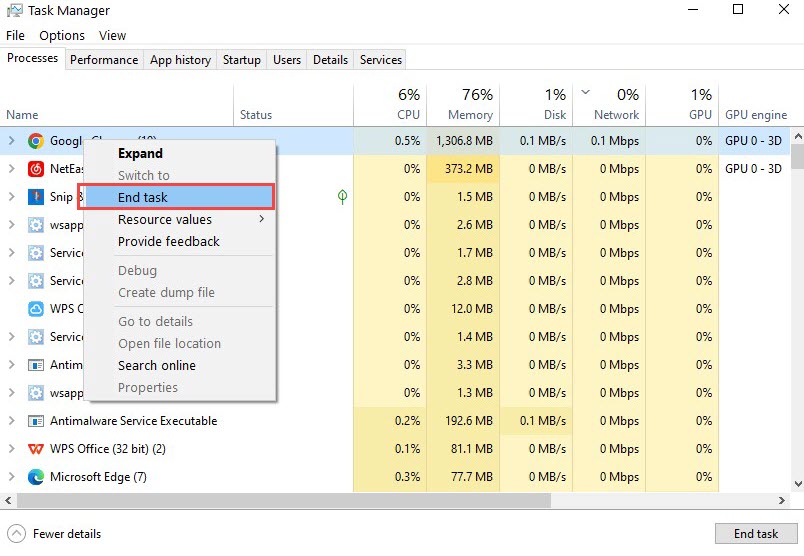
1. Open Task Manager with Ctrl + Shift + Esc.
2. Click the Network column to sort by usage.
3. Right-click the processes with high bandwidth usage (for example video streaming/cloud sync apps, background downloads, Windows updates, etc.) and select End task.
Fix 5. Update Network Drivers
Outdated network drivers can cause connection instability that looks like server-side lag but is actually your PC struggling to maintain a clean connection. This is especially common after major Windows updates.
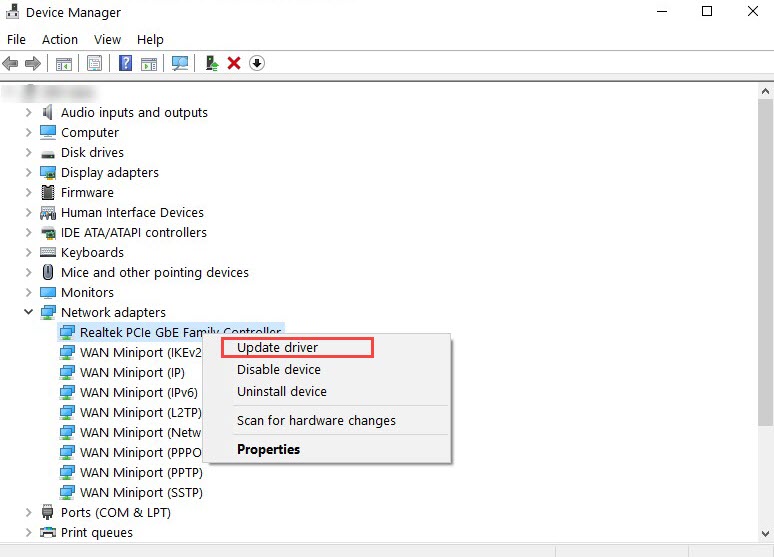
1. Right-click Start and open Device Manager, and expand "Network adapters".
2. Right-click your Ethernet or Wi-Fi adapter. Then select "Update driver" and let Windows search.
3. For the newest version, check your motherboard or laptop maker's site.
4. If the issue started after a Windows update, reinstall or roll back the driver.
How to Fix Call of Duty Server Lag on PC - Overall Solution
The manual fixes work, but an automatic fixer ensures higher efficiency for lag reduction. That's where Smart Game Booster comes in. It's a game optimization tool that bundles network acceleration and hardware boosting into a single click.
Key Features of Smart Game Booster
- Enjoy lag-free & low-ping gaming
- 100+ games supported
- Severs from all over the world
- Boost in-game FPS
Change servers in Call of Duty with ease: Connect to 500+ optimized nodes worldwide and pick the region with the lowest ping. It automatically routes around congested traffic.
Boost FPS and reduce high ping quickly: The FPS booster safely overlocks GPU and VRAM to unlock the limits of frame rates. Plus, network acceleration cuts ping and packet loss during peak hours.
Optimize PC for gaming in 1-click: PC Boost closes background apps, frees RAM, and switches your system into gaming mode to release more possible resource for no-lag gameplay.
Let's see how to use Smart Game Booster to fix Call of Duty server lag with the step-by-step guide:
Step 1. Download and install Smart Game Booster. Launch it on your Windows PC.
2. Find Call of Duty from the list.
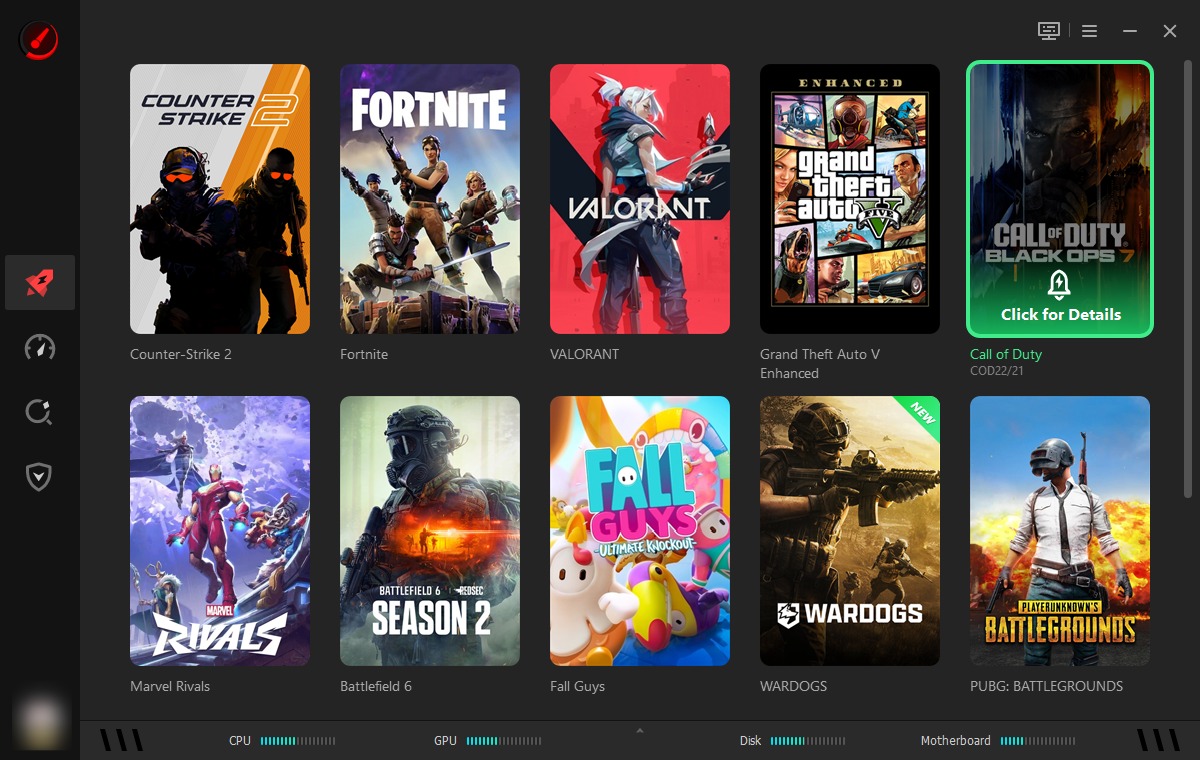
3. Enable Network Acceleration and PC Boost.
4. Under Network Acceleration, select a Network Node with lower latency.
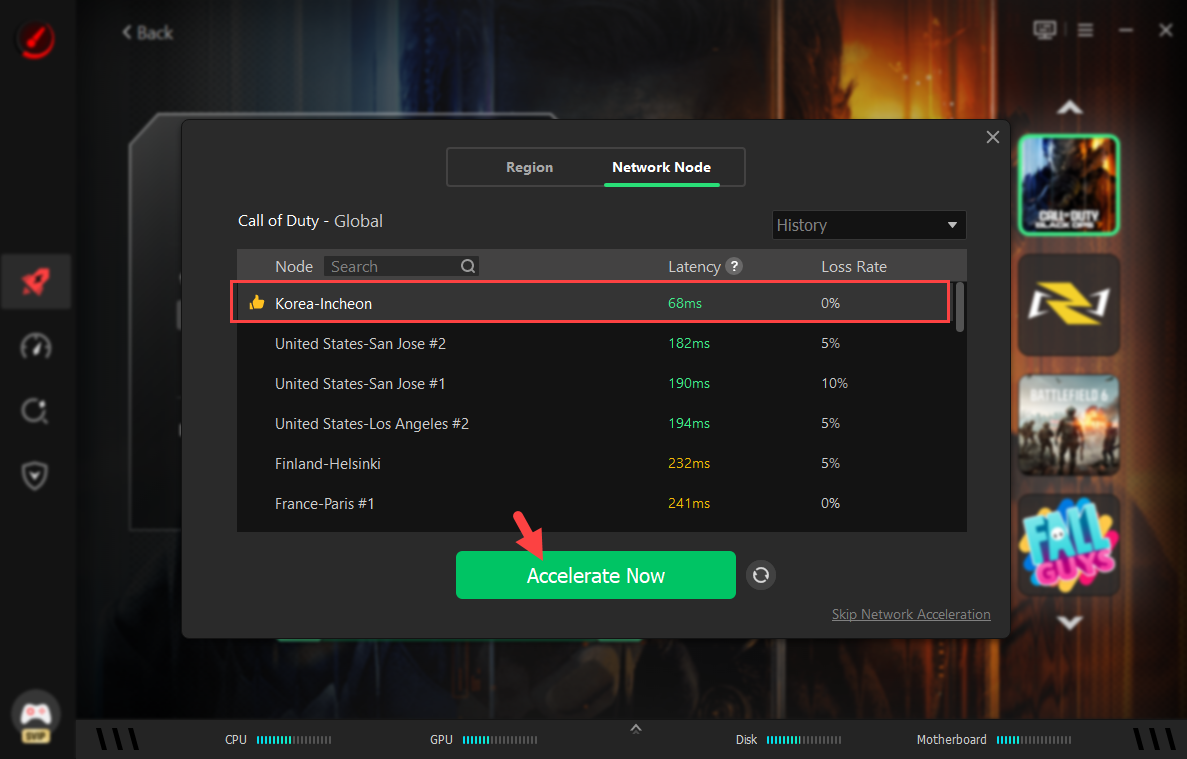
5. Click Accelerate Now and the Call of Duty booster will instantly optimize system performance for gaming.
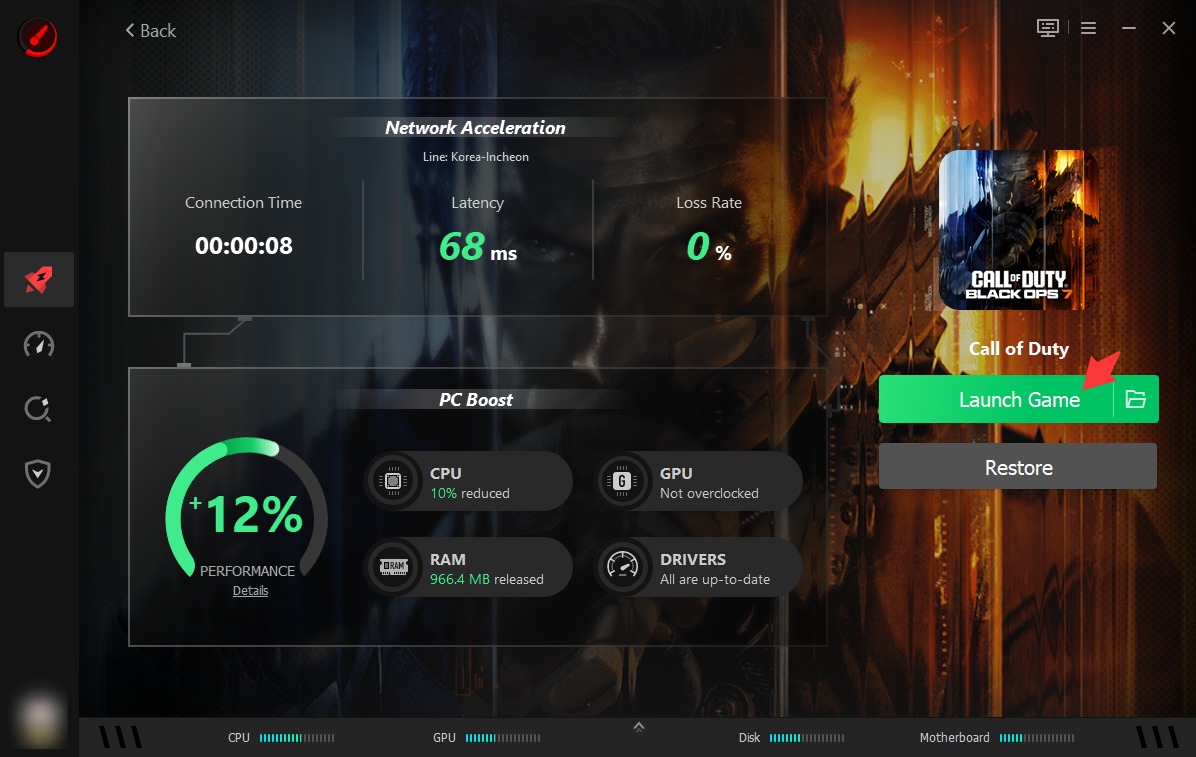
6. The real-time latency and loss rate is shown. Click Launch Game to play COD smoothly.
Moreover, Smart Game Booster integrate a "Can I Run It" engine, letting you understand whether your PC meet system requirement for playing Call of Duty or other games. If it indicates that your configurations are not qualified, you should upgrade hardware for reducing lags in games.
What to Do If Other COD Server Issues Happen?
Call of Duty server lag isn't the only thing that can go wrong. Here are some other common server issues and how to handle them.
How to Fix Server Disconnected in Call of Duty?
Start by restarting your router and your gaming device. If you're on Wi-Fi, switch to a wired connection—unstable wireless is one of the most common causes of random disconnects. You can also sign out of your platform account (Steam, Battle.net, PSN, Xbox) and sign back in, which refreshes your authentication token with the Call of Duty servers.
What If You Are Stuck in Call of Duty Server Queue?
The Call of Duty server queue usually pops up when the servers are slammed. First, check the official server status to confirm it's not a widespread outage. If the servers are fine, try creating a new party or switching to a different game mode briefly before queuing again.
Is Call of Duty Server Down? Get a Check!
If you cannot connect to Call of Duty server at all, don't panic. Visit Activision's Online Services page first—it's the fastest way to see if there's an active outage or maintenance window. Cross-reference with Downdetector, which aggregates user reports and can show you if other players in your region are having the same problem.
Conclusion
Call of Duty server lag can absolutely wreck your experience. When your shots don't register and your character feels like they're moving through water, it's hard to enjoy a game you otherwise love. The good news is that most of the time, it's fixable and solvable. If you want the simplest path forward, Smart Game Booster could be the best answer.
Key Features of Smart Game Booster
- Enjoy lag-free & low-ping gaming
- 100+ games supported
- Severs from all over the world
- Boost in-game FPS