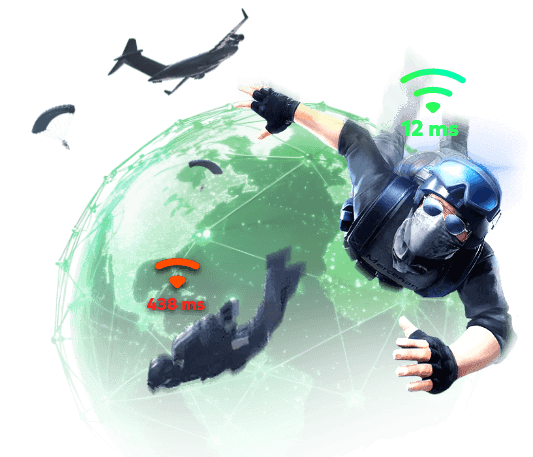
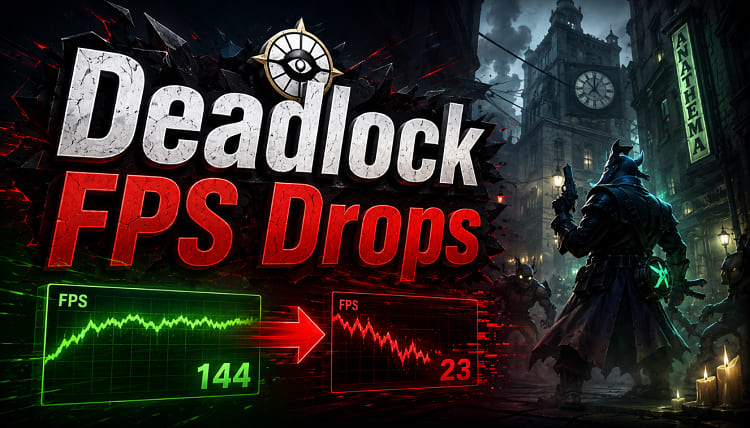
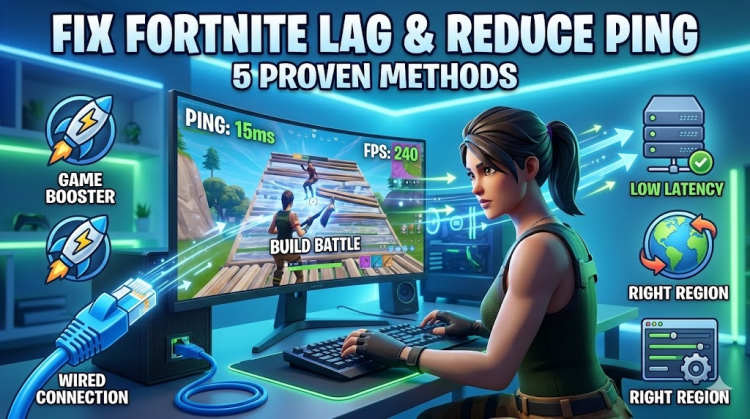
Experiencing sudden FPS drops, annoying game stutters, or high ping during competitive matches? Fortunately, you don't always need to upgrade your hardware to improve your gaming experience. The right game optimizer PC tool can help you manage system resources, optimize network connections, and fine-tune gaming settings. Here are 6 best PC game optimizers worth considering based on your gaming needs.
What is a Game Optimizer for PC?
Game optimizer software is designed to improve your PC's gaming environment by managing system resources and addressing potential performance bottlenecks.
Depending on its features, a game optimization service may help you:
Free up RAM and reduce unnecessary background processes.
Optimize network settings to help reduce gaming latency.
Update outdated drivers for better hardware compatibility.
Monitor CPU/GPU usage, temperatures, and FPS.
Adjust system or graphics settings for smoother gameplay.
Some tools combine several of these capabilities, while others focus on just one or two areas. Choosing the right option depends on whether you're struggling with low FPS, high ping, slow game launching, or hardware performance.
6 Best Game Optimizer PC Tools to Improve Gaming Performance
1. Smart Game Booster - Best All-in-One Game Optimizer for Beginners
If you're new to game optimizer software and don't want to adjust complicated Windows settings manually, Smart Game Booster is a convenient place to start.
Unlike tools that focus on only one aspect of gaming performance, it combines several useful optimization capabilities into a single interface, making it easier to prepare your PC before launching a game.
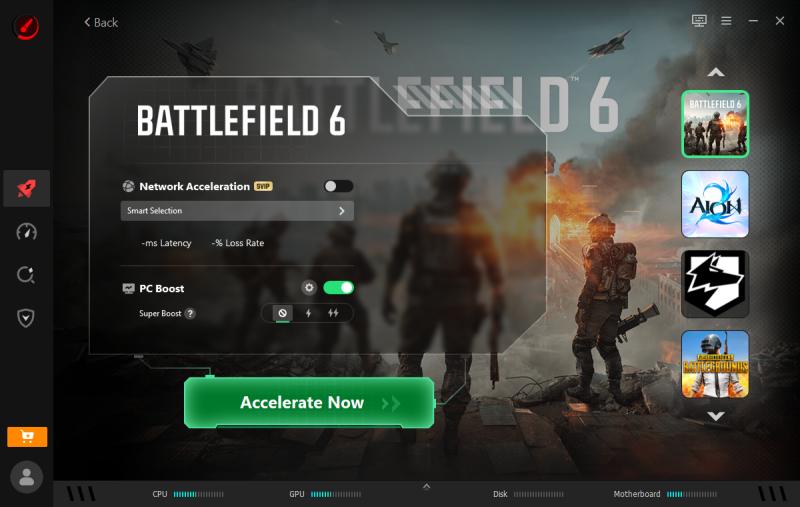
Here's how its main features can help:
Boost PC Performance for Smoother Gameplay
Smart Game Booster helps optimize your PC by managing unnecessary background activity and freeing up system resources.
Reduce Gaming Lag with Game Network Optimization
Its network acceleration feature is designed to help reduce gaming latency and improve connection stability. It's particularly useful when you're experiencing high ping or lag in supported online games.
Update Outdated Drivers for Better Gaming Stability
This best PC game optimizer helps scan for outdated or problematic drivers and provides a convenient way to update them. Keeping relevant drivers current can help address driver-related compatibility and stability issues.
Monitor CPU, GPU, and FPS in Real Time
With hardware monitoring, you can keep track of important performance indicators, including CPU and GPU temperatures, resource usage, and FPS.
Additional Gaming Optimization Tools
Smart Game Booster also includes game-related utilities, performance adjustments, and game compatibility checks - Can I Run It.
Overall, Smart Game Booster brings several useful game optimization services into one interface, making it a practical option for you who want a more convenient way to manage your PCs.
Key Features of Smart Game Booster
- Enjoy lag-free & low-ping gaming
- 100+ games supported
- Severs from all over the world
- Boost in-game FPS
2. Razer Cortex - Best for Automatic Game Launch Optimization
Want your PC to prepare itself whenever you launch a game? Razer Cortex is worth considering.
Its Game Booster feature automatically manages selected non-essential processes and applications when a game starts, helping free up RAM and system resources. It can also restore the previous settings after you finish playing.
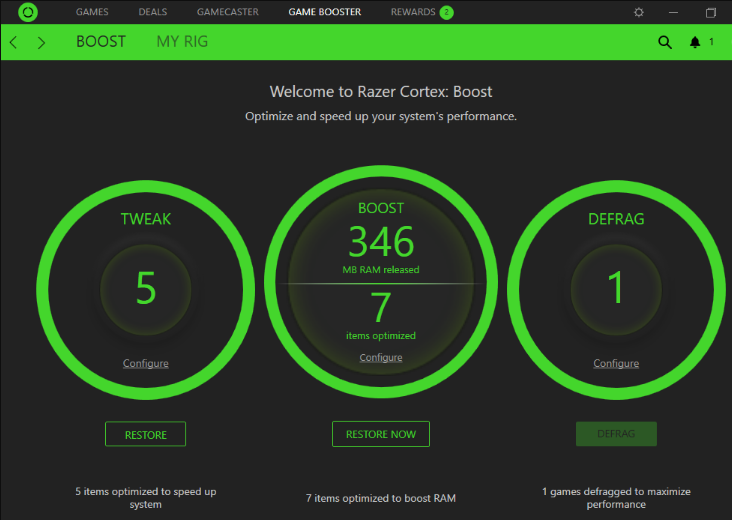
Key features:
PC game launcher automatically boost your PC when launching games.
Suspend selected unnecessary background processes.
Manage system resources to prioritize gaming.
Use Booster Prime to adjust supported game settings for different performance preferences.
Razer Cortex is especially useful if you frequently switch between gaming and everyday applications and want optimization to happen automatically.
3. WTFast - Best Game Network Optimizer for Reducing Ping
If your biggest problem is high ping rather than low FPS, a dedicated game network optimizer may be more relevant than a traditional PC booster.
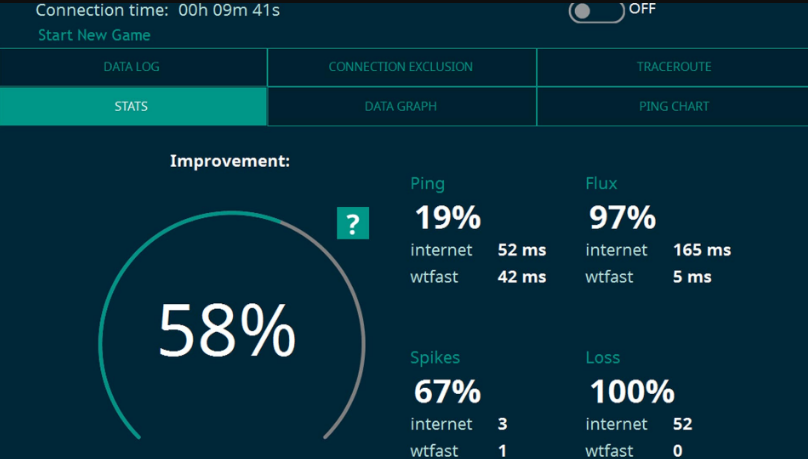
WTFast is a ping reducer designed specifically for online gaming connections. Its Gamers Private Network (GPN) technology aims to optimize the route between your PC and game servers, potentially reducing latency and improving connection stability.
Key features:
Optimize network routing for supported online games.
Help reduce latency caused by inefficient network routes.
Monitor connection performance.
Support gaming across different server locations.
WTFast is particularly relevant for multiplayer gamers who experience inconsistent ping or connection problems. However, it cannot guarantee improvements when latency is caused by server distance, ISP congestion, or other factors outside its control.
4. MSI Afterburner - Best for GPU Overclocking and Hardware Monitoring
For gamers who want more control over graphics card performance, MSI Afterburner offers a different approach to gaming optimization.
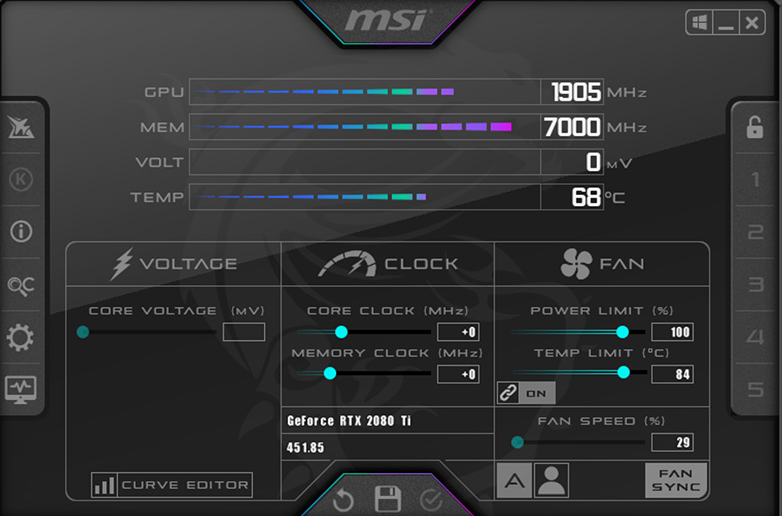
Rather than automatically cleaning up background applications, it provides detailed GPU controls and hardware monitoring tools. Experienced users can adjust clock speeds, memory frequencies, and fan settings to fine-tune graphics card performance.
Key features:
Adjust GPU core and memory clock speeds.
Customize graphics card fan curves.
Monitor GPU temperature, usage, and other hardware statistics.
Display real-time performance information through an in-game overlay.
MSI Afterburner is better suited to users who understand GPU settings and want more control over their hardware. Overclocking should be approached carefully because excessive settings can cause instability or overheating.
5. Wise Game Booster - Best for Simple One-Click System Optimization
Looking for a lightweight game optimizer PC to prepare your PC before gaming? Wise Game Booster focuses on straightforward system optimization.
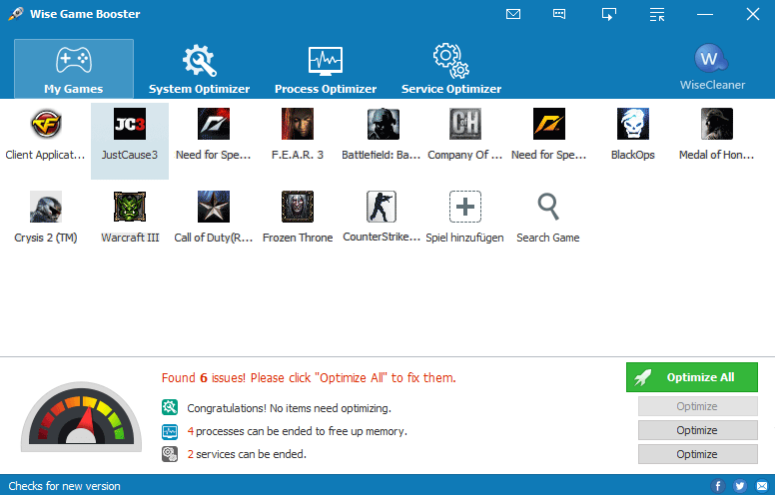
It scans your computer and identifies unnecessary processes and services that may be using system resources. You can then apply its recommended optimizations with a single click.
Key features:
One-click system optimization.
Manage unnecessary running processes.
Identify nonessential Windows services.
Organize and quickly launch installed games.
Wise Game Booster is suitable for users who want basic system resource management without a complicated interface.
6. NVIDIA App - Best for NVIDIA Driver and Game Graphics Optimization
If your gaming PC uses an NVIDIA GeForce graphics card, NVIDIA App is a useful companion for managing GPU-related settings.
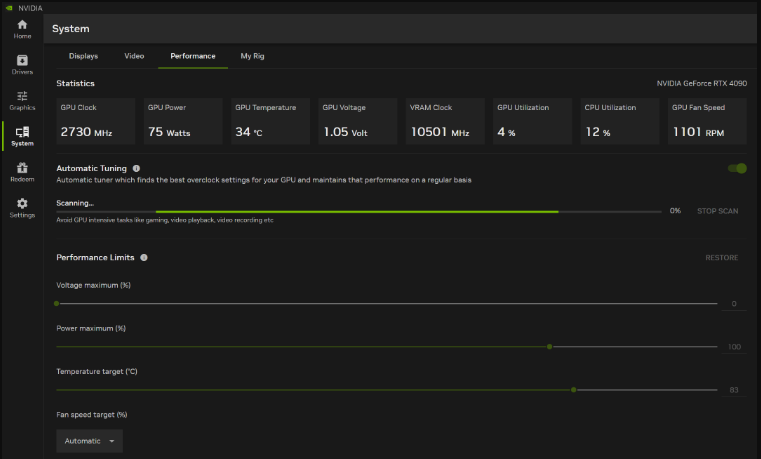
It brings driver updates, game optimization options, and performance tools together in one application. You can check for the latest GeForce Game Ready drivers and adjust supported game settings without searching for individual configuration options.
Key features:
Download and install GeForce Game Ready drivers.
Access recommended settings for supported games.
Adjust graphics and driver settings.
Monitor gaming performance through the in-game overlay.
NVIDIA App is especially useful for GeForce users who want to keep their graphics drivers updated and manage GPU-related gaming settings. Note that some features are exclusive to supported NVIDIA hardware.
Tips to Get Better Gaming Performance Beyond Using a Game Optimizer
Even the best PC game optimizer cannot fix every performance issue. Combine software optimization with a few basic maintenance habits:
Keep Your Drivers Updated: Check graphics and other relevant device drivers regularly to maintain compatibility.
Manage Startup Applications: Disable unnecessary programs that automatically launch with Windows.
Check PC Temperatures: Monitor CPU and GPU temperatures to identify potential thermal throttling.
Use a Stable Network Connection: Consider Ethernet instead of Wi-Fi for more consistent online gaming.
Adjust In-Game Graphics Settings: Use a FPS unlocker to lower demanding settings such as shadows and ray tracing if your hardware struggles to maintain stable FPS.
These simple steps can complement your chosen optimization software and help maintain a more consistent gaming experience.
Also Read: How to Fix PUBG Lag/Delay [PUBG PC Lag Fix] >>
Conclusion
Finding the right game optimizer PC tool doesn't mean choosing software with the most features. It's about identifying your biggest gaming bottleneck and selecting a solution that addresses it.
If you want an easy starting point with PC boosting, network acceleration, driver management, and hardware monitoring in one place, Smart Game Booster is worth trying. For more specialized needs, game optimizer PC tools like WTFast, MSI Afterburner, and Process Lasso offer additional control over specific aspects of gaming performance.