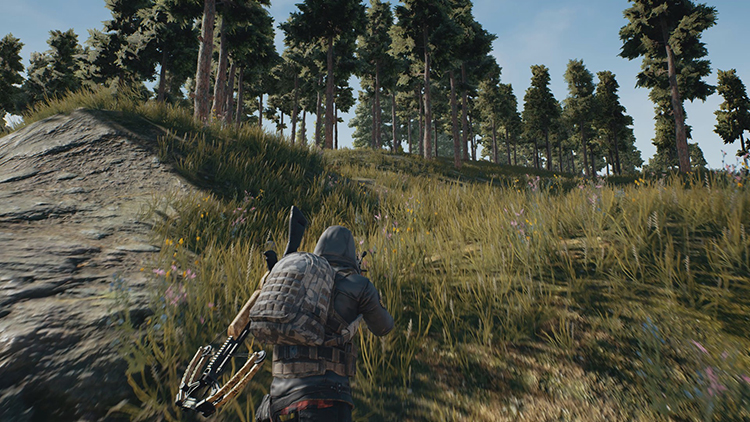
Let’s be real for a second—Cities: Skylines 2 is an absolute beast when it comes to hardware demands. You fire up the game, lay down a few roads, maybe zone a small residential area, and everything feels buttery smooth. Then your city hits 50,000 population. Suddenly, the simulation starts chugging, your frame rate tanks, and what was once a beautiful metropolis turns into a slideshow. The massive simulation calculations running underneath every citizen, every vehicle, and every service building—combined with the dense, detailed graphics—can bring even high-end PCs to their knees. Micro-stutters become the norm, and those steep FPS drops make the game feel borderline unplayable. So if you're desperately searching for an FPS booster Cities: Skylines 2 solution, you've come to the right place. We are going to talk about five methods that actually deliver results.

1 – Turn Off Heavy "Cinematic" In-Game Graphics Settings
Here's the thing about Cities: Skylines 2—it ships with a bunch of fancy visual effects turned on by default that look pretty in screenshots but absolutely murder your frame rate. The good news? You can disable most of them without making your city look like a potato. Here's what you need to do to get a quick FPS booster Cities: Skylines 2:
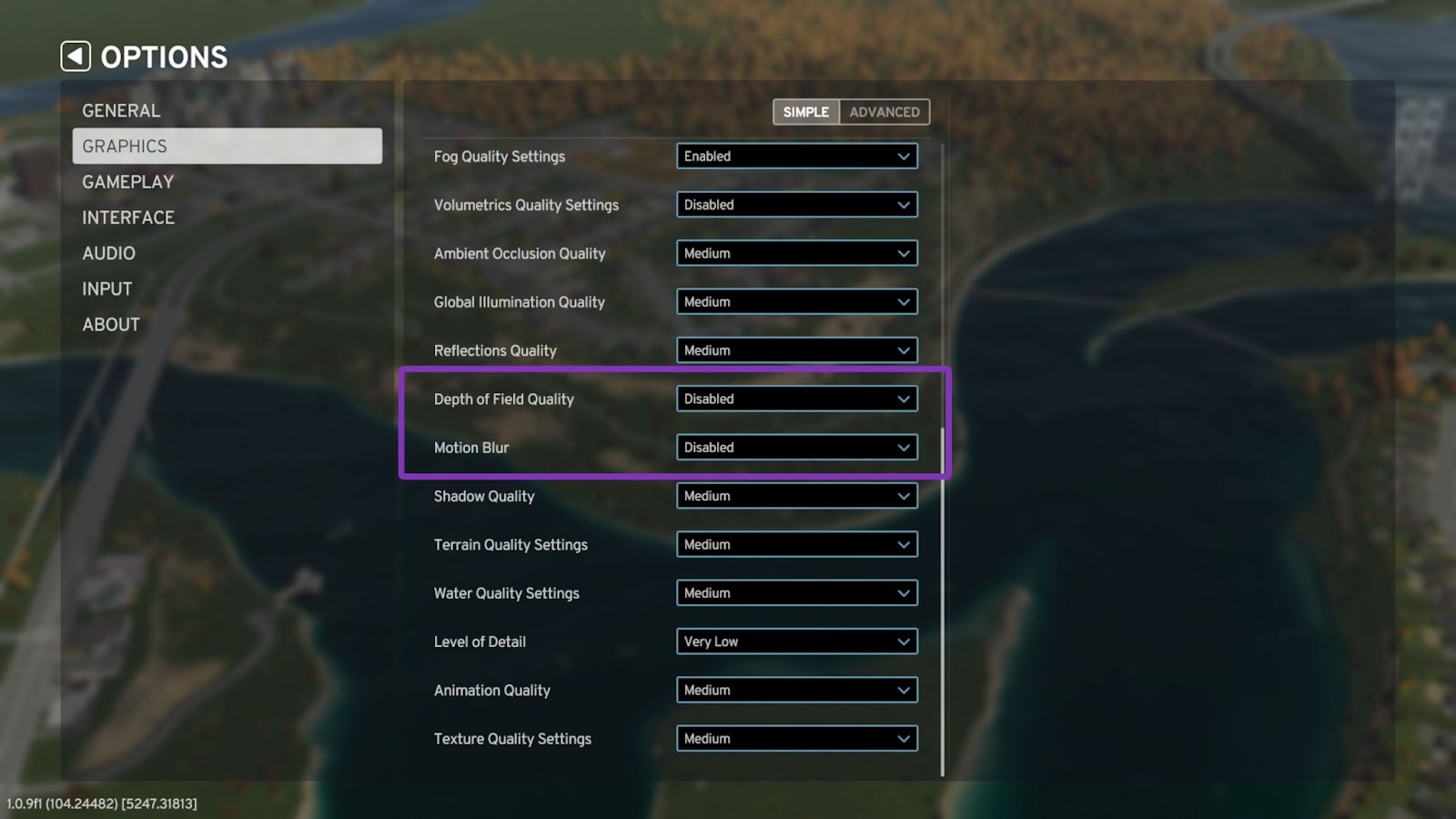
Disable Depth of Field and Motion Blur
From the Options menu, head into Graphics, find Depth of Field Mode, and turn it Off. Then find Motion Blur and turn that off too. These effects are purely cinematic; they add almost zero visual benefit during normal gameplay but chew up GPU resources for no good reason. Paradox themselves note that these settings can cause low FPS to feel even worse and may even trigger motion sickness.
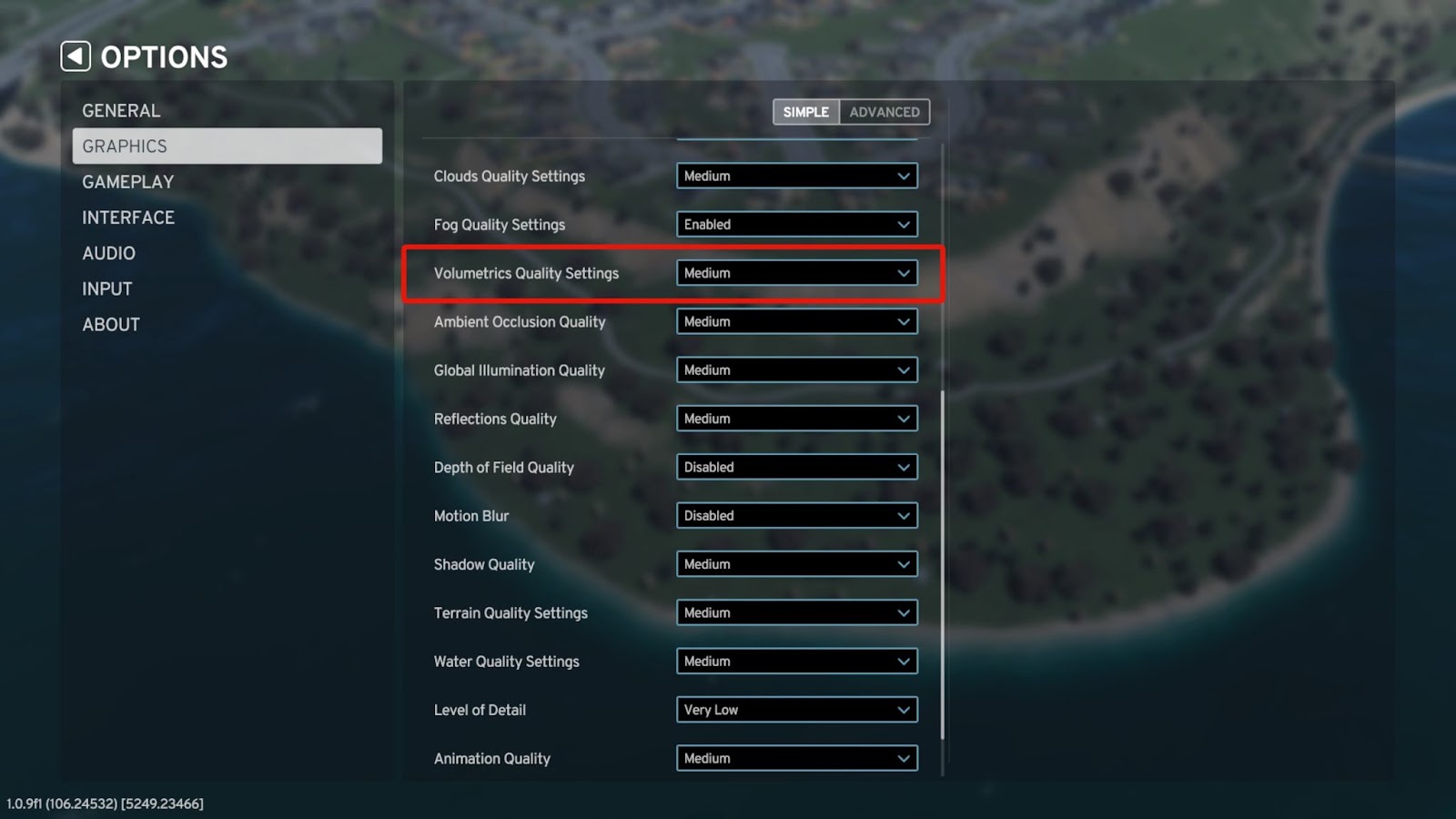
Disable Volumetrics
Volumetrics is the setting that handles those fancy volumetric clouds and fog effects. Beautiful? Sure. Performance-friendly? Absolutely not. Set Volumetrics Quality to Low or turn it off entirely. You'll barely notice the difference during regular city-building, but your GPU will thank you.
Drop Level of Detail (LOD)
Level of Detail determines how much detail the game renders on distant objects. Set it to Low or Very Low. This one alone can make a massive difference in larger cities where the game is trying to render thousands of buildings simultaneously.
Why don’t you try these three FPS booster Cities: Skylines 2 tricks to get a better game experience?
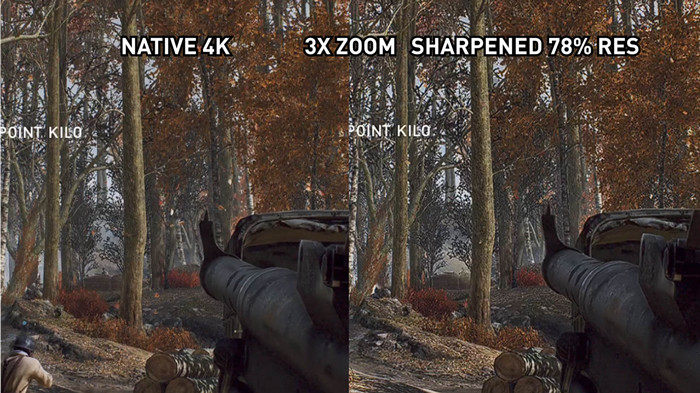
2 – Enable Upscaling & Advanced GPU Tools (DLSS / FSR)
If you're running an NVIDIA RTX card or an AMD Radeon GPU, you have access to some seriously powerful upscaling technology that can serve as an incredible Cities: Skylines 2 FPS boost. The basic idea is simple: instead of rendering the game at your native resolution (say, 1440p or 4K), the GPU renders it at a lower resolution and then uses AI or advanced algorithms to upscale it back up. Here's how to set it up:
Open Cities: Skylines 2 and go to Options > Graphics.
Scroll down to the Upscalers section.
If you have an NVIDIA card, look for NVIDIA DLSS Super Resolution—set it to Balanced or Performance.
If you have an AMD card, look for FSR (FidelityFX Super Resolution) and enable it.
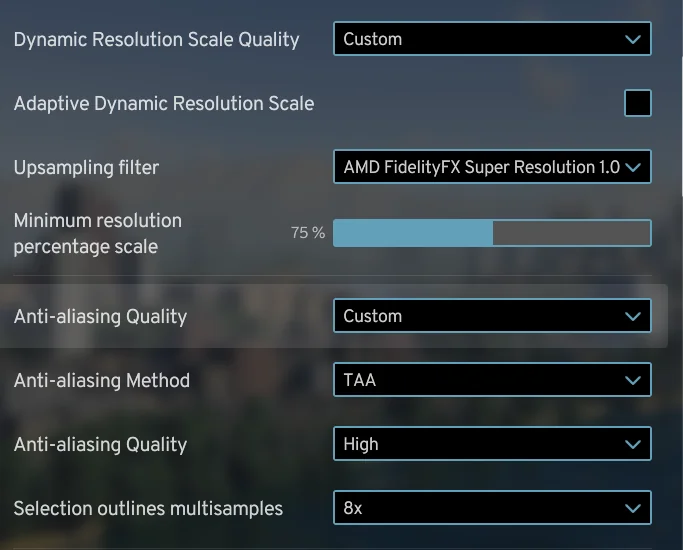
Players have reported gaining anywhere from 5 to 15 FPS just by enabling DLSS, depending on the scene. Combine this with the graphics tweaks from Method 1, and you're looking at a serious performance uplift. This is one of the most effective ways to get a Cities: Skylines 2 FPS boost without touching any hardware.
3 – Optimize Windows Power Plans and Graphics Scheduling
For a quick FPS booster Cities: Skylines 2, sometimes the problem isn't the game—it's Windows holding your hardware back. By default, Windows runs on a "Balanced" power plan that trades a bit of performance for energy efficiency. For gaming, you want everything cranked to the max.
Step 1: Switch to High Performance Power Plan
Press Windows + I to open Settings.
Go to System > Power & Battery (or Power & Sleep on Windows 10).
Under Power Mode, select Best Performance.
For even more juice, you can enable the hidden Ultimate Performance plan by typing "Power" in the Start menu, clicking Additional power settings, and selecting "Show additional plans".
Step 2: Enable Hardware-Accelerated GPU Scheduling
This feature allows your GPU to manage its own video memory, which can reduce latency and improve performance in graphics-intensive games like Cities: Skylines 2.
Open Settings > System > Display.
Scroll down and click Graphics.
Click Change default graphics settings.
Toggle Hardware-accelerated GPU scheduling to On.
Restart your PC to apply the changes.
These two tweaks ensure Windows is fully allocating its hardware priority to your massive city-building project rather than holding back performance for the sake of saving power.
4 – Clear Up the CPU Engine via Paused Building
Need a great FPS booster Cities: Skylines 2 trick? You got it! Cities: Skylines 2 is heavily CPU-bound—the simulation engine is constantly calculating traffic patterns, citizen movements, resource flows, and service coverage. When you're building while the simulation is running, your CPU is trying to do two things at once: run the simulation and process your building inputs. That's a recipe for lag. Here's the trick: pause the simulation while you build.
Press the Spacebar on your keyboard to pause time.
Alternatively, click the Play/Pause icon in the bottom-left corner of the screen.
When the game is paused, all movement and simulation calculations stop. You can still lay down roads, zone areas, place buildings, and make adjustments—but your CPU doesn't have to split its attention between running the simulation and rendering your building actions. This frees up processing power and results in smoother, more responsive building. Once you're done, unpause and watch your city come to life without the stutter.
5 – Best FPS Booster for Cities: Skylines 2: Smart Game Booster
Alright, let's talk about the heavy hitter. If you've tried all the manual tweaks above and you're still hungry for more performance—or if you just don't want to spend hours digging through settings menus—Smart Game Booster is the answer you've been looking for.
Smart Game Booster is an easy-to-use yet highly efficient game optimization utility designed to free up system resources with just a few clicks. It's essentially an FPS booster Cities: Skylines 2 tool that automates all the tedious system-level optimizations so you can focus on building your dream metropolis. Whether you're looking for a quick FPS booster Cities: Skylines 2 download or a comprehensive optimization suite, this FPS booster delivers. Here's how to use it:
Step 1. Download and install Smart Game Booster.
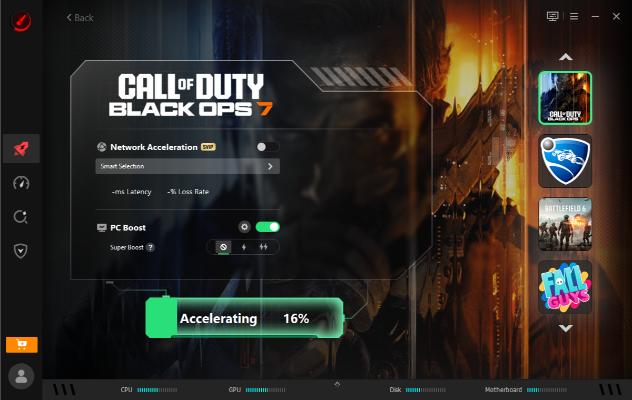
Step 2. Open Smart Game Booster and turn on the PC Boost, then click "Accelerate Now".
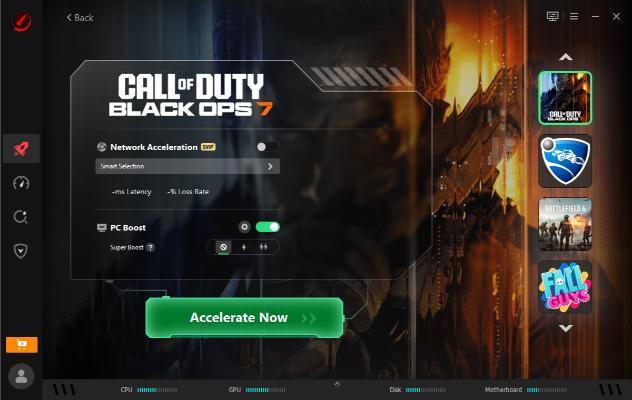
Step 3. Once the boost is complete, launch the game directly from Smart Game Booster's interface.
More Features You Can Explore in Smart Game Booster
Smart Game Booster offers more than just a basic FPS booster Cities: Skylines 2—here are the extra tools that make it a complete optimization suite.
FPS and Performance Enhancement Mode: Optimizes CPU and GPU resource scheduling to squeeze out every drop of hardware performance. Perfect for anyone asking how to improve FPS in CS2 without upgrading hardware.
One-Click Game Optimization: Automatically adjusts Windows settings and disables non-essential services tailored to your specific game. This is the definition of a Mini FPS booster Cities Skylines solution done right.
Background Process Control: Identifies and shuts down resource-hogging background apps that you didn't even know were running, freeing up RAM and CPU cycles.
Driver Update Support: Keeps your graphics drivers up to date with one click. Outdated drivers are a common culprit for performance issues, and this feature ensures you're always running the latest, most optimized versions.
If you've ever wondered how to get more FPS in Cities: Skylines 2 without becoming a tech wizard, Smart Game Booster is your shortcut. It handles the messy system-level stuff so you can get back to building. And if you're playing other titles too, the same principles apply—whether you need a Marvel Rivals FPS boost or smoother performance in any demanding game, this tool has you covered.
Key Features of Smart Game Booster
- Enjoy lag-free & low-ping gaming
- 100+ games supported
- Severs from all over the world
- Boost in-game FPS
Conclusion
So there you have it—five proven methods to transform your Cities: Skylines 2 experience from a stuttery mess to a smooth, enjoyable session. Combine them, and you've got the ultimate FPS booster Cities: Skylines 2. That's the real secret—tweak settings, enable DLSS, optimize Windows, pause, and let Smart Game Booster handle the rest!