Many players struggle with regional limitations and high server latency while enjoying Valve’s hero shooter. This is the time you might need to change the server region in Deadlock, which allows you to play with friends overseas and enjoy the game with a smoother gaming experience. How to change my region in Deadlock?
In this guide, you will learn why this practice matters and 3 useful Deadlock region change methods. We will also introduce a handy tool that can help you optimize your PC and improve FPS. Just read on to learn more!
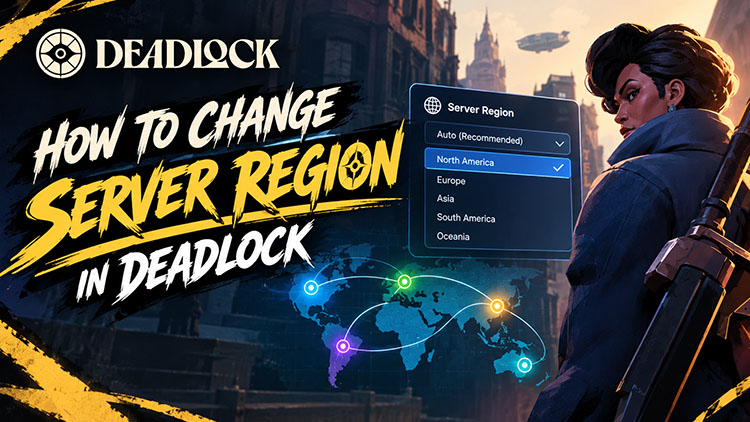
Why Do You Need a Deadlock Region Change?
Changing your server region in Deadlock is rather useful, as it can improve your matchmaking experience and give you more flexibility over where you want to play. Here are the main reasons why you might want to switch regions.
More Matchmaking Opportunities: If your local region has limited matchmaking hours or fewer active players, a Deadlock region change can give you more opportunities to find a match.
Play With Friends Worldwide: You can choose the same server region as your friends. So you can coordinate sessions and enjoy matches together, regardless of where everyone lives.
Find Matches More Quickly: Some regions may have shorter queues during certain hours; you can spend less time waiting and more time playing.
Manage Ping and Latency: A nearby server generally offers lower ping; you may choose a closer server to reduce ping and latency, which makes aiming, movement, and ability timing more responsive.
Way 1: Deadlock Region Change Using Console Commands (Quickest)
How to change servers in Deadlock? The fastest and most popular method for a Deadlock region change is using console commands. Simply input the commands in the main menu, and you can instantly switch from one region to another.
How to change server region Deadlock
Step 1. Launch Deadlock and reach the main menu.
Step 2. Press F7 on your keyboard to open the console. Type the appropriate command for your desired region and press Enter.
Step 3. The region indicator and matchmaking hours in the bottom-right corner update instantly.
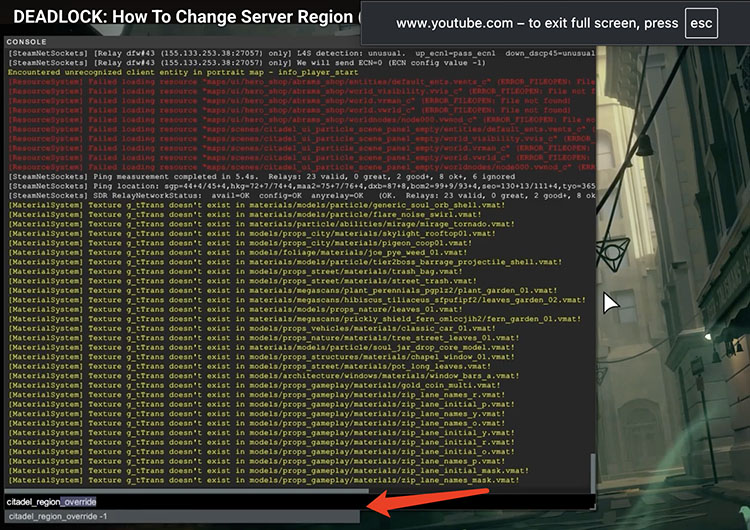
All Deadlock region commands:
Automatic (default/best connection): citadel_region_override -1
North America: citadel_region_override 0
Europe: citadel_region_override 1
Asia: citadel_region_override 2
South America: citadel_region_override 3
Oceania: citadel_region_override 5
This method is ideal for a quick switch. However, the setting may not be available after restarting the game. If you want Deadlock to select your preferred region automatically every time you launch it, try the next method to change server region Deadlock.
Way 2: Set Deadlock Region Automatically on Steam
If you prefer one region or often play on the same server, you may configure Deadlock to apply your region preference. This method uses Steam launch options and a configuration file to execute the region command automatically. While the initial setup might take a little longer, you don’t need to enter the command manually every time.
How to change servers in Deadlock on Steam automatically
Step 1. In your Steam Library, right-click Deadlock and select Properties.
Step 2. Under Launch Options, enter: -console -dev -exec autoexec.
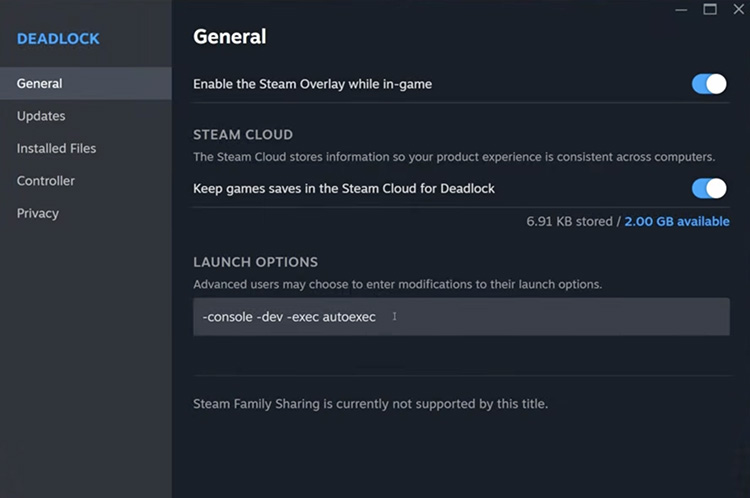
Step 3. Locate your Deadlock installation folder, which is usually at this path: Steam\steamapps\common\Deadlock\game\citadel\cfg.
Step 4. Create a new text file named autoexec.cfg. Add a single line such as citadel_region_override 0 (North America), or the region code you prefer. Save the file.

Way 3: Use Steam Launch Options for Deadlock Region Change
Steam launch options allow you to specify startup parameters that are passed to a game when it launches. They can be used to apply a region preference automatically so you don’t have to open the developer console each time. Compared to method 2, this method is much easier, and you can freely make a Deadlock region change any time!
How to change Deadlock region on Steam
Step 1. Open Steam Library, right-click Deadlock, and choose Properties.
Step 2. In the General tab, find the Launch Options box.
Step 3. Type +citadel_region_override followed by a space and the region number. Close the window and launch the game.
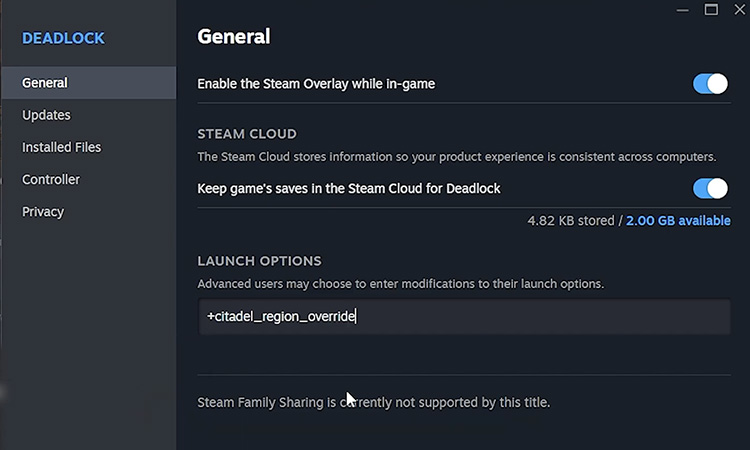
Once configured, this approach will apply your preferred setting at startup. You can still open the console with F7 and change it temporarily if needed.
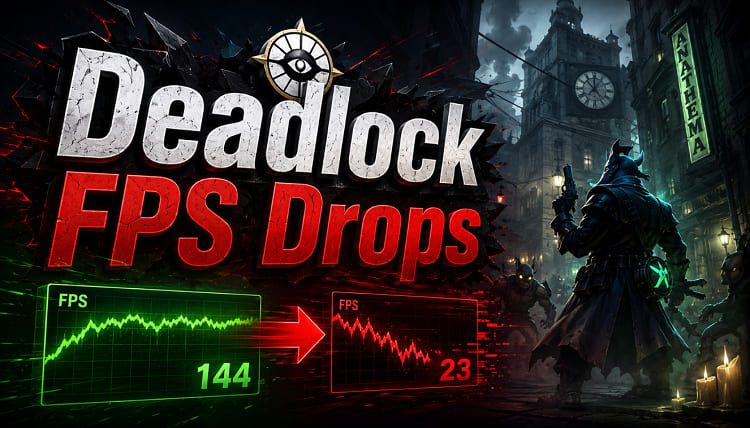
FPS Drops in Deadlock? Boost Deadlock Gaming with Smart Game Booster
Deadlock: how to change server? The previous parts have covered 3 practical methods to help you out, and now you can play the game with a better connection. However, there's one more factor to consider: your PC's performance. Even with the right server region, FPS drops, stuttering, and high ping can affect your gameplay.
This is the time you might want to consider Smart Game Booster, a powerful gaming optimization tool as well as an excellent ping reducer. It helps you manage system resources, improve gaming performance, and optimize network responsiveness. If you are looking for a reliable option on the latest PC game launchers list, this one is worth checking.
Key Features of Smart Game Booster
- Enjoy lag-free & low-ping gaming
- 100+ games supported
- Severs from all over the world
- Boost in-game FPS
How Smart Game Booster Optimizes Deadlock Gaming?
The FPS booster can reduce unnecessary background activity to free up CPU and RAM resources, which helps improve frame rates and gameplay smoothness.
Its global server connections can effectively optimize your network routing. It helps lower latency and stabilize your connection even when playing in non-local regions. If you are looking for the best way to reduce ping in Fortnite, this tool is also a solid choice to try.
The software can overclock GPU & VRAM with a 30%+ performance gain. It offers Basic, Max, and Customized modes, allowing you to safely push extra frames without risking system stability.
Supporting System Clean and System Tweak features, the software can remove clutter and adjust selected settings, which makes your PC more responsive during gaming.
Smart Game Booster includes driver update features to help you keep relevant drivers up to date. You can install compatible graphics drivers from trusted sources for HD Deadlock gaming.
It provides game defragmentation features intended to organize game files. This may help the game load faster and reduce hitching during matches.
How to Boost FPS & Lower Ping in Deadlock on PC
Step 1. Download Smart Game Booster for free and follow the installation instructions.
Step 2. Open Smart Game Booster and navigate to the Game Boost section. Add Deadlock as a local game.
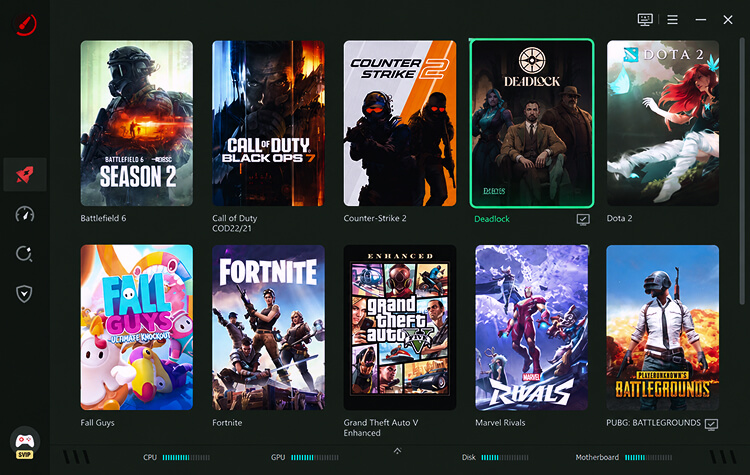
Step 3. Select Deadlock and click PC Boost to apply available system optimizations. You can also click the third icon on the left to access Can I Run It and check whether your PC meets the game's requirements.
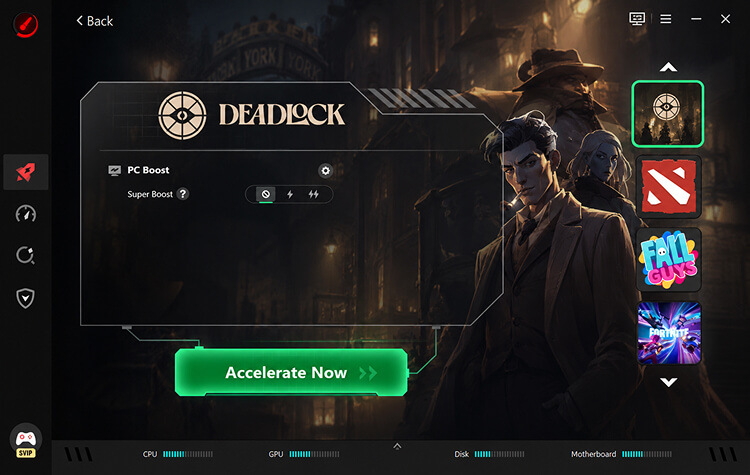
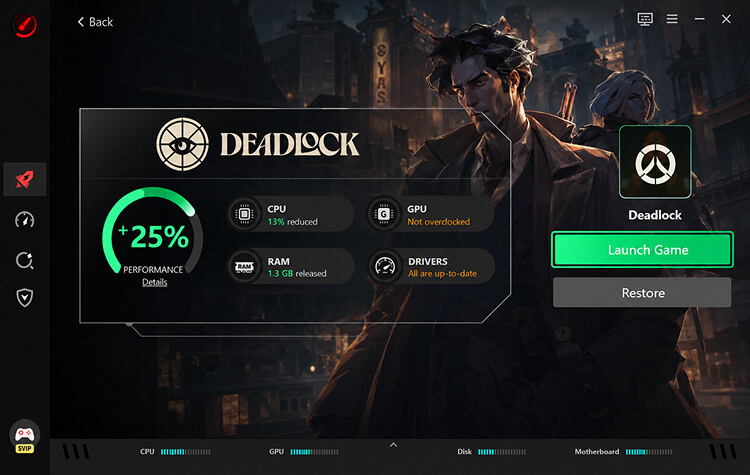
Step 4. Smart Game Booster will launch the game with optimised settings. You don’t have to make a Deadlock region change manually.
Tip: If you also play PUBG, check out our PUBG lag fix guide for more troubleshooting tips. Roblox players can also learn how to reduce lag in Roblox to improve their gaming experience.
FAQs About Deadlock Region Change
Is the Deadlock Region Locked?
No, Deadlock is not strictly region-locked. The game defaults to the closest server based on your location, but you can freely switch regions at any time using console commands, Steam launch options, or an autoexec.cfg file.
How Do I Check My Region in Deadlock?
Just look at the bottom-right corner of the main menu. It displays the current region name along with the matchmaking hours. You can also use the previous methods to change your region in Deadlock.
How to Force My Server Region in Deadlock?
You can reset a region override through the in-game console or a supported configuration file, as introduced earlier. Make sure you use the correct command and region value for your game version. Check the Deadlock region change result after the adjustment.
Final Thoughts
If you’ve read this far, you know three practical ways for Deadlock region change. However, if your PC is not fully optimized, you might still experience FPS drops and stuttering. To get a smoother gaming experience, try Smart Game Booster. This free ping reducer helps optimize system resources and improve network responsiveness, helping you get the most out of your gaming setup. Download Smart Game Booster and get your PC ready for smoother Deadlock matches right away!
Key Features of Smart Game Booster
- Enjoy lag-free & low-ping gaming
- 100+ games supported
- Severs from all over the world
- Boost in-game FPS