If you are wondering why The Finals is so laggy on PC, the problem may come from low FPS, unstable network performance, demanding graphics settings, outdated drivers, or background programs consuming system resources. Some players experience stuttering during combat, while others notice delayed movement or sudden FPS drops. This guide explains the most likely causes and shows you how to make THE FINALS run more smoothly.
Why Is THE FINALS Laggy on PC?
Before changing Windows or game settings, identify what kind of lag you are experiencing. Players searching why is The Finals lagging may actually be dealing with 2 different problems: performance lag caused by the PC or network lag caused by the Internet connection.
Common causes include:
High graphics settings: Visual effects, resolution, and ray tracing can put heavy pressure on the GPU.
Outdated graphics drivers: Older or problematic GPU drivers may cause FPS drops, stuttering, or compatibility problems.
Insufficient PC resources: Limited RAM, CPU capacity, or GPU performance can reduce frame rates.
Background programs: Browsers, launchers, recording tools, and other applications can consume CPU and memory.
Overheating: High CPU or GPU temperatures can reduce clock speeds and gaming performance.
Network instability: High ping, packet loss, or Wi-Fi interference can cause delayed actions and movement.
Game or system issues: Updates, damaged game files, or temporary optimization problems may affect performance.
If you are asking why is The Finals lagging PC, checking FPS and network latency separately can help you determine which fixes to try first.
Fix 1. Lower The Finals Graphics Settings
High graphics settings are one of the first things to check when why is The Finals lagging so bad during explosions, destruction, or crowded fights. Rather than reducing every setting at once, start with GPU-intensive options and test your FPS after each adjustment. This helps maintain acceptable visual quality while improving performance.
Step 1. Launch The Finals and open Settings > Video.
Step 2. Reduce demanding settings such as shadows, effects, global illumination, and view distance.
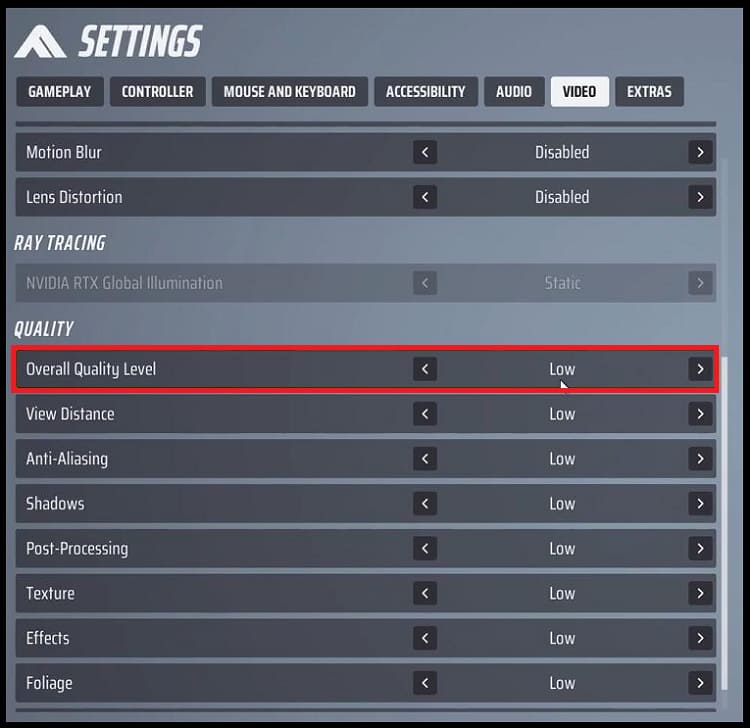
Step 3. Disable or reduce ray tracing if it significantly affects FPS.
Step 4. Enable an appropriate upscaling technology such as DLSS, FSR, or XeSS if supported by your hardware.
Step 5. Apply the changes and test performance in a match.
Fix 2. Update Your Graphics Driver
If changing graphics options does not stop the stuttering, check the GPU driver next. Graphics drivers affect how Windows and the GPU communicate with games, and an outdated or faulty version can contribute to poor frame pacing, crashes, or low FPS. This is especially worth checking after THE FINALS receives a major update.
Step 1. Right-click the Start button and select Device Manager.
Step 2. Expand Display adapters. You should see your NVIDIA, AMD, or Intel graphics device listed underneath.
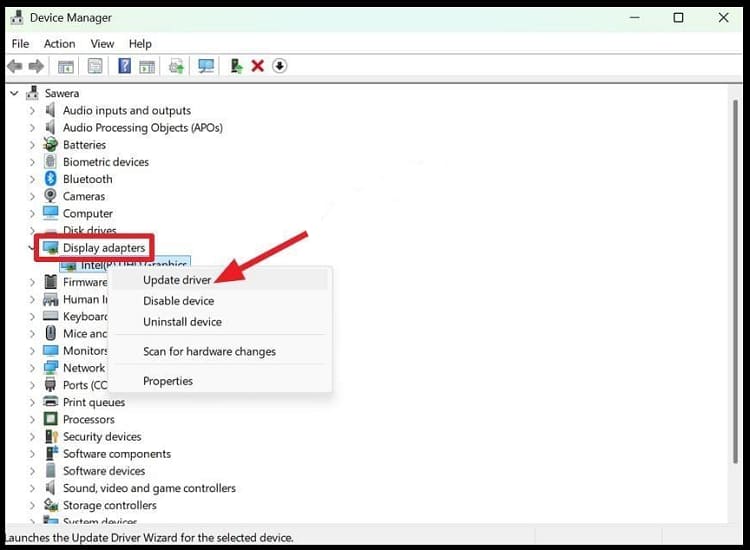
Step 3. Right-click your graphics card and select Update driver.
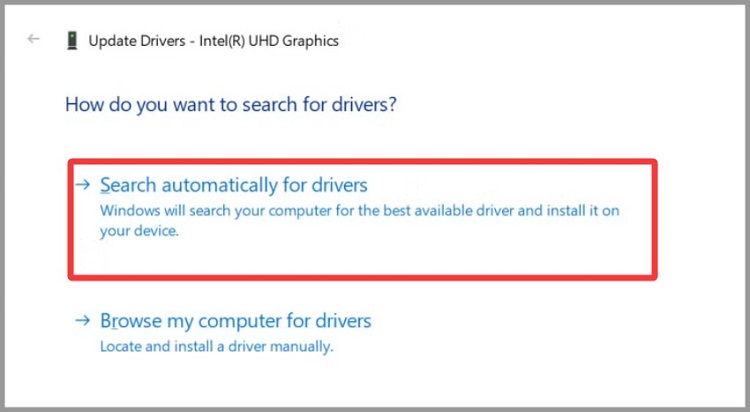
Step 4. Select Search automatically for drivers and let Windows check for a suitable driver. If Windows directs you to Windows Update, continue there to look for available updates.
Step 5. In Windows 11, open Settings, select Windows Update, then navigate to Advanced options > Optional updates. Expand Driver updates, select an available display/graphics driver, and click Download & install.
Fix 3. Close Resource-Heavy Background Programs
Players wondering why is The Finals so laggy when they play games on PC should also check what else is running on the computer. THE FINALS competes with background applications for CPU time, RAM, and sometimes GPU resources. Closing unnecessary software frees system resources and reduces performance spikes, especially on PCs with limited memory or older processors.
Step 1. Press Ctrl + Shift + Esc to open Task Manager.
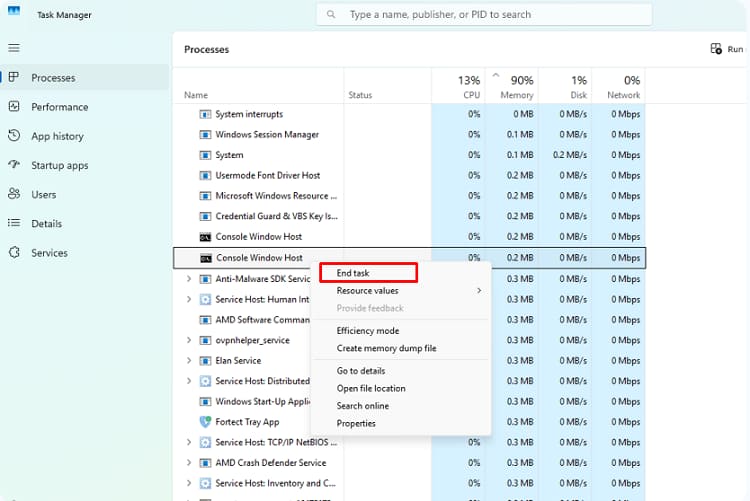
Step 2. Check the Processes tab for applications using large amounts of CPU, memory, or GPU resources.
Step 3. Right-click the process and select End task.
Fix 4. Boost The Finals with Smart Game Booster
Manually finding unnecessary processes and optimizing Windows before every match can be inconvenient. Smart Game Booster provides a gaming-focused way to free system resources and optimize PC performance before launching The Finals. It is particularly useful when THE FINALS lag on PC is caused by high RAM usage, excessive background processes, or limited system resources.
Key Features of Smart Game Booster
- Enjoy lag-free & low-ping gaming
- 100+ games supported
- Severs from all over the world
- Boost in-game FPS
Smart Game Booster provides several features related directly to The Finals performance:
Reduce THE FINALS Stuttering. Game Boost can stop unnecessary background processes and services from competing with THE FINALS for CPU and RAM, helping reduce resource-related stutters during fast combat and destruction-heavy scenes.
Free More RAM for THE FINALS. RAM optimization frees memory used by unnecessary applications, giving THE FINALS more available memory and helping prevent slowdowns when system RAM usage gets high.
Improve FPS Stability. Gaming-focused system optimization reduces unnecessary resource usage that may cause sudden frame-rate drops and inconsistent frame times, providing an effective FPS boost for smoother THE FINALS gameplay.
Optimize Before Launching THE FINALS. Add THE FINALS to Smart Game Booster and apply gaming optimizations before starting a match, reducing the need to manually close programs and adjust Windows each time.
Reduce Background CPU Usage During Matches. Limiting unnecessary background activity gives THE FINALS more CPU resources for physics, destruction, and multiplayer action. Similar to using a free lag reducer for Roblox, reducing resource competition can help minimize stuttering and performance slowdowns.
Monitor Gaming Temperatures. Check CPU, GPU, and motherboard temperatures while playing THE FINALS to identify overheating that may cause thermal throttling, FPS drops, or performance that becomes worse during longer sessions.
Keep Gaming Drivers Updated and Compatible. Updating graphics and other gaming-related drivers can reduce THE FINALS stuttering, crashes, and compatibility problems. Just as updated drivers can contribute to a PUBG lag fix, they can also help THE FINALS communicate more reliably with your gaming hardware.
To optimize The Finals:
Step 1. Download and install Smart Game Booster on your PC.
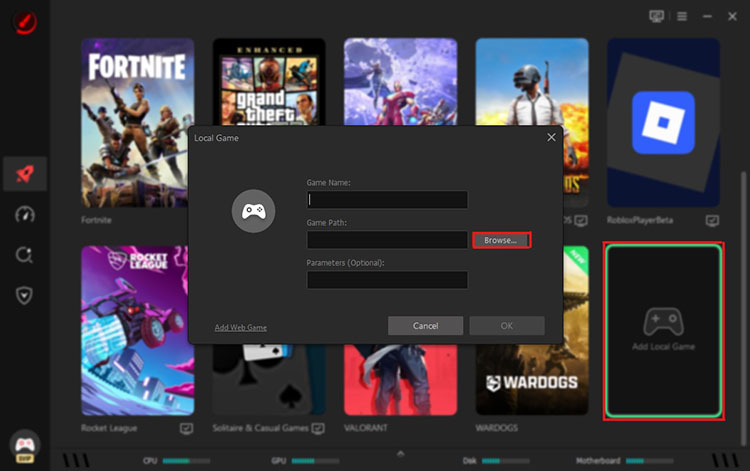
Step 2. Launch it and add The Finals to your game list.
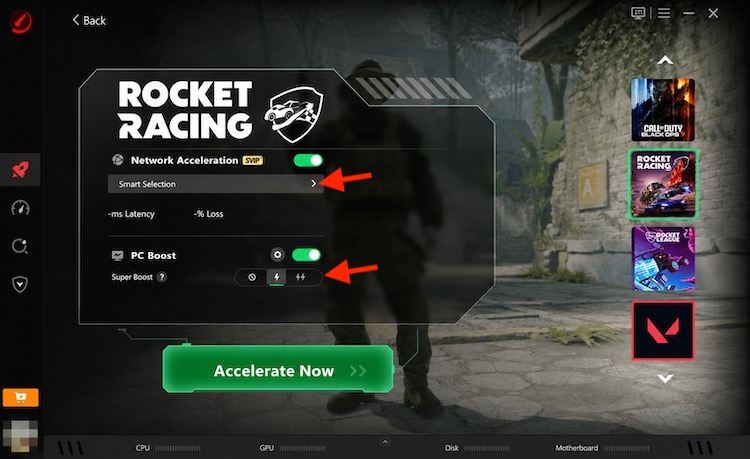
Step 3. Enable Network Acceleration and set the acceleration mode to Smart Selection. Then, check the PC Boost tab for additional performance optimization options. Once you have selected the settings you need, click Accelerate Now to apply the changes and optimize your gaming experience.
Smart Game Booster is best suited to system-performance-related lag. If your FPS is stable but other players teleport, or actions respond late, continue with the network troubleshooting below.
Fix 5. Turn On Windows Game Mode
Windows may run numerous background tasks while you play. Game Mode is designed to prioritize the gaming experience and limit certain background activity. It is a simple setting to check when troubleshooting inconsistent FPS, especially if THE FINALS becomes less smooth when other Windows processes start working in the background. Here are the steps to enable Windows Game Mode.
Step 1. Press Windows + I to open Settings.
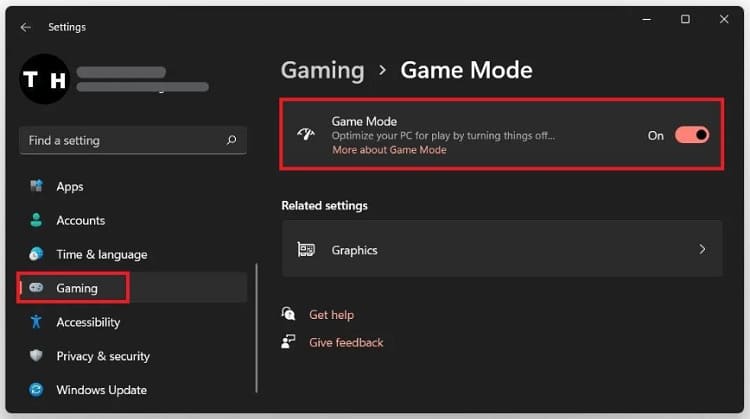
Step 2. Select Gaming > Game Mode.
Step 3. Turn the Game Mode switch On.
Step 4. Restart THE FINALS and check whether frame-rate consistency improves.
Fix 6. Fix Network Lag, Ping, and Hardware Issues
Why is The Finals so laggy on PC for me? The final fix is to determine whether the remaining lag comes from your internet connection or a hardware limitation. Stable FPS combined with teleporting players or delayed actions usually indicates network problems, while FPS that deteriorates as your PC becomes hot may point to thermal throttling or hardware limitations.
For network lag:
Use Ethernet instead of Wi-Fi when possible.
Pause downloads and cloud synchronization.
Close bandwidth-heavy streaming applications.
Restart your router if the connection is unstable.
Avoid VPN connections that significantly increase latency.
Check for high ping or packet loss.
For hardware-related lag:
Monitor CPU and GPU temperatures while playing.
Check whether GPU usage reaches its maximum during FPS drops.
Make sure your RAM is not consistently near full capacity.
Keep sufficient free storage space.
Make sure The Finals is installed on a suitable SSD when possible.
Check that your PC meets the game's current hardware requirements.
If The Finals runs smoothly at first but becomes increasingly laggy after several minutes, high temperatures or resource saturation may be contributing to the problem.
Conclusion
When The Finals feels laggy, first determine whether you are experiencing low FPS, stuttering, or network latency. The above-introduced fixes can address many common causes. For resource-related FPS drops and stuttering, Smart Game Booster offers a convenient way to free RAM, reduce unnecessary background workloads, and optimize your PC before gaming. Following these targeted fixes makes it easier to determine why is The Finals so laggy on PC and improve gameplay without applying unnecessary changes. If you didn’t find a suitable solution, just try to search for why is The Finals so laggy on PC Reddit to find answers.
Key Features of Smart Game Booster
- Enjoy lag-free & low-ping gaming
- 100+ games supported
- Severs from all over the world
- Boost in-game FPS