You fire up BlueStacks, ready to dive into your favorite mobile game, and then—stutter, freeze, lag. Sound familiar? “Why is BlueStacks so laggy?” may be the most frequently asked question on Google by game players. The emulator is powerful, but without the right settings, even a decent PC can struggle to keep up. In most cases, lag issues aren't permanent—they're just configuration problems waiting to be solved. In this guide, we are going to talk about what causes the slowdown and give you five proven fixes that actually work. No fluff, no tech jargon overload—just straight-up solutions!

Why Is BlueStacks So Laggy?
Before starting, let's talk about what's actually going on under the hood. Why is BlueStacks so laggy on your system? The answer usually comes down to three main causes:
This is the big one. Virtualization lets your CPU run Android environments efficiently. If it's turned off in your BIOS, BlueStacks has to work way harder than it should—and that means lag. In fact, many users don't even realize this setting exists, let alone that it's disabled by default on some PCs.
Here's the thing—giving BlueStacks too few resources causes lag, but giving it too much can actually make things worse. If you starve Windows of RAM, your whole system slows down. Finding that sweet spot is key. And if you're tired of juggling resource allocations, a dedicated FPS booster can automatically balance these for you.
BlueStacks offers multiple graphics renderers—OpenGL, DirectX, and Vulkan. Pick the wrong one for your GPU, and you'll see frame drops left and right. Plus, if BlueStacks isn't using your dedicated graphics card, you're leaving performance on the table.
Top 4 Fixes for Why BlueStacks So Laggy
Alright, enough diagnosis—let's get to the solutions. Here are four fixes you can apply right now to stop asking why is BlueStacks so laggy and start enjoying smooth gameplay.
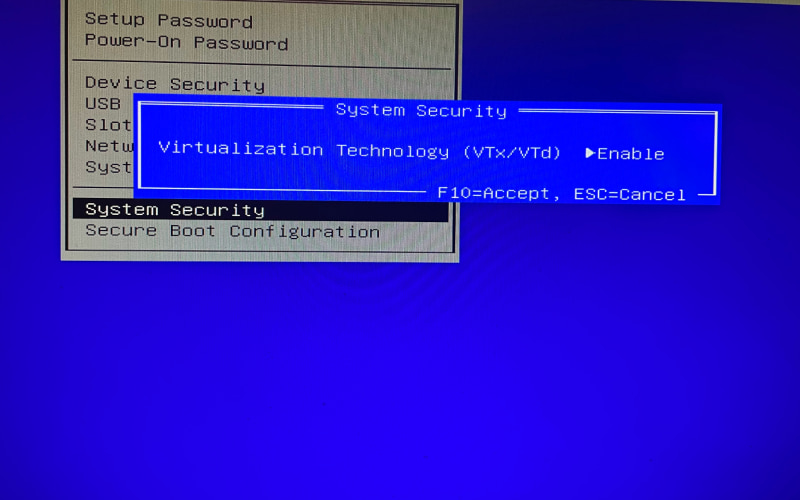
Turn On Hardware Virtualization (VT) in BIOS
This is the single most important fix, and it’s also one of the best BlueStacks settings to stop FPS drops. If virtualization isn't enabled, nothing else you do will matter much.
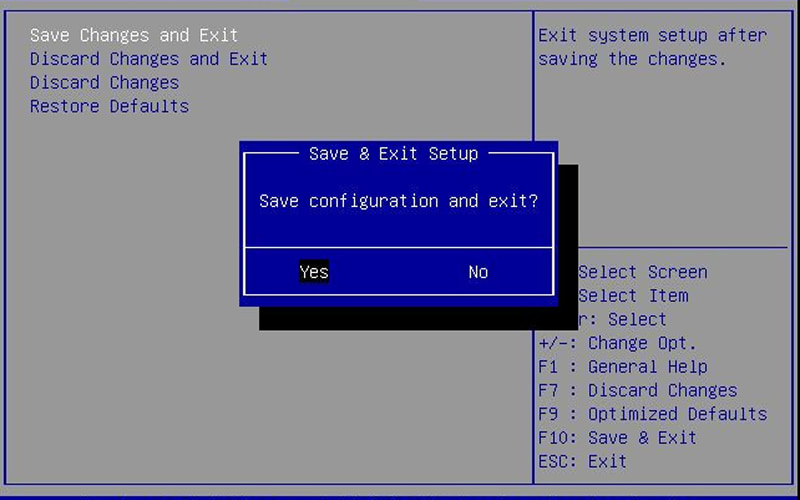
Step 1: Restart your PC. As it boots up, repeatedly press the BIOS key—usually F2, Del, Esc, or F10 (check your motherboard manual if unsure).
Step 2: Once in BIOS, look for settings like VT-x (for Intel), AMD-V (for AMD), SVM Mode, or Virtualization Technology.
Allocate More CPU Cores and RAM
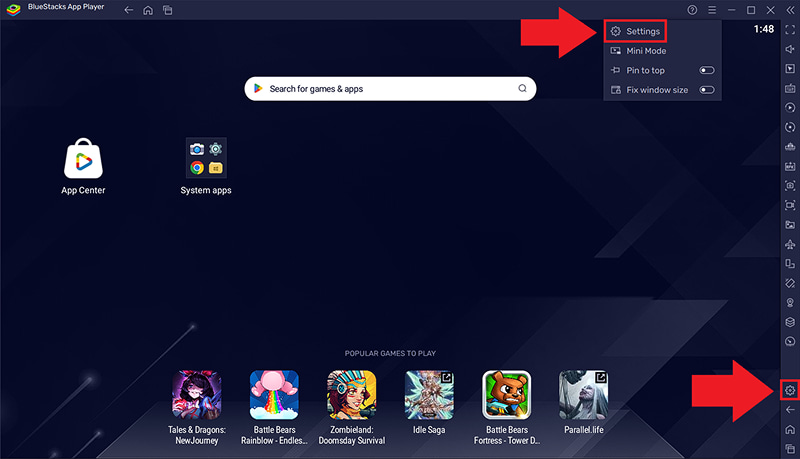
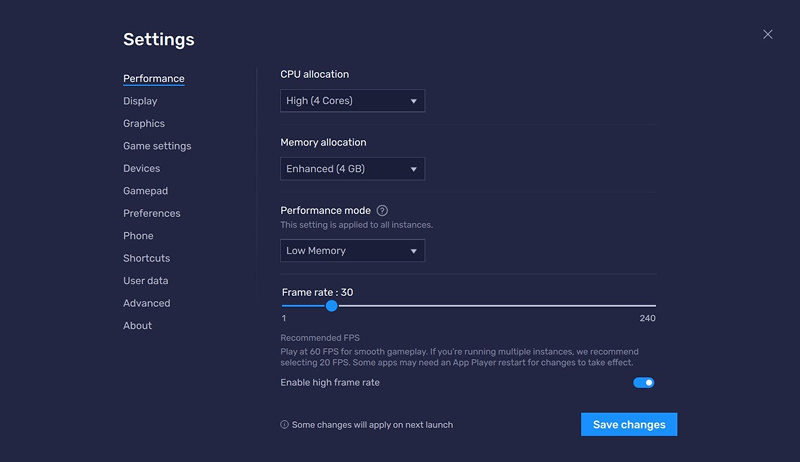
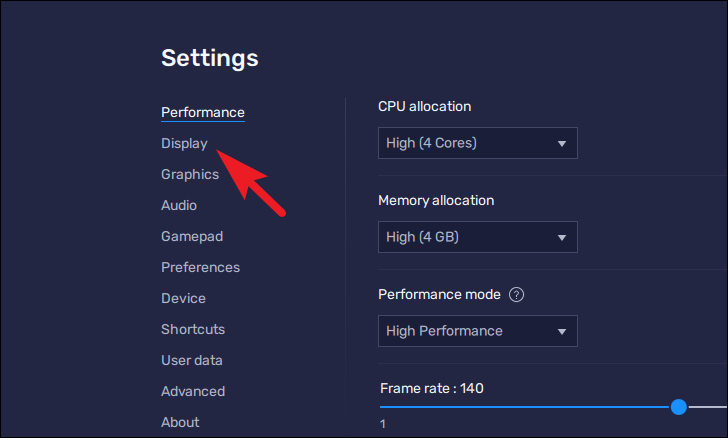
Now that virtualization is on, let's give BlueStacks the resources it actually needs, which can really help you figure out why is BlueStacks so laggy.
Force BlueStacks to Use Your Dedicated GPU
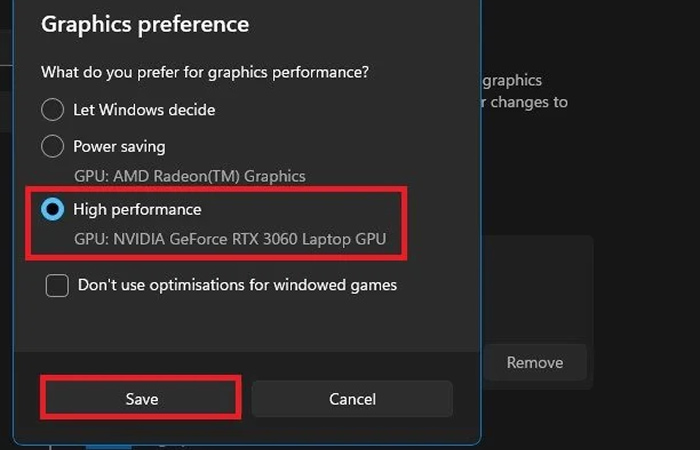
If you have a dedicated NVIDIA or AMD graphics card, make sure BlueStacks is actually using it—not your integrated graphics, it’s the best BlueStacks settings to stop FPS drops 2025 on Reddit.
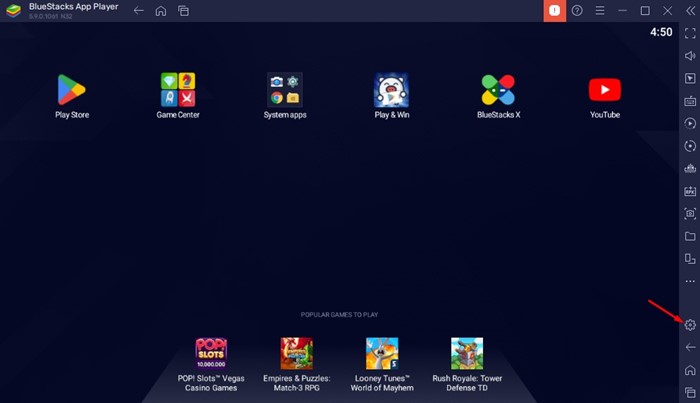
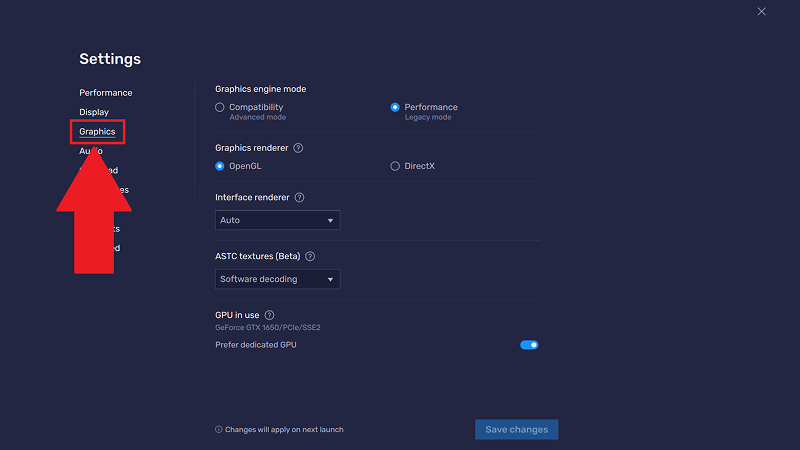
Step 3: If you don’t see that option, go to Settings > System > Display > Graphics, find BlueStacks, and select High performance to use your dedicated GPU.
Also Read: Best PC Game Launchers Explained: Steam, Epic Games & More >>
Switch the Graphics Renderer
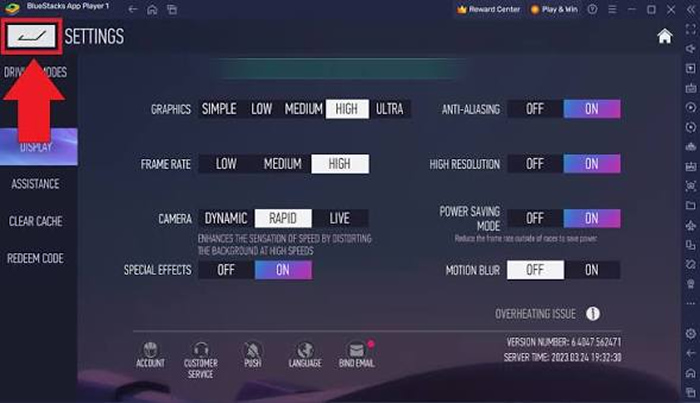
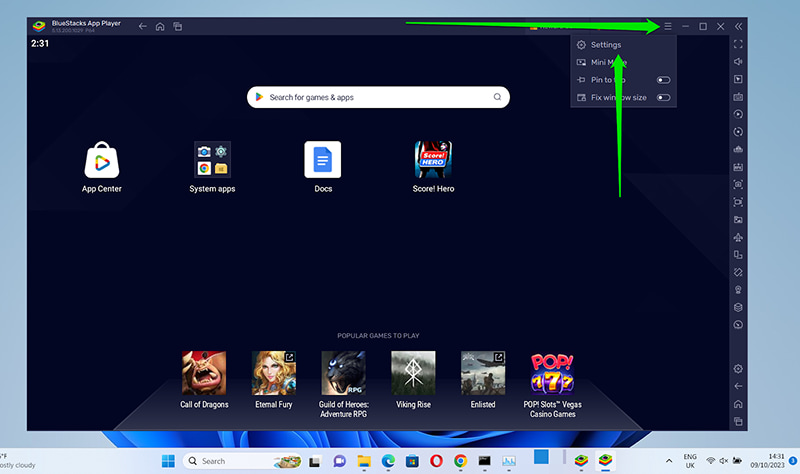
If you've been asking yourself why is BlueStacks so laggy, here's a simple test: different games run better on different renderers. Trying each one can instantly eliminate those annoying BlueStacks FPS drops.
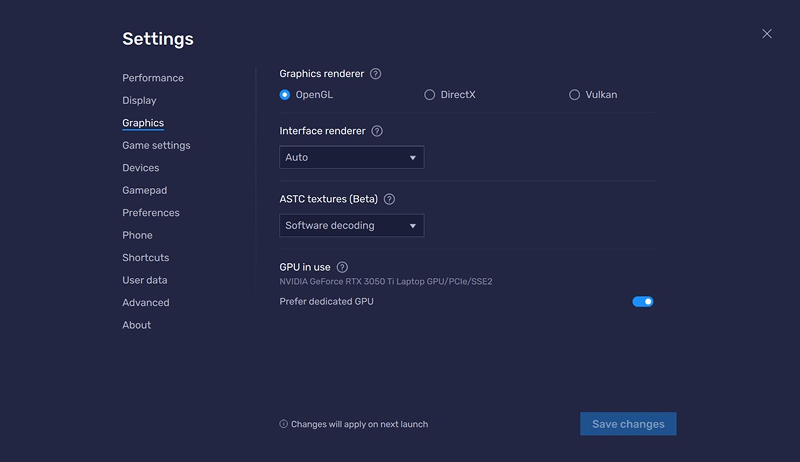
Now, here's the thing—even with all these tweaks, you might still run into issues. Background apps eating resources, outdated drivers, or Windows services slowing things down can undo all your hard work. If you are still wondering why is BlueStacks so laggy, that's where the perfect solution comes in.
One-Stop Solution: Use Smart Game Booster to Fix BlueStacks Lagging
To be honest, it's really annoying to manually tweak settings every time you want to play games.Wouldn't it be great if there was a tool that handled all of this for you with one click? Enter Smart Game Booster.
Smart Game Booster is a powerful, free optimization utility designed specifically for PC gamers. Instead of hunting down background processes, tweaking registry entries, and adjusting network settings yourself, this tool does it all automatically. Here’s how you can use Smart Game Booster to solve the problem:
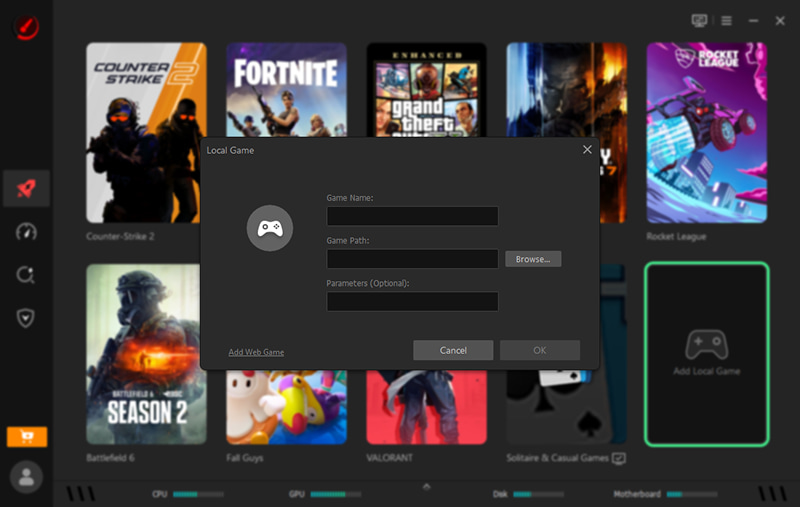
Step 3: Click "Accelerate Now". With a single click, Smart Game Booster frees up system resources, applies network acceleration, and prioritizes your game.
What Makes Smart Game Booster Different?
120% FPS Boost & 80% Ping Reduce — When Smart Game Booster kicks in as your FPS booster, those extra frames translate into smoother aim tracking, fewer stutters during firefights, and overall responsiveness that actually keeps up with your reflexes. And on the network side, it works as a dedicated ping reducer—prioritizing your game traffic so your shots register when they're supposed to, not half a second after you've already been eliminated.
Driver Update & System Tweaks — Outdated drivers? Yeah, they're a major lag culprit. Smart Game Booster automatically detects and updates them, along with applying system tweaks that speed up your entire PC.
System Temperature Monitoring — Overheating can throttle performance. Smart Game Booster monitors your CPU and GPU temperatures in real-time, so you know exactly what's going on under the hood.
What's more, it’s also a convenient PC game launcher for managing all your games in one place. With Smart Game Booster, you don't need to remember the best BlueStacks settings to stop FPS drops or search for the best BlueStacks settings to stop FPS drops 2025—the tool optimizes everything for you.
Key Features of Smart Game Booster
- Enjoy lag-free & low-ping gaming
- 100+ games supported
- Severs from all over the world
- Boost in-game FPS
Final Words
So, why is BlueStacks so laggy on your PC? It could be virtualization disabled, wrong resource allocation, incorrect graphics settings, or simply too many background tasks eating your system's power. Now it's time to stop wasting time tweaking settings and restarting your emulator. Get Smart Game Booster, click Accelerate Now, and get back to what matters—actually enjoying your games. Why is BlueStacks so laggy? With these fixes, it won't be anymore.